When an iPhone will not restore to factory settings, update the Mac or the Apple Devices app, connect the iPhone with a working cable, put it in recovery mode and choose Restore.
This guide covers erasing from Settings, restoring with Finder, iTunes or Apple Devices, the error codes that stop a restore, and what to do when the iPhone sits on the Apple logo.
How to restore an iPhone that will not restore to factory settings
Recovery mode restores the iPhone even when it is frozen, locked or stuck in a failed update. It erases everything, so it is the route to use when a normal restore keeps failing.
- Update macOS on your Mac, or install the latest Apple Devices app on a Windows PC.
- Plug the iPhone into a USB port on the computer itself, not a keyboard port, using the cable that came with it or another Apple-certified cable.
- Open Finder on the Mac, or Apple Devices on the PC.
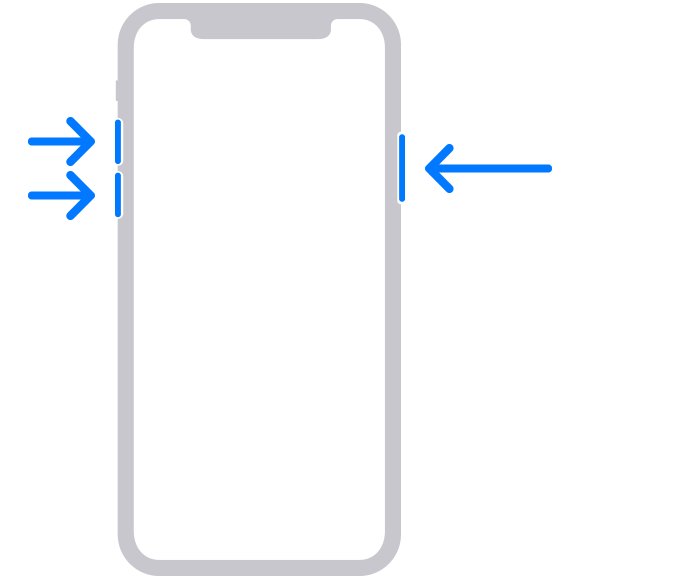
- On iPhone 8 or later, press and quickly release volume up, press and quickly release volume down, then hold the side button until the Connect to computer screen appears.
- Select the iPhone on the computer, then choose Restore when the Update or Restore options appear.
- Leave the iPhone connected while the computer downloads iOS. If the download takes over 15 minutes and the iPhone leaves recovery mode, let the download finish and enter recovery mode again.
- When the Hello screen appears, set up the iPhone and restore a backup if you have one.
This also works when you no longer know the passcode, and it is the same route used to factory reset a locked iPhone.
Why won't my iPhone restore or update?
Most failed restores end with "The iPhone could not be restored. An unknown error occurred" and a number. The number tells you where the restore broke.
| What you see | What it means | Fix |
|---|---|---|
| Error 9, 4005, 4013 or 4014 | The iPhone disconnected from the computer during the restore | Force restart, try Update, then another cable or computer |
| Error 13, 1600-1604, 1611, 1643-1650 or 2000-2009 | A USB connection problem | Use an Apple cable and a port on the computer itself |
| Error 17, 1109, 1639, 3000-3020 or 3194 | The computer cannot reach Apple's update servers | Check the internet connection and the hosts file |
| Error 10 | iOS on the iPhone is newer than the computer's software | Update the Mac, iTunes or the Apple Devices app |
| Error 4037 | The iPhone is locked, so the computer cannot update it | Unlock it, or use recovery mode if you forgot the passcode |
| Error 1015 or "The required resource can't be found" | Modified software or an attempt to install an older iOS | Restore the latest iOS in recovery mode |
| Error 1, 3, 11, 12, 16, 53 or another hardware code | A possible hardware fault | Try once more on another computer, then get service |
| The iPhone does not appear in Finder or Apple Devices | Cable, port or trust problem | Fix the connection before you try to restore |
How to restore iPhone without iTunes from Settings
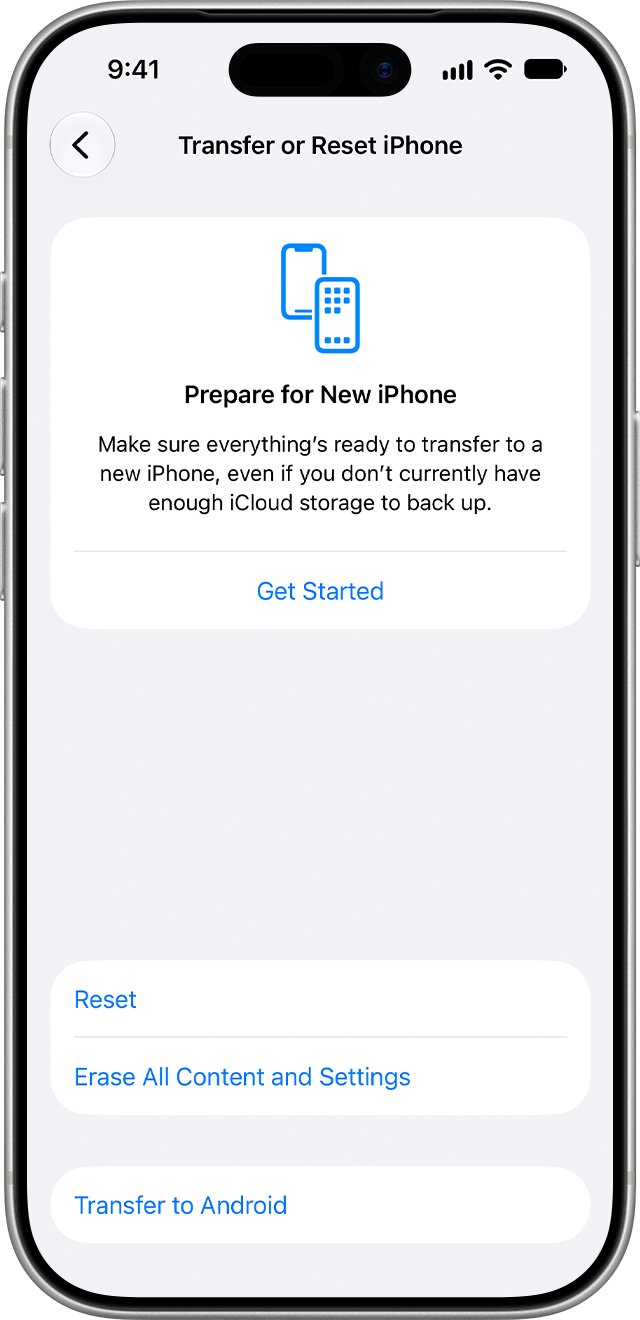
If the iPhone still works and you know its passcode, factory reset the iPhone from Settings. No computer is needed.
- Back up the iPhone to iCloud or a computer if you want to keep your data.
- Open Settings and tap General.
- Tap Transfer or Reset iPhone, then Erase All Content and Settings.
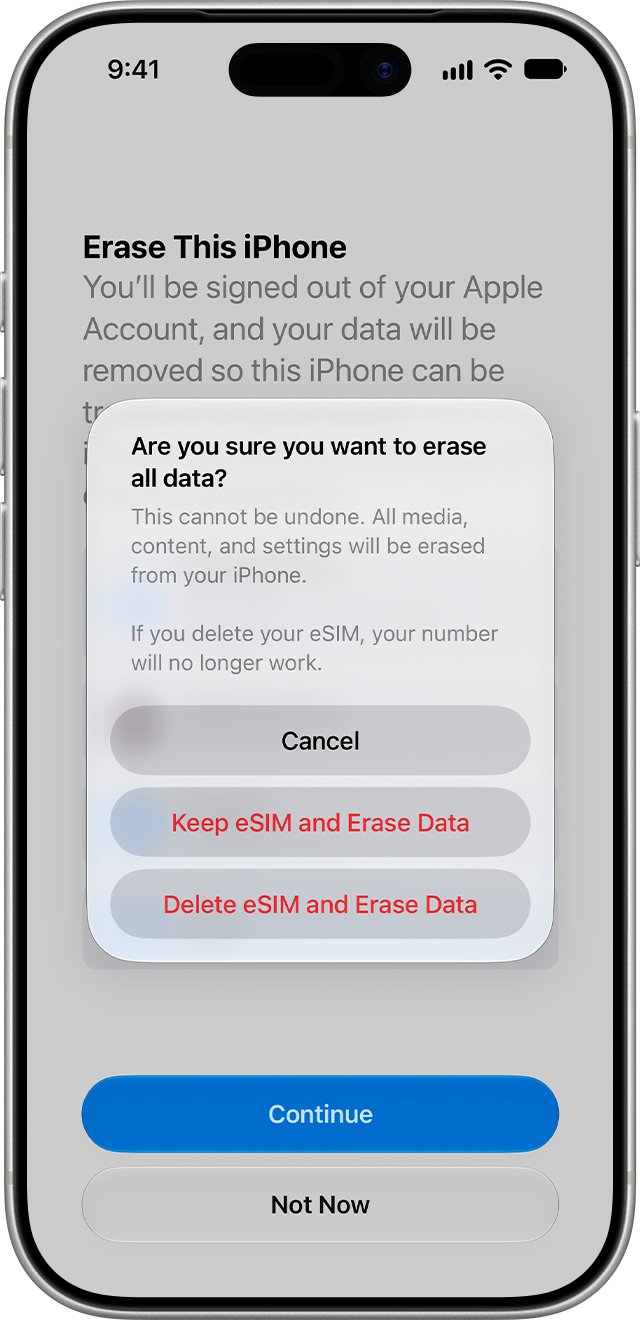
- Tap Continue, and choose to keep or delete your eSIM.
- Enter the iPhone passcode, then wait for the backup to finish.
- Enter your Apple Account password and tap the done button on the keyboard.
- Wait for the iPhone to reset. The Hello screen appears when it is finished.
If the erase stops at the passcode or Apple Account password step, you need those details or a computer restore. Deleting the eSIM means calling your carrier to reactivate the plan.
Why won't iTunes restore my iPhone?
A normal computer restore needs the iPhone to be unlocked, trusted and prepared first. Missing one of these steps is the usual reason Finder, iTunes or Apple Devices stops partway.
- Update the Mac or PC, and update iTunes if you use it.
- On the iPhone, open Settings > your name > Find My > Find My iPhone and turn it off, then enter your Apple Account password.
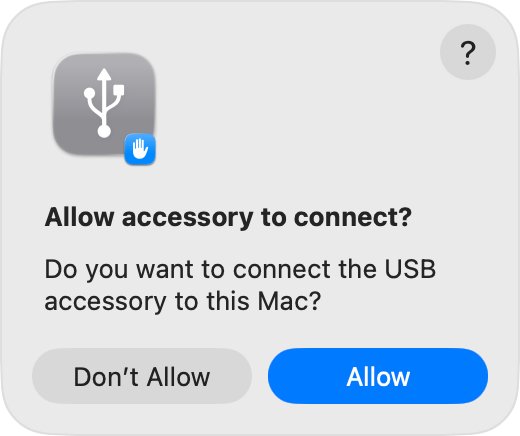
- Connect the iPhone to the computer, and click Allow if the Allow accessory to connect? alert appears.
- Open Finder on a Mac or Apple Devices on a PC, and select the iPhone in the sidebar.
- Click Trust on the computer, tap Trust on the iPhone, and enter the iPhone passcode.
- In Apple Devices, select General. Then click Restore iPhone and follow the onscreen steps.
- Click Back Up or Don't Back Up if asked, click Restore to confirm, and click Agree to the terms.
If you cannot unlock the iPhone or turn off Find My, skip this method and use recovery mode instead. A computer restore does not delete the eSIM.
How to put iPhone in recovery mode on every model
Connect the iPhone to the computer and open Finder or Apple Devices before you press anything. Then use the buttons for your model and hold until the Connect to computer screen appears.
| iPhone model | Recovery mode buttons |
|---|---|
| iPhone 8 or later, including iPhone SE (2nd generation and later) | Press and release volume up, press and release volume down, then hold the side button |
| iPhone 7 and iPhone 7 Plus | Hold the top or side button and volume down together |
| iPhone 6s or earlier, including iPhone SE (1st generation) | Hold the Home button and the top or side button together |
Release the buttons only when the computer-and-cable image shows, not at the Apple logo. If a button is broken or sticks so you cannot reach recovery mode, the iPhone needs service.
iPhone could not be restored: error 9, 4005, 4013 or 4014
These four errors mean the iPhone lost its connection with the computer partway through. Updating first keeps your data, so try that before another full restore.
- Update the Mac to the latest macOS, or update iTunes or Apple Devices on the PC.
- Force restart the iPhone: on iPhone 8 or later press volume up, press volume down, then hold the side button until the Apple logo appears.
- Connect the iPhone with a USB cable and select it on the computer.
- Click Update instead of Restore. This reinstalls iOS and keeps your personal data.
- If the iPhone starts in recovery mode during the update, click Restore instead, then set it up from a backup.
- If the error comes back, try another USB cable, then another computer.
If error 9, 4005, 4013 or 4014 still appears on a second computer, contact Apple Support, because a hardware fault is likely.
iPhone could not be restored: error 1109 or 3194
Errors 17, 1109, 1639, 3194 and the 3000 range mean the computer cannot talk to Apple's software update servers. The iPhone itself is usually fine.
- Update the Mac, the latest iTunes, or the Apple Devices app, then try the restore again.
- Check that the computer is online by loading a website.
- Connect the computer straight to the modem with an Ethernet cable, bypassing the router, then restart the computer and the modem.
- If the computer is on a work or school network, ask the network administrator, because proxies on managed networks cause these errors.
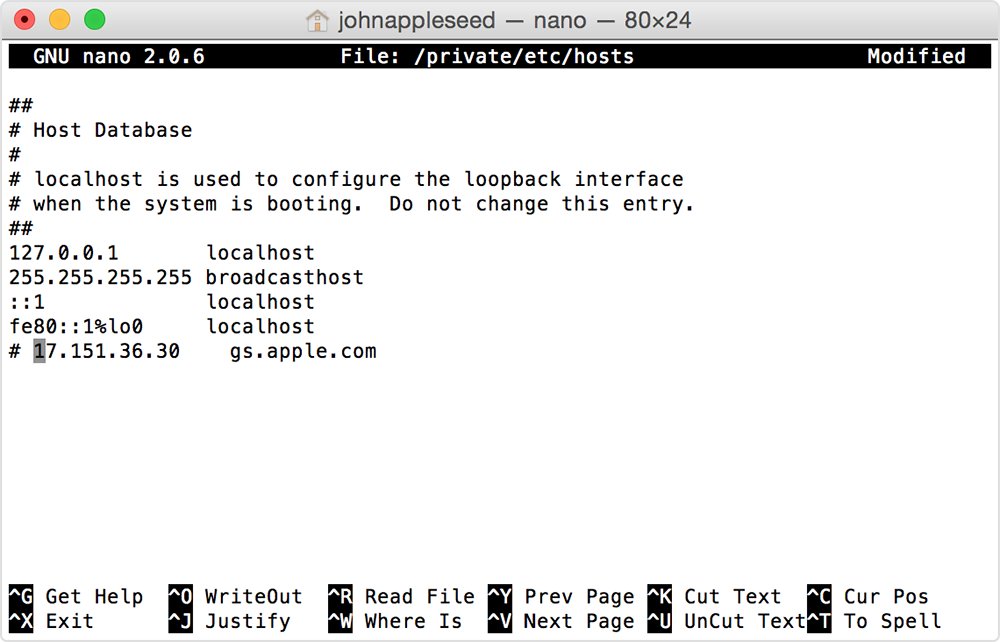
- On a Mac, open Terminal from Applications > Utilities, type
sudo nano /private/etc/hostsand press Return, then enter your Mac password. - Look for a line containing
gs.apple.com. If there is one, add#in front of it, press Control-O, press Return, then press Control-X and restart the Mac. - If it still fails, restore on another computer with a different internet connection.
On Windows, a modified hosts file can cause the same block. Microsoft's instructions reset it to the default, which can affect other software on a work computer.
iPhone not showing up in Finder or Apple Devices for restore
A restore cannot start until the computer sees the iPhone. If the iPhone does not chime or vibrate when you plug it in, start with the cable and port.
- Unplug the cable and check the iPhone's charging port for lint or debris.
- Use a cable that supports both data and charging. A charge-only cable will not work for a restore.
- Try another USB port, then another computer.
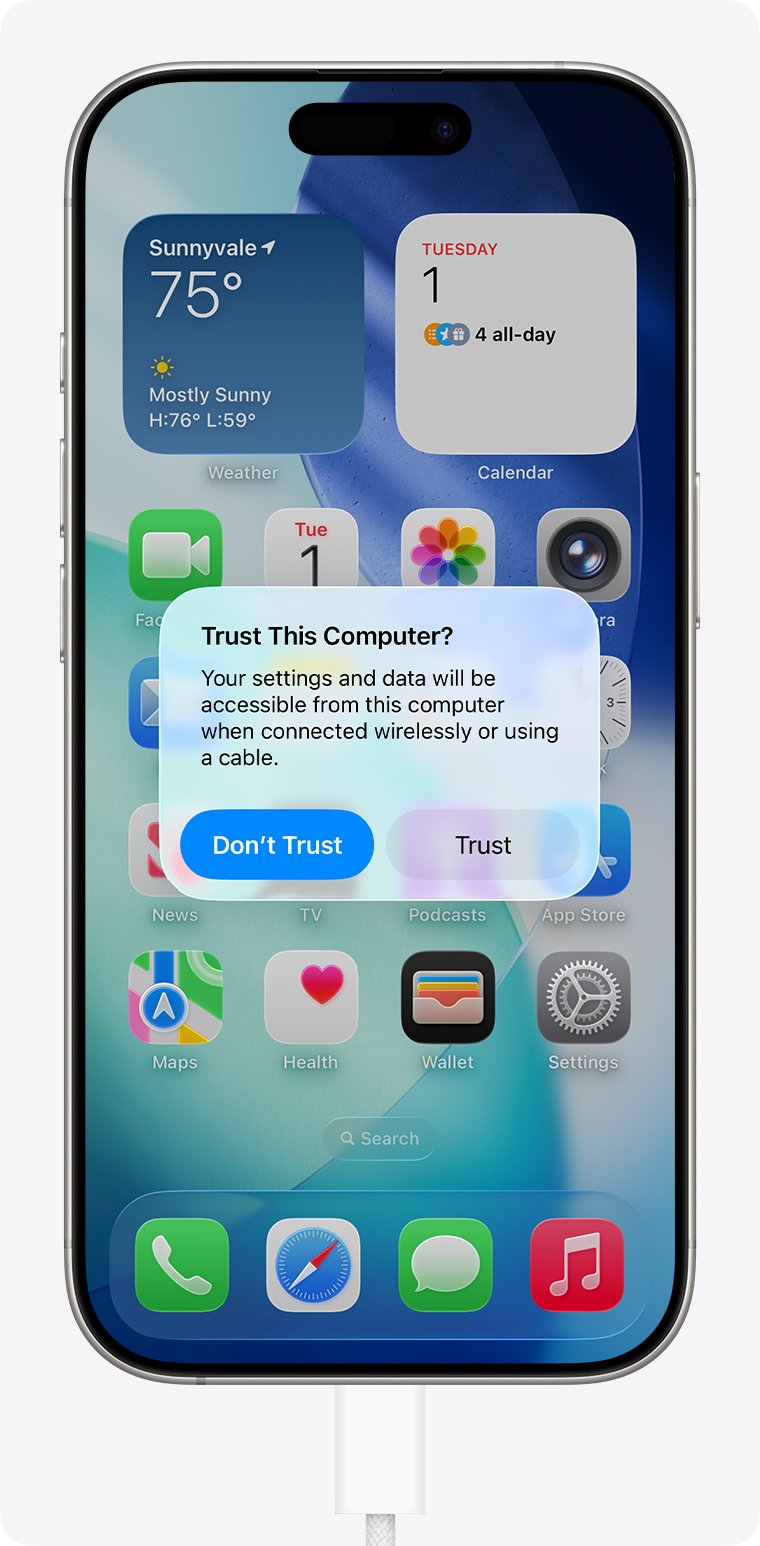
- Tap Trust if the Trust This Computer? alert appears on the iPhone, and click Allow on a Mac if it asks.
- On a Mac, choose View > Show Sidebar in Finder if the sidebar is hidden.
- Update macOS or Windows, and update iOS if the iPhone still turns on normally.
If you tapped Don't Trust by mistake, resetting the iPhone's location and privacy settings brings the alert back. If no computer ever sees the iPhone, it may need service.
How to tell if the iPhone factory restore is finished
- Look at the iPhone: a finished restore ends on the Hello setup screen.
- If the screen shows the Apple logo and a progress bar, leave it alone. The bar can move slowly, stop, or fill and start again.
- Check the computer: when the iPhone appears in Finder or Apple Devices and offers sync options, the process is complete.
- Disconnect the iPhone only after the Hello screen appears.
- Swipe up on the Hello screen and follow setup to restore a backup or set it up as new.
iPhone restore keeps failing
Why is my iPhone not recovering from the Apple logo
The update or restore is still running, or it stalled before it could finish.
- Wait. The Apple logo and progress bar can stay for a long time while files are processed.
- Keep the iPhone on power so the battery does not run out.
- If it never finishes, force restart the iPhone with the buttons for your model.
- If the logo and progress bar return, restore again in recovery mode, then get service if it repeats.
My iPhone will not restart
iOS has stopped responding, so a normal restart cannot run.
- Force restart: press volume up, press volume down, then hold the side button until the Apple logo appears on iPhone 8 or later.
- On iPhone 7, hold the side button and volume down; on iPhone 6s or earlier, hold Home and the side or top button.
- If the screen stays black, charge the iPhone for one hour and try again.
iPhone could not be restored and shows Connect to computer
iOS is damaged and the iPhone can no longer start from it, so it stays stuck on the restore screen.
- Connect it to a computer and choose Update first, which keeps your data if it works.
- If Update fails, choose Restore.
- If the iPhone repeatedly starts in Recovery Assistant and cannot recover, restore it from the computer in recovery mode.
iPhone unable to restore with a hardware error
Codes such as 1, 3, 11, 16, 21, 29, 40, 53, 1002 or 1669 point to hardware.
- Quit and reopen iTunes, Finder or Apple Devices.
- Use a reliable Apple cable, computer and network, and try the restore once more.
- If the same code returns, set up service with Apple.
iPhone restore not working FAQ
Why is my iPhone restore not working?
The computer software may be out of date, the cable or port may be dropping the connection, or the computer cannot reach Apple's servers. Update the Mac or Apple Devices app, use an Apple cable in a port on the computer, and try recovery mode.
Why does my iPhone restore keep failing?
A restore that fails at the same point each time usually has a connection or network cause. Errors 9, 4005, 4013 and 4014 mean a disconnect, and 1109 or 3194 mean no server access. Try another cable, another computer and another network before booking a repair.
Why can I not restore my iPhone?
A normal restore needs the passcode and Find My turned off. Without those, use recovery mode, which restores the iPhone without unlocking it. Activation Lock stays on, so the Apple Account password is needed to reactivate it during setup.
Can I restore my iPhone without iTunes?
Yes. Use Settings > General > Transfer or Reset iPhone > Erase All Content and Settings on the iPhone itself. On a Mac, Finder handles restores, and on Windows the Apple Devices app does. You can also erase it remotely at icloud.com/find.
What does error 1109 mean when restoring an iPhone?
Error 1109 means the computer could not reach Apple's software update servers. Update iTunes or Apple Devices, connect the computer straight to the modem, restart the modem, and check the hosts file for a gs.apple.com entry. Another computer and network often clears it.
Does restoring an iPhone in recovery mode delete everything?
Restore does. It reinstalls iOS and erases all data and settings, so you get your content back only from an iCloud or computer backup. Choosing Update in recovery mode reinstalls iOS and keeps your personal data, so try it first.
How long does an iPhone factory restore take?
The software download can take more than 15 minutes, and the Apple logo with a progress bar can stay on screen for a while afterwards. If the iPhone leaves recovery mode during a long download, let the download finish and enter recovery mode again.