A MOV file is an Apple QuickTime movie file, and Windows 11 opens most of them directly: right-click the file, select Open with and choose Media Player.
This guide explains what a MOV file holds, why some iPhone MOV videos need HEVC Video Extensions or VLC, and how to convert, compress or fix MOV files that will not play.
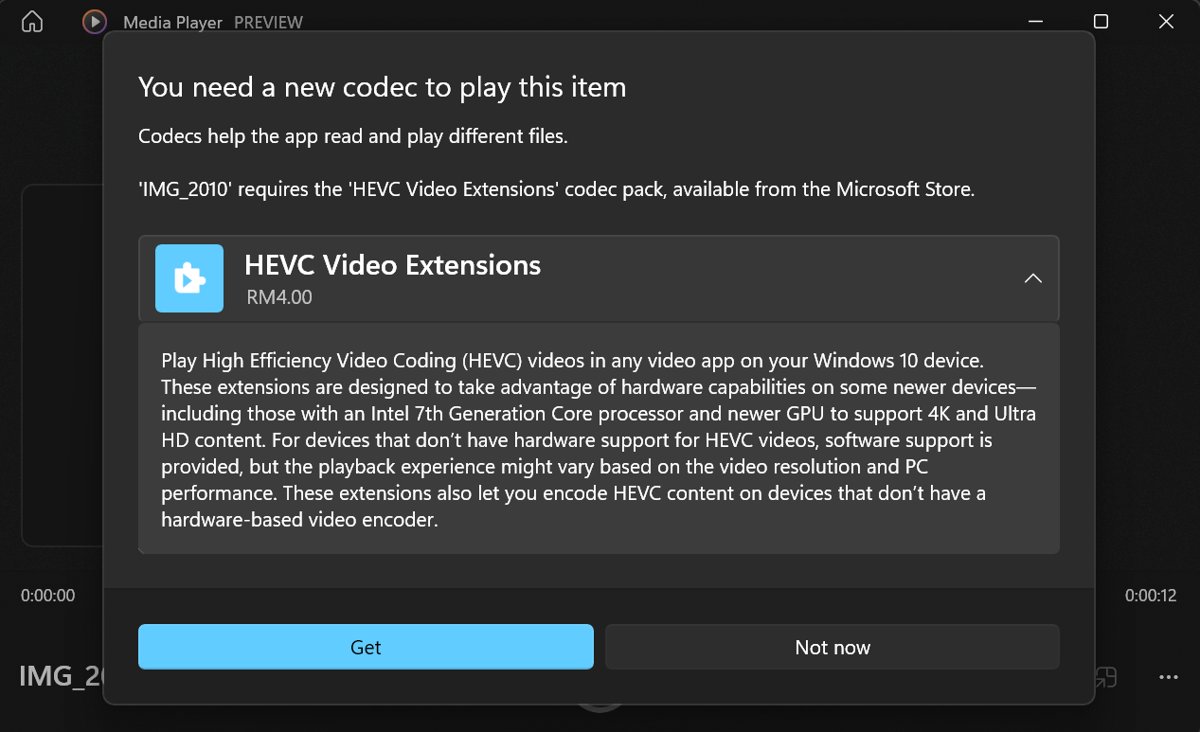
How to open a MOV file in Windows 11?
Windows has read the .mov container natively since Windows 7, and its built-in decoders handle H.264 video with AAC audio, the format most MOV files use.
- Open File Explorer and go to the folder that holds the video.
- Select View > Show > File name extensions if you cannot tell which file ends in .mov.
- Right-click the MOV file and select Open with.
- Choose Media Player from the list of apps.
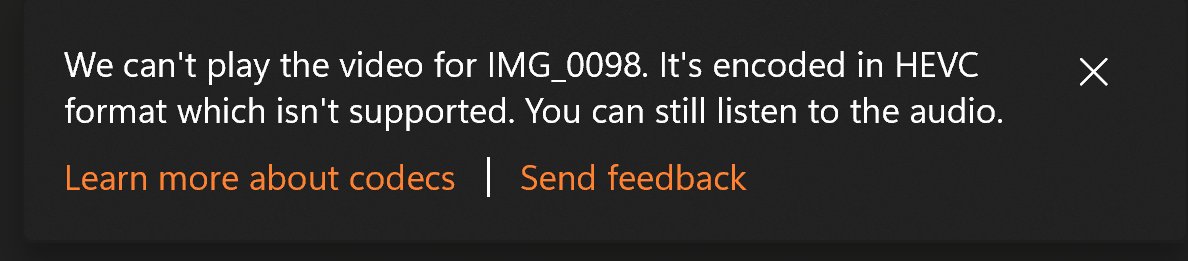
- Watch for a black picture with sound or a codec error; either one means the file needs VLC or the HEVC Video Extensions below.
Microsoft recommends the Media Player app, not Windows Media Player (Legacy), for modern video such as 4K. Apple's old QuickTime 7 for Windows is not needed, because current Windows media apps use the media support built into Windows.

What is a MOV file?
MOV is the extension of the QuickTime File Format (QTFF), the container Apple uses to store and exchange digital media between devices, apps and operating systems.
| Property | MOV file detail |
|---|---|
| Full name | Apple QuickTime movie file (.mov) |
| Format | QuickTime File Format, an object-oriented container made of atoms |
| What it holds | One or more tracks: video, sound, subtitles and metadata |
| Common video codecs inside | H.264, HEVC (H.265) from iPhone High Efficiency mode, Apple ProRes from iPhone Pro models |
| Where MOV files come from | iPhone and iPad cameras, many video cameras and DSLRs, and professional editing apps |
| Relationship to MP4 | QTFF is the basis of the MPEG-4 standard; the two share a structure but are distinct file types |
| Opens on Windows 11 with | Media Player, VLC, Clipchamp, and HandBrake for conversion |
The container and the codec are separate. Two MOV files can behave differently on the same PC, because the codec inside decides whether Windows can decode the picture, not the .mov extension.
MOV file player and viewer apps for Windows 11
| Your MOV file | Open it with | Why |
|---|---|---|
| H.264 video from a camera or an iPhone set to Most Compatible | Media Player | Windows includes H.264 and AAC decoders |
| HEVC (H.265) video from an iPhone set to High Efficiency | Media Player with HEVC Video Extensions, or VLC | Windows needs the HEVC extension; VLC decodes HEVC itself |
| Apple ProRes from an iPhone Pro | HandBrake, to convert it to H.264 MP4 | ProRes is not in Windows' built-in decoder list |
| XAVC from a Sony camera | HandBrake, then play the MP4 | The built-in Windows playback stack does not support XAVC |
| You want to trim or edit the clip | Clipchamp | It accepts MOV and exports MP4 |
| Windows 11 N edition | Install the Media Feature Pack first | N editions ship without the media codecs and player apps |
Open MOV files in VLC media player
Free, open source VLC media player plays most codecs without codec packs, and its input formats include MP4, MOV and 3GP. Since version 3.0 it also decodes HEVC on Windows, with hardware acceleration through DxVA2 and D3D11.
- Download VLC from the official videolan.org site and install it.
- In File Explorer, right-click the MOV file and select Open with.
- Select VLC media player.
- While the video plays, select Tools > Codec Information to see which codecs the file uses.
VLC is the quickest fix for an iPhone MOV that shows a black screen in Media Player, because it does not depend on the HEVC Video Extensions.
HEVC Video Extensions for MOV files on Windows 11
An iPhone records HEVC video when Settings > Camera > Formats is set to High Efficiency. Windows plays HEVC only when a valid HEVC Video Extensions package from the Microsoft Store is installed.
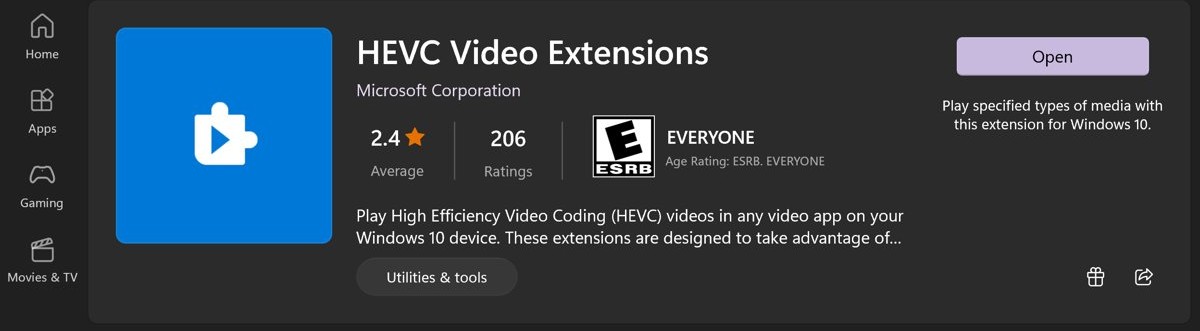
Some PCs already include HEVC Video Extensions from Device Manufacturer, which supplies the same decoder.
- Open Microsoft Store from the Start menu.
- Type HEVC Video Extensions in the search box and open the listing published by Microsoft.
- Install the extension and wait for the Store to finish.
- Close Media Player if it is open, then open it again.
- Right-click the iPhone MOV file, select Open with and choose Media Player.
Install the extension only from the Microsoft Store. Microsoft notes that a copy from a third-party platform can carry an invalid license, and the HEVC decoder then refuses to start.
Check if HEVC Video Extensions is installed with PowerShell
Run this when an HEVC MOV still shows no picture after you installed the extension. Open PowerShell as administrator first.
Get-AppxPackage -AllUsers *HEVC* | Select-Object Name, PackageFullNameGet-AppxPackage lists installed Store packages for every user account, the *HEVC* wildcard keeps only packages with HEVC in the name, and Select-Object shows just the name and full package name.
You should see: One or more rows with HEVC in the Name column mean an HEVC extension is installed. No output means none is installed, so install it from the Microsoft Store.
Convert MOV file to MP4 free with HandBrake
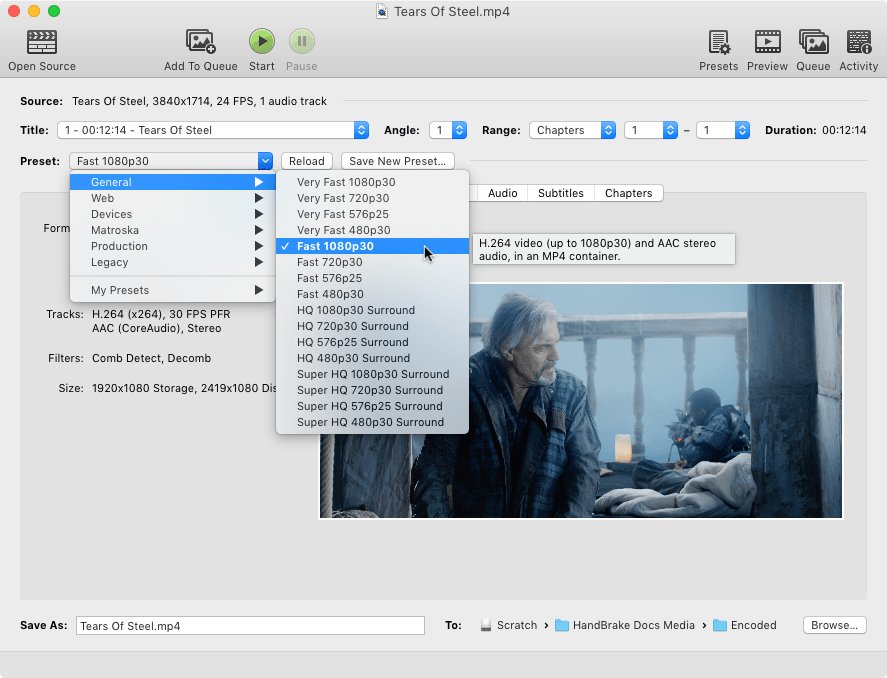
Free HandBrake opens MOV files from phones and cameras, including ProRes and XAVC footage. Its default preset writes H.264 video and AAC audio in an MP4 file, the combination Microsoft names as the most compatible.
- Download HandBrake from handbrake.fr, install it and open it.
- Select Open Source on the toolbar and choose the MOV file, or drag the file onto the HandBrake window.
- Leave the default Fast 1080p30 preset selected, or pick a 60 fps preset such as Creator 1080p60 for a 60 fps clip.
- Check the new file name in Save As, then select Browse… next to To to choose a folder.
- Select Start on the toolbar.
- Open the MP4 from the destination folder when HandBrake shows that encoding has finished.
Convert MOV to MP4 in Clipchamp on Windows 11
Clipchamp accepts MOV files and always exports an MPEG-4 (.mp4) video at 30 fps. The 480p, 720p and 1080p exports are free on a personal account.
- In File Explorer, right-click the MOV file and select Edit with Clipchamp.
- Wait for Clipchamp to open a new project with the video on the editing timeline.
- Select Export in the top-right corner of the editor.
- Choose 1080p, 720p or 480p from the list.
- Open your Downloads folder when the progress bar reaches 100 percent; the MP4 is saved there.
A 4K export needs a Microsoft 365 Personal or Family subscription or Clipchamp Premium. For free 4K or 60 fps output, use HandBrake instead.
Convert MOV file to MP3 with VLC
VLC's built-in Audio – MP3 profile saves only the soundtrack of a MOV file as a 128 kbps MP3 at 44,100 Hz in stereo.
- Open VLC and select Media > Convert / Save…, or press Ctrl + R.
- Add the MOV file to the list, then select Convert / Save.
- In the Convert window, choose Audio – MP3 from the profile list.
- Enter a destination file name that ends in .mp3, such as
C:\out.mp3. - Select Start and wait for the MP3 to appear in the destination folder.
The same profile list also holds MP4 profiles, so VLC can convert MOV to MP4 as well. Select Edit selected profile to check a profile's codecs before you start.
How to compress a MOV file and reduce MOV file size
Compressing a MOV file means re-encoding it at a lower resolution or bit rate. Each HandBrake preset below outputs an MP4 that is smaller than the original MOV.
| Goal | HandBrake preset or Clipchamp setting | Result |
|---|---|---|
| Smaller file, still full HD | Fast 1080p30 | H.264 MP4 at standard quality and average size |
| Much smaller file for email or the web | Fast 720p30 or Fast 480p30 | Lower resolution, smaller H.264 MP4 |
| Clip under 25 MB for chat apps such as Discord | Social 25 MB 1 Minute 720p60, or another Social 25 MB preset | 25 MB or less for a clip up to the length in the preset name |
| Keep 4K but use less space | Fast 2160p60 4K HEVC | H.265 MP4; playing it on Windows needs HEVC Video Extensions or VLC |
| Quick reduction without installing anything | Clipchamp export at 720p or 480p | MP4 at 30 fps, saved to Downloads |
Why are MOV files so big?
MOV files are big when they use light compression, high resolution or high frame rates. The codec setting on the iPhone makes the largest difference.
| Cause | Effect on file size | What to change |
|---|---|---|
| Apple ProRes recording on iPhone Pro models | Less compression, so much larger files | Turn off Apple ProRes in Settings > Camera > Formats, or convert the clip with HandBrake |
| H.264 instead of HEVC | HEVC stores the same visual quality in less space | Use High Efficiency if every device that plays the video supports HEVC |
| 4K resolution or 60 fps | More pixels and frames per second to store | Tap the resolution and fps values in the corner of the Camera screen before recording |
| Unedited camera original | The whole clip is kept at full quality | Re-encode with a smaller HandBrake preset or export at a lower resolution in Clipchamp |
Make Media Player or VLC the default MOV file player
If MOV files keep opening in the wrong app, change default apps for the .mov file type in Settings.
- Open Settings and select Apps > Default apps.
- In the search bar under Set a default for a file type or link type, type
.mov. - Select the .mov result from the list.
- Choose Media Player or VLC media player and confirm.
- Double-click a MOV file in File Explorer to check that it opens in the app you picked.
Change iPhone camera format to most compatible for Windows
This makes new iPhone videos H.264 MOV files, which play on any Windows 11 PC without extra extensions. Videos you already recorded keep their format.
- Open Settings on the iPhone.
- Tap Camera, then tap Formats.
- Tap Most Compatible.
- Record a short test clip, copy it to the PC and open it in Media Player.
- To let the iPhone convert existing HEVC videos as they copy to a PC, leave Keep Originals unselected under Settings > Apps > Photos.
Most Compatible uses more storage than High Efficiency, so switch back to High Efficiency if the PCs you use already have HEVC Video Extensions.
How to see which codec a MOV file uses
The codec explains every MOV playback problem, so read it before you install or convert anything.
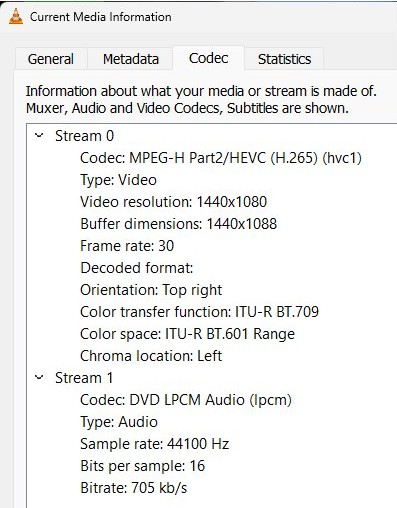
- Open the MOV file in VLC media player.
- Select Tools > Codec Information while the video plays.
- Read the video codec line: H.264 plays in Media Player, HEVC needs the extension, and ProRes or XAVC should be converted to MP4.
- In Windows Media Player (Legacy), play the file, right-click it in the library, select Properties and read Audio codec and Video codec on the File tab.
Why won't MOV files play on my PC?
MOV file plays sound but shows no video
Windows cannot decode the video codec, usually HEVC without the extension, ProRes or XAVC.
- Check the video codec with Tools > Codec Information in VLC.
- For HEVC, install HEVC Video Extensions from the Microsoft Store and reopen Media Player.
- For ProRes or XAVC, convert the file to MP4 with HandBrake's Fast 1080p30 preset.
"A codec is required to play this file" when opening a MOV
Windows Media Player (Legacy) lists MOV support only for QuickTime files version 2.0 or earlier.
- Close Windows Media Player (Legacy).
- Right-click the MOV file, select Open with and choose Media Player instead.
- If Media Player also fails, open the file in VLC media player.
Some MOV files play and others do not
The files use different codecs inside the same .mov container.
- Compare the codec of a working file and a failing file in VLC.
- Install HEVC Video Extensions if only the HEVC files fail.
- Convert the remaining failing files to H.264 MP4 with HandBrake or Clipchamp.
No MOV files play at all on Windows 11 N
N editions ship without the media codecs and media apps.
- Open Settings and go to Apps > Optional features.
- Select View features next to Add an optional feature.
- Choose Media Feature Pack and install it.
- Restart the PC; the installation is not complete until you do.
For player errors that are not specific to MOV, work through the Windows media codecs and playback fixes.
MOV file FAQ
Can I open .MOV files on Windows?
Yes. Windows 11 and Windows 10 read the .mov container natively, so Media Player opens most MOV files with H.264 video. HEVC videos from an iPhone need HEVC Video Extensions, and VLC media player opens almost any MOV without extra codecs.
How do I convert MOV files to Windows Media Player?
Convert the MOV to an MP4 with H.264 video and AAC audio, for example with HandBrake's Fast 1080p30 preset or a Clipchamp export. Microsoft lists MOV support in Windows Media Player (Legacy) only for QuickTime 2.0 or earlier files, so the newer Media Player app is the better choice.
Can I convert MOV to MP4?
Yes, for free. HandBrake converts MOV to H.264 MP4 with its default Fast 1080p30 preset, Clipchamp exports any imported MOV as an MP4 at up to 1080p on a free account, and VLC converts through Media > Convert / Save.
Why can't I play MOV files?
The video inside uses a codec your player cannot decode, most often HEVC from an iPhone, ProRes or XAVC. Install HEVC Video Extensions for HEVC, open the file in VLC, or convert it to H.264 MP4 with HandBrake.
Why won't my MOV file play in Windows Media Player?
Windows Media Player (Legacy) only lists support for QuickTime files version 2.0 or earlier. Open the file with the Media Player app or VLC instead, or convert it to an H.264 MP4 that every Windows player can read.
Why does my MOV file have no video?
Sound without a picture means the audio codec is supported but the video codec is not. Check the video codec in VLC under Tools > Codec Information, then install HEVC Video Extensions or convert the file to H.264 MP4.
Why do some MOV files not play?
MOV is a container, and different files inside it use different codecs. An H.264 MOV plays in Media Player, while an HEVC, ProRes or XAVC MOV on the same PC can fail until you add the HEVC extension or convert it.
Which MOV file player works on Windows 11?
Media Player, the app Microsoft recommends for modern video, plays H.264 MOV files and HEVC ones once HEVC Video Extensions is installed. VLC media player is the free alternative that plays most MOV files, including HEVC, without extra codec packs.
Can I convert a MOV file to MP3?
Yes. In VLC, open Media > Convert / Save, add the MOV file, choose the Audio – MP3 profile and enter a file name ending in .mp3. VLC saves the soundtrack as a 128 kbps stereo MP3.