On iPhone 17 Pro, the front microphone sits inside the receiver opening, the slim earpiece grille along the top edge of the front, and that same opening carries the top speaker.
This guide maps all four microphones and both speakers, shows how to test and clean each one, and covers the fixes and repair parts when one stops working.
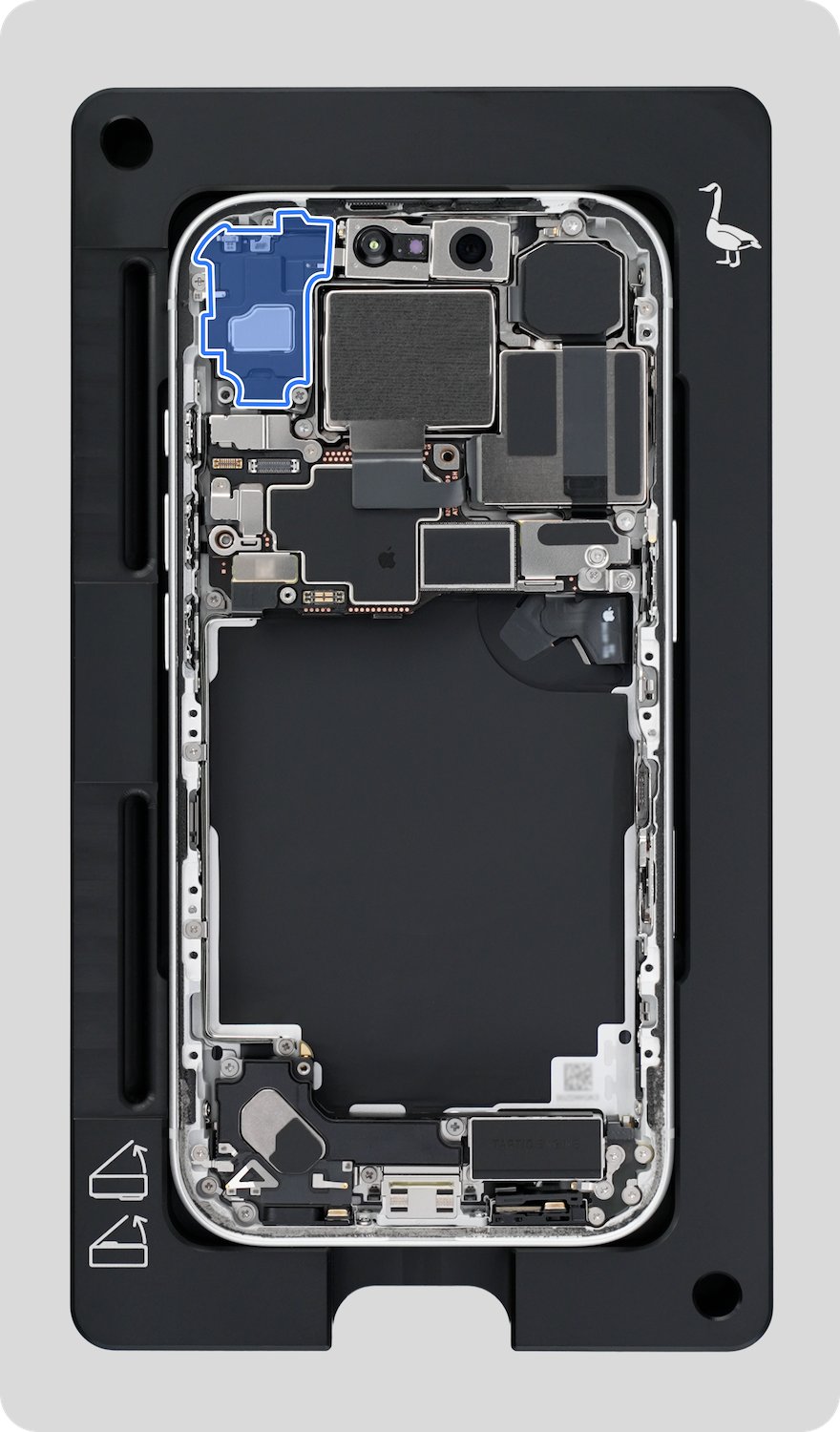
Where is the front microphone on iPhone 17 Pro?
There is no separate pinhole for the front mic. Apple's iPhone 17 Pro repair documentation describes it as the microphone embedded within the receiver opening.
- Hold your iPhone 17 Pro with the display facing you and the top edge up.
- Look at the very top edge, where the front glass meets the frame, above the Dynamic Island.
- Find the slim grille with a fine cover mesh. This is the receiver opening, the earpiece you hold to your ear on calls.
- Treat that whole grille as both the top speaker and the front microphone, because the front-facing mic sits inside it.
- Check that no screen protector, film or case edge covers the grille, since Apple's first fix for mic and speaker problems is removing them.
The other three microphones are on the bottom edge and the back, and the second speaker is on the bottom edge. The tables below show each one.
iPhone 17 Pro microphone locations: all four mics
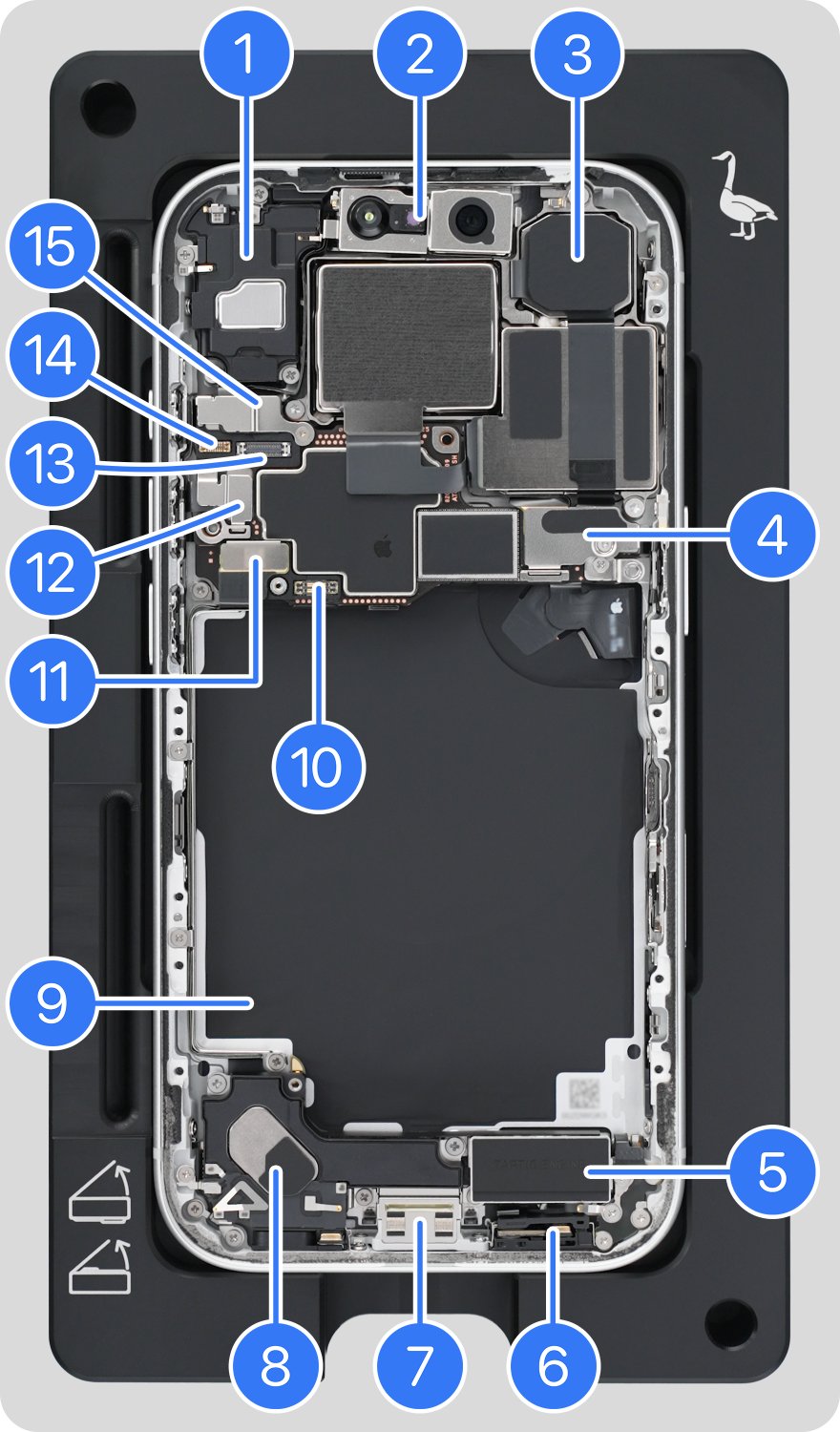
The iPhone 17 Pro tech specs list four studio-quality mics. Apple's service documentation numbers them like this.
| Apple's number | Microphone | Where it is | How Apple tests it |
|---|---|---|---|
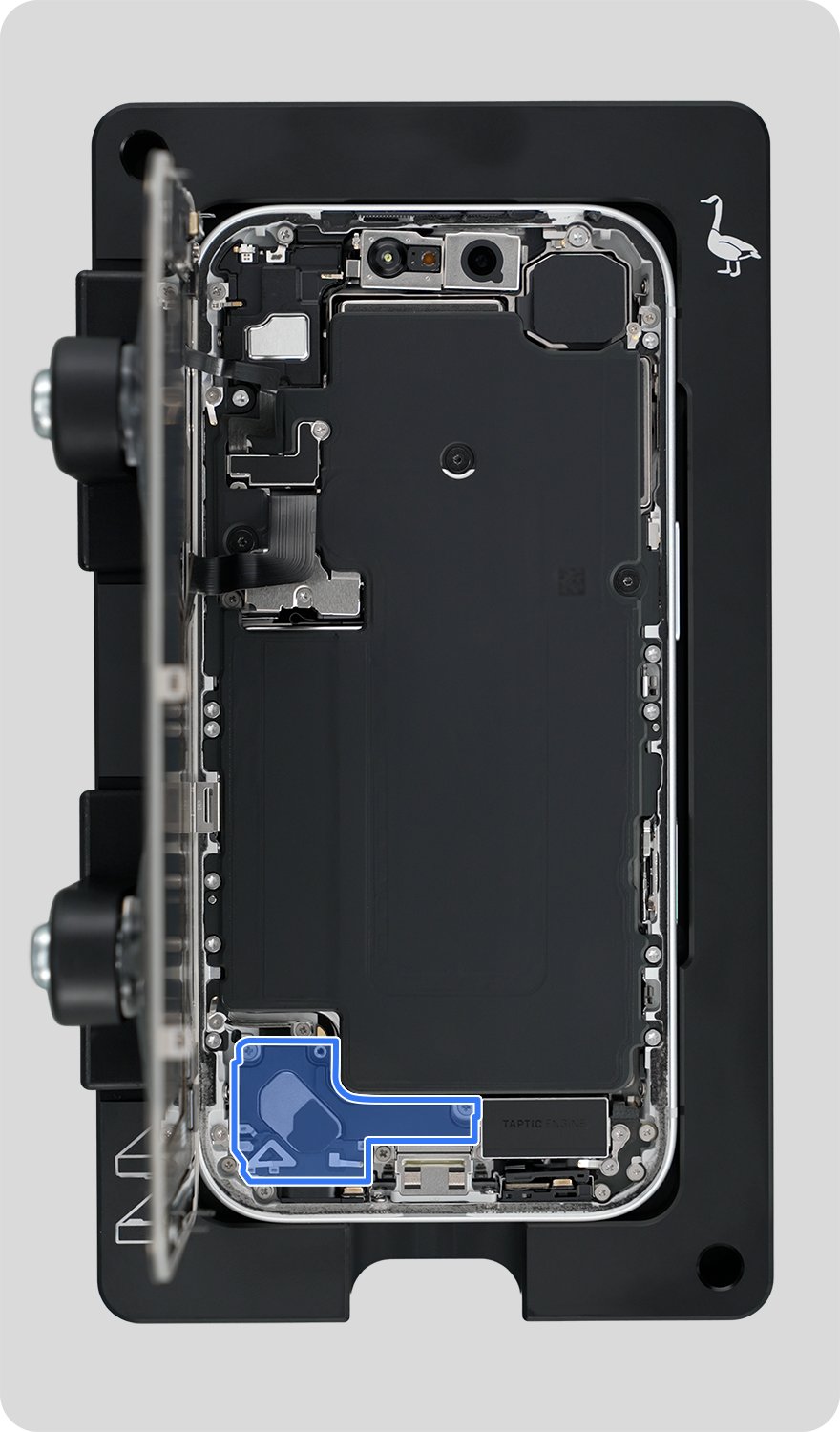
| Mic 1 | Main bottom microphone | Bottom edge, on the opposite side from the bottom speaker | Voice Memos recording while you speak at the bottom |
| Mic 2 | Rear microphone | On the back of the iPhone | Camera video while you speak at the top |
| Mic 3 | Front-facing microphone | Inside the receiver opening at the top edge of the front | Camera video while you speak at the top |
| Mic 4 | Secondary bottom microphone | Bottom edge, opposite the main microphone | Voice Memos recording while you speak at the bottom |
Apple tests normal calls with the bottom microphones and speakerphone calls with the top of the iPhone. That split tells you which openings to check when callers say you sound muffled.
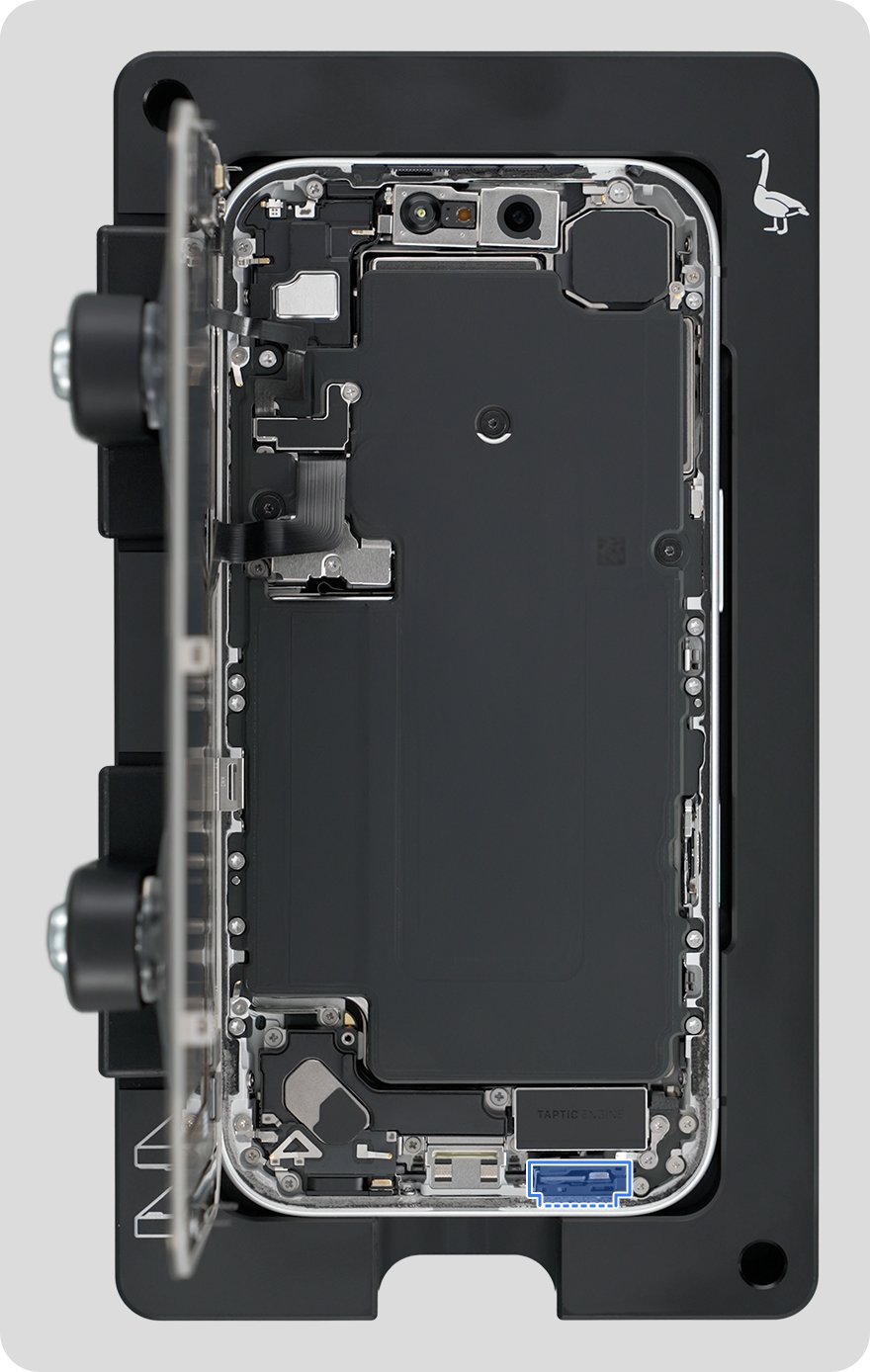
Where are the speakers on iPhone 17 Pro?
iPhone 17 Pro has a built-in stereo speaker system made of two parts: a top speaker and a bottom speaker.
| Speaker | Where it is | What you hear from it |
|---|---|---|
| Top speaker (receiver) | The grille along the top edge of the front, shared with the front mic | Call audio with the iPhone at your ear, plus the top channel of stereo sound |
| Bottom speaker | Bottom edge, beside the USB-C connector | Loudspeaker sound, plus the bottom channel of stereo sound |
Apple treats receiver problems and top speaker problems as one part on this model. A blocked earpiece grille therefore affects both call audio and stereo playback, and it is the usual reason you can't hear callers unless on speaker.
How to test the iPhone 17 Pro front and rear microphones
This is Apple's test for the microphones at the top of the iPhone, which speakerphone calls rely on.
- Remove any screen protector, film or case.
- Open the Camera app and switch to Video.
- Record a short video while speaking at the top of your iPhone.
- Tap the camera chooser to switch to the other camera.
- Record another video while speaking at the top of your iPhone.
- Play back both videos. Your voice should sound clear in each one.
If either video sounds muffled, clean the receiver opening and test again. A voice that stays unclear means the iPhone may need service.
How to test the bottom microphones on iPhone 17 Pro
Callers hear you through the bottom microphones when you hold the iPhone to your ear. Voice Memos checks them in under a minute.
- Remove any case that covers the bottom edge.
- Open the Voice Memos app.
- Tap the Record button and speak at the bottom of your iPhone.
- Stop the recording.
- Play back the memo. Your voice should sound clear.
How to test the iPhone 17 Pro earpiece and bottom speaker
Test both speakers before you clean or book a repair, so you know which opening to focus on.
- Make sure Silent mode is off: swipe down from the top-right corner to open Control Center and check the Silent mode button, or press the Action button if it is set to Silent mode.
- Go to Settings > Focus > Do Not Disturb and make sure Do Not Disturb is off.
- Open Settings > Sounds & Haptics and drag the Ringtone and Alerts slider back and forth a few times.
- If you hear nothing, or the speaker button on that slider is dimmed, the speaker may need service.
- Make a phone call with the iPhone at your ear to test the earpiece.
- Turn on speakerphone during the same call to test the loudspeaker.
Static or crackling that you hear in both modes usually comes from the network or reception, not the speaker. Call again later or from a different location.
How to clean the iPhone 17 Pro speaker and microphone openings
These steps come from Apple's own iPhone service instructions and follow the same rules as clearing out speaker holes safely on any phone. The receiver grille needs the most care, because the front mic sits right behind its mesh.
- Unplug all cables and turn off your iPhone.
- Remove any screen protector, film or case.
- Pick a small, non-metallic, soft-bristled brush that is clean and dry.
- Gently brush the cover mesh in the receiver opening at the top edge, taking extreme care not to damage the microphone embedded inside it.
- Use short, gentle strokes; large sweeping motions across the glass can scratch it.
- Gently brush debris away from the bottom speaker and microphone openings.
- Wipe away the loosened debris with a microfiber cloth.
Do not use compressed air, products that contain bleach or hydrogen peroxide, or any liquid in the openings. Never submerge the iPhone in a cleaning agent.
How to turn on Voice Isolation on iPhone 17 Pro
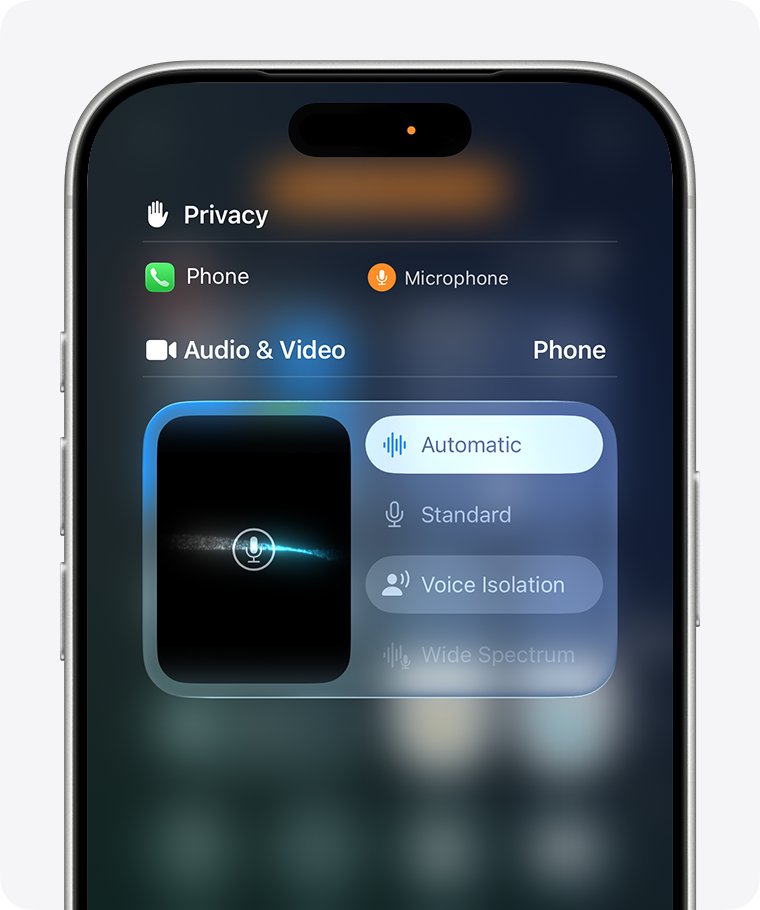
Voice Isolation tells the microphones to prioritize your voice and block background noise. You switch it from Control Center while a call or recording is running.
- Start your call or recording.
- Swipe down from the top-right corner of the screen to open Control Center.
- Tap the controls for the app you are using, labeled with the app name and Controls.
- Under Audio & Video, open Mic Mode and select Voice Isolation.
- Or select Automatic, which uses Voice Isolation for calls through the receiver and Standard for speakerphone calls.
Your choice applies only to the app you are using and stays until you pick another Mic Mode. Wide Spectrum, which leaves background sound unfiltered, is not available in phone calls.
iPhone 17 Pro microphone not working? How to fix it
Match what callers or apps report to the microphone that serves that job.
People can't hear you on calls with the iPhone at your ear
The bottom microphones are blocked or dirty.
- Remove the case and clean the bottom openings with a dry, soft-bristled brush.
- Run the Voice Memos test while speaking at the bottom of the iPhone.
- If the recording is still unclear, contact Apple for service.
People can't hear you on speakerphone
The front mic in the receiver opening or the rear mic is covered or dirty.
- Remove any screen protector or film that reaches the top edge.
- Gently brush the receiver mesh, then wipe the back of the iPhone with a microfiber cloth.
- Run the Camera test with both cameras while speaking at the top.
The microphone doesn't work in one app
The app does not have permission to use the microphone.
- Go to Settings > Privacy & Security > Microphone.
- Turn on the switch for the app.
- If the app already has access, or is not listed, contact the app developer.
Your voice sounds muffled after fitting a new screen protector or case
The accessory covers the receiver opening or the bottom openings.
- Remove the accessory and run the Camera and Voice Memos tests again.
- If both sound clear without it, choose a protector or case that leaves the top grille and bottom openings uncovered.
iPhone 17 Pro earpiece speaker quiet or muffled? How to fix it
Earpiece problems usually come down to a blocked receiver grille or a sound setting, and only rarely to a failed part.
You can't hear callers unless you use speakerphone
The receiver opening is blocked by dirt, a screen protector or a film.
- Remove any screen protector or film.
- Gently brush the receiver mesh at the top edge with a dry, soft-bristled brush.
- Make another call with the iPhone at your ear.
No sound from either speaker
Silent mode or Do Not Disturb is on, or the speaker needs service.
- Turn off Silent mode from Control Center or with the Action button.
- Go to Settings > Focus > Do Not Disturb and turn it off.
- Drag the Ringtone and Alerts slider in Settings > Sounds & Haptics; if it stays silent or the speaker button is dimmed, get service.
Calls crackle or have static
Network or reception is the more likely cause than the speaker.
- Turn on speakerphone and compare; static in both modes points to the connection.
- Call again later, or from a different location.
If calls also drop or the status bar shows no service, you can fix the iPhone 17 Pro cellular connection next. When the loudspeaker plays clearly but too quietly, check volume limits and settings to fix a quiet iPhone speaker.
Which iPhone 17 Pro part holds the front mic for repairs?
On iPhone 17 Pro, the front mic belongs to the display assembly. On iPhone 17 and iPhone Air, Apple lists the front mic under the enclosure instead.
| Faulty part | What Apple replaces on iPhone 17 Pro |
|---|---|
| Front mic | Display assembly |
| Receiver (earpiece) | Top speaker |
| Bottom speaker | Bottom speaker |
| Bottom microphones, left and right | Main microphone |
Because the front mic is part of the display assembly, a screen replacement on iPhone 17 Pro also replaces the front mic. Ask for a mic test after any display repair.
iPhone 17 Pro mic and speaker FAQ
How many microphones does iPhone 17 Pro have?
Four. Apple lists four studio-quality mics: a main bottom mic, a secondary bottom mic, a rear mic on the back, and a front-facing mic inside the receiver opening at the top edge of the front.
Is the iPhone 17 Pro earpiece also a speaker?
Yes. The receiver grille at the top edge is the top speaker. It plays call audio when the iPhone is at your ear and works with the bottom speaker as the built-in stereo speaker for media.
Does iPhone 17 Pro have stereo speakers?
Yes. The tech specs list a built-in stereo speaker, made of the top speaker in the receiver opening and the bottom speaker beside the USB-C connector on the bottom edge.
Which microphone does iPhone 17 Pro use on speakerphone?
Speakerphone relies on the microphones at the top of the iPhone, the front mic in the receiver opening and the rear mic. Apple tests it by recording video with each camera while you speak at the top.
Does a screen protector block the iPhone 17 Pro front mic?
It can when it covers the receiver grille at the top edge. Apple's first step for unclear calls is to remove screen protectors, films and cases, then test the microphones again in the Camera app.
Is iPhone 17 Pro waterproof?
No, it is water resistant. iPhone 17 Pro is rated IP68, tested to a maximum depth of 6 meters for up to 30 minutes, and that resistance can decrease with normal wear. Do not charge it while it is wet.
Can I use compressed air to clean the iPhone 17 Pro speaker?
No. Apple's service instructions rule out compressed air, liquids, and cleaners with bleach or hydrogen peroxide. Use a clean, dry, soft-bristled brush and a microfiber cloth with the iPhone turned off.