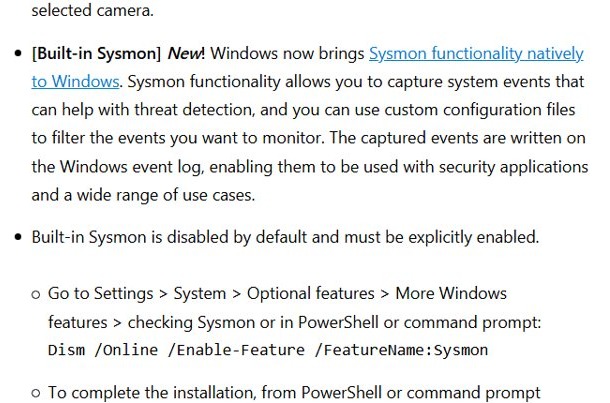
Open Settings > System > Optional features > More Windows features, check Sysmon and select OK, then run sysmon -i in an administrator terminal to turn on built-in Sysmon in Windows 11.
The sections below cover the PowerShell and DISM commands, configuration files, where Sysmon events appear in Event Viewer, and how to remove the feature again.
How to enable built-in Sysmon in Windows 11
Built-in Sysmon is a Windows optional feature on Windows 11 and Windows Server 2025. It is off by default, and turning on the feature alone does not start logging.
You need administrator rights, and the standalone Sysinternals Sysmon must not be installed on the same PC.
- Open Settings and select System.
- Select Optional features, then select More Windows features.
- In the Windows Features window, check Sysmon and select OK.
- Restart the PC if Windows asks you to.
- Open PowerShell or Command Prompt as administrator.
- Type
sysmon -iand press Enter to install Sysmon with its default configuration.
More Windows features opens the classic Windows Features dialog, the same list as Turn Windows features on or off. Built-in Sysmon arrived in Windows 11 builds 26100.7918 and 26200.7918, so install the latest updates if the entry is missing.
How to see if Sysmon is installed
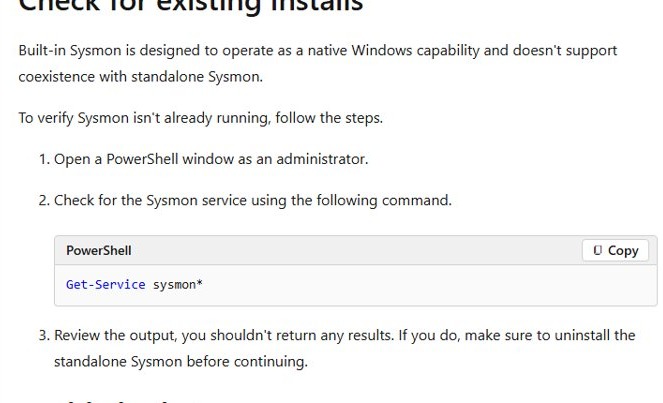
Run this check first. Built-in Sysmon and standalone Sysmon can't run on the same device, and the built-in one stays disabled while the standalone one is installed.
Get-Service sysmon*Run it in an administrator PowerShell window. It lists any service whose name starts with sysmon, so an existing standalone install shows up here.
You should see: No output before you enable the built-in feature. If a service is listed, uninstall the standalone Sysmon first, then continue.
Any of the usual ways to run PowerShell as administrator works for every command on this page.
Enable Sysmon in Windows 11 with PowerShell or DISM
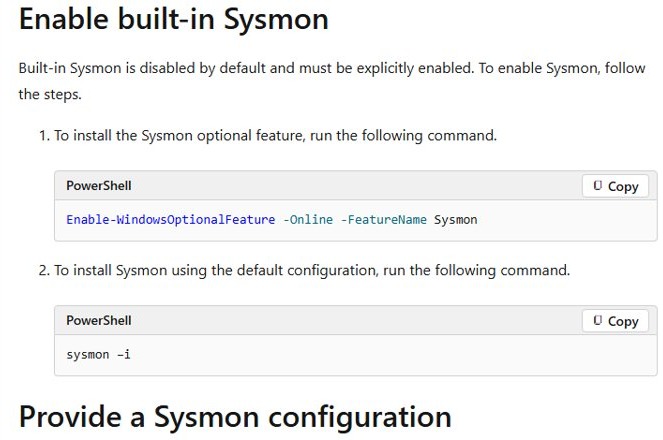
The command line does the same job as the Windows Features checkbox and suits scripts or remote sessions.
Enable-WindowsOptionalFeature -Online -FeatureName Sysmon-Online targets the running copy of Windows and -FeatureName Sysmon names the optional feature. Run it from an administrator PowerShell window, then run sysmon -i to complete the installation.
You should see: The command finishes without an error. After sysmon -i, events start appearing in the Sysmon Operational log.
From Command Prompt, the DISM equivalent is Dism /Online /Enable-Feature /FeatureName:Sysmon, followed by sysmon -i.
How to configure Sysmon with a configuration file
Sysmon reads an XML configuration file that decides which event types are logged and which are filtered out. Without one, it runs on default settings.
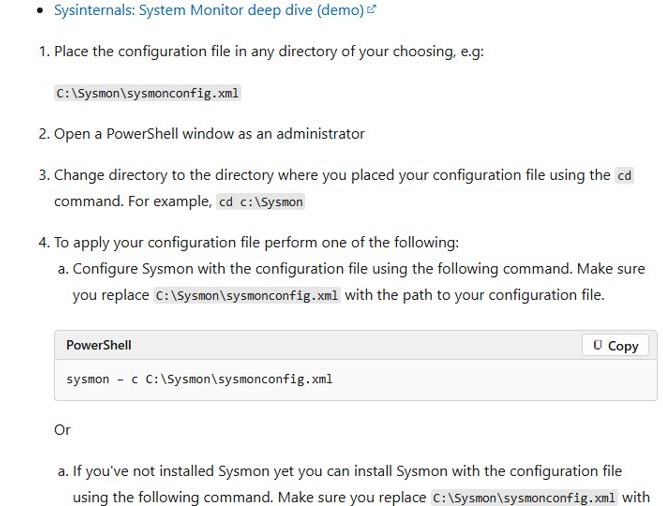
- Create or obtain a Sysmon configuration file in XML format.
- Save it in any folder, for example
C:\Sysmon\sysmonconfig.xml. - Open PowerShell as administrator and type
cd C:\Sysmon. - If Sysmon is already installed, apply the file with
sysmon -c C:\Sysmon\sysmonconfig.xml. - If you have not run
sysmon -iyet, install and configure in one step withsysmon -i C:\Sysmon\sysmonconfig.xml. - Edit the file later and run the same
sysmon -ccommand again to update the rules.
The new configuration takes effect immediately and needs no restart. Microsoft's documentation points to community starting points such as SwiftOnSecurity's sysmon-config and Olaf Hartong's sysmon-modular, which you can edit before applying.
Sysmon config file example for Windows 11
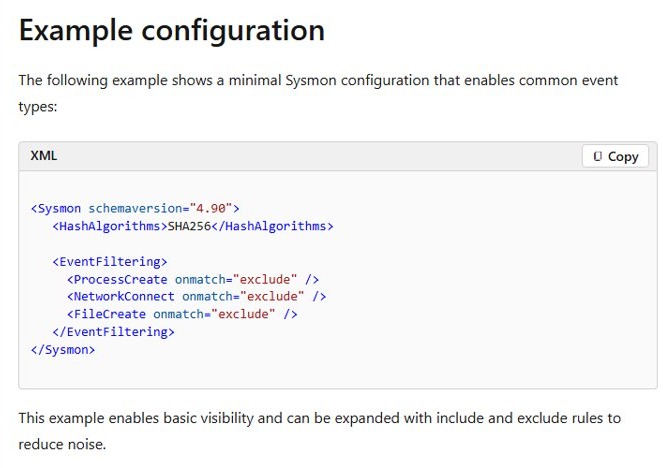
This minimal file from Microsoft's documentation hashes images with SHA256 and logs process creation, network connections and file creation.
<Sysmon schemaversion="4.90">
  <HashAlgorithms>SHA256</HashAlgorithms>
  <EventFiltering>
    <ProcessCreate onmatch="exclude" />
    <NetworkConnect onmatch="exclude" />
    <FileCreate onmatch="exclude" />
  </EventFiltering>
</Sysmon>
An onmatch="exclude" rule with nothing inside excludes nothing, so every event of that type is logged. Add child rules later to drop known-good activity.
You should see: Run sysmon -c with no file name to print the configuration Sysmon is using now.
A loose or untested configuration can produce a very high event volume. Test it on one PC before rolling it out.
How to open Sysmon logs in Event Viewer
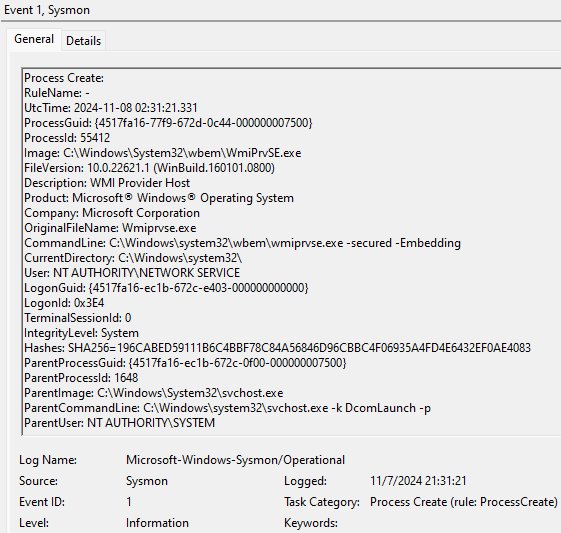
Sysmon writes to its own log in Event Viewer. Events in it show that the feature is on and using the active configuration.
- Select Start, type Event Viewer and open it from the best match.
- In the left pane, go to Applications and Services Logs > Microsoft > Windows > Sysmon > Operational.
- Check that events such as Process Create, Network Connect or File Create are listed.
- Select an event to see its fields, including the event ID, process and parent process, command line, file paths, addresses, ports and hashes.
Event times are recorded in UTC, so match them against your local clock with care. Any of the ways to open Event Viewer reaches the same log.
How to use Sysmon in Windows to monitor system health
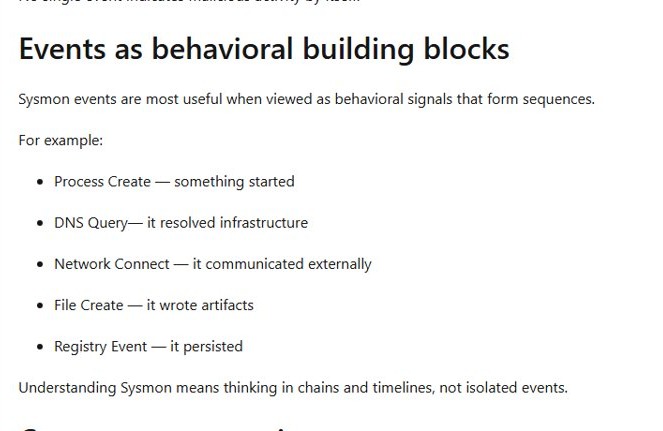
Sysmon records what processes, drivers and connections do; it does not score or alert on them. No single event proves an attack, so read events as chains: a process starts, resolves a domain, connects out, writes a file, then changes the registry.
| Event ID | Event | What it records | Watch for |
|---|---|---|---|
| 1 | Process Create | A new process with full command line, parent process, hashes and a process GUID | Unusual parent-child pairs and unexpected command-line arguments |
| 3 | Network Connect | TCP and UDP connections with addresses, ports and the owning process; off by default because of volume | Rare destinations and processes that normally never go online |
| 5 | Process Terminated | When a process exits | Very short-lived processes |
| 6 | Driver Load | Kernel drivers loaded, with signature and hash | Unsigned or unexpected drivers |
| 7 | Image Load | DLLs or executables loaded into a process; high volume | Unsigned modules and rare DLLs in commonly abused processes |
| 8 | CreateRemoteThread | A process creating a thread in another process | Code injection; low volume, high signal |
| 11 | File Create | Files created or overwritten | Executables written to user-writable folders |
| 12-14 | Registry events | Registry keys and values created, changed, deleted or renamed | Changes to autorun and persistence keys |
| 22 | DNS Query | DNS lookups made by a process, successful or not | Beaconing and unknown external domains |
| 4, 16, 255 | Service state, configuration change, error | Sysmon itself starting or stopping, config updates and internal errors | Unexpected stops, which can mean tampering |
For live file, registry and process activity rather than a stored log, Process Monitor shows operations in real time and can log from boot.
How to tune Sysmon to reduce event noise
Tune over time instead of filtering hard on day one. Start broad, then add narrow exclusions for activity you have confirmed is normal.
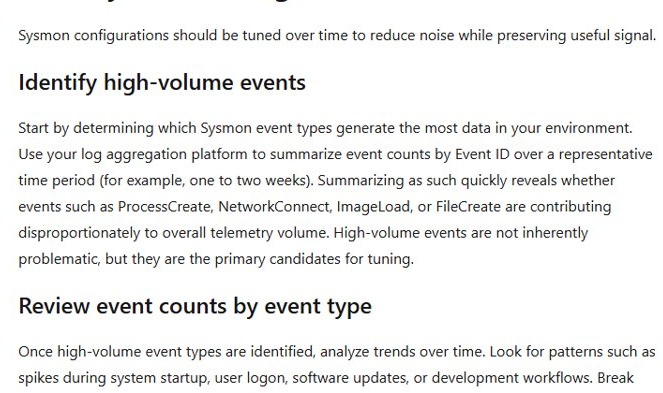
- Collect events for one to two weeks and count them by event ID to find the high-volume types.
- Within a noisy type, group events by fields such as Image, CommandLine, TargetFilename, DestinationPort or RegistryKey.
- Confirm with the app or system owner that the top sources are expected and low-risk.
- Add a narrowly scoped exclusion for that process, path or condition in the XML file.
- Apply the change with
sysmon -c C:\Sysmon\sysmonconfig.xml. - Compare event counts before and after to make sure useful signals still appear.
Avoid switching off a whole event category or using broad string matches. Typical exclusions drop known-good processes from Network Connect and common system DLLs from Image Load.
What is Sysmon in Windows?
System Monitor (Sysmon) is a service and driver that stays resident across restarts and writes detailed activity to the Windows event log.
| Sysmon does | Sysmon does not |
|---|---|
| Log process creation with full command lines for the process and its parent | Analyze events or raise alerts |
| Hash process images with SHA1 by default, or MD5, SHA256 or IMPHASH | Block or prevent any activity |
| Log driver and DLL loads with signatures and hashes | Hide itself from attackers |
| Log raw disk reads, file creation time changes and, optionally, network connections | Replace antivirus; it provides raw telemetry and does not conflict with it |
| Capture activity from early in the boot process | Send data anywhere by itself; forward events to Windows Event Collection or a SIEM |
Built-in Sysmon vs Sysinternals Sysmon
| Point | Built-in Sysmon | Sysinternals Sysmon |
|---|---|---|
| How you get it | Windows optional feature, then sysmon -i |
Separate download from Sysinternals, then sysmon -i or sysmon64 -i |
| Updates | Through Windows quality updates; security fixes in the monthly security update | Download a newer release yourself |
| Event message text | Localized to the device language; XML event data stays the same | Not localized |
| Supported systems | Windows 11 and Windows Server 2025 | Windows 11 and later, Windows Server 2019 and later |
| Running both | Not supported; stays disabled while the standalone one is installed | Must be uninstalled before you enable the built-in feature |
If a log pipeline parses the rendered message text, switch it to the XML event data before moving non-English PCs to the built-in version.
How to uninstall built-in Sysmon in Windows 11
- Open PowerShell or Command Prompt as administrator.
- Run
sysmon -uto remove the Sysmon service and driver. Usesysmon -u forceif some components are already missing. - Open Settings > System > Optional features > More Windows features.
- Clear the Sysmon check box and select OK.
- Or, in administrator PowerShell, run
Disable-WindowsOptionalFeature -Online -FeatureName Sysmon.
Windows updates keep refreshing the built-in Sysmon files even while the feature is off, but Sysmon stays disabled until you turn it on again.
Sysmon not logging events in Windows 11
The Sysmon Operational log is empty after enabling the feature
Turning on the optional feature only installs it; Sysmon logs nothing until it is installed with sysmon -i.
- Open PowerShell as administrator.
- Run
sysmon -i, orsysmon -i C:\Sysmon\sysmonconfig.xmlto use your own rules. - Reopen Applications and Services Logs > Microsoft > Windows > Sysmon > Operational in Event Viewer.
Built-in Sysmon stays disabled
A standalone Sysinternals Sysmon is already installed, and the two can't run together.
- Run
Get-Service sysmon*in administrator PowerShell. - If a service is listed, uninstall the standalone copy with its own
sysmon -uorsysmon64 -ufrom the folder you installed it from. - Enable the built-in feature again and run
sysmon -i.
No network connection events appear
Network Connect (event ID 3) is off in the default configuration because of its volume.
- Add a
NetworkConnectrule to your configuration file. - Apply it with
sysmon -cand the path to the file. - Check the Operational log for event ID 3 entries.
Sysmon events break a SIEM parser on non-English PCs
Built-in Sysmon localizes the rendered message text to the device language.
- Switch the parser or collection rule to the XML event data.
- Test against one non-English PC before wider rollout.
Built-in Sysmon in Windows 11 FAQ
Is Sysmon included in Windows 11?
Yes. Sysmon is a built-in optional feature in Windows 11 and Windows Server 2025. It is disabled by default, so you must turn on the Sysmon feature and then run sysmon -i before it logs anything.
What is Sysmon in Windows?
Sysmon, or System Monitor, is a service and driver that logs process creation, driver and DLL loads, file creation time changes and optional network connections to the Windows event log. It records activity but does not analyze it or block anything.
How do I install Sysmon in Windows 11?
Go to Settings > System > Optional features > More Windows features, check Sysmon and select OK. Then open an administrator terminal and run sysmon -i, or sysmon -i followed by the path to your XML configuration file.
How do I install Sysmon on Windows 10?
Built-in Sysmon is a Windows 11 and Windows Server 2025 feature. The current Sysinternals Sysmon page lists Windows 11 and later and Windows Server 2019 and later as supported, so Windows 10 is on neither list.
How do I install Sysmon on Windows Server?
On Windows Server 2025, Sysmon is a built-in optional feature that you enable and then install with sysmon -i. On Windows Server 2019 and 2022, use the standalone Sysinternals Sysmon, which lists Windows Server 2019 and later as supported.
How do I see if Sysmon is installed?
Open PowerShell as administrator and run Get-Service sysmon*. Any listed service means a Sysmon install is present. You can also open Event Viewer and check for a Sysmon > Operational log under Applications and Services Logs > Microsoft > Windows.
Where does Sysmon install to?
Built-in Sysmon ships as part of Windows and is updated by Windows Update, so you do not choose an install folder. Your configuration XML can live in any folder you pick, such as C:\Sysmon.
Does Sysmon need a restart after a configuration change?
No. Applying a configuration with sysmon -c takes effect immediately and does not need a restart. Updates to the built-in Sysmon binaries also keep your existing configuration in place.
Can Sysmon run alongside antivirus?
Yes. Sysmon provides raw telemetry rather than prevention, so it does not conflict with antivirus or other monitoring tools. Microsoft Defender for Endpoint and other EDR and SIEM products can consume its events.