The little cloud with a down arrow next to a file name in iCloud Drive means the file is stored only in iCloud and has not been downloaded to that device, so you need an internet connection to open it until you download it.
This guide covers what each iCloud Drive status icon means on Mac and Windows, how to download or keep files on the device, how to turn a file back into a cloud-only copy, and why the icons appear.
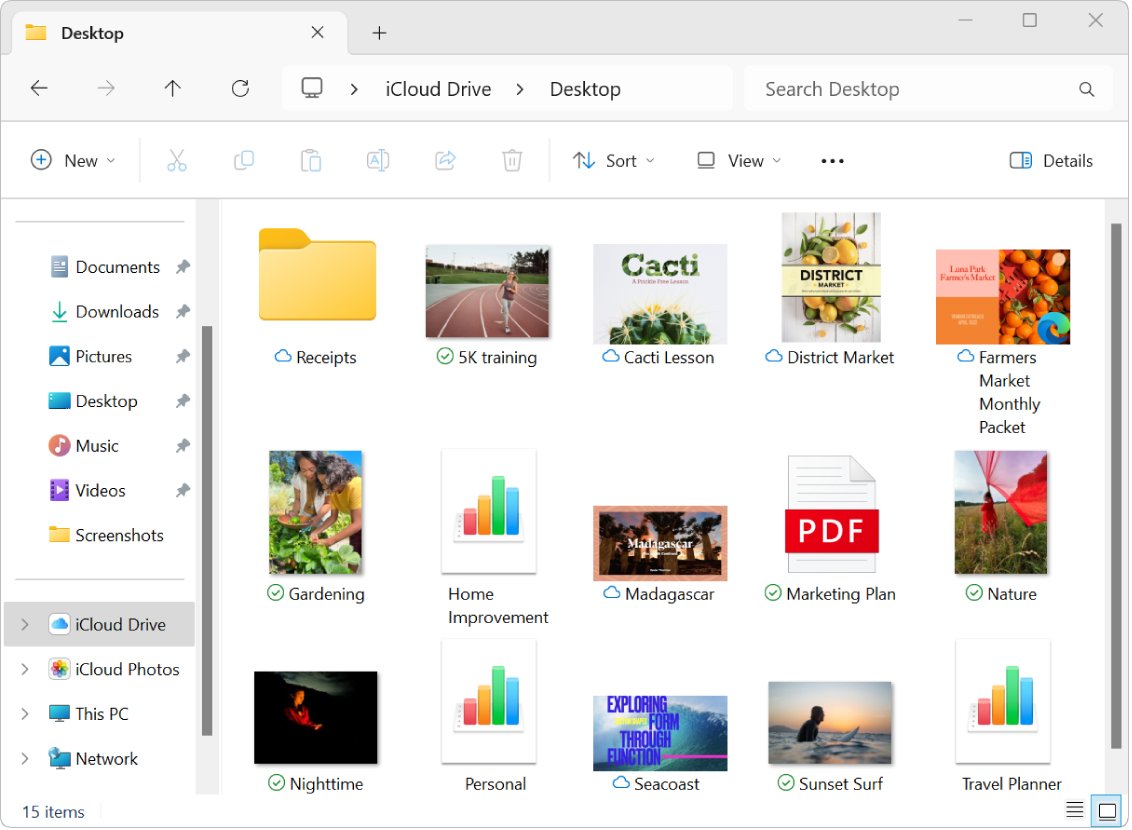
How to download a file with the iCloud cloud icon
Apple calls this status In iCloud on a Mac. The file is safe and complete in iCloud Drive; only the local copy is missing.
| Device | How to download the file | What you see afterwards |
|---|---|---|
| Mac (Finder) | Control-click the file in iCloud Drive and choose Download Now | The cloud icon disappears; downloaded items show no icon |
| Windows PC (File Explorer) | Right-click the file in iCloud Drive and choose Always keep on this device | The pinned icon appears next to the name |
| iPhone or iPad (Files app) | Tap the file to open it in iCloud Drive | The file opens once its download finishes |
| Pages, Numbers or Keynote on iPhone or iPad | Tap the document thumbnail that shows the iCloud badge | The document downloads again and opens |
After a file is on your Mac, you can view and edit it without an internet connection.
iCloud status icons in Finder on Mac
Finder shows a status icon next to most iCloud Drive items. The one state with no icon is Downloaded, which is why a fully synced folder looks plain.
| Status | What it means | What to do |
|---|---|---|
| In iCloud (cloud with down arrow) | The file or folder is only in iCloud; you need the internet to work with it | Control-click > Download Now |
| Downloaded | Up to date on the Mac and iCloud; works offline | Nothing |
| Keep Downloaded | Kept on the Mac even when it is old and space is needed | Control-click > Keep Downloaded to turn it off |
| Waiting to Upload | Not yet stored in iCloud | Stay online and wait, or check iCloud storage |
| Out of Space | Cannot be stored because iCloud storage is full | Free iCloud space or upgrade to iCloud+ |
| Ineligible | Cannot be stored in iCloud, usually because it is over the 50 GB per-item limit | Move it out of iCloud Drive or split it up |
| Pie chart | A transfer is in progress; it fills from clear to dark | Wait for it to finish |
An Out of Space icon next to iCloud Drive in the sidebar means your whole iCloud storage is full. A pie chart there shows overall transfer progress.
How to show the iCloud Status column in Finder
A dedicated column makes it easy to scan a folder and see which files are cloud-only.
- Click Finder in the Dock to open a Finder window.
- Click iCloud Drive in the sidebar.
- Choose View > as List.
- Choose View > Show View Options.
- Select iCloud Status.
To check sync progress for all of iCloud Drive, hold the pointer over iCloud Drive in the sidebar, then click the status or information icon.
How to keep iCloud Drive files downloaded on Mac
Keep Downloaded stops macOS swapping a file back to the cloud-only state when the Mac runs low on space.
- Open a Finder window and click iCloud Drive in the sidebar.
- Select the files or folders you want to keep on the Mac.
- Control-click the selection and choose Keep Downloaded.
- Check that the Keep Downloaded icon now appears next to each name.
To undo it, Control-click the item and choose Keep Downloaded again so the checkmark disappears.
iCloud Drive status icons in File Explorer on Windows
iCloud for Windows uses its own icons in File Explorer. These statuses are not supported in iCloud for Windows version 7, which downloads everything automatically.
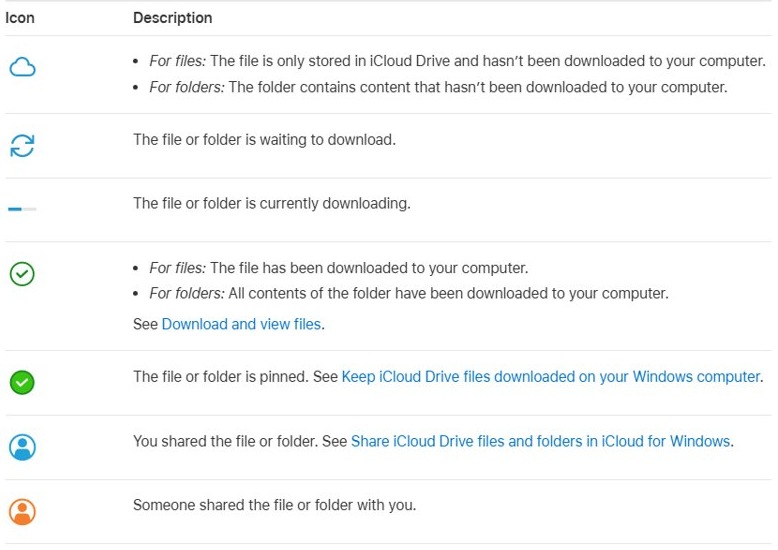
| Status | For a file | For a folder |
|---|---|---|
| Only in iCloud | Stored in iCloud Drive and not downloaded to the PC | Contains content that has not been downloaded |
| Waiting to download | Queued to download | Queued to download |
| Downloading | Download in progress | Download in progress |
| Downloaded | On the PC and ready to open | Every item inside is downloaded |
| Pinned | Kept downloaded with Always keep on this device | Kept downloaded with Always keep on this device |
| Shared by you | You shared it | You shared it |
| Shared with you | Someone shared it with you | Someone shared it with you |
Only files under 1 MB download automatically after setup. You can open a file in File Explorer only after it is downloaded.
How to pin iCloud Drive files on Windows with Always keep on this device
Pinning downloads the item and keeps it on the PC. You can pin single files, whole folders or the entire iCloud Drive folder.
- Open File Explorer.
- Click iCloud Drive in the Navigation pane.
- Right-click the file or folder you want on the PC.
- Choose Always keep on this device.
To unpin, right-click the item and choose Always keep on this device again to remove the checkmark.
How to remove a download and make an iCloud file cloud-only again
Removing a download frees space on the device and brings the cloud icon back. The file stays in iCloud Drive on every other device.
| Device | Command | Note |
|---|---|---|
| Mac | Finder > Control-click the item > Remove Download | The item returns to the In iCloud state |
| iPhone or iPad | Files > iCloud Drive > touch and hold the file > Remove Download | Select several files, tap the More button, then Remove Download to do many at once |
| Windows PC | File Explorer > right-click > Free up space | A pinned item is unpinned |
Remove Download is not Delete. Deleting a file from iCloud Drive removes it from every device signed in to your Apple Account.
How to turn off Optimize Mac Storage for iCloud Drive
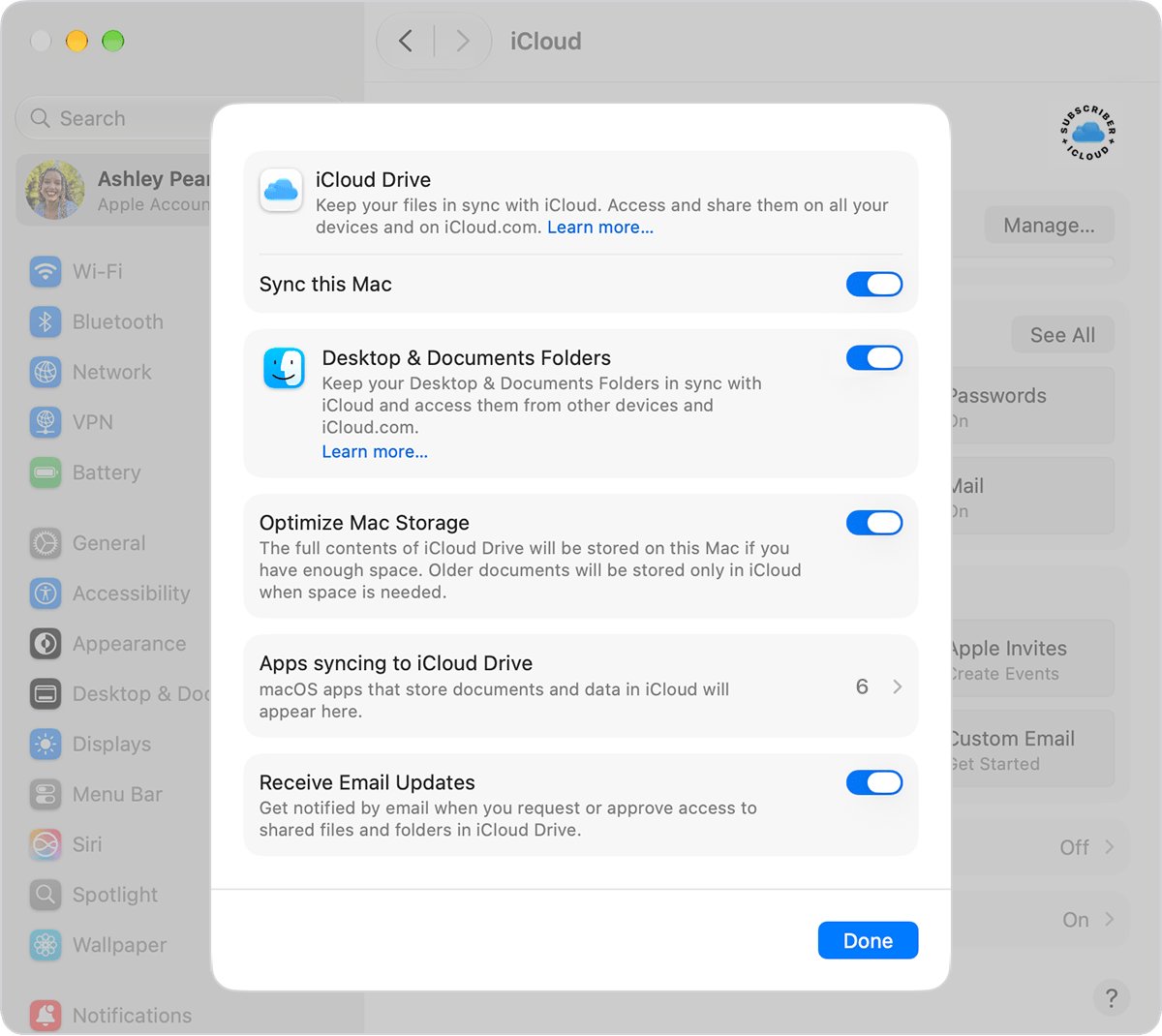
When Optimize Mac Storage is on, macOS stores older documents only in iCloud when the Mac needs space. That is the usual reason files suddenly show the cloud icon.
Turning it off stops macOS moving older documents to iCloud to save space, so make sure the Mac has enough free disk space.
- Open System Settings and click your name at the top of the sidebar.
- Click iCloud, then click Drive.
- Turn off Optimize Mac Storage.
- Click Done.
If you only want a few folders to stay local, use Keep Downloaded on them instead and leave optimization on. It is also the setting to look at when iCloud Drive takes up space on a MacBook.
iCloud Drive cloud icon won't go away
The file keeps the cloud icon and will not download
The device is offline, or iCloud Drive is not signed in or turned on there.
- Connect to the internet; an In iCloud item needs a connection to download.
- Check that the device is signed in to the same Apple Account as your other devices.
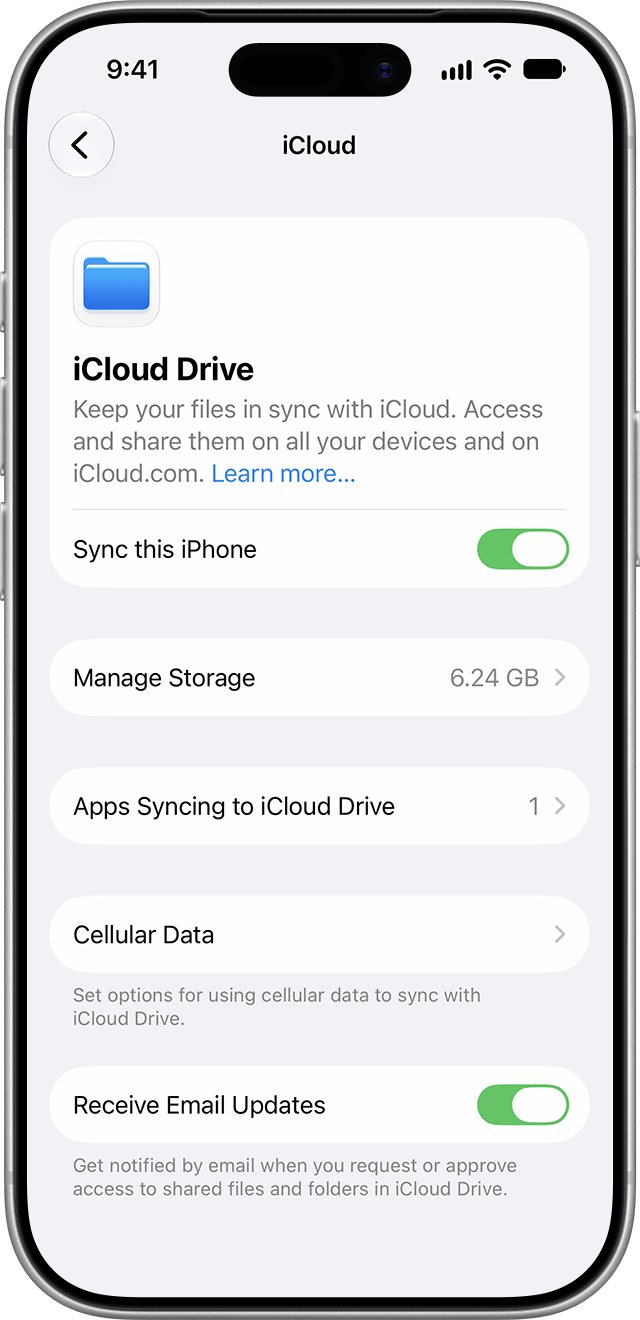
- Check that iCloud Drive is on: Settings > your name > iCloud > Drive on iPhone, or System Settings > your name > iCloud > Drive on a Mac.
- Try Download Now again in Finder, or refresh iCloud Drive on that device.
Files show Out of Space or Waiting to Upload
iCloud storage is full, so new or changed files cannot be stored in iCloud.
- Open Settings, tap your name, then tap iCloud to see how much storage is used.
- Delete iCloud Drive files you do not need, or upgrade to an iCloud+ plan.
- Leave the device online; the file uploads once space is available.
- On a Windows PC, work through the fixes for iCloud Drive sync pending if uploads stay stuck.
A file or folder shows Ineligible
It cannot be stored in iCloud, usually because it is larger than 50 GB, or it is an iMovie, Photos or Aperture library in Desktop or Documents.
- Move the item out of iCloud Drive to a folder that is not synced.
- Split a large folder into smaller ones under 50 GB each.
- Keep media libraries outside the Desktop and Documents folders.
Files went back to the cloud icon on their own
Optimize Mac Storage moved older documents to iCloud to free space on the Mac.
- Control-click the folders you always need and choose Keep Downloaded.
- Or turn off Optimize Mac Storage in System Settings > your name > iCloud > Drive.
iCloud Drive cloud icon FAQ
What does the little cloud mean in iCloud Drive?
A small cloud next to a file in iCloud Drive means the item is stored only in iCloud and is not downloaded to that device. Apple calls it the In iCloud status on a Mac. Download it to use it without an internet connection.
Do I have anything in the cloud?
Check your iCloud storage. On iPhone or iPad, open Settings, tap your name, then tap iCloud to see what uses your space. On a Mac, open iCloud Drive in the Finder sidebar to see the files stored there.
Does the cloud icon mean my file was deleted from my Mac?
No. The file is still in iCloud Drive and still listed in Finder. Only the local copy is gone, usually because Optimize Mac Storage freed space. Control-click it and choose Download Now to bring it back.
Do cloud-only files use space on my Mac or iPhone?
A file that shows the cloud icon is not downloaded, so its contents do not use device storage. It still counts toward your iCloud storage, like every file in iCloud Drive.
Can I open a cloud-only file without the internet?
No. An item marked In iCloud needs an internet connection until you download it. Once it is downloaded, you can view and edit it offline, and changes sync the next time the device goes online.
How do I download everything in iCloud Drive at once?
On a Windows PC, right-click the iCloud Drive folder and choose Always keep on this device. On a Mac, select the folders in iCloud Drive, Control-click and choose Download Now, then choose Keep Downloaded so macOS does not move them back to iCloud.
What do Waiting to Upload and Out of Space mean in iCloud Drive?
On a Mac, Waiting to Upload means the file is not yet stored in iCloud, and Out of Space means iCloud storage is full. Free up iCloud storage or upgrade to iCloud+ so the file can upload.