To find and replace text in Notepad on Windows 11, press Ctrl + H, type the word to find and its replacement, then select Replace all to change every match at once.
Ctrl + F finds text without changing it, and the match case and wrap-around options control what counts as a match. For many files at once, PowerShell does the same job from the command line.
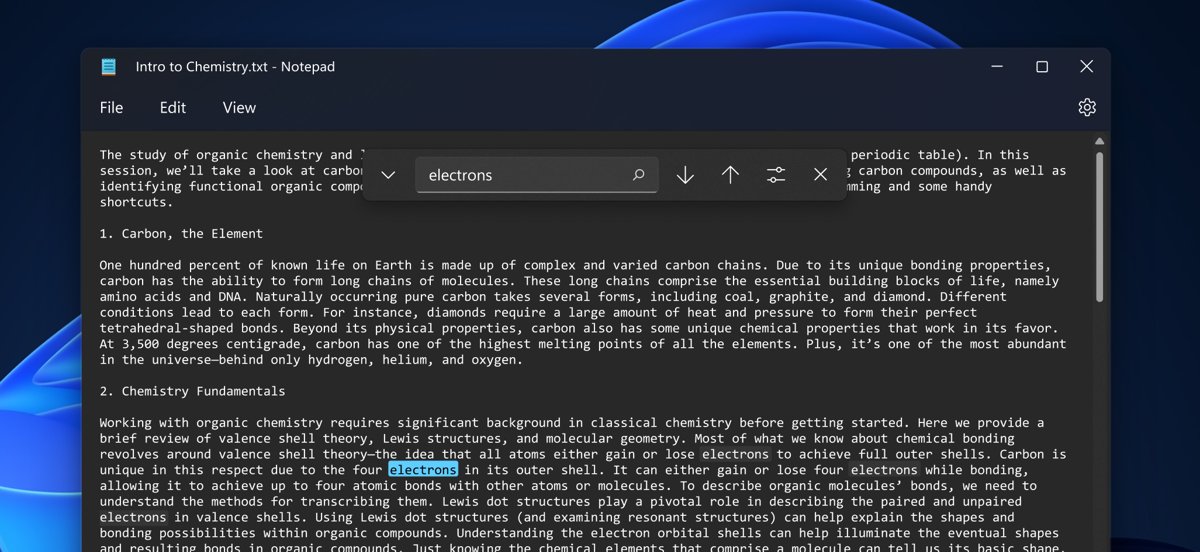
Notepad find and replace shortcut
Ctrl + H is the Windows shortcut for find and replace, and it opens Notepad's replace controls straight away.
- Open Start, type Notepad and open the app, then open your text file.
- Press Ctrl + H.
- Type the text you want to change in the find box.
- Type the new text in the replace box.
- Select Replace all to change every match in the document.
- Save the file to keep the changes.
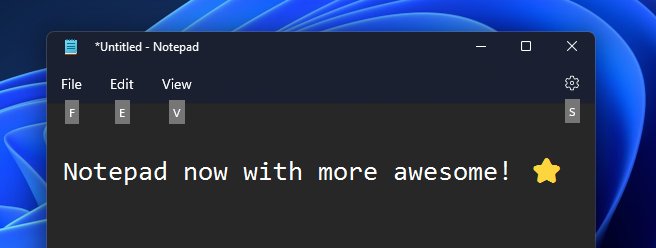
An asterisk (*) before the file name in the title bar shows that the document has unsaved changes.
How to find text in Notepad
Find moves the cursor to each match and highlights it, without changing anything in the file.
- Open the file in Notepad.
- Optional: select a word or phrase first, so Notepad fills it into the search box for you.
- Press Ctrl + F to open find.
- Type the text you are looking for, if it is not already filled in.
- Select Find next to jump to the next match, and repeat to move through the document.
- Close the find box when you are done.
Notepad remembers the last text you searched for and the state of its option check boxes, so the next search starts where the last one left off.
How to replace text in Notepad
Replace works one match at a time, so you can check each change, or on every match at once with Replace all.
- Press Ctrl + H in the open Notepad document.
- Type the text to find in the first box.
- Type the replacement text in the second box. Leave it empty to delete every match instead.
- Turn on Match case if capital letters matter, such as replacing
Logbut notlog. - Select Find next to move to the first match.
- Select Replace to change that match and move on, or Replace all to change every match in the document.
- Save the file, or press Ctrl + Shift + S to save the result as a new file.
Notepad on Windows 11 handles replacements in very large files faster since version 11.2205, so a Replace all on a long log file no longer stalls the app.
Notepad match case and wrap around options
Two check boxes decide which text Notepad treats as a match and where the search stops.
| Option | When it is on | When it is off |
|---|---|---|
| Match case | Only text with the same capital and small letters matches: Notepad does not match notepad |
The search ignores case, so Notepad, notepad and NOTEPAD all match |
| Wrap around | After the last match, the search jumps back to the start of the document and keeps going | The search stops at the end of the document and shows a Beginning/end of document reached notice |
| Selected text | Text you select before pressing Ctrl + F or Ctrl + H fills the search box | The box shows the last text you searched for |
Leave Wrap around on for Replace all style work, and turn Match case on whenever the word you are replacing is a name, a code variable or an acronym.
Find and replace in text file with PowerShell
Notepad replaces text in the document you have open. To change a file without opening it, or to script the change, use Windows PowerShell's -replace operator.
Open Start, type PowerShell, open it, and change to the folder that holds the file. This example replaces every Warning with Caution in Notice.txt:
(Get-Content -Path .\Notice.txt -Encoding UTF8) | ForEach-Object {$_ -replace 'Warning', 'Caution'} | Set-Content -Path .\Notice.txt -Encoding UTF8The parentheses make Get-Content read the whole file before Set-Content writes to it. -replace changes every match on every line, and -Encoding UTF8 on both cmdlets reads and writes UTF-8, the default Notepad encoding for new files. Without it, Windows PowerShell 5.1 writes the system's ANSI code page and can damage accented characters.
You should see: PowerShell returns to the prompt with no message. Run Get-Content -Path .\Notice.txt to see the replaced text.
-replace is case-insensitive and reads the find text as a regular expression. Use -creplace for a case-sensitive replacement, and put a backslash before characters such as . or ( to match them literally, for example '\.txt'.
How to check Notepad replaced every match
- Press Ctrl + F and type the old text you replaced.
- Select Find next. In current Notepad versions an inline tip appears when there are no matches left.
- Search for the new text and step through a few matches to confirm the wording and capitals are right.
- Check the title bar: the asterisk before the file name means the changes are not saved yet.
How to undo Replace all in Notepad
The Windows 11 Notepad supports multi-level undo, so a wrong replacement can be rolled back as long as the file is still open.
- Do not close the tab or the Notepad window.
- Press Ctrl + Z to undo the last change.
- Press Ctrl + Z again to step further back if more than one edit needs undoing.
- Press Ctrl + Y to redo a change you undid by mistake.
- Save the file once the text looks right.
For a risky Replace all, press Ctrl + Shift + S first and save a copy under a new name, so the original file stays untouched.
New features in Notepad in Windows 11
Notepad on Windows 11 is a Microsoft Store app that updates on its own schedule. These changes affect searching and replacing text:
| Change | Notepad version | What it means for find and replace |
|---|---|---|
| Redesigned find and replace | Windows 11 Notepad redesign (2021) | Find and replace match the Windows 11 look, alongside dark mode |
| Multi-level undo | Windows 11 Notepad redesign (2021) | Several Ctrl + Z presses can roll back a Replace all and later edits |
| Faster replace in large files | 11.2205 and later | Replacing large amounts of text no longer slows the app |
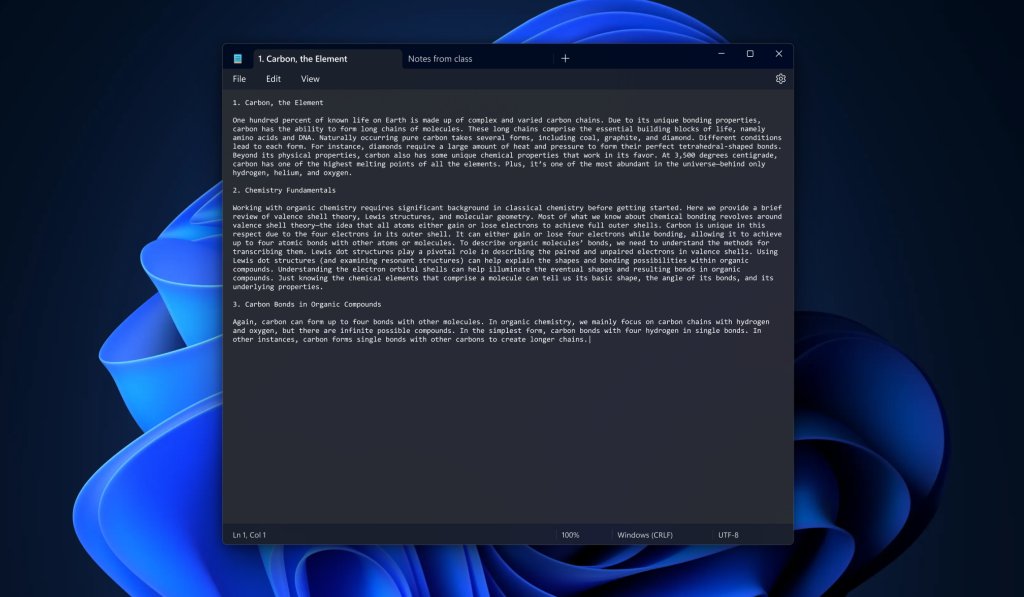
| Tabs | 11.2212.33.0 and later | Several files stay open in one Notepad window |
| Inline tip for no results | 11.2605.29.0 and later | An inline tip replaces the pop-up when nothing matches |
| End-of-document notice | 11.2605.29.0 and later | Beginning/end of document reached shows when wrap-around is off |
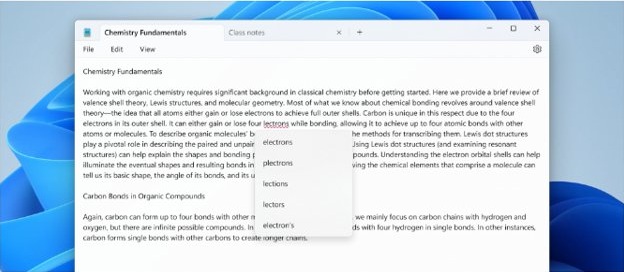
The full list of Notepad changes also covers spellcheck, formatting and the AI writing tools.
Notepad tips and tricks for Windows users
| Tip | How |
|---|---|
| Search for a word without typing it | Select the word, then press Ctrl + F; Notepad fills the search box |
| Find text in a long file faster | Zoom out with Ctrl + Minus, back in with Ctrl + Plus, and reset with Ctrl + 0 |
| See where a match sits | The status bar shows the line and column number of the cursor, even with word wrap on |
| Delete a wrong word after a replacement | Press Ctrl + Backspace to delete the previous word |
| Keep the original before a big change | Press Ctrl + Shift + S to save a copy under a new name first |
| Work on a second file side by side | Press Ctrl + Shift + N to open a new Notepad window |
| Spot unsaved replacements | Look for the asterisk (*) before the file name in the title bar |
For heavier editing across many files, some people replace Notepad with Notepad++ as the default text editor.
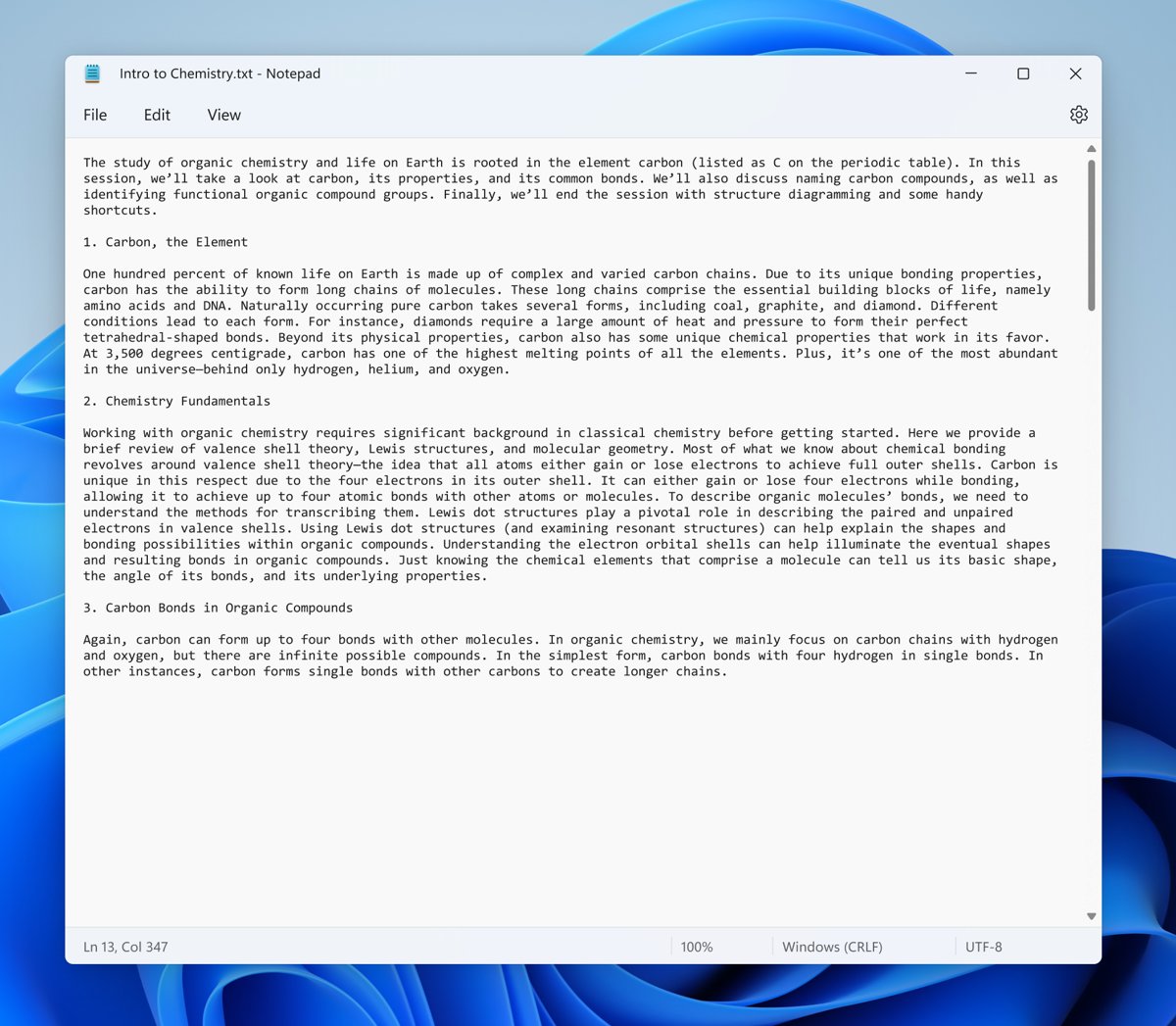
Notepad find and replace not working
"Beginning/end of document reached" and no more matches
Wrap around is off, so the search stopped at the end of the document instead of starting again from the top.
- Open find with Ctrl + F.
- Turn on Wrap around.
- Select Find next again; the search continues from the start of the document.
Find says nothing matches, but the text is in the file
Match case is on and the capitals differ, or the search box has extra spaces.
- Turn off Match case and search again.
- Clear the search box and retype the word, with no space before or after it.
- Select the word in the document and press Ctrl + F, so Notepad copies the exact text into the box.
Replace all changed more text than intended
The find text is part of longer words, such as cat inside category, or Match case was off.
- Press Ctrl + Z straight away to undo the replacement.
- Add a space or punctuation around the find text, or turn on Match case.
- Use Find next and Replace to change matches one at a time.
PowerShell replaced nothing or the wrong text
-replace reads the find text as a regular expression, so characters such as . ( and $ have special meaning.
- Put a backslash before special characters, for example
'v1\.2'to matchv1.2literally. - Keep the find and replace text in single quotation marks so PowerShell does not expand
$. - Use
-creplaceif only one capitalisation should change.
Notepad find and replace FAQ
How to find and replace text?
In Notepad, Word and most Windows editors, press Ctrl + H, type the text to find and the replacement, then select Replace all. Select Replace instead to change one match at a time and check each change as you go.
How to replace text?
Open the find and replace box with Ctrl + H, enter the old text in the first box and the new text in the second. Replace changes the current match, and Replace all changes every match in the document at once.
How to search and replace text?
Use Ctrl + F to search for text without changing it, and Ctrl + H when you also want to replace it. In Notepad, turn on Match case for an exact-capitals search and Wrap around to search the whole document from any cursor position.
How to do text replacement in a text file without opening it?
Use PowerShell: wrap Get-Content in parentheses, pipe each line through -replace 'old', 'new', and pipe the result to Set-Content with the same path. If you check the PowerShell version and it is Windows PowerShell 5.1, add -Encoding UTF8 to keep non-English characters.
How to replace all in a text file?
Open the file in Notepad, press Ctrl + H, fill in both boxes and select Replace all. Every match in the open document changes in one step, and Ctrl + Z undoes it if the result is wrong.
How to find and replace text in Word?
Go to Home > Editing > Replace, type the word in Find what and the new word in Replace with, then select Replace All. Open More and select Match case for a case-sensitive replacement. Ctrl + H opens the same tool.
Can Notepad find and replace text in multiple files?
Notepad's Replace works on the document you have open. To change many files at once, run Get-ChildItem on the folder in PowerShell and pass each file through Get-Content, -replace and Set-Content.