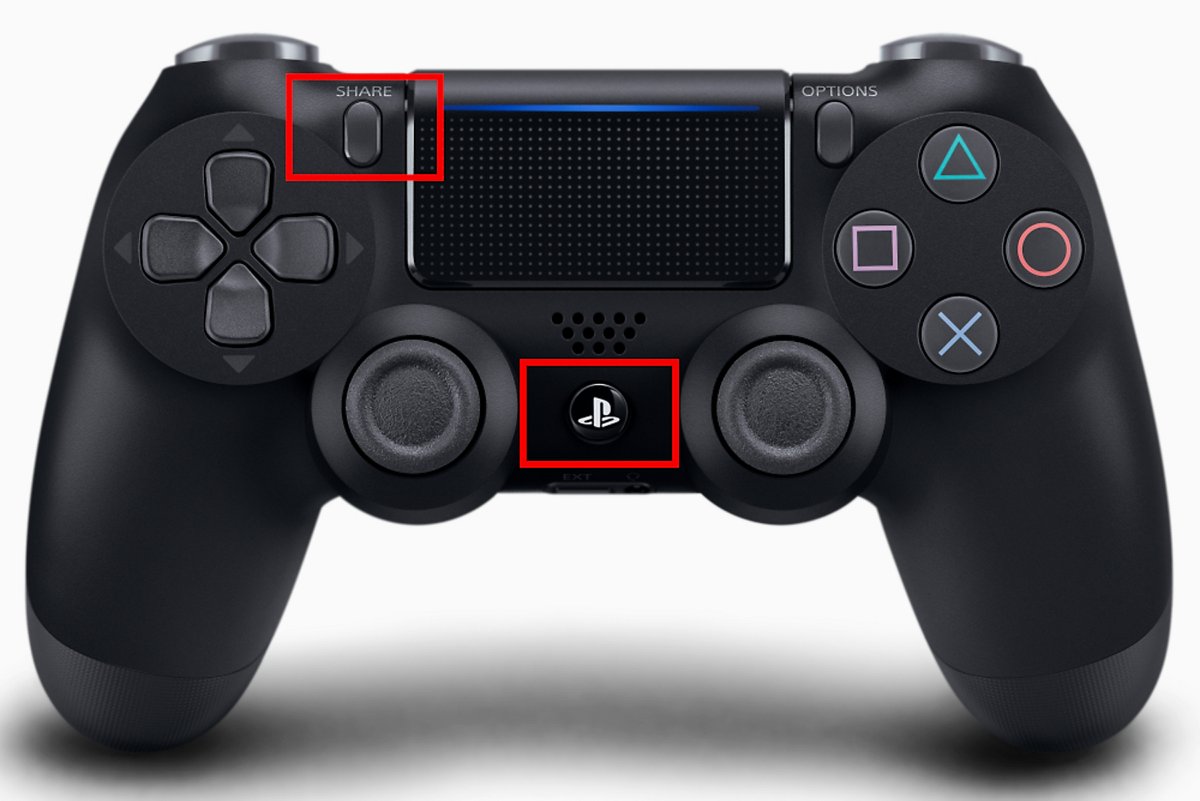
To connect a PS4 controller to a Windows 11 PC, hold SHARE and the PS button until the light bar flashes, then select the controller under Settings > Bluetooth & devices > Add device.
The same DUALSHOCK 4 also works over a micro USB cable, in Steam, and on a laptop, and it pairs back to a PS4 or PS5 with one cable and one button press.
How to connect PS4 controller to PC Windows 11
Bluetooth pairing needs a PC or laptop with Bluetooth turned on. A desktop without Bluetooth can use the USB cable method in the next sections instead.
- Unplug any USB cable from the controller. If the player indicator is lit, press and hold the PS button until it turns off.
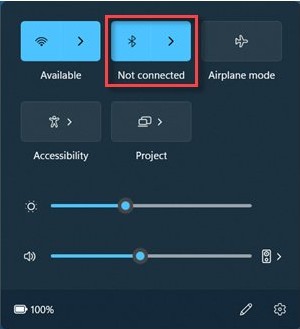
- On the PC, select Start > Settings > Bluetooth & devices and make sure Bluetooth is turned on.
- On the controller, press and hold SHARE, then press and hold the PS button as well until the light bar flashes.
- In Bluetooth & devices, select Add device, then choose Bluetooth in the Add a device window.
- Select the controller from the list of discoverable devices.
- Wait until the light bar blinks and the player indicator lights up, then select Done.
A faster route on Windows 11: select the Network, Sound or Battery icon on the taskbar, select the Manage Bluetooth devices arrow on the Bluetooth tile, and pick the controller under New devices.
The controller now reconnects to this PC whenever Bluetooth is on and you press the PS button within range.
PS4 controller USB vs Bluetooth on PC
Sony names two Windows connections for the DUALSHOCK 4: a compatible micro USB cable or the DUALSHOCK 4 USB wireless adaptor. Bluetooth pairing works too, with fewer features on most devices.
| Your situation | Connect with | Why |
|---|---|---|
| You want to play from the sofa and the PC has Bluetooth | Bluetooth pairing | No cable; reconnects with one press of the PS button |
| You play PS4 or PS5 games through PS Remote Play on Windows | Micro USB cable | Sony lists the DUALSHOCK 4 on Windows PC for Remote Play by USB connection |
| The desktop PC has no Bluetooth | Micro USB cable or the DUALSHOCK 4 USB wireless adaptor | Both are the Windows connections Sony documents |
| The controller battery is low | Micro USB cable | The cable charges the controller while you play |
| You need the touchpad, rumble, motion sensor or headset jack | Micro USB cable | Sony notes these are not supported over Bluetooth on devices other than Sony Xperia phones |
| Bluetooth keeps dropping out | Micro USB cable | A wired link avoids radio interference from USB 3.0 devices and distance |
Using your controller with a USB cable
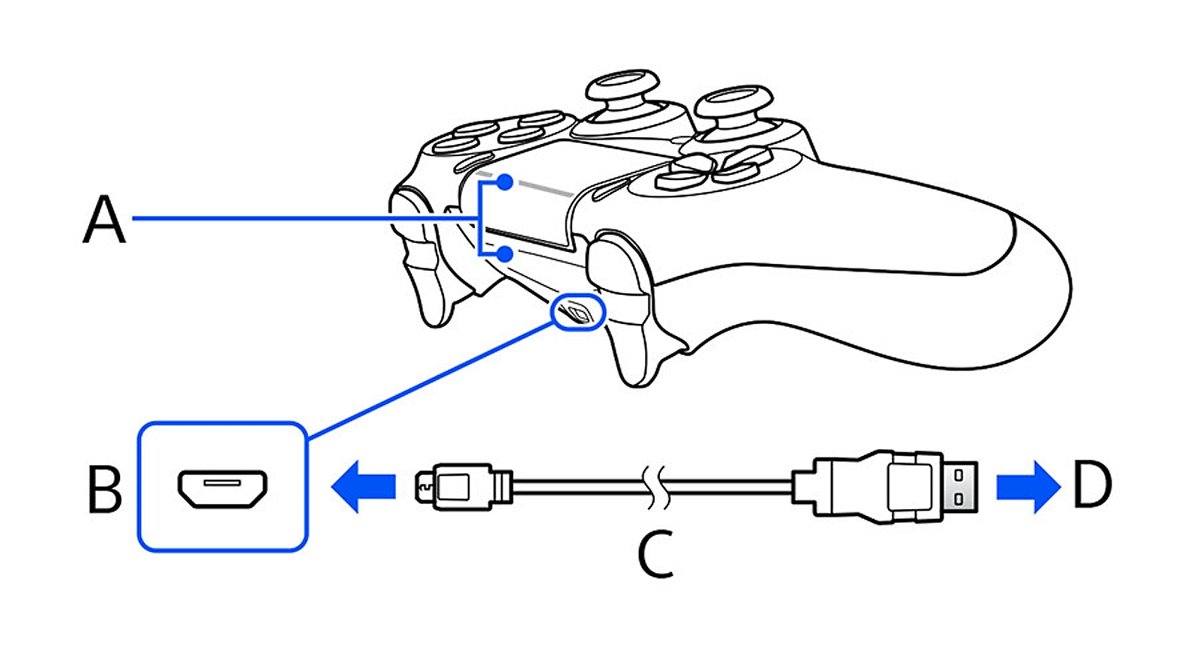
A wired connection is the PS4 controller to PC wired route and needs no pairing at all. Use the cable that came with the PS4 or another micro USB cable that carries data, not one sold for charging only.
- Plug the small end of the micro USB cable into the controller's USB port.
- Plug the other end into a USB port on the PC, preferably one directly on the case or laptop rather than a hub.
- Press the PS button if the light bar does not come on.
- Open your game, Steam or the PS Remote Play app and press a button to check it responds.
- Leave the cable connected while you play; the controller charges at the same time.
Using the cable does not remove a Bluetooth pairing. Unplug it and press PS to switch back to wireless on the same PC.
How to connect PS4 controller to Steam
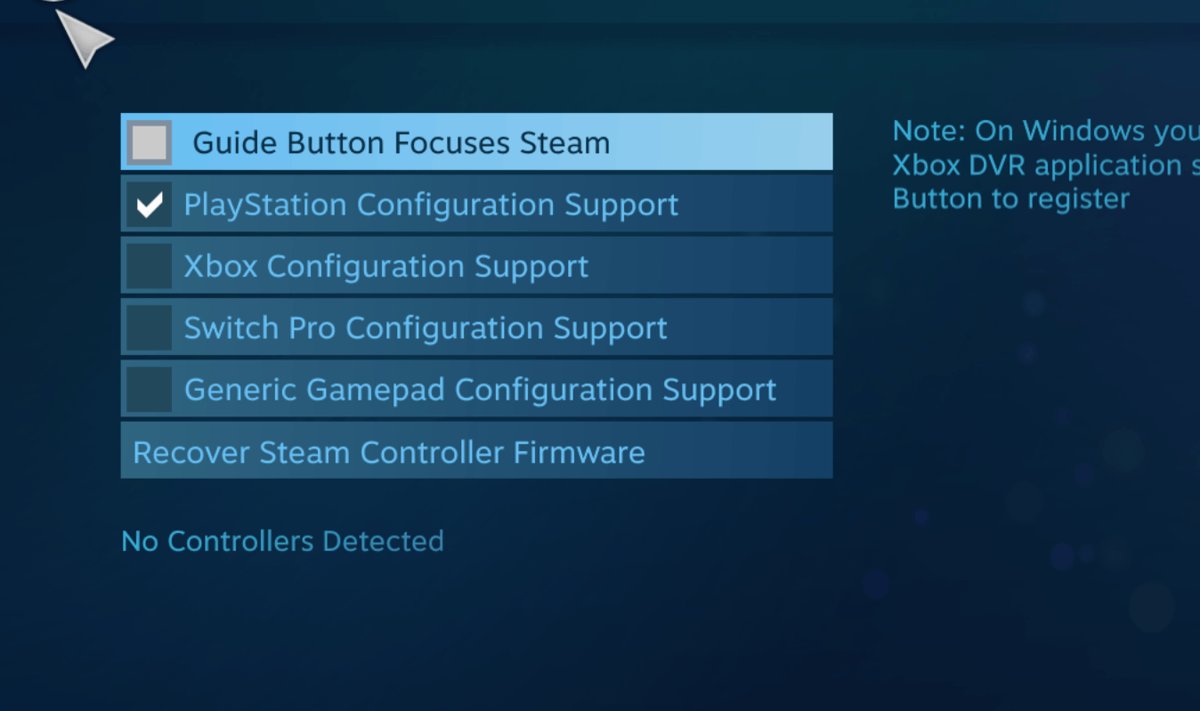
The PlayStation 4 controller was the first third-party device to get official Steam Input support, including its touchpad, gyro sensor and light bar. Steam passes its buttons to games as regular Xbox controller input.
- Connect the controller to the PC by Bluetooth or USB with the steps above.
- Open Steam on the PC, or install the Steam client first if it is not on the PC yet.
- Launch a game from your Steam library and press a button on the controller.
- If a game shows Xbox button prompts, use the matching PS4 buttons; Steam translates them.
- To change the button layout for one game, open Steam Big Picture mode, go to that game's details page and select Configure Controller.
Steam keeps a separate controller mapping for each game, so a layout change in one game does not affect the others.
Can I use my PS4 controller for all PC games?
Not every PC game reads a DUALSHOCK 4 directly. Whether it works depends on where you launch the game.
| Where you play | Does the PS4 controller work? | Notes |
|---|---|---|
| Games in your Steam library | Yes, through Steam Input | Games receive it as Xbox controller input |
| PS Remote Play app on Windows | Yes, by USB cable | Streams games from your PS5 or PS4 console to the PC |
| PC games with built-in DUALSHOCK 4 support | Yes | Touchpad and light bar features depend on the game |
| Games outside Steam that read Xbox controllers only | Not always | Launch them through Steam or use a mapping tool |
For games outside Steam, the DS4Windows mapping tool makes Windows treat a PlayStation controller as an Xbox one.
Games built around Xbox input also accept an Xbox controller over USB or Bluetooth with no extra software.
How to charge and check battery before pairing
A flat or nearly flat battery is a common reason a controller fails to pair or drops out. Charge it first, especially if it has sat in a drawer.
- Connect the controller to the PS4 with the included USB cable, or to a USB port on the PC.
- On a PS4, leave the console on or in rest mode; the controller charges in both states.
- On a PS4, press and hold the PS button to open the Quick Menu and check the battery icon, which blinks while the controller charges.
- Allow about 2 hours for a full charge from empty.
- Unplug the cable and start the Bluetooth pairing steps.
Sony advises charging the controller at least once a year to keep the battery working. If it will not charge at all, reset the controller as described below.
How to sync PS4 controller to a PS4
Pairing a DUALSHOCK 4 with a PS4 console uses the USB cable, so you do not need a second, already-paired controller to do it.
- Turn on the PS4 console.
- Connect the controller to the console with the included USB cable.
- If the controller is off, press the PS button.
- Wait for the light bar to blink and the player indicator to light up.
- Once the controller has enough charge, unplug the cable and play wirelessly.
A PS4 accepts up to four controllers. To add a second one, repeat the same steps with that controller.
How to resync your PS4 controller
A controller pairs with only one console at a time. After you use it on a PC, phone or another console, it has to be paired with your PS4 or PS5 again.
- Connect the controller to the PS4 or PS5 console with a compatible USB cable.
- Press the PS button on the controller.
- Wait for the player indicator to light up.
- Remove the USB cable and use the controller wirelessly.
- If it still will not pair, reset the controller with the steps below and repeat.
The same cable-and-PS-button steps are how you connect a PS4 controller to a PS5 console.
How to sync PS4 controller with other compatible devices
The DUALSHOCK 4 pairs by Bluetooth with phones, tablets and Macs using the same SHARE + PS pairing mode as Windows. These system versions or later support it:
| Device | Minimum system version | How to pair |
|---|---|---|
| Android phone or tablet | Android 10 | Pairing mode, then select the controller in Bluetooth settings |
| iPhone | iOS 13 | Pairing mode, then select the controller in Bluetooth settings |
| iPad | iPadOS 13 | Pairing mode, then select the controller in Bluetooth settings |
| Mac | macOS Catalina | Pairing mode, then select the controller in Bluetooth settings, or connect by USB |
| Apple TV | tvOS 13 | Pairing mode, then select the controller in Bluetooth settings |
Over Bluetooth on devices other than Sony Xperia phones, the touchpad, rumble, motion sensor and headphone jack are not supported, and the light bar colour cannot be changed.
How to know if PS4 controller is connected to PC
- Look at the controller: after pairing, the light bar blinks and the player indicator stays lit.
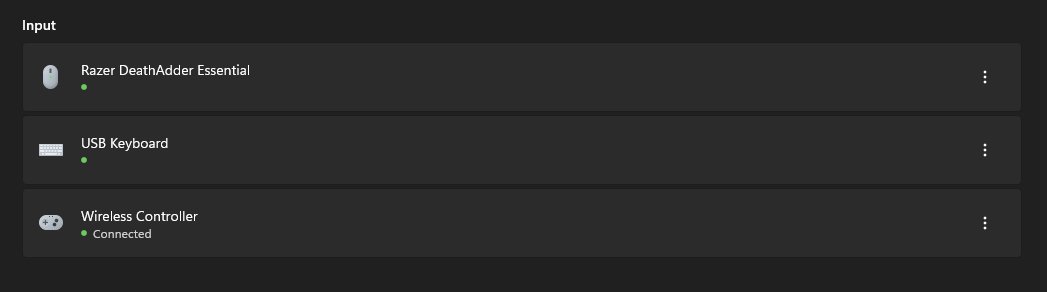
- Open Start > Settings > Bluetooth & devices and find the controller in your device list, shown as connected.
- Open a game, Steam or PS Remote Play and press a few buttons to confirm the input reaches it.
- If the light bar keeps flashing and nothing appears in Windows, the controller is still in pairing mode; repeat the pairing steps.
How to reset your DualShock controller
A reset clears the controller's pairing and is the first fix Sony recommends for most connection problems.
- On the PC, remove the controller under Settings > Bluetooth & devices > Devices > More options > Remove device > Yes.
- Disconnect the USB cable from the controller.
- Find the tiny hole on the back of the controller; the reset button is inside it.
- Press and hold the reset button with an unfolded paper clip for at least five seconds.
- Pair it again: hold SHARE + PS for Windows, or connect it to the console by USB and press PS.
Tips for connecting PS4 controller to PC Windows 11
| Tip | Why it helps |
|---|---|
| Charge the controller before pairing | A low battery causes failed pairing and dropouts |
| Unplug the USB cable before entering pairing mode | Pairing mode needs the controller off the cable and the player indicator off |
| Keep the controller close to the PC | Windows only finds and holds Bluetooth devices that are in range |
| Keep the PC's USB 3.0 devices away from the Bluetooth adapter | Unshielded USB 3.0 devices can interfere with Bluetooth connections |
| Set Bluetooth devices discovery to Advanced if the controller is missing | Default shows only common Bluetooth devices |
| Use a USB cable for PS Remote Play | Remote Play on Windows takes the DUALSHOCK 4 by USB |
| Update Windows and the Bluetooth driver | An outdated driver is one of the most common causes of Bluetooth connection problems |
| Expect to resync after using another device | The controller pairs with only one console at a time |
How to unpair PS4 controller from PC
- Select Start > Settings > Bluetooth & devices > Devices.
- Find the controller in the list and select More options (…) next to it.
- Select Remove device, then Yes.
- To use the controller on a console again, connect it by USB and press the PS button.
Troubleshooting a PS4 controller connection
PS4 controller won't connect to PC over Bluetooth
The PC's Bluetooth is off or in airplane mode, or the controller left pairing mode before Windows saw it.
- Select the Network, Sound or Battery icon on the taskbar and make sure Airplane mode is off.
- In Settings > Bluetooth & devices, turn Bluetooth off, wait a few seconds, then turn it on.
- Hold the PS button until the player indicator turns off, then hold SHARE + PS until the light bar flashes.
- If the controller was paired before, remove it under Devices > More options > Remove device and add it again.
- Run the Bluetooth troubleshooter: Settings > System > Troubleshoot > Other troubleshooters, then Run next to Bluetooth.
The controller does not show in the Bluetooth device list
Windows is filtering the list, or the controller is not flashing in pairing mode.
- Open Settings > Bluetooth & devices > Devices.
- Under Device settings, set Bluetooth devices discovery to Advanced.
- Put the controller back into pairing mode and select Add device again.
- Move the controller next to the PC and away from USB 3.0 drives or hubs.
Why isn't my controller being recognized over USB?
The cable only charges, the port is faulty, or the controller needs a reset.
- Swap to the cable that came with the PS4 or another micro USB data cable.
- Plug into a different USB port directly on the PC, not a hub or front-panel extension.
- Press the PS button after plugging in.
- Reset the controller with the reset button on the back, then plug it in again.
Bluetooth is missing on the PC
The PC has no Bluetooth hardware, a laptop switch is off, or the Bluetooth driver is outdated.
- Check the PC's specifications to confirm the computer has Bluetooth; some desktops have none.
- On a laptop with a physical Bluetooth switch, turn it on.
- Search for Device Manager, expand Bluetooth, right-click the adapter and select Update driver > Search automatically for updated driver software.
- If the adapter is not under Bluetooth, check Other devices, or get the latest Bluetooth driver from the PC maker's website.
- Without Bluetooth, use the micro USB cable or the DUALSHOCK 4 USB wireless adaptor instead.
PS4 controller won't connect to PS4 after using it on PC
The controller pairs with one console at a time, and Bluetooth pairing to the PC replaced the console pairing.
- Connect the controller to the PS4 with a USB cable.
- Press the PS button and wait for the player indicator to light up.
- If it still fails, turn off and unplug the PS4, reset the controller for at least five seconds, then connect it by USB and press PS.
PS4 controller on PC FAQ
Can I connect PS4 controller to PC?
Yes. A DUALSHOCK 4 connects to a Windows PC by Bluetooth, by a micro USB cable, or through Sony's DUALSHOCK 4 USB wireless adaptor. It works in Steam games, PS Remote Play and PC games that support the DUALSHOCK 4.
How to connect PS4 controller to laptop?
Use the same steps as a desktop PC. Most laptops have Bluetooth, so hold SHARE and PS until the light bar flashes, then select the controller under Settings > Bluetooth & devices > Add device. If the laptop has a Bluetooth switch, turn it on first.
How to connect PS4 controller to PC wired?
Plug a micro USB data cable into the controller and a USB port on the PC, then press the PS button if the light bar stays off. No pairing is needed, and the controller charges while it is connected.
Can I connect my PS4 controller to Windows 11 without Bluetooth?
Yes. Use a compatible micro USB cable or the DUALSHOCK 4 USB wireless adaptor, which are the two Windows connections Sony documents. A USB cable is also the connection PS Remote Play on Windows uses for the DUALSHOCK 4.
Do I need any special software to use a PS4 controller on PC?
Not for Steam games, PS Remote Play or games with built-in DUALSHOCK 4 support. Games outside Steam that only read Xbox controllers may ignore it; launch them through Steam or use a mapping tool such as DS4Windows.
How to connect PS4 controller to Steam?
Connect the controller to the PC by Bluetooth or USB, then open Steam. Steam Input supports the PS4 controller officially and passes its buttons to games as Xbox controller input, so Steam games respond without extra setup.
How to connect PS4 controller to PS5?
Connect the DUALSHOCK 4 to the PS5 console with a compatible USB cable and press the PS button. When the player indicator lights up, remove the cable and use the controller wirelessly.
How to connect PS4 controller to phone?
Android 10 or later and iOS 13 or later support the DUALSHOCK 4 over Bluetooth. Hold SHARE and PS until the light bar flashes, then select the controller in the phone's Bluetooth settings.
How to connect PS4 controller to iPad?
An iPad on iPadOS 13 or later pairs with a DUALSHOCK 4 by Bluetooth. Put the controller into pairing mode with SHARE and PS, then select it in the iPad's Bluetooth settings. The touchpad and rumble are not supported over Bluetooth.
Why won't my PS4 controller connect to my PC?
Usually the controller is not in pairing mode, the PC's Bluetooth is off or in airplane mode, or the cable only charges. Turn Bluetooth off and on, remove the old pairing, put the controller in pairing mode again, or reset it.
Why won't my PS4 controller connect to my PS4?
The controller pairs with one console at a time, so using it on a PC or phone breaks the console pairing. Connect it to the PS4 with a USB cable and press the PS button, and reset the controller if that fails.