To unblock a contact on iPhone, open Settings, tap Privacy & Security, tap Blocked Contacts, tap Edit, tap the delete button next to the person, then tap Unblock.
That is the iOS 26 path; this guide also gives the older iOS 18 and iOS 17 paths, how to unblock a number that was never saved, and what changes once someone is unblocked.
Step by step tutorial: How to unblock a contact on iPhone
In iOS 26, every blocked person sits in one list under Privacy & Security. Removing them there unblocks them for calls, texts and FaceTime at once.
- Open the Settings app.
- Tap Privacy & Security.
- Tap Blocked Contacts.
- Tap Edit in the top-right corner.
- Tap the red delete button next to the contact you want to unblock.
- Tap Unblock.
A faster option inside the list is to swipe left on a name or number and tap Unblock. Both routes do the same thing.
Where to find blocked contacts on iPhone in iOS 26, iOS 18 and iOS 17
Apple moved the Blocked Contacts list twice in recent releases. If Privacy & Security has no Blocked Contacts entry, your iPhone runs an older iOS version. Check it in Settings > General > About > iOS Version.
| iOS version on your iPhone | Path to the Blocked Contacts list | How to unblock there |
|---|---|---|
| iOS 26 | Settings > Privacy & Security > Blocked Contacts | Tap Edit, tap the delete button, then tap Unblock |
| iOS 18 | Settings > Apps > Messages > Blocked Contacts | Swipe left on the entry and tap Unblock, or tap Edit first |
| iOS 17 | Settings > Messages > Blocked Contacts | Swipe left on the entry and tap Unblock, or tap Edit first |
The list is the same one whichever app you open it from, so unblocking in the Messages settings also lets that person call you again.
How to unblock a number that is not saved as a contact
A number you blocked from your recent calls list or a text thread, without saving it, does not appear by name. In iOS 26 those numbers are grouped under an Unknown entry at the top of the list.
- Open Settings and tap Privacy & Security.
- Tap Blocked Contacts.
- Tap the Unknown entry, which shows how many unsaved numbers are blocked.
- Find the phone number you want back.
- Swipe left on the number and tap Unblock.
- Or tap Edit, tap the delete button next to the number, then tap Unblock.
If you want the number to show a name in future, save it to Contacts after unblocking it.
How to unblock a contact on iPhone 16, iPhone 14 and iPhone 12
The steps depend on the iOS version, not the iPhone model. An iPhone 16, iPhone 14 or iPhone 12 on iOS 26 uses the Privacy & Security path; the same phone still on iOS 18 uses the Messages path.
- Open Settings > General > About and read the iOS Version line.
- On iOS 26, go back and tap Privacy & Security > Blocked Contacts.
- On iOS 18, go back and tap Apps > Messages > Blocked Contacts.
- On iOS 17, go back and tap Messages > Blocked Contacts.
- Swipe left on the person or number and tap Unblock.
How to tell if a contact is unblocked on iPhone
There is no confirmation message after you tap Unblock. The proof is that the entry has left the list and the person can reach you again.
- Go back to the Blocked Contacts list and confirm the name or number is no longer there.
- If the number was unsaved, open the Unknown entry and check the count went down.
- Open the person's conversation in Messages and send a test message to confirm it goes out normally.
- Ask the person to send a new text or call you, and check it arrives with a normal notification.
What happens when you unblock someone on iPhone
Unblocking only changes what happens from now on. Anything the person sent while blocked was never delivered, so it does not appear after you unblock them.
| Item | While the contact was blocked | After you unblock them |
|---|---|---|
| Phone calls | Calls do not ring your iPhone | Calls ring as normal |
| Texts and iMessages | Messages are not delivered and the sender is not told | New messages are delivered; messages sent while blocked do not arrive |
| Voicemail | The caller can still leave a voicemail, with no notification to you | Voicemails arrive with the usual notification |
| FaceTime | FaceTime calls are blocked | FaceTime calls come through |
| Email in Mail | Mail from a blocked address goes to the trash folder | Mail lands in your inbox again |
| Other Apple devices | Email blocking applies across your Apple devices | Unblocking removes the address from the shared list |
Tips: How to unblock a contact on iPhone
A few habits save you from unblocking the wrong person or wondering why calls still do not come through.
| Tip | Why it helps |
|---|---|
| Swipe left on the entry instead of tapping Edit | It unblocks in one gesture and avoids hitting the wrong delete button |
| Check the Unknown group before you search for a name | Unsaved numbers never show a name in the list |
| Save the number to Contacts after you unblock it | Calls from saved contacts are not caught by unknown-caller filters |
| Use Add Blocked Contact to undo a mistake | If you unblock the wrong person, you can add them straight back from the same screen |
| Leave or mute a group chat instead of blocking everyone in it | A group conversation cannot be blocked as a whole |
| Turn off Silence Unknown Callers in FaceTime settings if an unsaved number still goes to voicemail | That setting silences unknown numbers even when they are not blocked |
If the person you unblocked is family, you can also add them as an emergency contact so they are reachable in an emergency.
Unblocked contact still cannot reach iPhone
The unblocked contact's old messages are missing
Messages sent while a contact is blocked are not delivered, so there is nothing to restore.
- Ask the person to resend anything important.
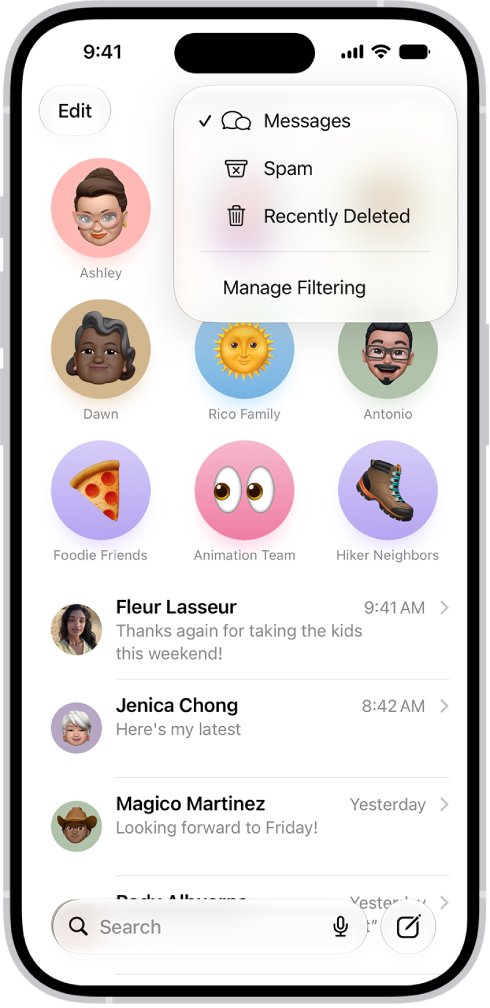
- Check the Spam filter in Messages: tap the filter button in the conversation list, then tap Spam.
- Tap any wrongly filtered message, tap Not Spam, then tap Move to Messages.
Calls from an unsaved number still go to voicemail
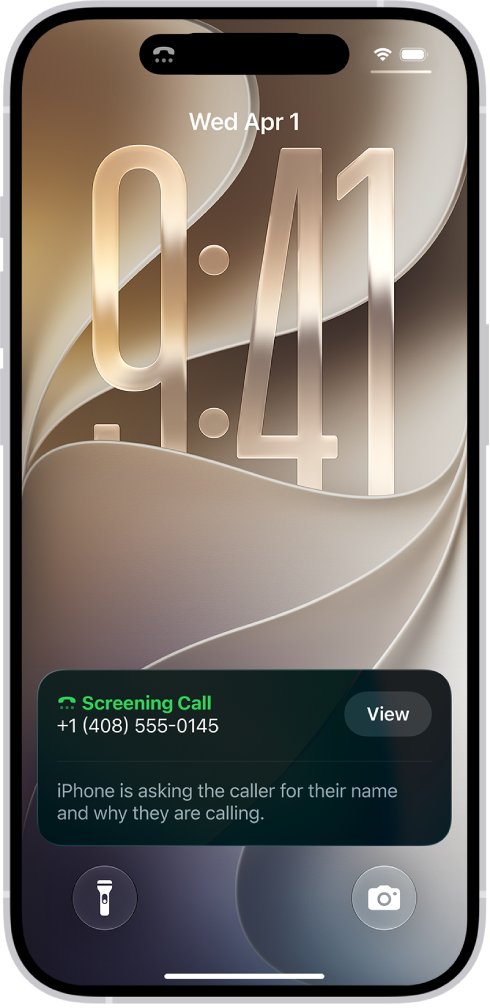
A call filter for unknown numbers is on, separate from the Blocked Contacts list.
- Open Settings > Apps > FaceTime.
- Turn off Silence Unknown Callers if you want unknown numbers to ring.
- Or save the number to Contacts so it rings through the filter.
Texts from the unblocked person still do not arrive
The number may still be in the Unknown group, or Screen Time is limiting who can message you.
- Open Blocked Contacts and check the Unknown group for a second number the person uses.
- Unblock any other number or email address that belongs to them.
- If Screen Time communication limits are set up, check that the person is allowed to contact you.
- If iMessage is off, turn on iMessage so blue-bubble messages can come through.
Frequently asked questions
How do I unblock a contact on iPhone?
Open Settings, tap Privacy & Security, then tap Blocked Contacts on iOS 26. Swipe left on the person and tap Unblock, or tap Edit, the delete button and Unblock. On iOS 18, the list is under Settings > Apps > Messages > Blocked Contacts.
What if I unblock someone by mistake?
Block them again from the same screen. In Settings > Privacy & Security > Blocked Contacts, tap Add Blocked Contact, choose the person and tap Block Contact. You can also block them from Recents in the Phone app by tapping the number and choosing Block Caller.
Can a contact tell if they have been unblocked?
No notification goes to the person when you block them, and Apple describes no alert when you unblock them either. They only notice because calls ring through and new messages are delivered again.
Will unblocking a contact restore old messages?
No. Messages sent to you while the contact was blocked are not delivered, so unblocking cannot bring them back. Only voicemails can be left during a block, and those are kept without a notification. Ask the person to resend anything important.
Is it possible to unblock someone who wasn't saved as a contact?
Yes. Unsaved numbers are listed under the Unknown entry in Blocked Contacts on iOS 26. Tap Unknown, swipe left on the number and tap Unblock. On older versions the number appears directly in the Blocked Contacts list.
Can I unblock a contact from the Messages app?
Apple documents unblocking through the Blocked Contacts list in Settings rather than inside a conversation. On iOS 18 and iOS 17 that list sits under the Messages settings. Unblocking there applies to Phone, FaceTime and Messages together.
How do I unblock all contacts on iPhone at once?
The Blocked Contacts list unblocks one entry at a time. Tap Edit and remove each person with the delete button and Unblock, or swipe left on each entry. Check the Unknown group too, because unsaved numbers are kept there in iOS 26.
How do I block and unblock a contact on iPhone?
To block, open the person's conversation in Messages, tap their name, tap Info and tap Block Contact, or use Block Caller from Recents. To unblock, open Settings > Privacy & Security > Blocked Contacts and remove them from the list.
How do I unblock an email contact on iPhone?
Addresses blocked with Block this Contact in Mail are part of the same blocked list Apple uses for Phone, Messages and FaceTime. Open Blocked Contacts in Settings, find the email address and unblock it. The change applies on your other Apple devices too.
How do I unblock a contact on iPhone 16?
An iPhone 16 on iOS 26 uses Settings > Privacy & Security > Blocked Contacts. Tap Edit, tap the delete button next to the contact and tap Unblock. If the phone still runs iOS 18, use Settings > Apps > Messages > Blocked Contacts.