Open Settings > Bluetooth & devices > Keyboard, expand Keyboard backlight and switch Change keyboard brightness automatically when lighting changes on or off.
This guide covers the hardware and Windows build the setting needs, how the automatic curve behaves, the energy saver dimming option, the registry value behind it, and fixes when the backlight switches itself off.
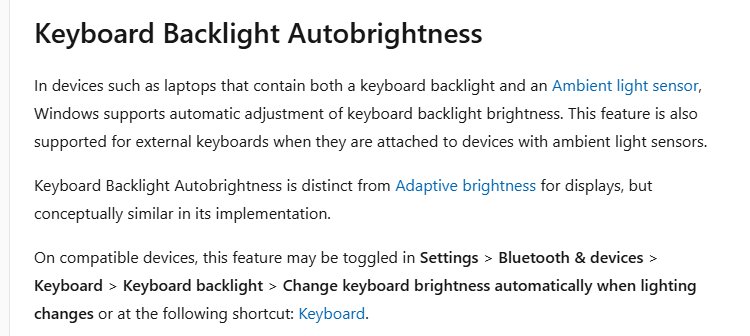
How to enable or disable keyboard backlight auto brightness on Windows 11
The toggle only appears on laptops and keyboards that Windows can control directly, so the steps end early on unsupported hardware.
- Press Win + I to open Settings.
- Select Bluetooth & devices in the left pane.
- Select Keyboard.
- Expand Keyboard backlight.
- Turn Change keyboard brightness automatically when lighting changes on to let Windows adjust the light, or off to keep a fixed level.
- Close Settings. The change applies immediately, with no restart.
To jump straight to the page, press Win + R, type ms-settings:devices-keyboard and press Enter.
Keyboard backlight auto brightness requirements in Windows 11
Windows can only drive the backlight when the keyboard hands brightness control to the operating system. Many older laptops still handle the light entirely in firmware, and those never show the toggle.
| Requirement | Detail |
|---|---|
| Windows version | Windows 11, version 25H2, build 26200.7922 or later |
| Ambient light sensor | The PC needs a built-in light sensor; without one there is nothing to measure room light |
| Keyboard | A backlit keyboard that reports a host-controlled backlight to Windows |
| External keyboards | Supported when plugged into a laptop or tablet that has an ambient light sensor |
| Lighting type | Single-zone backlights only; per-key RGB keyboards use Dynamic Lighting instead |
To read your build, press Win + R, type winver and press Enter. The build number appears on the second line.
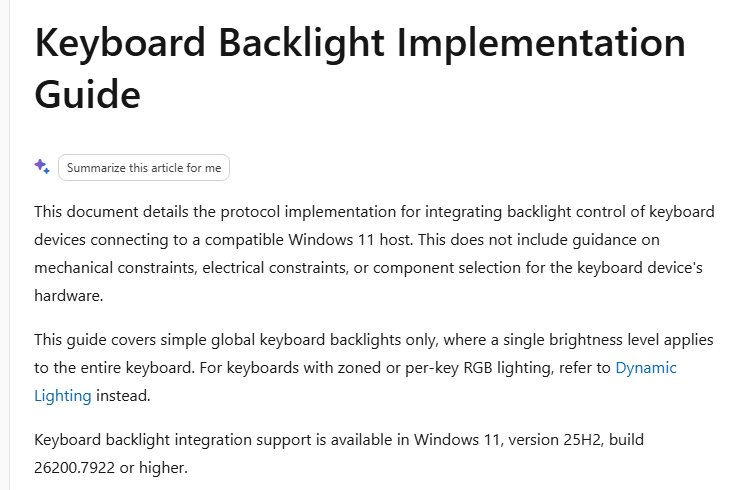
What is keyboard backlight autobrightness?
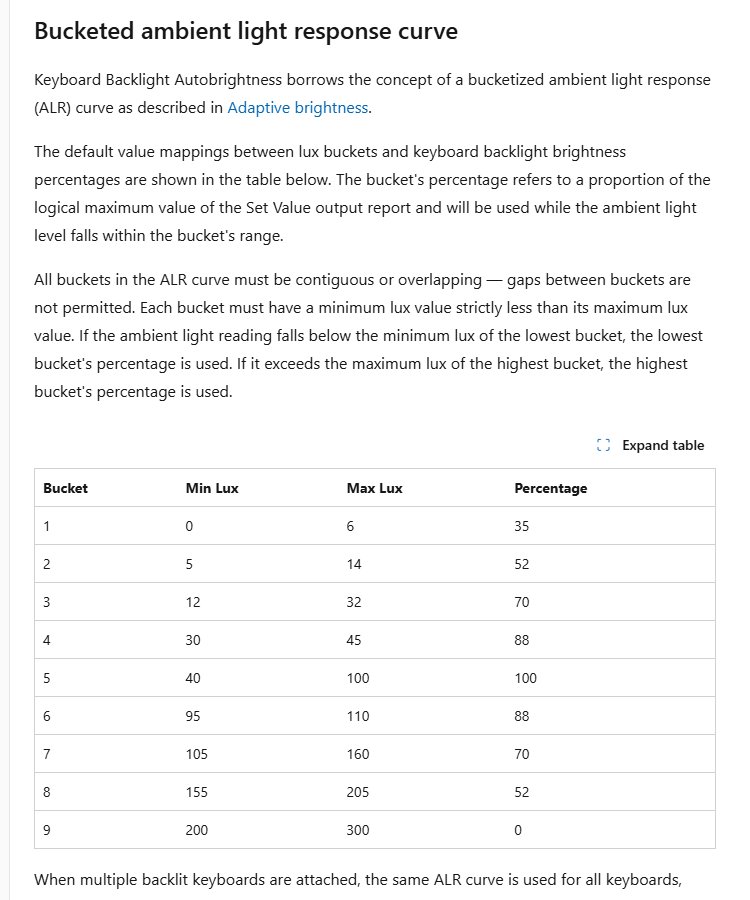
Keyboard backlight autobrightness reads the ambient light sensor and sets the key lighting to a percentage of the keyboard's maximum. It works in buckets, so small changes in room light do not make the keys flicker.
The default curve brightens the keys as a room gets dimmer, then turns them off completely in bright light, where the backlight adds nothing.
| Room light (lux) | Backlight level | Typical setting |
|---|---|---|
| 0 to 6 | 35% | Dark room, lights off |
| 5 to 14 | 52% | Very dim room |
| 12 to 32 | 70% | Dim evening lighting |
| 30 to 45 | 88% | Low indoor light |
| 40 to 100 | 100% | Moderate indoor light |
| 95 to 110 | 88% | Brighter indoor light |
| 105 to 160 | 70% | Well-lit room |
| 155 to 205 | 52% | Bright office |
| 200 to 300 | 0% (off) | Very bright room or daylight |
The buckets overlap on purpose. A reading must leave the current bucket's range before the level changes.
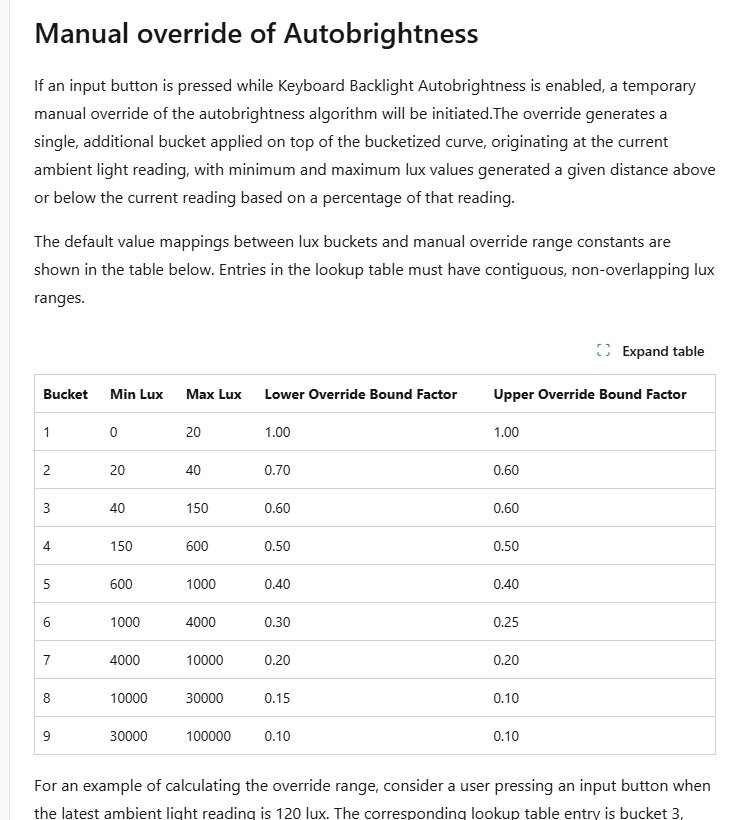
Change keyboard backlight brightness while auto brightness is on
Pressing a backlight key does not switch the automatic mode off. Windows applies a temporary manual override that lasts until the room light moves well outside the level it was at when you pressed the key.
- Press your keyboard's backlight brightness key, often an Fn combination marked with a keyboard light icon.
- Repeat the key until the keys reach the level you want.
- Keep working; Windows holds your level while the room light stays near its current reading.
- Expect auto brightness to resume once the light changes a lot, for example when you switch on the ceiling lamp.
- Turn the automatic toggle off in Settings if you want your level to stick permanently.
Keyboards differ in which key controls the light. Some laptops cycle through preset levels, and a few carry a dedicated Auto key that switches automatic brightness on or off from the keyboard. Dell, HP, Lenovo and ASUS each use their own keyboard light shortcut, so check the icons on the function row.
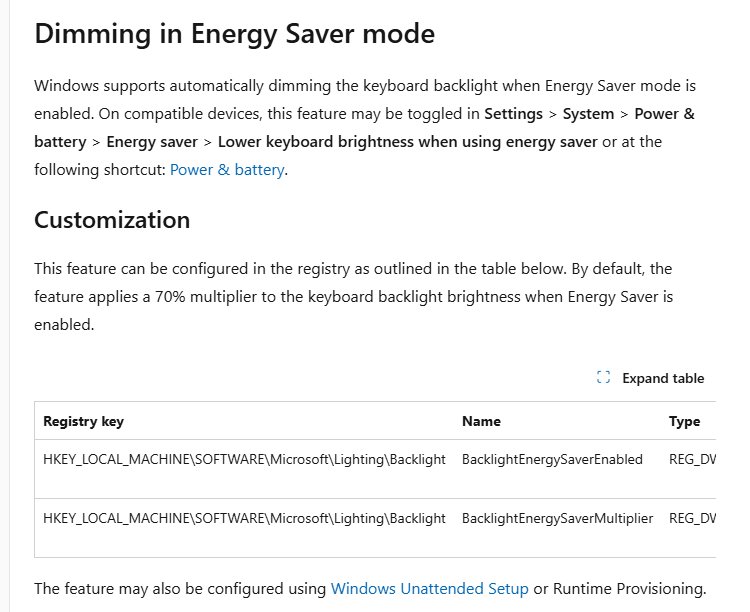
Lower keyboard brightness when using energy saver
Windows 11 can also dim the backlight whenever energy saver is on. This is a separate toggle on the battery page, and it works whether auto brightness is on or off.
- Open Settings and select System.
- Select Power & battery.
- Expand Energy saver.
- Turn Lower keyboard brightness when using energy saver on or off.
- Turn energy saver on from Quick Settings to see the dimmed level.
By default the energy saver option runs the backlight at 70% of the level it would otherwise use.
Disable keyboard backlight auto brightness with the registry
Microsoft documents a machine-wide value that device makers and IT admins use to set the default. Use it when you manage several PCs; on a single laptop the Settings toggle is the simpler route.
Run the command from Terminal opened as administrator, then sign out and back in.
reg add "HKLM\SOFTWARE\Microsoft\Lighting\Backlight" /v EnableBucketedBacklightAutobrightness /t REG_DWORD /d 0 /fCreates or sets the EnableBucketedBacklightAutobrightness DWORD to 0, which disables keyboard backlight autobrightness. Use /d 1 to enable it again.
You should see: The operation completed successfully.
The same key holds BacklightEnergySaverEnabled (1 or 0) and BacklightEnergySaverMultiplier (0 to 100) for the energy saver dimming level.
Export the Backlight key in Registry Editor before changing anything, so you can restore it with a double-click.
Confirm keyboard backlight auto brightness is on or off
- Reopen Settings > Bluetooth & devices > Keyboard and expand Keyboard backlight.
- Check that Change keyboard brightness automatically when lighting changes shows the state you chose.
- Cover the ambient light sensor near the webcam with your hand for a few seconds.
- Watch the keys: with auto brightness on, the level changes as the reading drops; with it off, the level stays fixed.
Keyboard backlight auto brightness vs adaptive brightness
Both features read the same light sensor, but they control different hardware and use different curves. Turning one off leaves the other untouched, and you can still adjust screen brightness manually either way.
| Feature | Keyboard backlight auto brightness | Display adaptive brightness |
|---|---|---|
| Controls | Key lighting | Screen brightness |
| Settings page | Bluetooth & devices > Keyboard | System > Display |
| Behaviour in bright light | Turns the backlight off above about 200 lux | Raises screen brightness |
| Windows version | Windows 11 25H2 build 26200.7922 or later | Windows 10 and Windows 11 |
On an older PC still running Windows 10, you can turn adaptive brightness on or off for the screen, but keyboard auto brightness is not available there.
Fix keyboard backlight auto brightness problems in Windows 11
Keyboard backlight turns off automatically
In bright light the default curve sets the backlight to 0%, and energy saver can dim it further.
- Open Settings > Bluetooth & devices > Keyboard and expand Keyboard backlight.
- Turn off Change keyboard brightness automatically when lighting changes.
- Press the backlight key to set a fixed level.
- Open System > Power & battery > Energy saver and turn off Lower keyboard brightness when using energy saver if the light dims on battery.
Keyboard backlight setting missing from Settings
The PC runs an older build, has no ambient light sensor, or the keyboard keeps backlight control in firmware.
- Run
winverand check for build 26200.7922 or later. - Open Settings > Windows Update and install pending updates, then restart.
- Install the latest firmware and keyboard drivers from your laptop maker's support site.
- Use the keyboard's backlight key or the maker's own app if the toggle still does not appear.
Keyboard backlight does not turn on automatically in the dark
Auto brightness is off, the backlight was switched off with its key, or the light sensor is covered.
- Confirm the auto brightness toggle is on.
- Press the backlight key once to switch the light back on.
- Clean the area around the webcam where the light sensor sits.
- Restart the PC so Windows takes a fresh sensor reading.
Keyboard backlight auto brightness ignores the brightness keys
A key press only creates a temporary override, which ends when room light changes.
- Press the brightness key again after the room light changes.
- Turn the automatic toggle off to keep a manual level for good.
Keyboard backlight auto brightness FAQ
How do I disable keyboard backlight auto brightness in Windows 11?
Open Settings > Bluetooth & devices > Keyboard, expand Keyboard backlight, and turn off Change keyboard brightness automatically when lighting changes. The backlight then stays at the level you set with the keyboard's brightness key.
How do I enable keyboard backlight in Windows?
Press the backlight key on the keyboard, usually an Fn combination with a keyboard light icon. On supported Windows 11 25H2 laptops you can also let Windows manage it by turning on automatic keyboard brightness in Settings > Bluetooth & devices > Keyboard.
How do I turn off the keyboard backlight completely?
Turn off automatic keyboard brightness in Settings, then press the backlight key until the keys go dark. Leaving auto brightness on lets Windows switch the light back on when the room gets darker.
Why does my keyboard backlight turn off automatically?
Auto brightness switches the backlight off in bright rooms, above roughly 200 lux on the default curve. Energy saver can also dim it. Turn off the automatic toggle and the energy saver keyboard option to stop it.
Why is there no keyboard backlight option in Windows 11 Settings?
The option needs Windows 11, version 25H2 build 26200.7922 or later, an ambient light sensor, and a keyboard that hands backlight control to Windows. Laptops that control the light in firmware never show it.
Can I stop the keyboard backlight from dimming on battery?
Yes. Open Settings > System > Power & battery, expand Energy saver, and turn off Lower keyboard brightness when using energy saver. By default that option runs the backlight at 70% while energy saver is on.
Does keyboard auto brightness work with an external keyboard?
Yes, if the external keyboard reports a Windows-controlled backlight and is attached to a PC with an ambient light sensor. The same brightness curve applies to every attached backlit keyboard.
Does keyboard auto brightness change my screen brightness?
No. Keyboard auto brightness only controls the key lighting. Screen brightness is handled by adaptive brightness under Settings > System > Display, which uses its own separate curve.