Sysdm.cpl is the Control Panel file that opens the System Properties window in Windows 11 and Windows 10, where you change environment variables, virtual memory, restore points, the computer name and Remote Desktop access.
This guide shows how to open it, what each part does, the commands that jump straight to one page, and how to fix the errors people hit most.
How to open Sysdm.cpl
The Run box is the fastest route and works the same on Windows 11 and Windows 10.
- Press Windows + R to open the Run box.
- Type
sysdm.cpland press Enter. - Approve the User Account Control prompt if one appears.
- Select the tab you need at the top of the System Properties window.
Two more routes reach the same window: press Windows + Pause/Break and select Advanced system settings, or type control sysdm.cpl in Command Prompt or PowerShell.
What does Sysdm.cpl do?
A .cpl file is a Control Panel item, the same way appwiz.cpl opens Programs and Features. Sysdm.cpl is the System item, and it hosts settings the Settings app never fully took over.
On Windows 11 and Windows 10, Control Panel > System now opens Settings, and the Advanced system settings link there leads back to this window.
| Tab | What you change there | Direct command |
|---|---|---|
| Computer Name | The PC name, and joining a domain or workgroup | SystemPropertiesComputerName |
| Advanced | Performance Options and virtual memory, user profiles, startup and recovery, environment variables | SystemPropertiesAdvanced |
| System Protection | Turning on System Restore, creating restore points, running System Restore | SystemPropertiesProtection |
| Remote | Remote Desktop access, Network Level Authentication and allowed users | SystemPropertiesRemote |
| Hardware | Hardware-related options for the PC; Microsoft lists no separate command for this tab | None |
Sysdm.cpl command line options
Microsoft provides a separate program for each System Properties page, stored in %windir%\system32. Because they are .exe files, a standard user gets a prompt for administrator credentials instead of a greyed-out dialog. Type any of them in the Run box, Command Prompt or PowerShell.
| You want to open | Type this | Lands on |
|---|---|---|
| The whole window | sysdm.cpl or control sysdm.cpl |
System Properties |
| Environment Variables, virtual memory or startup options | SystemPropertiesAdvanced |
Advanced tab |
| Performance Options and virtual memory | SystemPropertiesPerformance |
Performance Options dialog |
| Restore points | SystemPropertiesProtection |
System Protection tab |
| Rename the PC or join a domain | SystemPropertiesComputerName |
Computer Name tab |
| Remote Desktop permissions | SystemPropertiesRemote |
Remote tab |
The older control sysdm.cpl,,N syntax also opens a numbered tab, but Microsoft notes that the numbering changed between Windows versions. The SystemProperties commands above always land on the named page.
How to use the Advanced tab
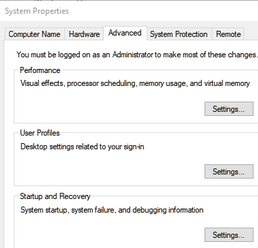
The Advanced tab holds three Settings buttons and the Environment Variables button. Most changes on it need administrator rights.
| Section | What it controls | How to reach it |
|---|---|---|
| Performance | Performance Options, including virtual memory (the page file) | Settings under Performance, then the Advanced tab and Change under Virtual memory |
| User Profiles | Profiles stored on the PC, including deleting an old one | Settings under User Profiles, select the profile, then Delete |
| Startup and Recovery | What Windows records after a Stop error, such as the memory dump | Settings under Startup and Recovery, then Write debugging information |
| Environment Variables | User and system variables such as Path, TEMP and JAVA_HOME | Environment Variables button at the bottom of the tab |
Restart the PC after changing virtual memory, since the page file is set up when Windows starts.
Environment Variables: the part most people use
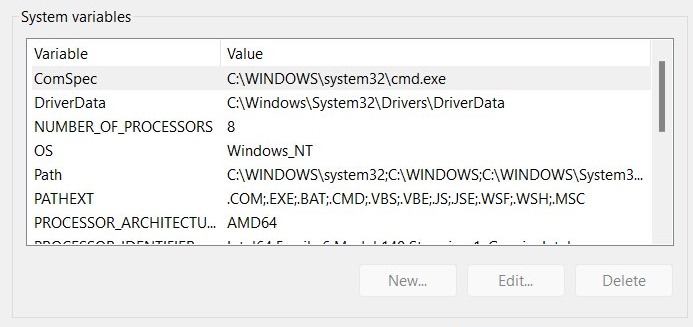
User variables apply to your account only. System variables apply to every account on the PC and need administrator rights. Adding a tool's folder to Path lets you run it from any command window by name.
- Press Windows + R, type
SystemPropertiesAdvancedand press Enter. - Select Environment Variables.
- Under User variables, select Path, then select Edit.
- Select New and paste the folder that contains the tool, not the .exe file itself.
- Select OK in each open dialog to save.
- Close every Command Prompt, PowerShell or terminal window and open a new one.
- Type
echo %PATH%in Command Prompt, or$env:Pathin PowerShell, to confirm the folder appears.
A single user-defined variable can hold up to 32,767 characters, and a variable name cannot contain an equals sign.
System Protection and restore points
Restore points let you roll Windows system files and settings back after a bad driver, update or app install. They exist only on drives where protection is turned on, and the system drive must be protected first.
- Press Windows + R, type
SystemPropertiesProtectionand press Enter. - Under Protection Settings, check that your system drive shows protection as on. If not, select it, select Configure and turn on system protection.
- Select Create.
- Type a description such as the app or driver you are about to install, then select Create.
- Wait for the confirmation message, then select Close.
- To roll back later, select System Restore on the same tab and pick the restore point.
From an elevated PowerShell window, Checkpoint-Computer -Description "Before driver update" creates the same restore point. Windows allows only one such checkpoint per day.
Computer name and system information
The Computer Name tab renames the PC and joins it to a domain or workgroup. System Properties cannot change hardware details such as the processor or installed RAM; those come from the hardware itself.
- Press Windows + R, type
SystemPropertiesComputerNameand press Enter. - On the Computer Name tab, select Change.
- Type the new name in the Computer name box.
- Choose Domain or Workgroup only if you are joining one, then select OK.
- Restart the PC when Windows asks, so the new name takes effect.
PowerShell does the same from an elevated window with Rename-Computer -NewName "Office-PC" -Restart.
Remote settings: what Sysdm.cpl does not do
The Remote tab only switches permissions on this PC. It does not make a remote connection work on its own.
| The Remote tab does | The Remote tab does not |
|---|---|
| Allow or block Remote Desktop connections to this PC | Turn a Windows Home PC into a Remote Desktop host, because Home editions cannot host |
| Require Network Level Authentication for connections | Open access from outside your network, which needs port forwarding or a VPN |
| Add accounts to Remote Desktop Users with Select Users | Connect you to another PC, which is the job of Remote Desktop Connection or Windows App |
| Block everyone with Don't allow connections to this computer | Change firewall rules on other devices between the two PCs |
On Windows 11 and Windows 10, Settings > System > Remote Desktop offers the same on/off switch. It is easier for a one-off change.
Common problems with Sysdm.cpl
"Windows cannot find sysdm.cpl"
The file is damaged or missing from the Windows system folders. Sysdm.cpl is part of Windows and is never a separate download.
- Select Start, type
cmd, right-click Command Prompt and select Run as administrator. - Run
DISM.exe /Online /Cleanup-image /Restorehealthand wait for it to finish. - Run
sfc /scannow. - Restart the PC and try
sysdm.cplagain.
The change is not visible in a terminal
A running program keeps the environment it started with. Only programs started after the change pick up new values.
- Close every Command Prompt, PowerShell and terminal window, including tabs.
- Close and reopen the editor or IDE that launched the terminal.
- Open a new window and check the variable again.
- Sign out and back in if a background program still uses the old value.
The System Protection tab has no restore points
System protection is off for the drive, or no restore point has been created yet.
- Open
SystemPropertiesProtectionand select the system drive. - Select Configure and turn on system protection.
- Select Create to make a first restore point now.
A computer-name or System-variable change is blocked
Both changes need administrator rights. If a standard user elevates, the dialog edits the administrator's own user variables, not yours.
- Sign in with an administrator account to rename the PC or edit System variables.
- For your own user variables, select Start, type
Accountsand open User Accounts. - Select Change my environment variables and make the change there.
- On a work or school PC, ask your IT admin, since policy may lock these settings.
Sysdm.cpl FAQ
What does sysdm.cpl mean?
Sysdm.cpl is the file name of the System Properties item in Control Panel. The .cpl extension marks a Control Panel item, and running it opens the window with the Computer Name, Hardware, Advanced, System Protection and Remote tabs.
What does sysdm.cpl do?
It opens System Properties, where you rename the PC, set virtual memory, manage user profiles, edit environment variables, create restore points and allow Remote Desktop. These settings were never moved fully into the Windows Settings app.
How do I open sysdm.cpl?
Press Windows + R, type sysdm.cpl and press Enter. You can also press Windows + Pause/Break and select Advanced system settings, or run control sysdm.cpl from Command Prompt or PowerShell.
How do I run sysdm.cpl from CMD?
Type sysdm.cpl or control sysdm.cpl at the Command Prompt and press Enter. To land on one page, type SystemPropertiesAdvanced, SystemPropertiesProtection, SystemPropertiesComputerName or SystemPropertiesRemote instead.
Is sysdm.cpl still available in Windows 11?
Yes. Windows 11 still includes System Properties. Control Panel's System entry now opens the Settings app, but the Advanced system settings link, the Run box and the SystemProperties commands all open the classic window.
What is the fastest way to open Environment Variables?
Press Windows + R, type SystemPropertiesAdvanced and press Enter, then select Environment Variables. That skips the first tab. Standard users can edit their own variables from User Accounts > Change my environment variables.
Why did my PATH change not work?
The window you are testing in was open before the change. Programs copy their environment when they start, so close every terminal and the app that launched it, open a new one, and check again.
Can sysdm.cpl enable remote access by itself?
No. The Remote tab allows Remote Desktop connections to the PC, but a Windows Home edition cannot host them, and connecting from outside your network still needs port forwarding or a VPN.
Can I download sysdm.cpl?
No. Sysdm.cpl is a Windows system file and is not offered as a download by Microsoft. If Windows reports it missing, run DISM and then sfc /scannow from an administrator Command Prompt to restore it.
Is Sysdm.cpl still worth using in Windows 11?
Yes. Keep sysdm.cpl and the SystemProperties commands for environment variables, virtual memory, restore points and domain joins, and use Settings for a simple rename or the Remote Desktop switch. Settings still has no full replacement for the Advanced and System Protection tabs, and the commands open them in one step.