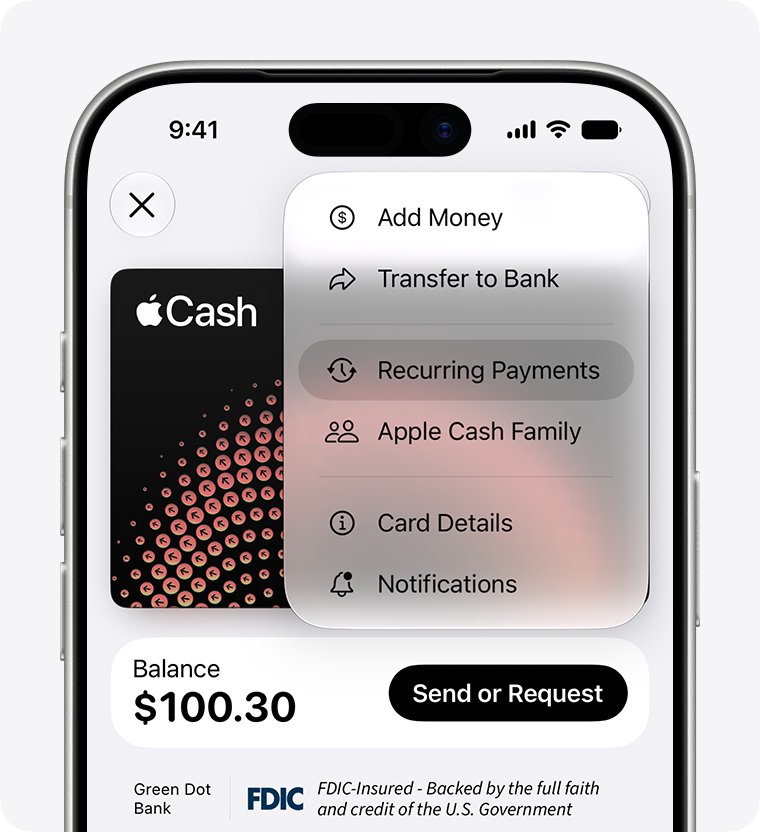
To get money from your bank account into Wallet on an iPhone 14 Pro Max, add your bank's debit card to Wallet, open your Apple Cash card, tap the More button and tap Add Money.
This guide covers setting up Apple Cash, adding the debit card, automatic top-ups, checking the balance, moving money back to your bank and fixing a top-up that fails.
How to add money to Apple Cash from your bank on iPhone 14 Pro Max
Apple Cash is the balance that lives in the Wallet app. It is loaded from a debit or prepaid card already in Wallet, so the money comes out of the bank account behind that debit card.
- Open the Wallet app on your iPhone.
- Tap your Apple Cash card.
- Tap the More button, then tap Add Money.
- Enter an amount. The minimum is $10.
- Tap the Done button.
- Double-click the side button, then confirm with Face ID or your passcode.
If Wallet has no debit card yet, add one first using the steps further down. There is no field for typing a bank routing number to pull money in; the bank account option in Apple Cash is for transfers out.
Apple Cash requirements on iPhone 14 Pro Max
| Requirement | Detail |
|---|---|
| Age and country | 18 or older and living in the U.S.; under 18 needs Apple Cash Family set up by the family organizer |
| Software | The latest version of iOS on the iPhone |
| Apple Account | Two-factor authentication turned on, and signed in to iCloud on each device you use |
| Funding card | A debit or prepaid card in Wallet; credit cards and gift cards cannot add money |
| Identity check | Apple may ask you to verify your identity before all features unlock |
How to set up Apple Cash in Wallet
Apple Cash has to be turned on before the Add Money option appears. Setup does not affect your credit.
- Open the Settings app on your iPhone.
- Scroll down and tap Wallet & Apple Pay.
- Turn on Apple Cash.
- Under Payment Cards, tap Apple Cash.
- Tap Continue and follow the instructions on the screen.

How to add your bank debit card to Apple Wallet
The debit card links Wallet to your bank account. Some banks ask for extra verification, such as a code or their own app, before the card is approved.
- Open the Wallet app and tap the Add Card button.
- Tap Debit or Credit Card, then tap Continue.
- Hold the card close to your iPhone, or tap Enter Card Details Manually and type the details.
- Complete any verification your bank asks for.
- Wait for the card to show as ready in Wallet, then return to your Apple Cash card to add money.
If the card was used on your account before, tap Cards Found For You to add it without retyping the number. If the card will not add, work through the common Apple Pay not working fixes or contact the card issuer.
How to set up Apple Cash auto reload from your debit card
Auto reload tops up Apple Cash from your debit card whenever the balance drops below a level you choose.
- Open Wallet and tap your Apple Cash card.
- Tap the More button, then tap Card Details.
- Tap Set Up Auto Reload.
- Select the amount to add each time.
- Tap Minimum Balance and set the level that triggers a top-up.
- Tap the Done button, then double-click the side button and authenticate to finish.
To change or stop it, go back to Card Details, tap Auto Reload, then tap Edit or Cancel Auto Reload.
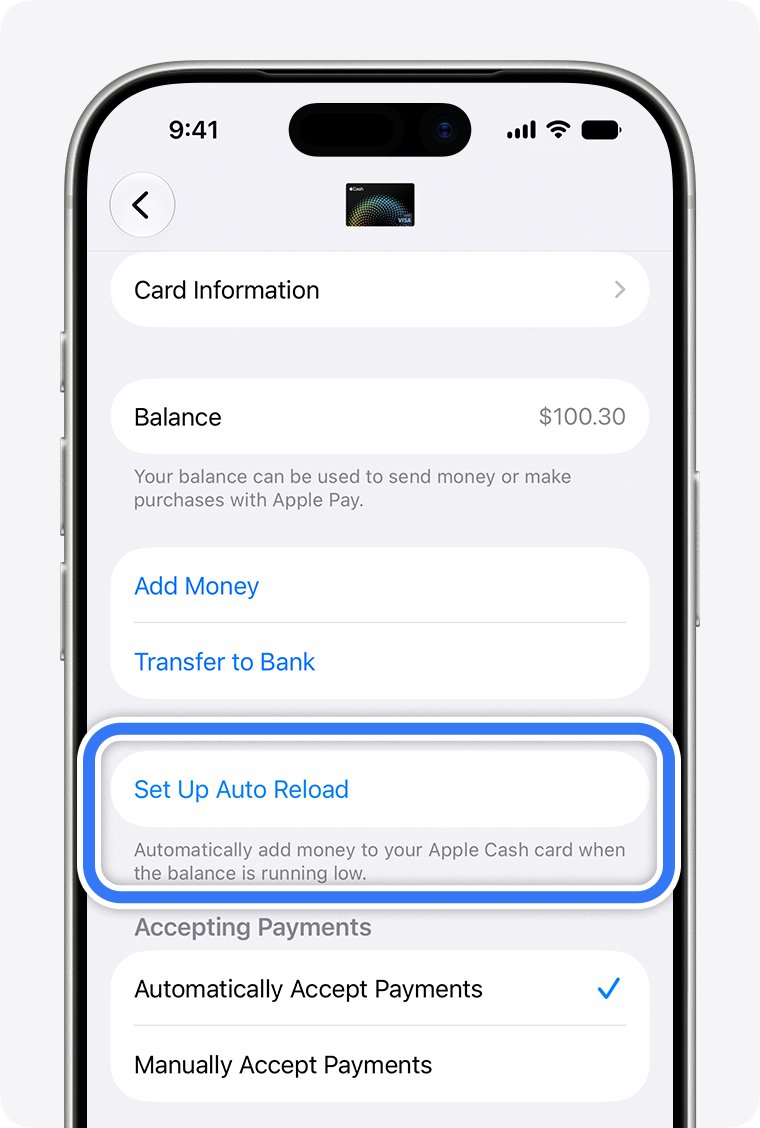
How to check your Apple Cash balance on iPhone
- Make sure the iPhone has a Wi-Fi or cellular connection so the balance is up to date.
- Open the Wallet app.
- Tap your Apple Cash card and read the balance at the top.
- Check the top-up under Latest Transactions.
You can also see the balance in Settings > Wallet & Apple Pay, or on your Apple Account page.
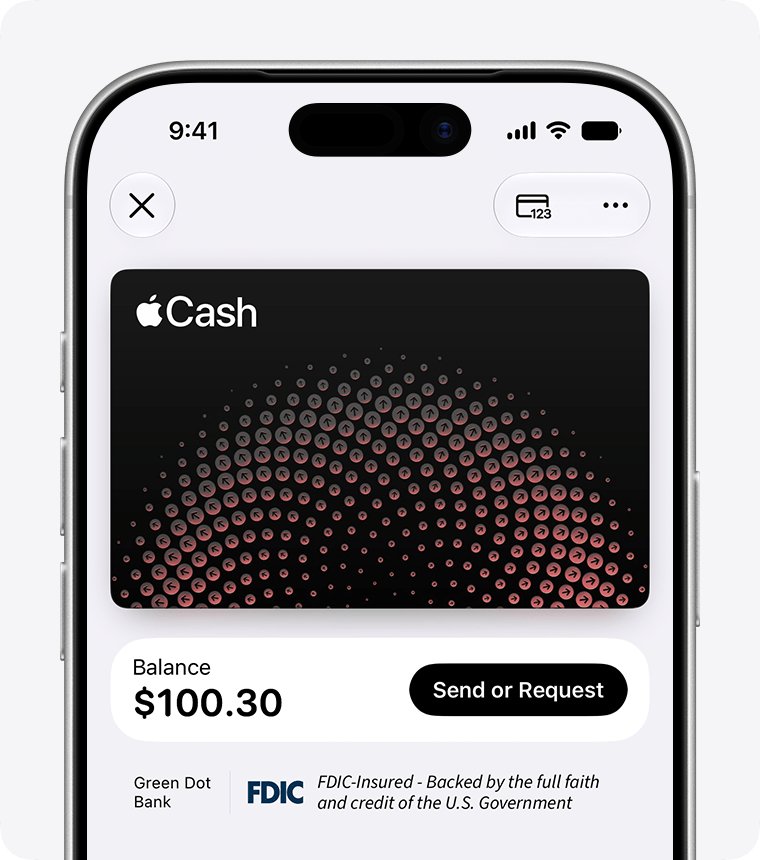
How to transfer Apple Cash to your bank account
Money moves back out of Wallet with Transfer to Bank. A standard bank transfer is free; an instant transfer to a debit card costs a fee.
- Open Wallet, tap your Apple Cash card, tap the More button, then tap Transfer to Bank.
- Enter an amount, tap the Close button, then tap Continue.
- Tap 1-3 Business Days for a free bank transfer, or Instant Transfer for a debit card.
- If no bank account is listed, tap Add A Bank Account and enter your routing number and account number twice.
- Double-click the side button and confirm with Face ID or your passcode.
Bank transfers usually arrive within 1 to 3 business days. Instant transfers should arrive immediately but can take up to 30 minutes.
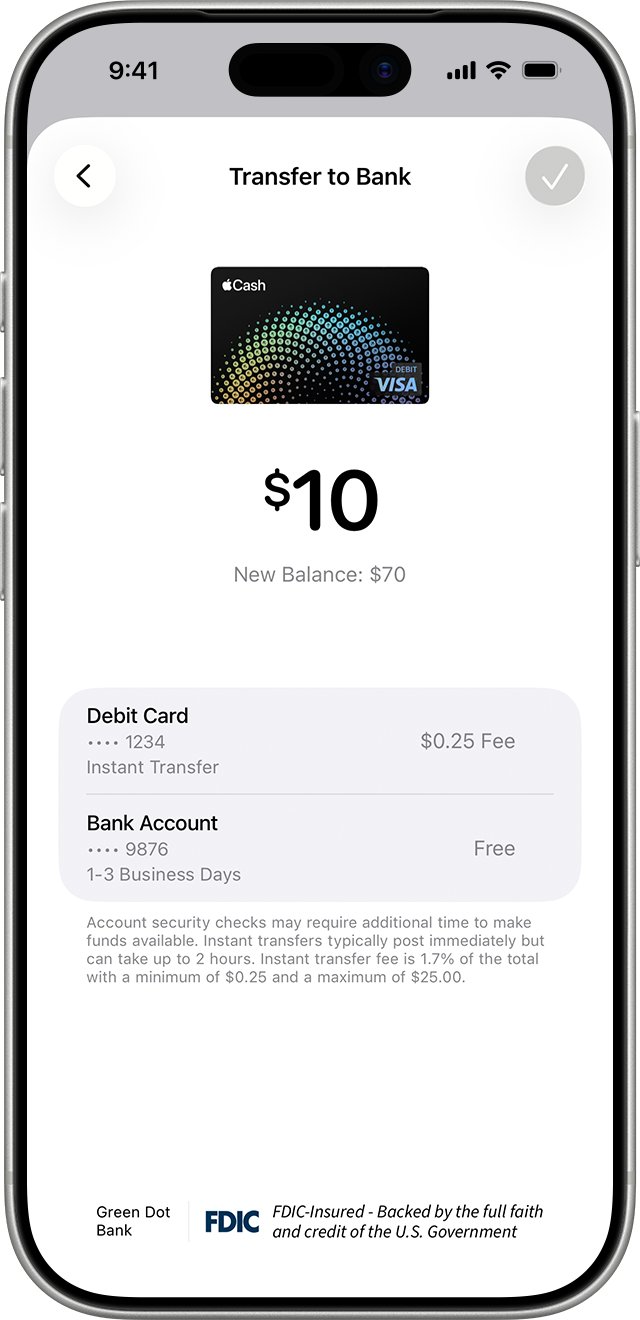
Apple Cash limits and fees for adding and transferring money
| Action | Limit or fee |
|---|---|
| Add money from a debit or prepaid card | Minimum $10 |
| Send, receive or request money | No fee |
| Transfer to a bank account (1-3 business days) | No fee; $1 minimum, up to $10,000 per transfer and $20,000 in seven days |
| Instant Transfer to a debit card | 1.7% fee, minimum $0.25, maximum $25 |
| Destination bank | U.S. bank accounts only |
| Apple Cash Family and Tap to Cash | Up to $2,000 sent or received in a rolling seven-day period |
Apple Cash Add Money not working: fixes
Add Money rejects your card
Apple Cash cannot be loaded from credit cards, gift cards or some prepaid cards.
- Check the card in Wallet is a debit card from your bank, not a credit card.
- Add your bank's debit card from the Add Card button in Wallet.
- Return to Apple Cash, tap the More button and tap Add Money again.
Add Money option missing on Apple Cash
Apple Cash is not set up on this iPhone, or there is no eligible card in Wallet.
- Go to Settings > Wallet & Apple Pay and turn on Apple Cash.
- Finish setup under Payment Cards > Apple Cash.
- Add a debit card to Wallet, then look for Add Money again.
Can't turn on Apple Cash
The Apple Account is missing two-factor authentication, or it has been flagged for security reasons.
- Turn on two-factor authentication for your Apple Account.
- Update the iPhone to the latest iOS version.
- If setup still fails, follow Apple's prompt to request an account review or contact Apple Pay support.
Money added but not available yet
Security checks can delay when funds become available.
- Open Wallet and tap Apple Cash to check Latest Transactions.
- Verify your identity if Wallet asks you to.
- Wait for the security check to finish before spending the balance.
Bank account to Apple Wallet FAQ
Can I add money to Apple Wallet directly from my bank account?
Not with an account and routing number. Apple Cash adds money from a debit or prepaid card in Wallet, so add your bank's debit card and the money comes from the account behind it.
Can I add money to Apple Cash with a credit card?
No. Apple Cash does not accept credit cards for adding money, and you cannot add money from a gift card even if it is already in Wallet. Use a debit card instead.
What is the minimum amount I can add to Apple Cash?
The minimum is $10 each time you use Add Money. Auto reload lets you choose an amount that is added automatically whenever the balance falls below your minimum.
How do I receive money in Apple Wallet?
When someone sends you money in Messages or Wallet, it goes into your Apple Cash balance automatically. With Manually Accept Payments turned on, tap Accept in Messages within 7 days.
How do I get money from Apple Cash to my bank?
In Wallet, tap Apple Cash, tap More, then Transfer to Bank. Choose 1-3 Business Days for a free transfer to your bank account, or Instant Transfer to a debit card for a 1.7% fee.
How long does an Apple Cash bank transfer take?
Most transfers to a bank account finish within 1 to 3 business days. Instant Transfer to an eligible debit card should arrive immediately but can take up to 30 minutes.
Does it cost money to use Apple Cash?
Sending, receiving and requesting money cost nothing, and bank transfers are free. Only Instant Transfer to a debit card charges a fee of 1.7%, between $0.25 and $25.
Can I use Apple Cash if I am under 18?
Yes, through Apple Cash Family. The family organizer sets it up, and family accounts can send or receive up to $2,000 within a rolling seven-day period.