To put Sticky Notes or Notepad on your desktop in Windows 11, open Start, select All, and drag the app's name onto the desktop to create a shortcut.
This guide also covers pinning both apps to the taskbar, keeping a note on top of other windows, adding images to notes, Notepad tips and fixes for notes that go missing.
How to put sticky notes on desktop
Every open note already sits on the desktop as its own small window, and Sticky Notes remembers where you left each one.
If the app is missing from Start, open the Microsoft Store and install Microsoft Sticky Notes first.
- Select the Start button and type Sticky Notes.
- Open Sticky Notes from the results. Your notes reopen where you left them.
- Press Ctrl + N, or select the plus icon (+) in the upper-left corner, to start a new note.
- Type your note. Sticky Notes saves it automatically.
- Grab the top of the note and drag it to the spot on the desktop where you want it.
- Drag the edges of the note to change its width and height.
Press Windows key + D to show the desktop and check that the note sits where you placed it.
Sticky Notes vs Notepad on the desktop
| What you want | Use this | Why |
|---|---|---|
| A short reminder you can see on the desktop | Sticky Notes, note dragged into place | Each note is its own window and keeps its position |
| One-click access to a new note | Sticky Notes pinned to the taskbar | Right-click the taskbar icon and select New note |
| Notes on your phone and the web too | Sticky Notes signed in with a Microsoft account | Notes sync through OneNote and Outlook on the web |
| Long plain-text notes or logs | Notepad shortcut on the desktop | Notepad saves ordinary .txt files you can move and back up |
| A note that stays above every other window | PowerToys Always On Top on Notepad | Sticky Notes cannot stay on top of other apps |
How to put Notepad on desktop or taskbar
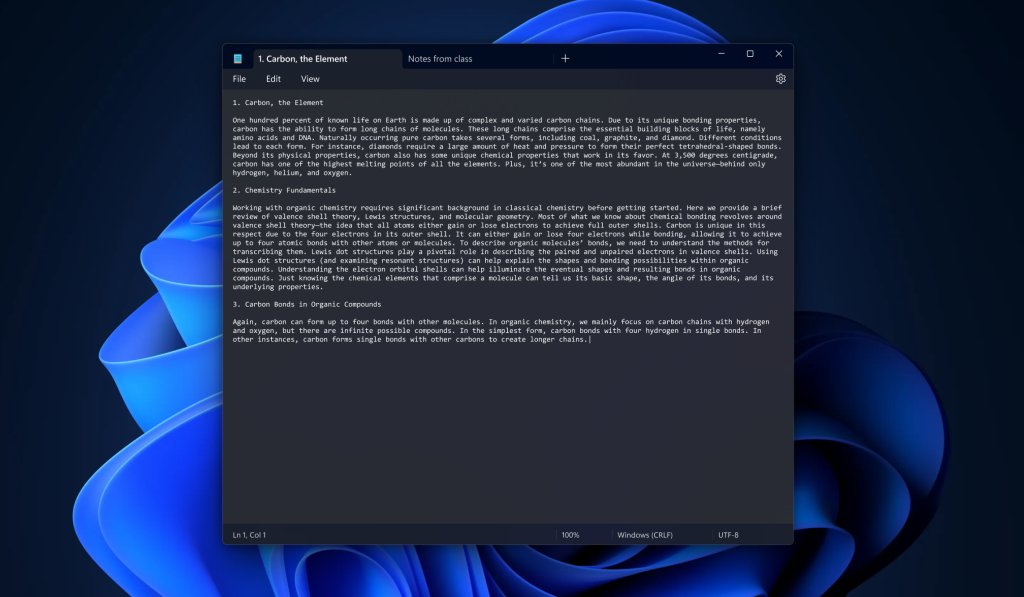
Windows 11 lets you drag any app from the Start menu's app list straight onto the desktop, and the same drag works for Sticky Notes.
- Press the Windows key to open Start.
- Select All to show the full app list.
- Find Notepad in the list.
- Left-click Notepad and drag it onto the desktop. A shortcut icon appears.
- To pin it to the taskbar instead, type Notepad in the taskbar Search box.
- Right-click Notepad in the results and select Pin to taskbar.
On Windows 10, type Notepad in the taskbar search box, right-click it and select Pin to taskbar, or right-click the Notepad tile in Start and select More > Pin to taskbar.
To put one particular text file on the desktop, right-click the file in File Explorer and select Create shortcut. On Windows 11, select Show more options first if the option is hidden.
Calendars work the same way: you can put Google Calendar on the desktop next to your notes.
How to put Sticky Note on taskbar
A pinned Sticky Notes icon opens your notes list instantly and gives you a New note shortcut from its right-click menu. You can pin any app to the taskbar in Windows 11 with the same right-click.
- Open Sticky Notes from Start.
- Right-click the Sticky Notes icon on the taskbar while the app is running.
- Select Pin to taskbar.
- To start a note later, right-click the pinned icon and select New note.
- Press Windows key plus the icon's position number to open it from the keyboard. For example, Windows key + 3 opens the third pinned app.
To remove it, right-click the pinned icon and select Unpin from taskbar.
How to make sticky notes stay on top of other windows
Sticky Notes cannot currently stay on top of other applications, which is why notes seem to vanish behind open windows.
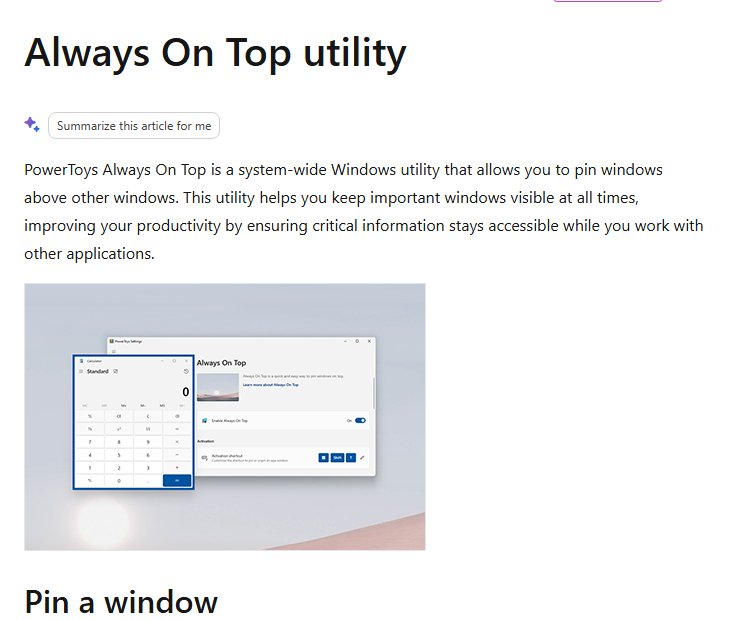
Microsoft PowerToys includes Always On Top, a utility that keeps an app window always on top of all others. It works on any ordinary window, including Notepad and an open sticky note.
- Install Microsoft PowerToys and open it once so its utilities start.
- Select the Notepad window or the sticky note you want to keep visible.
- Press Windows key + Ctrl + T. A colored border appears around the pinned window.
- Work in other apps. The pinned window stays above them.
- Press Windows key + Ctrl + T again, or close the window, to unpin it.
Turn on Show Always on Top in the title bar context menu in PowerToys settings if you prefer a right-click option over the shortcut.
How to add images to Sticky Notes on Windows 11
- Open Sticky Notes and double-click a note in the notes list to open it.
- Select the camera icon at the bottom of the note.
- Browse to the picture you want to use.
- Select the picture and select Open. The image appears inside the note.
- To remove it, right-click the image in the note and select Delete image.
The same toolbar formats text as bold, italic, underline or strikethrough, and adds bullets. Sticky Notes does not let you change the font or text size.
Notepad tips and tricks for Windows users
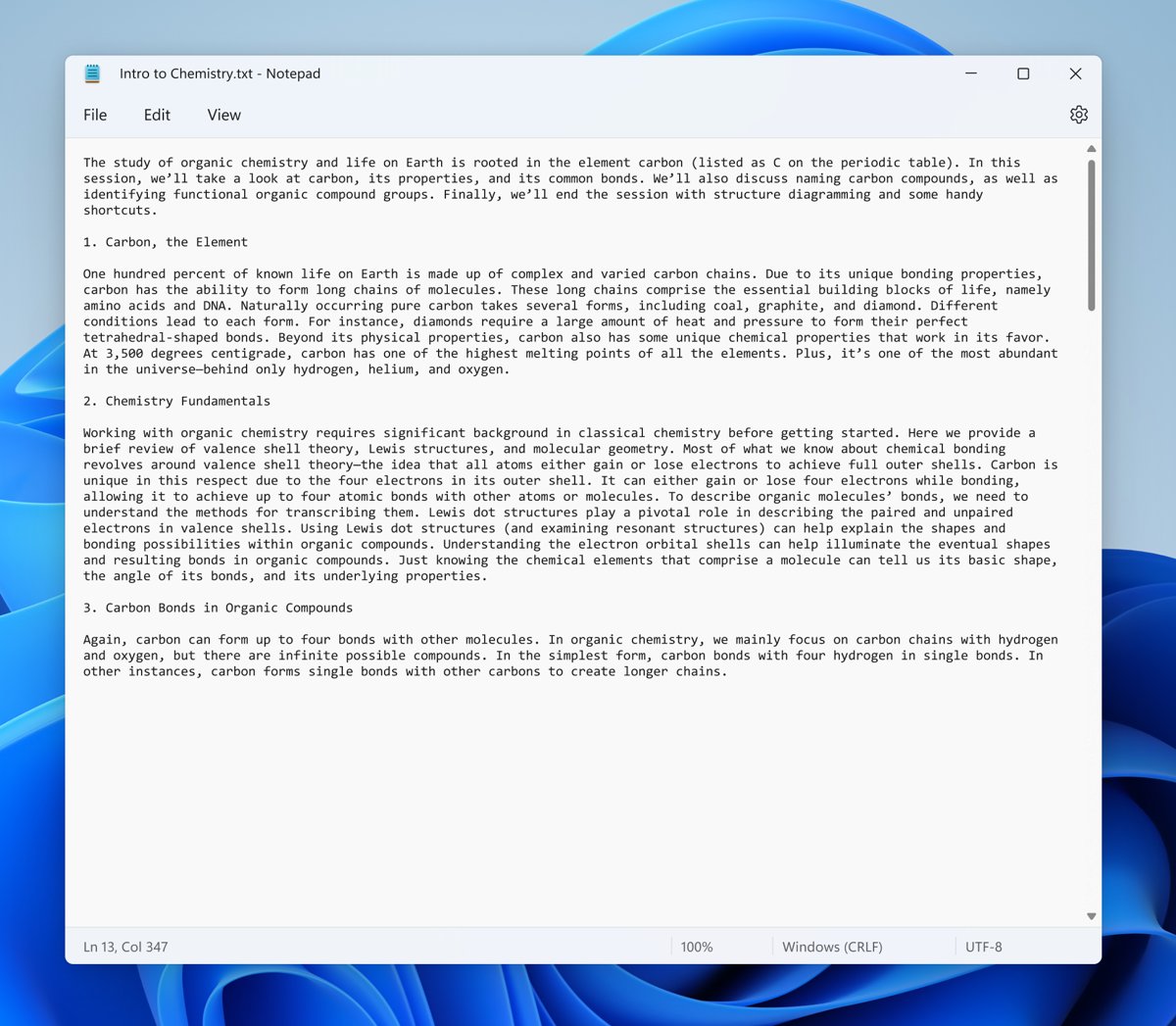
Notepad does more than hold plain text, and several of these features suit a note that lives on the desktop.
| Tip | How to use it | What you get |
|---|---|---|
| Automatic date log | Type .LOG on the first line, press Enter, then save the file | Notepad adds the current date and time each time you open the file |
| Custom print header | Select File > Page Setup and type codes such as &f or &d in Header | The file name or date prints at the top of the page |
| Page numbers when printing | Type Page &p in the Footer box in Page Setup | Each printed page carries its number |
| Rewrite selected text | Select text and press Ctrl + D | Three reworded versions to choose from, with tone and length options |
| Summarize a long note | Select text and press Ctrl + M | A short, medium or long summary you can insert |
| Draft new text | Press Ctrl + Q and type a prompt | Generated text you can keep or discard |
| Turn off AI features | Open Notepad settings and switch the AI features off | Rewrite, Summarize and Write disappear from the menus |
Rewrite, Summarize and Write need a Microsoft account sign-in and use AI credits. Header and footer settings are not saved, so you enter them again each time you print.
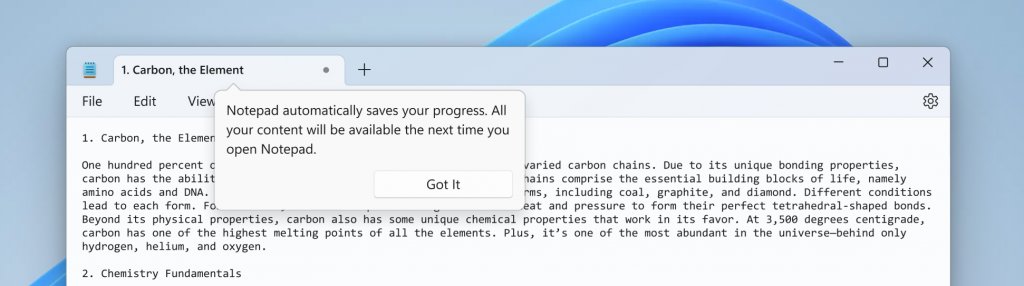
Notepad high CPU and memory usage in Windows 11 [Fix]
Notepad keeps using CPU or memory after you close a file
A stuck Notepad process or a damaged app installation.
- Press Ctrl + Shift + Esc to open Task Manager.
- Select Notepad in the process list and select End task.
- Open the Microsoft Store and install any pending Notepad update.
- Open Settings > Apps > Installed apps, select the More icon next to Notepad and select Advanced options.
- Select Repair. If the problem returns, select Reset.
On Windows 10, the repair route is Settings > Apps > Apps & features > Notepad > Advanced options > Repair.
Sticky notes not showing on desktop
Where to find my sticky notes after a restart
Sticky Notes sometimes does not launch when Windows starts.
- Select Start and type Sticky Notes.
- Open the app.
- If only one note appears, select the ellipsis icon (…) in its upper-right corner and select Notes list.
A note closed and is no longer on the desktop
Selecting X closes a note but keeps it in the notes list.
- Open Sticky Notes and go to the notes list.
- Scroll or press Ctrl + F to search for the note.
- Double-click the note to put it back on the desktop.
Notes are missing on a new PC or another account
You are signed out, or signed in with a different Microsoft account.
- Open the notes list and select the Settings icon in the upper-right corner.
- Select Sign in and use the account your notes were synced with.
- Select Sync now to force the notes to download.
A note is stuck in full-screen mode
The note window was maximized.
- Double-click the note's title bar to restore its original size.
- Drag the note's borders to resize it.
Deleting a note is permanent. Turn on Confirm before deleting in Sticky Notes settings so a stray click cannot remove one.
Sticky Notes on desktop FAQ
How do I put sticky notes on my desktop in Windows 11?
Open Sticky Notes from Start, press Ctrl + N to create a note and drag it by its top bar to where you want it. To add a desktop shortcut to the app, drag Sticky Notes from Start > All onto the desktop.
How do I make a sticky note on my computer?
Open Sticky Notes and select the plus icon in the upper-left corner, or press Ctrl + N. Type, write with a pen or add a picture. The note saves automatically when you close it.
How do I get to Sticky Notes?
Select Start and type Sticky Notes, then open the app. If it is not installed, get Microsoft Sticky Notes from the Microsoft Store. Pinning it to the taskbar gives you one-click access afterwards.
Where do I find my sticky notes?
Open Sticky Notes and view the notes list. If only one note shows, select the ellipsis icon on that note and choose Notes list. Signed-in notes also appear in OneNote and Outlook on the web.
Can I make sticky notes stay on top of other windows?
Not with Sticky Notes alone, because the app cannot stay on top of other applications. Microsoft PowerToys Always On Top pins any window, including a note, with Windows key + Ctrl + T.
How do I add a sticky note to the taskbar?
Open Sticky Notes, right-click its icon on the taskbar and select Pin to taskbar. Right-click the pinned icon and select New note whenever you want a fresh note.
Can I recover a deleted sticky note?
No. Deleting a sticky note is permanent and cannot be undone. Turn on Confirm before deleting in Sticky Notes settings to get a prompt before any note is removed.
Can I change the font in Sticky Notes?
No. Sticky Notes does not let you change the font or text size. You can apply bold, italic, underline, strikethrough and bullets, and change the note color from the ellipsis menu.