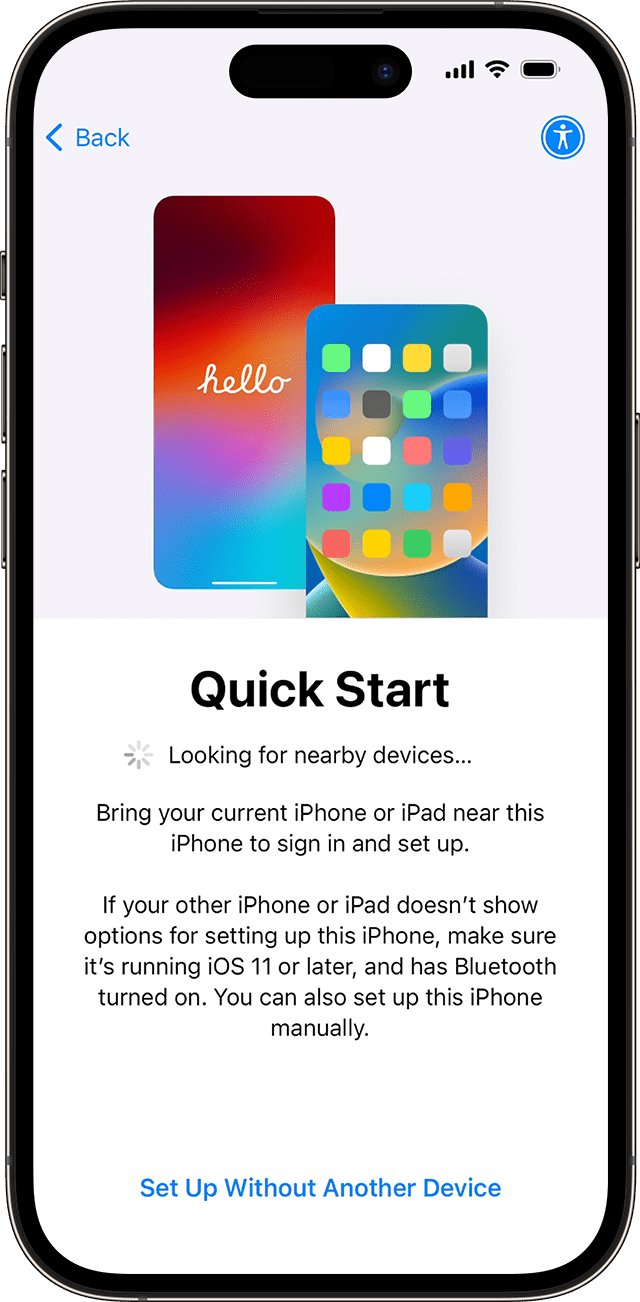
To get back to Quick Start after you skipped it, erase the new iPhone with Settings > General > Transfer or Reset iPhone > Erase All Content and Settings; it restarts at the Hello screen, where Quick Start appears again when your old iPhone is nearby.
This guide covers erasing safely, running Quick Start, the wired and backup alternatives, and what to do when the Quick Start prompt never shows.
Get back to Quick Start by erasing the new iPhone
Quick Start runs only during setup. Apple's instructions for restoring a device say that if you already set it up, you erase it first, and the same applies to Quick Start.
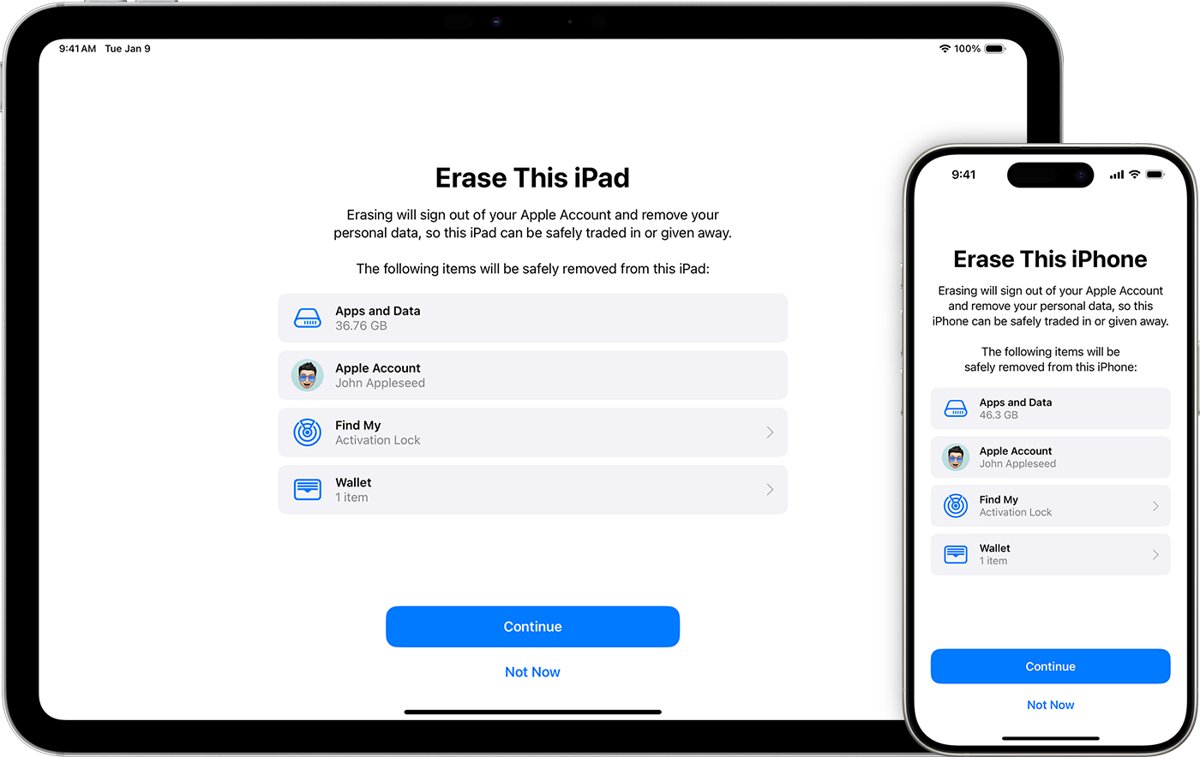
- On the new iPhone, open the Settings app.
- Tap General, then tap Transfer or Reset iPhone.
- Tap Erase All Content and Settings.
- Enter the device passcode if asked.
- Tap Erase iPhone to confirm. The iPhone restarts at the Hello screen.
- Place your old iPhone next to it, unlocked on the Home Screen with Wi-Fi and Bluetooth on, and follow the Quick Start prompt.
Erasing removes everything added to the new iPhone since you set it up. Back up anything new on it first, such as photos you have already taken.
Ways to transfer data to a new iPhone after you skipped Quick Start
| Your situation | Use this | Why |
|---|---|---|
| Old iPhone or iPad runs iOS 11, iPadOS 13 or later and is with you | Quick Start, wirelessly | Sets up the new iPhone automatically from the old one |
| Both iPhones are with you and you have the right cable | Wired transfer | Moves data over a direct cable connection |
| You have a recent iCloud backup of the old iPhone | Restore from iCloud Backup | Apps and data download in the background so you can use the iPhone sooner |
| You have a backup on a Mac or PC | Restore Backup in the Finder or Apple Devices app | Works without the old iPhone |
| Old device runs iOS 10 or earlier | iCloud, iTunes or the Finder | Quick Start needs iOS 11 or later |
Every option on this list starts from the setup screens, so the new iPhone has to be erased first if you already finished setup.
Back up new iPhone data before erasing it
If you have only had the new iPhone for a few minutes, there is usually nothing to save. If you have used it for days, copy what you added before you erase it.
| What to prepare | Why |
|---|---|
| A backup of the old iPhone to iCloud or your computer | Gives you a fallback if Quick Start stops partway |
| The latest iOS on the old iPhone | Apple asks for both devices to be on the latest iOS before Quick Start |
| Wi-Fi and Bluetooth on the old iPhone | Quick Start uses both to find the new iPhone |
| Power for both iPhones | Keep both plugged in until the migration completes |
| Several free minutes | Quick Start occupies both devices while it runs |
| Your Apple Account password | Setup and restores ask you to sign in |
Use Quick Start to transfer data to a new iPhone
After the erase, the new iPhone is back at the first setup screen, which is where Quick Start begins.
- On the old iPhone, connect to Wi-Fi, turn on Bluetooth, unlock it and go to the Home Screen.
- Turn on the new iPhone and place it near the old one.
- Follow the onscreen instructions that appear on the old iPhone to get started.
- Connect the new iPhone to Wi-Fi or your mobile network, and activate mobile service if asked.
- Set up Face ID or Touch ID.
- Choose how to transfer your data: download from iCloud, or transfer directly from the old iPhone.
- Keep both devices near each other and plugged in until the migration finishes.
A direct transfer keeps both iPhones busy until it completes. Downloading from iCloud lets you use the new iPhone while apps and data arrive in the background.
Transfer data to a new iPhone with a wired connection
| Old iPhone | New iPhone | Cable |
|---|---|---|
| iPhone 15 or later | iPhone 15 or later | USB-C Charge Cable |
| iPhone 14 or earlier | iPhone 15 or later | USB-C to Lightning Cable |
| iPhone 14 or earlier | iPhone 14 or earlier | Lightning to USB 3 Camera Adapter plus a Lightning to USB Cable |
Connect the cable to both charging ports, turn on both iPhones and follow the onscreen instructions. Connect the new iPhone to Wi-Fi or mobile data, set up Face ID or Touch ID, then wait for the transfer to finish on both devices.
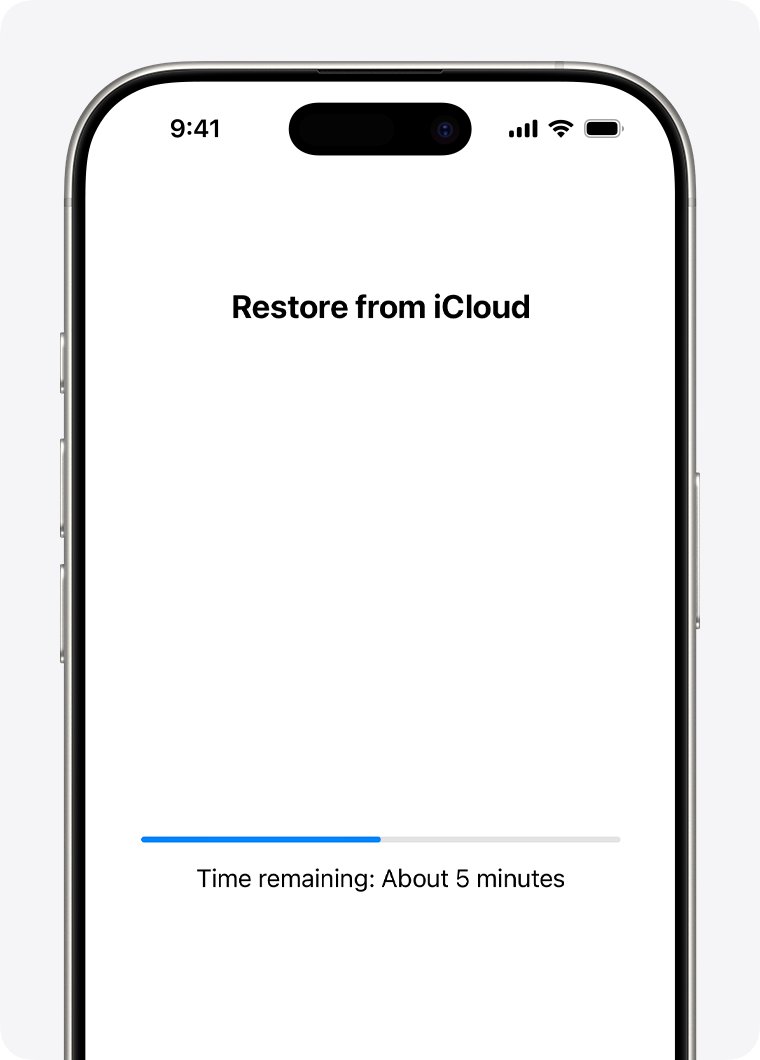
Restore a new iPhone from an iCloud backup
Use this when the old iPhone is gone or already backed up to iCloud.
- Turn on the erased iPhone. The Hello screen appears.
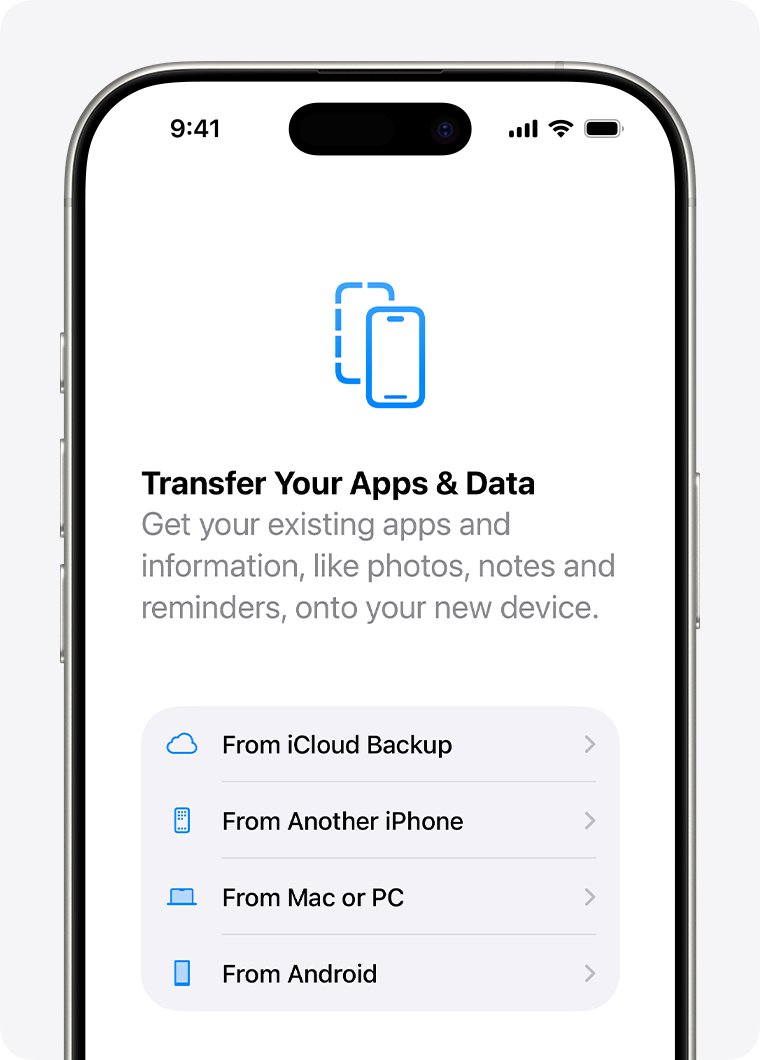
- Follow the setup steps until you reach the Transfer Your Apps & Data screen.
- Tap From iCloud Backup.
- Sign in to your Apple Account to see your backups.
- Choose the most recent backup by date and size.
- Sign in again when asked to restore your apps and purchases.
- Stay on Wi-Fi and power until the progress bar finishes, then finish setup.
Restore a new iPhone from a Mac or PC backup
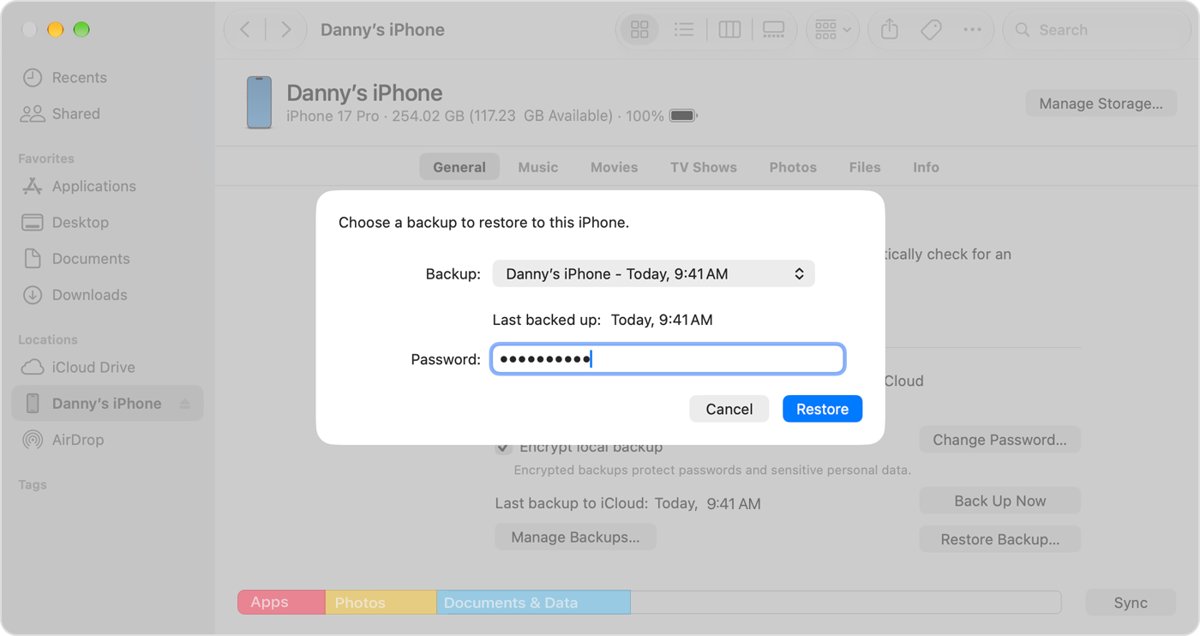
- On a Mac with macOS Catalina 10.15 or later, open the Finder. On a PC with Windows 10 or later, open the Apple Devices app.
- Connect the new iPhone to the computer with a USB cable.
- Select the iPhone in the sidebar.
- Click Restore Backup.
- Choose the most recent backup from the Backup menu.
- Enter the password if the backup is encrypted, then click Restore.
- Keep the iPhone connected while it restarts and syncs, then disconnect it.
Confirm Quick Start moved your data to the new iPhone
- Wait until both iPhones show that the transfer is complete.
- On the new iPhone, open Settings and check that your name appears at the top.
- Open Photos, Messages and Contacts and check that your content is there.
- Check the Home Screen for your apps. Apps restored from iCloud may keep downloading for a while.
- Keep the new iPhone on Wi-Fi and power until the downloads finish.
Quick Start not working on iPhone: fixes
The Quick Start prompt disappeared from the old iPhone
The setup prompt timed out or the devices lost the connection.
- Restart both iPhones.
- Unlock the old iPhone and go to the Home Screen.
- Place the new iPhone next to it and wait for the prompt.
Quick Start never appears on the old iPhone
Wi-Fi or Bluetooth is off, or the old iPhone is locked or out of date.
- Turn on Wi-Fi and Bluetooth on the old iPhone.
- Update the old iPhone to the latest iOS it supports.
- Unlock it, stay on the Home Screen, and turn on the new iPhone nearby.
The new iPhone went straight to the Home Screen
Setup is already finished, so the setup screens no longer appear.
- Open Settings > General > Transfer or Reset iPhone.
- Tap Erase All Content and Settings, then tap Erase iPhone.
- Start Quick Start again from the Hello screen.
Quick Start can't transfer data on a work or school iPhone
Devices enrolled in Apple School Manager or Apple Business can't use Quick Start to transfer data.
- Back up the old iPhone to iCloud or a computer.
- Restore that backup during setup, or ask your organisation's IT administrator how they set up enrolled devices.
The old device is on iOS 10 or earlier
Quick Start needs iOS 11 or later on the old device.
- Back up the old device to iCloud, iTunes or the Finder.
- Erase the new iPhone and restore that backup during setup.
Get back to Quick Start on iPhone FAQ
Can I use Quick Start after setting up my iPhone?
Not without erasing it. Quick Start runs only during setup, so go to Settings > General > Transfer or Reset iPhone > Erase All Content and Settings. The iPhone restarts at the Hello screen, where Quick Start can begin.
How do I get back to the setup screen on my iPhone?
Erase the iPhone in Settings > General > Transfer or Reset iPhone > Erase All Content and Settings, then tap Erase iPhone. When it restarts, the Hello screen appears and the setup steps start again.
Will erasing my new iPhone delete my data?
Yes. Erasing removes everything added to the new iPhone since setup. Back up photos or other content you created on it first, then bring your old data across with Quick Start or a backup.
Why is Quick Start not showing on my old iPhone?
The old iPhone needs Wi-Fi and Bluetooth on, iOS 11 or later, and must be unlocked on the Home Screen next to the new iPhone. If the prompt disappears, restart both devices and try again.
Can I transfer data to a new iPhone without Quick Start?
Yes. You can use a wired connection between the two iPhones, restore an iCloud backup at the Transfer Your Apps & Data screen, or restore a computer backup with the Finder or the Apple Devices app.
How long does Quick Start take?
It varies with network conditions and the amount of data. Keep both iPhones near each other and plugged in until the migration completes. Downloading from iCloud lets you use the new iPhone sooner than a direct transfer.
Does Quick Start work with an iPad?
Yes. Quick Start sets up a new iPhone or iPad from another iPhone or iPad running iOS 11, iPadOS 13 or later, using the same steps.
Fastest way back to Quick Start on a new iPhone
Back up anything new on the iPhone, erase it with Erase All Content and Settings, and run Quick Start from the Hello screen with the old iPhone beside it. Quick Start only runs during setup, and erasing is the only way to return a set-up iPhone to that screen.