To change the language in Google Maps on a computer, click Menu > Language and pick a language; on an iPhone, open Settings > Google Maps > Language, and on Android set the app language in Settings > System > Languages > App Languages.
This guide covers each device, the separate voice navigation language, miles or kilometers, the country domain, and why some map labels stay in the local language.
The fastest way to change the Google Maps language
Google Maps takes its language from a different place on each device. Find your device in the first column and follow that path.
| Your device | Where to change it | What it changes |
|---|---|---|
| Computer (Google Maps in a browser) | Google Maps > Menu > Language > pick a language | Menus and place information on the web |
| iPhone or iPad | iPhone Settings > Google Maps > Language | The Google Maps app only, including navigation |
| Android 14 and later | Settings > System > Languages > App Languages > Google Maps | The Google Maps app only |
| Any Android version | Settings > System > Languages & input > Languages, then drag your language to the top | The whole phone, which Maps follows by default |
| Voice directions on Android | Maps > profile picture > Settings > Navigation > Voice selection | The spoken turn-by-turn voice and its language |
Google states that by default Maps uses your system's default language on a phone or tablet. That is why changing the phone language also changes Maps.
What Changes When You Change the Language in Google Maps?
Changing the language does not translate the map itself. Google says Maps shows place names in a country's local languages, and your chosen language applies to the interface and place information around them.
| Part of Google Maps | Follows your chosen language? | Notes |
|---|---|---|
| Menus, buttons and settings | Yes | Changes as soon as the app or page reloads |
| Place information (details panel) | Yes | Google: you find place information in the language you selected |
| Map labels and street names | No, not always | Google: map labels are shown in the country's local language |
| Voice navigation | Separate setting on Android | Set under Navigation > Voice selection; on iPhone it follows the app or device language |
| Distance units | Separate setting | Automatic follows your region; you can force Miles or Kilometers |
| Country domain and search region | Separate setting on the web | Changed from the country name at the bottom right of the map |
How to Change Google Maps Language on Android
Option 1 changes only Google Maps and leaves the rest of the phone alone. Google notes these steps work on Android 14 and up, and only for apps that support language selection.
- Open the Settings app on your Android phone or tablet.
- Tap System > Languages > App Languages.
- Tap Google Maps in the app list.
- Choose a language from All languages.
- Open Google Maps again to see menus in the new language.
Option 2 changes your Android system language, which Maps uses by default. Open Settings, tap System > Languages & input > Languages, tap Add a language, choose it, then drag it to the top of the list. If you cannot find System, look under Personal for Languages & input.
Option 3, the voice language inside the Maps app, has its own section below. It changes the spoken directions, not the menus.
How to Change Google Maps Language on iPhone and iPad
iOS lets you give Google Maps its own language without changing the whole iPhone. Google lists this as the way to change the navigation language on iPhone and iPad.
- Open the Settings app on your iPhone or iPad.
- Scroll down and tap Google Maps.
- Tap Language.
- Select a language.
- Open Google Maps again; it now uses that language.
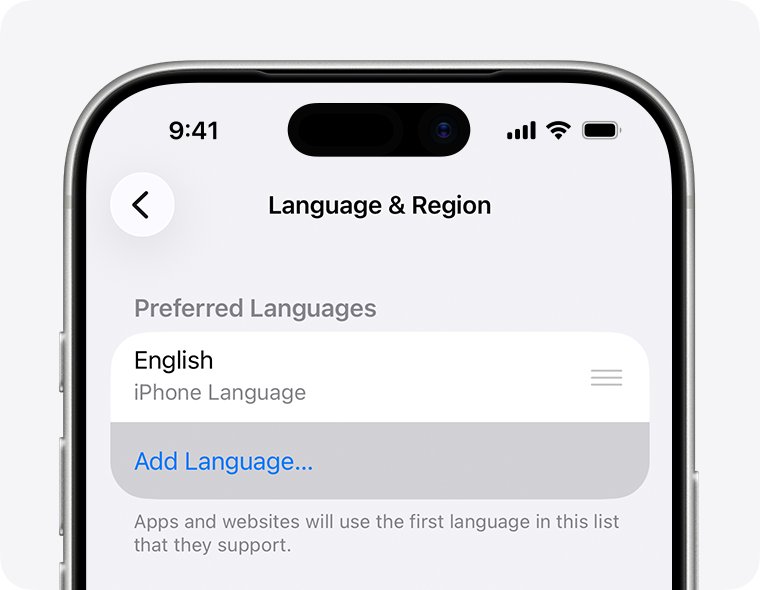
To change your entire iPhone language instead, open Settings > General > Language & Region, tap Add Language, pick one, then choose it as your primary language when the alert asks. Apple says the device then displays the selected language everywhere.
If Language does not appear on the Google Maps settings page, update Google Maps from the App Store and check again.
How to Change Google Maps Language on a Computer
On the web, Google Maps has its own language menu, so you do not have to change your browser or your whole Google Account. This works in Chrome, Edge, Safari or Firefox. If you use Maps as a desktop shortcut, see how to get Google Maps on a PC or Mac.
- Open google.com/maps in your browser.
- Click Menu (three lines) at the top left.
- Choose Language.
- Select a language. The page reloads with menus and place information in that language.
To change the language for every Google service on the web at once, go to myaccount.google.com/language, click Language > Edit, search for your language, click Select, then close and reopen your browser.
The language of Chrome's own menus is a separate setting. On Windows, open Settings > Languages in Chrome, click More next to a language, choose Display Google Chrome in this language, and restart Chrome. On Mac and Linux, Chrome follows the system language.
How to Change Voice Navigation Language in Google Maps
On Android, the voice that reads directions has its own setting inside Google Maps. It works even when your menus stay in a different language.
- Open the Google Maps app on your Android phone or tablet.
- Tap your profile picture or initial > Settings.
- Tap Navigation.
- Under Sound & voice, tap Voice selection.
- Select a voice and language, then start a route to hear it.
On iPhone and iPad, Google Maps has no separate voice list. The voice follows the language you set in Settings > Google Maps > Language, or your iPhone language in Settings > General > Language & Region. Google warns you might not hear street names after you change the language.
If you hear a chime instead of spoken directions, the new voice has not downloaded yet. Stay online and keep Maps open while you get directions; Google says the voice downloads then.
How to Change Distance Units: Miles or Kilometers
Distance units are not tied to the language. Automatic uses the usual unit for your region, so switching to a British or US language will not by itself change them.
| Device | Steps | Options |
|---|---|---|
| Android | Google Maps > profile picture or initial > Settings > Navigation > Distance units | Automatic, Kilometers or Miles |
| iPhone or iPad | Google Maps > profile picture or initial > Settings > Navigation > Distance units | Automatic, Kilometers or Miles |
| Computer | Sign in to Google Maps, then click the map scale at the bottom right | Each click switches between miles and kilometers |
How to Change Country or Region in Google Maps
Google Maps picks a country domain, such as .de or .jp, and a map view based on your location. If it chose the wrong one, or you want .com, change it from the map on a computer.
- Open Google Maps on your computer.
- At the bottom right, click the country name shown, for example United States or United Kingdom.
- On the Search Settings screen, go to Region Settings.
- Pick the country you want.
- Click Save at the bottom.
The region setting changes which Google domain and local results you get. It does not change your language, so set both if you want, for example, English menus with results for Germany.
Why Some Google Maps Labels Do Not Change Language
This is the most common surprise after a language change. It is expected behaviour, not a failed setting.
| What you see | Why | What you can do |
|---|---|---|
| Street names stay in the local language | Google shows map labels in the country's local language | Nothing to fix; the place details panel uses your language |
| Business names do not translate | A business name is the name the place uses locally | Read the category and details in the place panel |
| Some places show two names | Google shows place names in a country's local languages, which can mean more than one | Nothing to fix |
| Street names missing from voice directions | Google says you might not hear street names after changing the language | Switch back to the local language if you need spoken street names |
| Menus changed but labels did not | The language setting covers the interface and place information only | Change the country domain if you want different local results |
How to Change Language for Google Maps in Android Auto and Apple CarPlay
Google Maps on your car screen runs from your phone. Neither Google's CarPlay page nor its Android Auto help lists a separate language setting on the car display, so change it on the phone.
- Unplug the phone or disconnect it from the car.
- On Android, set the Maps language or voice using the Android steps above; on iPhone, go to Settings > Google Maps > Language.
- Open Google Maps on the phone once so it can load the new voice while you are online.
- Reconnect the phone to Android Auto or CarPlay.
- Start a route and check that directions use the new language.
To hear directions through car speakers on Android, turn on Play voice over Bluetooth under Maps Settings > Navigation. With CarPlay, use the car's volume controls while guidance is speaking.
How to Change Language for Google Maps Timeline, Reviews, and Place Pages
These parts of Google Maps have no language option of their own. They follow the app or web language you already set.
| Feature | Where its language comes from | How to change it |
|---|---|---|
| Place pages (details, hours, categories) | Maps language | Web: Menu > Language; phone: the app language steps above |
| Reviews you read | Written by other people in their own language | No setting changes the original text |
| Reviews and edits you write | The language you type in | Type in the language you want readers to see |
| Timeline | The Google Maps app language on your phone | Change the Maps app language on Android or iPhone |
| Google Account pages linked from Maps | Google Account language | myaccount.google.com/language |
Timeline lives on your phone now, so see how to view Google Maps Timeline and Location History if you cannot find it after switching languages.
How to check the language change worked
- Close Google Maps fully and open it again.
- Tap your profile picture or open Menu; the menu labels should be in the new language.
- Tap any place on the map; the details panel should use the new language even where the map label does not.
- On a phone, start a short route and listen for the first spoken instruction in the chosen voice.
- On the web, open myaccount.google.com/language to confirm the account language if you changed it there.
Troubleshooting: Google Maps Language Will Not Change
Google Maps language will not change after you pick a new one
The app is still running with the old setting, or the browser keeps old language cookies.
- On a phone, close Google Maps completely and open it again.
- On iPhone, swipe up from the bottom, pause, then swipe up on the Google Maps preview to close it.
- On a computer, clear your browser's cache and cookies, then set the language again; Google gives this fix for language changes that do not take.
- Deleting cookies also removes saved settings on other sites, so sign in again where needed.
Google Maps is not listed under App Languages on Android
Per-app language needs Android 14 or later and an app version that supports it.
- Update Google Maps from the Play Store; Google says updating refreshes the list of supported languages.
- Check your Android version in Settings.
- If the phone runs an older version, change the system language under Languages & input instead.
Why did my Google language suddenly change?
Google automatically adds languages you use often and labels them Added for you.
- Go to myaccount.google.com/language and click Language.
- Delete any language marked Added for you that you do not want.
- Turn off Automatically add languages so it does not happen again.
- Check that your phone's first language in system settings is the one you want, since Maps follows it by default.
You hear a chime instead of voice directions in the new language
The voice files for the new language have not downloaded yet.
- Connect to a strong Wi-Fi or mobile data connection.
- Open Google Maps and get directions somewhere.
- Keep the app open; Google says voice directions download while Maps is open.
- Start navigation again once the download finishes.
Voice language changed but there is no sound
Guidance is muted, set to alerts only, or routed to the wrong speaker.
- Start navigation and tap the sound icon until it shows Sound, not Mute or Alerts.
- Go to Maps Settings > Navigation > Guidance volume and choose Louder.
- Turn Play voice over Bluetooth on for car speakers, or off to use the phone speaker.
Frequently Asked Questions
How do I change the language in Google Maps?
On a computer, click Menu > Language in Google Maps and pick one. On iPhone, open Settings > Google Maps > Language. On Android 14 and later, open Settings > System > Languages > App Languages > Google Maps; older Android versions follow the phone's system language.
How do I change Google Maps back to English?
Repeat the same steps and choose English. If the menus are in a language you cannot read, open the three-line menu at the top left on the web, or on iPhone open the Settings app and tap Google Maps, where the Language entry sits.
How do I change the language in my Google Account?
Go to myaccount.google.com/language, select Language > Edit, search for your language and choose Select. This changes Google services on the web. Mobile apps follow the language settings on your phone instead.
How do I change the language in Google Chrome?
On Windows, open Chrome Settings > Languages, select More next to a language, choose Display Google Chrome in this language, then restart Chrome. On Mac and Linux, Chrome uses the system language, so change the language in macOS or Linux settings.
Why did my Google language suddenly change?
Google automatically adds languages you use often and marks them Added for you. Remove any unwanted one at myaccount.google.com/language and turn off Automatically add languages. A change to your phone's system language also changes Maps, which follows it by default.
Why does my Google constantly change language?
The usual cause is automatically added languages in your Google Account, or old browser cookies that keep an earlier setting. Turn off Automatically add languages in your account, then clear your browser's cache and cookies and set the language once more.
Can I change the Google Maps voice without changing the phone language?
Yes on Android. Open Maps, tap your profile picture > Settings > Navigation, then Voice selection, and pick a voice and language. On iPhone, set a language for Google Maps only under Settings > Google Maps > Language, which leaves the rest of the phone unchanged.
Why are street names still in the local language?
Google Maps shows map labels in the country's local language no matter which language you choose. Your chosen language applies to menus and place information, so open the place details panel to read it in your language.
Conclusion
Change the Google Maps language per app where you can: the Maps Language menu on the web, Settings > Google Maps on iPhone, and App Languages on Android 14 and later. A per-app setting changes Maps without switching the rest of your device or Google Account, and it keeps voice directions, units and region as separate choices you can set on their own.