A Battle Cats download takes a couple of minutes on an iPhone, iPad or Android phone. Get The Battle Cats free from the App Store or Google Play, open it, and your first stage starts without any sign-up.
The Battle Cats is PONOS’s tower defense game. You tap cats to send them into battle, fire the Cat Cannon at enemies near your base, and level your army toward True Forms.
Below are the official links, install steps for each phone, what to do on a Windows 11, Windows 10 or Mac computer, and fixes for failed downloads and surprise purchases.
Which Battle Cats download do you need?
Match your device to a row. Phones and tablets install the game itself, and computers need a different route.
| Your device | What to install | Size |
|---|---|---|
| iPhone, iPad or iPod touch on iOS 15.0 or later | The Battle Cats on the App Store | 203.1 MB |
| Android phone or tablet | The Battle Cats on Google Play | Play states no size |
| Windows 11 or Windows 10 PC | A tower defense game from the Microsoft Store | No PONOS build |
| Mac, Apple silicon or Intel | Play on an iPhone or iPad instead | No Mac build |
The game downloads extra data after install, so start it on Wi-Fi.
Download The Battle Cats from the official stores
PONOS distributes the English version of The Battle Cats through two stores. Use these links and nothing else.
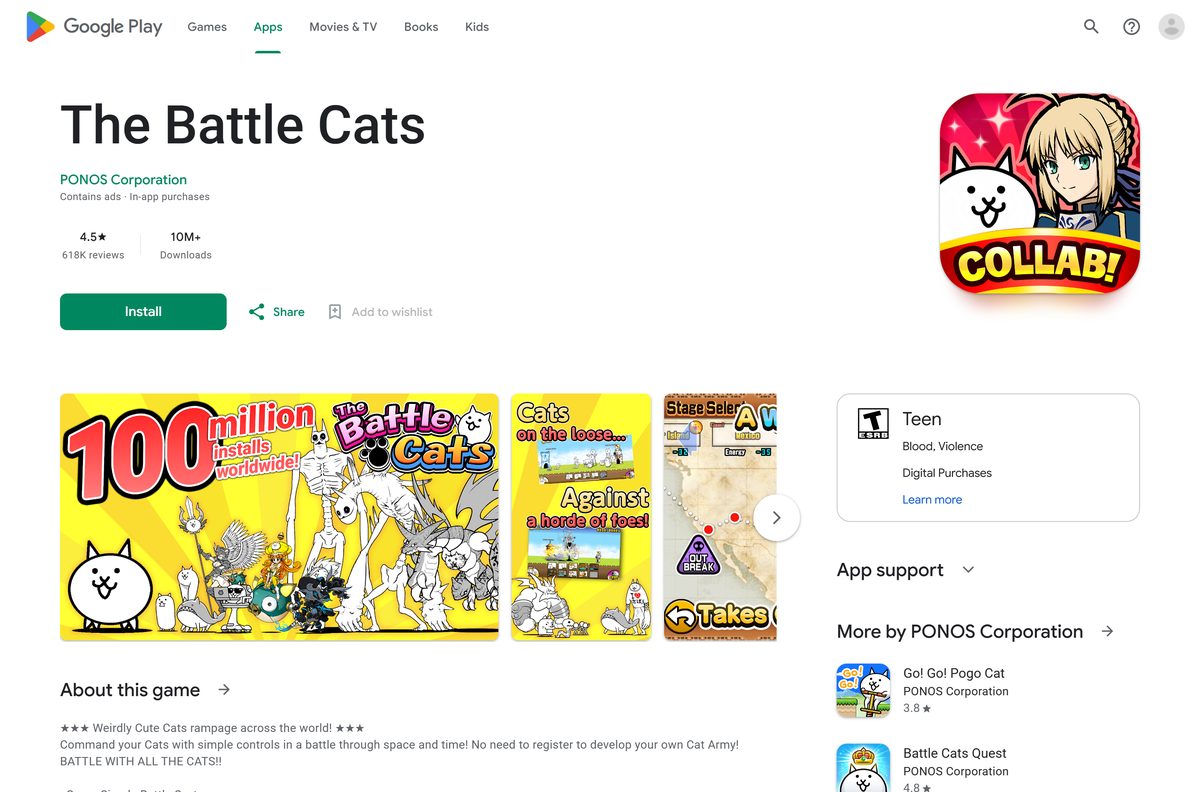
- The Battle Cats on Google Play — PONOS Corporation, 10M+ downloads, updated 7 September 2026
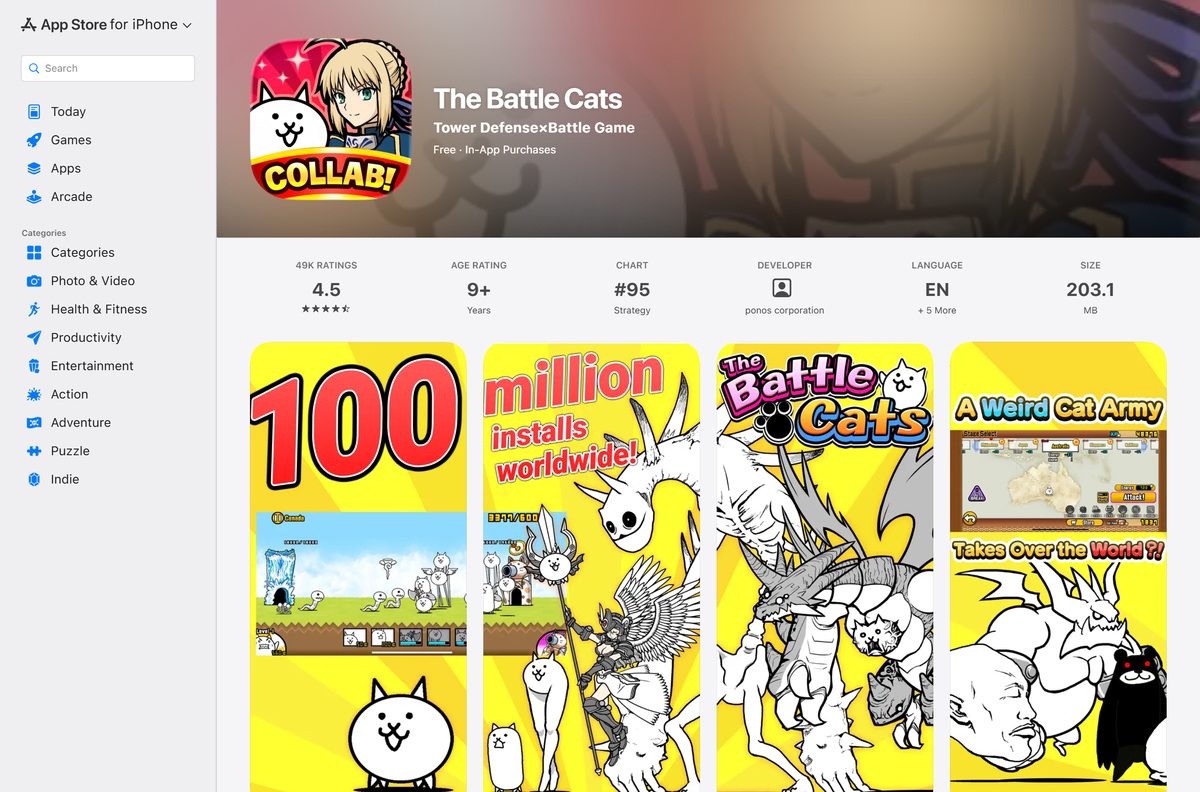
- The Battle Cats on the App Store — 203.1 MB · seller ponos corporation, iPhone, iPad and iPod touch
Check that the developer reads PONOS Corporation before you tap Install or Get. The Chinese-language edition, 貓咪大戰爭, is a separate PONOS listing.
How to install The Battle Cats on iPhone, iPad or Android
Both stores install the game in the same few taps. Stay on a strong Wi-Fi connection until the first launch finishes.
- On iPhone or iPad, open The Battle Cats on the App Store. On Android, open The Battle Cats on Google Play.
- Confirm the developer shows as ponos corporation on the App Store or PONOS Corporation on Google Play.
- Tap Get on the App Store or Install on Google Play.
- Confirm with Face ID, Touch ID or your password if the App Store asks.
- Open The Battle Cats from the Home Screen or app drawer.
- Accept the large download notice and let the game data finish downloading on Wi-Fi.
- Read the Terms of Use, accept them, and start your first stage.
How to check a Battle Cats download is genuine
- Install The Battle Cats only from Google Play or the App Store, never from a website download button.
- Check that the developer reads PONOS Corporation on Google Play or ponos corporation on the App Store.
- Check the listing shows 10M+ downloads on Google Play or about 49K ratings on the App Store.
- Delete any file named The Battle Cats with an .exe, .msi, .dmg or modded .apk extension. PONOS publishes none of them.
- Run a scan with Windows Security if you already opened such a file on a PC.
Which Battle Cats option works on your Mac?
The App Store listing names iPhone, iPad and iPod touch only, and the Mac App Store has no The Battle Cats entry. PONOS’s only Mac App Store game in the search is a different title, Let’s Go Mightycat!.
| Your situation | What to do | Link |
|---|---|---|
| You own an iPhone or iPad | Install the game there and play on the larger iPad screen if you have one | The Battle Cats on the App Store |
| You own an Android phone or tablet | Install from Google Play on that device | The Battle Cats on Google Play |
| You only have the Mac | Skip download sites offering a Mac version. PONOS ships none | Google Play Help on where Play apps run |
Is The Battle Cats free?
Yes. The Battle Cats is free to download and play on iPhone, iPad and Android. The App Store lists it as Free with in-app purchases, and Google Play marks it as containing ads and in-app purchases. Optional purchases on the App Store run from $0.99 for a Rare Ticket to $19.99 for 690 Cat Food. No paid edition exists.
Any site charging for a Battle Cats installer or selling Cat Food outside the stores is not PONOS.
How to stop accidental Cat Food purchases
Cat Food is bought with real money through the store. Turn on purchase approval before a child plays.
- For a child’s iPhone or iPad, open Settings on your own iPhone, tap Family, then tap your child’s name.
- Tap Apps & Websites, then Restrictions, then Ask to Buy, and turn on Require Purchase Approval.
- On Android, open Google Play, tap your profile icon, then Settings.
- Find the purchase verification setting and choose Always, so every in-game purchase asks for a password, PIN or biometrics.
Ask to Buy is on by default for children under 13, per Apple’s parental controls guide. Google explains the choices in Purchase verification for Google Play.
Should you play The Battle Cats on your phone or a PC?
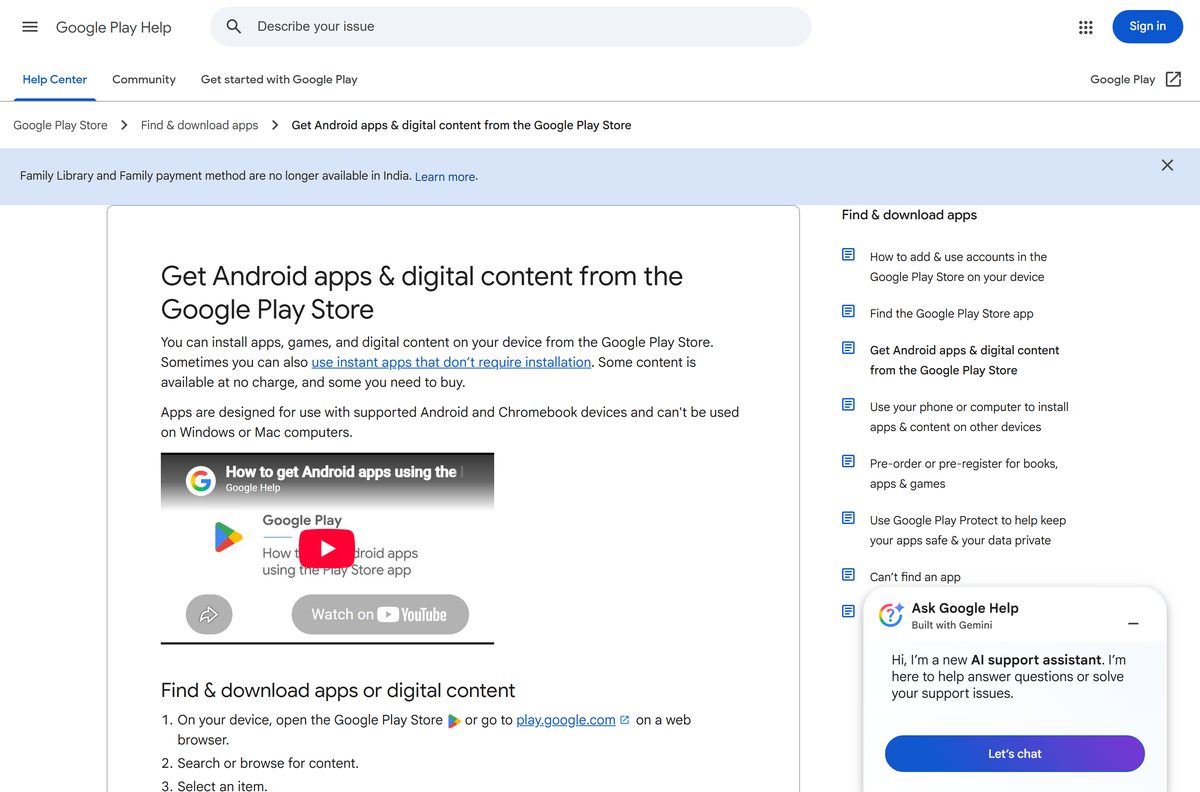
Play on your phone or tablet. PONOS makes no Windows or Mac version of The Battle Cats. The Microsoft Store has no PONOS listing, and Google Play Help states that Play apps are designed for Android and Chromebook devices and can’t be used on Windows or Mac computers. Microsoft’s own Android route is gone too: starting 5 March 2025, Windows Subsystem for Android and the Amazon Appstore aren’t available in the Microsoft Store. Skip emulator bundles and APK sites that promise The Battle Cats for PC, because PONOS does not publish or support them.
See Microsoft’s notice on the Amazon Appstore and Google Play Help on getting apps for the details.
How to check your Battle Cats version and update it
New Legend stages, True Forms and collab events arrive through updates. The current iPhone and iPad build adds a battle vibration toggle.
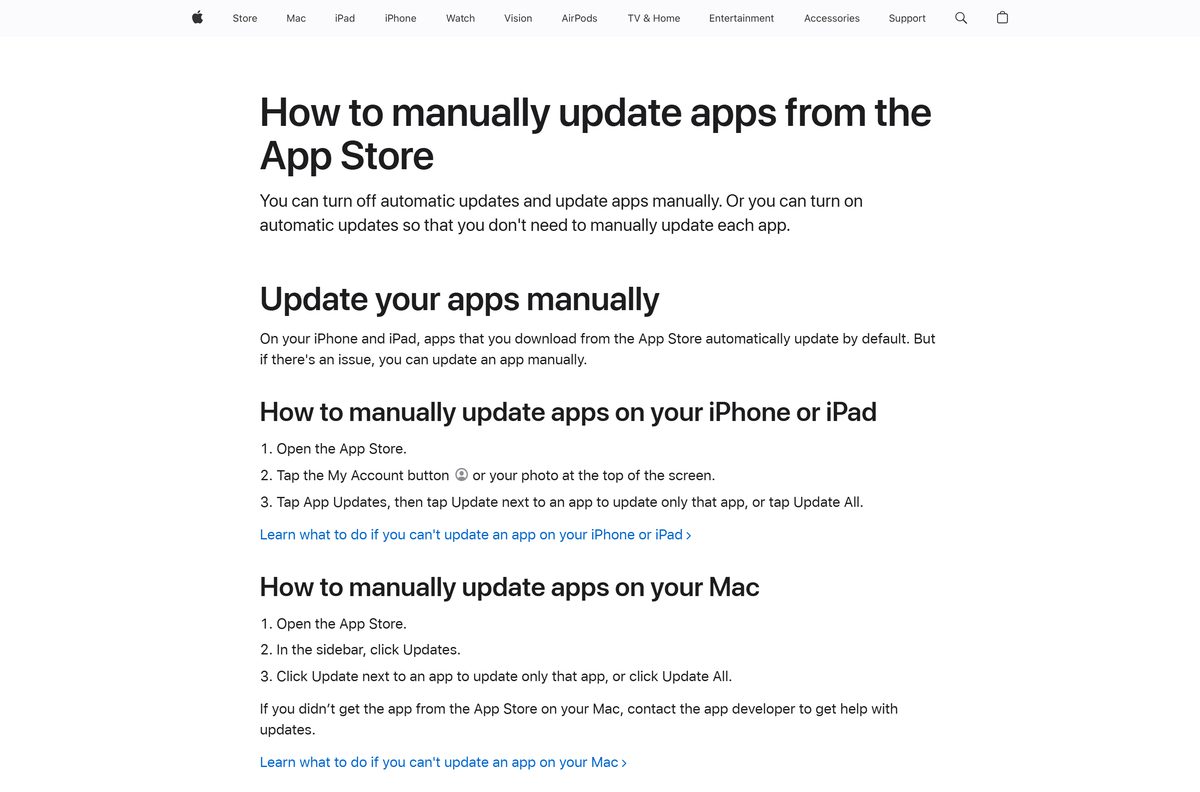
- On iPhone or iPad, open the App Store and tap the My Account button or your photo.
- Tap App Updates, then tap Update next to The Battle Cats.
- On Android, open Google Play, tap your profile icon, then Manage apps & device.
- Tap Updates available and select Update next to The Battle Cats.
- Open the game on Wi-Fi so it can fetch the new stage data.
Check The Battle Cats requirements before you install
The Battle Cats runs on phones and tablets only. The table lists what each platform needs.
| Field | Value |
|---|---|
| Game | The Battle Cats |
| Developer | PONOS Corporation |
| Latest version | 15.6.0 on iPhone and iPad (released 14 September 2026) |
| Price | Free, with ads and optional in-app purchases |
| iPhone, iPad and iPod touch | iOS or iPadOS 15.0 or later, 203.1 MB |
| Android | Phones and tablets through Google Play |
| Internet | Needed for the first data download, updates and reliable play |
| Age rating | 9+ on the App Store, Teen on Google Play |
| Languages | English, French, German, Italian, Spanish, Thai |
| Windows | No Windows version |
| Mac | No Mac version |
| Official source | Google Play and the App Store |
| Last verified | 2026-09-25 |
Fix The Battle Cats not downloading or updating
The data download fails or stalls
The game’s large data download needs a stable connection, and weak Wi-Fi breaks it.
- Move closer to the router, or switch to a stronger connection.
- On Android, uncheck Update over Wi-Fi only if you download over mobile data. On iPhone, turn Use Cellular Data on.
- Open the game again and let the download finish without switching apps.
The App Store says the game needs a newer iOS
The Battle Cats for iPhone and iPad needs iOS or iPadOS 15.0 or later.
- Open Settings > General > About and check the version.
- Install the latest update under Settings > General > Software Update.
- Play on an Android device or a newer iPhone if yours cannot reach iOS 15.
An update will not run on an older phone
PONOS warns that regular updates add features some older devices cannot support.
- Check the device’s OS version against the requirements table above.
- Free up storage, restart the device, and try the update again.
- Email PONOS tech support at [email protected] with your device model if it still fails.
The Microsoft Store has no Battle Cats app
PONOS publishes no The Battle Cats package for Windows or the Microsoft Store.
- Ignore Store results from other publishers that look similar.
- Install the game on your phone or tablet with the steps above.
- Pick a Windows tower defense game from the alternatives table below if you want one on the PC.
How to uninstall The Battle Cats from a phone or tablet
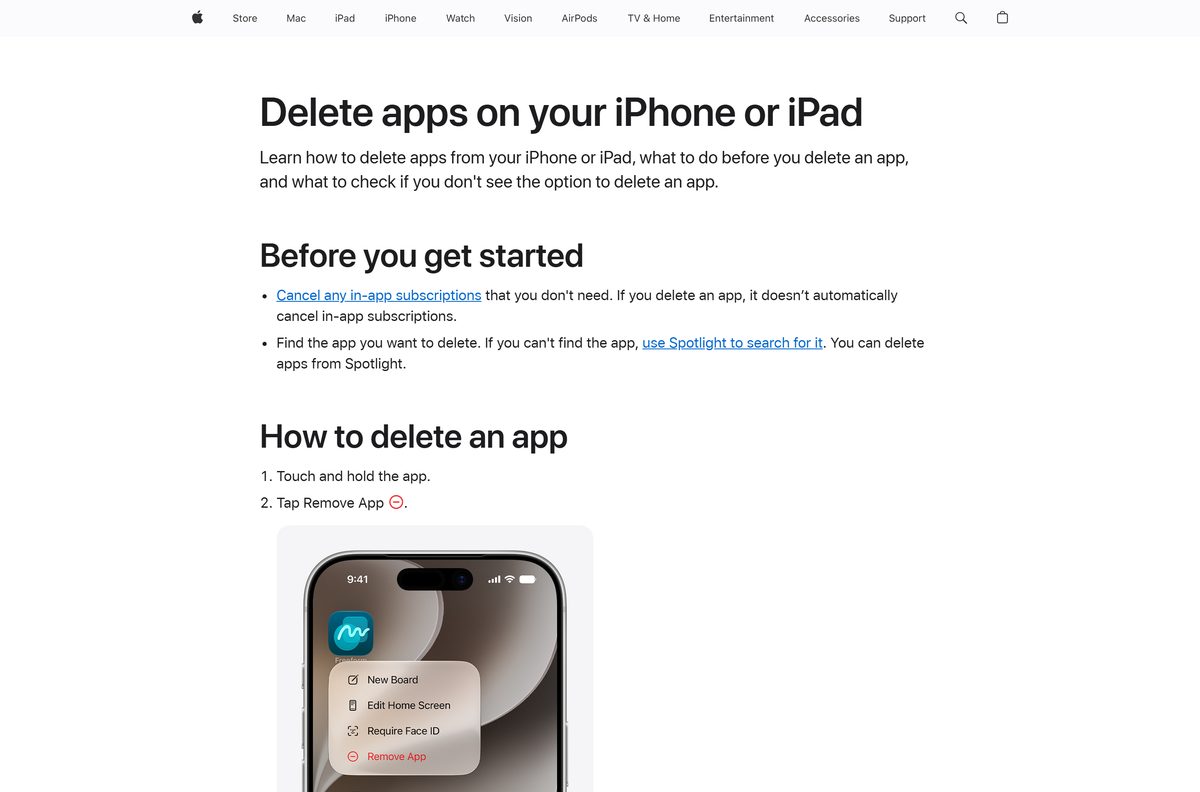
- On iPhone or iPad, touch and hold The Battle Cats icon, then tap Remove App.
- Tap Delete App, then tap Delete to confirm.
- On Android, open Google Play, search for The Battle Cats, and tap Uninstall.
Which tower defense game should you play on Windows instead?
These tower defense games install from the Microsoft Store on Windows 11 and Windows 10.
| Game | Publisher | Price | Official link |
|---|---|---|---|
| Bloons Monkey City | Ninja Kiwi | Free | Microsoft Store |
| Royal Revolt 2: Tower Defense | flaregames GmbH | Free | Microsoft Store |
| Bloons TD 6 | Ninja Kiwi | $13.99 | Microsoft Store |
Frequently asked questions
Is The Battle Cats free to download?
Yes. The Battle Cats is free on the App Store and Google Play. It shows ads and sells optional Cat Food and tickets, from $0.99 to $19.99 on the App Store, and you can play without buying anything.
What is the official Battle Cats download page?
Use The Battle Cats on Google Play for Android and The Battle Cats on the App Store for iPhone and iPad. Both list PONOS Corporation as the developer.
Is there a Battle Cats download for Windows 11 or Windows 10?
No. PONOS publishes no The Battle Cats .exe or .msi, and the Microsoft Store has no PONOS listing. Google Play Help states that Play apps can’t be used on Windows or Mac computers.
Can I install The Battle Cats on a Mac?
No. The App Store listing names iPhone, iPad and iPod touch only, and the Mac App Store has no The Battle Cats entry. Play on an iPhone or iPad instead.
How big is The Battle Cats download?
The iPhone and iPad app is 203.1 MB on the App Store. Google Play shows no size, and the game downloads extra data on first launch, so use Wi-Fi.
Can I run the Android version of The Battle Cats on Windows 11?
Not through Microsoft. Starting 5 March 2025, Windows Subsystem for Android and the Amazon Appstore aren’t available in the Microsoft Store. Skip APK sites and emulator bundles, which PONOS does not publish or support.
What iOS version does The Battle Cats need?
The Battle Cats for iPhone and iPad needs iOS or iPadOS 15.0 or later. Check your version under Settings > General > About, and update under Software Update.
Does The Battle Cats need an internet connection?
Yes for the install and updates. PONOS states the game requires a network connection for reliable access to gameplay features, and a stable connection when downloading or updating.
What age rating does The Battle Cats have?
The App Store rates it 9+ and Google Play rates it Teen for blood, violence and digital purchases. Turn on Ask to Buy or Play purchase verification before a child plays.
Is it safe to download The Battle Cats from other websites?
No. PONOS distributes The Battle Cats through Google Play and the App Store. A site offering a Battle Cats .exe, .dmg or modded APK is serving a file PONOS never published, so delete it.