The Overwolf download for Windows 11 and Windows 10 is a free 2.8 MB installer from overwolf.com. It sets up the Overwolf client, which runs in-game overlays, stat trackers, capture tools and mod managers such as CurseForge.
Overwolf itself is a platform rather than a single tool. You install the client once, then add apps for the games you play from the Overwolf Appstore, and each app appears on top of the game when you launch it.
This guide covers the official installer, the full setup file, system requirements, installing your first app, the Mac options, updating, uninstalling, and fixes for Overwolf not installing.
Which Overwolf download do you need?
Overwolf publishes one client for 64-bit Windows 10 and 11. The other files below exist for failed installs and for Mac users who only want CurseForge.
| Your situation | What to get | Size |
|---|---|---|
| Windows 11 or 10 PC (64-bit), normal install | OverwolfInstaller.exe | 2.8 MB web installer |
| The web installer fails or sticks on Extracting Files | Overwolf setup installer (zipped) | Full client in a .zip |
| Overwolf installs but will not start or crashes | Overwolf Troubleshooter | 8.3 MB |
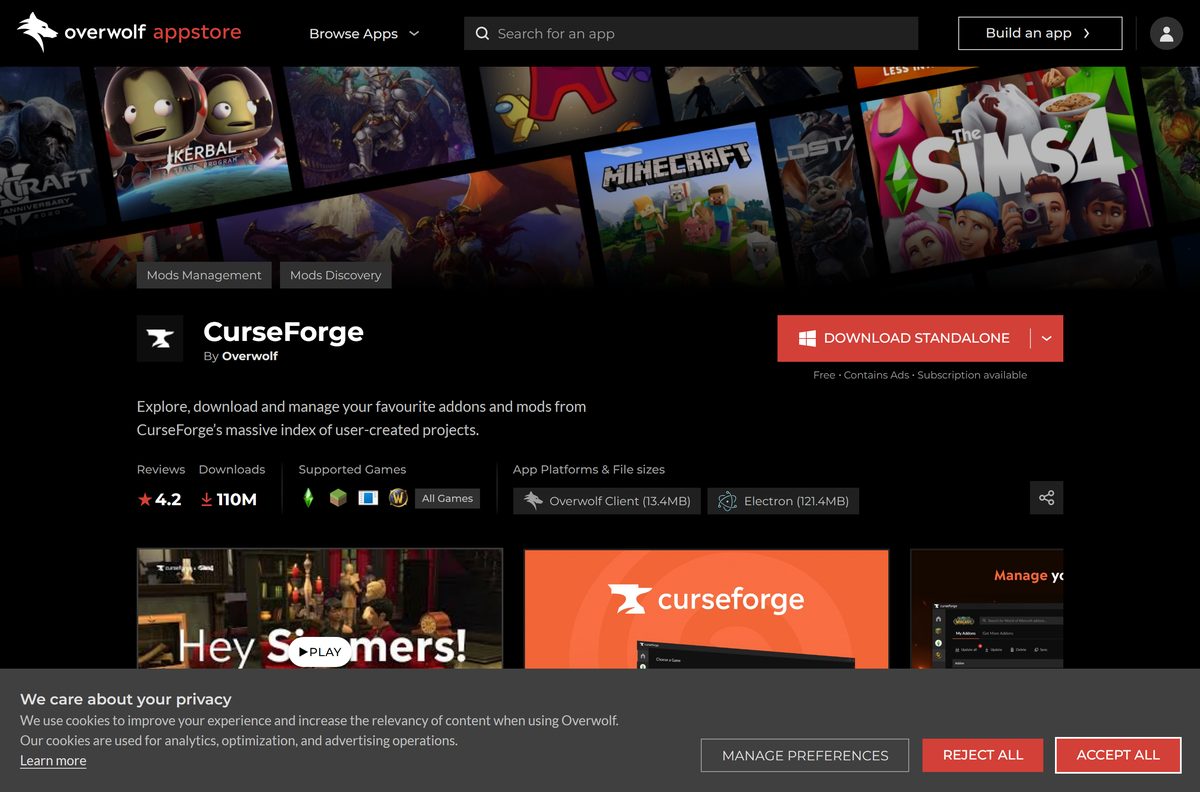
| You only want Minecraft or WoW mods | CurseForge on the Overwolf Appstore | Overwolf or standalone build |
| Mac user who wants CurseForge mods | curseforge-latest.dmg | 256.9 MB |
Pick the first row unless setup has already failed once. The web installer fetches the current client during setup.
Download Overwolf from the official Appstore page
Open the Overwolf Appstore and click Download Overwolf. The link serves OverwolfInstaller.exe from download.overwolf.com with no account and no payment.
- Overwolf Appstore — the Download Overwolf link and every app for your games
- OverwolfInstaller.exe — 2.8 MB · the current Windows web installer
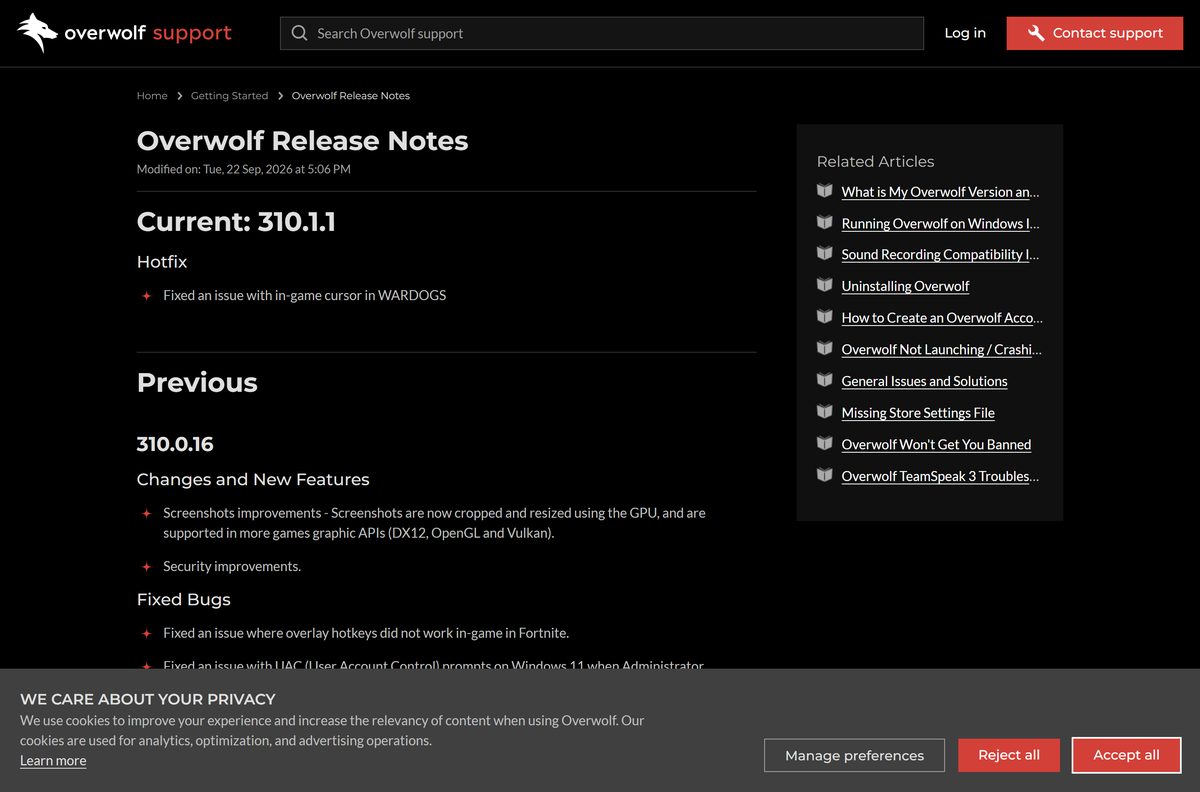
- Overwolf Release Notes — changes in each client build
- How to Get Started — Overwolf’s own first-run guide
Many Appstore apps also carry their own Download button. That file installs the Overwolf client and the chosen app together.

How to install Overwolf on Windows 11 and 10
- Open the Overwolf Appstore and click Download Overwolf.
- Double-click OverwolfInstaller.exe in your Downloads folder.
- Select Yes at the User Account Control prompt.
- Follow the setup prompts and keep the PC online while the installer fetches the client.
- Keep the default install drive, since Overwolf recommends the C: drive.
- Wait for the Overwolf dock to appear, then find the Overwolf icon in the system tray.
- Sign in with Google, Discord, Twitch or a new Overwolf account if you want to rate and subscribe to apps.
Setup needs 350 MB of free space and Microsoft .NET Framework 4.8. If the installer stalls, the fix section below covers each error message.
How to add your first Overwolf app and turn on the overlay
The client does little on its own. Apps from the Appstore supply the stats, builds, recordings and mods.
- Right-click the Overwolf taskbar icon and select Appstore, or click the box icon on the Overwolf dock.
- Search for your game or browse Guides & Trainers, Capture & Stream or Mods.
- Click Install on the app you want, and it is added to Overwolf automatically.
- Open Overwolf Settings and go to Overlay & Hotkeys.
- Find your game in the list and make sure its overlay is enabled.
- Launch the game and press the app’s hotkey to show the overlay.
The overlay needs a game running on your own PC. Cloud services such as GeForce Now run the game remotely, so Overwolf cannot attach to them.
Is Overwolf free?
Yes. The Overwolf client is free to download and use, with no trial timer. Overwolf funds the platform through in-app advertising, and app developers receive most of that revenue. Individual apps can charge an optional subscription, and CurseForge is listed as free with ads and a subscription available. Any site asking you to pay for OverwolfInstaller.exe is not Overwolf.
Which Overwolf option works on your Mac?
Overwolf’s support site answers the macOS question directly: it supports Windows only. What you can install on a Mac depends on what you wanted Overwolf for.
| Your Mac and goal | What to use | Size |
|---|---|---|
| Any Mac, you want Minecraft or other CurseForge mods | CurseForge for Mac (.dmg) | 256.9 MB |
| Any Mac, you want in-game overlays for League, Valorant or Fortnite | Not available on macOS; see Overwolf’s answer | None |
| Mac that also runs Windows 10 or 11 on a separate drive or partition | The Windows installer, run from Windows | 2.8 MB |
Overwolf does not test or support the client inside virtual machines, so a Windows VM on a Mac is outside its supported setups.
How to check your Overwolf version and update it
Overwolf updates itself in the background. The version number shows whether the last update landed.
- Right-click the Overwolf tray icon and select Settings.
- Go to About and read the number next to Client version.
- Compare it with the entry marked Current in the Overwolf Release Notes.
- Click Check for Updates on the same About screen.
- Relaunch Overwolf when it reports that an update is ready.
- If the update fails, open C:\Program Files (x86)\Overwolf , right-click OverwolfUpdater.exe and select Run as administrator.
OverwolfUpdater.exe can also sit in C:\Program Files (x86)\Common Files\Overwolf . Accept the UAC prompt, then restart Overwolf.
Check the Overwolf system requirements
Overwolf’s own guidance is that a PC able to run your game smoothly can run the client. The table gives the hard limits.
| Field | Value |
|---|---|
| Software | Overwolf |
| Developer | Overwolf Ltd. |
| Latest version | 310.1.1 |
| License / Price | Free; some apps offer paid subscriptions |
| File size | 2.8 MB web installer; 350 MB free space to install |
| Supported OS | Windows 10 (64-bit) and Windows 11 (64-bit) |
| Architecture | 64-bit only; Intel or AMD processors |
| CPU | Minimum Intel or AMD quad-core; recommended Intel i3/i5/i7 Gen7+ or AMD Ryzen Gen1+ at 3 GHz |
| RAM | 8 GB minimum, 16 GB recommended |
| Graphics API | DirectX 8/9/11/12 or OpenGL |
| .NET | Microsoft .NET Framework 4.8 |
| macOS / Linux | Not supported |
| Offline installer | Zipped setup installer linked from Overwolf support |
| Official download source | overwolf.com Appstore |
| Last verified | 2026-09-25 |
Windows 7 is no longer supported. It may still start, but Overwolf will not help with problems on it.
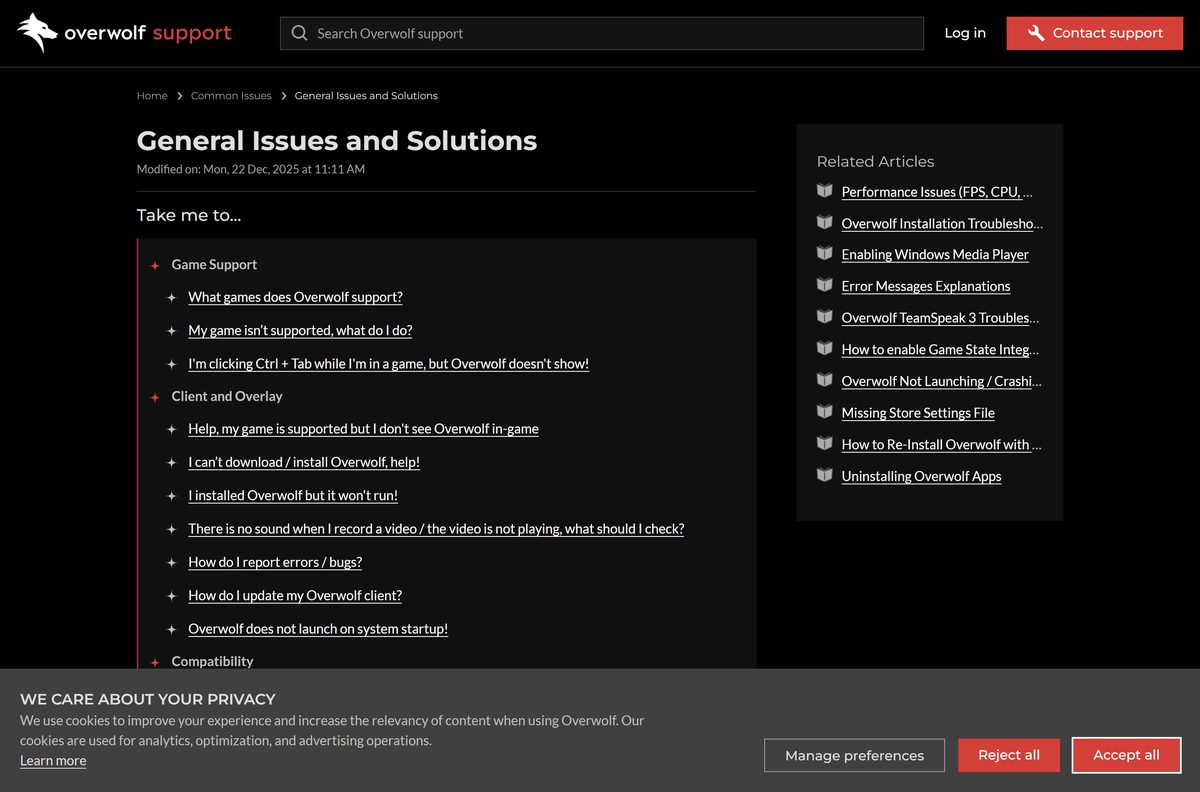
Fix Overwolf not installing on Windows 11 or 10
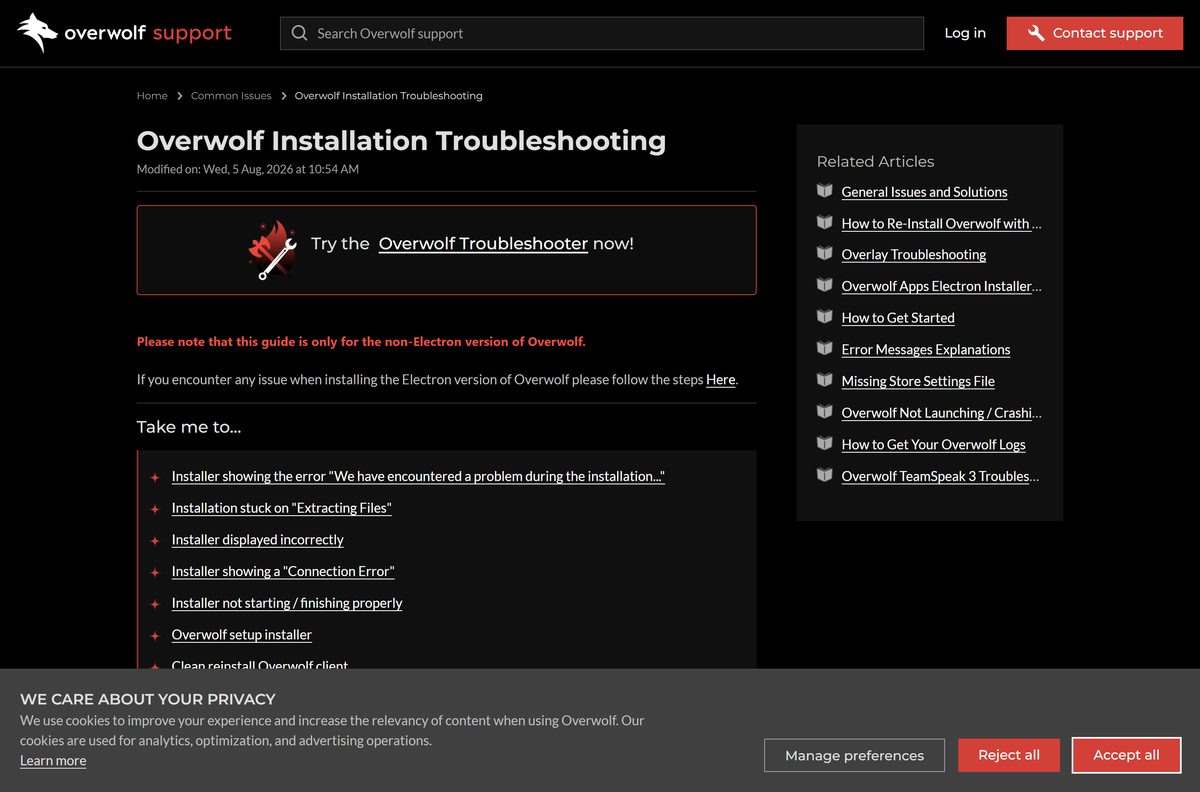
Setup says it encountered a problem, or sticks on Extracting Files
The web installer could not finish unpacking or fetching the client.
- Install every pending update in Settings > Windows Update and restart.
- Download the zipped setup installer instead.
- Extract the .zip to a folder, then run the setup file from that folder.
The installer shows a Connection Error
An antivirus, firewall or VPN is blocking Overwolf’s servers.
- Add Overwolf to your antivirus and firewall allow list, or pause them during setup.
- Disconnect any VPN and switch from Wi-Fi to a wired connection.
- Run the installer again once the connection is direct.
The installer does not start or does not finish
A missing or damaged .NET Framework component.
- Press Win + R, type optionalfeatures and press Enter.
- Tick .NET Framework 3.5 (includes .NET 2.0 and 3.0) and click OK.
- Restart the PC, then run OverwolfInstaller.exe again.
- Repair or reinstall .NET Framework 4.8 if 3.5 was already enabled.
The downloaded installer disappears
Antivirus software quarantines the file before it runs.
- Open your antivirus quarantine and restore OverwolfInstaller.exe, or pause real-time scanning.
- Download a fresh copy from the Appstore and run it straight away.
Setup hangs while RivaTuner or MSI Afterburner is open
Overwolf lists RivaTuner as a known conflict during installation.
- Close MSI Afterburner, then close RivaTuner Statistics Server from the tray.
- Run the installer again.
Overwolf installs but crashes or will not launch
A broken client install or a conflicting setting.
- Run the Overwolf Troubleshooter and follow its checks.
- Make sure Overwolf.exe is not set to Run as administrator in its Properties > Compatibility tab.
- Do a clean reinstall using the steps in the uninstall section below.
The full list of fixes sits in Overwolf’s installation troubleshooting guide.
How to uninstall Overwolf or a single Overwolf app
Removing one app keeps the client. Removing the Overwolf entry in Windows removes the whole platform and every app on it.
- To drop one app, open the Overwolf dock, right-click the app and select Uninstall.
- To remove everything, right-click the Overwolf tray icon and quit the client.
- Open Settings > Apps > Installed apps on Windows 11, or Add or remove programs on Windows 10.
- Select Overwolf and click Uninstall, then confirm in the window that lists your Overwolf apps.
- Delete any leftover C:\Program Files (x86)\Overwolf folder.
- Press Win + R, type %localappdata% and delete the Overwolf folder for a clean slate.
- Restart the PC before reinstalling.
To keep CurseForge while removing other apps, uninstall those apps from the dock instead of removing the Overwolf entry.
Which overlay tool to use instead of Overwolf
Overwolf is the only option here with third-party game apps. The others cover overlays, capture and chat without them.
| Tool | Use it for | Where to get it |
|---|---|---|
| Overwolf | Game stats, builds, trackers, capture apps and CurseForge mods | Overwolf Appstore |
| CurseForge standalone | Mod management without the rest of the Overwolf platform | CurseForge app page |
| NVIDIA App | ShadowPlay recording and game settings on GeForce cards | nvidia.com |
| Discord | Voice chat overlay while you play | Techdows download guide |
Frequently asked questions
Is Overwolf free?
Yes. The Overwolf client is free to download and use, and the platform is funded by in-app advertising. Some apps in the Overwolf Appstore sell an optional subscription, but installing the client and most apps costs nothing.
Where is the official Overwolf download?
The official download is the Download Overwolf link in the Overwolf Appstore on overwolf.com. It serves OverwolfInstaller.exe from download.overwolf.com. Treat any other site offering the installer as a mirror, not the source.
Does Overwolf work on Windows 11?
Yes. Overwolf lists 64-bit Windows 11 and 64-bit Windows 10 as its supported systems. Windows 7 is no longer supported, and the client also needs Microsoft .NET Framework 4.8 and 350 MB of free disk space.
How big is the Overwolf download?
The OverwolfInstaller.exe file is 2.8 MB. It is a web installer, so it downloads the rest of the client during setup. Plan for 350 MB of free space on the install drive, ideally the C: drive.
Is there an Overwolf offline installer?
Overwolf’s installation troubleshooting guide links a setup installer delivered as a zipped file. Extract it and run the setup file inside when the standard 2.8 MB web installer fails or sticks on Extracting Files.
Is there an Overwolf version for Mac?
No. Overwolf’s support site states that it supports Windows only, so in-game overlay apps do not run on macOS. The CurseForge mod manager, which Overwolf also makes, has a separate 256.9 MB Mac download.
Does Overwolf support 64-bit, 32-bit or ARM64 Windows?
Overwolf requires 64-bit Windows 10 or Windows 11, so 32-bit Windows is out. Its processor requirement names only Intel and AMD quad-core chips, which leaves Snapdragon ARM laptops outside the supported list.
Is Overwolf safe to install?
The client is safe when it comes from overwolf.com, where the installer is served from download.overwolf.com. Some antivirus programs still quarantine the installer, so restore it from quarantine or pause scanning during setup rather than using a third-party copy.
What is the latest Overwolf version?
The current Overwolf client is version 310.1.1, a hotfix for the in-game cursor in WARDOGS. Check your own copy under Settings, then About, where the Client version line shows the installed build.
Why won’t Overwolf install?
The usual causes are an antivirus or VPN blocking the connection, a missing .NET Framework component, pending Windows updates, or RivaTuner running during setup. Fix the one that matches your error, or use the zipped setup installer.
Does uninstalling Overwolf remove CurseForge?
Yes, when CurseForge runs on Overwolf. Removing the Overwolf entry in Windows uninstalls the entire platform, including all installed apps. To keep CurseForge, uninstall other apps individually from the Overwolf dock instead.
Does Overwolf work with GeForce Now or other cloud gaming?
No. Overwolf needs the game running as a local process on your PC. Cloud services such as GeForce Now run the game on remote servers, so the overlay has nothing to attach to.