You can install Google Meet as a desktop app on Windows 11, Windows 10 and Mac in under a minute, straight from Chrome. It opens in its own window, sits in your Start menu or Dock, and updates itself with Chrome.
Google Play and the App Store carry the official Meet apps for Android, iPhone and iPad. Meet also runs at meet.google.com in Chrome, Firefox, Edge and Safari with nothing to install.
Below you will find the right route for each device, the official Google links, install steps for Windows and Mac, the free-plan limits, and fixes for a camera Meet cannot see.
Which Google Meet download do you need?
Match your device to a row. On a computer, the Meet app installs from Chrome, so nothing large downloads.
| Your device | What to install | Size |
|---|---|---|
| Windows 11 or Windows 10 PC | Google Meet app, installed from Chrome | No separate download |
| Mac | Google Meet app, installed from Chrome | No separate download |
| Chromebook or Linux PC | Google Meet Progressive Web App | No separate download |
| Android phone or tablet | Google Meet on Google Play | Play states no size |
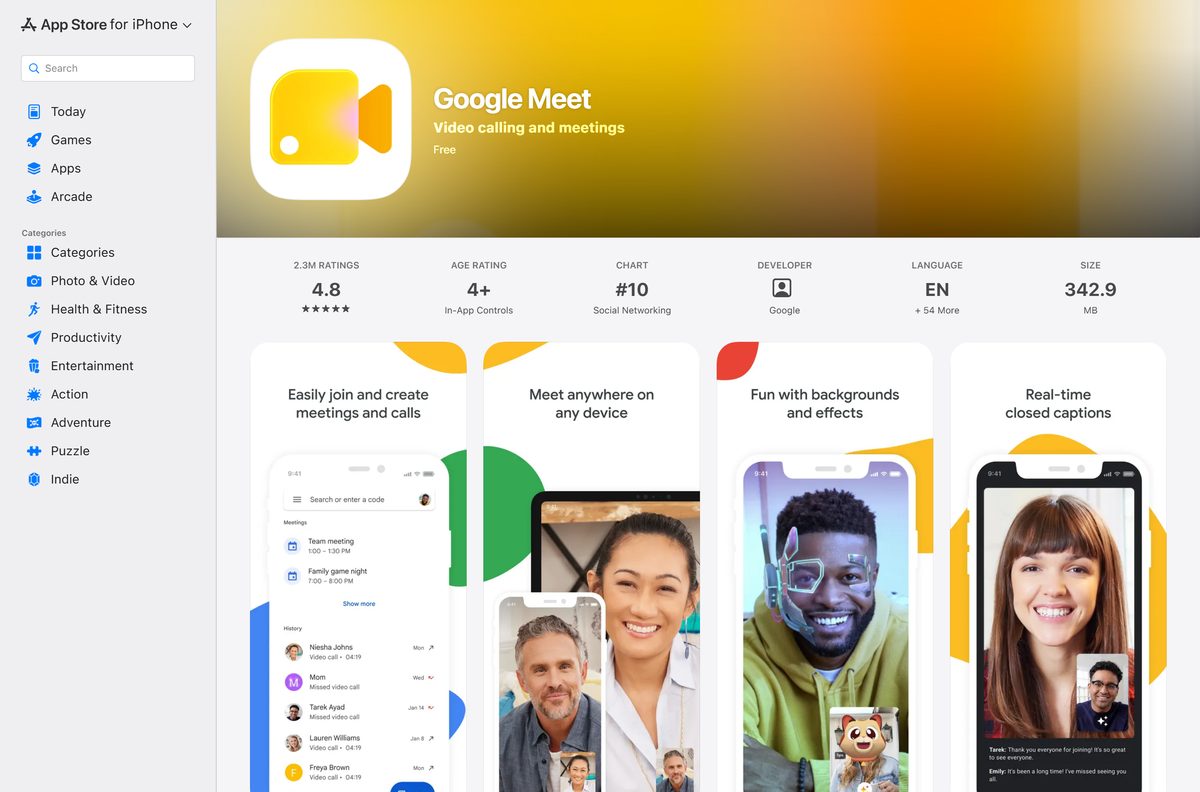
| iPhone or iPad | Google Meet on the App Store | 327.0 MB |
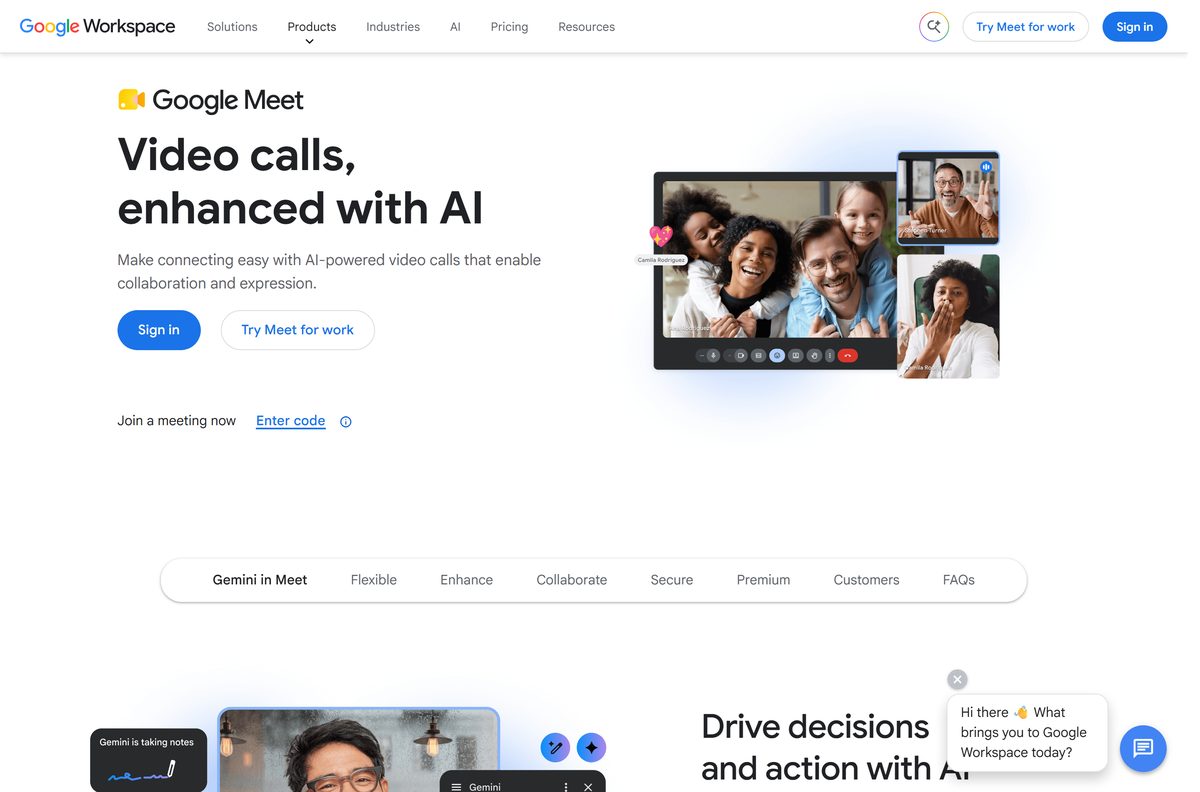
Download Google Meet from Google’s official sources
Google publishes Meet at these addresses. Each one is free with a Google Account.
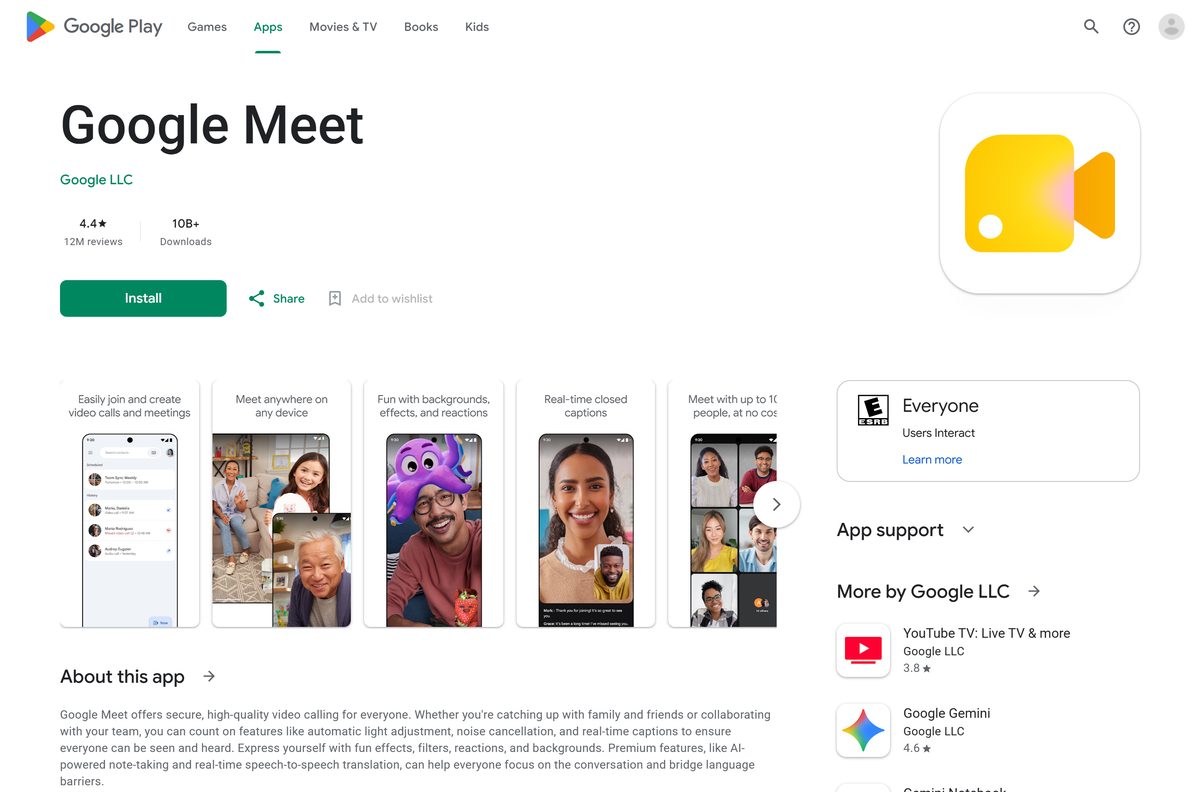
- Google Meet on the web — sign in, then install it as an app from Chrome
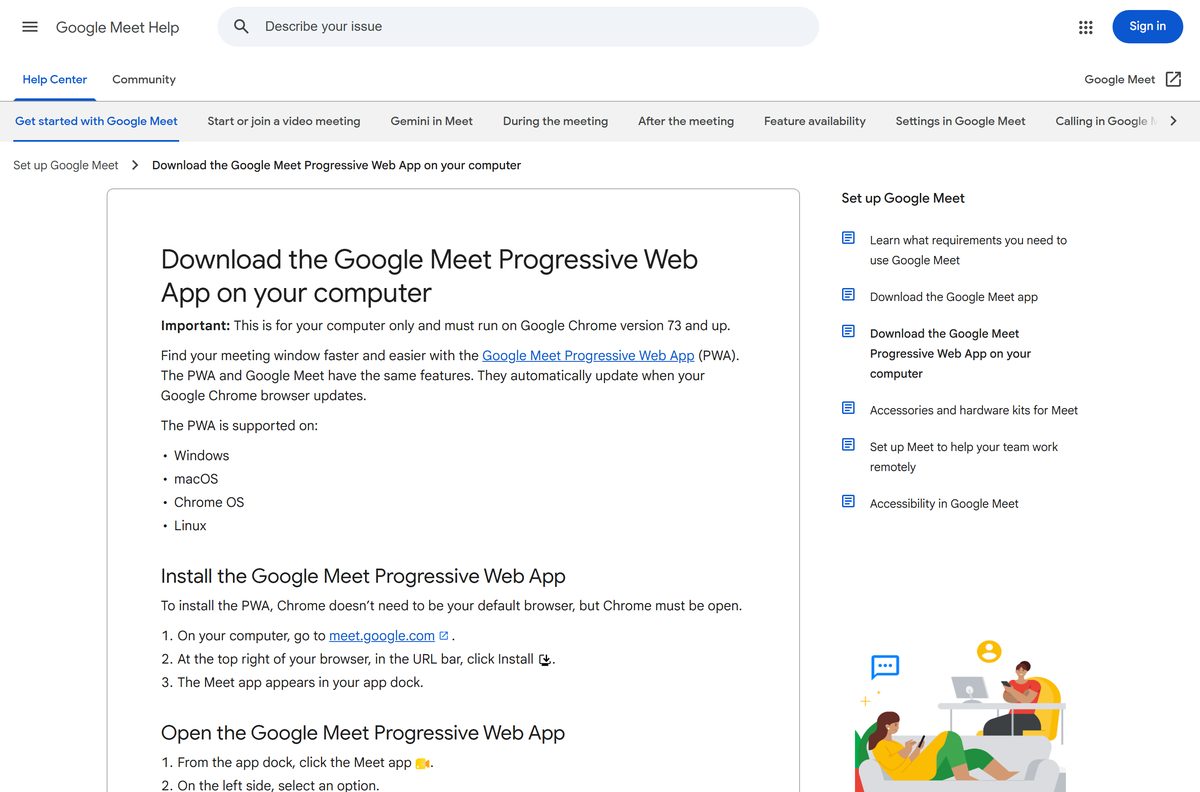
- Download the Google Meet Progressive Web App — Google’s own install instructions
- Google Meet on Google Play — Google LLC, 10B+ downloads, updated 18 September 2026
- Google Meet on the App Store — 327.0 MB · iPhone and iPad, iOS 18.0 or later
- Google Meet product page — features and Google Workspace plans
How to install Google Meet on Windows 11 and 10
The Meet app needs Chrome 73 or later. Chrome does not have to be your default browser, but it must be open to install the app.
- Open Chrome and go to meet.google.com.
- Sign in with your Google Account.
- Select the Install icon at the right end of the address bar.
- If the icon is missing, select More, the three-dot button, then Cast, save, and share and Install page as app.
- Confirm with Install in the prompt.
- Open Start and select Google Meet to launch the app in its own window.
- On the left, choose Meetings to join or create a meeting, or Calls to ring someone.
Right-click the taskbar icon and select Pin to taskbar to keep Meet one click away.
Which Google Meet download do you need for your Mac?
A Mac follows the same Chrome route as Windows. Pick the row that matches how you meet.
| What you want | What to use | Where it comes from |
|---|---|---|
| Meet in its own window, launched from the Dock | Google Meet app installed from Chrome for Mac | |
| Meet in Safari without installing anything | meet.google.com | |
| Meet on an iPhone or iPad | Google Meet on the App Store, 327.0 MB | Apple App Store |
After installing from Chrome, Meet appears in your app dock. Click it, then choose Meetings or Calls on the left.
The App Store listing covers iPhone and iPad only, so the Chrome app is the Mac version.
Check the Google Meet system requirements
Meet runs on modest hardware, but video effects and large calls need a newer processor.
| Field | Value |
|---|---|
| Developer | Google LLC |
| Latest version | Web-based, auto-updating |
| Price | Free with a Google Account |
| Supported OS | Windows, macOS, ChromeOS and Debian-based Linux (current and 2 previous major releases); Android; iOS and iPadOS 18.0 or later |
| Desktop app | Google Chrome 73 or later |
| Supported browsers | Current Chrome, Firefox, Microsoft Edge and Safari |
| Minimum hardware | Dual-core processor, 2 GB memory |
| Recommended CPU | 10th Gen Intel i3/i5/i7 or AMD Ryzen 3000 5/7 |
| Best results | 11th Gen Intel i5/i7, AMD Ryzen 5000 or Apple M1, 1080p camera, WebGL 2.0 graphics |
| Architecture | None of its own, Meet uses the browser’s build |
| Offline installer | None |
| iPhone and iPad app size | 327.0 MB |
| Official source | meet.google.com |
| Last verified | 2026-09-24 |
You also need broadband internet and a built-in or USB webcam. Chrome itself needs Windows 10 or later on Intel, Windows 11 on ARM, and macOS 13 Ventura or later.
Is Google Meet free?
Yes. Anyone with a Google Account can host Meet calls with up to 100 participants at no cost. Free group meetings end at 60 minutes, while 1:1 calls and calls on mobile have no time limit. Google Workspace plans and the 2 TB Google One Premium plan raise the ceiling to 24-hour meetings and up to 1,000 participants, and add recording, live streaming and international dial-in numbers. The desktop app, Google Play app and App Store app cost nothing on every plan.
Should you install the Meet app or use Meet in a browser tab?
Install the Meet app if you join calls every day. Use meet.google.com in a tab if you join only now and then. The app gets its own window and a Start menu or Dock icon, so a meeting never hides among browser tabs. Both routes have the same features and update with Chrome. For scheduling, set up the Google Calendar desktop app; for team messaging, install the Google Chat desktop app.
How to make Google Meet open when your computer starts
Launch at startup works for installed Chrome apps on Windows, Mac and Linux.
- Open Chrome.
- Type chrome://apps in the address bar and press Enter.
- Right-click the Google Meet icon.
- Select Launch at startup.
- Restart the computer and confirm Meet opens on its own.
How to keep Google Meet up to date on each device
Meet on a computer has no version number to check. The desktop app updates automatically whenever Chrome updates.
- On a PC or Mac, open Chrome, select More, then Help and About Google Chrome to install any pending update.
- On Android, open Google Play, select your profile picture, then Manage apps & device, and update Google Meet.
- On iPhone or iPad, open the App Store, select your profile picture and update Google Meet from the list.
The App Store listed version 377.0 on 21 September 2026.
How to check a Google Meet download really came from Google
An .exe or .dmg named Google Meet did not come from Google. The computer version installs only from Chrome.
- Read the address bar before signing in. Meet runs at meet.google.com, and sign-in happens at accounts.google.com.
- Install only through Chrome’s Install icon in the address bar.
- On Google Play and the App Store, confirm the publisher reads Google LLC.
- Right-click any file claiming to be Google Meet, open Properties, then Digital Signatures, and reject a signer that is not Google.
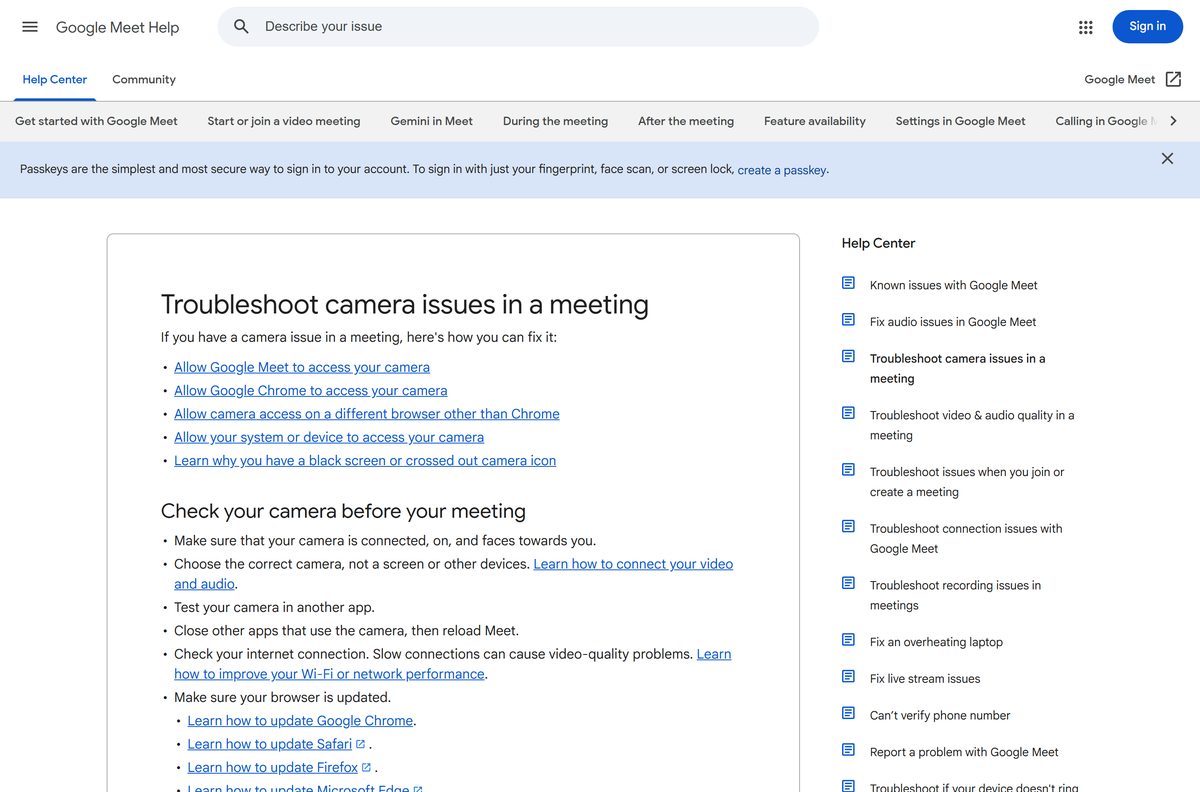
Fix Google Meet not installing or not finding your camera
No Install icon appears in Chrome
Meet is already installed, Chrome is older than version 73, or you are in another browser.
- Type chrome://apps in the address bar and look for Google Meet.
- If it is there, open it from Start or the Dock instead.
- If it is not, update Chrome, then reload meet.google.com.
- Use More, Cast, save, and share, then Install page as app if the icon still does not show.
Meet cannot see your camera on Windows
Windows privacy settings block camera access for apps.
- Select Start, then Settings.
- Open Privacy & security, then Camera.
- Turn on Camera access.
- Close other apps that use the camera, then reload Meet.
Meet cannot see your camera on a Mac
macOS has not given Chrome or Safari permission to use the camera.
- Open System Settings, then Privacy & Security.
- Select Camera.
- Turn on the browser you use for Meet.
- Check for a camera cover or privacy switch, and test the camera in its built-in app.
Chrome blocks the camera for every site
The Chrome default camera setting denies all sites.
- Type chrome://settings/content/camera in the address bar.
- Under Default behavior, select Sites can ask to use your camera.
- Rejoin the meeting and allow access when Meet asks.
How to uninstall Google Meet from a PC or Mac
Removing the app removes the window and shortcut. Your meetings and contacts stay in your Google Account.
- Open the Google Meet app.
- Select More, the three-dot button at the top right.
- Select Uninstall Google Meet.
- Tick Also delete data from Chrome if you want the local data gone.
- Confirm with Remove.
- On a Chromebook, right-click Meet in the launcher, select Uninstall, then confirm Uninstall.
Which way to join Google Meet instead of the app
| Option | Publisher | Install needed | Best for |
|---|---|---|---|
| Meet desktop app | Yes, from Chrome | Daily meetings in their own window | |
| meet.google.com in a browser | No | Firefox, Safari or Edge users | |
| Google Meet for Android | Yes, from Google Play | Phones and tablets | |
| Google Meet for iPhone and iPad | Yes, from the App Store | iOS 18.0 or later |
Frequently asked questions
Is Google Meet free?
Yes. A Google Account lets you host meetings with up to 100 participants for free. Group meetings end at 60 minutes, while 1:1 calls and mobile calls have no time limit.
What is the official Google Meet download page?
On a computer, the official address is meet.google.com, which installs as an app from Chrome. Phones and tablets get the Google LLC apps on Google Play and the App Store.
Can you install Google Meet on Windows 11?
Yes. Open meet.google.com in Chrome 73 or later and select Install in the address bar. The app then opens from Start in its own window, and you can pin it to the taskbar.
What is the Google Meet download size?
On a PC or Mac, nothing sizeable downloads, because the app installs from Chrome. The iPhone and iPad app is 327.0 MB, and Google Play lists no size for the Android app.
Is there a Google Meet offline installer?
No. Google makes no .exe, .msi or .dmg for Meet. The desktop app installs from Chrome at meet.google.com, and every meeting needs a broadband internet connection.
Is there a Google Meet app for Mac?
Yes. Install Google Meet from Chrome on a Mac and it appears in your app dock. The App Store listing covers iPhone and iPad, so the Chrome app is the Mac version.
How long can a free Google Meet call last?
Free group meetings with three or more people end at 60 minutes. Google Workspace plans and 2 TB Google One Premium allow meetings of up to 24 hours.
Is it safe to download Google Meet from other sites?
Those files are not Google’s. Install from meet.google.com in Chrome, Google Play or the App Store, and check that the publisher reads Google LLC.
What is the latest version of Google Meet?
Meet on a computer has no version number and updates with Chrome. The App Store listed version 377.0 on 21 September 2026, and Google Play updated its listing on 18 September 2026.
Can I use Google Meet without Chrome?
Yes, in a browser. Open meet.google.com in current Firefox, Microsoft Edge or Safari. The installable desktop app itself needs Chrome 73 or later.
How do I make Google Meet start with Windows?
Open chrome://apps in Chrome, right-click the Google Meet icon and select Launch at startup. Meet then opens each time you sign in to Windows.