Outlook shows "The name cannot be matched to a name in the address list" when the name you typed resolves against no address list it can reach.
In most cases a stale AutoComplete entry is to blame, so delete that suggestion and pick the person from the Global Address List instead.
This guide covers the end-user fix first, then the admin checks for licences, GAL visibility, address book policies, Autodiscover and hybrid Exchange.
The fastest fix for the address list name matching error
Outlook keeps a nickname cache of every address you have written to. A removed or renamed recipient stays in that cache and fails name resolution.
- Open a new message in classic Outlook and type the first few characters of the recipient's name.
- Point at the suggestion without selecting it, then select the X beside it to delete the cached entry.
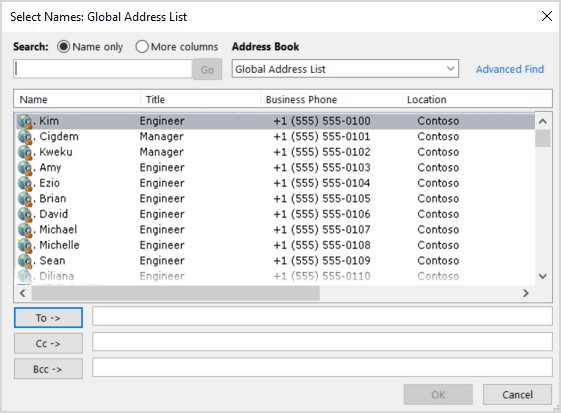
- Select To, search for the person in the Global Address List, and add them from the results.
- Open the Send/Receive tab, select Send/Receive Groups, choose Download Address Book, then select OK.
- Send the message again.
Deleting the suggestion does not remove the contact from your account. Writing to that person again re-adds the entry with current details.
What Causes the Outlook Address List Name Matching Error
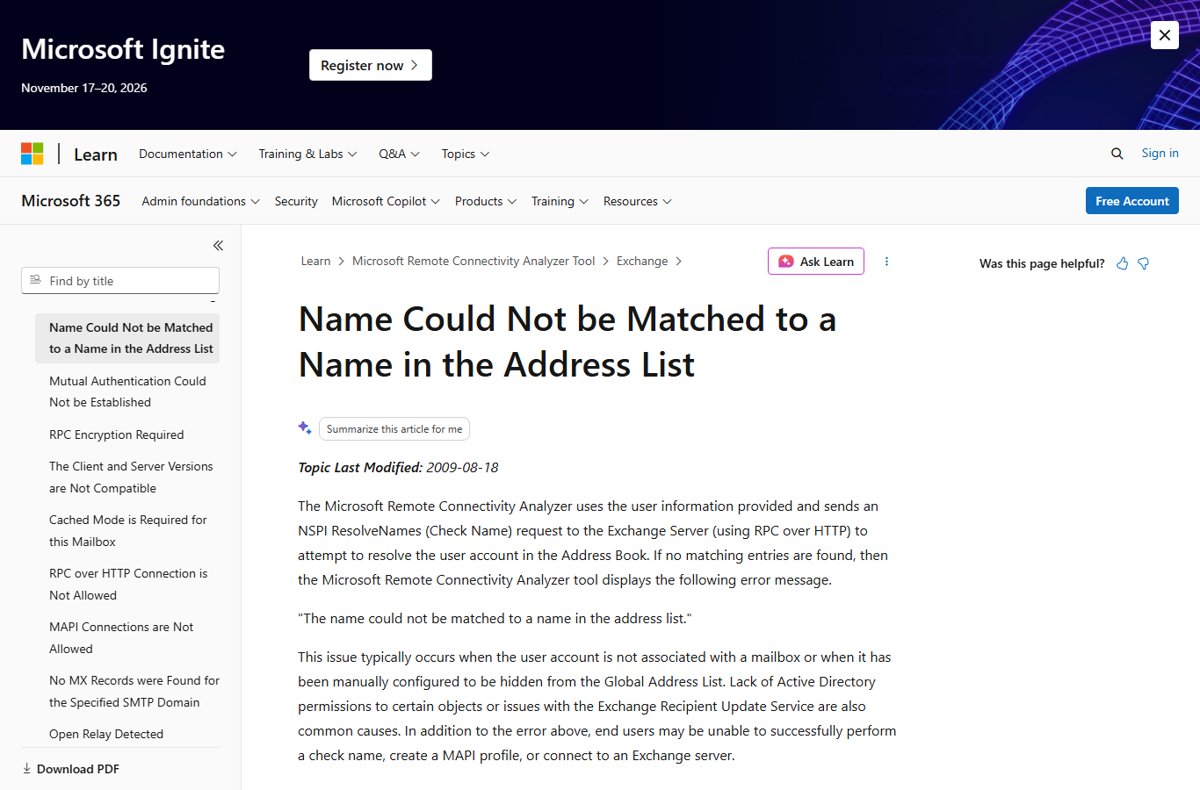
Microsoft's Remote Connectivity Analyzer raises the same wording when a Check Name request returns nothing. The documented causes are an account with no mailbox, a recipient hidden from the Global Address List, or missing directory permissions.
| Cause | What you see | Who clears it |
|---|---|---|
| A stale entry in the Outlook AutoComplete list | One sender, one PC, one recipient name fails | The sender, by deleting the suggestion |
| The account has no mailbox behind it | Check Name fails for that person in every client | An admin, by assigning a licence that includes Exchange Online |
| The recipient is hidden from address lists | The name is missing from the GAL and from people search | An admin, by clearing the hide from GAL setting |
| An address book policy narrows the sender's GAL | A whole group of staff cannot resolve the name | An admin, by editing or reassigning the ABP |
| The offline address book is out of date | Recent joiners fail in cached Exchange mode but work in Outlook on the web | The user, by downloading the address book |
| Autodiscover is not resolving for the domain | A new profile stops on "An encrypted connection to your mail services is not available" | An admin, by fixing the Autodiscover CNAME record |
| Synced attributes are incomplete in a hybrid setup | mail, mailNickname, displayName or proxyAddresses is unset on the synced user | An admin, through Set-RemoteMailbox and a directory sync |
Which fix applies to your situation
| Your situation | Use this | Why |
|---|---|---|
| The name works for colleagues but not for you | Delete the AutoComplete entry | The failure lives in your local nickname cache |
| The name works in Outlook on the web only | Download the offline address book | Cached Exchange mode reads a local copy of the GAL |
| Nobody can resolve one particular person | Check the mailbox and its licence | An unlicensed account has no mailbox to resolve to |
| The person is missing from the GAL entirely | Clear the hide from GAL setting | A hidden recipient is excluded from every address list |
| Only one department cannot see the name | Review the address book policy | An ABP replaces the GAL the assigned users can search |
| A brand new profile will not finish setup | Test Autodiscover | Outlook cannot find the mailbox server without it |
| The mailbox is on-premises in a hybrid org | Check the synced recipient attributes | Missing proxyAddresses or remoteRoutingAddress breaks resolution |
Check the Mailbox Exists and Has an Exchange License
A Microsoft 365 account without an Exchange Online licence has no mailbox, so nothing exists in the address list to match. You need the License Administrator or User Administrator role.
- Sign in to the Microsoft 365 admin center and open Users > Active users.
- Select the row of the affected person to open the details pane.
- Select Licenses and Apps, then expand the Licenses section.
- Tick a licence that includes Exchange Online, then select Save changes.
- If the assignment fails, open the product's Errors & Issues tab, select the user and choose Reprocess.
Licence errors usually come down to no spare licences, conflicting plans, or an invalid usage location. Exchange Online data is held for 30 days after a licence is removed.
Confirm the recipient in Exchange Online PowerShell
PowerShell verification for administrators settles two questions at once: whether a recipient object exists, and whether it is hidden.
Get-Recipient -Identity "[email protected]" | Format-List Name,RecipientType,PrimarySmtpAddress,HiddenFromAddressListsEnabledGet-Recipient returns any mail-enabled object in Exchange Online. RecipientType shows whether it is a real mailbox or only a mail user, and HiddenFromAddressListsEnabled shows whether address lists exclude it.
You should see: The command returns the person with the expected PrimarySmtpAddress and HiddenFromAddressListsEnabled set to False. An empty result means no recipient object exists for that address.
Run Get-Recipient -ResultSize unlimited -Filter 'HiddenFromAddressListsEnabled -eq $true' to list every hidden recipient in the organisation.
Verify the User Is Visible in the Global Address List
Hiding a recipient removes it from all address lists and GALs at once. It keeps receiving mail, which is why the error looks so arbitrary.
- Open the Exchange admin center at admin.exchange.microsoft.com.
- Go to Recipients > Mailboxes and select the affected mailbox. Use Recipients > Groups, Recipients > Resources or Recipients > Contacts for other recipient types.
- On the General tab, select Manage hide from GAL in the Hide from global address list (GAL) section.
- Slide the toggle to Off so the recipient is no longer hidden, then select Save.
- For a group, clear Hide this group from the global address list on the Settings tab instead.
- Open the GAL in Outlook on the web and confirm the name now appears.
Hiding also blocks address book search elsewhere. Teams auto attendant voice recognition cannot redirect calls to a hidden recipient.
Fix Address Book and GAL Issues in Exchange Admin Center
Address lists rebuild from recipient filters, so a person only joins a custom list once a filtered property such as State or province matches.
Update-AddressList and Update-GlobalAddressList do not exist in Exchange Online. Microsoft's documented workaround is to write a temporary value to the filtered property and then write the real value back.
- Connect to Exchange Online PowerShell with an account that holds the Address List role. That role is assigned to no role group by default, so add it to one in the EAC first.
- Read the filter for the list with
Get-AddressList -Identity "<AddressListName>" | Format-List Name,RecipientFilter,IncludedRecipients,Conditional*. - List who currently matches it:
$AL = Get-AddressList -Identity "<AddressListName>"thenGet-Recipient -ResultSize unlimited -RecipientPreviewFilter $AL.RecipientFilter | select Name,PrimarySmtpAddress,HiddenFromAddressListsEnabled. - Set the missing person's filtered property to a temporary value, for example
Set-User -Identity <UserIdentity> -StateOrProvince WA. - Write the required value back, for example
Set-User -Identity <UserIdentity> -StateOrProvince Washington. - Check the result with
Get-AddressList -Identity <AddressListName> | Format-Table Name,RecipientFilterApplied -Auto. - Have affected users open Send/Receive > Send/Receive Groups > Download Address Book to pull the refreshed data.
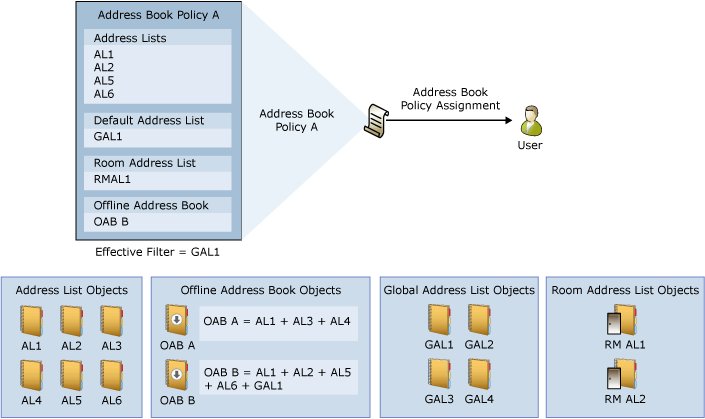
Address book policies replace the GAL for the users they are assigned to. An ABP holds one GAL, one offline address book, one room list and one or more address lists, and a changed ABP applies when the client restarts or reconnects.
Recreate the Outlook Profile and Clear Cached Credentials
A damaged profile keeps pointing Outlook at address book data it can no longer read. Building a fresh profile is quicker than repairing one.
- Close Outlook, then hold Shift while starting it to open the profile picker.
- Select Options, then select New.
- Type a name for the profile and select OK.
- Add the affected account when prompted and let Autodiscover configure it.
- Choose Prompt for a profile to be used so you can switch back to the old profile if needed.
- Start Outlook on the new profile and retype the recipient's name.
You can also reach the picker from Run with Outlook.exe /profiles, or from File > Account Settings > Change Profile while Outlook is open.
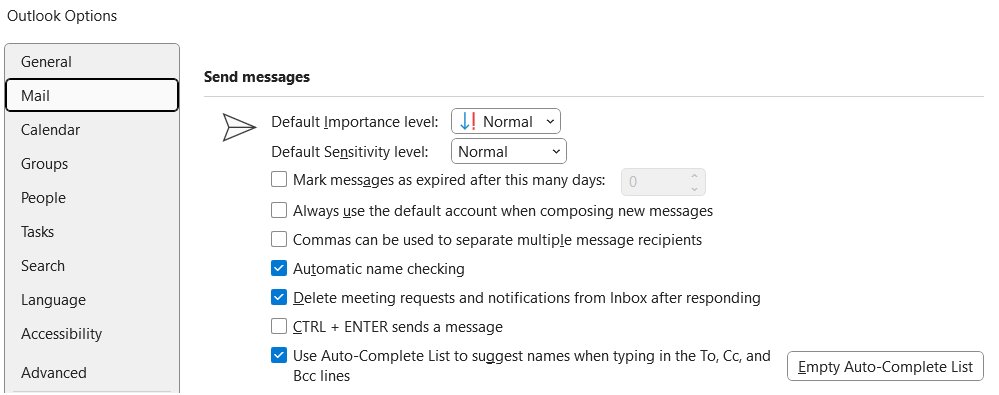
To drop the whole nickname cache rather than one entry, select File > Options > Mail, then Empty Auto-Complete List under Send Messages and confirm with Yes.
Test Autodiscover and Exchange Connectivity
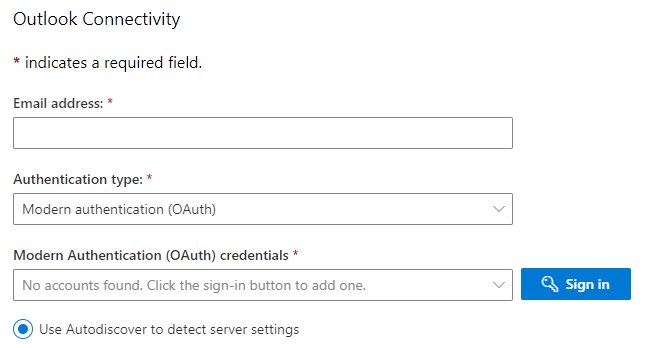
Outlook finds the address book through Autodiscover. When the record is missing, profile setup stops on "An encrypted connection to your mail services is not available".
- Hold Ctrl, right-click the Outlook icon in the notification area and select Test E-mail AutoConfiguration to see the URLs Outlook received.
- Open the Remote Connectivity Analyzer Outlook Autodiscover test at testconnectivity.microsoft.com/tests/O365Ola/input.
- Complete every required field, then select Perform Test.
- If the test fails and all mailboxes are in Exchange Online, add an Autodiscover CNAME record for the domain that points to autodiscover.outlook.com.
- In the Microsoft 365 admin center, open Domains, select the affected domain and choose Troubleshoot to run the Domain Troubleshooting Wizard.
- Confirm Outlook is current through File > Office Account > Update Options > Update Now, then retest.
A Remote Connectivity Analyzer run that reports the name could not be matched has reached Exchange successfully. The problem is then the recipient object, not connectivity.
Additional Office 365 and Hybrid Exchange Troubleshooting Steps
In a hybrid organisation the recipient object is built from synced Active Directory attributes. One blank attribute is enough to break name resolution.
- Run
Get-RemoteMailbox -Identity <UserIdentity>against the on-premises organisation for the affected person. - Check that primarySMTPAddress, alias, displayName, emailAddresses and remoteRoutingAddress all carry values, for example
[email protected]for the routing address. - Correct any blank or wrong attribute with
Set-RemoteMailbox. - Force a directory synchronisation so the change reaches Microsoft 365.
- Point the public Autodiscover DNS records for your existing SMTP domains at the on-premises Exchange server, as hybrid deployments require.
- Ask the user to download the address book again, then retype the recipient's name.
Outlook limits an online address list to the first 500 objects when the result set is larger. Search for the person by name rather than scrolling the list.
How to check the fix worked
- Open a new message, type the recipient's name in To and confirm it resolves to an underlined display name.
- Open the Global Address List from To and confirm the person is listed there.
- Run
Get-Recipient -Identity "<address>" | Format-List Name,HiddenFromAddressListsEnabledand confirm the value is False. - Run the Remote Connectivity Analyzer Outlook Autodiscover test again and confirm it passes.
- Send a test message and confirm it leaves the Outbox without a non-delivery report.
Fix the name matching error when it still appears
The error hits one recipient on one PC only
The nickname cache holds an obsolete entry, and the cache itself can become corrupted over time.
- Delete the individual suggestion with the X beside it in the To field.
- If new entries also stop saving, select File > Options > Mail and choose Empty Auto-Complete List under Send Messages.
- Confirm with Yes, then retype the address in full.
- As an alternative, close Outlook and start it from Run with
Outlook.exe /CleanAutoCompleteCache.
The name resolves in Outlook on the web but not in the desktop app
Cached Exchange mode reads a local offline address book that has not picked up the change.
- Confirm the GAL in Outlook on the web shows the current details.
- In Outlook, select File > Account Settings > Account Settings, choose the Exchange account and select Change.
- Under Offline Settings, confirm Use Cached Exchange Mode is ticked.
- Select Send/Receive > Send/Receive Groups > Download Address Book, then OK.
- Confirm the Background Intelligent Transfer Service is running in
services.msc, because the download depends on it.
A Send As user gets an insufficient permissions report after the name fails
The From field is filled from outdated offline address book data rather than current directory information.
- Start a new message and select From, then Other Email Address.
- In the Send From Other E-mail Address window, open the address book list and change it to the Global Address List.
- Select the mailbox you hold Send As permission for.
- Send the message again.
A new profile stops with an encrypted connection error
Autodiscover cannot process the address, usually a missing or wrong CNAME record or a mistyped address.
- Retype the address on the Auto Account Setup page and try again.
- Test the domain with the Remote Connectivity Analyzer Outlook Autodiscover test.
- Add or correct the Autodiscover CNAME so it points to autodiscover.outlook.com for a cloud-only organisation.
- Where no custom domain is in use, set the profile up with the account's onmicrosoft.com address instead.
One department cannot resolve a name the rest of the company can
An address book policy scopes those users to a GAL that excludes the recipient.
- Identify the address book policy assigned to an affected user.
- Confirm which GAL, offline address book, room list and address lists the policy contains.
- Add the recipient to a list the policy includes, or move the user to a policy that already covers them.
- Ask the user to restart Outlook, because a changed policy applies on the next client reconnection.
Frequently Asked Questions
What does "The name cannot be matched to a name in the address list" mean in Outlook?
It means a Check Name request returned no match from the address book. Microsoft lists the usual causes as an account with no mailbox, a recipient hidden from the Global Address List, or missing directory permissions on the object.
How do I fix this error as an end user?
Delete the cached suggestion for that person, then pick them from the Global Address List instead of typing the name. Afterwards select Send/Receive, Send/Receive Groups and Download Address Book to refresh your local copy.
Can this happen if the user has a Microsoft 365 account but no Exchange license?
Yes. Without a licence that includes Exchange Online the account has no mailbox, so no recipient object exists for Outlook to match. Assign the licence in the Microsoft 365 admin center under Users, Active users, Licenses and Apps.
How can an admin check if the mailbox is hidden from the Global Address List?
Run Get-Recipient for the address and read HiddenFromAddressListsEnabled. In the Exchange admin center the same setting sits on the mailbox General tab under Hide from global address list (GAL).
What should I test if the mailbox and GAL settings look correct?
Test Autodiscover next. Use Test E-mail AutoConfiguration in Outlook, then the Remote Connectivity Analyzer Outlook Autodiscover test. A failure there points at DNS rather than at the recipient object.
Why does the name work in Outlook on the web but not in the desktop app?
Outlook on the web queries the live directory, while cached Exchange mode reads a downloaded offline address book. Until that copy is refreshed, the desktop app still sees the old address list.
Does emptying the AutoComplete list delete my contacts?
No. The AutoComplete list is a separate nickname cache built from messages you have sent. Clearing it leaves your Contacts folder untouched, and entries rebuild as you write to people again.
Can an address book policy cause this error?
Yes. An address book policy gives its users one GAL and a fixed set of address lists, and they can find only those recipients in people search. Anyone outside that GAL fails name resolution for them.
How do I update an address list in Exchange Online?
Update-AddressList and Update-GlobalAddressList are not available in Exchange Online. Change the filtered property on the affected user to a temporary value with Set-User, then set the required value back.
Is there a Microsoft tool that reports this error?
The Remote Connectivity Analyzer does. It sends a ResolveNames request to Exchange, and returns "The name could not be matched to a name in the address list" when nothing matches the account you tested.
Bottom Line
Delete the cached suggestion and reselect the recipient from the Global Address List before changing anything in Exchange. The nickname cache is local to one profile and causes most reports of this error, while licence, GAL visibility and Autodiscover faults affect every client at once and are quick to rule out with Get-Recipient and the Remote Connectivity Analyzer.

![How to Use Breakout Rooms in Zoom [Step-by-Step Guide]](https://techdows.com/wp-content/uploads/2026/09/Breakout-room-Meetings-toggle-turned-on-with-sub-option-checkboxes-600x273.jpg)
![How to Download and Install Language Pack in Windows 11/10 [Guide]](https://techdows.com/wp-content/uploads/2026/09/Windows-10-Language-settings-page-with-Add-a-language-button.jpg)