To update firmware on Windows 11, open Settings > Windows Update > Advanced options > Optional updates, install any firmware or BIOS entry from your PC maker, and restart with the charger plugged in.
If nothing is offered there, the update comes from your PC maker's support tool, Device Manager, or a USB flash inside the UEFI firmware settings. This guide covers system BIOS/UEFI firmware, SSD firmware, BitLocker, verification and failed updates.
The fastest way to update firmware on Windows 11
Windows delivers system firmware as a signed package that your PC maker publishes through Windows Update. The firmware itself is written during the next restart, not while Windows is running.
- Plug in the charger and keep it connected until the update finishes.
- Open Start > Settings > Windows Update and select Advanced options.
- Turn on Receive updates for other Microsoft products if it is off.
- Select Optional updates under Additional options, then expand the driver updates list.
- Tick the entry from your PC maker that mentions firmware or BIOS, and select Download and install.
- Restart when Windows asks. The screen shows *Please wait while we install a system update* while the firmware is written; do not switch the PC off.
If Windows Update offers nothing, your PC maker publishes the firmware through its own tool or support page instead. The table below matches each case to a route.
Which firmware update method should you use?
| Your situation | Use this | Why |
|---|---|---|
| A firmware or BIOS entry appears in Optional updates | Windows Update | The package is signed and targeted to your exact model, and Windows hands it to the firmware on restart |
| Branded laptop or desktop with nothing in Windows Update | Your PC maker's support app or Windows installer | Makers such as Dell publish BIOS updates through SupportAssist and a standalone installer first |
| A firmware package from your maker ships as an INF driver package | Device Manager > Firmware category | Windows installs system and device firmware through the same driver mechanism |
| Windows will not start, or the maker only offers a BIOS file | USB flash from the UEFI firmware settings | The flash utility built into the firmware runs without Windows (for example ASUS EZ Flash) |
| Microsoft Surface | Windows Update | Surface driver and firmware updates, including UEFI and SSD firmware, arrive through Windows Update |
| A Samsung or other add-in SSD | The drive maker's tool, such as Samsung Magician | SSD firmware lives on the drive, and the PC maker's BIOS package does not cover a drive you added |
| Mouse, keyboard, dock or other peripheral | The peripheral maker's app or driver | Microsoft states UEFI should not be used to update peripherals, because they may not be present during reboot |
Understanding Firmware
Firmware is the small program stored on chips inside the PC and its parts. Windows 11 services two kinds: system firmware, which provides boot and runtime services to the whole PC, and device firmware tied to one component.
| Firmware type | What it controls | How it gets updated on Windows 11 |
|---|---|---|
| System firmware (UEFI, often still called BIOS) | Startup, boot order, Secure Boot and hardware settings for the whole PC | Windows Update package from the PC maker, the maker's own tool, or a USB flash from the firmware settings |
| UEFI-updatable device firmware | Built-in parts such as the embedded controller or management engine | Same driver-package route as system firmware; shows up under Firmware in Device Manager |
| Driver-updatable device firmware | Components whose driver loads the firmware while Windows runs | Updated by the device's own driver or installer |
| SSD firmware | The drive's controller and NAND management | The drive maker's tool (for example Samsung Magician), or the Surface package on Surface devices |
| Peripheral and network device firmware | Mice, keyboards, docks, routers | The device maker's app or admin page, not the PC's UEFI |
A firmware update package is not a real driver even though it installs like one. It holds an INF file plus the firmware image, which Windows passes to the platform firmware through the UEFI UpdateCapsule function.
The Importance of Regular Firmware Updates
| Reason | What it means for you |
|---|---|
| Security fixes | Microsoft's Surface guidance says regular firmware updates reduce vulnerabilities by addressing firmware-level risks |
| Stability and compatibility | Samsung tests each SSD firmware release for performance, stability and compatibility before shipping it |
| Keeping pace with Windows | Surface firmware is kept in sync with features introduced through Windows updates |
| A limited support window | Surface devices released since January 1, 2021 get driver and firmware updates for at least six years; older models got at least four |
| Updates cannot always be undone | Samsung SSD firmware and ASUS BIOS updates cannot be downgraded, so read the release notes before you install |
Update when a release fixes a problem you have, patches a security issue, or your maker marks it critical. There is no benefit in flashing the same version again.
How to Determine If a Firmware Update Is Necessary
Compare the version you have against the newest one your PC maker lists for your exact model. The version string only means something on the maker's own support page.
- Press Win + R, type
msinfo32and press Enter to open System Information. - In System Summary, note the BIOS Version/Date value along with the manufacturer and model listed there.
- Open your PC maker's support site and look up that exact model, or the Service Tag on a Dell.
- Compare the newest BIOS or firmware version listed with the one you noted.
- Read the release notes. Install when they list a security fix, a fix for a problem you have, or a critical rating.
- Check Settings > Windows Update > Advanced options > Optional updates as well, because the same release may already be waiting there.
Dell PCs can also show the version with wmic bios get smbiosbiosversion in Command Prompt, or in the BIOS setup screen under System Information or Overview. For the full Dell routine, see How to Update BIOS on Dell.
Steps to Update Firmware on Windows 11
This is the manufacturer route for a branded laptop or desktop when Windows Update offers nothing. Dell's own guide recommends SupportAssist for most users, with a standalone Windows installer as the manual option.
- Connect the charger. Dell asks for at least 10% battery on AC power, and ASUS asks for at least 20% with power connected.
- Back up your files, close open programs and disconnect USB drives, printers and docks.
- Suspend BitLocker if your maker's installer does not use Windows Update (the command is in the next section).
- Open your maker's support app, or download the BIOS installer for your exact model from the maker's support site.
- Run the update and accept the restart when it asks.
- Leave the PC alone until Windows loads again. It may restart more than once.
Update system firmware through Device Manager
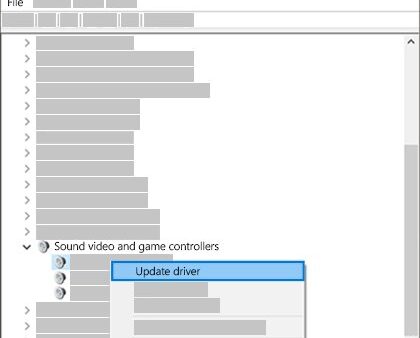
Device Manager lists UEFI-updatable firmware as its own category. Use it to ask Windows for a newer firmware package, or to install an INF-based package your maker supplies.
- Right-click Start and select Device Manager.
- Expand the Firmware category.
- Right-click the firmware device and select Update driver.
- Select Search automatically for drivers (Search automatically for updated driver software on Windows 10) to let Windows look for a newer package.
- To use a package from your maker instead, choose Browse my computer for drivers, then Let me pick from a list of device drivers on my computer > Have Disk, and select its INF file.
- Restart when Windows asks. If you install several firmware packages, restart once after the last one.
Update BIOS firmware from the UEFI firmware settings with a USB drive
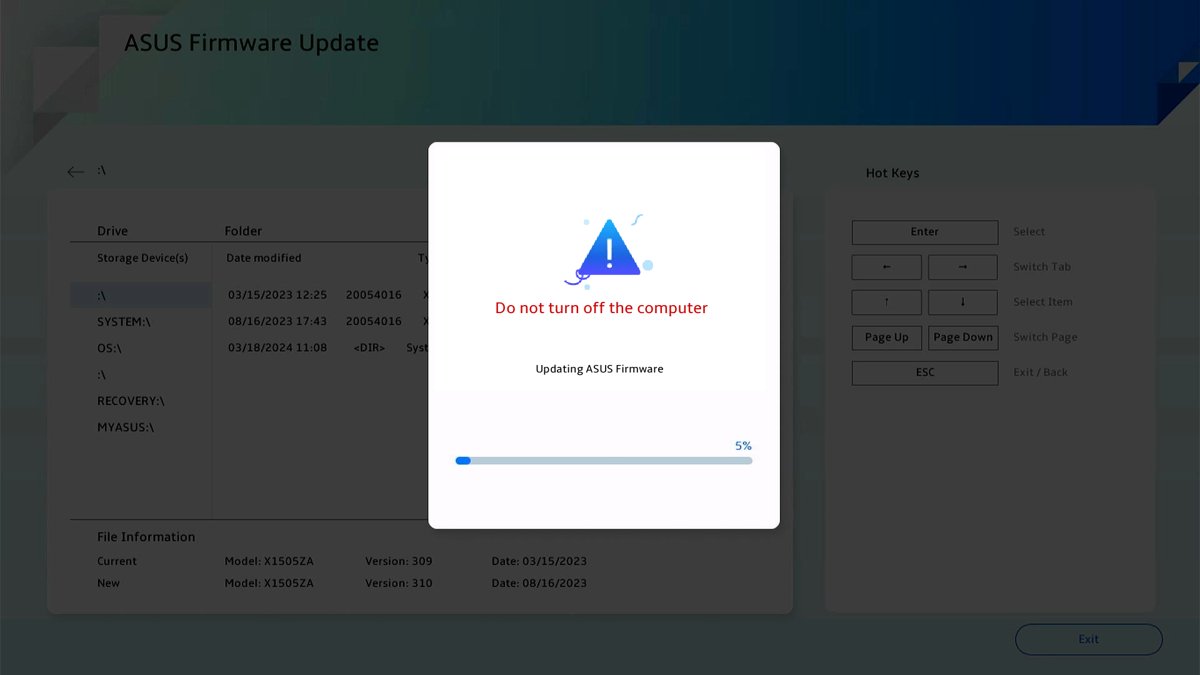
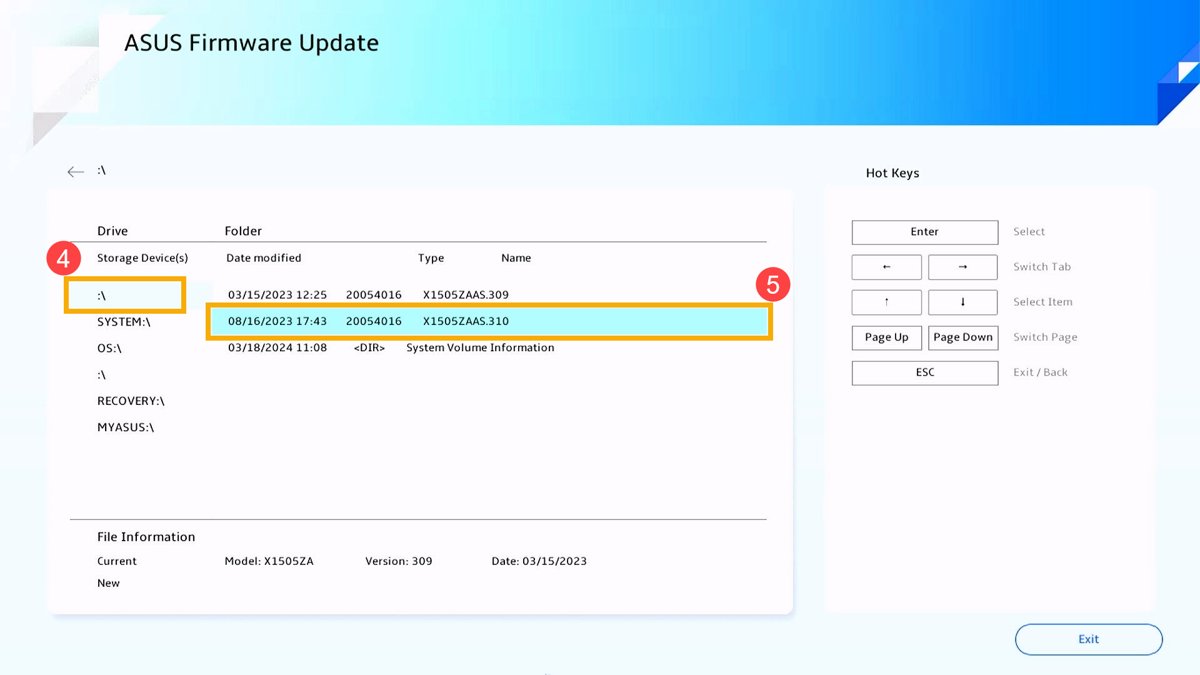
Use this when Windows cannot run the maker's installer, or when the maker supplies only a BIOS file. ASUS calls its utility ASUS Firmware Update or EZ Flash; other makers name theirs differently.
- Download the BIOS file for your exact model from the PC or motherboard maker's support site.
- Format a USB flash drive as FAT32 and copy the BIOS file to it.
- Open Settings > System > Recovery, and next to Advanced startup select Restart now.
- Select Troubleshoot > Advanced options > UEFI Firmware Settings > Restart.
- Open your maker's flash utility in the firmware menu, choose the USB drive and select the BIOS file.
- Confirm the update and wait. Do not force a shutdown; the PC restarts on its own when the flash is done.
Plug the charger in before step 3, since the flash runs outside Windows and cannot be paused.
How to update SSD firmware on Windows 11
SSD firmware comes from the drive maker, not the PC maker, unless the drive shipped inside a Surface. Samsung's answer is Samsung Magician.
- Back up the drive to another disk. Samsung says a firmware update does not erase data but strongly recommends a backup first.
- Install Samsung Magician from Samsung's consumer storage site, or the drive maker's own tool for another brand.
- Open the tool and select your drive. Magician shows drive health and alerts you when an update exists.
- Start the firmware update from the tool and keep the PC on AC power.
- Restart the PC if the tool asks, then confirm the new firmware version in the tool.
Samsung firmware cannot be rolled back to an earlier version once installed. On a Surface, SSD firmware is part of the Surface driver and firmware package and arrives through Windows Update.
Suspend BitLocker before a manufacturer BIOS update
Updates from Windows Update need no BitLocker action. Microsoft says to suspend BitLocker for UEFI/BIOS updates installed without the Windows update mechanism; otherwise the PC starts in recovery mode and asks for the recovery key.
Suspend-BitLocker -MountPoint CRun it in PowerShell as administrator. It keeps the drive encrypted but stores the key in the clear until protection resumes. The Command Prompt equivalent is manage-bde.exe -protectors -disable c:, and the Control Panel route is Manage BitLocker > Suspend protection.
You should see: Manage BitLocker shows the C: drive as Suspended. After the update, run Resume-BitLocker -MountPoint C or select Resume protection if it still shows Suspended.
How to check the firmware update worked
- Press Win + R, type
msinfo32and press Enter. - Check that BIOS Version/Date in System Summary shows the new version you installed.
- Open Manage BitLocker and confirm the OS drive shows protection On, not Suspended.
- For an SSD, open the drive maker's tool and confirm it reports the new firmware version.
- Test the fix you updated for, such as sleep, battery charging or a device that failed before.
If Windows keeps asking for a restart to finish a firmware update, the package is staged and waiting for the reboot. Windows 10 2004 installation asks to restart PC for Firmware Update install covers that prompt.
Troubleshooting Firmware Update Issues
Firmware update failed on Windows 11
Firmware refuses to flash on low battery and rejects a package that is unsigned or meant for another model.
- Connect the charger and let the battery charge well above the maker's minimum before retrying.
- Disconnect docks, USB drives and other peripherals.
- Confirm the file matches your exact model on the maker's support page.
- Try a different method from the table above, such as the maker's installer instead of Windows Update.
Update Fails or Is Interrupted and the PC will not start
Power was lost or the PC was switched off while the firmware was being written.
- Keep the PC connected to power and let it try to start on its own.
- Use your maker's BIOS recovery procedure; Dell PCs include a BIOS Recovery feature for this case.
- Contact the PC maker's support if the PC still shows no startup screen.
BitLocker asks for the recovery key after a BIOS update
BitLocker treats a firmware change as a possible attack when the update came from outside Windows Update and protection was not suspended.
- Enter the 48-digit recovery key; it is often saved to your Microsoft account, a USB drive, a file or a printout.
- Sign in to Windows once the drive unlocks.
- Suspend BitLocker before the next manufacturer BIOS update.
Firmware update is blocked with BitLocker turned on
Microsoft notes that UEFI capsule updates are blocked when BitLocker is on but not bound to PCR7.
- Open
msinfo32and look at PCR7 Configuration in System Summary. - If it is not bound, suspend BitLocker with
Suspend-BitLocker -MountPoint C. - Install the firmware update and restart.
- Resume protection afterwards if it still shows Suspended.
No firmware update shows up in Windows Update
Your maker has not published the release to Windows Update, or it sits in optional updates.
- Open Settings > Windows Update > Advanced options and turn on Receive updates for other Microsoft products.
- Check Optional updates again after Check for updates.
- If Windows Update itself fails, run the Windows Update troubleshooter.
- Otherwise use your PC maker's app or support page.
Incompatibility with Other Hardware after the update
A new firmware version can change behaviour for other devices, and many updates cannot be rolled back.
- Update the drivers for the affected device from Windows Update or the maker's site.
- Read the firmware release notes for known issues and required driver versions.
- Report the problem to the PC maker; Samsung SSD and ASUS BIOS updates cannot be downgraded.
Router and other network device firmware is not installed through Windows at all. If a router update fails, retry it from the router maker's own app or admin page.
Best Practices for Updating Firmware
| Practice | Why it matters |
|---|---|
| Stay on AC power for the whole update | Low power stops the flash or leaves it incomplete; Dell and ASUS both set battery minimums |
| Back up files first | A BIOS or SSD firmware update does not delete data, but Dell and Samsung still advise a backup |
| Suspend BitLocker for non-Windows Update firmware | Without it, the next start asks for the recovery key |
| Disconnect docks, printers and USB drives | Dell lists this as a preparation step before a BIOS update |
| Use only the file for your exact model | Windows and maker tools target packages to the right system; a manual file skips that check |
| Never switch off during the update | A cut during the write can leave the PC unable to start |
| Read release notes before installing | Many updates cannot be downgraded afterwards |
Frequently Asked Questions
How do I update BIOS firmware on Windows 11?
Check Settings > Windows Update > Advanced options > Optional updates first. If no BIOS entry appears, use your PC maker's support app or download the BIOS installer for your exact model, plug in the charger, suspend BitLocker, and run it.
How do I update system firmware on Windows 11?
System firmware is the UEFI or BIOS of the whole PC. Windows installs it from a maker package through Windows Update or Device Manager's Firmware category, then writes it during the next restart while the screen shows a system update message.
How do I update SSD firmware on Windows 11?
Use the drive maker's tool, such as Samsung Magician for Samsung SSDs. Back up the drive first, keep the PC on AC power, and start the update from the tool. Samsung firmware cannot be downgraded after it installs.
How do I update BIOS firmware on Windows 11 with an AMD processor?
The route is the same as on an Intel PC. The BIOS comes from your PC or motherboard maker, through Windows Update, the maker's tool or a USB flash. Some ASUS devices with AMD Krackan Point chips also support a cloud BIOS update.
How do I check for firmware updates on Windows 11?
Open Settings > Windows Update, select Check for updates, then open Advanced options > Optional updates. Firmware from your PC maker appears in the driver updates list. Your maker's support app is the second place to check.
Where do I download a firmware update for Windows 11?
Download firmware only from your PC, motherboard or drive maker's support site, or let Windows Update fetch it. Microsoft publishes Surface driver and firmware packages as .msi files on its own download pages.
Does Microsoft release firmware updates for Windows 11?
Microsoft delivers firmware that PC makers publish through Windows Update, and it makes firmware for its own Surface devices. For other brands, the PC maker writes the firmware and Windows only installs it.
How do I open firmware settings on Windows 11?
Open Settings > System > Recovery, select Restart now next to Advanced startup, then choose Troubleshoot > Advanced options > UEFI Firmware Settings > Restart. You can also hold Shift while selecting Power > Restart to reach the same menu.
Why did my firmware update fail on Windows 11?
The usual causes are low battery, a package for a different model, or BitLocker blocking a capsule update. Plug in the charger, disconnect peripherals, confirm the file matches your model, and suspend BitLocker before retrying.
Does updating firmware delete my files?
No. Dell says a BIOS update does not delete personal files, and Samsung says SSD firmware updates do not affect stored data. Both still recommend a backup before you start, in case power fails mid-update.
How do I update firmware on Windows 10?
The steps match Windows 11, but Windows Update lives under Settings > Update & Security. Advanced startup is under Update & Security > Recovery. Maker tools and Device Manager work the same way.