To use Splashtop Wired XDisplay, install the app on your iPad, iPhone or Android device, run the free Wired XDisplay Agent on your computer, and connect the two with a USB cable.
This guide covers setup on Windows and older Macs, arranging the new screen, performance and touch expectations, and fixes for a display that will not connect or extend.
The fastest way to use Splashtop Wired XDisplay
These are the setup steps from Splashtop's own App Store and Google Play listings. The computer needs at least one unused video display output.
- Install Splashtop Wired XDisplay from the App Store (iPhone), Splashtop Wired XDisplay HD (iPad) or Google Play (Android).
- On the computer, download and run the free Splashtop Wired XDisplay Agent from
splashtop.com/wiredxdisplay, the address both store listings give. - On Android only, turn on USB debugging under Developer options.
- Open the XDisplay app on the phone or tablet.
- Connect the device to the computer with a USB cable that carries data, not just charging.
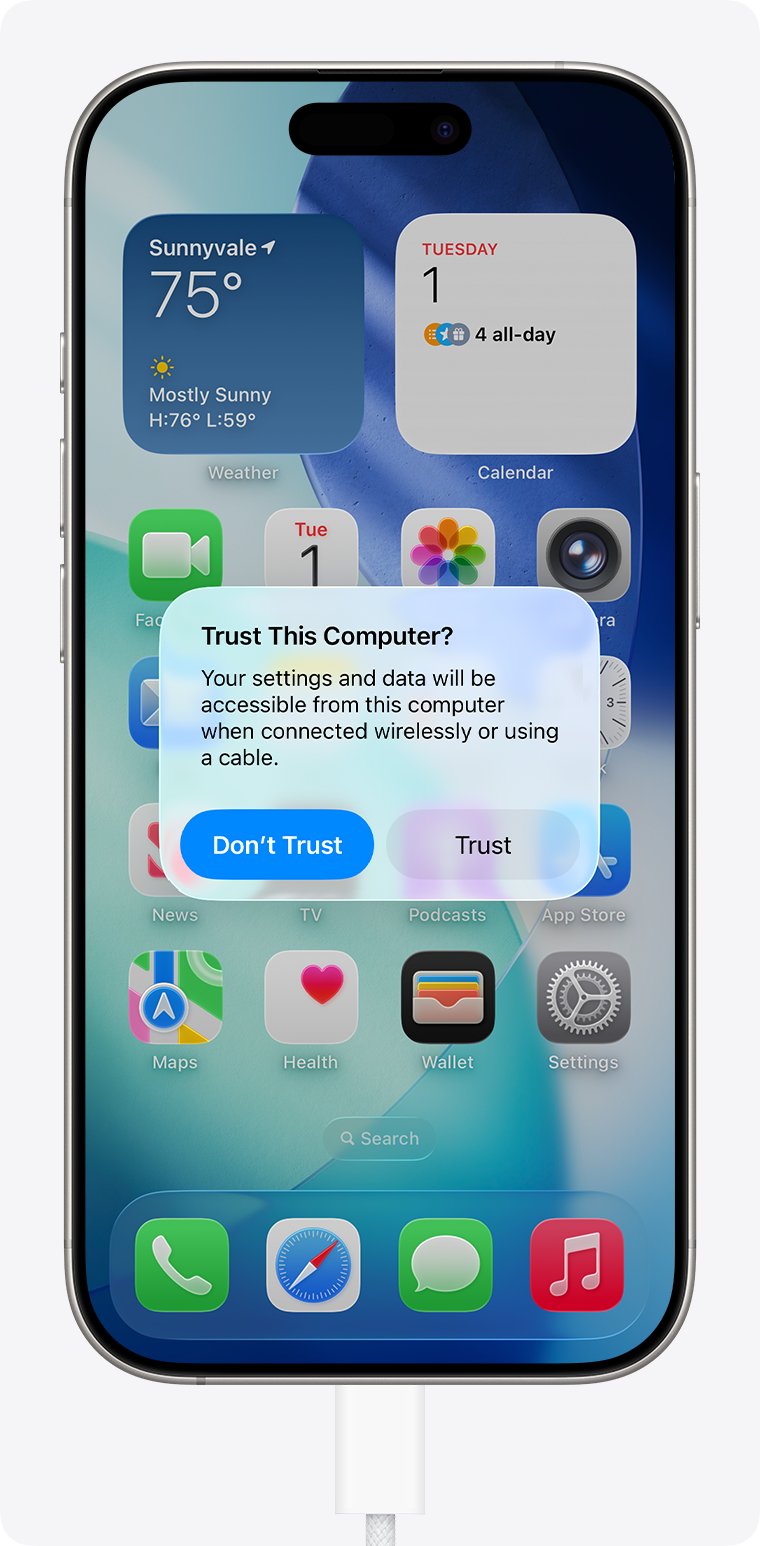
- Tap Trust on an iPhone or iPad if the Trust This Computer? alert appears. The device screen now acts as an extra display.
What Splashtop Wired XDisplay Does
Splashtop Wired XDisplay turns a phone or tablet into an extra monitor for a Windows PC or Mac over a USB cable instead of Wi-Fi. It has two parts: an app on the mobile device and a free agent on the computer.
| Item | iPhone app | iPad app (HD) | Android app |
|---|---|---|---|
| Store name | Splashtop Wired XDisplay – Extend & Mirror | Splashtop Wired XDisplay HD – Extend & Mirror | Splashtop Wired XDisplay |
| Price shown on the US store page | Free | Free | Paid app (Buy button, no free tier listed) |
| Minimum mobile OS | iOS 7.0 | iPadOS 7.0 | Not stated on the listing |
| Computers supported | Windows 7, 8, 10 and later; OS X 10.8 to macOS 10.14 | Windows 7, 8, 10 and later; OS X 10.8 to macOS 10.14 | Windows 7, 8, 10 and later |
| Last app update | Version 1.2.0.2, January 2017 | Version 1.2.0.3, August 2017 | April 12, 2023 |
| Extend and mirror | Yes | Yes | Extend; position of the extra display is selectable |
| Auto-rotation | Landscape and portrait | Landscape and portrait | Landscape and portrait |
Both Apple listings carry the developer's own warning that macOS 10.15 and later are not supported, so a current Mac cannot use it.
What You Need Before You Start
| Requirement | What to check | Why it matters |
|---|---|---|
| Supported devices | An iPhone, iPad or Android phone or tablet with the matching XDisplay app | The iPad version is the separate HD app |
| Computer | Windows 7, 8, 10 or later, or a Mac on OS X 10.8 through macOS 10.14 | The Mac agent does not work on macOS Catalina 10.15 or later |
| Spare video output | At least one unused video display output on the computer | The listings name this as a limitation of the agent |
| The two pieces of software | The mobile app plus the free Wired XDisplay Agent on the computer | Neither half works alone |
| A good USB cable | A cable that supports both data and charging | Charge-only cables cannot carry the display signal |
| Android setting | USB debugging turned on | Splashtop's setup lists it as a required step |
| Windows with an iPhone or iPad | The device shows up in Apple's Apple Devices app | Apple says a recognized device appears there |
Install Splashtop Wired XDisplay on the Mobile Device
On an iPad or iPhone, the app installs like any other. On Android, the extra work is turning on USB debugging, which is hidden until you unlock Developer options.
- On iPad, install Splashtop Wired XDisplay HD – Extend & Mirror from the App Store. On iPhone, install Splashtop Wired XDisplay – Extend & Mirror.
- On Android, buy and install Splashtop Wired XDisplay from Google Play.
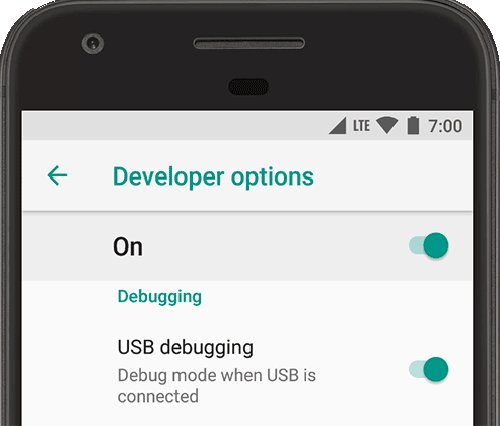
- On Android, open Settings > About phone and tap Build number seven times until you see You are now a developer! On Samsung Galaxy phones, the path is Settings > About phone > Software information > Build number.
- Go back and open Developer options. On Android 9 and later it sits under Settings > System > Advanced > Developer options.
- Turn on USB debugging.
- Leave the XDisplay app installed but unconnected until the computer agent is running.
Google notes that some phone makers place or name Developer options differently, so search Settings for "Build number" if the path above does not match.
Install the Wired XDisplay Agent on Windows
- Open a browser on the PC and go to
splashtop.com/wiredxdisplay, the download address in the app listings. - Download the Windows version of the Splashtop Wired XDisplay Agent. It is free.
- Run the installer and follow its prompts.
- Start the agent so it is running before you plug in the device.
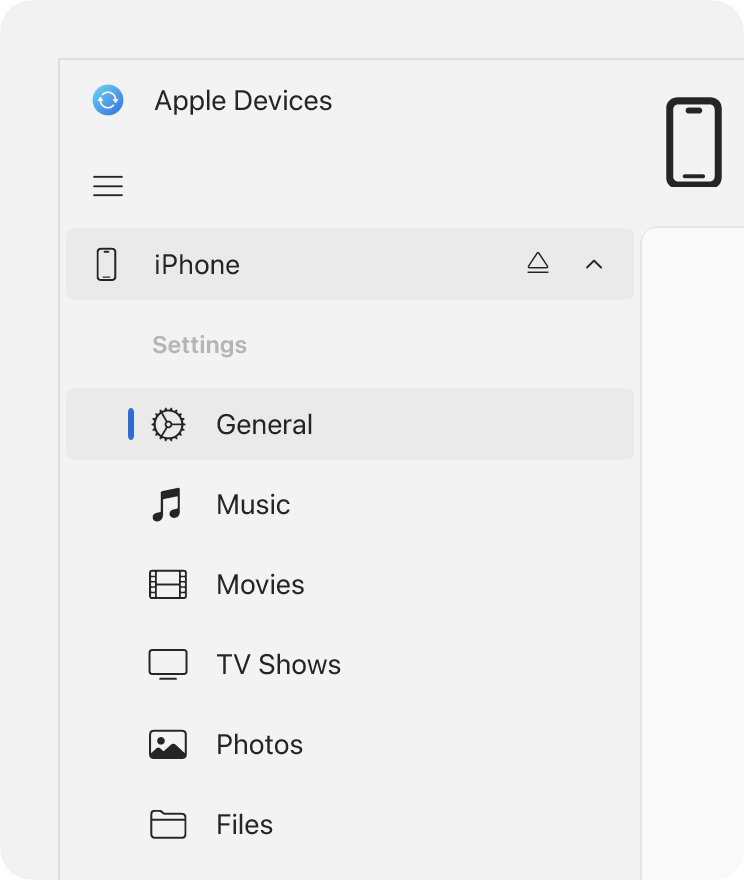
- For an iPhone or iPad, open the Apple Devices app, connect the device, and tap Trust if asked. Apple says a recognized device appears in that app.
The iPhone listing's last update notes an improved Windows agent for Windows 7, 8 and 8.1, so install the current agent rather than an old copy.
Install the Wired XDisplay Agent on Mac
Check the macOS version first. Splashtop states on both App Store listings that macOS 10.15 onward is not supported, so the Mac agent only suits OS X 10.8 through macOS Mojave 10.14.
- Confirm the Mac runs macOS 10.14 Mojave or earlier.
- Go to
splashtop.com/wiredxdisplayand download the Mac version of the Splashtop Wired XDisplay Agent. - Install the agent and open it.
- Connect the iPad or iPhone with a USB cable and tap Trust on the device.
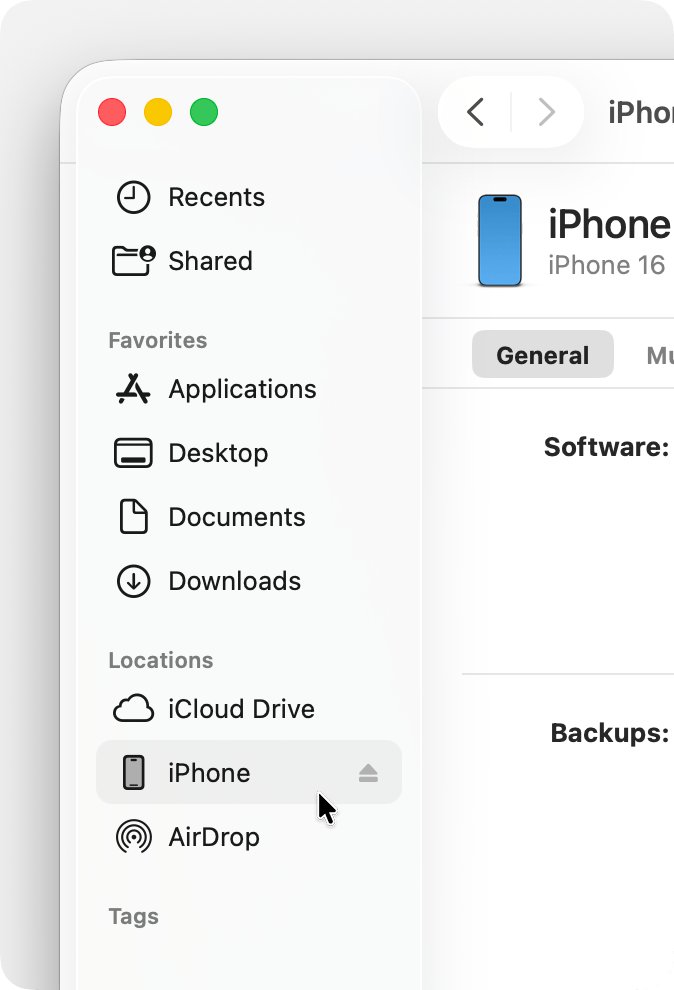
- Confirm the device appears in the Finder sidebar, or in iTunes on older macOS versions.
On macOS 10.15 or later, skip this and use Apple's Sidecar instead (see the alternatives table below).
Connect Your Tablet or Phone as a Second Display
- Make sure the agent is running on the computer.
- Open the XDisplay app on the phone or tablet.
- Unlock the device and plug it into the computer with the USB cable.
- Tap Trust on an iPhone or iPad, then enter the passcode if prompted.
- Wait for the computer desktop to appear on the device screen.
- Rotate the device if you want portrait; the app switches orientation automatically.
Set Up Display Arrangement on Windows
Windows treats the tablet like any other monitor, so the normal display settings control it.
- Open Windows display settings: select Start > Settings > System > Display.
- Select Identify to see which number belongs to the tablet.
- Choose extend or duplicate: press Windows key + P and pick Extend for a second desktop or Duplicate to mirror.
- Arrange the tablet position: drag its display box to match where the device sits on your desk, then select Apply.
- Adjust resolution and scaling: select the tablet's display, then change Display resolution and Scale under Scale & layout.
- Set Display orientation to portrait if the device stands upright.
Set Up Display Arrangement on macOS
These menu names are for macOS Mojave 10.14 and earlier, the only Mac versions the agent supports.
- Choose Apple menu > System Preferences, then click Displays.
- Click Arrangement and drag the device's display to its real position beside your Mac screen.
- To use it as a mirror instead, click Display, set both screens to the same resolution, then click Arrangement and select Mirror Displays.
- Change resolution and orientation for the device under the Display tab.
- If the device does not appear, click Display and press the Option key to reveal Detect Displays.
How to check it worked
- Look at the phone or tablet: it shows part of your desktop instead of the XDisplay start screen.
- Move the mouse pointer off the edge of the main screen; it should appear on the device.
- On Windows, open Settings > System > Display and confirm two numbered displays are listed.
- On a Mac, open System Preferences > Displays > Arrangement and confirm two display boxes appear.
- Drag a window onto the device and release it there.
How to Use the Second Screen Effectively
Splashtop's own listing suggests these uses. They suit a small, lower-bandwidth screen that sits beside the main monitor.
| Good uses for XDisplay | Why it works |
|---|---|
| Chat, email or social feeds | Small windows you glance at stay out of the way of the main task |
| Tool palettes for Photoshop or AutoCAD | Frees the main screen for the canvas or drawing |
| Word, Excel or PowerPoint side by side | Reference one document while editing another |
| Reading documents in portrait mode | A rotated tablet shows a full page |
| Tapping Windows controls directly | The Android listing supports direct touch on Windows software |
Less ideal uses are fast-moving content such as games or full-screen video, because every frame travels over USB and is drawn by the agent on the computer.
Performance Settings and Tips
| Tip | How to do it | Effect |
|---|---|---|
| Lower the resolution | Pick a lower Display resolution for the tablet's display in Windows display settings | Less image data per frame over USB |
| Use a short, reliable cable | Use a cable that supports both data and charging, and swap it if the link drops | Apple lists a bad cable as the first cause of an unrecognized device |
| Try another USB port | Plug into a different port directly on the computer | Rules out a faulty or shared port |
| Keep the mobile device awake and charged | Leave it plugged in and stop it locking during a session | A locked or sleeping device stops showing the desktop |
| Extend rather than mirror | Use Extend so the device only draws what is on it | Mirroring forces both screens to match |
| Keep the computer updated | Install Windows or macOS updates and the current agent | Microsoft recommends updates before changing display settings |
Touch Input: What to Expect
| Question | Answer |
|---|---|
| Can I tap Windows apps on an Android screen? | Yes. The Android listing lists using Windows software via direct touch. |
| Does touch work from an iPhone or iPad? | The Apple listings do not describe touch control, so plan to use the computer's mouse. |
| Is it a drawing tablet? | No pressure or tilt support is listed; it acts as a display first. |
| What about the keyboard? | Type on the computer's keyboard; the device shows what the computer draws. |
Common Problems and How to Fix Them
Splashtop Wired XDisplay not working: the computer does not detect the mobile device
A charge-only cable, a bad port, USB debugging off on Android, or Windows not recognizing the iPhone or iPad.
- Swap to a cable that supports both data and charging.
- Plug into a different USB port on the computer.
- On Android, confirm USB debugging is on in Developer options.
- On Windows with an iPhone or iPad, open the Apple Devices app and check the device appears there.
- Restart the computer and the device, then start the agent before plugging in again.
Splashtop Wired XDisplay not extending the display
Windows is set to duplicate, or the agent could not add a display because no video output is free.
- Press Windows key + P and select Extend.
- Open Settings > System > Display > Multiple displays and select Detect.
- Unplug an unused external monitor so a video output is free, then reconnect the device.
- On a Mac, open System Preferences > Displays > Arrangement and clear Mirror Displays.
iPhone or iPad keeps asking to trust the computer
The trust answer is not being saved by the computer, often because Apple's device software is outdated.
- Update the Apple Devices app or iTunes on Windows, or update macOS on a Mac.
- If iTunes came from the Microsoft Store, make sure iTunes Mobile Device Helper is enabled as a startup item.
- Disconnect and reconnect the device, then restart the computer and the device.
- On the device, go to Settings > General > Transfer or Reset [Device] > Reset > Reset Location & Privacy, then reconnect and tap Trust.
Nothing appears on a Mac running macOS Catalina or later
Splashtop states macOS 10.15 onward is not supported by Wired XDisplay.
- Confirm which macOS version the Mac runs.
- On macOS 10.15 or later, use Sidecar with a supported iPad instead.
- Connect the iPad to the Mac with its USB charge cable to keep it powered during Sidecar.
Best Practices for Daily Use
- Start the agent on the computer before plugging in the device each time.
- Keep one known-good data cable just for XDisplay.
- Leave the device plugged in for the whole session so it stays charged.
- Only trust computers you own; a trusted computer can access the device's photos, contacts and other content.
- Hold off on major OS upgrades if XDisplay is essential, since the Apple apps were last updated in 2017 and the Android app in 2023.
Alternatives to Splashtop Wired XDisplay
| Option | Works with | Requirements | Connection |
|---|---|---|---|
| Apple Sidecar (built into macOS) | Mac with iPad | macOS Catalina 10.15 or later, iPadOS 13 or later, a supported Mac and iPad, same Apple Account with two-factor authentication | Wireless or the iPad's USB charge cable |
| spacedesk – USB Display for PC | Windows PC with iPhone, iPad or Android | Separate apps in the App Store and Google Play | USB, per its store name |
For a Mac on macOS 10.15 or later with a supported iPad, Sidecar is the direct replacement because it needs no extra software.
Frequently Asked Questions
How do I set up Splashtop Wired XDisplay?
Install the XDisplay app on your phone or tablet, then download and run the free Wired XDisplay Agent on your computer from splashtop.com/wiredxdisplay. On Android, turn on USB debugging. Connect the device by USB, and it becomes an extra display.
Is Splashtop Wired XDisplay free?
The computer agent is free. The iPhone and iPad apps show as free on the US App Store, while the Android app is a paid download on Google Play. Earlier launch pricing listed regular prices of $9.99, $19.99 and $12.99.
Where do I download Splashtop Wired XDisplay for a Windows PC?
Splashtop's store listings point to splashtop.com/wiredxdisplay for the free Windows agent. Install that agent on the PC, then install the matching app on your iPhone, iPad or Android device from its official store.
What is the difference between Splashtop Wired XDisplay and XDisplay HD?
XDisplay HD is the iPad version and Wired XDisplay is the iPhone version on the App Store. Both use the same computer agent, support extend and mirror, and list 1080p or Retina output at 60 fps.
Why is Splashtop Wired XDisplay not extending my display?
Windows is usually set to Duplicate, or no video output is free. Press Windows key + P and choose Extend, then use Detect under Multiple displays. Splashtop lists at least one unused video display output as a requirement.
Why is Splashtop Wired XDisplay not working?
The usual causes are a charge-only USB cable, USB debugging turned off on Android, an untrusted iPhone or iPad, or a Mac on macOS 10.15 or later. Swap the cable, check the device settings, and start the agent before connecting.
Does Splashtop Wired XDisplay work on Windows 11?
Splashtop's listings say Windows 7, 8, 10 and later are supported, without naming Windows 11 separately. Once the agent adds the display, Windows 11 manages it through Settings > System > Display like any monitor.
Does Splashtop Wired XDisplay work on a Mac?
Only on older Macs. The App Store listings support OS X 10.8 through macOS 10.14 and state that macOS 10.15 onward is not supported. On newer Macs, Apple's Sidecar turns a supported iPad into a second display.
Bottom line
Use Splashtop Wired XDisplay on a Windows PC with a spare video output, or on a Mac still running macOS 10.14 or earlier. It works over a simple USB link with a free agent, but the Apple apps have not been updated since 2017 and Splashtop itself says macOS 10.15 and later are unsupported, so current Macs are better served by Sidecar.

![How to Type Does Not Equal ((≠)) Sign on Keyboard in Windows 11/10 [Step-by-step Guide]](https://techdows.com/wp-content/uploads/2026/09/Character-Map-window-open-with-the-basic-character-grid-showing-472x338.jpg)

![Delete Yahoo Mail Account Permanently [Quickest Guide]](https://techdows.com/wp-content/uploads/2026/09/Yahoo-Privacy-Dashboard-and-Controls-page-listing-six-brand-tiles-600x338.jpg)