Microsoft Basic Display Adapter has no update of its own — it is the generic driver Windows loads when the graphics card's real driver is missing, broken or disabled, so the job is to replace it with the manufacturer's driver.
This tutorial covers every route on Windows 11 and Windows 10, how to prove the swap worked, and what to do when no manufacturer driver exists.
The fastest way to replace the Microsoft Basic Display Adapter
Windows Update carries display adapter drivers for many graphics chips, so this route usually needs no download at all.
- Right-click the Start menu and select Device Manager.
- Select the arrow next to Display adapters to expand it, and confirm the entry reads Microsoft Basic Display Adapter.
- Right-click that entry and select Update driver.
- Select Search automatically for updated driver software and let the install finish.
- Select Close.
- Restart by right-clicking Start and choosing Shut down or sign out > Restart.
If Device Manager reports that the best driver is already installed, Windows has nothing else to offer. Move to the manufacturer download route below.
Which route should you use?
| Your situation | Use this | Why |
|---|---|---|
| The PC boots normally and is online | Device Manager > Update driver | Windows Update supplies the driver with nothing to download by hand |
| Windows Update finds nothing | The graphics maker's own download page | Manufacturer sites carry drivers that never reach Windows Update |
| The generic adapter appeared right after a driver change | Roll Back Driver | Puts back the version that was working |
| The adapter carries a yellow exclamation mark or error code 43 | Uninstall device, then Scan for hardware changes | Clears a failed install so Windows can reinstall the device |
| A laptop with a customised graphics driver | The laptop maker's support site | Intel publishes a separate note for the Computer Manufacturer Graphics Driver Detected message |
| No driver exists for this card on this Windows version | Keep the generic driver, or fit a video card that has one | These are the two options Microsoft lists for that case |
Understanding the Microsoft Basic Display Adapter
The driver file is BasicDisplay.sys and it ships inside Windows. Nothing about it can be updated separately.
| What Microsoft documents | What it means on your PC |
|---|---|
| It is a generic display adapter driver built into Windows that provides basic display and graphics capabilities | There is no download, no version number to chase and no separate update |
| Windows loads it when no manufacturer driver is present, or when the installed graphics driver is not working or is disabled | Seeing it is a symptom, not a choice Windows made about your hardware |
| Its primary purpose is to let Windows write to the display controller's linear frame buffer | Plain 2D output works; the graphics features of the real card do not |
| It is always used with BasicRender, the system module that exposes WARP from a kernel adapter | Rendering falls back to software while the generic driver is in charge |
| On UEFI platforms it inherits the linear frame buffer set during boot, and no mode or resolution changes are possible | A resolution locked at one value is expected behaviour, not a fault to troubleshoot |
| Safe mode loads only trusted drivers, and BasicDisplay is one of them | A correctly installed manufacturer driver can still be absent in safe mode |
| Starting in Windows 11, BasicDisplay and BasicRender run from C:\Windows\System32\DriverStore | Nothing has to be copied into that folder by hand |
Common Reasons to Update or Replace the Microsoft Basic Display Adapter
Microsoft lists what the manufacturer's driver adds: faster performance, smoother video playback, higher screen resolutions, improved battery life, support for multiple monitors, additional graphical features and better stability.
| Why it turned up | What Windows is telling you | First move |
|---|---|---|
| Fresh install or an in-place upgrade | Setup finished before a manufacturer driver was available | Run Windows Update, then check the optional driver list |
| A manufacturer driver install failed part-way | Windows fell back during the transition between the old and new driver | Uninstall the device, then reinstall the driver |
| The graphics driver is disabled in Device Manager | The real driver exists but is not running | Enable the device, then update the driver |
| The card has no driver for this Windows version | There is nothing left to install | Keep the generic driver, or upgrade the video card |
| The adapter reports error code 43 | The graphics driver told Windows the device is not working properly | Update, roll back, or uninstall and rescan |
| Only Windows Update drivers have ever been installed | Drivers from Windows Update are normally recent, but are not always the manufacturer's full package | Compare against the maker's own download page |
Before You Begin: Important Considerations
| Check | Why it matters | Where to get it |
|---|---|---|
| Administrator rights | Device Manager will not install a driver without them | Sign in with an administrator account |
| The exact graphics adapter name | The download has to match the chip, not the PC model alone | Run dxdiag.exe and read Name in the Device section of the Display tab |
| Windows version and architecture | Manufacturer pages list a separate package per Windows version | Microsoft's manual-update instructions say to match both before downloading |
| How many display adapters are present | Each entry under Display adapters is a separate adapter and can use a different driver | Device Manager, or one Display tab per adapter in dxdiag |
| Where the file comes from | Microsoft says to avoid downloading drivers from any website other than the manufacturer's official site | The graphics maker's or PC maker's own support pages |
| A route back | Roll Back Driver works only while the previous driver version is still stored on the PC | Device Manager > Properties > Driver tab |
| Saved work | The install and the restart close everything | Save all work and close all apps first |
Step-by-Step Guide to Updating Microsoft Basic Display Adapter in Windows 11/10
This is the full manual route: identify the adapter, fetch the manufacturer's package, and point Device Manager at it.
- Right-click Start, select Device Manager, expand Display adapters and confirm the entry reads Microsoft Basic Display Adapter.
- Right-click Start, select Run, enter
dxdiag.exeand select OK; open the Display tab and note the value next to Name for each adapter. - On the graphics maker's or PC maker's own support site, pick the driver that matches that adapter, your Windows version and your architecture, then download it.
- Save all work and close all apps.
- Back in Device Manager, right-click Microsoft Basic Display Adapter and select Update driver.
- Select Browse my computer for drivers, select the Browse… button, open the folder holding the downloaded driver and select OK.
- Check that the path to the drivers is correct, select Next, and wait for the install to finish.
- Select Close, then restart by right-clicking Start and choosing Shut down or sign out > Restart.
Many manufacturer packages ship as a self-extracting installer. Run that installer when one is provided; use Browse my computer for drivers when the download is a folder of driver files.
Let Windows Update install the display adapter driver
Optional drivers are not installed automatically, so this list is worth opening even when Windows Update reports the PC is up to date.
- Select Start > Settings > Windows Update and select Check for updates.
- Install everything offered and restart if Windows asks.
- Return to Windows Update and select Advanced options.
- Under Additional options, select Optional updates.
- Expand the driver list, tick the display adapter driver and select Download and install.
- Restart from Start > Shut down or sign out > Restart, even if Windows does not request it.
Where the driver controls live in Windows 11 and Windows 10
| Windows version | Path | Then |
|---|---|---|
| Windows 11 | Start > Settings > Windows Update > Advanced options | Under Additional options, select Optional updates |
| Windows 10 | Start > Settings > Update & Security > Windows Update > Advanced options | Select Check for updates, then View optional updates |
| Either version | Device Manager > Display adapters > right-click the adapter > Update driver | Select Search automatically for updated driver software |
| Either version | Run > dxdiag.exe > Display tab |
Read the driver in use next to Name in the Device section |
| Either version | Device Manager > right-click the adapter > Properties > Driver tab | Roll Back Driver and the installed driver version and date sit here |
Reinstall the display adapter driver from scratch
Use this when a driver install failed part-way and left the generic adapter behind.
- Save all work and close all apps.
- Right-click the Start menu and select Device Manager.
- Select the arrow next to Display adapters, right-click the adapter and select Uninstall device.
- In the Uninstall Device window, confirm by selecting the Uninstall button.
- Right-click the name of the PC at the top of the device list and select Scan for hardware changes.
- If the adapter does not come back, restart from Start > Shut down or sign out > Restart.
- Right-click the adapter, select Properties, and check that Device status on the General tab reads This device is working properly.
Where to download the correct graphics driver
These are the vendors' own pages and their own utilities. A third-party driver updater is not a substitute for them.
- NVIDIA drivers — Manual search by Product Category, Product Series, Product, Operating System, Language and Download Type.
- NVIDIA app — NVIDIA's own app handles driver downloads; Game Ready and Studio are separate branches.
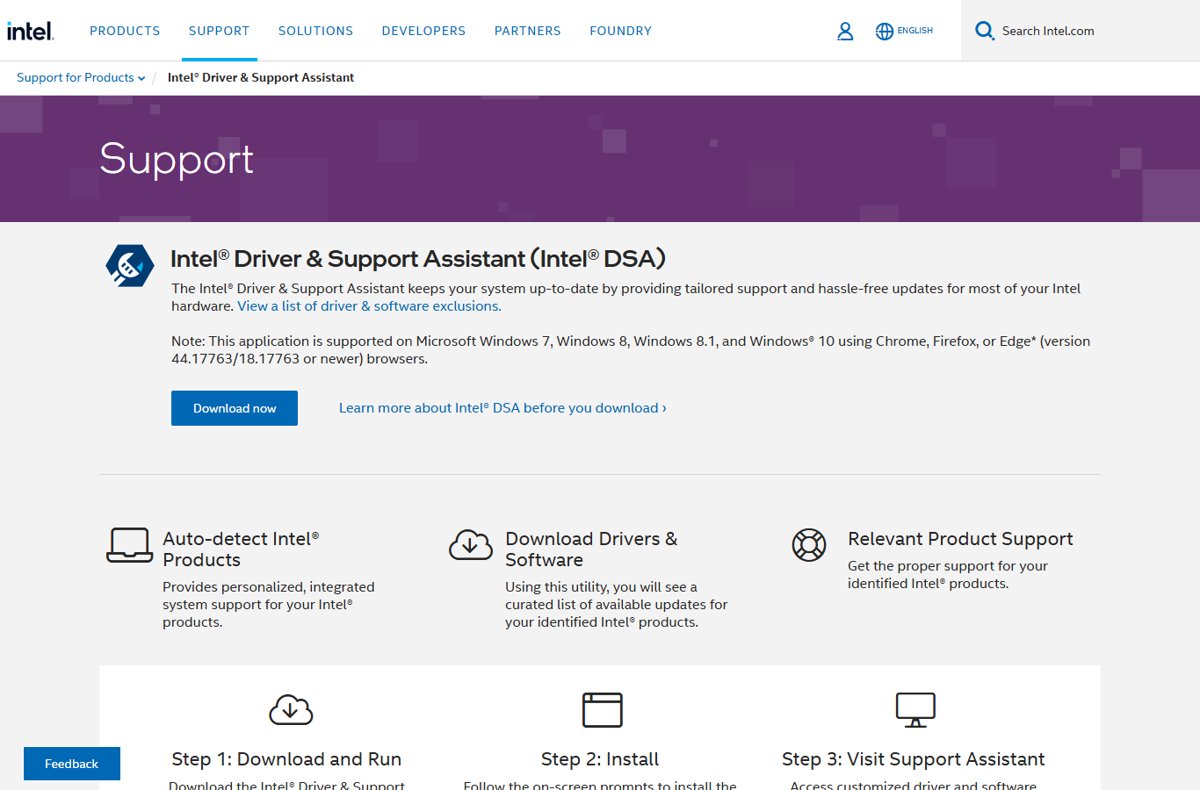
- Intel Driver & Support Assistant — Detects Intel products and lists the driver and software updates available for them.
- List of Drivers for Intel Graphics — Pick the driver by operating system when the assistant is not wanted.
- AMD drivers and support — AMD's own download page for Radeon graphics drivers.
- Microsoft basic display adapter in Windows — Microsoft's page on the generic driver and what the manufacturer's driver adds.
How to check it worked
- Right-click the Start menu and select Device Manager.
- Expand Display adapters; the entry should now name the graphics chip instead of Microsoft Basic Display Adapter.
- Right-click the adapter, select Properties, and confirm Device status on the General tab reads This device is working properly.
- Open the Driver tab and check the driver version and date against the package you installed.
- Right-click Start, select Run, enter
dxdiag.exeand select OK. - On the Display tab, confirm Name no longer reads Microsoft Basic Display Adapter, and check every Display tab if the PC has more than one adapter.
How to undo the new display driver
- Right-click the Start menu and select Device Manager.
- Select the arrow next to Display adapters, right-click the adapter and select Properties.
- Select the Driver tab.
- Select Roll Back Driver.
- Choose a reason when prompted, then select Yes.
- Restart the PC if Windows prompts for it.
Roll Back Driver is unavailable when no previous driver version is stored on the PC. In that case, uninstall the device and install the older package by hand.
Additional Tips and Troubleshooting
Windows says the best driver for your device is already installed
Windows Update has no other driver for this adapter, so Device Manager stops there.
- Open Start > Settings > Windows Update > Advanced options and check Optional updates for a display adapter entry.
- If nothing is listed, download the driver from the graphics maker's own site.
- Right-click the adapter in Device Manager, select Update driver, then Browse my computer for drivers, and point it at that folder.
Windows Update shows no display adapter driver at all
Optional drivers are listed separately and are not installed automatically.
- On Windows 11, open Start > Settings > Windows Update > Advanced options > Optional updates.
- On Windows 10, open Start > Settings > Update & Security > Windows Update > Advanced options, select Check for updates, then View optional updates.
- Expand the driver list and install any display adapter entry.
- If the list stays empty, treat the manufacturer's site as the only source.
The PC feels slower, or video stutters and glitches, since the generic adapter appeared
BasicRender falls back to software rendering, and only the manufacturer's driver restores the card's own graphics features.
- Confirm the generic driver is in use with dxdiag.exe on the Display tab.
- Install the manufacturer's driver using the step-by-step route above.
- Restart, then recheck Display adapters in Device Manager.
- If the stutter survives a correct driver, roll the driver back and test the previous version.
Display settings changed after a Windows update
A driver swap resets resolution and scaling to whatever the newly loaded driver reports.
- Open Device Manager and check whether Display adapters has reverted to Microsoft Basic Display Adapter.
- If it has, reinstall the manufacturer's driver and restart.
- If the adapter is still correct, open Properties > Driver tab and select Roll Back Driver.
- Restart and check the display again.
The downloaded driver installer refuses to run on this version of Windows
The package targets a different Windows version or architecture.
- Download the package the manufacturer lists for your exact Windows version and architecture.
- If the installer still refuses, open Start > Settings > System > Troubleshoot > Other troubleshooters.
- Locate Program Compatibility Troubleshooter and select Run, then follow the on-screen instructions.
- If the troubleshooter does not help, extract the package and install it with Browse my computer for drivers instead, which bypasses the installer.
The compatibility troubleshooter targets an app, not driver files, so it only ever fixes the installer. Windows Update can also be unavailable for reasons outside the PC, as in this Windows Update servers outage — retry later before assuming no driver exists.
Special Cases and Known Issues
The screen is stuck at one resolution while the generic adapter is in use
On UEFI platforms BasicDisplay inherits the linear frame buffer set during boot, and no mode or resolution changes are possible.
- Install the manufacturer's display adapter driver using the step-by-step route above.
- Restart the PC.
- Reopen Device Manager and confirm Display adapters now names the graphics chip.
The display adapter reports error code 43
The graphics driver has notified Windows that the device is not working properly, which can be a driver fault or a hardware fault.
- Right-click Start, select Device Manager, right-click the adapter and select Properties.
- Select Driver, select Update Driver, then Search automatically for updated driver software, and select Close when it finishes.
- If the error stays, return to the Driver tab and select Roll Back Driver.
- If it still stays, right-click the adapter, select Uninstall > OK, then right-click the PC name and select Scan for hardware changes.
- Check Device status on the General tab for This device is working properly; contact the manufacturer if it never appears.
Several entries sit under Display adapters and only one is the generic driver
The PC has more than one display adapter, and each takes its own driver.
- Expand Display adapters in Device Manager and read every entry.
- Run dxdiag.exe and check each Display tab, since each tab is a different adapter.
- Install the manufacturer's driver for the adapter that is still generic, and leave the others alone.
The adapter still shows as generic in safe mode
Safe mode loads only trusted drivers, and BasicDisplay is one of them by design.
- Restart into normal Windows rather than safe mode.
- Open Device Manager and check Display adapters again.
- Reinstall the manufacturer's driver only if normal mode also shows the generic adapter.
No manufacturer driver exists for this graphics card on this version of Windows
Neither Windows Update nor the hardware manufacturer publishes a Windows driver for the adapter.
- Confirm the adapter name with dxdiag.exe and search for it on the manufacturer's support site.
- Check Optional updates under Windows Update one more time.
- If both come back empty, keep using the Microsoft Basic Display Adapter.
- If the PC allows the video card to be changed, fit a card that has Windows display adapter drivers.
Frequently Asked Questions
How do I update the Microsoft Basic Display Adapter?
You replace it rather than update it. Open Device Manager, right-click Microsoft Basic Display Adapter under Display adapters, select Update driver, then Search automatically for updated driver software. If Windows finds nothing, install the driver from the graphics manufacturer's own site.
Can the Microsoft Basic Display driver be upgraded to a newer version?
No. BasicDisplay.sys ships inside Windows and has no standalone download or separate version to install. It changes only when Windows itself is updated. The upgrade path is the manufacturer's display adapter driver, which takes over from the generic one.
How do I change the Microsoft Basic Display Adapter to my real graphics card?
Identify the card with dxdiag.exe on the Display tab, download the matching driver from the maker's support site, then use Update driver and Browse my computer for drivers in Device Manager to point Windows at that folder. Restart afterwards.
How do I replace the Microsoft Basic Display driver when Windows Update has nothing?
Check Optional updates first, under Windows Update and Advanced options, because optional drivers are not installed automatically. If that list is empty, the manufacturer's website is the only remaining source. Microsoft advises against downloading drivers from anywhere else.
Does Windows Update install display adapter drivers automatically?
Windows Update automatically downloads and installs drivers for many devices including video cards, and those drivers are normally recent. Optional drivers are the exception and need installing by hand. Windows Update can also be unavailable, as in this Windows Update servers outage.
Why is my resolution stuck while the Microsoft Basic Display Adapter is in use?
On UEFI systems the generic driver inherits the linear frame buffer set during boot, so no mode or resolution changes are possible. Installing the manufacturer's display adapter driver is what restores the full list of resolutions.
Why did my display settings change after a Windows update?
A display driver change resets resolution and scaling to what the newly loaded driver reports. Check Device Manager first: if Display adapters has fallen back to Microsoft Basic Display Adapter, reinstall the manufacturer's driver. Otherwise roll the driver back.
Is it safe to keep using the Microsoft Basic Display Adapter?
Yes. Microsoft lists keeping the generic driver as a valid option when neither Windows Update nor the manufacturer has a driver for the card. Expect basic display output only, without the performance, resolutions, battery life and multi-monitor support a manufacturer driver adds.
How do I see which display driver Windows is using?
Two ways. Expand Display adapters in Device Manager and read the entry, or right-click Start, select Run, enter dxdiag.exe, select OK and read Name in the Device section of the Display tab. Check every Display tab on multi-adapter PCs.
Can I uninstall the Microsoft Basic Display Adapter?
Uninstalling the device in Device Manager and selecting Scan for hardware changes makes Windows detect the adapter again. Windows reloads the generic driver if no manufacturer driver is present, so install that driver rather than trying to remove the fallback.
Final Recommendations
Treat the Microsoft Basic Display Adapter as a symptom, and install the display adapter driver published by the graphics maker or the PC maker. Microsoft recommends moving to the manufacturer-specific driver, which brings faster performance, smoother video playback, higher screen resolutions, improved battery life, multiple monitor support, additional graphical features and better stability. Keep the generic driver only when neither Windows Update nor the manufacturer publishes one, and consider a video card that has Windows drivers if the PC allows it.

![[Fixed!] Keyboard Arrow Keys Not Working in Excel (7 Fixes)](https://techdows.com/wp-content/uploads/2026/09/On-Screen-Keyboard-with-the-ScrLk-key-highlighted-in-red-600x331.jpg)