Open www.pandora.com in Microsoft Edge, then select Settings and more > More tools > Apps > Install this site as an app to put Pandora on your desktop as its own app.
This guide covers that route, the Chrome equivalent, the Pandora app in Microsoft Store, how to place the icon on the desktop, taskbar and Start menu, and what to do when an option is missing.
The fastest way to add Pandora to your desktop
Microsoft Edge ships with Windows 11 and Windows 10, so this route needs no download.
The installed app runs in its own window with its own taskbar icon, separate from browser tabs.
- Open Microsoft Edge and go to www.pandora.com.
- Select Sign In and enter your Pandora account details.
- Select Settings and more (the … button) > More tools > Apps > Install this site as an app.
- Confirm the install. Edge lists the app at
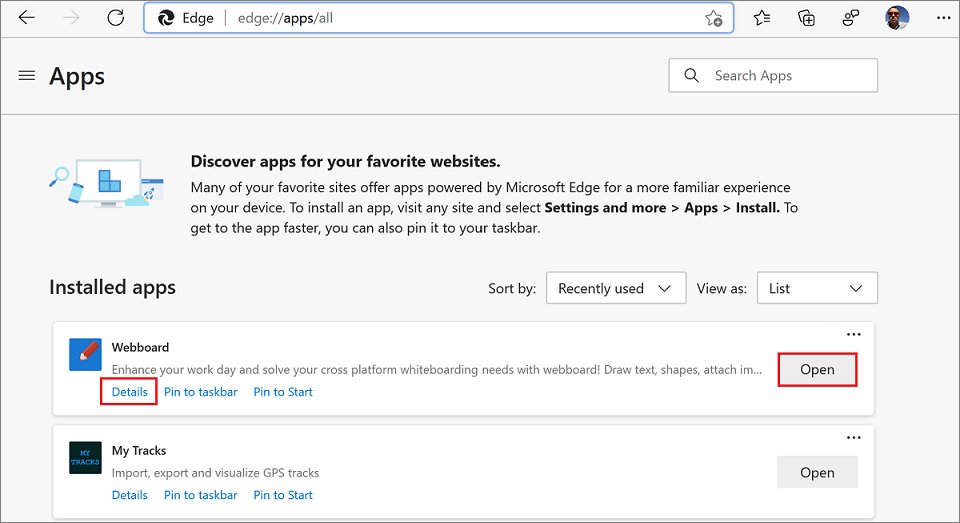
edge://apps. - Go to
edge://apps, select Details on the Pandora card, then select Create Desktop shortcut.
The Pandora icon now sits on the desktop and opens the app directly.
Which method should you use?
| Your situation | Use this | Why |
|---|---|---|
| You just want Pandora playing now | The web player at www.pandora.com | Nothing to install, works in any browser |
| You want a desktop icon and a separate window | Install the site as an app in Edge | Gives a real app window, taskbar icon and desktop shortcut |
| Chrome is your default browser | Install page as app in Chrome | Same result without switching browsers |
| You prefer everything managed by Windows | The Pandora app from Microsoft Store | Installs and updates like any other Windows app |
| You only want one-click access, not an icon | Pin Pandora to the taskbar or Start | No desktop clutter, still one click away |
| Your work PC blocks installs | The web player, plus a browser favourite | No install permission needed |
What you need before you start
| Requirement | Detail |
|---|---|
| A Pandora account | Sign in at www.pandora.com first, so the installed app opens straight into your stations |
| A supported browser | Microsoft Edge or Google Chrome on Windows; both can install a site as an app |
| Microsoft Store access | Needed only for the Store route. Pandora is listed as a free Windows download at apps.microsoft.com/detail/9wzdncrfj46v |
| A signed-in Microsoft account | Microsoft Store needs one to install apps and to show your Library |
| Permission to install apps | A managed work or school PC can block both Store installs and installed web apps |
Nothing here needs administrator rights on a personal PC.
Method 1: Using the Web Browser
This is the no-install route. It answers the question for anyone who only wants Pandora reachable from the desktop machine, not a separate program.
- Open Microsoft Edge, Google Chrome or any modern desktop browser.
- Type www.pandora.com in the address bar and press Enter.
- Select Sign In, or select the sign-up option to create a free account.
- Pick a station and start playback to confirm audio works in the browser.
- Leave the tab open, or add the page to your favourites so it is one click away next time.
Confirm playback here before installing anything. If the web player fails, an installed app will fail the same way, because it loads the same site.
Method 2: Installing Pandora as a Progressive Web App (PWA)
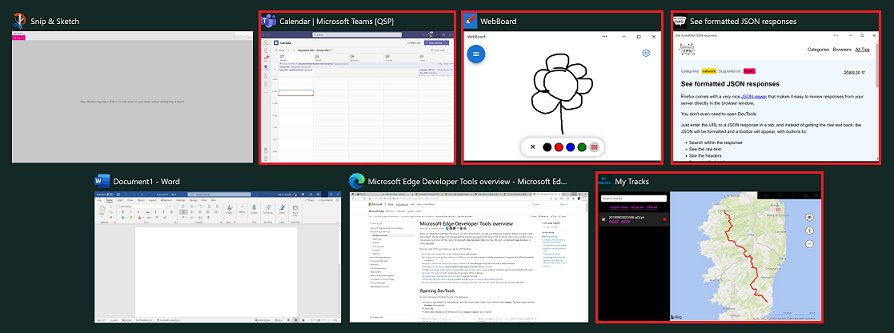
A Progressive Web App is a site installed on the device that behaves like a desktop app. Microsoft documents that installed PWAs appear in the taskbar, in the Start menu and in Alt + Tab.
Edge and Chrome both install them. Pick the browser you already use.
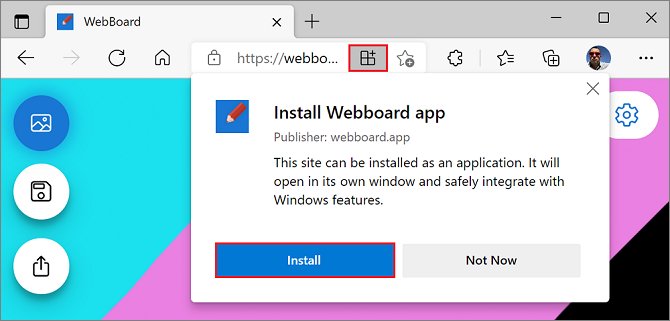
- In Microsoft Edge, go to www.pandora.com and look for the App available icon in the address bar. Select it, then select Install.
- If that icon is absent, use Settings and more > More tools > Apps > Install this site as an app instead.
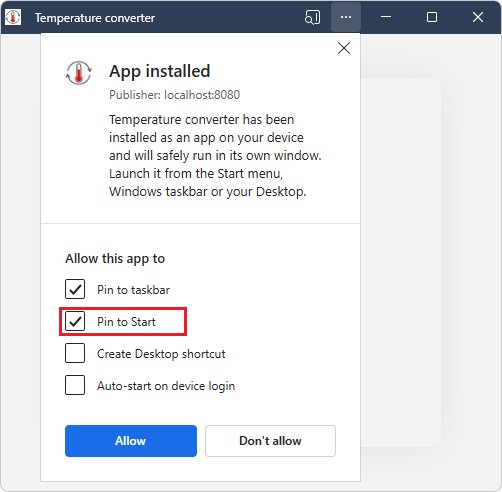
- Tick Pin to Start in the install dialog if you want the icon on the Start menu straight away.
- In Google Chrome, go to www.pandora.com, then select More (the three-dot button) > Cast, save, and share > Install page as app… and follow the prompt.
- In Chrome, some sites also show an Install button directly in the address bar; selecting it does the same thing.
- To place the Chrome icon on the desktop, go to
chrome://apps, right-click the Pandora app and select Create shortcut.
Edge lists every installed app at edge://apps; Chrome lists them at chrome://apps. Related desktop-icon jobs follow the same pattern, such as adding a DuckDuckGo icon to the desktop.
Method 3: Installing the Pandora App from Microsoft Store
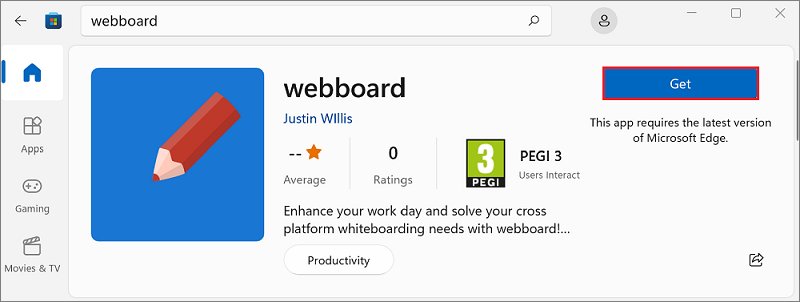
Pandora has its own listing in Microsoft Store, described there as a free download and install for Windows.
Use this listing rather than third-party software or a repackaged installer from a download portal. Microsoft Store handles the install and the updates.
- Select Start, then select Microsoft Store.
- Select the search box and type Pandora.
- Open the Pandora listing, or go straight to apps.microsoft.com/detail/9wzdncrfj46v in a browser.
- Select Get to install it.
- If the app is already tied to your account, open Library and select the Download icon next to Pandora.
- Select Open when the install finishes, then sign in to your Pandora account.
Method 4: Pin Pandora to the taskbar, Start menu and desktop
An installed app, whether from the Store or installed as a web app, pins like any other Windows program.
- Type Pandora in the Search box on the taskbar.
- Right-click the Pandora result and select Pin to taskbar.
- Right-click the same result and select Pin to Start to add it to the Start menu.
- If Pandora is already running, right-click its taskbar icon and select Pin to taskbar.
- For a desktop icon from Edge, go to
edge://apps, select Details on the Pandora card, then select Create Desktop shortcut. - For a desktop icon from Chrome, go to
chrome://apps, right-click Pandora and select Create shortcut.
The same taskbar and Start options work for other installed web apps, including a Slack app added to the desktop.
How to check it worked
Two things prove the install, and neither is a restatement of the steps above.
- Close every browser window, then double-click the Pandora icon on the desktop. It should open in its own window with no address bar or tab strip.
- Press Alt + Tab. Pandora appears as its own entry, not as a browser window.
- Select Settings and more (the … button) in the Pandora window title bar. The App info menu shows the app name, its icon and its publisher.
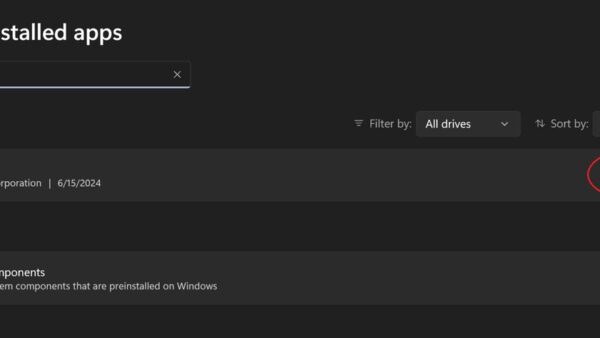
- Open Settings and search for Add or remove programs. Pandora is listed there alongside ordinary Windows apps.
- Start a station and lower the browser volume in Volume mixer to confirm the audio comes from the app, not from a stray tab.
Additional Tips for a Better Desktop Experience
These settings turn the installed app into something closer to a native music player.
- To start Pandora with Windows, go to
edge://apps, select More options on the Pandora card and select Auto-start on device login. - You can also tick Auto-start on device login in the dialog that appears right after installing the app.
- Use the app's own Settings and more menu to select Pin to taskbar, Pin to Start or App settings.
- Open App settings to allow notifications, so track and station changes surface in the Windows notification area.
- Keep one copy only. If you install both the Store app and the web app, unpin or uninstall the one you do not use.
- Place the desktop shortcut next to your other pinned tools; adding a toolbar in Windows 11 gives another way to reach it.
How to remove Pandora from your desktop
- To remove the web app, go to
edge://apps, select Details on the Pandora card and select Uninstall. - Choose whether to delete app history and data, then select Uninstall again to confirm.
- In Edge you can also use Settings and more > More tools > Apps > View apps, right-click Pandora and select Manage app.
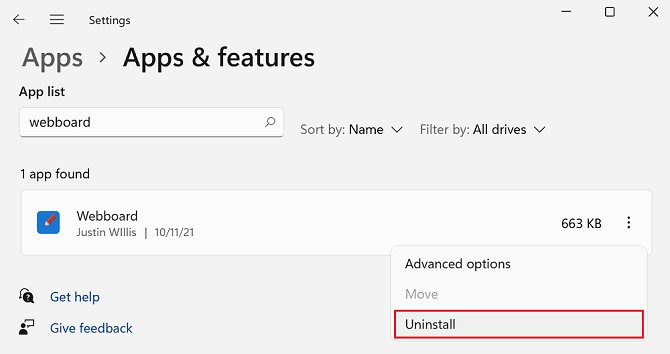
- To remove the Store app, open Settings, search for Add or remove programs, select Pandora and choose the uninstall option.
- To keep the app but clear the icons, right-click the taskbar icon and select Unpin from taskbar, and right-click the Start tile and select Unpin from Start.
- Delete the desktop shortcut on its own if you only want the desktop cleared.
Troubleshooting Common Issues
Pandora does not appear in Microsoft Store
Microsoft Store hides apps that are not available in your country or region, are no longer published, or are not compatible with your device.
- Check the listing in a browser at apps.microsoft.com/detail/9wzdncrfj46v to see whether it opens for your region.
- Press Win + R, type
wsreset.exeand press Enter to reset Microsoft Store. The Store reopens by itself. - Confirm you are signed in to Microsoft Store with your Microsoft account.
- Restart the PC if Windows updated recently but has not been restarted, then search again.
- Install the site as an app in Edge instead; that route does not use Microsoft Store.
There is no Install this site as an app option in the browser
The menu path differs between browsers, and a managed PC can block web app installs by policy.
- In Edge, use the full path: Settings and more > More tools > Apps > Install this site as an app.
- In Chrome, use More > Cast, save, and share > Install page as app….
- Look for the App available icon in the Edge address bar, or the Install button in the Chrome address bar.
- Update the browser and reload www.pandora.com before trying again.
- On a work or school PC, ask your administrator; web app installs can be controlled centrally.
No Pandora icon on the desktop after installing
Installing an app does not always create a desktop shortcut; the shortcut is a separate action.
- In Edge, go to
edge://apps, select Details on the Pandora card and select Create Desktop shortcut. - In Chrome, go to
chrome://apps, right-click Pandora and select Create shortcut. - For the Store app, type Pandora in the taskbar Search box and drag the result to the desktop.
- Check that desktop icons are not hidden: right-click the desktop, select View and confirm Show desktop icons is ticked.
Pandora will not pin to the taskbar
A browser tab cannot be pinned as an app; only an installed app can.
- Install Pandora first, either as an app from the browser or from Microsoft Store.
- Type Pandora in the Search box on the taskbar, right-click the result and select Pin to taskbar.
- If Pandora is open, right-click its taskbar icon and select Pin to taskbar.
- Use the app's Settings and more menu and select Pin to taskbar from the App info menu.
The installed app disappears after signing out and back in
Microsoft states that Progressive Web Apps are not supported in FSLogix environments; an installed app is gone after a log off and log on.
- Confirm with your administrator whether the PC uses FSLogix profiles, which is common on virtual desktops.
- Use the Pandora web player at www.pandora.com on that machine instead of an installed app.
- Add www.pandora.com to your browser favourites, which does survive the profile reset.
- On a personal PC this symptom does not apply; reinstall the app and it stays.
Pandora plays in the browser but not in the installed app
The installed app keeps its own site permissions and its own signed-in session.
- Sign in again inside the Pandora app window.
- Open Settings and more > App settings in the app window and allow sound and notifications for the site.
- Check the app has volume in the Windows Volume mixer.
- Uninstall the app from
edge://appsand install it again from a signed-in browser session.
Frequently asked questions
How do I put Pandora on my desktop screen?
Install Pandora as an app first, then create the shortcut. In Microsoft Edge go to edge://apps, select Details on the Pandora card, and select Create Desktop shortcut. The icon appears on the desktop and opens Pandora in its own window.
How do I get the Pandora app on desktop?
Two routes work. Install the site as an app from Edge or Chrome, or install the Pandora listing from Microsoft Store at apps.microsoft.com/detail/9wzdncrfj46v, which is a free Windows download.
How do I pin Pandora to the desktop taskbar?
Type Pandora in the Search box on the taskbar, right-click the result and select Pin to taskbar. If Pandora is already open, right-click its taskbar icon and select Pin to taskbar instead.
How to add Pandora to desktop on Windows 11?
Open www.pandora.com in Microsoft Edge, select Settings and more > More tools > Apps > Install this site as an app, then create the desktop shortcut from edge://apps. The steps are identical on Windows 10.
How do I install Pandora on my laptop?
Use the same two routes as a desktop PC: install the site as an app from Edge or Chrome, or install the Pandora app from Microsoft Store. No separate laptop version exists.
How do I get Pandora on my computer without installing anything?
Go to www.pandora.com in any desktop browser and select Sign In. The web player runs stations and podcasts with no install, which is the only option on a PC that blocks app installs.
How do I put the Pandora icon on the desktop from Chrome?
Install the page as an app first with More > Cast, save, and share > Install page as app…. Then go to chrome://apps, right-click Pandora and select Create shortcut.
Is the installed Pandora app different from the website?
An installed web app loads the same Pandora site, but in its own window with its own taskbar icon and its own entry in Alt + Tab. It also appears under Add or remove programs in Windows Settings.
How do I use Pandora once it is on the desktop?
Open the desktop icon, sign in, and pick a station or podcast. Playback, station creation and search work exactly as they do on the website, because the app loads the same service.
Can Pandora start automatically when Windows starts?
Yes, for the installed web app. Go to edge://apps, select More options on the Pandora card and select Auto-start on device login. The same checkbox appears in the dialog right after installing.
How do I remove Pandora from the desktop later?
Go to edge://apps, select Details on the Pandora card, select Uninstall, then confirm. To keep the app but clear the icons, right-click and select Unpin from taskbar and Unpin from Start.
Bottom line
Install Pandora as an app from Microsoft Edge, then create the desktop shortcut from edge://apps. Edge is already on every Windows 11 and Windows 10 PC, the install takes four clicks, and the result gives a desktop icon, a taskbar icon and a Start menu entry without a separate download.