Open web.telegram.org in any browser on your PC or Mac, then confirm the QR code from the Telegram app on your phone.
This guide covers both login routes, the exact screens each one shows, how to prove the session worked, and how to log out of a shared computer.
How to Open Telegram Web on a PC or Mac
Telegram Web runs in the browser. Nothing is installed on the computer, and the same steps work on Windows, macOS and Linux.
- Open a browser on the PC or Mac and go to web.telegram.org.
- Open Telegram on your phone and tap Settings > Devices > Add Device.
- Point the phone at the QR code on the computer screen to confirm the login.
Your chat list loads as soon as the phone confirms. Cloud chats sync instantly, because Telegram stores them encrypted in its cloud rather than on one device.
What You Need Before Logging In
| What you need | Why it matters | If you do not have it |
|---|---|---|
| A supported web browser | Telegram Web is a browser app, so no installer and no admin rights are involved. | Install Telegram Desktop from desktop.telegram.org, or Telegram for macOS from macos.telegram.org. |
| Your phone or another active Telegram session | A QR login has to be accepted by a Telegram app that is already signed in. | Use the phone number and login code route instead. |
| Your phone number for manual login | Telegram identifies an account by its phone number, written as +(country code)(city or carrier code)(your number). | There is no email-only Telegram account, so the number is required. |
| A secure computer and network | A browser session stays signed in until somebody ends it, and it can read every cloud chat. | Log in from your own machine, or log out before you walk away. |
| Access to two-step verification, if enabled | Telegram asks for that extra password after the QR scan or the login code. | Use the recovery email address you set when you turned two-step verification on. |
Which login method should you use?
| Your situation | Use this | Why |
|---|---|---|
| Your phone is with you and unlocked | QR code | Three steps, and no code to read or type |
| The camera will not focus or the QR code keeps failing | Phone number and login code | Works from the keyboard alone |
| You are signed in to Telegram on another computer | QR code, scanned from that device | Any signed-in Telegram app can accept the login token |
| No other device is signed in to your account | Phone number and login code | Telegram falls back to SMS when no session exists |
| Two-step verification is switched on | Either route, then the password | Both routes stop at the Enter Password screen |
How to Log In With a QR Code
The login screen spells the phone steps out itself: Open Telegram on your phone, Go to Settings > Devices > Add Device, Point your phone at this screen to confirm login.
- Go to web.telegram.org on the computer.
- Select Log in by QR Code if the phone number screen opens first.
- Open Telegram on a phone that is already signed in to your account.
- Tap Settings, then Devices, then Add Device.
- Hold the phone so the whole QR code fits inside the camera frame.
- Type your two-step verification password if the Enter Password screen appears.
- Wait for the chat list to load on the computer.
Each QR code carries a login token that expires in about 30 seconds, so the page keeps drawing a fresh one. Scanning a screenshot or a stale image never completes.
How to Log In With Your Phone Number
Use this route when no other device is signed in, or when the camera is unavailable. Entering the phone number correctly is the step that trips most people up.
- Select Log in by phone number on the Telegram Web login screen.
- Confirm the country shown above the Phone Number box.
- Type the number in international format: +(country code)(city or carrier code)(your number), with no spaces or leading zero.
- Tick Keep me signed in so the browser holds the session.
- Select Next and wait for the code.
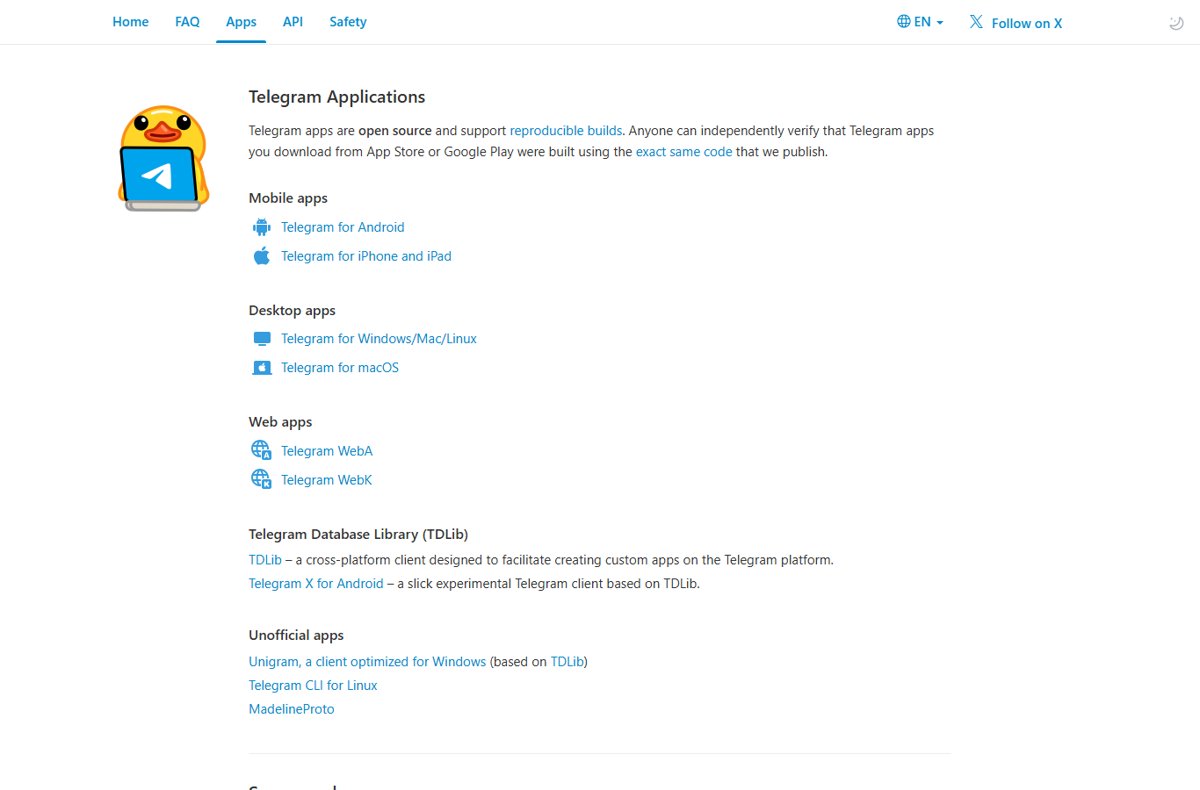
- Read the code in the chat named Telegram with the blue checkmark on a device you are still signed in to, or from the SMS if no session exists.
- Type the digits into the Code box.
- Enter your two-step verification password if Telegram asks for it.
Telegram sends the login code as a Telegram message to your other sessions first and only uses SMS when it has to. Check the app before blaming your carrier.
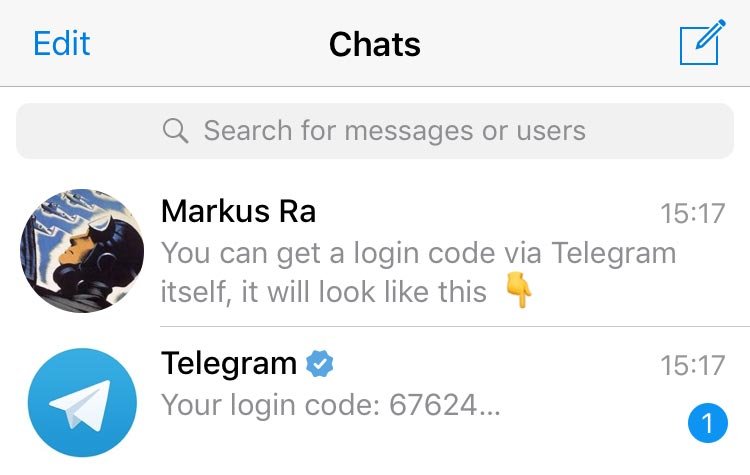
Telegram Web versions you may see
Telegram publishes two official web clients, and web.telegram.org opens one of them. Both reach the same account, and a few button labels differ between them.
| App | Address | What it is |
|---|---|---|
| Telegram WebK | web.telegram.org/k/ | An official web client, listed on telegram.org/apps as Telegram WebK |
| Telegram WebA | web.telegram.org/a/ | The second official web client, listed as Telegram WebA |
| Telegram Desktop | desktop.telegram.org | An installed app for Windows, macOS and Linux, not a browser tab |
| Telegram for macOS | macos.telegram.org | A native Mac app, published separately from Telegram Desktop |
The QR screen reads Log in by QR Code in one client and Log in to Telegram by QR Code in the other; the steps behind them are identical. If you would rather run an installed client, see Download Telegram for PC, Windows 11/10 & Mac.
How to check the login worked
- Confirm your own name appears at the top of Settings in Telegram Web.
- Send yourself a message and watch it arrive on your phone.
- Open Settings > Privacy and Security > Active sessions and find the new browser entry for this computer.
- Check that the browser and rough location on that entry match the machine in front of you.
- Expect your Secret Chats to be missing: they live only on their devices of origin and never appear on the web.
Troubleshooting Telegram Web Login Problems
The QR code does not work or will not scan
The token inside each QR code expires in roughly 30 seconds, so a stale or badly lit image can never be accepted.
- Reload the Telegram Web page so a fresh code is drawn.
- Scan from Settings > Devices > Add Device inside Telegram, not from a separate camera app.
- Raise the screen brightness and zoom the browser so the code fills more of the frame.
- Clean the camera lens and hold the phone still for a second.
- Switch to Log in by phone number if two refreshed codes still fail.
Why am I not receiving the Telegram login code?
Telegram delivers the code as an in-app message to your other signed-in sessions before it falls back to SMS.
- Open the chat named Telegram with the blue checkmark on any device you are still signed in to.
- Check the number you typed, including the country code and no leading zero.
- Wait for the on-screen timer to finish, then request the code again so Telegram tries the next delivery method.
- Confirm the phone has signal and that the SIM can receive texts.
- Log in by QR code from a device that is still signed in if the code never arrives.
Telegram will not accept your email address
A phone number is the only identifier for a Telegram account; an email address is only a delivery route for the login code or a recovery path for the two-step password.
- Log in with the phone number that created the account.
- Open Settings > Privacy and Security > Two-Step Verification once you are in.
- Add a recovery email address there so a forgotten password is recoverable.
- Keep using the phone number on every future login; an email address cannot replace it.
The Enter Password screen rejects your password
Two-step verification uses a password you chose, which is not the login code and not your device passcode.
- Retype the password with caps lock off, using the visibility toggle to check it.
- Select the recovery option on that screen to send a reset link to your recovery email address.
- Open the recovery email and follow its link to clear the password.
- Set a new two-step verification password once you are signed in.
You no longer have access to the phone number
Whoever holds the number holds the account, so Telegram has no way to verify you without the number or a signed-in device.
- Use any device where Telegram is still signed in, and do not terminate that session.
- Ask your carrier to reissue the number to you.
- Turn on Two-Step Verification with a recovery email while you still have access.
- Check Settings > Devices on the working device to see which sessions are still alive.
How to Log Out and Keep Your Account Secure
Closing the browser tab does not log you out. End the session explicitly, either from the web app or from your phone.
- Open Settings in Telegram Web and select Log Out.
- Confirm the prompt to end the browser session.
- To end a session on a computer you cannot reach, open Telegram on your phone.
- Tap Settings > Devices and select the browser session in the list.
- End that session, or tap Terminate All Other Sessions to sign out everywhere except the phone in your hand.
Terminating a session keeps every cloud message in your account. It does delete the Secret Chats that lived on that device, because those never leave the device they started on.
Security habits for Telegram Web
A signed-in browser session reads your whole cloud history. Treat it the way you would treat an open email tab.
Log out of Telegram Web before leaving a shared or public computer, and turn on Two-Step Verification on the account. The session survives a closed tab until somebody ends it, and two-step verification means an intercepted login code alone is not enough to open your chats.
On a device other people use, also set a passcode in Settings > Privacy and Security so the app locks itself.
Frequently Asked Questions
How do you log in to Telegram without your phone?
Scan the Telegram Web QR code from any other device that is still signed in to the account, such as a second computer running Telegram Desktop. Without the phone and without a signed-in session, the login code goes to the phone number, so the number is still needed.
Can I log in to Telegram with email?
No. A phone number is the only way Telegram identifies an account. An email address can be configured to receive the login code and can act as the recovery address for a forgotten two-step verification password, but it cannot replace the number.
Why can't I log into my Telegram?
The three usual causes are an expired QR code, a phone number typed without its country code, and a login code that went to another signed-in session instead of SMS. Work through the troubleshooting section above in that order.
Can I use Telegram Web without installing the Telegram app on my computer?
Yes. Telegram Web is a full browser client and needs nothing installed on the PC or Mac. You still need the Telegram app on a phone or another device to accept a QR login, or a phone number that can receive a code.
How do I log out from Telegram Web?
Open Settings in Telegram Web and select Log Out, then confirm. Closing the tab leaves the session alive. You can also end it from your phone under Settings > Devices by selecting that browser entry.
How do I log out from Telegram on all devices?
Open Telegram on the device you want to keep, tap Settings > Devices, then tap Terminate All Other Sessions. Every other session ends. Your cloud messages stay, but Secret Chats on the ended devices are lost.
How do I sign up to Telegram?
Enter a phone number on the Telegram Web login screen, confirm the code Telegram sends, then fill in the Your Name screen with a first name and an optional last name. Selecting Start Messaging creates the account.
Is Telegram Web safe to use on a shared or public computer?
Only if you log out afterwards. The browser session stays signed in until it is terminated and can read every cloud chat. Turn on two-step verification, and end the session from your phone under Settings > Devices if you forget.
Does logging in to Telegram Web cost anything?
No. Opening web.telegram.org and signing in with a QR code or a phone number is free, and no paid plan is involved in the login. Standard carrier charges may apply to an SMS login code.
Bottom Line
Log in at web.telegram.org with the QR code when your phone is at hand, and keep the phone number route for computers where the camera or the scan fails. QR login finishes in three steps and needs no code at all, while the phone number route works from the keyboard on any machine with no second device nearby.

![How to Fix 100% Disk Usage issue on Windows 10 or 11 [18 Ways]](https://techdows.com/wp-content/uploads/2026/09/Windows-11-Delivery-Optimization-settings-with-Allow-downloads-from-other-device-600x338.jpg)