The RSAT download for Windows 11 and Windows 10 already sits inside Windows. Microsoft ships Remote Server Administration Tools as Features on Demand, so you add Server Manager, the Active Directory consoles, DNS Manager and the rest from Optional features in Settings, or with one PowerShell command.
The tools cost nothing. They need Windows 11 or Windows 10 version 1809 or later, in the Pro, Enterprise or Education edition, and an account with administrator rights. Microsoft still hosts a separate package on the Download Center for Windows 10 version 1607.
This guide covers the official Microsoft pages, the Settings and PowerShell routes, every capability name, the requirements, what to do on a Mac, and fixes for tools that refuse to install.
Which RSAT download do you need?
Two routes exist, and your Windows release decides which one applies. Press Windows + R, type winver and press Enter to read your version before you start.
| Your PC | What to install | Where it comes from |
|---|---|---|
| Windows 11 Pro, Enterprise or Education | Features on Demand, added from Optional features | Windows Update |
| Windows 10 version 1809 or later, Pro, Enterprise or Education | Features on Demand, added from Optional features | Windows Update |
| Windows 10 version 1607, Pro, Enterprise or Education | WindowsTH-KB2693643 package, version 1.1 | Microsoft Download Center |
| Windows 11 version 25H2 on an Arm64 chip | Turn Windows features on or off, because the Features on Demand are unsupported | Already in Windows |
| Windows 11 or Windows 10 Home | Nothing installs. Microsoft blocks the tools on Home editions. | Not available |
| Windows Server 2016 or later | Add Roles and Features in Server Manager | Already in Windows Server |
Editions matter more than the build number. A Home PC shows no entries in the list at all, whatever version it runs.
Download RSAT from the official Microsoft pages
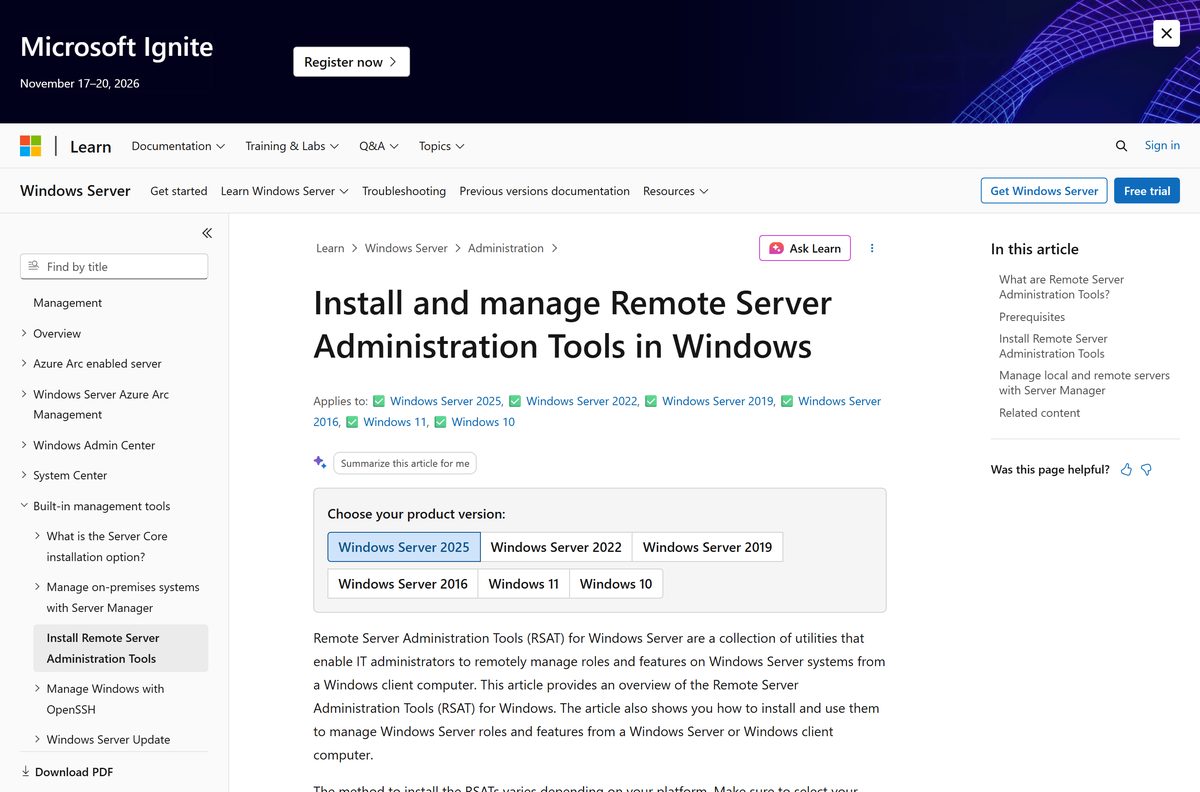
Microsoft spreads the material across four pages. The install guide is the one to bookmark; the others carry the capability names, the offline media and the policy that unblocks managed PCs.
- Install and Manage Remote Server Administration Tools — the Settings, PowerShell and Server Manager routes, plus the prerequisites
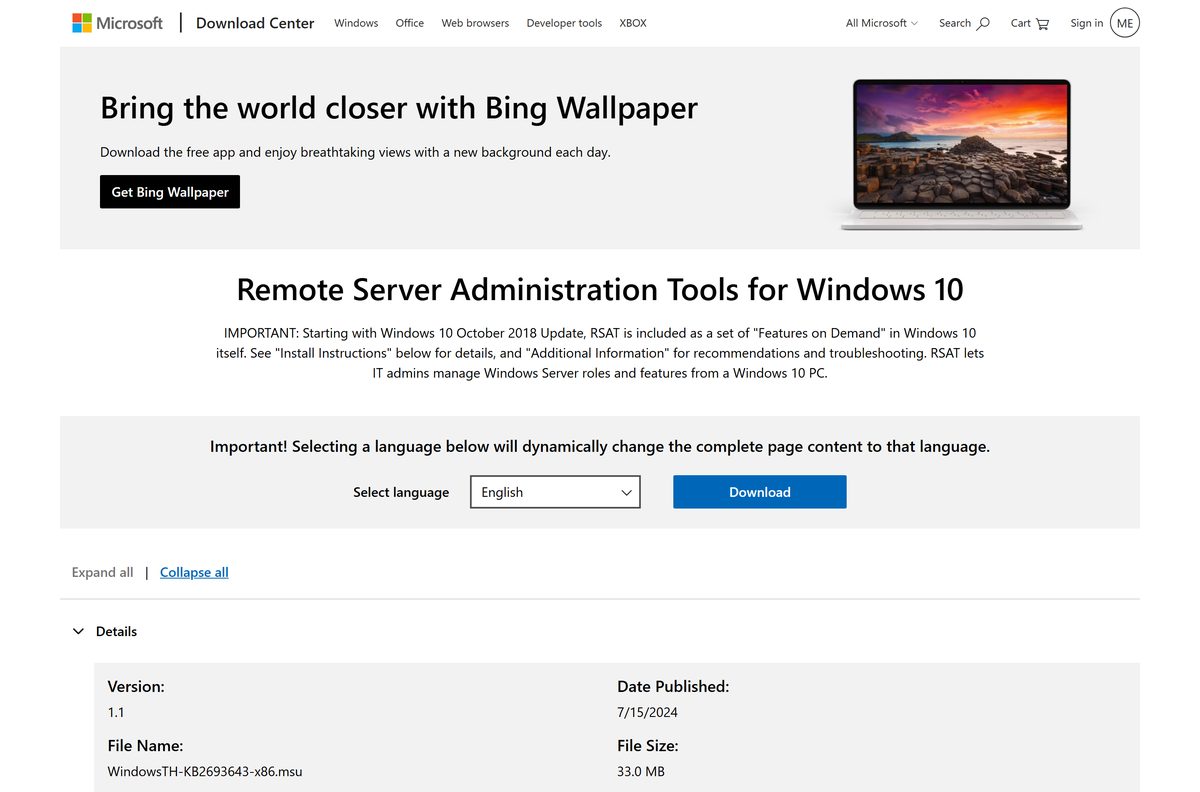
- Remote Server Administration Tools for Windows 10 on the Download Center — version 1.1, published 15 July 2024, for Windows 10 version 1607
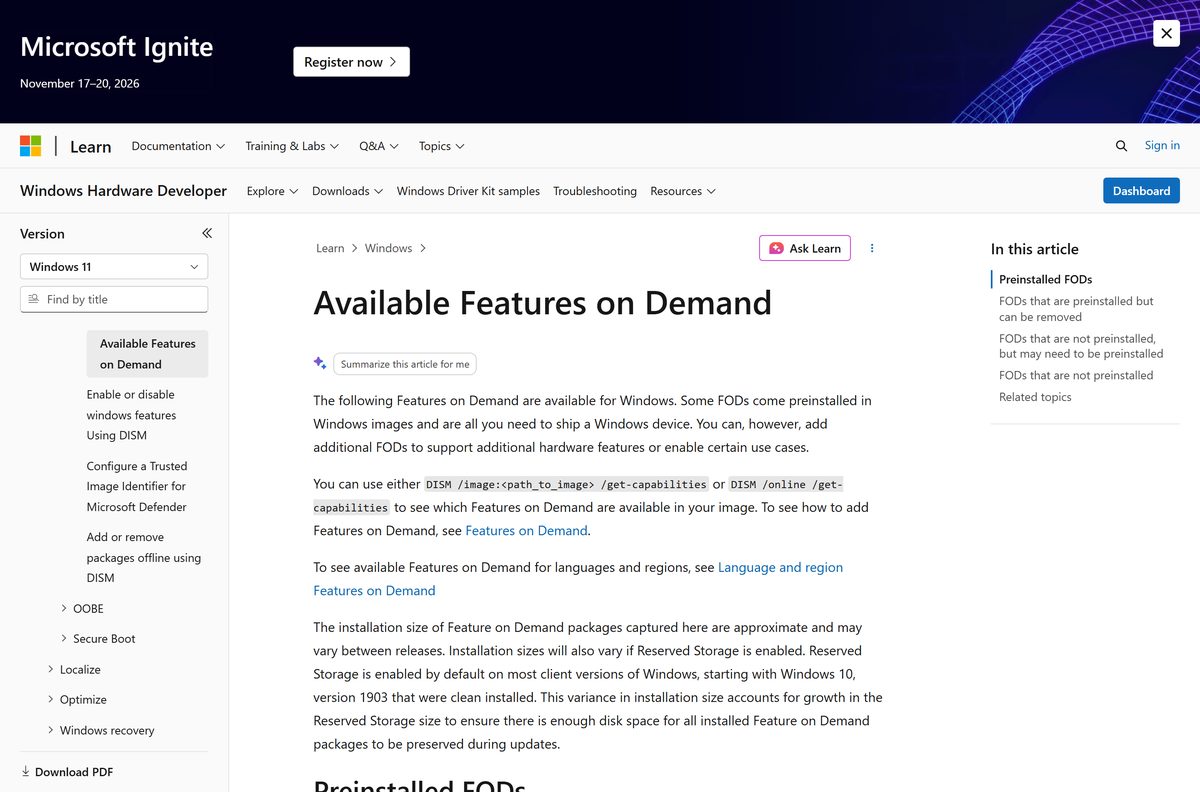
- Available features on demand — every capability name, its dependencies and its install size
- Features On Demand deployment guide — DISM syntax and the offline ISO used as a source
- FoD and language packs for WSUS and Configuration Manager — why a managed PC refuses the install, and the policy that fixes it
The Download Center entry is the only page in that list offering a file. Microsoft states those packages still install the tools on Windows 10 version 1607.
How to install RSAT on Windows 11 and Windows 10
Sign in with an account that holds local administrator rights. Keep the PC online, because the feature files come from Windows Update.
- Select Start, type Optional features and open Add an optional feature on Windows 11, or Optional features on Windows 10.
- Read the installed list first, in case the console you want is already there.
- Select View features on Windows 11, or Add a feature on Windows 10.
- Type RSAT in the search box to filter the list down to the server tools.
- Tick each tool you need, such as RSAT: Active Directory Domain Services and Lightweight Directory Services Tools.
- Select Next, then Install.
- Watch the progress under Recent actions until every entry reads Installed.
- Open Windows Tools from the Start menu and launch the console you added.
Dependencies install themselves. Ticking the Active Directory tools also brings in RSAT: Server Manager, and the Failover Clustering tools pull in the File Services tools.
How to install RSAT tools with PowerShell
Open Terminal or Windows PowerShell with Run as administrator. A standard session returns an access error instead of installing anything.
The first command lists every server capability and its state. The second adds one by name.
Get-WindowsCapability -Online | Where-Object Name -like ‘RSAT*’
Add-WindowsCapability -Online -Name Rsat.ServerManager.Tools~~~~0.0.1.0 Swap Rsat.ServerManager.Tools~~~~0.0.1.0 for the capability you want, and separate several names with commas. A successful run prints RestartNeeded : False . The full syntax sits in the Microsoft Learn install guide.
For a PC with no route to Windows Update, mount the Windows 11 Languages and Optional Features ISO and point DISM at it with /Source: and /LimitAccess . Windows 10 uses the Features on Demand ISO that matches its version.
How to check which RSAT tools are installed
A feature update can leave a console behind, and a shared PC often carries tools somebody else added. Two minutes of checking saves a reinstall.
- Open Settings, then System > Optional features on Windows 11, or Apps > Optional features on Windows 10.
- Expand Installed features and type RSAT in the search box.
- Compare the list against the consoles you expect to use.
- For a scripted check, run Get-WindowsCapability -Online | Where-Object Name -like ‘RSAT*’ in an elevated Terminal.
- Read the State value on each line: Installed means ready, NotPresent means missing.
- Add anything missing from View features, or with Add-WindowsCapability -Online -Name
. - Open Windows Tools and start the console to confirm it launches.
The capability version stays at 0.0.1.0. The tools themselves update with Windows, so a monthly quality update keeps them current.
Should you use Optional features or PowerShell?
Both routes install identical files from the same source. The difference is how much typing each one costs you.
Use Optional features on a single PC, and PowerShell on anything you repeat. The Settings list shows friendly names and ticks, which suits a one-off setup on your own machine. PowerShell takes capability names, accepts several in one command and runs unattended from a script, so it wins the moment you set up a second admin workstation or a deployment image.
What RSAT can manage on Windows Server
Each console arrives as its own capability, so you install only the roles you administer. The install sizes below are Microsoft’s published figures for the feature packages.
| Tool | Capability name | Install size |
|---|---|---|
| Server Manager | Rsat.ServerManager.Tools~~~~0.0.1.0 | 32.47 MB |
| AD DS and AD LDS Tools | Rsat.ActiveDirectory.DS-LDS.Tools~~~~0.0.1.0 | 17.01 MB |
| Group Policy Management Tools | Rsat.GroupPolicy.Management.Tools~~~~0.0.1.0 | 18.54 MB |
| DNS Server Tools | Rsat.Dns.Tools~~~~0.0.1.0 | 6.15 MB |
| DHCP Server Tools | Rsat.DHCP.Tools~~~~0.0.1.0 | 7.09 MB |
| AD Certificate Services Tools | Rsat.CertificateServices.Tools~~~~0.0.1.0 | 5.35 MB |
| Failover Clustering Tools | Rsat.FailoverCluster.Management.Tools~~~~0.0.1.0 | 34.35 MB |
| File Services Tools | Rsat.FileServices.Tools~~~~0.0.1.0 | 17.14 MB |
| Remote Access Management Tools | Rsat.RemoteAccess.Management.Tools~~~~0.0.1.0 | 27.70 MB |
| Remote Desktop Services Tools | Rsat.RemoteDesktop.Services.Tools~~~~0.0.1.0 | 3.60 MB |
| Windows Server Update Services Tools | Rsat.WSUS.Tools~~~~0.0.1.0 | 8.27 MB |
| Shielded VM Tools | Rsat.Shielded.VM.Tools~~~~0.0.1.0 | 20.09 MB |
| Volume Activation Tools | Rsat.VolumeActivation.Tools~~~~0.0.1.0 | 556.39 KB |
| BitLocker Recovery Tools | Rsat.BitLocker.Recovery.Tools~~~~0.0.1.0 | 52.35 KB |
Hyper-V Manager is not on that list. It ships with Windows as a separate optional feature, so enable it under Turn Windows features on or off.
Check the RSAT system requirements first
Edition is the requirement that stops most installs. Open Settings > System > About and read the Edition line before anything else.
| Item | Requirement |
|---|---|
| Developer | Microsoft |
| Latest version | 1.1 for the standalone package; current releases carry the tools inside Windows |
| Windows client | Windows 11, or Windows 10 version 1809 or later |
| Edition | Pro, Enterprise or Education. Home editions are not supported |
| Architecture | x64 and x86. The Features on Demand are not supported on Arm64 |
| Account | Local administrator on the PC, plus admin rights on the servers you manage |
| Network | A route to Windows Update, or an offline Features on Demand source |
| Price | Free |
| Last verified | 22 September 2026 |
Network access to the servers matters as much as the local build. Each console opens a remote session, so firewall rules and domain membership decide whether it connects.
Is RSAT free?
Nothing here carries a price, a trial or a licence key.
Yes. The tools cost nothing on every supported Windows edition. Microsoft includes them in Windows 11 and Windows 10 Pro, Enterprise and Education, and the Download Center package is a free download. Any site charging for these tools, or bundling them into an installer of its own, is not Microsoft.
Which RSAT option works on a Mac?
macOS runs none of these consoles, because each one is a Windows binary that talks to Windows Server over Windows protocols. Reach a Windows session from the Mac instead.
| What you have | What works | How to set it up |
|---|---|---|
| A Mac and a managed Windows PC at work | Windows App, which runs on macOS | Connect to the remote PC, then use the consoles installed there |
| A Mac and a Windows Server you administer | Windows Admin Center in a browser | Browse to the gateway from Safari or Edge on the Mac |
| A Mac and a Cloud PC or Azure Virtual Desktop | Windows App on macOS or in a browser | Sign in with a work account, then add the tools inside the session |
| Only a Mac, with a Windows 11 virtual machine on it | Optional features inside the virtual machine | Give the VM a Pro or Enterprise edition; Arm64 guests are limited |
Windows App connects to Remote Desktop Services, remote PCs, Windows 365 and Azure Virtual Desktop from macOS. A browser session covers Windows 365 and Azure Virtual Desktop, but not a plain remote PC.
Fix RSAT not installing on Windows 11 or 10
Almost every failure comes down to edition, architecture or an update source that the PC is not allowed to reach.
The feature list shows no server tools at all
The PC runs a Home edition, or a Windows 10 build older than version 1809.
- Press Windows + R, type winver and press Enter to read the version.
- Open Settings > System > About and read the Edition line.
- On Home, upgrade to Pro, Enterprise or Education, because the tools install nowhere else.
- On Windows 10 version 1803 or earlier, install the current feature update first.
- On Windows 10 version 1607, use the Download Center package instead.
The install fails or hangs on a work laptop
WSUS or Configuration Manager is handling updates, and the feature files sit outside that catalog.
- Confirm with your update administrator that the PC reports to WSUS.
- Open the Group Policy editor and go to Computer Configuration\Administrative Templates\System .
- Enable Specify settings for optional component installation and component repair.
- Point it at Windows Update, or at a network share holding the matching feature files.
- Run gpupdate /force , then retry the install.
- On Windows 11 version 22H2 and later the files come from WSUS again, so leave that policy unconfigured.
An Arm64 PC offers nothing under Optional features
The server tools are not supported as Features on Demand on Arm64 devices.
- Open Control Panel > Programs > Programs and Features.
- Select Turn Windows features on or off.
- On Windows 11 version 25H2, tick the Active Directory, Certificate Services, Server Manager, Group Policy, DNS or DHCP entries listed there.
- Select OK and wait for Windows to apply the change.
- For anything outside that set, administer from an x64 PC or a remote session.
The tool installs but the console cannot reach the server
The install worked; the remote connection did not.
- Sign in with a domain account that holds admin rights on the target server.
- Confirm the PC resolves the server name, using nslookup servername .
- Check that the server allows remote management through its firewall.
- Open Server Manager, select Add other servers to manage, and add the server by name.
- Right-click the server name inside the console to connect to a different host.
How to uninstall RSAT tools you no longer need
Removal works per tool. Take the dependants out before the tool they rely on, or Windows blocks the change.
- Open Settings, then System > Optional features on Windows 11, or Apps > Optional features on Windows 10.
- Expand Installed features and type RSAT in the search box.
- Select the tool you want gone, then select Uninstall.
- Remove the Active Directory, File Services and IPAM tools before RSAT: Server Manager, which they depend on.
- To script it, run DISM /Online /Remove-Capability /CapabilityName:Rsat.Dns.Tools~~~~0.0.1.0 in an elevated Terminal.
- Restart the PC if Windows asks, then confirm the console no longer appears under Windows Tools.
Removing a tool frees the install size listed earlier and nothing more. No registry cleanup or leftover folder deletion is needed.
Which RSAT alternatives are worth using?
These consoles are not the only way to administer a server, and some jobs suit a browser or a shell better.
| Option | Best for | Where it runs |
|---|---|---|
| Windows Admin Center | Day-to-day server management from any desktop | A browser, through a gateway you install |
| Server Manager on the server itself | One-off role changes on a single server | Windows Server, already installed |
| Windows App | A full desktop session on a remote PC or Cloud PC | Windows, macOS, iPadOS, Android and browsers |
| PowerShell remoting | Repeatable changes across many servers | Any Windows client, no extra install |
Windows Admin Center covers most routine work and needs no feature install on your PC. Keep the local consoles for Group Policy editing and the Active Directory snap-ins, which have no browser equivalent.
Frequently asked questions
Is RSAT free?
Yes. Microsoft includes the tools in Windows 11 and Windows 10 Pro, Enterprise and Education at no charge, and the standalone Download Center package is free. There is no trial, no licence key and no paid tier.
Where is the official RSAT download page?
The install guide on Microsoft Learn is the official starting point for Windows 11 and Windows 10 version 1809 or later. The Microsoft Download Center still hosts the older standalone package, listed as Remote Server Administration Tools for Windows 10.
Does RSAT work on Windows 11?
Yes, on Windows 11 Pro, Enterprise and Education. The tools install from Optional features in Settings or with Add-WindowsCapability in PowerShell. Home editions cannot install them at all.
How big is the RSAT download?
There is no single package. Each tool is a separate feature, and Microsoft lists install sizes from 52 KB for the BitLocker recovery tools up to 34.35 MB for the failover clustering tools.
Is there an RSAT offline installer?
Not as a setup file. For an offline PC, mount the Windows 11 Languages and Optional Features ISO, or the Windows 10 Features on Demand ISO that matches the build, and point DISM at it with the /Source and /LimitAccess switches.
Is there a version of RSAT for Mac?
No. Microsoft publishes these consoles for Windows only. From macOS, use Windows App to reach a Windows PC or Cloud PC that has the tools, or manage the server through Windows Admin Center in a browser.
Does RSAT run on 64-bit and Arm64?
The tools run on x64 and x86 Windows. Microsoft states the Features on Demand are not supported on Arm64 devices; Windows 11 version 25H2 on Arm64 exposes some consoles through Turn Windows features on or off.
What is the current RSAT version?
The standalone Download Center package is version 1.1, published on 15 July 2024. On Windows 11 and Windows 10 version 1809 or later the tools ship with the operating system and update through Windows Update.
Is RSAT safe to install?
Yes, when it comes from Windows Update or the Microsoft Download Center. The feature files are signed by Microsoft and delivered by Windows itself, so no third-party installer or download site is involved.
Why will RSAT not install on my PC?
The three common causes are a Home edition, a Windows 10 build older than version 1809, and a WSUS-managed PC that cannot reach the feature files. Check the edition in Settings, then the update policy with your administrator.
Can I install RSAT on Windows 10 Home?
No. Microsoft supports the tools only on Professional, Enterprise and Education editions of the Windows client. Upgrade the edition, or run the consoles from a supported PC or a remote session instead.
Which RSAT tool manages Active Directory?
RSAT: Active Directory Domain Services and Lightweight Directory Services Tools. It installs Active Directory Users and Computers, the Administrative Center, Domains and Trusts, Sites and Services, ADSI Edit and the PowerShell module.
Does RSAT include Hyper-V Manager?
No. Hyper-V Manager ships with Windows as its own optional feature, so enable Hyper-V Management Tools under Turn Windows features on or off rather than looking for it in the server tools list.