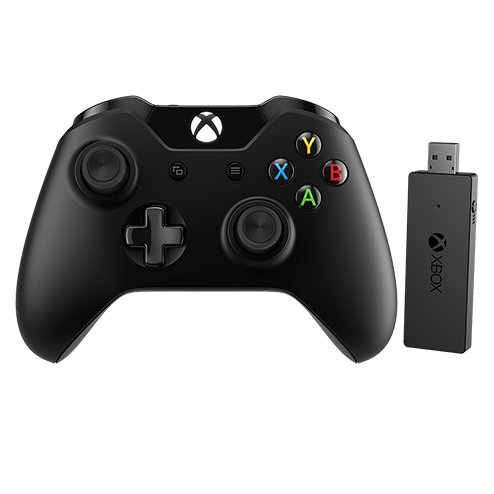
You do not need a separate download for the Xbox Wireless Adapter: plug it into a USB port and Windows 11 or Windows 10 installs the driver through Windows Update.
This guide covers that automatic route, the Device Manager reinstall, the manual driver package in the Microsoft Update Catalog, pairing a controller, how to check it worked, and fixes when the adapter will not install or connect.
Method 1: Installing Drivers Automatically via Windows Update
Microsoft ships the adapter driver through Windows Update, so the fastest route is to plug in and let Windows finish. Your PC needs an internet connection for this to work.
- Plug the Xbox Wireless Adapter into a USB 2.0 or USB 3.0 port on your PC.
- Wait while Windows detects the adapter and installs the driver in the background.
- Select Start > Settings > Windows Update > Check for updates if nothing seems to happen after a minute.
- Select Download & install if any updates are listed.
- Restart the PC when the updates finish, even if Windows does not ask you to.
On Windows 10 the same check lives under Settings > Update & Security > Windows Update.
Locating the Correct Driver for Your Xbox Wireless Adapter
Every route below ends with the same Microsoft driver. Pick the one that matches where you are stuck.
| Your situation | Use this | Why |
|---|---|---|
| First time plugging in the adapter | Method 1: Windows Update | Windows installs the Microsoft driver on its own |
| Windows Update shows no driver, but optional updates exist | Optional updates page | Some drivers are offered only as optional updates |
| The adapter shows a warning icon or stopped responding | Method 2: Device Manager | Removing and reinstalling the device clears a broken driver |
| The PC has no internet, or you manage several PCs | Method 3: Microsoft Update Catalog | You download the driver package on another machine and install it by hand |
| The adapter works, but the controller acts up | Method 4: Xbox Accessories app | The app updates the controller, not the adapter driver |
Get the driver only from Windows Update or Microsoft's own Update Catalog. Skip third-party "driver updater" tools and driver download portals.
Prerequisites Before Downloading Drivers
| What you need | Details |
|---|---|
| Windows version | Windows 11 or Windows 10. Microsoft lists both adapter models as Windows 10/11 devices. |
| A free USB port | USB 2.0 or USB 3.0 on a desktop, laptop or tablet |
| Internet connection | Needed for Windows Update to deliver the driver |
| Windows Update setting | Turn on Receive updates for other Microsoft products so Microsoft hardware drivers are offered |
| A supported controller | An Xbox Wireless Controller with charged batteries or a charged battery pack |
| Administrator account | Needed to install or remove drivers in Device Manager |
Understanding the Xbox Wireless Adapter
The adapter is a small USB radio that lets an Xbox Wireless Controller connect to Windows the same way it connects to an Xbox console. Windows treats it as a network device, so its driver is filed as a networking driver.
| Item | What it means for you |
|---|---|
| Models | Xbox Wireless Adapter for Windows 10 (original) and Xbox Wireless Adapter for Windows (current). Both work on Windows 11 and 10. |
| Device Manager name | Xbox Wireless Adapter for Windows, under Network adapters |
| Driver source | Windows Update, with the same packages listed in the Microsoft Update Catalog |
| Controllers per adapter | Up to eight Xbox Wireless Controllers |
| Headsets per adapter | Up to four chat headsets or two stereo headsets |
| Alternatives | A USB cable, Bluetooth, or Xbox Wireless built into some Windows PCs |
Microsoft notes that the adapter is not sold in every market.
Method 2: Using Device Manager to Update or Reinstall Drivers
Use this when the adapter appears with a yellow warning icon, shows as an unknown device, or worked before and has stopped responding.
- In the search box on the taskbar, type device manager, then select it from the results.
- Select the arrow next to Network adapters to expand it.
- Right-click Xbox Wireless Adapter for Windows and select Uninstall device.
- Select the Attempt to remove the driver for this device check box, then select Uninstall.
- Unplug the adapter, then restart the PC.
- Plug the adapter back in and let Windows reinstall the driver.
- Run Check for updates in Windows Update if the adapter still shows a warning icon.
Update driver > Search automatically for drivers in Device Manager searches only the drivers already on your PC in current Windows 10 and 11 versions. When it finds nothing, it offers a link to Windows Update, which is where the adapter driver comes from.
Get the Driver From Windows Update Optional Updates
Windows installs recommended drivers automatically but leaves optional ones for you to pick. Check this page when a normal update check reports that you are up to date and the adapter still does not work.
- Select Start > Settings > Windows Update > Advanced options.
- Make sure Receive updates for other Microsoft products is turned On.
- Under Additional options, select Optional updates.
- Expand Driver updates and select any Xbox or Microsoft networking driver that is listed.
- Select Download & install.
- Restart the PC when the install finishes.
On Windows 10, open Settings > Update & Security > Windows Update and select View optional updates.
Method 3: Download Drivers Manually from Microsoft
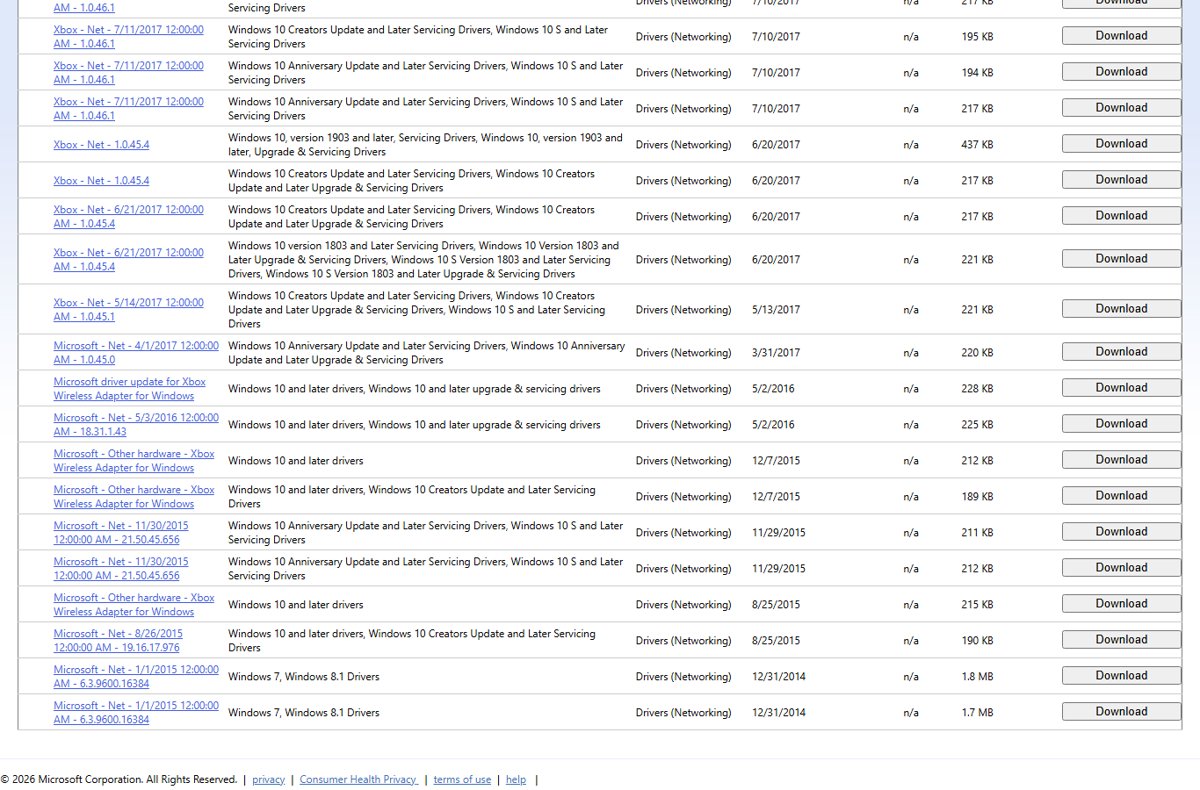
The Microsoft Update Catalog lists every adapter driver Microsoft has published. Microsoft built the catalog for distributing updates across corporate networks and recommends Windows Update for home PCs, so use it only when Windows Update is not an option.
- Open the Microsoft Update Catalog and search for Xbox Wireless Adapter.
- Check the Products column and pick the newest entry that lists Windows 10 and later drivers, which also covers Windows 11.
- Select Download and save the driver package, then extract it to a folder.
- Open Device Manager, right-click the adapter or the unknown device, and select Update driver.
- Select Browse my computer for drivers, point it at the extracted folder, and select Next.
- Restart the PC after Windows reports that the driver is installed.
The catalog lists the adapter drivers under Drivers (Networking). The newest entry for Windows 10 and later dates from July 2018, so a driver from Windows Update is not out of date just because it is old.
Method 4: Use Xbox Accessories App for Controller Firmware Updates
The Xbox Accessories app updates and configures the controller and headset. It does not install or update the adapter driver, which always comes from Windows Update. Most app features need the adapter or a USB cable, not Bluetooth.
- Install Xbox Accessories from the Microsoft Store if you do not have it.
- Press the Start button, type Xbox Accessories, open the app and sign in.
- Connect the controller through the adapter or with a USB cable.
- Select the More options button (…) under the controller.
- Select the update option if an update is offered, and keep the controller connected until it finishes.
The app does not support the Xbox 360 controller or non-Xbox devices. For game capture and overlays, the Xbox Game Bar is a separate app.
How to Pair an Xbox Controller With the Adapter
Once the driver is in place, bind each controller to the adapter once. After that, the controller reconnects when you turn it on.
- Press and hold the Xbox button on the controller to turn it on.
- Press the pair button on the Xbox Wireless Adapter.
- Press and hold the Pair button on the controller.
- Release the button once the controller connects, then test it in a game or the Xbox Accessories app.
- Repeat for each extra controller, up to eight per adapter.
To play Xbox PC games with the controller, install the Xbox app for Windows.
How to Check the Adapter Driver Installed Correctly
- Open Device Manager and expand Network adapters.
- Confirm Xbox Wireless Adapter for Windows is listed with no yellow warning icon.
- Right-click it, select Properties, and check that the Device status box reads that the device is working properly.
- Open the Driver tab to see the installed driver version and date.
- Turn on a paired controller and confirm it shows up in the Xbox Accessories app.
Roll Back the Adapter Driver After a Bad Update
If the adapter worked before a Windows update and stopped right after, go back to the previous driver.
- Open Device Manager and expand Network adapters.
- Right-click Xbox Wireless Adapter for Windows and select Properties.
- Select the Driver tab, then select Roll Back Driver.
- Follow the prompts and select Yes to confirm.
- Restart the PC and test the controller again.
If Roll Back Driver is greyed out, no previous driver is stored. Use the Device Manager reinstall in Method 2 instead.
Troubleshooting Drivers for the Xbox Wireless Adapter
These symptoms follow Microsoft's own troubleshooting list for the adapter. Work through the group that matches what you see.
The adapter didn't auto-install
Windows Update has not delivered the driver yet, or Microsoft product updates are switched off.
- Plug the adapter into a different USB port.
- Turn on Receive updates for other Microsoft products under Windows Update > Advanced options.
- Select Check for updates, then check Optional updates for a driver.
- Restart the PC with the adapter plugged in.
The adapter was working but isn't responding now
The driver has failed or a recent update replaced it.
- Unplug the adapter, wait a few seconds, and plug it back in.
- Uninstall and reinstall the device in Device Manager as in Method 2.
- Roll back the driver if the problem started right after an update.
The controller won't connect to the adapter
Low batteries or a lost pairing stop the controller from binding.
- Replace the batteries or fully charge the battery pack, even if the controller still powers on.
- Power cycle the controller: hold the Xbox button for 5-10 seconds until it turns off, wait a few seconds, then hold it again to turn it on.
- Pair the controller with the adapter again.
- Connect the controller with a USB cable and update it in the Xbox Accessories app.
Crashes, no sound, or headset audio issues through the controller
Too many headsets on one adapter, or an out-of-date controller.
- Keep to four chat headsets or two stereo headsets per adapter.
- Update the controller in the Xbox Accessories app.
- Reinstall the adapter driver through Device Manager if audio still drops.
The controller frequently disconnects from the adapter
Weak batteries or an out-of-date controller cause dropouts.
- Fit fresh batteries or recharge the battery pack.
- Plug the adapter into a different USB port.
- Update the controller in the Xbox Accessories app.
- Pair the controller again.
If none of this works, Xbox Support offers a chat agent and controller replacement through its My Xbox controller won't connect or turn on page.
Best Practices for Maintaining Driver Updates
| Practice | Why it matters |
|---|---|
| Keep Receive updates for other Microsoft products on | Microsoft hardware drivers such as the adapter's arrive through this setting |
| Check Optional updates after large Windows updates | Replacement drivers are sometimes offered only there |
| Use only Windows Update or the Microsoft Update Catalog | Driver portals and updater tools can install the wrong or tampered package |
| Update the controller in the Xbox Accessories app | Controller firmware is separate from the adapter driver |
| Restart after every driver change | The adapter driver is not fully loaded until Windows restarts |
Conclusion
Plug the adapter in and let Windows Update install the driver, then pair your controller. Microsoft delivers the adapter driver only through Windows Update and its Update Catalog. Device Manager fixes a broken install, and the Xbox Accessories app keeps the controller itself current.
Frequently Asked Questions
How do I use the Xbox Wireless Adapter?
Plug the adapter into a USB port and let Windows install its driver. Turn on your Xbox Wireless Controller, press the pair button on the adapter, then hold the controller's Pair button until it connects.
Where do I download the Xbox Wireless Adapter driver?
Windows Update installs it automatically when you plug the adapter in. For an offline PC, the same Microsoft driver packages are listed in the Microsoft Update Catalog under a search for Xbox Wireless Adapter.
Is there Xbox Wireless Adapter software to install?
No separate adapter software exists. The driver comes from Windows Update. The Xbox Accessories app from the Microsoft Store is optional and configures and updates your controller and headset, not the adapter.
Does the Xbox Wireless Adapter work on Windows 11?
Yes. Microsoft lists both the original Xbox Wireless Adapter for Windows 10 and the current Xbox Wireless Adapter for Windows as compatible with Windows 11 and Windows 10.
How do I install the Xbox Wireless Adapter driver manually?
Download the package from the Microsoft Update Catalog and extract it. In Device Manager, right-click the adapter, select Update driver, then Browse my computer for drivers, and point it at the extracted folder.
Do I need the Xbox Wireless Adapter for PC gaming?
No. You can also connect an Xbox Wireless Controller with a USB cable or Bluetooth, and some Windows PCs have Xbox Wireless built in. The adapter adds headset audio and full Xbox Accessories app support without a cable.
How many controllers can connect to one Xbox Wireless Adapter?
One adapter supports up to eight Xbox Wireless Controllers. It also supports up to four chat headsets or two stereo headsets at the same time.
Does the Xbox Accessories app work with an Xbox 360 controller?
No. Microsoft states that the Xbox Accessories app does not support the Xbox 360 controller or non-Xbox devices. It works with Xbox One, Xbox Series X|S, Elite Series 2 and Adaptive controllers.