To fix pip install not working, run pip through Python itself with py -m pip install <package> on Windows or python3 -m pip install <package> on macOS and Linux.
That one change clears most "pip is not recognized" and wrong-Python problems. The sections below cover the remaining errors: missing pip, PATH, permissions, Linux system Python, version mismatches, SSL and build failures.
Use the Safest Pip Command: python -m pip
The Python documentation writes every install as python -m pip install. This form runs the pip that belongs to the Python you named, so it works even when the bare pip command is missing from PATH.
- Open a terminal: Command Prompt or Windows Terminal on Windows, Terminal on macOS or Linux. Do not type these commands inside the Python
>>>prompt. - On Windows, run
py -m pip --version. On macOS or Linux, runpython3 -m pip --version. - If a version line appears, install your package with
py -m pip install SomePackageon Windows orpython3 -m pip install SomePackageelsewhere. - Put quotes around any version rule that uses
>or<, such aspy -m pip install "SomePackage>=1.0.4", so the shell does not treat it as a redirect. - If the version command fails with "No module named pip", jump to the ensurepip fix below.
In a Jupyter notebook, run !{sys.executable} -m pip install SomePackage after import sys. The Packaging User Guide recommends {sys.executable} so the install lands in the notebook's own Python.
First: Confirm What Error You Are Seeing
Read the last lines of pip's output before changing anything. Match the message to a row, then go to that section.
| Message you see | What it means | Go to |
|---|---|---|
| 'pip' is not recognized as an internal or external command / pip: command not found | pip exists, but its folder is not on PATH, or no virtual environment is active | Fix "pip: command not found" |
| No module named pip | This Python has no pip installed | Fix "No Module Named pip" |
| NameError: name 'pip' is not defined | You typed the command inside the Python interpreter, not a terminal | Type exit() and rerun it in the terminal |
| Permission denied / access is denied | pip is writing to a system folder you do not own | Fix Permission Errors |
| error: externally-managed-environment | Your Linux distribution manages this Python with its own package manager | Fix "externally-managed-environment" |
| Could not find a version that satisfies the requirement | Wrong name, a Python version the package does not support, or no build for your platform | Fix "Could Not Find a Version" |
| SSL or certificate verify errors, timeouts, proxy errors | pip cannot reach PyPI securely from this network | Fix SSL, Certificate, Proxy, and Network Errors |
| Failed building wheel, compiler not found | No prebuilt wheel exists for your setup, so pip tried to compile | Fix Build Errors and Missing Compilers |
| Install succeeds but import fails | pip installed into a different Python than the one running your code | Fix Problems Caused by Multiple Python Installations |
Fix “pip: command not found” or “‘pip’ is not recognized”
The bare pip command only works when its Scripts folder is on PATH or a virtual environment is active. Python's Windows documentation recommends python -m pip whenever pip itself is not found.
- Run
py -m pip --versionon Windows orpython3 -m pip --versionon macOS and Linux. If it prints a version, pip works and only the shortcut is missing. - If you use a project virtual environment, activate it first with
.venv\Scripts\activateon Windows orsource .venv/bin/activateon macOS and Linux. - On Windows with the Python install manager, run
py install --refresh. The output names the global shortcuts folder if it is not on PATH yet. - For per-user installs on Windows, run
py -m site --user-siteand replacesite-packagesat the end of the path withScripts. - Click Start, search for Edit environment variables for your account, and add that Scripts folder to your user Path variable.
- Close every terminal window, open a new one, and run
pip --versionagain.
The full walkthrough for the Path editor is in how to edit environment variables on Windows 10 or 11. On Linux and macOS, add ~/.local/bin to PATH in ~/.profile for --user installs.
If python or py is also not found, or python opens the Microsoft Store, open Start > Manage app execution aliases and check that the Python (default) aliases are on. Toggle them off and on to refresh them.
Fix “No Module Named pip”
This means the Python you ran has no pip at all. It happens when pip was skipped during installation, removed later, or left out of a virtual environment. The standard library's ensurepip module restores it without any internet access.
- Run
py -m ensurepip --upgradeon Windows orpython3 -m ensurepip --upgradeon macOS and Linux. - Add
--default-pipif you also want the plainpipcommand created alongsidepip3, for examplepython3 -m ensurepip --default-pip. - Add
--userto install pip only for your account when you are outside a virtual environment. It is not allowed inside an active one. - Run
py -m pip --versionorpython3 -m pip --versionto confirm pip is back. - If you get "No module named ensurepip", your Python came from a distributor that strips it. On Debian or Ubuntu, run
sudo apt install python3-venv python3-pip; on Fedora,sudo dnf install python3-pip; on Arch,sudo pacman -S python-pip.
The last resort is the get-pip.py script linked from the Python Packaging User Guide. Download it with a browser over HTTPS and run python get-pip.py. Avoid it on a Python your operating system manages, because it does not coordinate with the system package manager.
Upgrade Pip, Setuptools, and Wheel
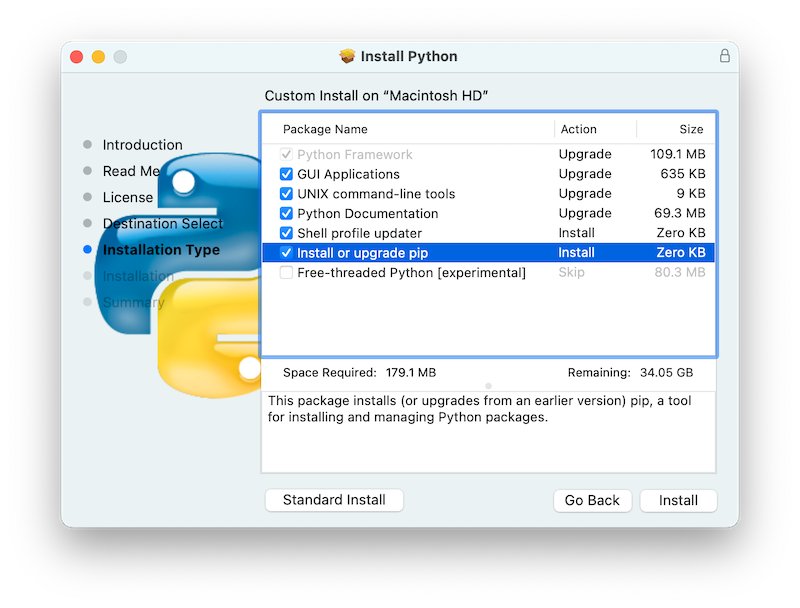
An old pip may not understand newer package metadata or wheel formats, which shows up as odd version or build errors. The Packaging User Guide asks you to keep pip current before troubleshooting further.
py -m pip install --upgrade pip setuptools wheelUpgrades pip, Setuptools and wheel for the Python that py launches. Use python3 -m pip install --upgrade pip setuptools wheel on macOS and Linux, or drop the prefix inside an active virtual environment.
You should see: pip ends with a "Successfully installed pip-…" line, and py -m pip --version shows the new version.
If pip cannot upgrade itself on Windows, run the upgrade through py -m pip rather than the bare pip command, as the Python documentation shows. If pip is too damaged to run, restore it first with py -m ensurepip --upgrade.
Use a Virtual Environment
A virtual environment gives each project its own Python and its own pip. The Python docs recommend one per project, and it removes most permission, PATH and version-conflict problems at once.
- Open a terminal in your project folder.
- Create the environment with
python -m venv .venvon Windows orpython3 -m venv .venvon macOS and Linux. - Activate it:
.venv\Scripts\activatein Command Prompt,.venv\Scripts\Activate.ps1in PowerShell, orsource .venv/bin/activateon macOS and Linux. - Install packages with
python -m pip install SomePackage. They land inside.venv, not in the system Python. - Type
deactivatewhen you are done working in the project.
If PowerShell refuses to run Activate.ps1, the venv documentation gives this fix for your account only: Set-ExecutionPolicy -ExecutionPolicy RemoteSigned -Scope CurrentUser.
If python3 -m venv fails on Ubuntu or Debian, install the missing module with sudo apt install python3-venv and create the environment again.
Fix Permission Errors
"Permission denied" or "Access is denied" means pip is trying to write into a folder owned by the system or by an administrator. The Packaging User Guide says plainly not to fix this with sudo.
- Best fix: create and activate a virtual environment as shown above, then rerun the install. The environment lives in your own folder, so no elevated rights are needed.
- Alternative for a one-off tool: install for your account only with
py -m pip install --user SomePackageon Windows orpython3 -m pip install --user SomePackageelsewhere. - If the package's command is not found after a
--userinstall, add the user Scripts or~/.local/binfolder to PATH as described in the "not recognized" section. - For command-line apps such as linters and formatters, use pipx instead:
python3 -m pip install --user pipx, thenpython3 -m pipx ensurepath, thenpipx install PACKAGE. - Restart the terminal after
ensurepathso the new PATH entry loads.
The --user flag has no effect inside a virtual environment, because installs there already go to the environment.
Fix “externally-managed-environment” on Linux
Recent Debian, Ubuntu and other distributions place an EXTERNALLY-MANAGED marker file in the system Python. pip then refuses to install into that Python so it cannot break tools the distribution depends on.
| What you are installing | Use this | Command |
|---|---|---|
| A library for your own project | Option 1: a virtual environment | python3 -m venv .venv, source .venv/bin/activate, then python -m pip install SomePackage |
| A library other system programs also need | Option 2: the distribution package | sudo apt install python3-xyz, where xyz is the package name |
| A command-line application | Option 3: pipx | pipx install xyz, which builds a separate environment for the app |
| A throwaway container you control | The override flag, only if you accept the risk | python3 -m pip install --break-system-packages SomePackage |
Avoid the --break-system-packages option unless necessary. The specification that defines it says the flag should carry a connotation that its use is risky, because it can overwrite files the system package manager owns.
Fix “Could Not Find a Version That Satisfies the Requirement”
pip prints this when nothing on the index matches both your request and your system. pip compares each release's required Python version with yours and skips releases that do not match.
- Check the package name. Search for it on pypi.org and copy the name exactly, because the install name can differ from the import name.
- Check your Python version with
py -m pip --versionorpython3 -m pip --version. The end of the line shows which Python pip belongs to. - Compare that with the Python versions listed on the package's PyPI page. If yours is too new or too old, install a supported Python and use it for this project.
- Check that the package supports your platform. Wheels are tagged for specific operating systems and processor types, and pip only picks tags that match your system.
- Remove incorrect version pins. Replace an impossible
==pin with a range such as"SomePackage>=1,<2". - If only a beta or release candidate exists, add
--pre, because pip finds stable versions only by default.
Fix SSL, Certificate, Proxy, and Network Errors
Certificate failures, timeouts and proxy errors mean pip cannot open a secure connection to PyPI. Fix the connection rather than turning off certificate checks.
- Check your internet and PyPI access by opening pypi.org in a browser on the same machine.
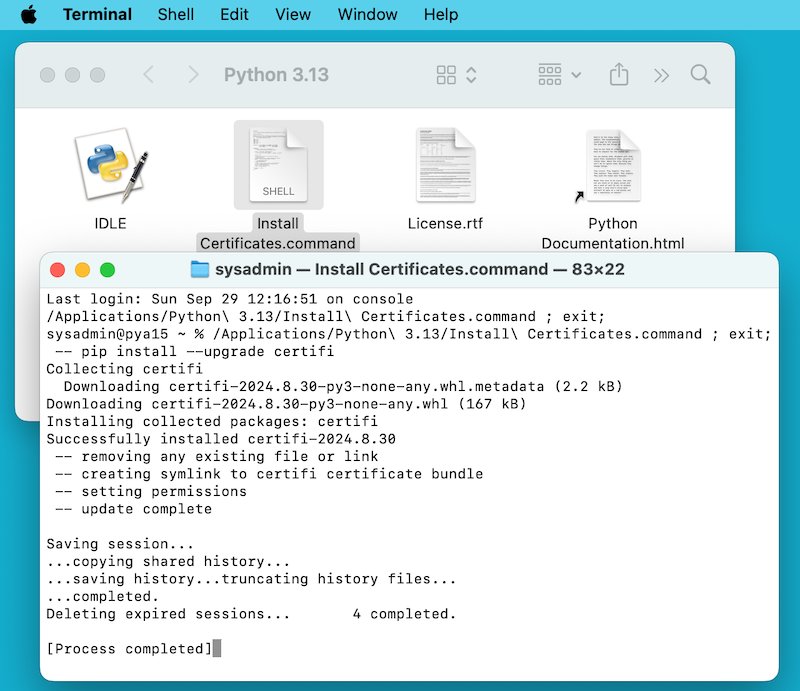
- On macOS with Python from python.org, double-click Install Certificates.command in the
/Applications/Python 3.14/folder, using your own version number. It installs the SSL root certificates that Python needs. - On a corporate network, ask IT whether PyPI must be reached through a proxy or an internal package mirror. The Packaging User Guide lists mirrors as the standard way to handle corporate firewalls.
- If IT gives you a mirror address, install from it with
python -m pip install --index-url https://mirror.example.com/simple/ SomePackage. - If
py installfrom the Python install manager fails behind a proxy, setHTTPS_PROXYto your proxy'shost:portin that terminal session before running it. - Retry the install once the browser test and the certificate or proxy change are in place.
For machines with no internet at all, download wheels on a connected PC with python3 -m pip wheel --wheel-dir=wheelhouse SomeProject. Copy the folder over, then run python3 -m pip install --no-index --find-links=wheelhouse SomeProject.
Fix Build Errors and Missing Compilers
pip prefers a prebuilt wheel. When no wheel matches your Python and platform, it downloads the source distribution and compiles it locally, which fails without the right compilers. Scientific packages can need both C and Fortran toolchains.
- Scroll up to the first error line, not the last one. It usually names the missing compiler, header or library.
- Upgrade pip, Setuptools and wheel first, because an older pip may not recognise the wheels that are available.
- Check the package's PyPI page for wheels matching your Python version. If wheels exist only for older versions, use one of those in a virtual environment.
- On Linux, install the distribution's prebuilt package instead, for example through apt or dnf.
- For NumPy, SciPy and similar stacks, a scientific distribution such as conda supplies prebuilt binaries and avoids local compiling.
- If you must build from source, install the compilers the project's own documentation names, then rerun
python -m pip install SomePackage.
Fix Problems Caused by Multiple Python Installations
A package can install fine and still fail to import, because pip and python point at different Pythons. Always name the exact interpreter when you install.
| Situation | Command | What it does |
|---|---|---|
| Windows, see every Python | py list (or py -0p with the older launcher) |
Lists installed runtimes and marks the default |
| Windows, install for one version | py -3.14 -m pip install SomePackage |
Uses the pip that belongs to Python 3.14 |
| macOS or Linux, one version | python3.14 -m pip install SomePackage |
Uses the versioned interpreter directly |
| Virtual environment active | python -m pip install SomePackage |
Installs into the active environment only |
| Jupyter notebook | !{sys.executable} -m pip install SomePackage |
Installs into the kernel's own Python |
| python and py start different versions on Windows | Start > Installed apps | Remove old runtimes, or choose Modify and disable their PATH options |
On Windows, also open Manage app execution aliases and check that the python.exe alias is set to Python (default).
Fix Requirements.txt Installation Failures
A requirements file installs many packages in one run, so one bad line stops the whole install. Read which line pip names, then fix that line.
- Activate the project's virtual environment so the packages install in the right place.
- Change into the folder that holds
requirements.txt, or pass the full path to it. - Run
python -m pip install -r requirements.txt. - If one package fails, fix that line using the version, platform or build sections above. Loosen a pin that no longer exists for your Python.
- After a working install, record the exact versions with
python -m pip freezeand save the output as the new requirements file.
Reinstall Python If the Installation Is Broken
Reinstall only when python -m pip and ensurepip both fail, or when Python itself will not start. Rebuild your project's virtual environments afterwards.
- With the Python install manager on Windows, run
py install --force 3.14, using your version. It removes the existing runtime and replaces it with a clean copy. - With the older full installer on Windows, open Programs and Features, select the Python entry, choose Uninstall/Change, then Repair. Repair replaces any removed or modified files.
- If Repair does not help, choose Uninstall there and install Python again from python.org.
- On macOS, run the python.org installer again, then run Install Certificates.command.
- On Linux, reinstall the distribution's
python3-pippackage with your package manager. - Recreate each virtual environment with
python -m venv .venvand reinstall its packages fromrequirements.txt.
Note that py install --update also removes packages installed globally into that runtime, although virtual environments keep working.
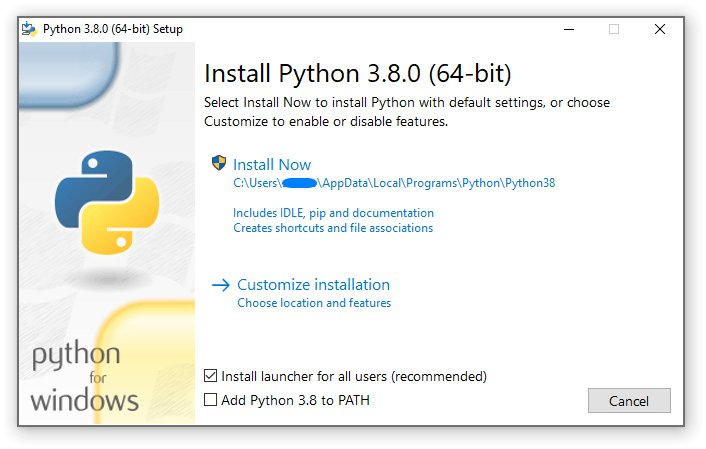
How to check pip is installed and working
py -m pip --versionAsks the Python that py launches to report its pip. Use python3 -m pip --version on macOS and Linux, or python -m pip --version inside an active virtual environment.
You should see: One line such as pip 25.x from ...\site-packages\pip (python 3.14). Inside a virtual environment the path contains .venv, which proves pip will install into the project.
Then install a small package and import it with the same interpreter, for example python -c "import SomePackage". No error means pip and Python agree.
Quick Troubleshooting Checklist
| Check | Command or place | Pass looks like |
|---|---|---|
| Running in a terminal, not the Python prompt | No >>> before your cursor |
A shell prompt such as C:\> or $ |
| pip exists for this Python | py -m pip --version |
A pip version and a Python version |
| pip is restored if missing | py -m ensurepip --upgrade |
pip reported as installed |
| pip is current | py -m pip install --upgrade pip |
"Successfully installed" or "already satisfied" |
| Project environment active | .venv\Scripts\activate or source .venv/bin/activate |
(.venv) at the start of the prompt |
| Right Python chosen | py list or python3.14 -m pip |
The version the package supports |
| Network reaches PyPI | Open pypi.org in a browser | The page loads with no certificate warning |
| Stale cached builds | python -m pip help lists the cache commands for your pip version |
A fresh download or build on the next install |
| Scripts folder on PATH | Edit environment variables for your account | pip --version works in a new terminal |
pip keeps a local cache of wheels it builds and reuses them on the next install. Clear pip's cache when a failed or outdated build keeps coming back after you fix the cause.
Fix pip when it still does not work
Pip installed but not working on Windows
The package exists, but its generated pip.exe shortcut is missing or its folder is not on PATH.
- Run
py -m pip --versionto confirm the module works. - Run
py install --refreshto recreate global shortcuts for installed packages. - Add the folder named in that output to your user Path, then open a new terminal.
Pip is not installed
Python was installed without pip, or a Linux distribution ships pip as a separate package.
- Run
python -m ensurepip --default-pip. - On Debian or Ubuntu, run
sudo apt update, thensudo apt install python3-venv python3-pip. - Confirm with
python3 -m pip --version.
Pip install not found: the installed package's command does not run
The package's command was placed in a Scripts or bin folder that is not on PATH.
- Activate the virtual environment you installed into.
- For
--userinstalls, add the user Scripts folder or~/.local/binto PATH. - On Windows with the install manager, run
py install --refreshso new package commands get global shortcuts.
Pip install not installing: it finishes, but the import still fails
pip and your code editor or script use different Python interpreters.
- Print the interpreter your code runs with:
python -c "import sys; print(sys.executable)". - Install with that exact interpreter, for example
C:\path\to\python.exe -m pip install SomePackage. - Point your editor at the project's
.venvinterpreter so both use the same environment.
Frequently Asked Questions
How do I fix pip install not working?
Run pip through Python: py -m pip install <package> on Windows or python3 -m pip install <package> on macOS and Linux. If that reports no pip, run python -m ensurepip --upgrade. Then install inside a virtual environment to avoid permission and version conflicts.
Why can't I use pip install?
Usually the pip command is not on PATH, or pip is missing from that Python. Test with py -m pip --version or python3 -m pip --version. A version line means pip works and only the shortcut is missing. "No module named pip" means you need ensurepip.
Why can't I run pip install inside Python?
pip is a terminal command, not Python code. Typing it at the >>> prompt gives a NameError or syntax error. Type exit(), then run python -m pip install <package> in Command Prompt, PowerShell or Terminal. In Jupyter, prefix the command with !.
Why can't I install pip?
Some Linux distributions ship Python without pip or ensurepip. Install it with the package manager, such as sudo apt install python3-pip on Ubuntu or sudo dnf install python3-pip on Fedora. Python from python.org already includes pip.
How do I install pip without pip?
Use the ensurepip module that ships with Python: python -m ensurepip --upgrade. It needs no internet connection because pip is bundled inside it. If ensurepip is missing, use your distribution's pip package or the get-pip.py script linked from the Python Packaging User Guide.
How do I install a Python package without pip?
On Linux, use the distribution package, such as sudo apt install python3-xyz. On Windows and macOS, some projects publish their own installers. pipx and conda are other routes. For offline machines, pip can install from a local folder with --no-index --find-links.
Why does pip install not work on Linux with an externally-managed-environment error?
Your distribution marks its system Python as managed by its own package manager, so pip refuses to change it. Create a virtual environment with python3 -m venv .venv, activate it, and install there. Use pipx for command-line applications.
How do I check if pip is installed or not?
Run py -m pip --version on Windows or python3 -m pip --version on macOS and Linux. A line showing the pip version and the Python version means pip is installed. "No module named pip" means it is not.
Why won't pip install work without admin rights?
pip is trying to write to a system-wide folder. Install into a virtual environment, which lives in your own folder, or add --user to install for your account only. Do not use sudo for pip, as the Python Packaging User Guide advises.