You can install Google Chat as a desktop app on Windows 11, Windows 10 and Mac in under a minute, straight from Chrome. It opens in its own window, lives in the Start menu or Applications folder, and can launch when your computer starts.
Google Play and the App Store carry the official Chat apps for Android, iPhone and iPad. Chat also runs inside Gmail and at chat.google.com in any supported browser.
This guide covers which route fits each device, the official Google links, installing on Windows and Mac, auto-start, removing the app, and fixes for Chat not loading.
Which Google Chat download do you need?
Match your device to a row. On a computer, the Chat app installs from Chrome, so nothing large downloads.
| Your device | What to install | Size |
|---|---|---|
| Windows 11 or Windows 10 PC | Google Chat standalone app, installed from Chrome | No separate download |
| Mac | Google Chat standalone app, installed from Chrome | No separate download |
| Chromebook or Linux PC | Google Chat standalone app, installed from Chrome | No separate download |
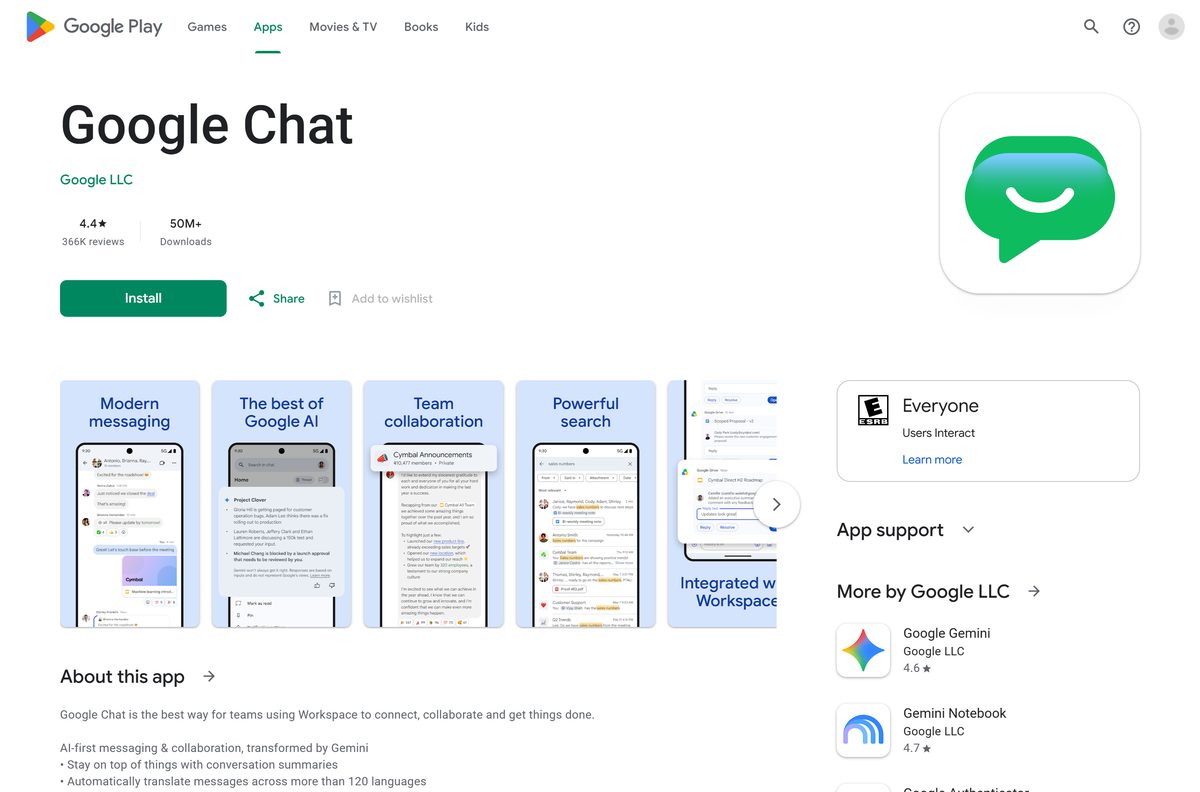
| Android phone or tablet | Google Chat on Google Play | Play states no size |
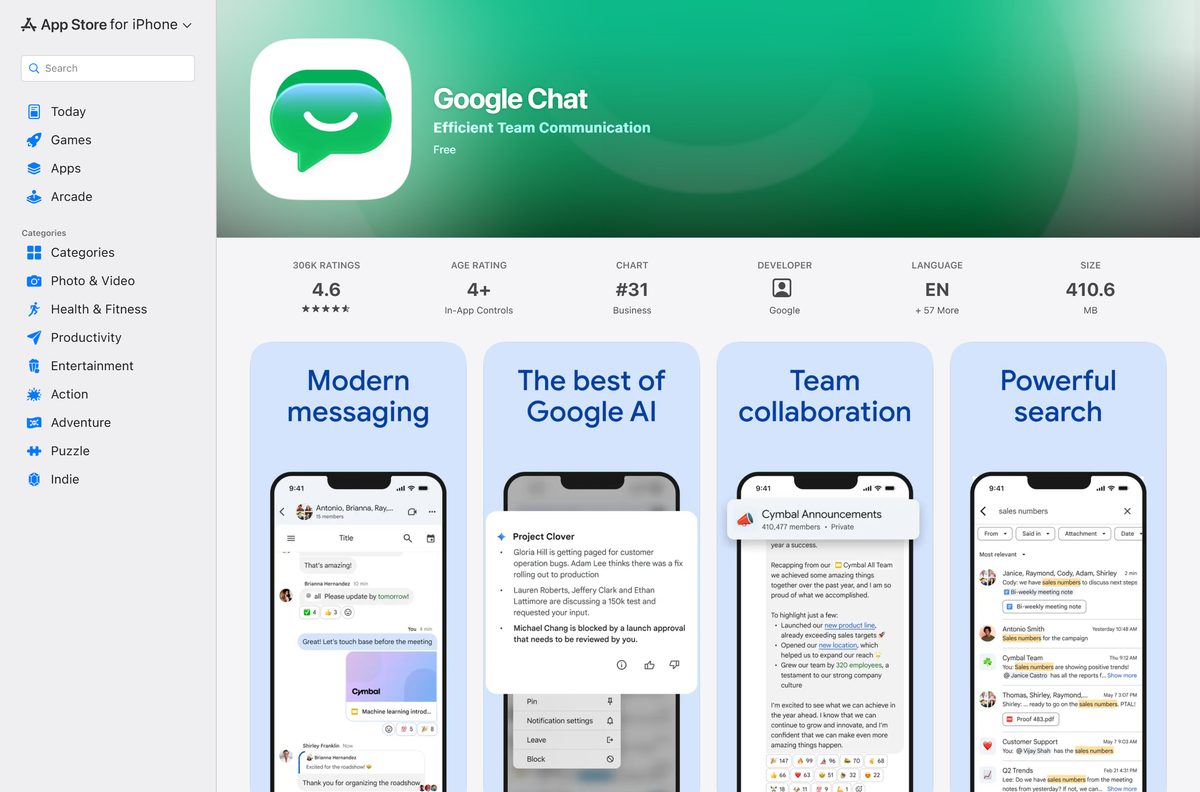
| iPhone or iPad | Google Chat on the App Store | 391.6 MB |
Download Google Chat from Google’s official sources
Google publishes Chat at these addresses. Every one of them is free with a Google Account.
- Google Chat on the web — sign in, then install it as an app from Chrome
- Install the Google Chat standalone app — Google’s own install instructions
- Google Chat on Google Play — Google LLC, 50M+ downloads, updated 18 September 2026
- Google Chat on the App Store — 391.6 MB · iPhone and iPad, iOS 18.0 or later
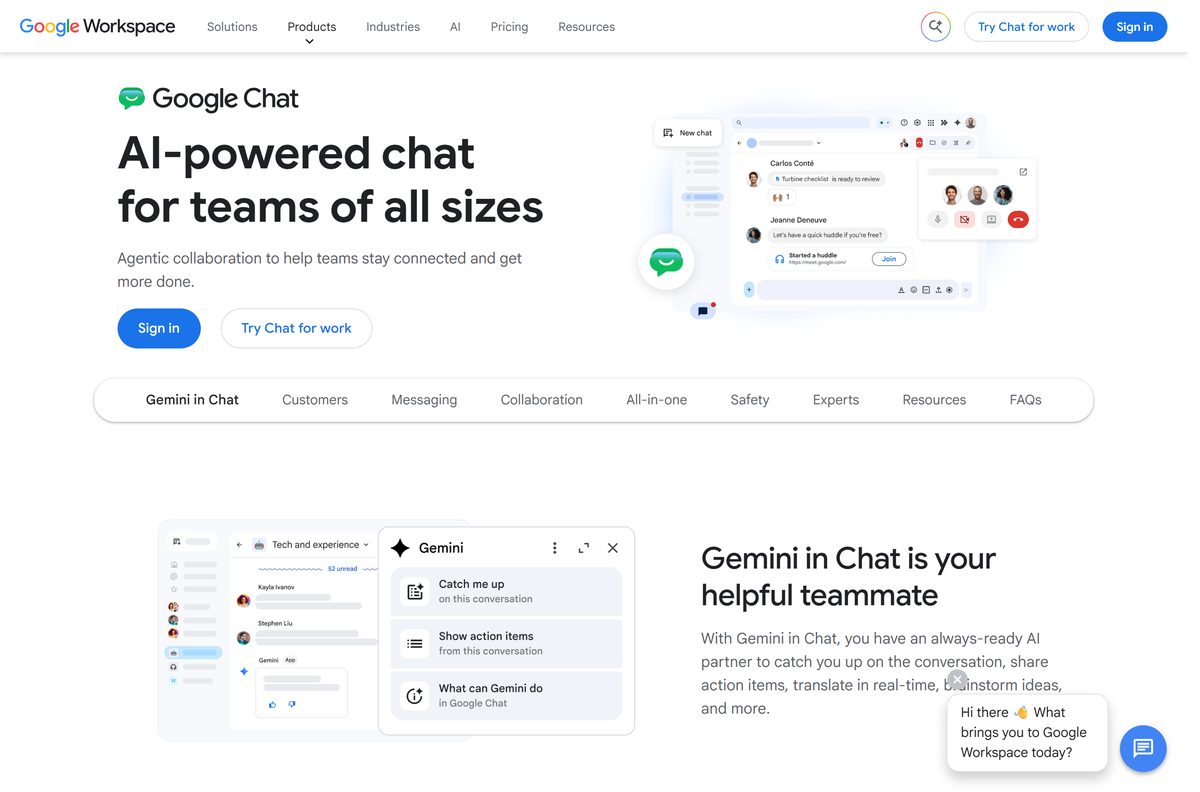
- Google Chat product page — features and Google Workspace plans
How to install Google Chat on Windows 11 and 10
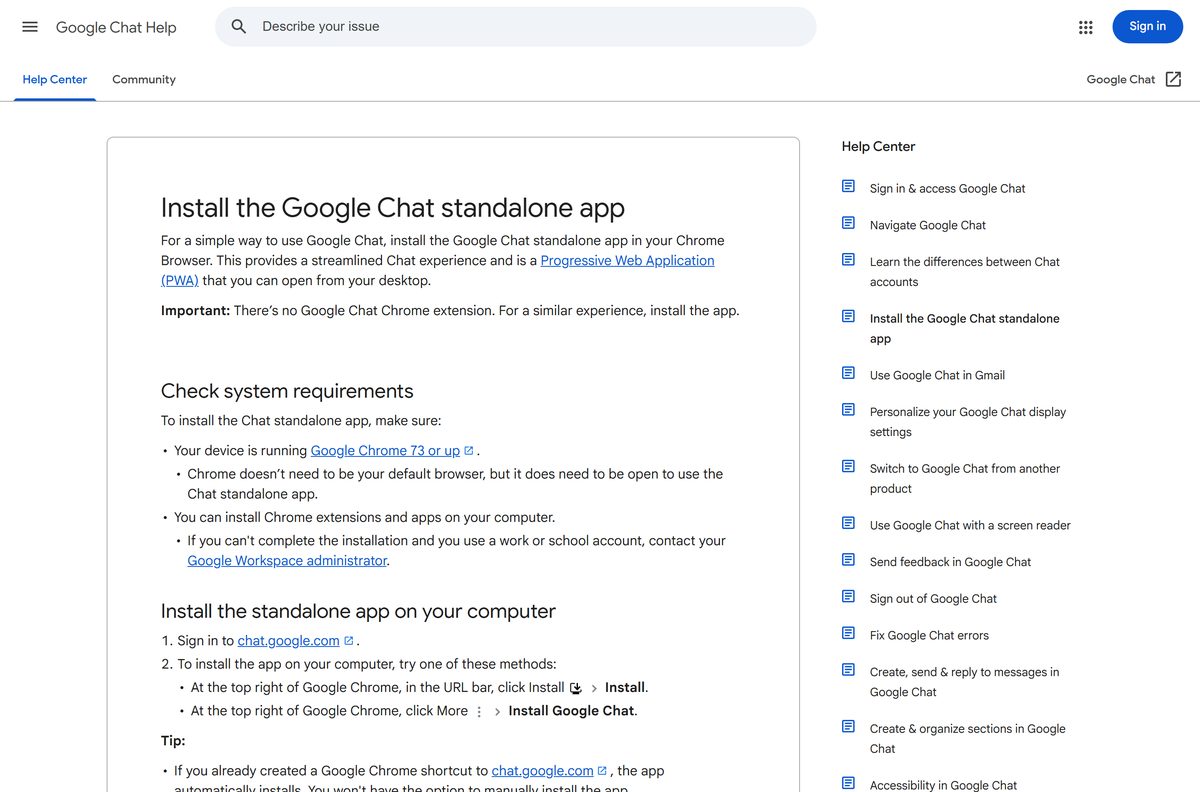
The Chat app needs Chrome 73 or later. Chrome does not have to be your default browser, but it must be running for the app to open.
- Open Chrome and go to chat.google.com.
- Sign in with your Google Account.
- Select the Install icon at the right end of the address bar.
- If the icon is missing, select More, the three-dot button, then Install Google Chat.
- Confirm with Install in the prompt.
- Open Start and select Chat to launch the app in its own window.
- Right-click its taskbar icon and select Pin to taskbar to keep it there.
If you already made a Chrome shortcut to chat.google.com, the app installs automatically and the install option does not appear.
Which Google Chat download do you need for your Mac?
The Mac follows the same Chrome route as Windows. Pick the row that matches what you want.
| What you want | What to use | Where it comes from |
|---|---|---|
| Chat in its own window, opened from Applications | Google Chat standalone app from Chrome for Mac | |
| Chat next to your email | Chat inside Gmail | |
| Chat in Safari without installing anything | chat.google.com | |
| Chat on an iPhone or iPad | Google Chat on the App Store, 391.6 MB | Apple App Store |
After installing from Chrome, open Applications and select Chat. Drag it to the Dock to keep it one click away.
The App Store listing covers iPhone and iPad only, so use the Chrome app on a Mac.
Check the Google Chat system requirements
Chat sets no hardware floor of its own. The browser sets it.
| Field | Value |
|---|---|
| Developer | Google LLC |
| Latest version | Web-based, auto-updating |
| Price | Free with a Google Account |
| Supported OS | Windows 11, Windows 10, macOS, Linux and ChromeOS through Chrome; Android; iOS and iPadOS 18.0 or later |
| Standalone app | Google Chrome 73 or later, able to install Chrome extensions |
| Supported browsers | Chrome (latest), plus current and previous Firefox, Safari and Microsoft Edge |
| Architecture | None of its own, Chat uses the browser’s build |
| Offline installer | None |
| iPhone and iPad app size | 391.6 MB |
| Official source | chat.google.com |
| Last verified | 2026-09-19 |
Chrome itself needs Windows 10 or later on Intel, Windows 11 and up on ARM, and macOS 13 Ventura and up.
Is Google Chat free?
Yes. Google Chat costs nothing with a Google Account, on the web, in the Chrome app, on Google Play and on the App Store. The App Store lists Chat as Free, and Google Play offers it at no charge. Google includes Chat with Workspace for consumer, education and business customers, and some premium features need a paid Workspace subscription. Work and school accounts need an administrator to turn Chat on. A site charging for a Chat installer is selling a file Google does not make.
Should you use the Chat app or Chat inside Gmail?
Install the Chat standalone app if you message all day. Use Chat inside Gmail if you mostly check messages alongside email. The standalone app gets its own window, a Start menu or Applications entry, and the option to launch at startup, so messages stay visible when Gmail is closed. Chat inside Gmail needs no install, but it shares a tab with your inbox. Both use the same account, so conversations match in either place.
How to make Google Chat open when your computer starts
Launch at startup works on Windows, Mac and Linux. ChromeOS does not offer it.
- Open Chrome.
- Type chrome://apps in the address bar and press Enter.
- Right-click the Google Chat icon.
- Select Launch at startup.
- Restart the computer and confirm Chat opens on its own.
How to keep Google Chat up to date on each device
Chat on a computer has no version number to check. Google updates it on the server, so the app window always loads the current build.
- On a PC or Mac, keep Chrome current, because Google supports only the latest Chrome version.
- On Android, open Google Play, select your profile picture, then Manage apps & device, and update Google Chat.
- On iPhone or iPad, open the App Store, select your profile picture and update Google Chat from the list.
The App Store listed version 1.0.482 on 14 September 2026.
How to check a Google Chat download really came from Google
An .exe or .dmg named Google Chat did not come from Google. Google also makes no Chat extension for Chrome.
- Read the address bar before signing in. Chat runs at chat.google.com, and sign-in happens at accounts.google.com.
- Install only through Chrome’s Install icon or the Install Google Chat menu item.
- On Google Play and the App Store, confirm the publisher reads Google LLC.
- Right-click any file claiming to be Google Chat, open Properties, then Digital Signatures, and reject a signer that is not Google.
Fix Google Chat not installing, not loading or not connecting
No Install option appears in Chrome
An existing Chrome shortcut already installed the app, or Chrome is too old.
- Type chrome://apps in the address bar and look for Google Chat.
- If it is there, open it from Start or Applications instead.
- If it is not, update Chrome to its latest version, then reload chat.google.com.
- On a work PC, ask the administrator whether installing Chrome extensions is allowed.
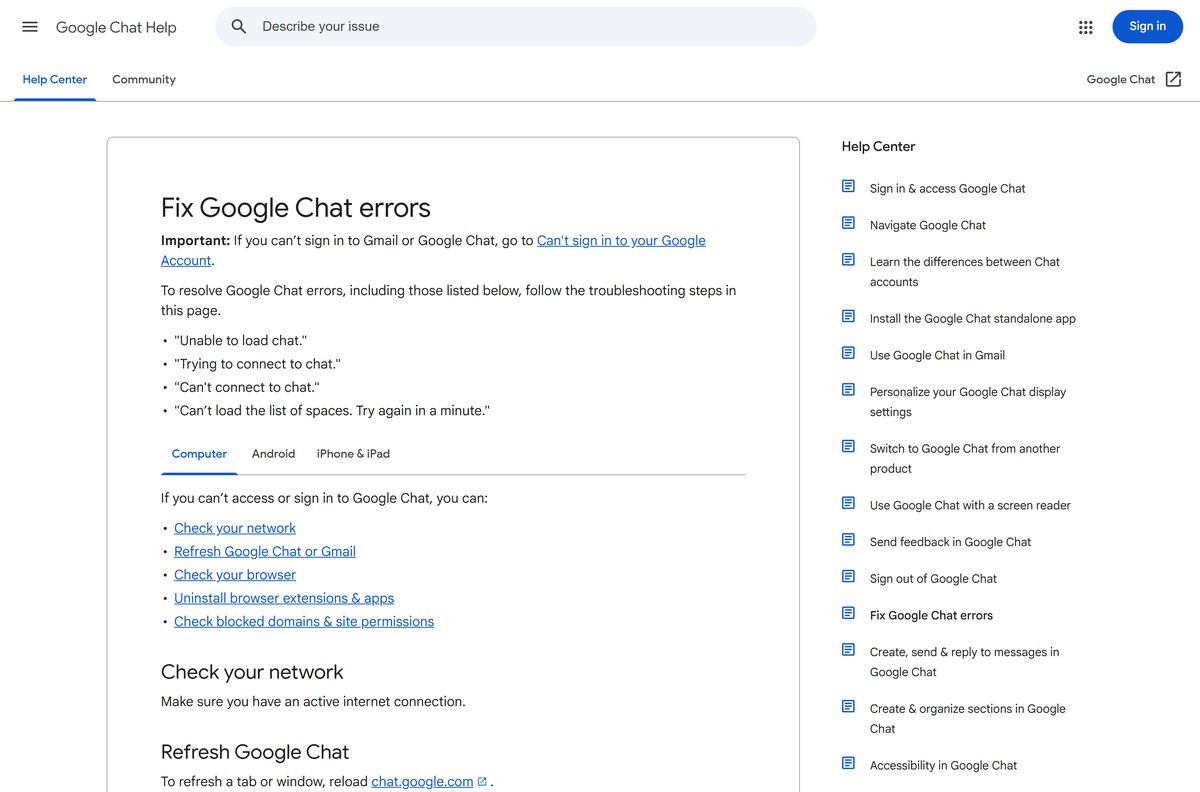
Unable to load chat or Can’t connect to chat
A network drop, an old page state, or an extension is blocking Chat.
- Check that the computer is online.
- Reload chat.google.com.
- Confirm you use a supported browser. Chat in Gmail does not support Internet Explorer.
- Turn off extensions one at a time, or open Chat in a private window to test.
- Check that antivirus software is not blocking Chat.
Chat works at home but not on a work or school network
The network or the organization has not allowed Chat.
- Ask the network administrator whether Chat’s domains are blocked.
- Ask the Workspace administrator to confirm Chat is turned on for your account.
- Check the site permissions for chat.google.com in your browser settings.
How to uninstall Google Chat from a PC or Mac
Removing the app removes the window and shortcut. Your messages stay in your Google Account.
- Open Chrome and go to chrome://apps.
- Right-click the Google Chat icon.
- Select Uninstall.
- Tick Also delete data from Chrome if you want the local data gone.
- Confirm with Remove.
- On a Chromebook, search for Chat in the Launcher, right-click it, select Remove from Chrome, then Remove.
Which way to open Google Chat instead of the app
| Option | Publisher | Install needed | Best for |
|---|---|---|---|
| Chat standalone app | Yes, from Chrome | All-day messaging in its own window | |
| Chat inside Gmail | No | Email and chat in one tab | |
| chat.google.com in a browser | No | Firefox, Safari or Edge users | |
| Google Chat for Android | Yes, from Google Play | Phones and tablets |
Frequently asked questions
Is Google Chat free?
Yes. Google Chat costs nothing with a Google Account, on the web, in the Chrome app and in the Google Play and App Store apps. Some premium features need a paid Google Workspace plan.
What is the official Google Chat download page?
On a computer, the official address is chat.google.com, which installs as an app from Chrome. Phones and tablets get the Google LLC apps on Google Play and the App Store.
Can you install Google Chat on Windows 11?
Yes. Open chat.google.com in Chrome 73 or later and select Install in the address bar. The app then opens from Start > Chat in its own window, and you can pin it to the taskbar.
What is the Google Chat download size?
On a PC or Mac, nothing sizeable downloads, because the app installs from Chrome. The iPhone and iPad app is 391.6 MB, and Google Play lists no size for the Android app.
Is there a Google Chat offline installer?
No. Google makes no .exe, .msi or .dmg for Chat. The desktop app installs from Chrome at chat.google.com and needs an internet connection to send and receive messages.
Is there a Google Chat app for Mac?
Yes. Install Google Chat from Chrome on a Mac and it opens from Applications > Chat. The App Store listing covers iPhone and iPad, so the Chrome app is the Mac version.
Is Google Chat 64-bit or ARM64?
Google Chat has no build of its own, so Chrome’s architecture applies. Chrome runs on Windows 10 or later on Intel, on Windows 11 on ARM, and on macOS 13 Ventura and up.
Is it safe to download Google Chat from other sites?
Those files are not Google’s, and Google makes no Chat extension either. Install from chat.google.com in Chrome, Google Play or the App Store, and check the publisher reads Google LLC.
What is the latest version of Google Chat?
Chat on a computer has no version number and updates on Google’s servers. The App Store listed version 1.0.482 on 14 September 2026, and Google Play updated its listing on 18 September 2026.
Why won’t Google Chat install on my PC?
Usually an existing Chrome shortcut already installed it, or Chrome is out of date. Check chrome://apps for Google Chat, update Chrome, and confirm your organization allows Chrome extensions.
Can I use Google Chat without Chrome?
Yes, in a browser. Open chat.google.com in Firefox, Safari or Microsoft Edge, or use Chat inside Gmail. The standalone desktop app itself needs Chrome running.
How do I make Google Chat start with Windows?
Open chrome://apps in Chrome, right-click the Google Chat icon and select Launch at startup. The option works on Windows, Mac and Linux but not on ChromeOS.