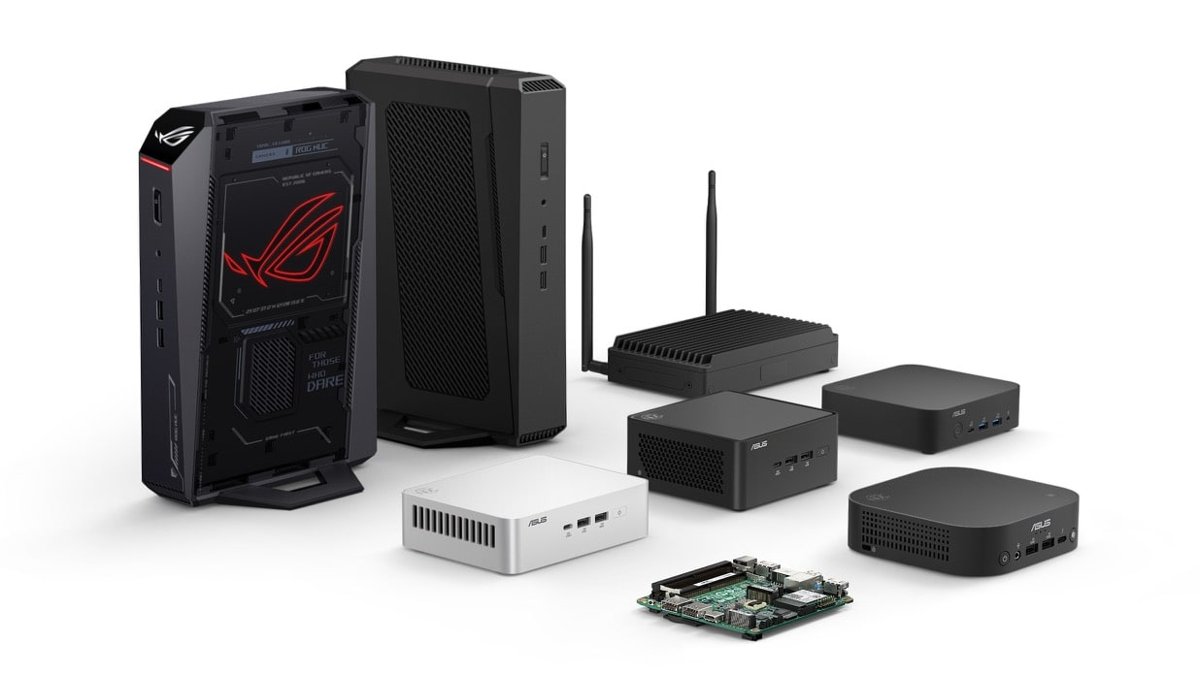
A NUC PC is a very small desktop computer, about 12 cm square on current models, that Intel created and ASUS now designs, sells and supports.
This guide explains what goes inside one, how it differs from other mini PCs, what the spec sheets say it is good and bad at, and who should buy one.
What Is a NUC PC?
NUC is a brand of small form factor computer. It started as an Intel product line and moved to ASUS under a license agreement in 2023.
Get a NUC if you want a full Windows or Linux desktop that fits behind a monitor, runs quietly on a laptop-sized power adapter, and still offers modern ports. Skip it if you need a desktop graphics card or many internal drives. A current ASUS NUC 15 Pro measures 117 x 112 x 36.8 mm and runs on a 90W or 120W power adapter. It uses laptop-class Intel processors, DDR5 laptop memory (SO-DIMM) and M.2 SSDs, so it trades desktop expansion for size and efficiency.
Intel sold NUC kits for years; its own spec database lists NUC Kits from the Core i3-3217U generation onward, all now marked Discontinued. On July 18, 2023, Intel and ASUS announced a term sheet giving ASUS a non-exclusive license to manufacture, sell and support 10th to 13th Gen NUC systems. From 13th Gen onward, ASUS selects and creates its own ASUS NUC models.
What’s Inside a NUC?
Every NUC packs the same parts as a desktop into a much smaller box. The table uses the ASUS NUC 15 Pro spec sheet as a current reference point.
| Component | What the NUC 15 Pro uses | What it means for you |
|---|---|---|
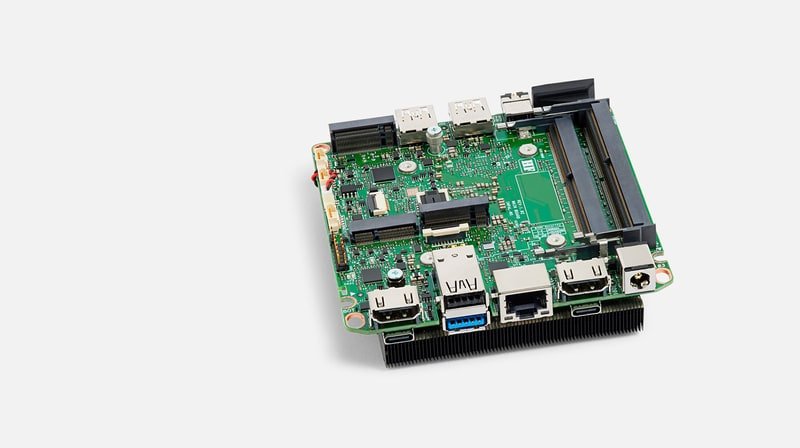
| Processor | Intel Core 3 100U up to Core Ultra 7 265H, 25W to 40W configurable TDP | Laptop-class chips; soldered to the board, so you pick performance at purchase time |
| Memory | Two DDR5 SO-DIMM slots, up to 48GB per module | Upgradeable; uses laptop memory, not desktop DIMMs |
| Storage | One M.2 2280 NVMe slot (PCIe 5.0 with Core Ultra) plus one M.2 2242 NVMe slot | Two SSDs at most; no 2.5-inch or 3.5-inch drive bays listed |
| Graphics | Integrated Intel Graphics, or Intel Arc on Core Ultra models | Arc graphics need two memory modules installed |
| Ports and connectivity | 2x Thunderbolt 4 (DP 2.1, USB4), 2x HDMI 2.1, 2.5G Ethernet, USB-C and USB-A on the front | Enough outputs for several monitors and fast external storage |
| Wireless | Intel Wi-Fi 7 with Bluetooth 5.4 | No add-in card needed for Wi-Fi |
| Power | External 19V adapter, 90W (Core 3) or 120W | The power brick sits outside the case |
NUC, Mini PC, Barebones Kit, or Full Desktop: What’s the Difference?
Every NUC is a mini PC, but not every mini PC is a NUC. The name only applies to Intel's original line and the ASUS models that continue it.
| Type | What you get in the box | Who it suits |
|---|---|---|
| NUC-branded PC (ASUS NUC Mini PC) | Complete system with RAM, SSD and Windows 11 Home or Pro installed | Anyone who wants to plug in and start working |
| Generic mini PC | A small desktop from any other maker; contents vary by brand | Buyers comparing features across brands rather than the NUC line |
| Barebones kit (ASUS NUC Kit) | Case, board, CPU, power adapter and VESA bracket; no memory, storage or OS | People who already own RAM and an SSD, or want to choose their own |
| NUC Board or NUC Element | A board with a soldered-on processor, or modular compute, board and chassis parts | Businesses building signage players, kiosks or embedded devices |
| Prebuilt mini desktop or full desktop tower | A larger case with room for desktop graphics cards and extra drives | Gamers and heavy workloads that need a full-size GPU |
What Can You Use a NUC PC For?
ASUS markets NUCs for business, edge computing and gaming. Each use below maps to a model or feature ASUS documents.
| Use | Why a NUC fits | Example model |
|---|---|---|
| Everyday home or office desktop | Ships ready to run with RAM, SSD and Windows; mounts behind a monitor | ASUS NUC 15 Pro |
| Living-room media PC | HDMI 2.1 outputs at 4K 60Hz; small enough for a TV cabinet | ASUS NUC 15 Pro or NUC 14 Essential |
| Home server or lab machine | Kits support Windows 11, Red Hat Enterprise Linux and Ubuntu 24.04 LTS; 2.5G Ethernet | ASUS NUC 15 Pro Kit |
| Digital signage and kiosks | ASUS rates Pro, Essential and Rugged models for continuous 24/7 operation; Power Sync switches the NUC and a compatible monitor together over HDMI-CEC | ASUS NUC 14 Essential, NUC 13 Rugged |
| Development and IT work | Intel vPro options on some Core Ultra models help with fleet management and security policies | ASUS NUC 15 Pro with vPro |
| Light creative work | ASUS positions NUCs as multi-display workstations for designers and video editors; Arc graphics on Core Ultra models | ASUS NUC 15 Pro Plus |
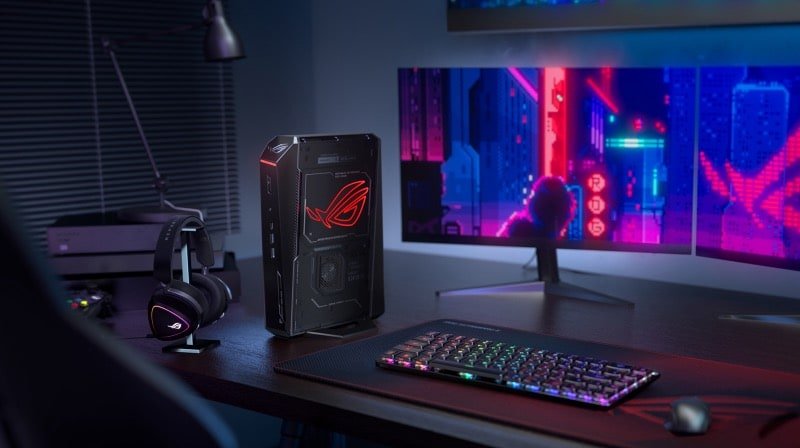
| Gaming | A dedicated model pairs an HX-series CPU with an NVIDIA GeForce RTX 5060 or 5070 Laptop GPU | ASUS NUC 15 Performance |
The Benefits of a NUC PC
| Benefit | What the spec sheet shows |
|---|---|
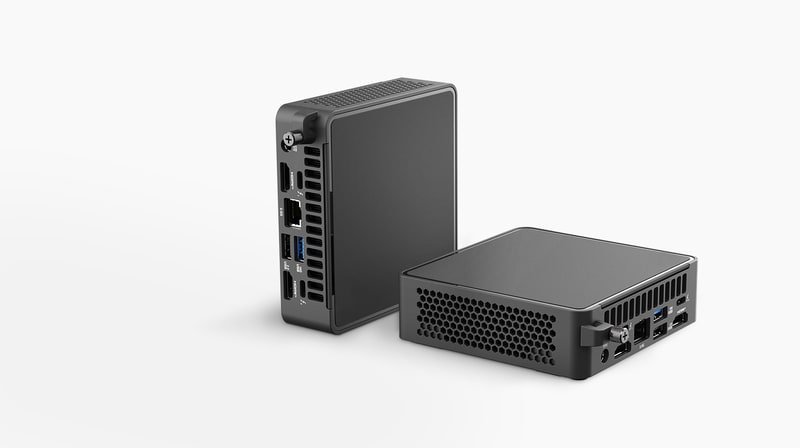
| Small size | The NUC 15 Pro is 117 x 112 x 36.8 mm and weighs 0.51 kg, under half a liter of volume |
| Low power use | The NUC 14 Essential runs on a 65W adapter and the NUC 15 Pro on 90W or 120W; ASUS says most models use little power compared to a traditional desktop |
| Quiet operation | Low-wattage chips need less cooling; the NUC 13 Rugged is fully fanless |
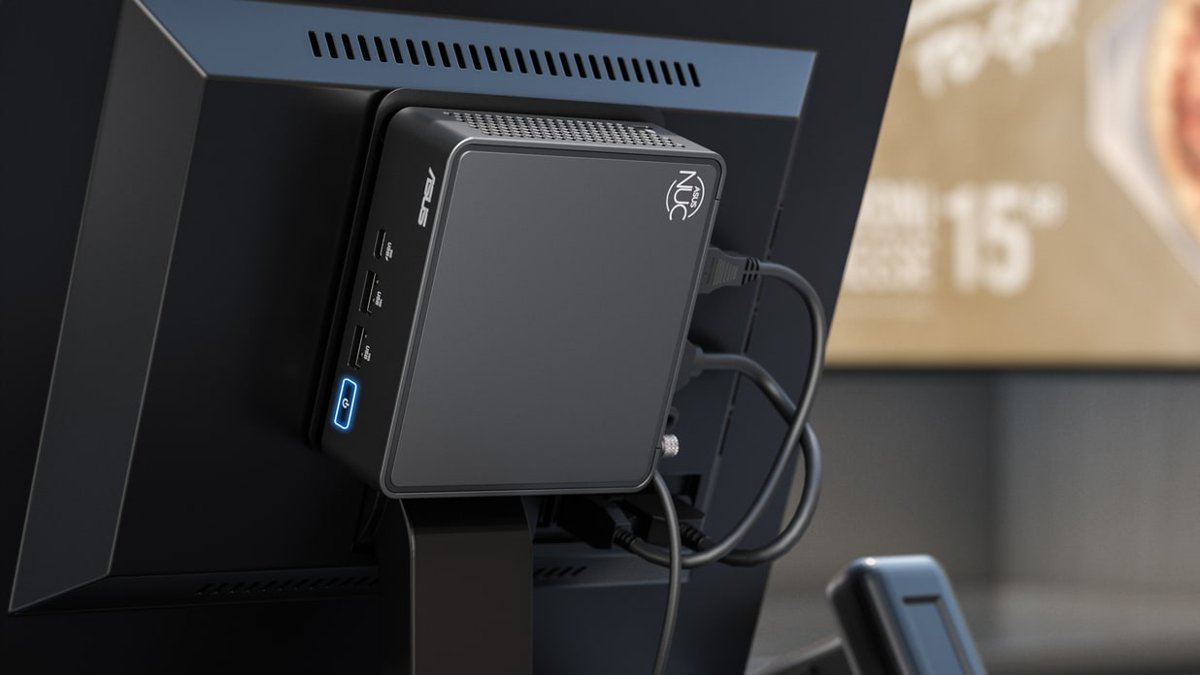
| Clean desk setup | A VESA bracket and screws come in the box, so the PC can hang on the back of a monitor |
| Easy upgrades | ASUS describes a toolless design for reaching memory and storage on its business NUCs |
| Modern ports | Thunderbolt 4, HDMI 2.1, 2.5G Ethernet and Wi-Fi 7 on the NUC 15 Pro |
| Support | ASUS lists a three-year warranty covering over 50 countries on its NUC pages; check the terms for your model and region |
The Downsides of a NUC PC
The same small box that saves space also sets hard limits. These follow directly from the published specs.
| Downside | Why it happens | Who it affects |
|---|---|---|
| No desktop graphics card | The spec sheets list M.2 and SO-DIMM slots but no full-size PCIe slot; the gaming model uses a laptop GPU | Gamers who want to upgrade the GPU later |
| Processor cannot be upgraded | ASUS describes NUC boards as having soldered-on processors | Anyone who plans to swap the CPU in a few years |
| Limited storage | Two M.2 slots on the NUC 15 Pro; one slot on the NUC 14 Essential | People with large media libraries, unless they use external drives |
| Memory ceiling on entry models | The NUC 14 Essential has one slot and a 16GB maximum | Heavy multitaskers and virtual machine users |
| External power brick | Every model uses an external adapter; the gaming model needs a 330W one | Tidy-desk setups with little space for cables |
| Laptop-class performance | Processors run at 25W to 40W configurable TDP on the NUC 15 Pro | Long rendering, compiling or simulation jobs |
How to Choose the Right NUC PC
- List the jobs the PC must do, and put the most demanding one first.
- Pick the series: NUC Essential for office, school and signage, NUC Pro or Pro Plus for heavier work, NUC Performance or ROG NUC for gaming, NUC Rugged for harsh or fanless installs.
- Choose the processor tier on the model's Tech Specs page, since it cannot be changed later.
- Count your monitors and check the outputs; the NUC 15 Pro has two HDMI 2.1 and two Thunderbolt 4 ports, the NUC 14 Essential supports three 4K displays.
- Decide between a ready-to-run Mini PC and a Kit (see the next section).
- Confirm the operating system you need is listed under Operating System on the spec page.
- Check that the model is sold in your country; ASUS notes products may not be available in all markets.
Barebones vs Prebuilt: Which Should You Buy?
ASUS sells the same NUC 15 Pro as a Mini PC, a Kit and a Board. Only the Mini PC ships ready to use.
| Your situation | Buy this | Why |
|---|---|---|
| You want to unbox it and start working | Mini PC (for example NUC15CRK) | Comes with memory, an SSD and Windows 11 Home or Pro installed |
| You already own DDR5 SO-DIMMs and an M.2 SSD | Kit (for example NUC15CRK-B) | Ships with no memory, storage or OS, so you reuse your parts |
| You plan to run Linux | Kit | Supported OS list includes Red Hat Enterprise Linux and Ubuntu 24.04 LTS, and you skip a Windows license you will not use |
| You are building a signage player or embedded device | Board or NUC Elements | Board-only and modular parts let you design your own enclosure |
A kit needs three things before it boots: memory, an M.2 SSD and an operating system installer on a USB drive.
How to Set Up a NUC PC
A ready-to-run Mini PC only needs steps 5 and 6. A kit needs all of them.
- Open your model's Tech Specs page on asus.com and note the supported memory and SSD types (for the NUC 15 Pro: DDR5 SO-DIMM and M.2 2280 or 2242 NVMe).
- Open the chassis as shown in the model's user manual on its ASUS support page.
- Install the memory; fit two modules if you want Intel Arc graphics on a Core Ultra model.
- Install the SSD in the M.2 2280 slot and close the chassis.
- Attach the included VESA Bracket to the back of your monitor if you want the PC hidden.
- Connect an HDMI or Thunderbolt 4 monitor, plug a keyboard and mouse into USB ports, connect the power adapter to DC-in, and power on.
- Boot a kit from a USB installer for Windows 11, Red Hat Enterprise Linux or Ubuntu 24.04 LTS, and pick the SSD as the install target.
- Install the latest drivers from your model's support page on asus.com, and use the MyASUS app on Windows for manuals and service.
If the installer does not list the SSD, reseat it in the M.2 slot and check that it matches a supported type on the spec page.
NUC PC vs Laptop vs Desktop Tower
| NUC PC | Laptop | Desktop tower | |
|---|---|---|---|
| Processor class | Laptop-class chips (U, H, HX series) | Laptop-class chips | Desktop chips, often socketed |
| Screen, keyboard, battery | None; bring your own | Built in | None; bring your own |
| Graphics card upgrade | Not possible | Not possible | Yes, full-size PCIe slot |
| Memory and SSD upgrade | Yes, SO-DIMM and M.2 | Varies by model | Yes, most tower cases |
| Monitors | Several through HDMI and Thunderbolt | Built-in screen plus external ones | Depends on the graphics card |
| Desk space | Fits behind a monitor with a VESA mount | Folds away | Sits on or under the desk |
| Portability | Move it with its power brick, no battery | Fully portable | Not portable |
Should You Get a NUC PC?
| Your situation | Verdict | Why |
|---|---|---|
| Office, school or home desktop with one to three monitors | Yes, a NUC Essential or NUC Pro | Full desktop features in a box that mounts behind the screen |
| Signage, kiosk or always-on edge device | Yes, NUC Pro, Essential or Rugged | ASUS rates these for 24/7 operation, and Rugged is fanless |
| Home server, lab or Linux box | Yes, a NUC Kit | Supported Linux options, 2.5G Ethernet and low power draw |
| Serious gaming that needs GPU upgrades | No, buy a desktop tower | A NUC cannot take a desktop graphics card |
| Gaming in a small space, with no upgrade plans | Maybe, NUC 15 Performance | RTX 5060 or 5070 Laptop GPU in a small case, with a 330W adapter |
| You need to work on the move | No, buy a laptop | A NUC has no screen or battery |
Buying Tips
- Compare models on the Tech Specs tab rather than product photos, since several variants share one name.
- Buy two matched memory modules for Core Ultra models so Intel Arc graphics is enabled.
- Check the power cord line in Accessories; ASUS notes some SKUs do not include one.
- Match wireless to your needs: some variants ship with No Wireless Card Installed.
- Prefer current ASUS NUC models over old Intel stock; Intel lists its older NUC Kits as discontinued.
- Choose a vPro model if your IT team manages devices remotely.
The Bottom Line
Buy a NUC if you want a quiet, compact desktop for office work, media, a home lab or signage. Buy a tower instead if you need a desktop graphics card or lots of internal storage. Current ASUS NUCs deliver Thunderbolt 4, Wi-Fi 7 and DDR5 in under half a liter, but their soldered laptop-class processors, two M.2 slots and lack of a PCIe graphics slot fix most of their limits on the day you buy.
Frequently Asked Questions
What is a NUC in computers?
A NUC is a very small desktop PC originally made by Intel and now built by ASUS. It contains a laptop-class processor, SO-DIMM memory and M.2 storage in a box about 117 x 112 mm, and it connects to your own monitor, keyboard and mouse.
What does NUC mean in mini PC?
NUC is a brand within the mini PC category. All NUCs are mini PCs, but other brands make mini PCs too. Today the NUC name is used on ASUS models such as the NUC 15 Pro, NUC 14 Essential and NUC 15 Performance.
What is the NUC today, and who makes it?
ASUS makes NUCs today. In July 2023, Intel and ASUS announced a non-exclusive license for ASUS to manufacture, sell and support 10th to 13th Gen NUC systems. ASUS now designs its own ASUS NUC models from 13th Gen onward.
What is a NUC device?
NUC devices come in four forms from ASUS: ready-to-use Mini PCs, Kits without memory or storage, Boards with soldered-on processors, and NUC Elements for building custom devices. Most home buyers want the Mini PC or the Kit.
What is a NUC in IT?
In IT, a NUC is a compact managed desktop or edge device. ASUS offers vPro processor options for remote management and rates its Pro, Essential and Rugged models for 24/7 use in signage, kiosks, meeting rooms and telehealth.
Can a NUC PC be used for gaming?
Yes, on the right model. The ASUS NUC 15 Performance pairs an Intel Core Ultra HX processor with an NVIDIA GeForce RTX 5060 or 5070 Laptop GPU. Standard NUC Pro and Essential models rely on integrated graphics and suit light games only.
What operating systems can a NUC run?
Ready-to-run ASUS NUC Mini PCs ship with Windows 11 Home or Pro. The NUC 15 Pro Kit and Board ship without an OS and list Windows 11, Red Hat Enterprise Linux and Ubuntu 24.04 LTS as supported.
Are Intel NUCs still supported?
Intel still hosts NUC support pages, but its NUC Kits spec list marks the older kits as discontinued. Under the 2023 agreement, ASUS took on sales and support for 10th to 13th Gen NUC systems, so check ASUS support for those models.