Remote Desktop usually stops working for one of five reasons: the remote PC runs a Home edition, Remote Desktop is off, the PC is asleep or unreachable, the firewall blocks port 3389, or your account is not allowed to sign in.
This guide checks each cause in order on Windows 11 and Windows 10, tests the connection from the command line, and fixes the error messages Remote Desktop Connection shows.
The fastest way to get Remote Desktop working again
Run these checks on the remote PC, the one you are trying to reach. Most failed connections end at one of them.
- On the remote PC, open Settings > System > About and read Edition. It must be Pro, Enterprise or Education; Home cannot accept Remote Desktop connections.
- Open Settings > System > Remote Desktop and turn on Remote Desktop, then select Confirm.
- Note the PC name shown on that page, and the PC's IPv4 address as a fallback.
- In the remote PC's power settings, set sleep and hibernation to Never. A PC that is off, asleep or hibernating cannot accept a connection.
- On your own PC, open Remote Desktop Connection, type the IP address instead of the PC name, and select Connect.
- Sign in with an account that is an administrator on the remote PC or is listed under Remote Desktop users.
If the IP address works but the name does not, the problem is name resolution, not Remote Desktop. Microsoft notes that many home networks need the IP address to connect.
Which fix matches your symptom?
| What you see | Most likely cause | Go to |
|---|---|---|
| No Remote Desktop switch in Settings, or the switch will not turn on | Home edition, or a Group Policy is blocking it | Check That Remote Desktop Is Enabled |
| "Remote Desktop can't connect to the remote computer" | Remote access off, PC off or asleep, or not reachable on the network | Verify Network Connectivity and PC Availability |
| Connection times out even though the PC is on | Firewall rule for Remote Desktop is off, or port 3389 is blocked | Allow Remote Desktop Through Windows Firewall |
| Nothing listens on port 3389 on the remote PC | Remote Desktop Services is stopped or the RDP listener is broken | Confirm Remote Desktop Services Are Running |
| The sign-in screen appears but your password is refused | Your account is not in the allowed users list | Review User Permissions and Sign-In Credentials |
| A named error such as CredSSP or Network Level Authentication | Authentication or update mismatch between the two PCs | Fix Common Remote Desktop Error Messages |
Which Windows editions can host Remote Desktop
Remote Desktop has two sides. The PC you connect to is the host, and the PC you connect from is the client. Only the host is edition-limited.
| Edition | Can connect to other PCs | Can be connected to (host) |
|---|---|---|
| Windows 11 Home / Windows 10 Home | Yes | No |
| Windows 11 Pro / Windows 10 Pro | Yes | Yes |
| Windows 11 Enterprise / Windows 10 Enterprise | Yes | Yes |
| Windows 11 Education / Windows 10 Education | Yes | Yes |
| Windows Server 2016, 2019, 2022, 2025 | Yes | Yes |
You also need administrator rights on the host to turn Remote Desktop on. If the host runs Home, no setting on this page will make it accept connections; the only supported route is upgrading that PC to Pro.
Check That Remote Desktop Is Enabled
Turning Remote Desktop on opens a port on the PC and makes it reachable from your local network. Enable it only on a trusted network, such as your home network.
- On the remote PC, select Start > Settings > System.
- Select Remote Desktop. On Windows 10 the page is in the same place under System.
- Turn on the Remote Desktop switch and select Confirm in the pop-up.
- Leave Make my PC discoverable on private networks ticked; it is on by default.
- Write down the PC name shown on the page. You type it into Remote Desktop Connection later.
- If the switch is greyed out or turns itself off again, open Command Prompt as administrator and run
gpresult /H c:\gpresult.html. - Open
c:\gpresult.htmland find Allow users to connect remotely by using Remote Desktop Services under Computer Configuration > Administrative Templates > Windows Components > Remote Desktop Services > Remote Desktop Session Host > Connections. - If that policy shows Disabled, the Winning GPO column names the policy that blocks Remote Desktop. On a work PC, ask your IT administrator to change it.
The same on/off state is stored in the registry value fDenyTSConnections under HKEY_LOCAL_MACHINE\SYSTEM\CurrentControlSet\Control\Terminal Server. A value of 0 means Remote Desktop is on, and 1 means it is off. If a policy value also exists under HKEY_LOCAL_MACHINE\SOFTWARE\Policies\Microsoft\Windows NT\Terminal Services, it overrides the first one, so both must be 0. Back up the registry before you change either.
Verify Network Connectivity and PC Availability
Remote Desktop needs a direct path from your PC to the host. Rule out the simple network causes before touching any setting.
- Confirm the remote PC is powered on and awake, and set its sleep and hibernation settings to Never while you need remote access.
- Check that both PCs are on the same network, or that you are connected to a VPN into the remote PC's network.
- Check the spelling of the PC name in Remote Desktop Connection, then try the PC's IP address instead.
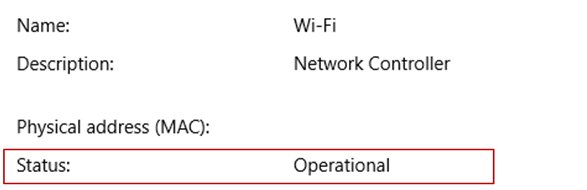
- On Windows 10, find the remote PC's IPv4 address in Settings > Network & Internet > Status > View your network properties, under the connection whose status is Operational.
- From your PC, run the port test in the next section. It tells you in one line whether the host is reachable on port 3389.
- If you are connecting from outside the remote PC's network, set up a VPN or port forwarding first, as described under connecting from another network below.
Microsoft's own triage is the same: if the connection works by IP address, the fault is DNS name resolution; if it also fails by IP address, move on to the firewall.
Test whether port 3389 is reachable
Remote Desktop listens on TCP port 3389 by default. Run this test in PowerShell on the PC you are connecting from, replacing the name with the remote PC's name or IP address.
Test-NetConnection -ComputerName DESKTOP-01 -Port 3389 -InformationLevel Detailed-ComputerName is the remote PC's name or IP address. -Port 3389 tests the Remote Desktop port. -InformationLevel Detailed prints the name resolution and route details as well as the result.
You should see: TcpTestSucceeded : True means the network and firewall let Remote Desktop through, so look at services, credentials or error messages next. False means something between the two PCs, usually the host's firewall, is blocking the port.
If the host was set to a custom port, test that number instead and type the address as name:port in Remote Desktop Connection, for example pc1.contoso.com:3390.
Allow Remote Desktop Through Windows Firewall
Turning Remote Desktop on normally enables its firewall rules, but a reset, a policy or another security product can switch them off. Check them on the remote PC.
- On the remote PC, open Windows Defender Firewall from the Start menu search.
- Select Allow an app or feature through Windows Defender Firewall.
- Select Change settings and approve the administrator prompt.
- Under Allowed apps and features, tick Remote Desktop for the network type you use, usually Private, and select OK.
- For a closer look, press Win + R, type
wf.mscand press Enter. - Select Inbound Rules and confirm Remote Desktop – User Mode (TCP-In) and Remote Desktop – User Mode (UDP-In) are enabled.
- To turn the whole Remote Desktop rule group on at once, run
Get-NetFirewallRule -DisplayGroup "Remote Desktop" | Set-NetFirewallRule -Enabled Truein PowerShell as administrator.
If you use a third-party firewall or security suite, open its own settings and allow inbound TCP port 3389, or the custom port you set. Do not switch the firewall off to test; allow the specific rule instead.
Confirm Remote Desktop Services Are Running
Two services carry every Remote Desktop session. Microsoft lists both as required on the client and on the host.
- Press Win + R, type
services.mscand press Enter. - Find Remote Desktop Services (service name
TermService) and check that Status shows Running. - Find Remote Desktop Services UserMode Port Redirector (
UmRdpService) and check it is running too. - If either is stopped, right-click it and select Start. When you start Remote Desktop Services, select Yes to restart the Port Redirector as well.
- Open Command Prompt on the remote PC and run
qwinsta. - Look for the line
rdp-tcpwith the state Listen. That line proves the RDP listener is waiting for connections. - If
rdp-tcpis missing, runnetstat -anob | findstr 3389andtasklist /svc | findstr TermServiceas administrator. The process ID listening on 3389 should match the one shown for TermService.
If a different program owns port 3389, Microsoft recommends moving that program to another port rather than moving Remote Desktop. After any change, restart Remote Desktop Services.
Review User Permissions and Sign-In Credentials
Seeing the remote PC's sign-in prompt but being refused almost always means the account is not allowed in, not that Remote Desktop is broken.
- On the remote PC, open Settings > System > Remote Desktop.
- Select Remote Desktop users (on some builds it reads Select users that can remotely access this PC).
- Select Add, type the user name of the account you sign in with, and select OK.
- Skip this for administrator accounts; members of the Administrators group can connect without being listed.
- Make sure the account has a password. Microsoft advises strong, unique passwords on every account with remote access.
- In Remote Desktop Connection, enter the user name and password of an account on the remote PC, not your local account, unless they are the same.
- If the connection worked before and fails now, check whether the account's password changed and update the saved password in your Remote Desktop client.
The Remote Desktop users list is the local Remote Desktop Users group. On a domain PC the same group can be managed in Computer Management > Local Users and Groups > Groups.
How to connect when the PC is on a different network
Remote Desktop is a direct peer-to-peer connection, so a PC at home is not reachable from outside until you give it a path in. Microsoft lists two options and prefers the VPN.
| Option | What you set up | Trade-off |
|---|---|---|
| VPN (preferred) | A VPN into the remote PC's network; once connected, use the PC's local IP address | Nothing is exposed to the internet |
| Port forwarding | A router rule that forwards port 3389 on your public IP to the PC's internal IP address | Opens the PC to the internet; Microsoft warns against it and requires a strong password if you do it |
| Port forwarding with a source restriction | The same rule limited to the IP address or ISP range you connect from | Smaller exposure, but breaks if your source address changes |
| Dynamic DNS with port forwarding | A DDNS name that follows your changing public IP address | Saves looking up a new IP address each time your ISP changes it |
For port forwarding, give the remote PC a static internal IP address so the router rule always points at the right machine.
How to check Remote Desktop works again
- On your PC, select Start, type Remote Desktop Connection and open it.
- Type the remote PC's name or IP address and select Connect.
- Enter the remote account's credentials and select OK. The remote desktop should fill the window after the certificate prompt, if one appears.
- On the remote PC, run
qwinstaagain. Your session now appears alongside therdp-tcplistener. - Sign out from the remote session rather than just closing the window, then connect once more to confirm it works a second time.
Fix Common Remote Desktop Error Messages
Match the exact wording you see. Each fix keeps Remote Desktop's security settings in place.
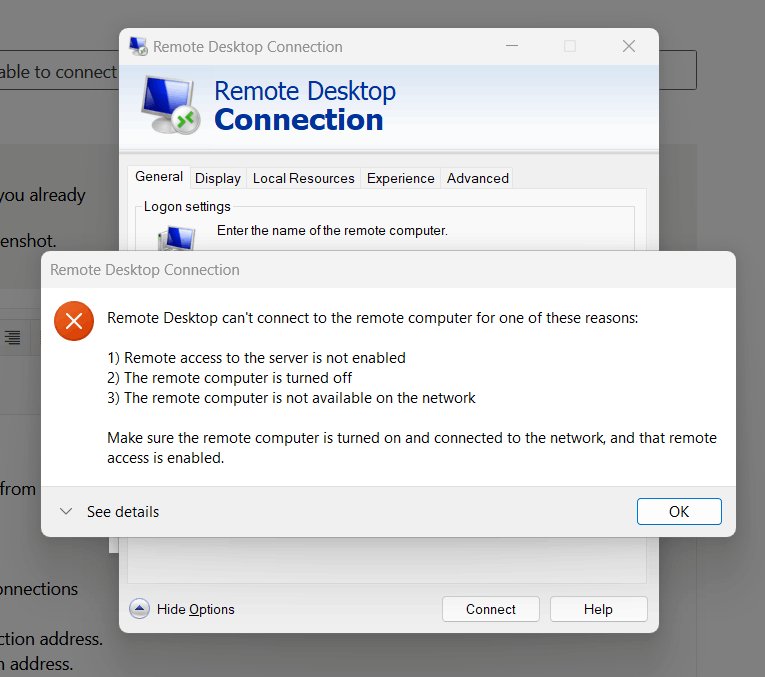
"Remote Desktop can't connect to the remote computer for one of these reasons"
Remote access is off on the host, the host is off or asleep, or it is not reachable on the network.
- Confirm the host is on and awake, and that Remote Desktop is turned on in its Settings.
- Run
Test-NetConnection -ComputerName <PC> -Port 3389from your PC. False points to the firewall or network. - Try the IP address in place of the PC name to rule out name resolution.
- On the host, run
qwinsta. Ifrdp-tcpis not in Listen state, start Remote Desktop Services and check thatfDenyTSConnectionsis0. - If the host is on another network, connect through a VPN first.
"Your credentials did not work"
The account is not an administrator or a Remote Desktop user on the host, or the password is wrong or out of date.
- On the host, add the account under Settings > System > Remote Desktop > Remote Desktop users.
- Retype the user name and password of an account that exists on the host.
- If the password changed recently, update it in your saved Remote Desktop connection.
- Try signing in with an administrator account on the host to confirm Remote Desktop itself works.
"The remote computer requires Network Level Authentication"
The host accepts only clients that authenticate before the session starts, and the sign-in could not complete that step.
- Check that the account you are using is allowed on the host, since Network Level Authentication checks it before the desktop loads.
- Connect from the Remote Desktop Connection app built into Windows 10 or 11, or from Windows App, rather than an old third-party client.
- Install pending Windows updates on both PCs and try again.
- Keep Network Level Authentication on. Microsoft recommends it for most setups and suggests turning it off only temporarily for old clients that cannot use it.
"An authentication error has occurred" or CredSSP encryption oracle remediation
One PC has the CredSSP security update and the other does not, so the updated side blocks the insecure connection.
- Open Settings > Windows Update on the host and select Check for updates.
- Install every available update and restart.
- Do the same on the PC you connect from.
- Connect again. Microsoft's resolution is to install the CredSSP updates on both sides; its registry workaround exposes the host to attack, so avoid it.
"Remote Desktop Disconnected" or "Because of a security error, the client could not connect"
The session limit is reached, another program holds port 3389, or authentication and encryption settings do not match.
- Sign out of any other remote session on the host; Windows allows a limited number of concurrent connections.
- On the host, run
netstat -anob | findstr 3389as administrator and confirm the listening process is TermService. - Move any other program off port 3389, then restart Remote Desktop Services.
- Check the host is not going to sleep during the session.
"Insufficient privileges"
You tried to open an administrator (console) session with an account that is not an administrator.
- In your Remote Desktop client's advanced settings, turn off the console or admin session option.
- Connect again with a standard session.
- If you need the console session, sign in with an administrator account on the host.
"Windows does not support Remote Desktop" or no Remote Desktop page in Settings
The host runs Windows 10 Home or Windows 11 Home, which cannot accept incoming connections.
- Open Settings > System > About and read Edition.
- If it says Home, use that PC only as a client to connect to other PCs.
- To host Remote Desktop on it, upgrade the PC to Windows Pro.
Frequently Asked Questions
How do I fix Remote Desktop?
Check that the remote PC runs Pro, Enterprise or Education, turn on Remote Desktop in Settings > System > Remote Desktop, keep the PC awake, allow Remote Desktop through Windows Defender Firewall, and sign in with an administrator or listed Remote Desktop user. Then test port 3389 with Test-NetConnection.
Why isn't my Remote Desktop working?
The common causes are a Home edition host, Remote Desktop turned off, a sleeping or unreachable PC, a firewall blocking port 3389, or an account that is not allowed to sign in. Testing port 3389 from your PC tells you whether the fault is network-side or on the host.
What should I check first if Remote Desktop suddenly stopped working?
Check that the remote PC is on and awake, then try its IP address instead of its name. If that fails, run Test-NetConnection to port 3389. A recent update, password change or firewall reset is the usual trigger, so recheck the firewall rule and your credentials next.
Can I use Remote Desktop to connect to Windows 10 or 11 Home?
No. Windows 10 Home and Windows 11 Home cannot act as Remote Desktop hosts. They can connect to other PCs as clients. To connect to a Home PC, upgrade it to Pro, Enterprise or Education, which support incoming Remote Desktop connections.
How do I fix "Remote Desktop can't connect to the remote computer"?
Make sure the remote PC is on, awake and has Remote Desktop turned on. Try its IP address, then run Test-NetConnection to port 3389. If the test fails, enable the Remote Desktop firewall rules on the host. If it passes, check that Remote Desktop Services is running.
Why does Remote Desktop reject my username or password even though they are correct?
The account is probably not allowed to connect. Only administrators and accounts added under Remote Desktop users can sign in remotely. Add your account on the remote PC, use an account that exists on that PC, and update any saved password after a recent change.
Do I need to open port 3389 on my router for Remote Desktop?
Only to connect from outside the remote PC's network, and Microsoft recommends a VPN instead. On the same network, no router change is needed. If you forward port 3389, use a strong password and restrict the rule to the addresses you connect from.
Why does Windows say it does not support Remote Desktop?
The PC runs a Home edition. Windows Home can start Remote Desktop connections to other PCs but cannot receive them, so the host settings are missing. Check the edition in Settings > System > About and use a Pro, Enterprise or Education PC as the host.
What should I do if Remote Desktop Services is not working?
Open services.msc and start Remote Desktop Services and Remote Desktop Services UserMode Port Redirector. Then run qwinsta and confirm rdp-tcp shows Listen. If another program owns port 3389, move that program to a different port and restart Remote Desktop Services.
Why does Remote Desktop work by IP address but not by PC name?
The PC name is not resolving to the right address on your network. Remote Desktop itself is working. Microsoft notes many home networks need the IP address to connect, so use the IP address or give the remote PC a fixed address.
Bottom Line
Start with the edition and the Remote Desktop switch on the remote PC, then run Test-NetConnection to port 3389 before changing anything else. The edition check rules out the one cause no setting can fix, and the port test splits every remaining problem into network or firewall on one side and services or credentials on the other, so you fix the right thing first.

![How To Lock Your Windows 10 & 11 Computer Screen [Different Ways]](https://techdows.com/wp-content/uploads/2026/09/Windows-10-Sign-in-options-page-with-the-Dynamic-lock-checkbox-600x338.jpg)