My Documents is now simply Documents, and on Windows 11 and Windows 10 it sits at C:\Users\YourName\Documents, where YourName is your account's folder name.
If OneDrive folder backup is on, Documents lives inside your OneDrive folder instead. This guide covers every way to open it, how to confirm where yours really points, how to move it back, and fixes when it goes missing.
Where is the Documents folder in Windows 11 and Windows 10?
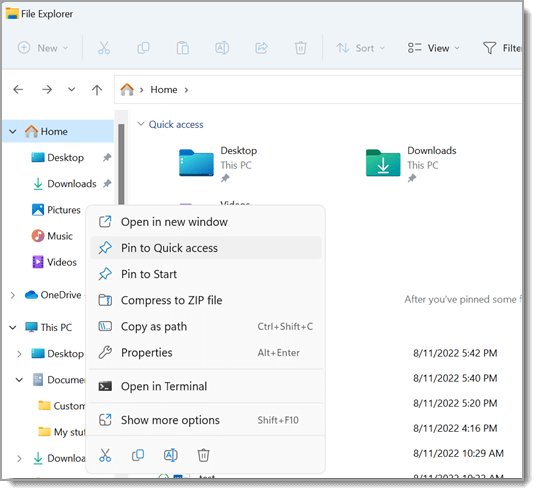
File Explorer shows Documents as a pinned folder by default, so two key presses get you there on either version.
- Press Windows logo key + E to open File Explorer.
- On Windows 11, look under Home or Quick access in the left pane and select Documents.
- On Windows 10, select Documents under Quick access in the left pane.
- If it is not listed, select the address bar, type
C:\Users\YourName\Documentswith your own user folder name, and press Enter.
Microsoft lists the default path as %USERPROFILE%\Documents. %USERPROFILE% is your profile folder, normally C:\Users\YourName.
Quick ways to open the Documents folder
Every route below opens the same folder. Pick by where your hands already are.
| Your situation | Use this | Why |
|---|---|---|
| Any window open, keyboard in reach | Win + E, then Documents in the left pane | Documents is pinned in File Explorer by default |
| You want it one click from Start | Turn on Documents under Start Folders, then use the icon beside the power button | Microsoft documents this toggle for Windows 11 and Windows 10 |
| You know the exact path | Type C:\Users\YourName\Documents in the File Explorer address bar |
Goes straight there without clicking through folders |
| You only remember a file name | Taskbar Search, then the Documents tab | Microsoft's search shows document results from your PC and OneDrive |
| You are already in Command Prompt or PowerShell | start "" "%USERPROFILE%\Documents" or ii ([Environment]::GetFolderPath('MyDocuments')) |
Opens File Explorer on the folder without leaving the console |
| Documents seems empty or wrong | Check the folder's real location first (see below) | OneDrive backup or an old move may have redirected it |
Why is it called Documents instead of My Documents?
Microsoft dropped the "My" prefix from personal folder names after Windows XP. Its known-folder reference still lists My Documents as the legacy display name of the same folder.
| Item | Current Windows (11 and 10) | Legacy value (Windows XP era) |
|---|---|---|
| Display name | Documents | My Documents |
| Default path | %USERPROFILE%\Documents |
%USERPROFILE%\My Documents |
| Profile root | C:\Users\YourName |
C:\Documents and Settings\YourName |
| Music, Pictures, Videos | Separate folders beside Documents | Subfolders inside My Documents |
| Name apps still use | MyDocuments or Personal in .NET; CSIDL_PERSONAL in Win32 |
The same names, which is why older software still says My Documents |
The default Documents folder path
Documents is a per-user folder. Every account on the PC has its own, and none of them share files.
| Setup | Where Documents lives | Example |
|---|---|---|
| Windows 11, local folder | %USERPROFILE%\Documents |
C:\Users\YourName\Documents |
| Windows 10, local folder | %USERPROFILE%\Documents |
C:\Users\YourName\Documents |
| OneDrive folder backup turned on | A Documents folder inside your OneDrive folder | C:\Users\YourName\OneDrive\Documents (the OneDrive folder name can differ) |
| Moved with Location > Move | Whatever folder was picked during the move | D:\Documents |
| Another account on the same PC | That account's own profile folder | C:\Users\OtherName\Documents |
The registry value behind it is Personal under HKEY_CURRENT_USER\Software\Microsoft\Windows\CurrentVersion\Explorer\User Shell Folders, and its default is %USERPROFILE%\Documents.
What if Documents is inside OneDrive?
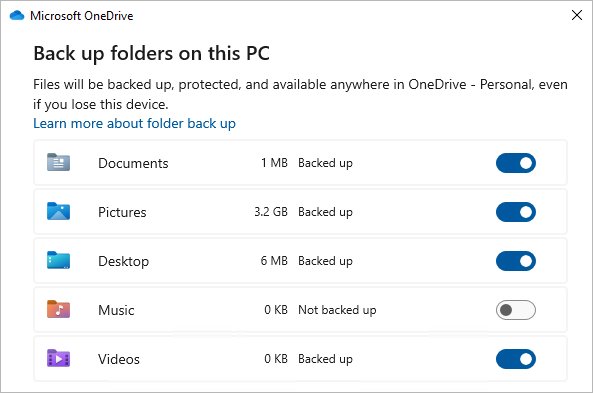
OneDrive folder backup can protect Desktop, Documents, Pictures, Music, and Videos. Once Documents is backed up, its files live in your OneDrive folder and sync to the cloud. Check the status in OneDrive settings > Sync and backup > Manage backup.
| What Manage backup shows | What it means for Documents | What to do |
|---|---|---|
| Documents is on, marked as backed up | Documents is the folder inside OneDrive; files sync to the cloud | Keep it if you want files on every device and in the cloud |
| Documents shows Not backed up | Documents is a normal local folder | Look in C:\Users\YourName\Documents |
| You stopped backup earlier | Files already backed up stay in the OneDrive folder, not your device folder | Open OneDrive in File Explorer and move them back |
| Files show a blue cloud icon | They are online-only and take no local space until opened | Right-click and choose Always keep on this device before moving them |
How to find the real location of your Documents folder
The Documents shortcut in File Explorer follows wherever the folder points, so it can hide a redirect. These checks show the true path.
- Open File Explorer, right-click Documents, and select Properties.
- Select the Location tab. The box shows the folder Documents currently points to.
- For a second check, right-click Start, open Windows PowerShell or Terminal, and run
[Environment]::GetFolderPath('MyDocuments'). - Read the path it prints.
C:\Users\YourName\Documentsis the default; a path containingOneDrivemeans folder backup is on. - Compare both answers. They should match, because apps ask Windows for this same folder.
How to add Documents back to File Explorer
If Documents has vanished from the left pane, pin it again. The folder and its files are unaffected by the pin.
- Open File Explorer and type
C:\Users\YourNamein the address bar, then press Enter. - Right-click Documents and select Pin to Quick access.
- If the whole left pane is missing, select View on the command bar, then Show, then Navigation pane.
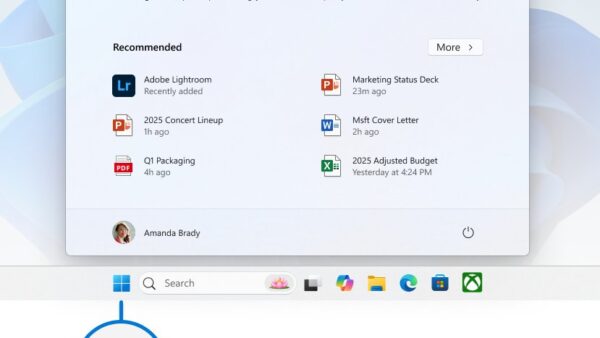
- To add it to Start on Windows 11, open Start, right-click near the bottom, choose Start settings, select Folders, and turn Documents on.
- On Windows 10, the same toggle is under Personalization > Start > Choose which folders appear on Start.
How to restore the default Documents folder location
When OneDrive moved Documents, stop the backup from OneDrive itself. That is the route Microsoft documents for putting the folder back on the PC.
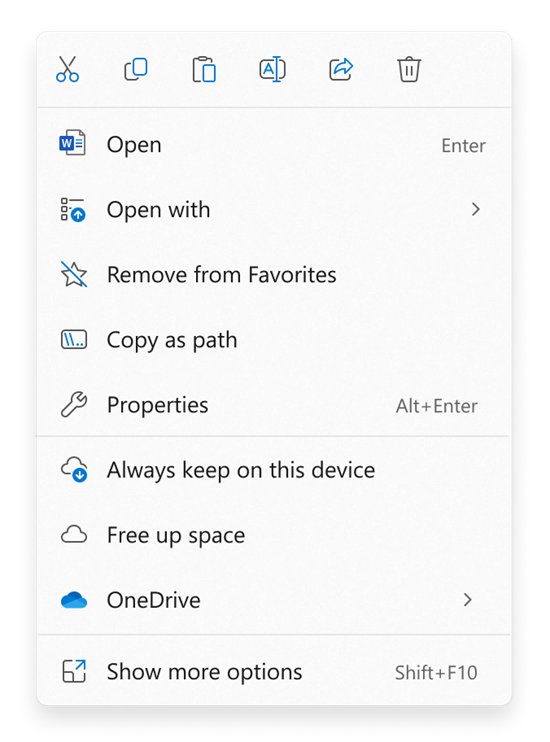
- Right-click any file in Documents that shows a blue cloud, and select Always keep on this device. Wait for downloads to finish.
- Select the OneDrive cloud icon in the notification area, then the settings icon, then Settings.
- Open the Sync and backup tab and select Manage backup.
- Turn Documents off, or select Stop backup.
- Choose Keep the files only on my PC, then confirm.
- Look for the Where are my files shortcut. It opens the OneDrive copy if anything stayed there.
- Check the result with the Location tab or the PowerShell command above.
If a change fails with an "Access is denied" error, use the registry fix under Common problems and fixes below.
How to move the Documents folder to another drive
Moving Documents to a second internal drive frees space on C: and keeps apps working, because Windows updates the folder's location for them.
- Create an empty folder on the target drive, for example
D:\Documents. - Open File Explorer, right-click Documents, and select Properties.
- Select the Location tab.
- Select Move… and choose the new folder as the destination.
- Select OK to apply the new location.
- Never pick another personal folder such as Videos or Pictures as the target. Microsoft warns that mapping Documents onto another personal folder cannot be cleanly separated later.
How to create a missing Documents folder
If your profile folder has no Documents folder, recreate it, then point Windows back at it.
- Open File Explorer, type
%USERPROFILE%in the address bar, and press Enter. - Check that you are in your own folder, such as
C:\Users\YourName, not another account's. - Right-click an empty area, select New > Folder, and name it
Documents. - Run
[Environment]::GetFolderPath('MyDocuments')in PowerShell to see where Windows expects Documents. - If it prints a different path, reset the location with the registry fix in Common problems and fixes, then sign out and back in.
How to find files that used to be in My Documents
Missing files usually moved with a redirect or an upgrade rather than disappeared. Search before you assume they are gone.
- Open File Explorer, select This PC, and type the file name in the Search This PC box.
- If you do not know the name, search a type instead, such as
*.docx. - Right-click a result and select Open file location to see which folder holds it.
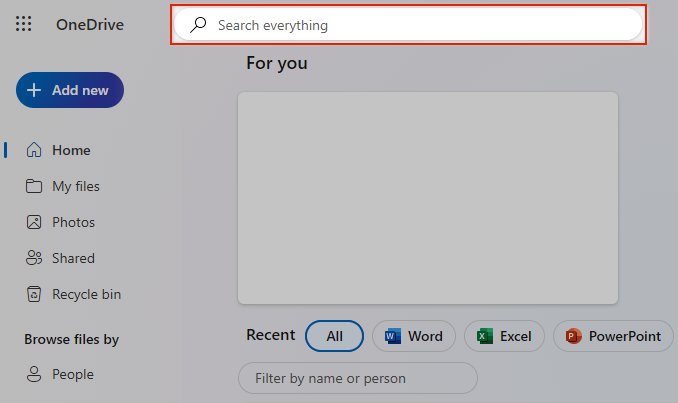
- Sign in at onedrive.com and use the search box at the top, in case backup moved the files there.
- Confirm you are signed in to the right Microsoft account; personal and work OneDrive accounts keep separate files.
- Check other user accounts' folders under
C:\Users; after an upgrade, you may be signed in with a temporary profile.
If Settings shows "You are logged on with a temporary profile", restart and sign in again. Microsoft notes this can take more than one restart. For hidden AppData content, see how to find the AppData folder.
Documents folder vs Documents library
A library is a view that gathers folders. The Documents folder is the real place files are stored.
| Documents folder | Documents library | |
|---|---|---|
| What it is | A real folder that holds your files | A virtual collection that points at one or more folders |
| Stored at | %USERPROFILE%\Documents |
%APPDATA%\Microsoft\Windows\Libraries\Documents.library-ms |
| Introduced | Present in every Windows version as My Documents or Documents | Windows 7 |
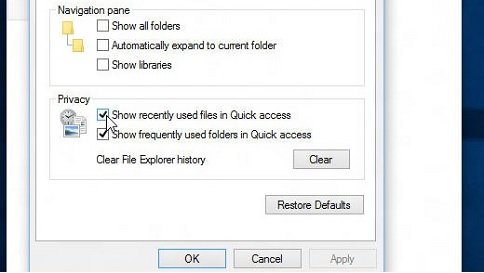
| Shown in File Explorer | Pinned by default | Hidden until you turn on Show libraries for the navigation pane |
| Used by File History | Backed up as part of the library | Backed up by default, along with Pictures, Videos, and Music |
How apps use the Documents folder
Well-built apps never hard-code C:\Users\...\Documents. They ask Windows for the known folder, so a moved or OneDrive-backed Documents keeps working.
| How the app asks | Name it uses | What happens after a move |
|---|---|---|
| Win32 known folders | FOLDERID_Documents (legacy CSIDL_PERSONAL, CSIDL_MYDOCUMENTS) |
Returns the new location |
| .NET apps | Environment.SpecialFolder.MyDocuments, equal to Personal |
Returns the new location |
| Save and Save As dialogs | This PC or OneDrive, then a folder | You can still save anywhere you pick |
| Apps with a fixed path typed in their settings | The literal path | Break until you update the path in the app |
How to open Documents from Command Prompt or PowerShell
The PowerShell line asks Windows for the folder, so it works even after OneDrive backup or a move. The Command Prompt line uses the default path.
start "" "%USERPROFILE%\Documents"                         Command Prompt, default location
[Environment]::GetFolderPath('MyDocuments')                 PowerShell, prints the real path
ii ([Environment]::GetFolderPath('MyDocuments'))            PowerShell, opens the real folder
start opens File Explorer when the target is a folder; the empty quotes fill its optional window-title slot. ii is PowerShell's alias for Invoke-Item, which performs the default action on an item, and a folder's default action is to open it.
You should see: A File Explorer window opens on Documents, or PowerShell prints a path such as C:\Users\YourName\Documents.
How to recover deleted files from Documents
Where a deleted file went depends on where Documents lived. Work through these in order.
- Open Recycle Bin on the desktop, right-click the file, and select Restore.
- If the Recycle Bin icon is missing, open Settings > Personalization > Themes > Desktop icon settings and check Recycle Bin.
- If Documents was backed up to OneDrive, sign in at onedrive.com, select Recycle bin, check the files, and select Restore. Personal accounts keep them for 30 days; work or school accounts for 93.
- If File History was on, right-click the Documents folder in File Explorer and select Restore previous versions.
- Pick a version, then select Restore, or expand Restore and choose Restore to… to keep the current copy.
Restoring a previous version over the current one cannot be undone. Use Restore to… when in doubt.
Common problems and fixes
Match your symptom, then run only the fix under it.
Why can't I find my Documents folder?
The pin was removed from File Explorer, or OneDrive backup moved the folder.
- Press Win + E and type
%USERPROFILE%in the address bar. - Open Documents there, then right-click it and select Pin to Quick access.
- Run
[Environment]::GetFolderPath('MyDocuments')in PowerShell. A path containingOneDrivemeans backup moved it.
Documents opens to OneDrive, but you want local files
OneDrive folder backup is on for Documents.
- Open OneDrive settings > Sync and backup > Manage backup.
- Turn Documents off and choose Keep the files only on my PC.
- Check the Location tab shows
C:\Users\YourName\Documents.
Why can't I access my Documents folder? "Access is denied" when moving it
The folder is still mapped to a folder inside OneDrive. Microsoft's message reads: "Can't move the folder because there is a folder in the same location that can't be redirected. Access is denied."
- Back up the registry first, as Microsoft advises.
- Right-click Start, select Run, type
regedit.exe, and press Enter. Select Yes at the User Account Control prompt. - Go to
HKEY_CURRENT_USER\Software\Microsoft\Windows\CurrentVersion\Explorer\User Shell Folders. - Double-click
Personaland set it to%USERPROFILE%\Documents. - Restart Explorer in Task Manager, or sign out and back in.
Documents is empty after setting up a new PC
Your files are in OneDrive, in another account, or on the old PC.
- Sign in to OneDrive with the same Microsoft account and check its Documents folder.
- Search at onedrive.com for a file name you remember.
- If you used another account before, check that account's OneDrive too.
There are two Documents folders
One is the local C:\Users\YourName\Documents, the other is the copy inside OneDrive left after backup stopped.
- Run the PowerShell check to see which one Windows uses now.
- Open the other folder and move anything you need into the active one.
- Leave the empty folder in place unless you are sure no app still points at it.
Best practices for managing Documents
Keep Documents in its default location, or in OneDrive if you want cloud backup, and change it only through Location > Move or OneDrive's Manage backup, never by renaming or dragging the folder. Apps ask Windows for the known folder, so the supported routes keep every program pointing at the right place. A manual rename or a Documents folder mapped onto another personal folder is what produces duplicate folders and "Access is denied" errors.
Pair it with File History or OneDrive so a deleted file has a way back. Once Documents is sorted, removing the 3D Objects folder from This PC tidies the rest of the list on Windows 10.
Frequently Asked Questions
Where is my Documents folder in Windows 10?
It is at C:\Users\YourName\Documents, with your own user folder name. Press Win + E and select Documents under Quick access. If OneDrive folder backup is on, it lives inside your OneDrive folder instead.
Where is my Documents folder in Windows 11?
Windows 11 keeps it at C:\Users\YourName\Documents. File Explorer pins Documents under Home and Quick access by default, so Win + E then Documents opens it. OneDrive backup moves it into your OneDrive folder.
Where is the My Documents folder located?
My Documents was renamed Documents after Windows XP. On Windows 11 and Windows 10 it sits at %USERPROFILE%\Documents, normally C:\Users\YourName\Documents. Check the Location tab in its Properties to see where yours actually points.
Why can't I find my Documents folder?
Usually it was unpinned from File Explorer, or OneDrive backup moved it. Type %USERPROFILE% in the File Explorer address bar to find it, then pin it again. Running [Environment]::GetFolderPath('MyDocuments') in PowerShell shows the real path.
Why can't I access my Documents folder?
If moving it fails with "Access is denied", Documents is still mapped to a folder inside OneDrive. Microsoft's fix sets the Personal value under User Shell Folders in the registry back to %USERPROFILE%\Documents, then restarts Explorer.
What happened to my Documents folder?
Most often OneDrive folder backup moved it into your OneDrive folder. Open OneDrive settings > Sync and backup > Manage backup to check. Files already backed up stay in OneDrive even after you stop backup.
Where can I find my Documents folder from the Start menu?
Turn it on first. In Windows 11, right-click near the bottom of Start, choose Start settings, select Folders, and switch Documents on. A Documents icon then appears next to the power button on Start.
Is the Documents folder the same as the Documents library?
No. The Documents folder stores your files at %USERPROFILE%\Documents. The Documents library is a virtual view, introduced in Windows 7, that can gather several folders together. File History backs up libraries by default.
How do I restore the Documents folder to its default location?
If OneDrive moved it, open Manage backup, turn Documents off, and choose Keep the files only on my PC. If a move fails with "Access is denied", set the Personal registry value back to %USERPROFILE%\Documents and restart Explorer.
Does every user have their own Documents folder?
Yes. Documents is a per-user folder, so each account has one inside its own profile, such as C:\Users\OtherName\Documents. Files saved by one account do not appear in another account's Documents.