To update the BIOS on a Dell PC, plug in the AC adapter, open SupportAssist, select Update software on the Home tab, and install the BIOS update it finds.
This guide also covers the Drivers & Downloads installer, Dell Command | Update, the F12 USB flash for Linux or unbootable PCs, PowerEdge servers, and recovery after a failed flash.
Update a Dell BIOS in Windows with SupportAssist
SupportAssist comes preinstalled on most new Dell Windows PCs. It picks the BIOS that matches your exact model, so you cannot grab the wrong file.
- Plug in the Dell AC adapter and leave it connected until the update finishes.
- Save your work and close every open program.
- Search for SupportAssist in the Start menu and open the app.
- On the Home tab, select Update software.
- Select Start to check for updates, including BIOS updates.
- Install the BIOS update when it is listed and follow the on-screen instructions.
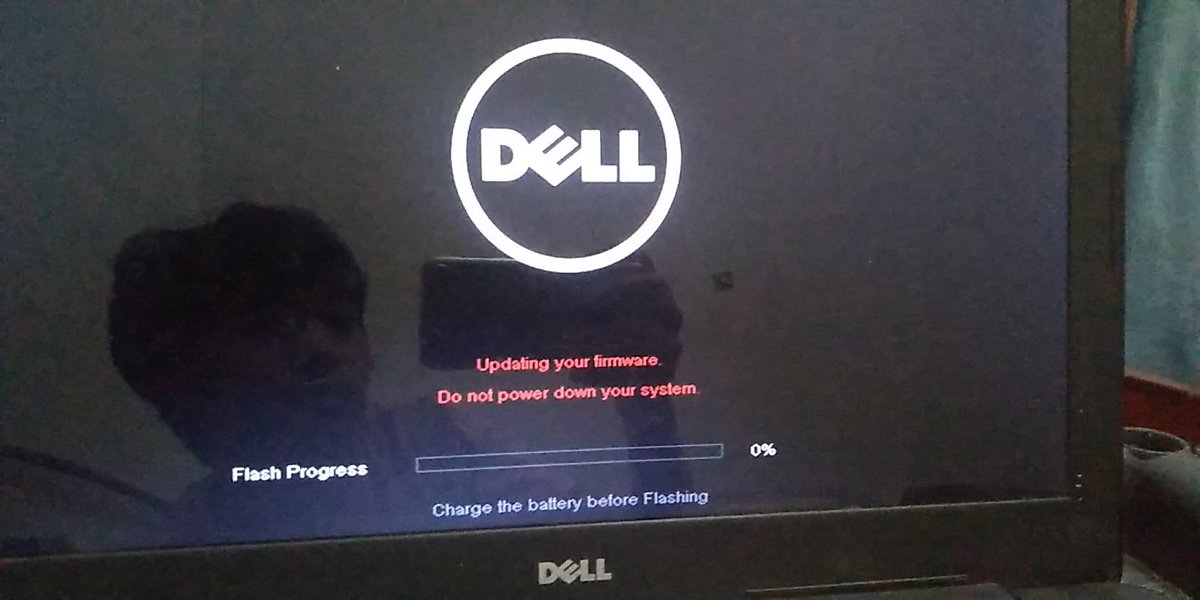
- Let the PC restart on its own and do not press the power button while the progress bar is on screen.
If SupportAssist finds no BIOS update, your PC may already run the latest version. Check your current version below before trying another method.
Choose the right Dell BIOS update method for your PC
Every method installs the same Dell BIOS package. They differ in where you start and what the PC needs to be able to do.
| Your situation | Use this | Why |
|---|---|---|
| Home Inspiron, XPS, Alienware or Dell laptop that boots Windows | SupportAssist | Scans the PC and offers only the matching BIOS |
| Business Latitude, OptiPlex or Precision | Dell Command | Update | Dell's update tool for business systems; your IT department may manage it |
| You want a specific version or the app fails | Windows installer from the Drivers & Downloads page | Dell's fallback when SupportAssist or Dell Command | Update cannot install |
| PC runs Linux or Windows will not start | F12 One Time Boot Menu with a USB drive | Flashes the BIOS before any operating system loads |
| Newer model with no USB drive to hand | BIOS Flash Update – Remote in the F12 menu | Downloads the BIOS over Ethernet or Wi-Fi from the boot menu |
| Windows Update lists a Dell firmware update | Settings > Windows Update > Advanced options > Optional updates | Works, but suspend BitLocker yourself first |
| PowerEdge server such as an R940 | iDRAC web interface | Updates the server BIOS remotely without a keyboard at the rack |
What can brick a Dell PC during a BIOS update
Dell warns that a failed BIOS update can corrupt the system board. Each rule below comes from Dell's own support articles, and each prevents a specific failure.
| Dell's precaution | What goes wrong if you skip it |
|---|---|
| Connect the Dell AC adapter and keep it connected for the whole update; charge a laptop battery to at least 10%, and Dell's update guide recommends at least 50% | Power loss mid-flash leaves a corrupt BIOS and a PC that shows no Dell logo |
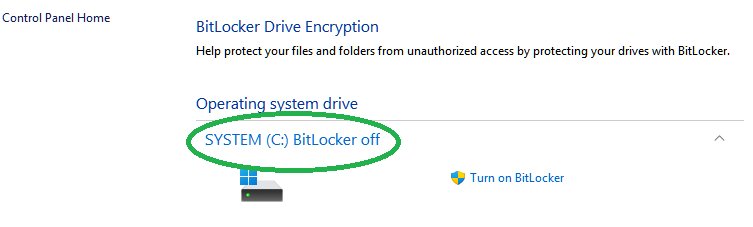
| Suspend BitLocker before the update, then resume it afterwards | Windows asks for the BitLocker recovery key at every restart; without the key, the data is lost |
| Clear the hard drive password, system password and admin password in BIOS setup before flashing | Dell names these as a common cause of an update that fails, hangs, or leaves the drive inaccessible |
| Disconnect docking stations, external drives, printers and scanners | Attached devices can interfere with the flash |
| Do not turn off the computer while the update runs | An interrupted flash is the classic way to brick a PC |
| Install only the BIOS listed for your Service Tag | A BIOS built for another model does not match your system board |
| Check release notes before installing an older version | Dell may block downgrades once a version includes critical security fixes |
Updating the BIOS does not delete files on your drive. Dell still tells you to back up your data first.
Prepare your Dell PC before flashing the BIOS
These best practices come from Dell's own checklists and keep the flash running smoothly. Do the steps in order.
- Back up files you cannot replace to an external drive or cloud storage.
- Plug in the AC adapter and charge a laptop battery to at least 50%.
- Open Control Panel > System and Security > BitLocker Drive Encryption and select Suspend Protection, then select Yes if asked.
- Remove any hard drive, system or admin password you set in BIOS setup, under the Security menu.
- Disconnect docking stations, USB drives, printers and other external devices.
- Close all programs so nothing restarts the PC during the update.
Find your BitLocker recovery key before you start. Dell cannot recover it for you, because BitLocker is a Microsoft product.
Check your current Dell BIOS version
Note the version before you update so you can prove the new one installed. You can also press F2 repeatedly at the Dell logo and read the version under Overview or System Information.
msinfo32Press Win + R, type msinfo32 and press Enter to open System Information. Dell also documents wmic bios get smbiosbiosversion in Command Prompt, which prints only the version number.
You should see: System Information opens, and its summary lists BIOS Version/Date with the installed version and its release date.
Update Dell BIOS with the Windows installer from Drivers & Downloads
This is Dell's manual method and its fallback when SupportAssist or Dell Command | Update will not install the BIOS. Start at Dell's Drivers & Downloads page.
- Open Dell's Drivers & Downloads page and enter your computer's Service Tag or Express Service Code.
- Confirm the model name matches your PC exactly.
- Filter the driver list to the BIOS category and open the latest version.
- Read the version's details and fixes, then download the BIOS update file.
- Open the downloaded file and follow the on-screen instructions.
- Leave the PC alone while it restarts automatically and flashes the BIOS.
Dell BIOS updates are cumulative, so install only the latest version. There is no need to step through each older release.
Update BIOS on a Latitude or OptiPlex with Dell Command | Update
Dell Command | Update supports Latitude, OptiPlex and Precision systems, plus Dell Pro and Dell Plus models. It suspends BitLocker automatically before a BIOS update. Techdows has a separate Dell Command Update download guide if the app is missing.
- Plug in the AC adapter.
- Open Dell Command | Update from the Start menu.
- Select Check to scan the computer for required updates.
- Review the list and confirm the BIOS update is selected.
- Select Automatically restart system (when required).
- Select Install.
- Select Close when all updates finish; expect several restarts.
On a work PC managed by an IT department, the BIOS may be pushed centrally. Ask them before flashing it yourself.
Flash Dell BIOS from the F12 One-Time Boot Menu, including on Linux
Use this when the PC runs Linux or Ubuntu, or when Windows will not start. On Linux, format the USB drive as FAT32 with the Disks utility. Menu names vary by model: newer PCs show BIOS Update, older ones BIOS Flash Update.
- Format a USB flash drive as FAT32.
- Download the BIOS file for your Service Tag from Drivers & Downloads on another computer and copy it to the USB drive.
- Plug in the AC adapter, insert the USB drive, and turn on the PC.
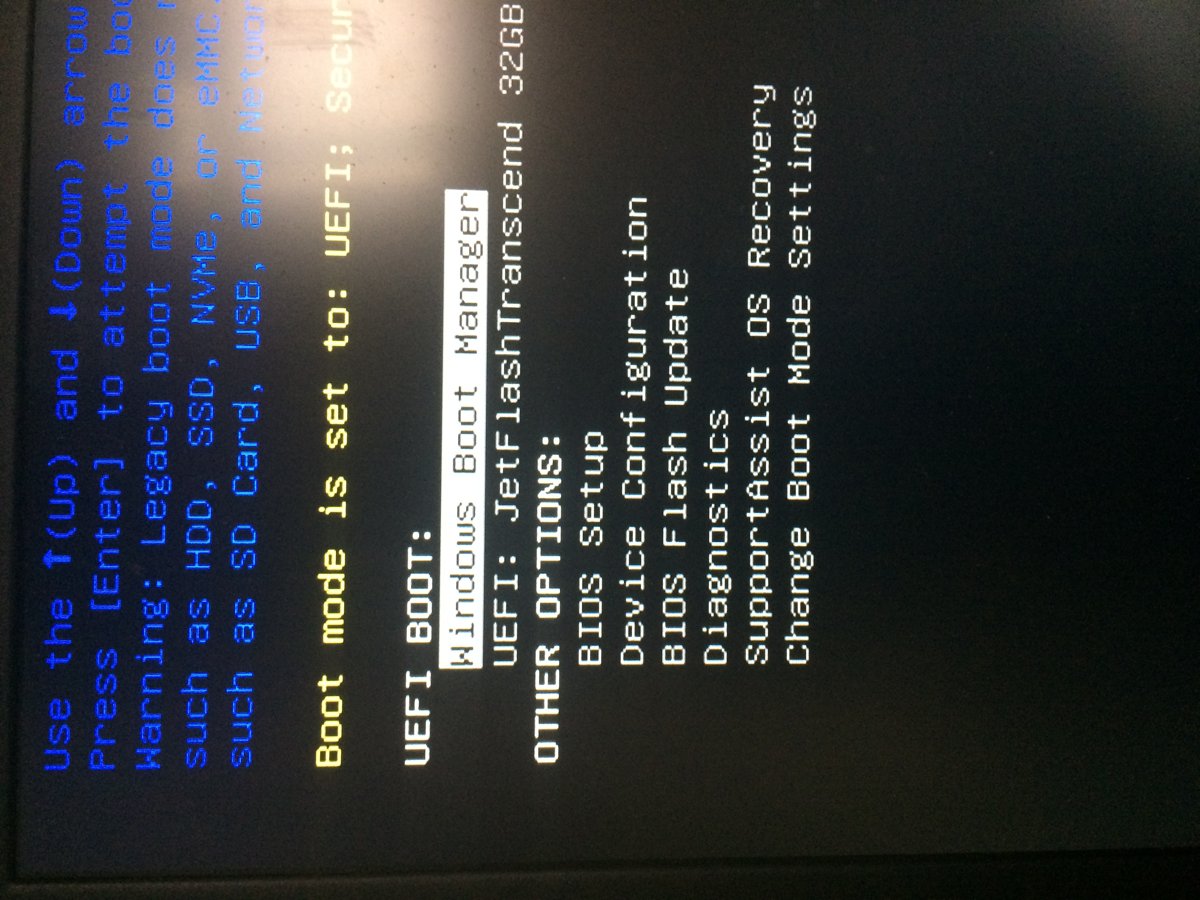
- Tap F12 repeatedly until the One Time Boot Menu appears.
- Select BIOS Update or BIOS Flash Update.
- Select Flash from file (or the three dots), or Browse on older menus, and pick the BIOS file on the USB drive.
- Select Update BIOS, or Begin Flash Update on older menus.
- Read the warning, select Yes, and do not turn off the computer until it restarts.
Update Dell BIOS over the internet from the F12 menu
Newer Dell PCs with BIOSConnect can download the BIOS directly from the boot menu. If BIOS Flash Update – Remote is not in your F12 menu, your model does not support it.
- Plug in the AC adapter and turn on or restart the PC.
- Press F12 repeatedly until the One Time Boot Menu appears.
- Select BIOS Flash Update – Remote.
- Connect with an Ethernet cable or select a wireless network from the list.
- Select Update BIOS, check the version shown, and confirm the download.
- Wait for the update to complete and the PC to restart.
Update the BIOS on a Dell PowerEdge server through iDRAC
PowerEdge servers, such as the R940, take BIOS updates as a Dell Update Package. Download the Windows 64-bit package for the server's Service Tag, then install it through iDRAC9 or iDRAC10.
- Download the BIOS Dell Update Package for the server's Service Tag from Dell Support.
- Sign in to the iDRAC web interface.
- Go to Maintenance > System Update to open the Manual Update page.
- Select Choose File, pick the BIOS package, and select Upload.
- Select Install and Reboot, or Install Next Reboot to wait for a maintenance window.
- Select Job Queue to watch the update until it completes.
Dell also supports firmware updates from the Lifecycle Controller, which opens when you press F10 during server startup.
How to check the Dell BIOS update worked
- Wait until Windows reaches the sign-in screen; several restarts are normal.
- Press Win + R, type
msinfo32, and press Enter. - Confirm BIOS Version/Date shows the new version number from the Drivers & Downloads page.
- Run SupportAssist or Dell Command | Update again and confirm it no longer offers the BIOS update.
- Open Control Panel > System and Security > BitLocker Drive Encryption and select Resume Protection if you suspended it.
- Set any BIOS passwords you removed again in BIOS setup.
Reset Dell BIOS settings after updating only if something changed
Dell's update steps include no settings reset. Load defaults only when a setting misbehaves, because it also undoes custom boot order and virtualization settings. Your files stay untouched.
- Restart the PC and press F2 repeatedly at the Dell logo to open BIOS setup.
- Select Load Defaults, or Restore Settings on BIOS screens with a left-hand menu.
- Confirm BIOS Defaults is selected, then select OK.
- Select OK on the warning message.
- Select Exit to save the settings and restart.
On older legacy BIOS screens, press F9 to load defaults, then F10 to save and exit.
Fix a Dell BIOS update that fails or leaves the PC unbootable
Why is my Dell BIOS update failing to start or install?
Dell lists security features, attached devices and low battery charge as the usual blockers.
- Connect the Dell AC adapter and charge the battery to at least 50%.
- Disconnect docking stations, external drives and other peripherals.
- Suspend BitLocker and clear the drive, system and admin passwords in BIOS setup.
- Download the BIOS from the Drivers & Downloads page instead of using the update app.
- Run the file again, or use the F12 USB method if Windows still blocks it.
Dell Update shows "Installation Complete: X updates failed"
Dell Update cannot install a BIOS when a BIOS admin password is set.
- Press F2 at startup and remove the admin password under Security.
- Run the update again.
- Or download the BIOS from Drivers & Downloads and double-click the file to install it with the password in place.
SupportAssist says "Something went wrong during installation" or the update loops
A Microsoft security change in the January 2025 Windows updates blocks some older Dell BIOS packages.
- Open your model's Drivers & Downloads page.
- Download the latest BIOS version, which Dell has released with the fix.
- Run the file from Windows, or copy it to a USB drive and flash it from the F12 menu.
Windows asks for a BitLocker recovery key after the update
BitLocker was not suspended, which happens most often when the BIOS arrives through Windows Update.
- Find the key in your Microsoft account by searching for BitLocker Recovery Keys after signing in.
- On a work PC, ask your IT department; the key may be stored in the organization's Azure AD account.
- Check for a printed copy, a saved file, or a USB drive holding the key.
- Enter the key to start Windows.
- Open BitLocker Drive Encryption and select Suspend Protection before retrying any pending BIOS update, then Resume Protection afterwards.
Dell PC shows a black screen with no Dell logo after a bad BIOS update
The BIOS is corrupt; Dell also lists 3,6 or 3,7 LED blink patterns and endless restarts as signs. Recovery works on most Dell PCs made from December 2015 onward.
- Remove every USB drive, and charge a laptop battery to at least 25%.
- On a laptop, unplug the power cable, hold Ctrl + Esc on the built-in keyboard, and plug the power cable back in while holding the keys.
- On a desktop or all-in-one, turn it on and immediately hold Ctrl + Esc.
- Release the keys when the recovery screen appears.
- Select Recover BIOS, then Continue, and wait through several restarts without powering off.
- If that fails, rename the BIOS file to
BIOS_IMG.rcv, copy it to the root of a FAT32 USB drive, connect the drive, and repeat the key steps. - Contact Dell Support if recovery still fails; the system board may need replacing.
Frequently asked questions
What is a Dell BIOS update?
A Dell BIOS update replaces the firmware that sits between your PC's hardware and its operating system. Dell releases updates to fix security vulnerabilities, improve performance, add support for new hardware, and resolve compatibility problems. Each update is built for specific models.
How do I update the BIOS on a Dell laptop?
Connect the AC adapter, charge the battery to at least 50%, and suspend BitLocker. Then open SupportAssist, select Update software on the Home tab, and select Start. If no update appears, download the BIOS from Dell's Drivers & Downloads page using your Service Tag.
How do I update the BIOS on a Dell Inspiron?
Use SupportAssist, which comes preinstalled on most new Dell Windows PCs, or download the BIOS for your Service Tag from Dell's Drivers & Downloads page and run it. Keep the AC adapter connected until the PC restarts and Windows loads again.
How do I update the BIOS on a Dell Latitude or OptiPlex?
Open Dell Command | Update, select Check, confirm the BIOS update is selected, and select Install. Dell Command | Update suspends BitLocker automatically. The Drivers & Downloads installer and the F12 USB flash also work on Latitude and OptiPlex models, including the Latitude 7440 and OptiPlex 7020.
How do I update the BIOS on a Dell PowerEdge server?
Download the BIOS Dell Update Package for the server's Service Tag, sign in to iDRAC, and go to Maintenance > System Update. Upload the file, then select Install and Reboot or Install Next Reboot. The Lifecycle Controller, opened with F10 at startup, is another option.
How do I update the Dell BIOS on Windows 11?
The steps match Windows 10. Use SupportAssist, Dell Command | Update, or the installer from Drivers & Downloads. Windows Update can also offer Dell BIOS updates under Optional updates, but suspend BitLocker yourself first, because Windows Update does not always pause it.
Why is my Dell BIOS update failing?
The most common causes are a BIOS admin or drive password, BitLocker still active, attached docks or drives, and low battery charge. Remove the passwords, suspend BitLocker, disconnect devices, connect AC power, then run the BIOS file from Drivers & Downloads.
Does updating the BIOS delete my files?
No. Updating a Dell BIOS does not affect data stored on your drive. Dell still recommends a backup, because a failed or interrupted update can corrupt the system board and leave the PC unable to start.
Can I downgrade a Dell BIOS?
Sometimes. Dell may block downgrades once a BIOS version includes critical security fixes. Check the release notes for your model on the Drivers & Downloads page before installing an older version, and never install a BIOS listed for a different model.
How often should I update my Dell BIOS?
Update only when needed: when Dell marks an update as critical, when release notes fix a problem you have, or as part of a regular maintenance schedule. Updates are cumulative, so installing the latest version covers every earlier fix.