Go to google.com, search for internet speed test, and start the test on the speed test card at the top of the results.
This guide covers running it on a desktop, Android phone, iPhone or iPad, what the download, upload and latency numbers mean, how Windows reports your connection's link speed, and what to do when results look wrong.
Run Google’s speed test from the homepage on a desktop
The test lives inside Google Search results, so there is nothing to install. Measurement Lab (M-Lab) runs the measurement, and M-Lab lists Google Search's Internet Speed Test as the largest single source of its tests.
- Open any browser on your Windows PC, Mac or Chromebook and go to google.com.
- Type internet speed test into the search box and press Enter.
- Find the speed test card at the top of the results.
- Read the notice on the card, then select the button on the card to start the test.
- Keep the tab open and avoid other downloads while the download and upload phases run.
- Read your download speed, upload speed and latency when the card shows the results.
Choose between Google’s test and the other speed checks
Each check answers a different question. Google's card measures your connection across the internet, while Windows only reports the speed of the link between your adapter and your router.
| Your situation | Use this | Why |
|---|---|---|
| You want a quick internet speed number in any browser | Google Search: internet speed test | No install; M-Lab runs an NDT test from the search results page |
| The card does not appear, or you want the full M-Lab readout | M-Lab's own site, speed.measurementlab.net | Same NDT test; it also shows a retransmission figure alongside download, upload and latency |
| You own Google Wifi or Nest Wifi | The speed test in the Google Home app | Google says it measures from your router or primary Wifi point to Google's servers, which leaves out device and Wi-Fi limits |
| You want to know how fast your PC is linked to the router | Windows link speed (Settings or PowerShell) | Shows the adapter's receive and transmit link speed, not your internet speed |
| Another test shows higher numbers than Google's | Compare with care, not side by side | M-Lab servers sit outside ISP networks; many other tests host servers inside ISP networks, which usually produces higher results |
Get ready before you hit Start
A speed test measures whatever else is happening on your network at the same moment. Clear the path first so the number reflects your connection.
| Check | Why it matters | Source |
|---|---|---|
| Pause downloads, streams and cloud sync on other devices | Google notes congestion happens when multiple devices are actively using the internet | Google Home and Nest Help |
| Sit close to the router with nothing in between | Microsoft advises moving closer to the access point and removing obstructions for a stronger Wi-Fi signal | Microsoft Support |
| Avoid testing only at dinnertime | Google says ISP networks and the internet are most crowded during peak hours | Google Home and Nest Help |
| Accept that your IP address is shared | M-Lab collects your IP address with the results and publishes all test data publicly, indefinitely | M-Lab privacy policy and tests page |
| Use a connection you are allowed to test on | Corporate networks and proxy servers can limit speed, according to Microsoft | Microsoft Support |
Run the test on an Android phone, iPhone or iPad
The speed test is a Google Search result, so the route on a phone or tablet matches the desktop one. Google publishes no list of which apps show the card, so use a browser if the Google app does not display it.
Phones can report lower numbers than a computer on the same network. Google notes that some devices like mobile phones won't have speeds as fast as computers.
- Connect the Android phone, iPhone or iPad to the Wi-Fi network you want to test.
- Open a browser such as Chrome or Safari and go to google.com.
- Search for internet speed test.
- Start the test from the speed test card at the top of the results.
- Keep the screen on and stay on the page until the results appear.
- Open speed.measurementlab.net in the same browser if the card never appears.
Check your Windows connection's link speed with PowerShell
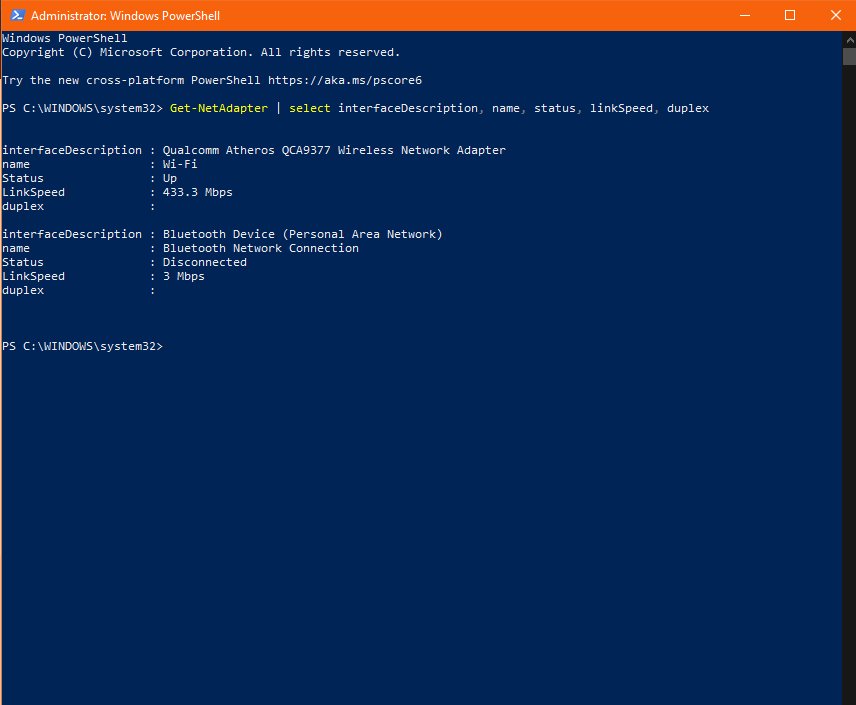
Windows does not run an internet speed test. It does report the link speed each network adapter negotiated with your router or switch, which tells you whether the connection inside your home is the bottleneck.
Microsoft documents ReceiveLinkSpeed and TransmitLinkSpeed as the receive and transmit link speeds, in bits per second.
Get-NetAdapter -Name * -Physical | Format-List -Property Name, ReceiveLinkSpeed, TransmitLinkSpeedGet-NetAdapter gets the basic network adapter properties, -Physical limits the list to physical adapters, and Format-List -Property prints only the name and the two link speed values for each adapter.
You should see: Each adapter prints as a block with its name, such as Wi-Fi or Ethernet, followed by a receive and transmit value in bits per second. Divide by 1,000,000 to compare the figure with a result in Mbps.
Find your connection details in Windows 11 and Windows 10 Settings
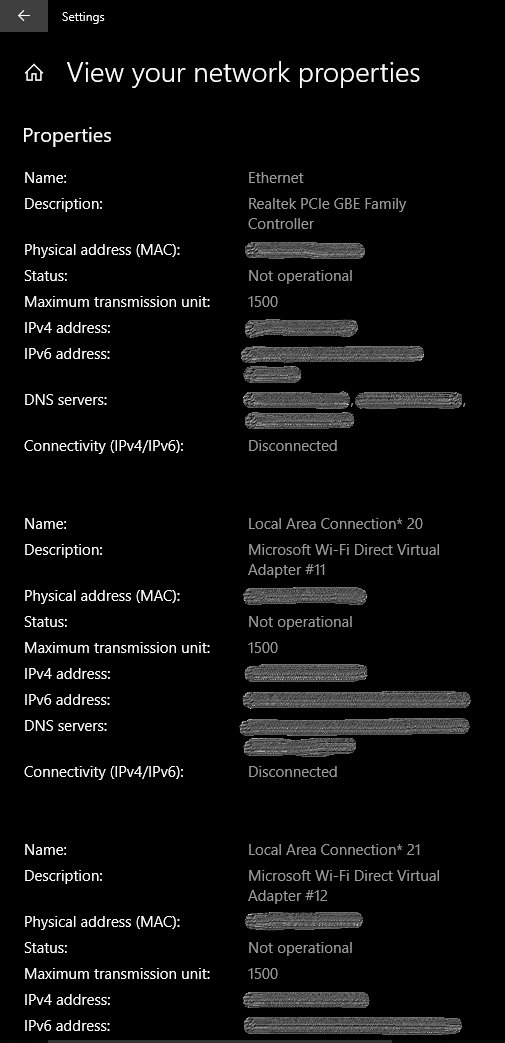
Settings shows the properties of the network you are connected to. Microsoft's own documentation names the Network band (channel) and IPv4 address values on that page.
| Windows version | Path | What to look for |
|---|---|---|
| Windows 11, Wi-Fi | Start > Settings > Network & internet > Wi-Fi > (your network) properties | Network band (channel) shows whether you are on 2.4 GHz, 5 GHz or 6 GHz |
| Windows 11 or Windows 10, any connection | Start > Settings > Network & internet, then select Properties near your connected network | Details of the connected network, including IPv4 address |
| Windows 11 or Windows 10, Ethernet | Start > Settings > Network & internet > Ethernet | Connection status and properties for the wired adapter |
| Shortcut from the taskbar | Right-click the Network or Wi-Fi icon, then select Network and internet settings | Opens the same Network & internet page |
Confirm your result is trustworthy
One test is a snapshot. Google suggests running the speed test again when results are slow, because congestion changes through the day.
- Run Google's speed test three times in a row and note each download and upload figure.
- Run it again later in the day, outside the evening peak.
- Connect the PC to the router with an Ethernet cable and repeat the test, if your device has a port.
- Compare the wired result with the Wi-Fi result; Microsoft notes a working Ethernet connection points to the Wi-Fi side as the problem.
- Check the link speed with the PowerShell command above and confirm it is higher than the speed your internet plan provides.
- Treat the result as consistent when repeated runs at the same time and place land close to each other.
Interpret the numbers and why they vary
M-Lab's NDT test tries to move as much data as it can over a single connection for about ten seconds in each direction. For connections above 250 Mbps, the Google Search version stops early once 250 MB has downloaded, which M-Lab says still keeps overall error around 5%.
Because M-Lab measures a single stream to servers outside your ISP's network, its figures can sit below tests that use several connections to servers inside your ISP.
| Result | What it means | What it affects | Why it varies |
|---|---|---|---|
| Download (Mbps) | How quickly your network receives data from internet servers | Streaming, downloading files and game updates | Other devices on the network, peak hour congestion, Wi-Fi signal |
| Upload (Mbps) | How fast your network sends data to a server | Video calls and uploading files to the cloud | The same congestion and Wi-Fi factors as download |
| Latency | A delay metric NDT reports for the connection to the test server | How quickly the connection responds, separate from how much data it carries | Distance to the server; M-Lab notes high latency can lower speed results even on fast connections |
| Retransmission (M-Lab site) | A share of data that had to be sent again | Shows packet loss on the path | Wi-Fi interference and congestion; M-Lab says single-stream tests react strongly to packet loss |
| Mbps | Megabits per second, the unit Google describes as what people generally mean by internet speed | Comparing with your ISP plan | Plans are sold in Mbps, but files download in megabytes; 8 megabits make 1 megabyte |
Common problems and fixes
The speed test card doesn’t appear
The search results did not include the card for your query, browser or app.
- Search for exactly internet speed test on google.com.
- Try a different browser if you searched from an app.
- Open speed.measurementlab.net, which runs the same M-Lab NDT test as a standalone site.
- Agree to M-Lab's data policy on that page and start the test.
The test starts but freezes
The page lost its connection to the M-Lab server partway through the test.
- Reload the page and run the test again.
- Close other tabs and pause large downloads.
- Test on a different network, such as a home network instead of a work network, since corporate networks and proxy servers can restrict traffic.
- Restart the modem and router if the test fails on every device.
Results are much lower than your plan
Wi-Fi signal, other devices, peak hour congestion or the ISP itself is limiting the connection. A download speed that suddenly drops on a line that used to be fast usually traces back to the modem, router or a background app.
- Move closer to the router and remove obstructions, as Microsoft recommends.
- Check Network band (channel) in the Wi-Fi properties and join the 5 GHz network if your router offers one; Microsoft says faster throughput is generally available on 5 GHz.
- Unplug the modem and router, wait at least 30 seconds, plug in the modem, wait until its lights stop blinking, then plug in the router.
- Connect with an Ethernet cable and test again to rule out Wi-Fi.
- Check with your ISP for outages or throttling if the wired result is still low, as Google advises.
Latency is high even when speeds look fine
Distance to the test server or a congested path adds delay.
- Run the test again at a different time of day.
- Stop uploads and video calls on other devices while you test.
- Switch from Wi-Fi to Ethernet and compare the latency figure.
- Contact your ISP with your repeated results if latency stays high on a wired connection.
Windows shows no internet or the connection keeps dropping
A Windows network setting or adapter problem stops the test before it starts.
- On Windows 11, select Start > Settings > Network & internet > Advanced network settings > Network reset as a last resort.
- On Windows 10, select Start > Settings > Network & Internet > Status > Network troubleshooter.
- Restart the PC and run Google's speed test again.
Decide whether you are comfortable sharing your test data
Run Google's speed test when you are comfortable with your IP address being published; otherwise rely on the Windows link speed check and your ISP's own line test. M-Lab states that it collects the IP address your ISP assigned, publishes all test results, keeps data indefinitely and cannot delete individual tests; an erasure request under GDPR or LGPD anonymizes the data instead. The Windows link speed check reads values from your own network adapter and runs no internet test.
Frequently asked questions
How do I check my internet speed?
Search for internet speed test on google.com and start the test on the card at the top of the results. Measurement Lab runs the test and reports your download speed, upload speed and latency in under a minute, with nothing to install.
How do I quickly check my internet speed?
The quickest route is typing internet speed test into Google's search box and starting the card. Each direction runs for about ten seconds, and very fast connections finish sooner because the Google Search version stops after 250 MB of download data.
How do I check my internet speed at home?
Run Google's speed test from a device near the router while other devices are idle, then repeat it at a different time of day. Google notes that congestion from multiple active devices and evening peak hours both lower home results.
How do I check my internet speed on a laptop or PC?
Open any browser on the laptop or PC, go to google.com and search internet speed test. For a fair reading, plug the computer into the router with an Ethernet cable and compare the result with the Wi-Fi result.
How do I check my internet speed on Windows?
Windows has no built-in internet speed test, so use Google's speed test in any browser. Windows can show your adapter's link speed through PowerShell's Get-NetAdapter cmdlet, which reports ReceiveLinkSpeed and TransmitLinkSpeed in bits per second.
How do I check my internet connection speed versus link speed?
Internet connection speed is what Google's test measures across the internet to an M-Lab server. Link speed is only the rate between your network adapter and your router, so a high link speed does not guarantee a fast internet result.
Does Google’s speed test measure my Wi-Fi or my ISP?
It measures the whole path from your device to an M-Lab server, including your Wi-Fi, your ISP and the internet beyond it. M-Lab servers sit outside ISP networks, so the result reflects real internet performance rather than speed inside your provider's network.
Why do my results change every time I test?
Results change because congestion on your network, your ISP and the internet changes minute to minute, especially at peak hours. Wi-Fi signal and interference also shift, and M-Lab notes single-stream tests react strongly to packet loss.
Should I test on 5 GHz Wi-Fi?
Yes, if your router and adapter support it and you are near the router. Microsoft says faster throughput is generally available on 5 GHz, while 2.4 GHz has longer range and more congestion from devices such as microwaves and cordless phones.
Is Google’s internet speed test free?
Yes. The test runs from Google Search results at no charge and needs no account or app. The cost is data: M-Lab publishes each result with your IP address and keeps it indefinitely for internet research.






How to Cloud Play Xbox on PC - Techdows
[…] your internet connection: run a speed test and confirm at least 20 Mbps download, the rate Xbox names for best performance on […]