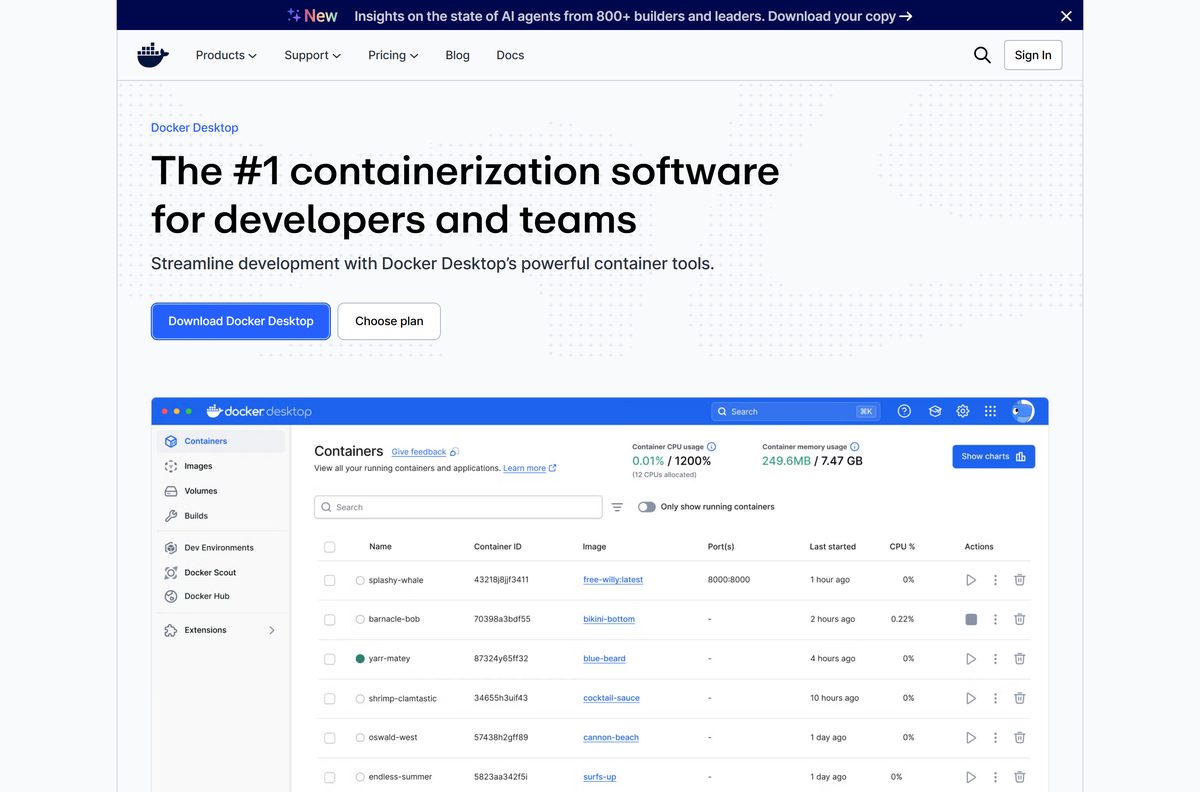
The Docker download for Windows 11, Windows 10 and Mac is Docker Desktop, published by Docker, Inc. at docker.com. It runs the Docker Engine on your machine and bundles the Docker CLI, Docker Compose and Docker Scout with a dashboard for your containers.
Windows gets a 576.9 MB Docker Desktop Installer.exe, with a separate Arm64 build. Macs get Docker.dmg in two builds, one for Apple silicon and one for Intel.
This guide covers the official files and sizes, installing on Windows and macOS, silent installs, who can use it free, updates, and fixes for Docker Desktop not starting.
Which Docker Desktop download do you need?
Match your machine to the file. On Windows, open Settings > System > About and read System type to see whether you have an x64 or ARM-based processor.
| Your machine | File to download | Size |
|---|---|---|
| Windows 11 or 10 PC with an Intel or AMD processor (x64) | Docker Desktop Installer.exe (x86_64) | 576.9 MB |
| Windows 11 or 10 PC with an Arm processor | Docker Desktop Installer.exe (Arm64, Early Access) | 547.0 MB |
| Mac with Apple silicon (M-series chip) | Docker.dmg for Apple silicon | 555.4 MB |
| Mac with an Intel processor | Docker.dmg for Intel | 611.2 MB |
| Windows x64 PC where you prefer the Store | Docker Desktop on the Microsoft Store | Handled by the Store |
| Linux desktop (Debian, RPM or Arch based) | Docker Desktop for Linux install guide | Varies by package |
The Arm64 Windows build is Early Access and does not run Windows containers. Pick the x86_64 file on any Intel or AMD PC.
Check the Docker Desktop system requirements before you install
Docker Desktop runs its engine inside a virtual machine, so virtualization must be switched on in the firmware.
| Field | Value |
|---|---|
| Developer | Docker, Inc. |
| Latest version | 4.90.0, released 7 September 2026 |
| Licence | Free for personal use, education, non-commercial open source and small businesses; paid subscription for larger companies |
| Windows 11 | 64-bit Enterprise, Pro or Education, version 23H2 (build 22631) or higher |
| Windows 10 | 64-bit Enterprise, Pro or Education, version 22H2 (build 19045) |
| WSL | Version 2.1.5 or later |
| Processor | 64-bit with Second Level Address Translation (SLAT) |
| Memory | 8 GB RAM on Windows, at least 4 GB on Mac |
| Virtualization | Hardware virtualization enabled in BIOS/UEFI |
| Windows service | Windows Server service (LanmanServer) enabled, start mode Automatic |
| macOS | The current and two previous major macOS releases |
| Architecture | Windows x86_64 and Arm64 (Early Access); Mac Apple silicon and Intel |
| Download size | 576.9 MB Windows x86_64, 547.0 MB Windows Arm64, 555.4 MB Apple silicon, 611.2 MB Intel Mac |
| Offline installer | Yes, the installer is the full package |
| Last verified | 2026-09-13 |
Docker supports Windows only while that Windows version is inside Microsoft’s servicing timeline. Windows Home and Education editions run Linux containers only; Windows containers need Pro or Enterprise.
On an Apple silicon Mac, install Rosetta 2 with softwareupdate –install-rosetta . Some optional command-line tools still need it.
Download Docker Desktop from the official source
Docker publishes its install pages on docs.docker.com and serves the files from desktop.docker.com. A copy from any other domain is somebody else’s repackage.
- Install Docker Desktop on Windows — requirements, download buttons and install modes
- Install Docker Desktop on Mac — Apple silicon and Intel downloads
- Install Docker Desktop on Linux — Debian, RPM and Arch packages
- Docker Desktop release notes — every version with its own download links
- Docker Desktop product page — docker.com
- Docker Desktop on the Microsoft Store — x86_64 only
Releases roll out gradually. If the newest build does not appear in the app yet, it normally arrives within a week of the release date.
How to install Docker Desktop on Windows 11 and 10
Install WSL 2 first if it is not already on the PC. Open Terminal as administrator and run wsl –install , or wsl –update to bring an older copy up to date.
- Download Docker Desktop Installer.exe from the Windows install page.
- Double-click Docker Desktop Installer.exe to start the installer.
- Choose the installation mode. Per-user is selected by default and needs no administrator rights.
- On the Configuration page, tick Use WSL 2 instead of Hyper-V for the WSL 2 backend, or leave it clear for Hyper-V.
- Follow the wizard and approve any authorization prompt.
- Select Close when the installation succeeds.
- Search for Docker in the Start menu and select Docker Desktop.
- Read the Docker Subscription Service Agreement and select Accept. Docker Desktop starts after you accept.
Pick per-user mode unless you need Windows containers. The next section explains the difference.
Should you install Docker Desktop per-user or for all users?
The installer asks this once, and changing your mind later means uninstalling and reinstalling.
Install per-user unless you need Windows containers or the Hyper-V backend. Per-user installs to %LOCALAPPDATA%\Programs\DockerDesktop , needs no administrator rights and updates without elevation, but it runs Linux containers on WSL 2 only. All-users installs to C:\Program Files\Docker\Docker , prompts for elevation, and adds Windows containers plus the Hyper-V and Docker VMM backends.
Enabling WSL 2 for the first time still needs administrator rights, whichever mode you pick. Containers and images are shared between all user accounts on the machine.
Install Docker Desktop silently from the command line
Use this on a machine you are scripting, or to skip the wizard. Open a terminal in the folder that holds the installer.
- For a per-user install, run “Docker Desktop Installer.exe” install –user .
- For an all-users install, open the terminal as administrator and run “Docker Desktop Installer.exe” install .
- In PowerShell, run Start-Process ‘Docker Desktop Installer.exe’ -Wait -ArgumentList ‘install’, ‘–accept-license’ to accept the agreement during setup.
- On a Mac, run sudo hdiutil attach Docker.dmg , then sudo /Volumes/Docker/Docker.app/Contents/MacOS/install –accept-license , then sudo hdiutil detach /Volumes/Docker .
The Microsoft Store listing is the other hands-off route on an x86_64 PC, with no installer file to manage.
Which Docker Desktop download do you need for your Mac?
Open the Apple menu and select About This Mac. A Chip line naming Apple M-series means Apple silicon; a Processor line naming Intel means Intel.
| About This Mac says | Download | Size |
|---|---|---|
| Chip: Apple M1, M2, M3, M4 or later | Docker.dmg for Apple silicon | 555.4 MB |
| Processor: Intel | Docker.dmg for Intel | 611.2 MB |
To install, double-click Docker.dmg and drag the Docker icon to Applications. Double-click Docker.app, select Accept on the agreement, choose Use recommended settings (Requires password) or Use advanced settings, then select Finish and enter your password if asked.
Both builds need at least 4 GB of RAM and one of the three most recent major macOS releases.
Is Docker Desktop free?
The licence depends on who is using it, not on which features you turn on.
Yes for personal use, education, non-commercial open source projects and small businesses. A small business here means fewer than 250 employees and less than $10 million in annual revenue. Companies above either limit, and government entities, need a paid Docker Pro, Team or Business subscription. On annual billing those cost $9, $15 and $24 per user per month; monthly billing is $11, $16 and $24.
The free tier is Docker’s Personal plan, and it includes the full Docker Desktop app rather than a trial. Docker Engine on Linux, installed without Desktop, is open source under the Apache License 2.0.
How to check for Docker Desktop updates and install them
Docker Desktop checks for new versions on its own by default and shows a notice when one is ready.
- Select the Docker whale icon in the system tray or menu bar, then select Settings.
- Open the Software updates tab.
- Leave Automatically check for updates on. Update notices then appear in the Docker menu and the Dashboard footer.
- Turn on Always download updates if you want new versions fetched in the background. It is off by default.
- Leave Automatically update components on so Docker Compose, Docker Scout and the Docker CLI update without a full restart.
- Install the update from the notice when it appears, then compare against the newest entry in the release notes.
Docker only keeps builds from the last six months available for download. Stay current rather than planning to roll back to an old installer.
Fix Docker Desktop not installing or not starting
Most failures on Windows come down to virtualization, WSL or permissions. Find the message you see and follow the fix under it.
Virtualization support not detected
Hardware virtualization is switched off in the firmware.
- Open Terminal and run systeminfo .
- Look for Hyper-V Requirements: A hypervisor has been detected. If it is missing, virtualization is off.
- Restart the PC and open the BIOS/UEFI settings.
- Enable Virtualization Technology (VTx) or the similarly named option, save and restart.
Virtualization is on but Docker Desktop still will not start
The Windows hypervisor is not set to launch at boot.
- Open Terminal as administrator.
- Run bcdedit /set hypervisorlaunchtype auto .
- Restart Windows and open Docker Desktop again.
WSL errors during setup or startup
WSL is missing or older than version 2.1.5.
- Open Terminal as administrator.
- Run wsl –update , or wsl –install if WSL is not installed.
- Restart the PC and start Docker Desktop.
Docker Desktop – Access Denied
Your account is not in the docker-users group.
- Run Computer Management as administrator.
- Go to Local Users and Groups > Groups > docker-users.
- Right-click the group and add your user account.
- Sign out and sign back in.
Docker Desktop will not start on a Mac
The macOS username is longer than 33 characters, which breaks Docker’s Unix socket paths.
- Open Terminal and run whoami to see your username.
- Sign in with an account whose username is 33 characters or fewer.
- Open Docker.app again.
How to uninstall Docker Desktop completely
Push or export any images and data you want to keep before you start. The leftover folders below hold Docker’s local data.
- On Windows, open Settings > Apps > Apps & features.
- Select Docker Desktop in the list, select Uninstall, then select Uninstall again to confirm.
- For a scripted removal, run Start-Process ‘Docker Desktop Installer.exe’ -Wait uninstall in PowerShell.
- Delete leftovers if present: C:\ProgramData\Docker , C:\ProgramData\DockerDesktop , C:\Program Files\Docker , and Docker , Docker Desktop and .docker folders under your user profile’s AppData and home folder.
- On a Mac, open Docker Desktop, select the Troubleshoot icon at the top right of the Dashboard, select Uninstall and confirm with Uninstall.
- Delete ~/Library/Group Containers/group.com.docker and ~/.docker to clear the remaining data.
Which Docker option should you use instead of Docker Desktop?
Docker Desktop is the only official way to get Docker on Windows and macOS. On Linux you have a second official choice.
| Option | Runs on | Licence | Best for |
|---|---|---|---|
| Docker Desktop | Windows, macOS, Linux | Free for personal and small business use; paid for larger companies | Developers who want the dashboard, CLI and Compose in one install |
| Docker Engine | Linux: Ubuntu, Debian, Fedora, RHEL, CentOS, Raspberry Pi OS | Apache License 2.0 | Servers and Linux machines that need only the engine and CLI |
Install Docker Engine on a Linux server. Install Docker Desktop on a Windows PC or Mac, where no official engine-only package exists.
Frequently asked questions
Is Docker Desktop free?
Yes for personal use, education, non-commercial open source and small businesses with fewer than 250 employees and under $10 million in annual revenue. Bigger companies and government entities need a paid Pro, Team or Business subscription.
Where is the official Docker Desktop download?
Docker’s install pages at docs.docker.com/desktop/setup/install/ carry the download buttons for Windows, Mac and Linux. The files themselves come from desktop.docker.com. The x86_64 Windows build is also on the Microsoft Store.
Does Docker Desktop work on Windows 11?
Yes. It supports 64-bit Windows 11 Enterprise, Pro or Education version 23H2 (build 22631) or higher. You also need WSL 2.1.5 or later, 8 GB of RAM and virtualization enabled in BIOS/UEFI.
How big is the Docker Desktop download?
The Windows x86_64 installer is 576.9 MB and the Windows Arm64 installer is 547.0 MB. On Mac, Docker.dmg is 555.4 MB for Apple silicon and 611.2 MB for Intel. Sizes change slightly with each release.
Does the Docker Desktop installer work offline?
The installer is the full package, so setup does not fetch the app from the internet. WSL 2 must already be installed on Windows, and pulling container images from Docker Hub still needs a connection.
Is there Docker Desktop for Mac?
Yes. Docker ships Docker.dmg in two builds, one for Apple silicon and one for Intel Macs. It supports the current and two previous major macOS releases and needs at least 4 GB of RAM.
Is there a 64-bit or ARM64 Docker Desktop for Windows?
Docker Desktop for Windows is 64-bit only. The main build is x86_64 for Intel and AMD PCs, and a separate Arm64 build is available as Early Access. The Arm64 build does not support Windows containers.
Is Docker Desktop safe to download?
Yes, when it comes from docs.docker.com, docker.com or the Microsoft Store listing. Avoid repackaged copies on download portals, which can bundle extra software. The official files are served only from desktop.docker.com.
What is the latest version of Docker Desktop?
Docker Desktop 4.90.0, released on 7 September 2026. Docker rolls releases out gradually, so the in-app updater can take up to a week to offer a new version.
Why is Docker Desktop not installing?
The usual causes are virtualization switched off in BIOS/UEFI, WSL missing or older than 2.1.5, or an unsupported Windows version. Enable virtualization, run wsl –update as administrator, then run the installer again.
Can I download an older version of Docker Desktop?
Only recent ones. The release notes page links the installers for each version, but Docker removes builds older than six months from the latest release. Anything older is no longer offered for download.