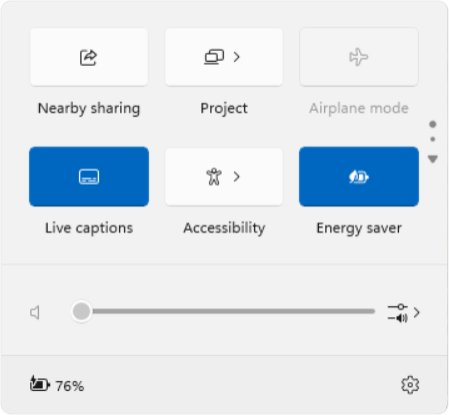
To customize Quick Settings in Windows 11 24H2, press Windows + A, scroll through the tile pages, then press and hold a tile and drag it where you want it.
Version 24H2 replaced the old edit list with a scrollable view, so there is no add step any more. This covers what changed from 23H2, what each tile does, and fixes for missing tiles, a panel that will not open, and changes that do not stick.
The fastest way to open and rearrange Quick Settings in 24H2
These steps apply to Windows 11 version 24H2 and later. On 22H2 or 23H2 the panel works differently; the version table further down shows how.
- Press Windows + A, or select the Network, Sound or Battery icon next to the clock.
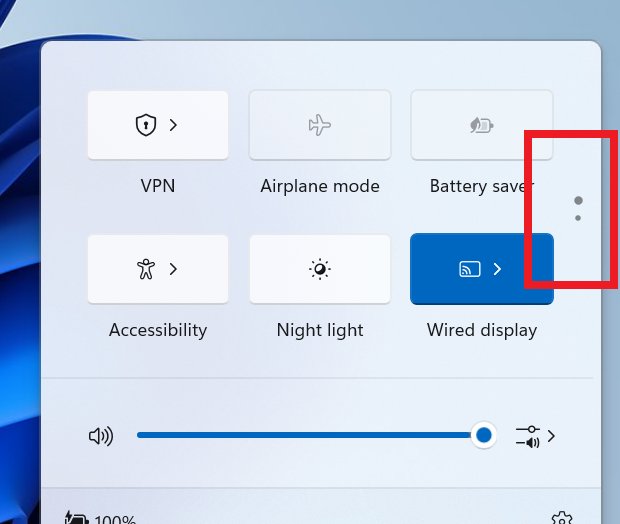
- Scroll the tile area to see every quick action. Select the Next page arrow if your panel shows one.
- Find the tile you use most, such as Wi-Fi, Bluetooth or Energy saver.
- Press and hold the tile (tap and hold on a touch screen).
- Drag it to the spot you want, ideally on the first page, and release it.
- Repeat for the next tile until the order suits you.
- Right-click or long-press a tile such as Mobile hotspot and select Go to Settings when you need its full options.
Microsoft describes 24H2 plainly: you no longer have to edit the list to add new actions; you scroll through and rearrange. Every quick action your PC supports is already in the list.
Check whether your PC runs Windows 11 24H2 or an earlier version
The customizing method depends on the version, so check it before you look for an edit button that 24H2 no longer needs.
- Right-click Start and select Settings.
- Select System.
- Select About.
- Under Windows specifications, read the Version line.
- If it says 24H2 or later, use the steps above. If it says 22H2 or 23H2, read the version table below.
What changed in Quick Settings in 24H2, compared with 22H2 and 23H2
Microsoft first tested the scrollable layout in Canary build 25967 in October 2023. It shipped to everyone in version 24H2 (build 26100), which also carries into 25H2.
The admin policies in the last three rows arrived in 22H2 and still apply in 24H2.
| Behaviour | Windows 11 22H2 and 23H2 | Windows 11 24H2 and later |
|---|---|---|
| Open the panel | Windows + A, or the Network, Sound or Battery icon | Same |
| Panel layout | A fixed set of pinned buttons | A scrollable view of every quick action, split across pages |
| Add a tile | Edit the list and pin the button | No add step; every available action is already in the list |
| Remove a tile | Edit the list and unpin the button | No remove step is documented; move unused tiles to a later page instead |
| Rearrange tiles | Part of editing the pinned list | Press and hold a tile, then drag it |
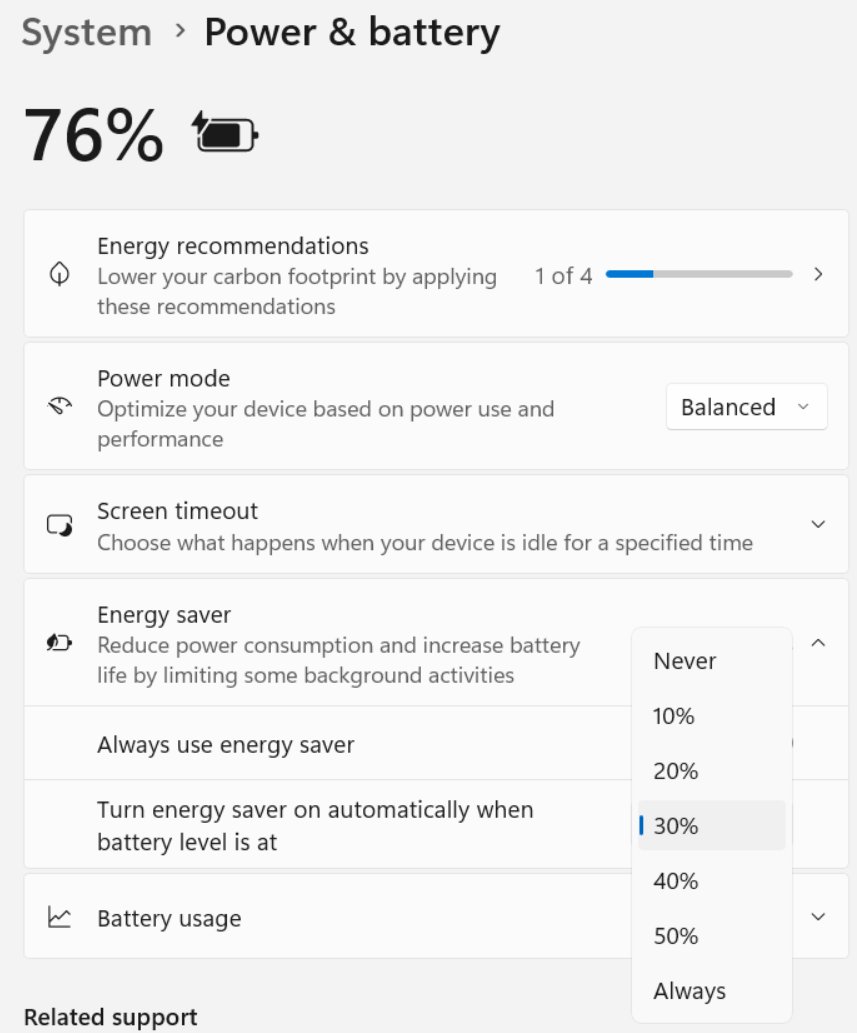
| Battery tile | Battery saver | Energy saver, which can also switch on at a set battery level |
| Live captions | Inside the Accessibility flyout | Its own quick setting, and still in the Accessibility flyout |
| Hearing aid presets | Not listed for these versions | Adjust presets for Bluetooth LE Audio hearing devices from Quick Settings |
| Block editing (admins) | Computer Configuration > Administrative Templates > Start Menu and Taskbar > Disable editing quick settings | Same policy |
| Simplified layout (admins) | Computer Configuration > Administrative Templates > Start Menu and Taskbar > Simplify Quick Settings Layout | Same policy |
| Hide the panel (admins) | User Configuration > Administrative Templates > Start Menu and Taskbar > Remove Quick Settings | Same policy; needs a restart |
Reach Quick Settings controls faster with shortcuts
Several Quick Settings pages have their own key combination, so you can skip the panel entirely.
| What you want | Do this | Why |
|---|---|---|
| Open the whole panel | Press Windows + A | Works from any app, with no mouse needed |
| Switch speakers or headphones | Press Windows + Ctrl + V | Opens the sound output page with output device, spatial sound and volume mixer |
| Turn on live captions | Press Windows + Ctrl + L | Starts captions without opening the Accessibility flyout |
| Cast to a wireless display | Press Windows + K | Lists nearby displays straight away |
| Pick a different Wi-Fi network | Select the arrow on the Wi-Fi tile (Manage Wi-Fi connections) | Shows the network list; Refresh network list rescans |
| Reach a tile's full settings | Right-click or long-press the tile, then Go to Settings | Jumps to the matching Settings page |
| Use Quick Settings from the keyboard | Press Windows + A, move with the arrow keys, press Enter or Spacebar | Works for every tile, including Accessibility |
| Read notifications and the calendar | Press Windows + N | Notifications live in a separate panel, not in Quick Settings |
Which tiles to put on the first page for your setup
In 24H2 every tile stays in the list, so the real decision is which tiles earn the first page.
| Your setup | Drag these to the first page | Why |
|---|---|---|
| Laptop used away from a charger | Energy saver, Wi-Fi, Airplane mode | Energy saver extends battery life; Airplane mode cuts radios on a flight |
| Wireless headphones, mouse or keyboard | Bluetooth, plus the volume slider | One tap reconnects Bluetooth after it drops |
| Sharing your connection with a phone or tablet | Mobile hotspot | It otherwise sits on a later page, and the tile shows how many devices are connected |
| Evening work | Night light | Toggles warmer screen colour without opening Settings |
| Relying on accessibility tools | Accessibility and Live captions | Magnifier, Narrator, Color filters, Mono audio and Sticky keys sit one level down |
How to check your new layout worked
- Close Quick Settings by selecting anywhere on the desktop.
- Press Windows + A again. The tiles you moved should appear in their new positions.
- Scroll to the later pages. Tiles you pushed back should still be there, not gone.
- Select a moved tile, such as Bluetooth, and confirm it still switches between on and off.
- Restart the PC and open the panel once more. The order should be unchanged.
What each Quick Settings tile and slider controls
Tiles only appear when the hardware exists. A desktop without a Bluetooth adapter shows no Bluetooth tile, and a PC without a battery shows no battery controls.
| Tile or control | What it does | Version note |
|---|---|---|
| Wi-Fi | Turns Wi-Fi on or off; its arrow lists networks and rescans with Refresh network list | All Windows 11 versions |
| Bluetooth | Turns Bluetooth on or off; shows Connected, Not connected or the device name | Needs a Bluetooth adapter and driver |
| Airplane mode | Turns off wireless connections, including Bluetooth | All Windows 11 versions |
| Energy saver | Reduces power use to extend battery life; can start automatically at a set battery percentage | 24H2 and later |
| Battery saver | Reduces power use when the battery runs low | Before 24H2 |
| Accessibility | Opens a flyout with Magnifier, Color filters, Narrator, Mono audio, Live captions and Sticky keys | All Windows 11 versions |
| Live captions | Shows captions for audio playing on the PC | Separate tile from 24H2 |
| Mobile hotspot | Shares your PC's internet connection and shows how many devices are connected | Often on the second page |
| Night light | Switches the display to warmer colours | All Windows 11 versions |
| Brightness slider | Changes built-in display brightness | Laptops and tablets with a built-in screen |
| Volume slider and sound output | Sets volume, output device, spatial sound and per-app volume mixer | All Windows 11 versions |
| Hearing device presets | Changes audio presets on Bluetooth LE Audio hearing aids | 24H2 and later, compatible PCs |
| Battery indicator and Settings link | Shows charge level and opens the Settings app | Battery indicator on battery-powered PCs |
Fix Quick Settings when tiles are missing or customizing fails
There is no edit button to add tiles
On 24H2 this is by design: the scrollable view holds every tile, so there is nothing to add.
- Confirm your version in Settings > System > About.
- On 24H2 or later, open Quick Settings with Windows + A and scroll the tile pages instead.
- Press and hold the tile you want and drag it to the first page.
- On 22H2 or 23H2, a missing edit option points to the Disable editing quick settings policy; see the last fix below.
The Bluetooth or Wi-Fi tile is missing or greyed out
Windows cannot detect the adapter, its driver is missing, or Airplane mode is on.
- Press Windows + A and turn off Airplane mode if it is on.
- Scroll every page of the panel, since the tile may sit further down.
- Select Start, type
device manager, and open Device Manager. - Expand Bluetooth or Network adapters.
- Right-click the adapter and select Update driver, then Search automatically for updated driver software.
- Go to Settings > Windows Update and select Check for updates, since some drivers arrive that way.
- Select Start > Power > Restart.
- If no adapter appears in Device Manager at all, the PC has no such hardware and the tile cannot appear.
Only Wi-Fi, Bluetooth, Accessibility and VPN appear
The Simplify Quick Settings Layout policy is on, which is common on work and school PCs.
- On a managed PC, ask your IT administrator; the layout is set centrally.
- On your own Windows 11 Pro PC, press Windows + R, type
gpedit.mscand press Enter. - Go to Computer Configuration > Administrative Templates > Start Menu and Taskbar.
- Double-click Simplify Quick Settings Layout, select Not Configured, then OK.
- Restart the PC and press Windows + A to check the full layout is back.
Quick Settings will not open
The Remove Quick Settings policy is on, or the account is a kiosk (assigned access) user, where the panel is off by design.
- Press Windows + A and also try selecting the Network icon, to rule out a keyboard fault.
- If you are signed in to a kiosk account, the panel stays disabled; sign in with a normal account.
- On your own Pro PC, open
gpedit.mscand go to User Configuration > Administrative Templates > Start Menu and Taskbar. - Set Remove Quick Settings to Not Configured, then select OK.
- Restart the PC; this policy only changes after a restart.
Tile changes do not stick or cannot be made
The Disable editing quick settings policy blocks users from modifying Quick Settings.
- On a work or school PC, ask IT; an MDM policy can enforce this setting.
- On your own Pro PC, open
gpedit.msc. - Go to Computer Configuration > Administrative Templates > Start Menu and Taskbar.
- Double-click Disable editing quick settings, select Not Configured, then OK.
- Restart the PC, rearrange the tiles again, and restart once more to confirm the order holds.
Frequently asked questions
How do I customize Quick Settings in Windows 11?
On Windows 11 24H2 and later, press Windows + A, scroll the tile pages, then press and hold a tile and drag it to a new position. Version 24H2 shows every available action in a scrollable list, so there is nothing to add first.
How do I get to Quick Settings?
Press Windows + A, or select the Network, Sound or Battery icon beside the clock on the taskbar. On a touch screen you can also swipe on the Quick Settings area. Windows + N opens notifications and the calendar instead.
How do I edit Quick Settings in 24H2?
Editing in 24H2 means rearranging. Open the panel with Windows + A, press and hold any tile, and drag it where you want it. Microsoft removed the need to edit the list to add actions when it introduced the scrollable view in 24H2.
How do I add things to Quick Settings?
On 24H2 and later, every quick action your PC supports is already in the scrollable list, so scroll to find it and drag it forward. On 22H2 and 23H2 you edit the list and pin the button. A tile needing hardware, such as Bluetooth, only appears when the adapter is detected.
How do I change the order of Quick Settings tiles?
Press Windows + A, press and hold the tile you want to move, drag it to the new spot and release. Put your most-used tiles on the first page. If the order resets, check whether the Disable editing quick settings policy is turned on.
How do I turn on or enable Quick Settings if it is disabled?
Quick Settings is on by default and cannot be removed from the taskbar by a user setting. If it never opens, the Remove Quick Settings policy is on or the account is a kiosk user. Set the policy to Not Configured and restart the PC.
Why is Bluetooth missing from Quick Settings?
Bluetooth disappears when Windows cannot detect or enable the adapter. Turn off Airplane mode, update the Bluetooth driver in Device Manager, install Windows updates and restart. If Device Manager shows no Bluetooth adapter, the PC has no Bluetooth hardware.
Can I add any Windows setting to Quick Settings?
No. Quick Settings only offers the quick actions Windows provides, such as Wi-Fi, Bluetooth, Energy saver, Mobile hotspot, Night light and Accessibility. For anything else, right-click a related tile and select Go to Settings, or open Settings with Start.