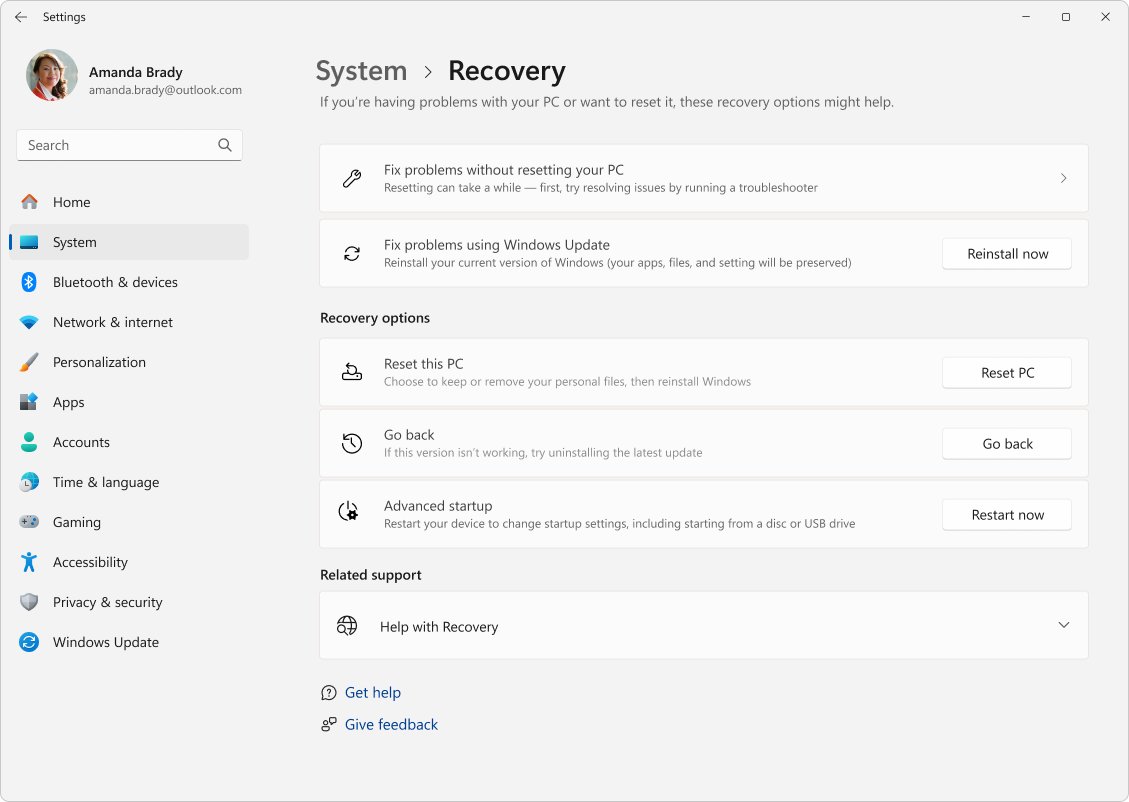
To reset all settings in Windows 11, open Settings > System > Recovery and select Reset PC, which reinstalls Windows and removes your apps and settings.
This guide also covers smaller resets for one app or your network, what each reset keeps, how to back up first, and what you can undo afterwards.
Reset every Windows 11 setting with Reset this PC
Reset this PC is the only built-in option that returns all of Windows to its default state. Back up first, because it also removes every app you installed.
- Select Start > Settings > System > Recovery.
- Under Recovery options, select Reset PC.
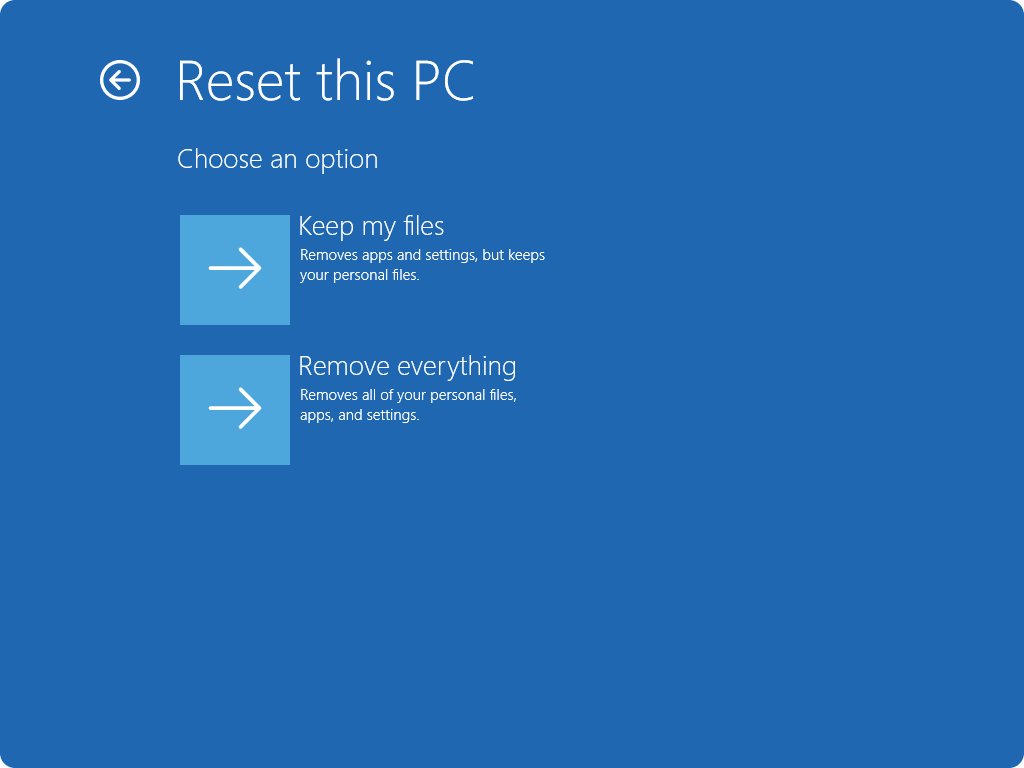
- Select Keep my files to keep documents and photos, or Remove everything to wipe the PC.
- Select Cloud download to get a fresh copy of Windows from the internet, or Local reinstall to use the files already on the PC.
- Review the additional settings on the next screen, then confirm the summary to start the reset.
- Keep the PC plugged in and do not restart it yourself, even if the screen stays black for 15 minutes or more.
- Sign in, or complete the setup screens, when Windows starts again.
If you only wanted one app or your connections back to normal, use the smaller resets below instead.
Choose the reset that matches what you mean by all settings
People use "reset all settings" for five different jobs. Match your goal to a row, because the options differ sharply in what they destroy.
| What you want | Use this | What it changes | What it keeps |
|---|---|---|---|
| One app behaves badly | Reset for that app under Installed apps | That app only | Every other app, all Windows settings, your files |
| Wi-Fi, Ethernet or shared drives stopped working | Network reset | Removes network adapters and their settings, then reinstalls the adapters with default settings | Files, apps and all non-network settings; VPN software and Hyper-V virtual switches may need setting up again |
| Windows is faulty but your apps and settings are fine | Reinstall now (Fix problems using Windows Update) | Repairs system files and components by reinstalling the current Windows version | Apps, files and settings |
| Every setting and app back to default, files kept | Reset PC > Keep my files | Reinstalls Windows and removes apps you installed, app data and most settings changes | Personal files, user accounts, Wi-Fi profiles, themes and a few other settings |
| The whole PC wiped, for example before selling it | Reset PC > Remove everything | Reinstalls Windows and removes all accounts, files, apps and settings | Nothing personal; apps that came with the PC are restored |
What Reset this PC deletes, even with Keep my files
Keep my files is not a settings-only reset. Every Microsoft Store app and desktop program you installed is removed, and you reinstall each one yourself.
| Item | Keep my files | Remove everything |
|---|---|---|
| Documents, photos and other personal files on the Windows drive | Kept | Deleted |
| Files on other drives or partitions | Kept | Deleted only if you choose to clean all drives, which formats them |
| User accounts and group memberships | Kept | Removed |
| Apps you installed from the Microsoft Store | Removed | Removed |
| Desktop programs you installed | Removed | Removed |
| App settings stored in AppData and ProgramData | Removed from Windows; a copy of AppData stays in C:\Windows.old | Removed |
| Apps and customizations from the PC manufacturer | Restored if Restore preinstalled apps is on | Restored |
| Wi-Fi profiles, desktop themes, lock screen background, regional and privacy settings, Windows Update settings | Kept | Removed |
| Installed Windows updates and drivers in driver packages | Restored in their updated state | Restored in their updated state |
The Clean data option under Remove everything makes recovery of your files much harder, but Microsoft states it does not meet government or industry data erasure standards.
Back up your files, settings and app list before resetting
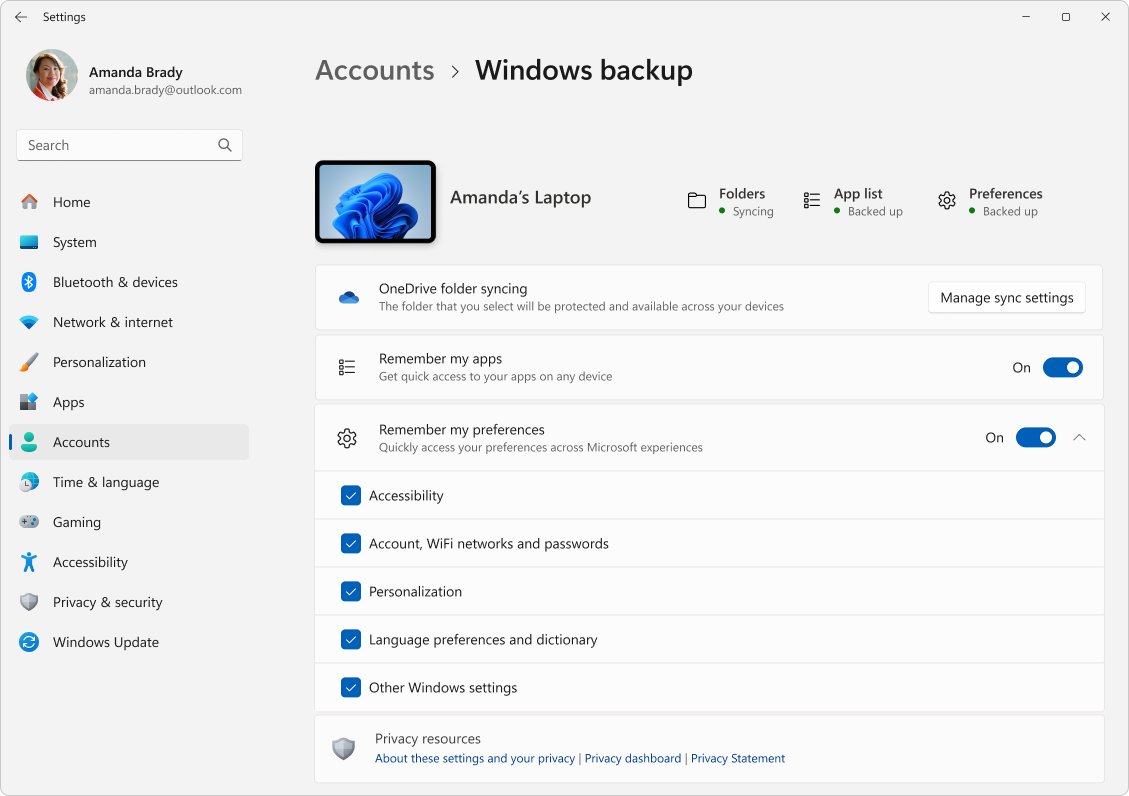
Windows Backup stores folders and settings with a personal Microsoft account and includes 5 GB of free OneDrive storage. Work or school accounts are not supported.
- Select Start, type backup, and select Windows Backup.
- Turn on the switches for Desktop, Documents, Pictures, Videos and Music.
- Leave settings backup on for Accessibility, Accounts, Wi-Fi network and passwords, Personalization and Language preferences and dictionary.
- Copy any files larger than your OneDrive space to an external drive.
- Open Settings > Apps > Installed apps and note every desktop program you will need to reinstall.
- Find your BitLocker recovery key if the device is encrypted.
- Plug a laptop into power before you start the reset.
Reset one app's settings without touching Windows
Try Repair first where it exists. Not every app offers Advanced options, so this route works only for apps that list it.
- Select Start > Settings > Apps > Installed apps.
- Select the More icon next to the app you want to fix.
- Select Advanced options.
- Select Repair if it is available, then test the app.
- Return to the same page and select Reset if Repair is missing or did not help.
Reset all network settings in Windows 11
Network reset helps with connection problems after an upgrade, and with PCs that reach the internet but not shared network drives.
- Select Start > Settings > Network & internet.
- Select Advanced network settings > Network reset.
- Select Reset now > Yes to confirm.
- Wait for the PC to restart.
- Reconnect to your Wi-Fi network from the network icon on the taskbar.
- Reinstall VPN client software, and set up Hyper-V virtual switches again if you use them.
Reset Windows from the sign-in screen when you cannot sign in
Windows also opens the recovery environment on its own after it fails to start correctly several times.
- On the sign-in screen, hold Shift while you select Power > Restart.
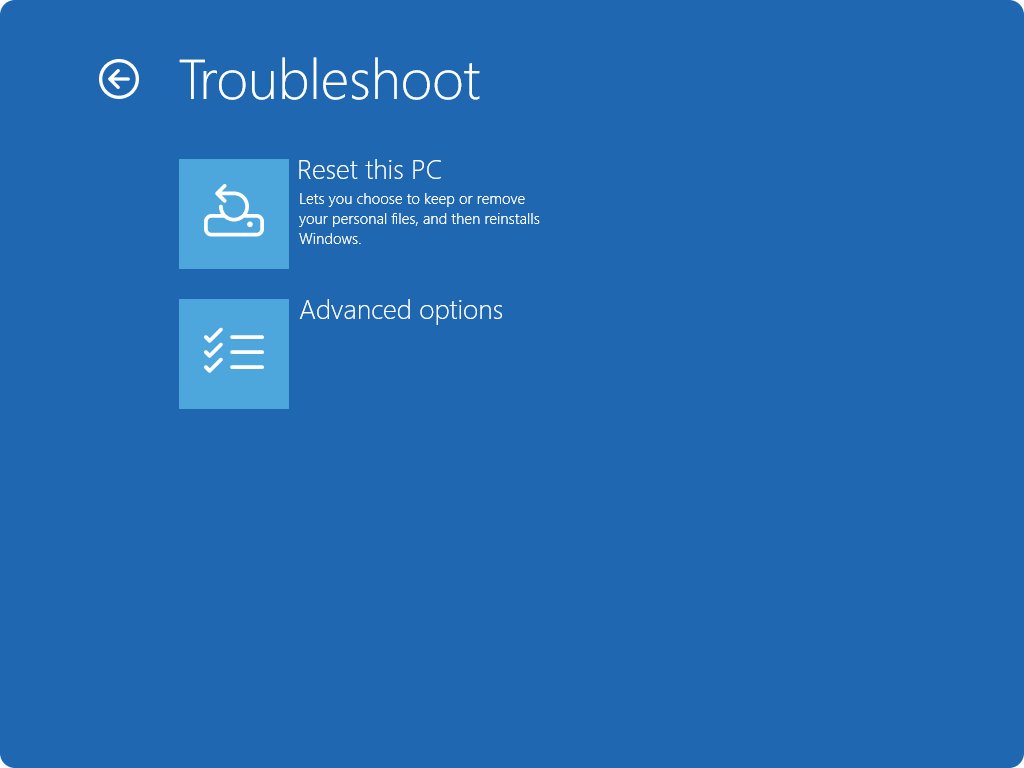
- On the Choose an option screen, select Troubleshoot > Reset this PC.
- Select Keep my files or Remove everything.
- Enter your BitLocker recovery key if Windows asks for it.
- Choose Cloud download or Local reinstall and follow the remaining prompts.
Where each reset lives in Windows 11 and Windows 10
Windows 10 keeps its recovery tools under Update & Security, so the Windows 11 paths above do not match it.
| Reset | Windows 11 | Windows 10 |
|---|---|---|
| Reset this PC | Settings > System > Recovery > Reset PC | Settings > Update & Security > Recovery, then Get started under Reset this PC |
| Network reset | Settings > Network & internet > Advanced network settings > Network reset | Settings > Network & Internet > Status > Network reset |
| Reset one app | Settings > Apps > Installed apps > More > Advanced options | Settings > Apps > Apps & features > More > Advanced options |
| Reinstall Windows, keep apps and settings | Settings > System > Recovery > Reinstall now (version 22H2 or later) | Not available |
| Recovery environment | Hold Shift and select Power > Restart, or Settings > System > Recovery > Advanced startup > Restart now | Hold Shift and select Power > Restart |
| System Restore | Control Panel > Recovery > Open System Restore | Control Panel > Recovery > Open System Restore |
How to check the reset worked
- Open Settings > Apps > Installed apps and confirm that only apps from Windows and your PC maker remain after Reset this PC.
- Open File Explorer and confirm your Documents and Desktop files are still there if you chose Keep my files.
- Check that the C:\Windows.old folder exists after Keep my files; it holds the old AppData folders.
- After a network reset, select the network icon on the taskbar and confirm you can connect and open a web page.
- After an app reset, open the app and confirm the problem no longer appears.
What you can and cannot undo after each reset
No Settings option reverses a finished reset. Recovery means rebuilding from your backup, so the backup step decides how much you get back.
- App reset: open the app, sign in again if asked, and set its preferences again.
- Network reset: reconnect to each Wi-Fi network, then reinstall your VPN client and recreate any Hyper-V virtual switches.
- Keep my files: reinstall Store apps from the Microsoft Store and desktop programs from their vendors' sites, using the list you made.
- Keep my files: copy any app data you need from the AppData folders inside C:\Windows.old.
- Remove everything: sign in during setup with the Microsoft account you backed up, so pinned apps and backed-up settings return; select an app pin to reinstall Store apps.
- Remove everything: restore personal files from OneDrive or your external drive; wiped files cannot be recovered from the PC.
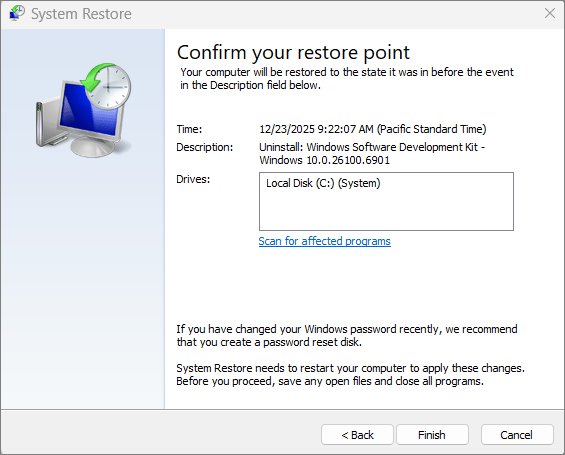
- A recent driver, update or program change rather than a reset: open Control Panel > Recovery > Open System Restore to roll back system files, registry settings and installed programs without touching personal files.
Fix settings that keep resetting or a reset that seems stuck
Windows keeps resetting your settings every time you sign out
Your user profile failed to load, so Windows signed you in with a temporary profile, and changes made there are lost at sign-out. Look for the message "You've been signed in with a temporary profile".
- Save any work from this session to an external storage device.
- Restart the PC in safe mode and sign in with your original account.
- Restart normally and sign in again; this can take more than one restart.
- Check whether your settings and files are back.
- If they are not, create a new local administrator account and sign in to it.
- Copy your files from C:\Users\<old user name> into the new account's folder under C:\Users.
Reset this PC shows a black screen and looks frozen
A black screen for 15 minutes or longer is normal during a reset, and restarting the PC manually can make the reset fail.
- Leave the PC plugged in and wait.
- Do not hold the power button while the reset is running.
- If Windows then fails to start several times, let it open the recovery environment on its own.
- Select Troubleshoot > Reset this PC and run the reset again.
Frequently asked questions
What does reset all settings do in Windows?
Reset this PC reinstalls Windows and returns its settings to default. With Keep my files, your personal files and user accounts stay, but installed apps and most settings changes are removed. With Remove everything, accounts, files, apps and settings are all deleted.
How do I reset all Windows settings to default without losing files?
Open Settings > System > Recovery, select Reset PC, and choose Keep my files. Your documents and photos stay, but every app you installed is removed. Back up your files anyway and note which apps you will need to reinstall.
How do I reset all settings in Windows 10?
In Windows 10, select Start > Settings > Update & Security > Recovery, then select Get started under Reset this PC. Choose Keep my files or Remove everything, then Cloud download or Local reinstall, and follow the prompts.
How do I reset Windows to its original settings?
Use Reset this PC with Remove everything to return the PC to the state it had out of the box. Apps and customizations from the PC manufacturer are restored, and Windows comes back with the updates that were already installed.
Why does Windows keep resetting my settings?
The usual cause is a temporary profile. When your user profile cannot load, Windows signs you in with a temporary one, and anything you change is lost at sign-out. Restart, sign in with your original account, and create a new account if it persists.
What does resetting your settings do to installed apps?
Reset this PC removes every Microsoft Store app and desktop program you installed, even with Keep my files. Apps that came with Windows or from your PC manufacturer are restored. Resetting a single app under Installed apps affects only that app.
How do I perform a Windows reset if I cannot sign in?
On the sign-in screen, hold Shift and select Power > Restart. When the Choose an option screen appears, select Troubleshoot > Reset this PC, then choose Keep my files or Remove everything and follow the prompts.
Can I reset Windows settings but keep my apps?
Not with Reset this PC. To repair Windows while keeping apps, files and settings, use Reinstall now under Settings > System > Recovery on Windows 11, version 22H2 or later. For connection problems only, use Network reset instead.