Discord for Mac is a free download from discord.com, and one universal disk image covers both Apple silicon and Intel Macs.
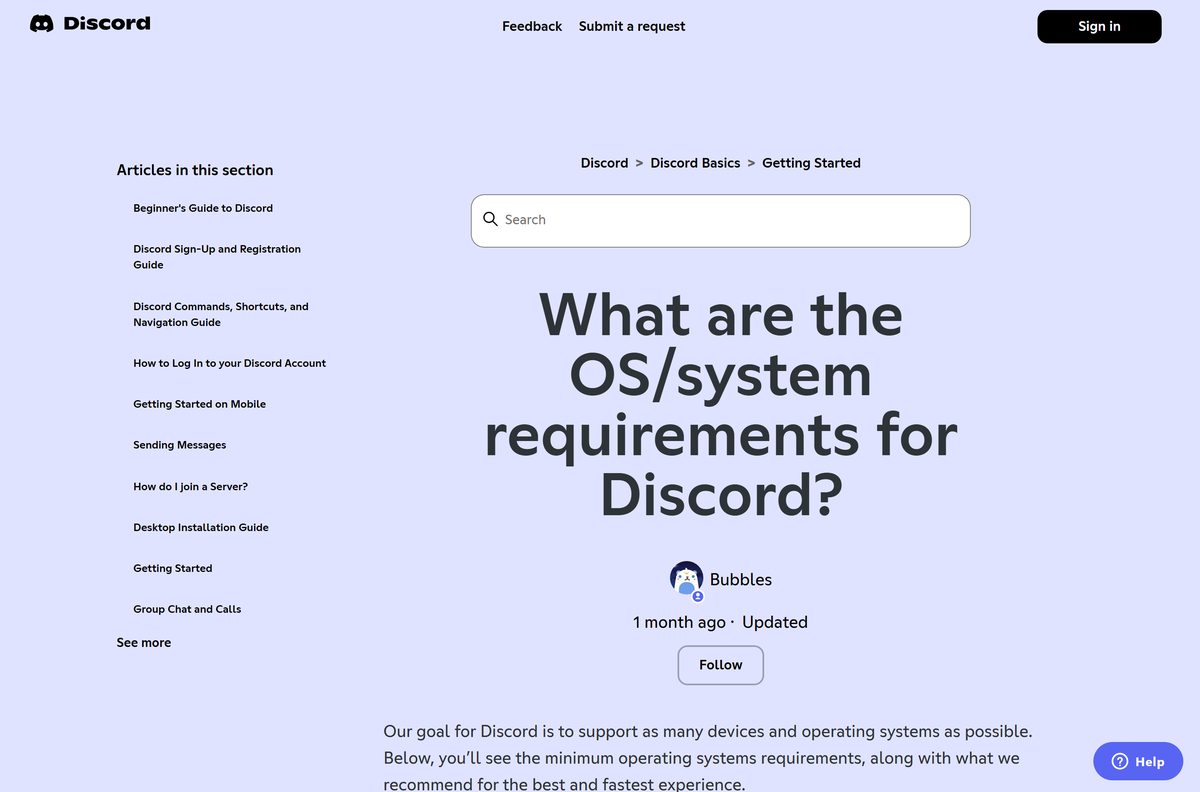
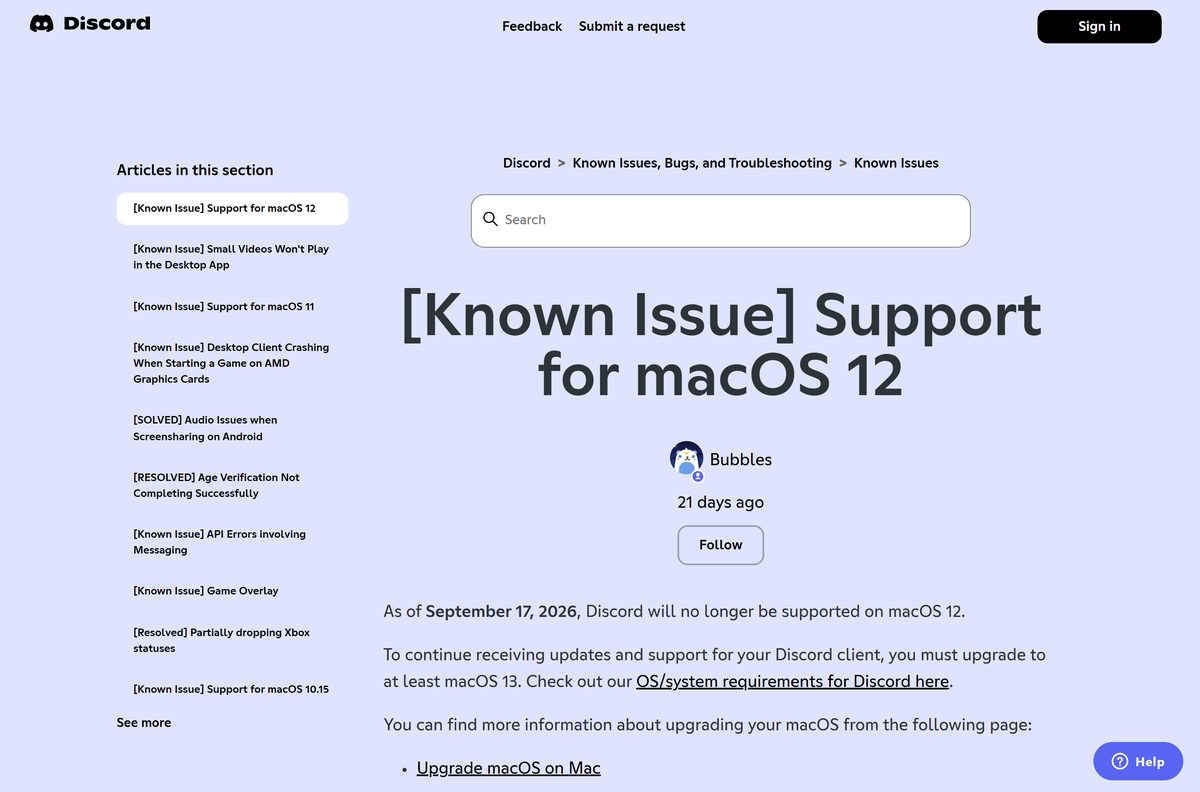
The version that decides your download is macOS, not Discord. The app needs macOS 12 Monterey today, and Discord ends macOS 12 support on 17 September 2026. Macs stay on the desktop app from there only on macOS 13 Ventura or later.
This guide covers which file to take, the official links, installing and uninstalling, the signature check, release channels, pricing, and fixes for Discord not installing or updating on a Mac.
Which Discord download do you need for your Mac?
Open the Apple menu and select About This Mac to read your macOS version and your chip. Match that line below.
| Your Mac | What to download | Size |
|---|---|---|
| macOS 13 Ventura or later, Apple silicon or Intel | Discord.dmg | 204.7 MB |
| macOS 12 Monterey | Discord.dmg, updates stop 17 September 2026 | 204.7 MB |
| macOS 11 Big Sur | Discord 0.0.396, the last build Discord names for it | 190.3 MB |
| macOS 10.15 Catalina or older | Discord 0.0.336, the last build Discord names for it | 170.2 MB |
| A Mac you cannot upgrade | Discord in a browser, no install | 0 |
| The iPhone or iPad app on a Mac | Not offered. That listing is iPhone and iPad only | 0 |
The two legacy builds keep working but never update again. Installing anything newer on those Macs stops Discord launching at all.
Upgrading macOS is the cleaner repair on an older Mac, and Techdows covers that in how to update Mac and macOS.
Check the Discord system requirements for macOS
Discord asks almost nothing of the hardware. The operating system is the only line that rules a Mac out.
| Field | Value |
|---|---|
| Software | Discord |
| Developer | Discord Inc. |
| Latest version | 0.0.411, published 8 September 2026 |
| Price | Free, with optional Nitro subscriptions |
| Supported OS | macOS 12 Monterey or later, rising to macOS 13 Ventura on 17 September 2026 |
| Architecture | Universal, arm64 and x86_64 in one app |
| File size | 204.7 MB, or 214,669,293 bytes |
| Offline installer | Yes, the disk image holds the whole app |
| Bundle identifier | com.hnc.Discord |
| Signed by | Developer ID Application: Discord, Inc. (53Q6R32WPB) |
| Mac App Store | Not published there |
| Browser client | Chrome 108, Firefox 142, Safari 15.4, Edge 86 or Opera 72 and later |
| Official download | discord.com/download |
| Last verified | 2026-09-10 |
The app bundle enforces the operating system itself. Its LSMinimumSystemVersion key is set to 12.0, so an older Mac refuses to launch it rather than running it badly.
Download Discord for Mac from Discord’s own site
Discord distributes the Mac app from one domain. Each link below stays on discord.com or the content network it redirects to.
- Discord download page — select macOS, then Download for Mac
- Direct macOS disk image — 204.7 MB · the address behind the Download for Mac button
- Discord in a browser — full client, nothing installed
- Discord Inc. company details — the publisher named on the app signature
Portals rank for this term too, and each one serves whatever build it last fetched rather than the current one.
Should you download a separate Discord build for Apple silicon?
No. One download serves M-series and Intel Macs. The Mac app is a universal binary. The executable inside Discord.app carries two slices, arm64 for Apple silicon and x86_64 for Intel, so an M1, M2, M3 or M4 Mac runs it natively and never loads Rosetta. Adding arch=arm64 or arch=x64 to Discord’s macOS download address returns the identical disk image.
Activity Monitor confirms it after installation. Add the Kind column and a native copy reports Apple on an M-series Mac rather than Intel.
How to install Discord on your Mac
The disk image contains the finished application, so the install itself never touches the network.
- Open discord.com/download in Safari or your usual browser.
- Select Download for Mac. The browser saves Discord.dmg to your Downloads folder.
- Open Discord.dmg. A window shows the Discord icon beside an Applications shortcut.
- Drag the Discord icon onto the Applications folder.
- Eject the disk image from the Finder sidebar, then delete the downloaded DMG.
- Open Applications and double-click Discord.
- Select Open when macOS asks about an app downloaded from the internet.
- Sign in with your email and password, or select Log in with QR Code and scan it with Discord on your phone.
Discord keeps itself current through its own updater. It is absent from the Mac App Store, so Software Update never sees it.
How to check the Discord app you downloaded is genuine
macOS stores the signing identity inside the app bundle. Two commands read it back in about ten seconds.
- Open Terminal from Applications > Utilities.
- Run codesign -dv –verbose=2 /Applications/Discord.app .
- Confirm the Identifier line reads com.hnc.Discord .
- Confirm the Authority line reads Developer ID Application: Discord, Inc. (53Q6R32WPB) .
- Run spctl -a -vv /Applications/Discord.app and confirm Gatekeeper answers accepted .
- Move the copy to the Trash if either line names a different developer or team.
The signature travels inside the bundle, so the same Terminal check works on a copy a friend handed you.
Check whether your macOS version still gets Discord updates
Discord retires macOS versions on a published date and announces each one in advance. Three have gone already.
| macOS | Discord desktop app | Cut-off date |
|---|---|---|
| macOS 13 Ventura and later | Supported and updating | None announced |
| macOS 12 Monterey | Updates stop on the cut-off date | 17 September 2026 |
| macOS 11 Big Sur | No longer supported | 15 June 2026 |
| macOS 10.15 Catalina and older | No longer supported | 21 January 2025 |
An installed copy keeps opening after its date passes. Discord stops shipping it fixes and states that stability is no longer guaranteed once the updates end.
Which Discord release channel should you download?
Stable is the build for daily use. The other two ship unfinished features and break more often, which is the entire point of them.
| Channel | macOS download | Size | Current build |
|---|---|---|---|
| Stable, for everyone | Discord.dmg | 204.7 MB | 0.0.411 |
| Public Test Build, features a few weeks early | DiscordPTB.dmg | 205.1 MB | 0.0.259 |
| Canary, the most unstable client | DiscordCanary.dmg | 205.0 MB | 0.0.1317 |
The three install side by side. Each disk image carries its own app name, so DiscordPTB and DiscordCanary land in Applications without touching the stable copy.
Discord calls Canary its most unstable client and ships lots of updates to it. Run it only if you want to find the bugs.
Should you install Discord from the Mac App Store?
No, because Discord Inc. publishes nothing there. The Discord-shaped listings on that store come from unrelated developers.
- Open the App Store app on your Mac.
- Search for Discord.
- Read the developer name printed under each result.
- Confirm that none of them reads Discord Inc.
- Close the App Store and take the app from discord.com/download instead.
The US Mac App Store currently returns two Discord-shaped titles, both published by individual developers rather than by Discord.
Discord’s iPhone and iPad listing is genuine and comes from Discord Inc., but Apple does not offer it on Apple silicon Macs. The desktop app is the only Discord app for macOS.
Is Discord free on a Mac?
Yes, and no paid edition of the Mac app exists to buy. Discord sells optional subscriptions instead. Nitro Basic costs $2.99 a month and Nitro costs $9.99 a month in the United States, and both are bought inside the app under User Settings > Nitro rather than at download time. Discord notes that the price varies by country and plan. No part of the download asks for a licence key, so a site charging for a Discord installer is charging for a free file.
How to check your Discord version and update it
Discord prints the build number inside settings, and that number matters whenever a bug report or a voice problem comes up.
- Open Discord and select the cogwheel beside your name to open User Settings.
- Scroll to the bottom of the settings sidebar and read the client info block.
- Click the version text to copy it to the clipboard.
- Compare it against Discord’s macOS update feed, which names the current stable build.
- Quit Discord with Command + Q, then reopen it so the updater runs.
- Reinstall from the disk image if the number does not move.
Closing the window is not quitting. Discord keeps running in the background, and an update lands only after a real Command + Q and a fresh launch.
Run Discord on a Mac without installing it
The browser client is the same product minus the desktop extras. It carries text, voice and video calls.
- Open discord.com/app in Safari, Chrome, Firefox or Edge.
- Sign in, or select Log in with QR Code and scan it with Discord on your phone.
- Select Allow when the browser asks for microphone access, or voice channels stay silent.
- Keep the tab open in its own window so notifications keep arriving while you work.
One feature does not survive the move. Discord states that push-to-talk works in the browser only while that window has focus, and that system-wide push-to-talk needs the desktop app.
This is also the route for a Mac below macOS 12, and for a work Mac where installing software is blocked.
Fix Discord not installing, not updating or not opening on a Mac
The update spins forever and never finishes
A damaged install. Discord’s documented repair is a full removal, not a retry.
- Quit Discord with Command + Q.
- Open Activity Monitor, search for Discord, and force quit anything still running.
- In Finder press Shift + Command + G, enter ~/Library/Application Support , and drag the Discord folder to the Trash.
- Repeat with /Library/Application Support . There is often no Discord folder there, which is normal.
- Drag Discord from Applications to the Trash and empty it.
- Restart the Mac, then install again from Discord’s macOS download.
Discord stopped launching after an update
The Mac sits below the macOS version this build needs. The app checks before it opens a window.
- Open the Apple menu and select About This Mac to read the macOS version.
- Upgrade to macOS 13 Ventura or later if the Mac supports it.
- On macOS 11, install Discord 0.0.396, the build Discord names for that release.
- On macOS 10.15 or older, install Discord 0.0.336 instead.
- Use discord.com/app in a browser if neither option fits.
The download or the updater cannot reach Discord
Name resolution on the network is blocking it. Discord’s fix is to change the DNS servers the Mac uses.
- Open System Settings, select Network, then your active connection.
- Select Details, then the DNS tab.
- Use the + button to add 8.8.8.8 and 8.8.4.4 .
- Select OK, then Apply.
- Return to the TCP/IP tab and select Renew DHCP Lease if the download still stalls.
- Relaunch Discord.
A Discord file will not delete because it is in use
A helper process survived the quit and still holds the file open.
- Open Activity Monitor from Spotlight.
- Type Discord in the search box.
- Select each result and press the stop button in the toolbar.
- Choose Force Quit.
- Empty the Trash and try the removal again.
If Discord gets stuck, force quit the app.
How to uninstall Discord from your Mac
Dragging the app to the Trash leaves two support folders behind. Remove those as well, or the next install inherits the same broken state.
- Quit Discord with Command + Q.
- Open Applications in Finder and drag Discord to the Trash.
- Press Shift + Command + G, enter ~/Library/Application Support , and drag the Discord folder to the Trash.
- Repeat with /Library/Application Support if a Discord folder exists there.
- Empty the Trash.
- Open Activity Monitor and force quit any Discord process if a file refuses to go.
Servers, messages and settings live on the Discord account rather than on the Mac, so a reinstall restores everything at sign-in; the general uninstall steps apply here too.
Frequently asked questions
Is Discord for Mac free to download?
Yes. The macOS app costs nothing and no paid edition exists. Nitro Basic at $2.99 a month and Nitro at $9.99 a month are optional subscriptions, bought inside the app under User Settings.
What is the official Discord download page for Mac?
Discord publishes the Mac app at discord.com/download. Select macOS, then Download for Mac. That button points at Discord’s own download endpoint, which serves the disk image from Discord’s content network.
How big is the Discord download for Mac?
The stable disk image is 204.7 MB, or 214,669,293 bytes. The Public Test Build is 205.1 MB and Canary is 205.0 MB. All three are complete apps rather than small downloaders.
Does Discord run natively on Apple silicon Macs?
Yes. The Mac app is a universal binary holding arm64 code for M-series Macs and x86_64 code for Intel Macs, so Rosetta is never involved. One download covers both chips.
Which macOS version does Discord need?
macOS 12 Monterey is the minimum today. Discord ends macOS 12 support on 17 September 2026, after which the app needs macOS 13 Ventura or later. macOS 11 support ended on 15 June 2026.
Is there a Discord offline installer for Mac?
In effect, yes. The disk image contains the whole application, so the install runs without a connection. Signing in and receiving updates still need the internet.
Is Discord on the Mac App Store?
No. Discord Inc. publishes no Mac App Store app. The Discord-shaped results there come from unrelated developers, and Discord’s iPhone and iPad listing is not offered on Apple silicon Macs.
Which Discord version is current for macOS?
Discord 0.0.411, published on 8 September 2026. Read your own build under User Settings, at the bottom of the settings sidebar, and click it to copy the number.
Why will Discord not install on my Mac?
Discord documents two causes, a damaged install and a network that blocks its updater. Remove the app and both Application Support folders, restart, then download again from discord.com.
Why does Discord keep updating and never finish?
That endless update is the damaged-install symptom. Delete the app and its Application Support folders, restart the Mac, and reinstall. Switching the Mac to Google Public DNS clears the network case.
How do I know a Discord app on my Mac is genuine?
Run codesign -dv –verbose=2 on the app in Terminal. The identifier reads com.hnc.Discord and the authority reads Developer ID Application: Discord, Inc. with team 53Q6R32WPB.
Can I use Discord on a Mac without installing it?
Yes. discord.com/app runs the full client in Safari 15.4, Chrome 108, Firefox 142 or Edge 86 and later. It is Discord’s own answer for a Mac too old for the desktop app.
How do I uninstall Discord from a Mac?
Quit Discord, drag it from Applications to the Trash, then delete the Discord folders inside the two Application Support locations. Empty the Trash to finish the removal.
Is Discord safe to download from other sites?
Those copies are whatever build the site last fetched, and nothing guarantees the signature survived the repackaging. Discord distributes the Mac app from discord.com only.