To clear space on a Mac, open Apple menu > System Settings > General > Storage and check which categories are using the most disk space. The quickest wins usually come from deleting large downloads, uninstalling apps you no longer use, removing old iPhone or iPad backups, emptying the Trash, and moving photos or documents to iCloud or external storage.
You do not need a Mac cleaner app for most storage problems. macOS already shows large files, applications, documents, media, and other storage categories, while also providing built-in options for optimizing storage.
This guide covers the safest ways to free up storage on a MacBook, iMac, Mac mini, or Mac Studio, including what to do when Mac storage is full and how to reduce unusually large System Data without deleting important macOS files.
Check What Is Taking Up Space on Your Mac
Start with the Storage page instead of deleting files at random.
- Click the Apple menu.
- Open System Settings.
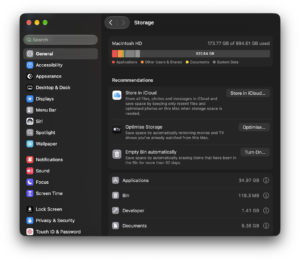
- Select General.
- Click Storage.
- Wait for macOS to calculate your storage usage.
The storage graph separates disk usage into categories such as Applications, Documents, Photos, Mail, Messages, macOS, and System Data.
Scroll down the page because several categories include an information button that lets you inspect large files or remove content directly.
On older versions of macOS, you may find similar controls under Apple menu > About This Mac > Storage.
Delete Large Files to Free Up Space on Mac
Large videos, disk images, archives, installers, virtual machines, and old project files can consume tens or hundreds of gigabytes.
In current versions of macOS:
- Open System Settings > General > Storage.
- Find Documents.
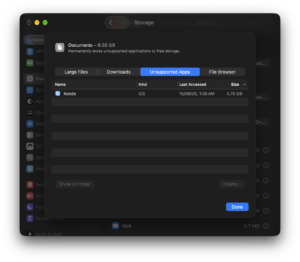
- Click the information button if available.
- Review large files and downloads.
- Delete only files you recognize and no longer need.
You can also find large files from Finder:
- Open Finder.
- Press Command + F.
- Select This Mac.
- Add a search filter for File Size.
- Search for files larger than a value such as 1GB.
Sort the results by size and inspect them before deleting anything.
Clear the Downloads Folder on Mac
The Downloads folder is one of the easiest places to recover storage because installers, ZIP archives, videos, PDFs, and other temporary downloads often remain there long after you use them.
- Open Finder.
- Select Downloads from the sidebar.
- Switch to List view if necessary.
- Click the Size column to sort from largest to smallest.
- Move files you no longer need to the Trash.
Look especially for .dmg, .pkg, .zip, and large video files. Once an application has been installed successfully, you usually do not need to keep its DMG installer.
Uninstall Apps You No Longer Use
Games, creative software, development tools, and professional applications can occupy far more storage than documents.
To see which apps use the most space:
- Open System Settings > General > Storage.
- Find Applications.
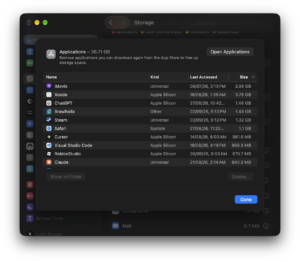
- Click the information button.
- Sort the list by size.
- Remove applications you no longer use.
You can also uninstall most apps through Finder:
- Open Finder > Applications.
- Locate the unwanted app.
- Check whether the developer provides its own uninstaller.
- If not, drag the app to the Trash.
- Empty the Trash when you are sure you no longer need it.
Use an application’s own uninstaller when one is supplied. Adobe software, antivirus utilities, virtualization software, VPN clients, and some professional applications install additional components that dragging the main app to the Trash may leave behind.
Empty the Trash to Actually Free Disk Space
Moving a file to the Trash does not immediately return its storage space to your Mac. The file remains on the disk until you empty the Trash.
- Right-click the Trash icon in the Dock.
- Select Empty Trash.
- Confirm the deletion.
You can also enable automatic cleanup from System Settings > General > Storage. The Empty Trash Automatically option removes items that have remained in the Trash for more than 30 days.
Delete Old iPhone and iPad Backups from Mac
Local iPhone and iPad backups can consume a surprising amount of Mac storage, particularly if you have backed up several devices over the years.
To remove old backups:
- Connect your iPhone or iPad if necessary.
- Open Finder.
- Select the device from the sidebar.
- Open the General tab.
- Click Manage Backups.
- Select a backup you no longer need.
- Click Delete Backup.
Do not delete the only backup of a device you still depend on unless you have an up-to-date iCloud backup or another copy of the data.
Free Up Space Used by Photos and Videos
Photo and video libraries often become the largest files on a Mac, especially when they contain iPhone videos, RAW photos, or years of imported media.
Enable Optimize Mac Storage for Photos
If you use iCloud Photos, macOS can keep smaller optimized versions on your Mac while storing the full-resolution originals in iCloud.
- Open the Photos app.
- Choose Photos > Settings.
- Open iCloud.
- Enable iCloud Photos if it is not already enabled.
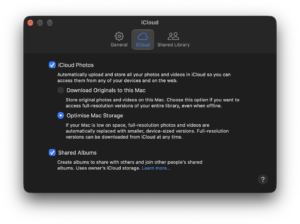
- Select Optimize Mac Storage.
This works best when your iCloud plan has enough capacity for your photo library.
Move a Photos Library to an External Drive
If you do not want to pay for additional iCloud storage, a large Photos library can be moved to a properly formatted external drive. Back up the library before moving it, then open Photos while holding the Option key and select the relocated library.
Avoid storing your only copy of important photos on a single external drive.
Use Optimize Mac Storage with iCloud Drive
iCloud Drive can keep files available in Finder without storing every full file permanently on the internal SSD.
- Open System Settings.
- Click your name.
- Select iCloud.
- Open Drive.
- Make sure iCloud Drive is enabled.
- Turn on Optimize Mac Storage.
When your Mac needs space, macOS can remove local copies of older iCloud files while keeping them available for download on demand.
The files have not been deleted from iCloud. Opening one downloads a local copy again.
Remove Downloaded Movies, TV Shows, Music, and Podcasts
Offline media is another common source of hidden storage use because downloaded content can remain after you finish watching or listening to it.
Check these apps:
- Apple TV: remove downloaded movies and TV episodes you can stream again.
- Music: remove local downloads from songs or albums stored in your music library.
- Podcasts: remove downloaded episodes and adjust automatic download settings.
- Spotify and other streaming apps: check their downloaded playlists and offline content.
Removing a downloaded copy from a streaming service usually does not remove the item from your account or library.
Clear Mail Storage on Mac
Mail can accumulate years of messages, attachments, deleted items, and junk email.
Start with the safe built-in cleanup options:
- Open Mail.
- Select Mailbox > Erase Junk Mail.
- Select Mailbox > Erase Deleted Items.
Large attachments can also occupy significant space. If a message contains a file you already saved elsewhere, you can remove the local attachment while retaining the message when your account and Mail configuration support it.
How to Clear System Data on Mac
System Data contains caches, logs, temporary files, application support files, local data, and other items macOS cannot place into a more specific storage category. Some System Data is required and should not be manually deleted.
If System Data appears unusually large, use these safer methods first.
Restart Your Mac
A normal restart can remove temporary files and allow macOS to recalculate storage categories.
Choose Apple menu > Restart, then check System Settings > General > Storage again after the Mac has been running for a few minutes.
Check for Old Device Backups
iPhone and iPad backups can appear under storage categories that users interpret as System Data. Remove backups you no longer need using Finder’s Manage Backups option.
Remove Large App Data by Uninstalling the App Properly
Professional apps, games, virtual machines, Docker environments, development tools, and audio or video software can create large support folders.
If you no longer use the software, run its official uninstaller rather than manually deleting random folders from ~/Library or /Library.
Start the Mac in Safe Mode
Apple says starting in Safe Mode can temporarily clear certain system caches. This can help when the Mac is so full that there is not enough room to install a macOS update or complete another task.
Restart normally afterward. macOS recreates caches it still needs.
Avoid deleting random files from the System or Library folders. Many online “System Data cleanup” guides recommend removing folders manually without explaining what created them. Deleting the wrong files can break apps, remove settings, or cause macOS problems.
Delete Duplicate and Unneeded Files
Duplicate downloads, exported videos, old installers, screenshots, and multiple copies of the same project can accumulate over time.
Useful places to inspect include:
- Downloads
- Desktop
- Documents
- Movies
- Pictures
- Old project folders
- Cloud-sync folders
Photos also includes duplicate-detection features on supported macOS versions. Open Photos and look for Duplicates in the sidebar, then review suggested merges before confirming them.
Move Large Files to an External Drive
You do not have to delete files that you still need. Videos, archives, old projects, Photos libraries, music collections, virtual machines, and other large files can be moved to external storage.
After copying a file:
- Open it from the external drive to confirm the copy works.
- Make sure important data has another backup.
- Delete the original from your internal drive.
- Empty the Trash.
An external SSD is particularly useful for large media libraries and projects that you still access regularly.
What to Delete When Your Mac Storage Is Full
If you need several gigabytes immediately, work through the following items in this order:
- Empty the Trash.
- Delete large files from Downloads.
- Remove unused DMG, ZIP, and PKG installers.
- Uninstall large apps and games you no longer use.
- Delete old iPhone and iPad backups.
- Remove downloaded movies, podcasts, and music.
- Move large videos and archives to external storage.
- Enable Optimize Mac Storage if you already use iCloud.
These areas generally provide more useful savings than manually deleting browser caches or digging through system folders.
How Much Free Space Should You Keep on a Mac?
There is no single required amount of free storage for every Mac, but leaving reasonable headroom helps macOS install updates, create temporary files, manage virtual memory, and work with large applications.
If your SSD regularly drops to only a few gigabytes free, clear additional space before installing macOS updates or large applications. Video editing, software development, virtual machines, and large games require considerably more temporary space than basic web browsing or office work.
Frequently Asked Questions
What is the fastest way to clear space on a Mac?
Open System Settings > General > Storage, identify the largest categories, then remove large Downloads, unused apps, old device backups, and media you no longer need. Empty the Trash afterward.
How do I free up space on a MacBook?
The process is the same on MacBook Air, MacBook Pro, iMac, Mac mini, and Mac Studio. Use System Settings > General > Storage to identify what is consuming the internal drive.
Why is my Mac storage full even after deleting files?
Files moved to the Trash still occupy disk space until the Trash is emptied. Storage categories can also take time to recalculate after large files are removed. Empty the Trash and restart the Mac if the displayed free space has not updated.
Why is System Data so large on my Mac?
System Data includes caches, logs, application support files, temporary files, and other data that macOS cannot classify elsewhere. Restarting, removing old backups, uninstalling unused applications properly, and starting once in Safe Mode can reduce some of it.
Can I delete System Data on Mac?
You cannot safely delete the entire System Data category. Some of it belongs to macOS and installed applications. Remove identifiable data such as old backups and unused application files rather than deleting random Library or System folders.
Does clearing cache free up space on Mac?
It can free some space, but caches are usually recreated and are rarely the best place to start. Apple notes that macOS already removes caches and logs that are safe to delete when additional storage is needed.
Does deleting an app free all of its storage?
Not always. Some applications create support files outside the Applications folder. If an app includes its own uninstaller, use it because it can remove associated components as well as the main application.
Why did deleting files from iCloud Drive not free space?
Deleting an iCloud Drive file removes it from iCloud as well, rather than merely removing the local copy. If your goal is to save Mac storage while keeping the file, enable Optimize Mac Storage and let macOS manage local copies.
Can I free up space without deleting files?
Yes. Move files to an external drive or use iCloud Drive with Optimize Mac Storage. Photos can also keep full-resolution originals in iCloud while retaining optimized versions on the Mac.
Do I need a Mac cleaner app?
No. macOS includes storage management, app removal, iCloud optimization, automatic Trash cleanup, and tools for finding large files. A third-party cleaner is not required to free up disk space.
Will Safe Mode delete my personal files?
No. Starting in Safe Mode does not intentionally delete your documents or photos. Apple says it clears certain system caches that macOS can recreate when needed.
How do I stop my Mac storage from filling up again?
Review Downloads periodically, uninstall unused apps, delete old device backups, enable automatic Trash cleanup, limit unnecessary offline media, and use optimized iCloud storage or an external drive for large libraries.