After completing one year since Edge Chromium Launch, Microsoft yet to figure out offering dedicated controls to prevent the Autoplaying of Videos on websites. As of now, the new Microsoft Edge Autoplays media by default and disables on sites that users engaged in the past when another setting is chosen. Microsoft may make ‘Limit” as the Default media Autoplay Setting instead of allow, according to a change that is tested in the canary version.

Edge offers two options for users to control media autoplay at Settings > Cookies and Site Permissions > Media Autoplay.
- Allow, when enabled, all videos will play automatically with sound.
- Limit, when selected, media won’t be autoplayed on sites that you’ve visited and interacted with sometime back.
Another option, Block, not available, requires enabling a flag, blocks media when you navigate between different sites.
But the option hasn’t been worked since available from the first time in Edge, Microsoft removed and placed it behind the flag for that reason.
Also, the Block option may break websites. So Microsoft, may not offer this option to users in Edge.
To see Microsoft Edge’s Media Autoplay default Setting change under testing,
- Ensure you’re using Edge build 91.0.841.0 or higher
- Visit edge://flags page
- Search for limit
- Select “Enabled” for Autoplay Limit Default Setting
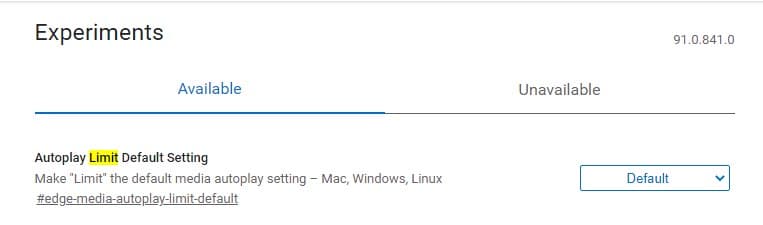
- Restart the browser.
Visit Autoplay Settings to see the Limit being applied and displayed as the default option.

What’s your take on this? Let us know in the comments below.
Related articles:
How to add YouTube video Comments to PDF in Microsoft Edge
You can now Open History Page in Edge with Ctrl +H Shortcut
Microsoft tests sharing Edge browsing data with Windows
New Microsoft Edge adds Dictionary to PDF Reader, here’s how to use it





