If you run a lot of extensions in Google Chrome, you know how quickly their icons fill the space to the right of the address bar. In April 2019 Google started testing a fix: a single extensions menu button on the toolbar that lists every installed extension in one drop-down. The feature landed behind a flag in the Canary and Dev builds of Chrome 75, and it is ready for anyone who wants to try it.
The problem with extension icons in Chrome
Until now Chrome gave you two choices. You could leave every extension icon on the toolbar, where they eat into the width of the address bar, or you could hide some of them in the overflow area of the Chrome menu. Neither is great when you have ten or more extensions and still need to click a few of them every day. Dragging the edge of the address bar to reveal hidden icons works, but it is clumsy.
What the new extensions menu does
Once the experiment is on, Chrome shows a new puzzle-piece icon next to the address bar. Click it and you get a list of all your installed extensions, so you can open, manage and control them from one place. You can then unpin the icons you rarely use. They disappear from the toolbar but stay one click away in the menu. In the Canary build each entry also carries the extension’s icon and a three-dot menu with the same options you get when you right-click an extension on the toolbar, including one to pin it back.
How to enable the extensions menu in Chrome 75
The menu was hidden behind an experimental flag at the time, and it worked on Windows, Mac and Chrome OS in the Canary and Dev channels:
- Install or update Chrome Canary or Chrome Dev (version 75).
- Type chrome://flags in the address bar and press Enter.
- Search for Extensions Toolbar Menu.
- Set the flag to Enabled and click Relaunch.
- Right-click any extension icon on the toolbar and choose Unpin (or “Hide in Chrome menu” in some builds) to move it into the new menu.
To bring an extension back to the toolbar, open the puzzle-piece menu and pin it again. In the early Dev build the extension icons and three-dot menus were still missing from the list, so Canary gave the more complete preview.
Why it matters
The menu is a middle ground between a crowded toolbar and fully hidden extensions. Extensions that work in the background, such as ad blockers or Gmail tweaks, can live in the menu, and only the ones you click often stay pinned. Because Microsoft’s new Edge is also built on Chromium, it is likely to pick up the same button. Google can still change the design before it reaches the stable channel, depending on how testing goes.
If your toolbar is messy because of extensions you no longer need, another option is to reset Chrome settings to their defaults. You can also check which extensions are interacting with a page before removing any.
Today: the Extensions menu is standard in Chrome
The experiment became a permanent part of Chrome. Google’s own help page now describes managing extensions through the Extensions button on the toolbar:
- To hide an extension, right-click its icon and select Unpin.
- To find hidden extensions, select Extensions (the puzzle piece).
- To show one on the toolbar again, open the Extensions menu, find it and select Pin.
- To reorder pinned icons, drag an extension’s icon to a new spot.
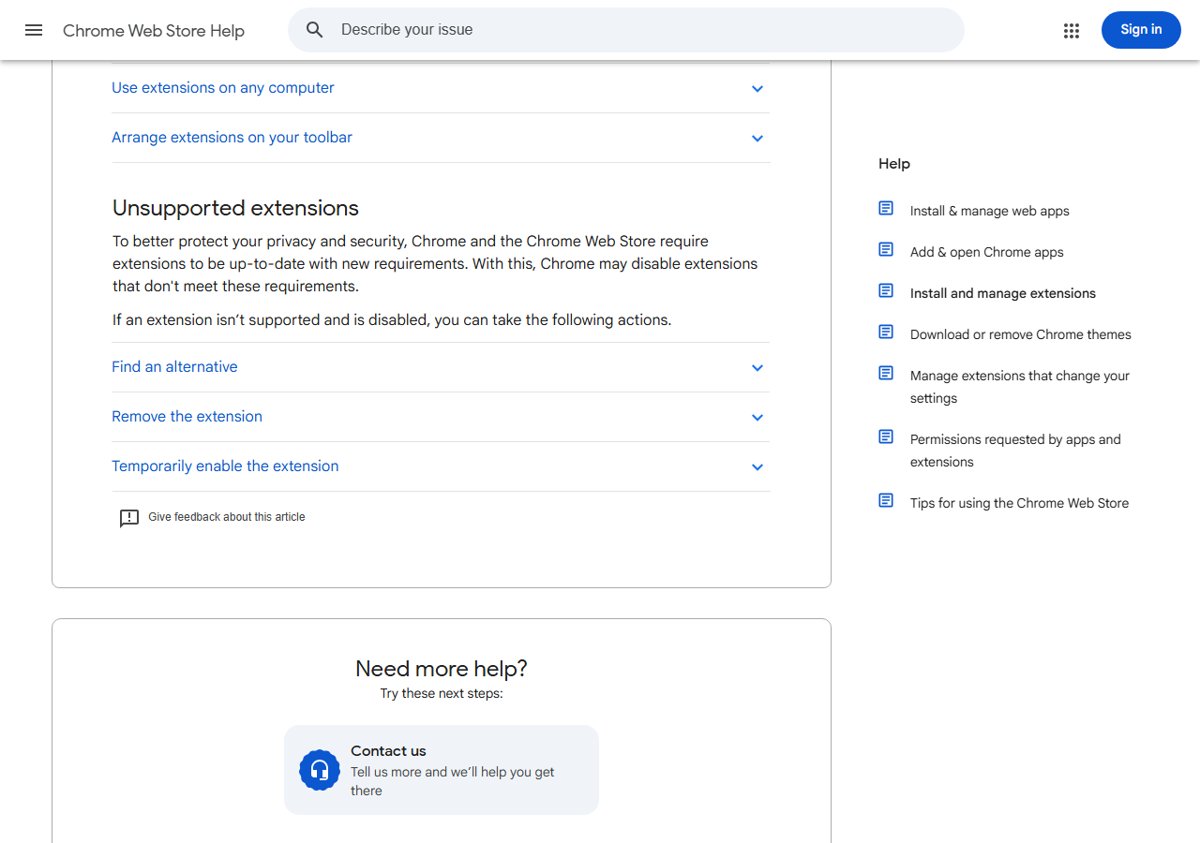
Google notes that some extensions don’t offer the pin option. If you want to know where Chrome’s other menus are, see where to find Chrome’s menus.