After installing Windows 10 and using it for a while, have you noticed Start Menu showing Suggested Apps like Twitter, Netflix, etc.? When you click on a suggested app: Microsoft Store opens the App page and allows you to you view and install the App. If you’ve found the suggestions annoying, you can prevent or stop Windows from offering app suggestions to you in the Start, here is how that can be done.

Stop Start Menu in Windows 10 from showing Suggested Apps
1. Open Start Menu,
2. Right click on the Suggested App and select ‘Turn off all suggestions‘

Note: If you don’t want to see the same suggestion again, choose’ Don’t show this suggestion option’ above in the second step.
Or
1. Click on Start
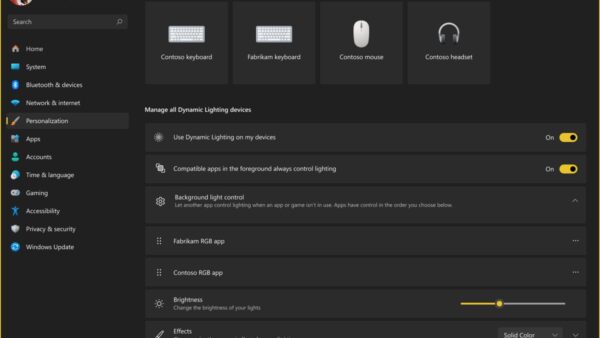
2. Select Settings > Personalization > Start, disable ‘Show suggestions occasionally in Start‘.

Or
1. Open registry Editor by typing regedit in the Run dialog
2. Navigate to HKEY_LOCAL_MACHINESOFTWAREPoliciesMicrosoftWindows
3. Right click on Windows key and create a new key, name it as CloudContent
4. Right click on CloudContent and create new DWORD (32-bit value) and assign name as ‘DisableWindowsConsumerFeatures’ and set its value as 1, restart your computer to apply the changes.

Related Articles