Starting from Windows 8 and to last previous Windows 10 version 1511, Windows Defender icon won’t be shown automatically on startup in the system tray unless you manually run it, that’s the default behavior because it hasn’t had any startup entry for Windows Defender user Interface in the registry.
Windows 10 Anniversary Update now shows Windows Defender notification icon in the tray, which on hover over shows PC protection status and using it, you can able to open the Windows Defender interface and perform scan or check for updates or delete threats.
READ: Make Windows Defender in Windows 10 to block Adware
This icon runs from the below path
C:Program FilesWindows DefenderMSASCuiL.exe
That’s a good addition! But if you’ve used to previous Windows 10 version and don’t want it to load on Windows startup, you can disable it, here is how that can be done.
Disabling Windows Defender Notification Icon in Windows 10 Anniversary Update
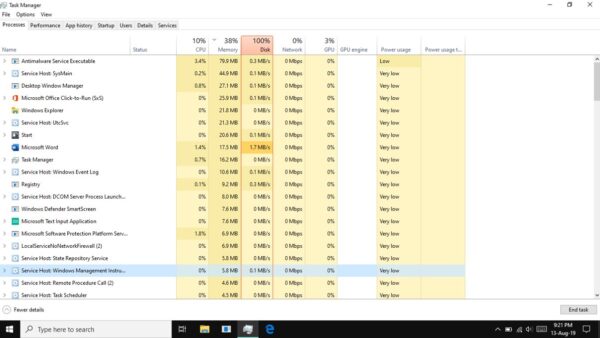
1. Open Task Manager, click on Startup tab
2. Select Windows Defender Notification icon and click Disable

3. Restart your computer to apply the change.
You need to reverse the steps to enable it again.
READ: Windows 10 Threshold 2: Remove Scan with Windows Defender Context Menu Entry
Windows 10 Anniversary Update to Ship Limited Periodic Scanning Feature