10.0.0.0.1 is not a working address, so type 10.0.0.1 instead: that is the private IP most Piso WiFi vendo machines use for their coin portal and admin login.
This guide shows how to confirm your vendo's real IP on any device, reach the admin page, fix a login page that will not open, and lock down the machine afterwards.
How to login to Piso WiFi router admin using 10.0.0.1
Run these steps on a phone or laptop within range of the vendo machine. The admin page is only reachable from inside the Piso WiFi network.
- Join the Piso WiFi network from your device's Wi-Fi settings.
- Turn off mobile data so the browser cannot route around the Wi-Fi.
- Open a browser and type 10.0.0.1 in the address bar, not the search box, then press Enter.
- If the coin portal opens instead of an admin screen, enter the admin page address from your vendo seller's manual. Each firmware uses its own admin path.
- Type the admin username and password you received with the machine and select the login button.
- Confirm the dashboard shows settings such as rates and network options, not the customer coin screen.
If 10.0.0.1 does not respond at all, your vendo uses a different IP. The next sections show how to find it.
First: is 10.0.0.0.1 a valid Piso WiFi login address?
No. An IPv4 address is written as exactly four numbers from 0 to 255, separated by three dots. 10.0.0.0.1 has five numbers, so no browser or router can use it.
| What you typed | Valid? | What to do |
|---|---|---|
| 10.0.0.0.1 | No, five numbers | Drop one 0 and type 10.0.0.1 |
| 10.0.01 or 10.0.0.01 | Not the standard form | Type all four parts in full: 10.0.0.1 |
| 10 0 0 1 | No, spaces instead of dots | Use dots: 10.0.0.1 |
| 10.0.0.1 | Yes, a private address in the 10.0.0.0 to 10.255.255.255 block | Open it while connected to the vendo |
| https://10.0.0.1 | Valid address with a scheme added | If the page fails, type http://10.0.0.1 instead |
Private addresses such as 10.0.0.1 cannot be reached across the public internet. That is why the page only opens while you are on the vendo's own Wi-Fi.
What is Piso WiFi admin login used for?
A Piso WiFi vendo is a wireless access point paired with a coin acceptor. Customers join the network, get redirected to a login page, and insert coins to buy internet time.
Most units are built from a single-board computer such as a Raspberry Pi or Orange Pi, a coin slot, a microSD card for the software, and a router.
| Who logs in | Where | What they can do |
|---|---|---|
| Customer | The coin portal at the vendo IP | Insert coins, check remaining time, pause time, enter a voucher code |
| Owner or operator | The admin page of the vendo firmware | Set rates, manage vouchers, review sales, change network and password settings |
| Owner, for the router itself | The router's own configuration page | Change radio, channel and firmware settings on the access point hardware |
Router admin vs. Piso WiFi portal: know the difference
Most login problems come from confusing these three pages. Opening 10.0.0.1 normally lands on the customer portal, which has no owner settings.
| Page | Who it is for | Login needed | How you recognise it |
|---|---|---|---|
| Customer portal | Anyone on the network | None; coins or a voucher code | Coin insert prompt, remaining time, pause option |
| Vendo admin page | The owner | Admin username and password from the seller | Rates, vouchers, sales and system menus |
| Router admin page | The owner | The router's own credentials, often on its label | Router maker's branding, Wi-Fi and firmware menus |
Before you log in: what you need
| Item | Why | Where to get it |
|---|---|---|
| A connection to the Piso WiFi network | The admin page is on a private address | Join the vendo's Wi-Fi from your device settings |
| The correct admin address | The admin page may sit on its own path, separate from the portal | The seller's manual or setup sheet |
| Admin username and password | The firmware rejects customer vouchers on the admin page | The seller, or whoever installed the machine |
| A browser | The admin page is a web page | Chrome, Edge, Safari or Firefox |
| Physical access to the machine | Needed for a reset or restart | The vendo box and its router |
How to find the correct Piso WiFi router IP address
If 10.0.0.1 does not load, read the gateway address your device received from the vendo. That gateway is the address to type.
| Device | Where to look | What to read |
|---|---|---|
| Windows 11 or Windows 10 | Press Win + R, type cmd, press Enter, then run ipconfig |
Default Gateway under the Wi-Fi adapter |
| macOS | Apple menu > System Settings > Network > Wi-Fi > Details > TCP/IP | The Router entry |
| Android | Join the network and let the portal open, or open any http page | The IP shown in the browser address bar on the portal page |
| iPhone or iPad | Join the network and wait for the sign-in sheet, or open any http page in Safari | The IP shown in the address bar on the portal page |
Whatever IP you find, the admin login works the same way. Type that IP in place of 10.0.0.1 in the steps above.
Read the gateway address from Command Prompt
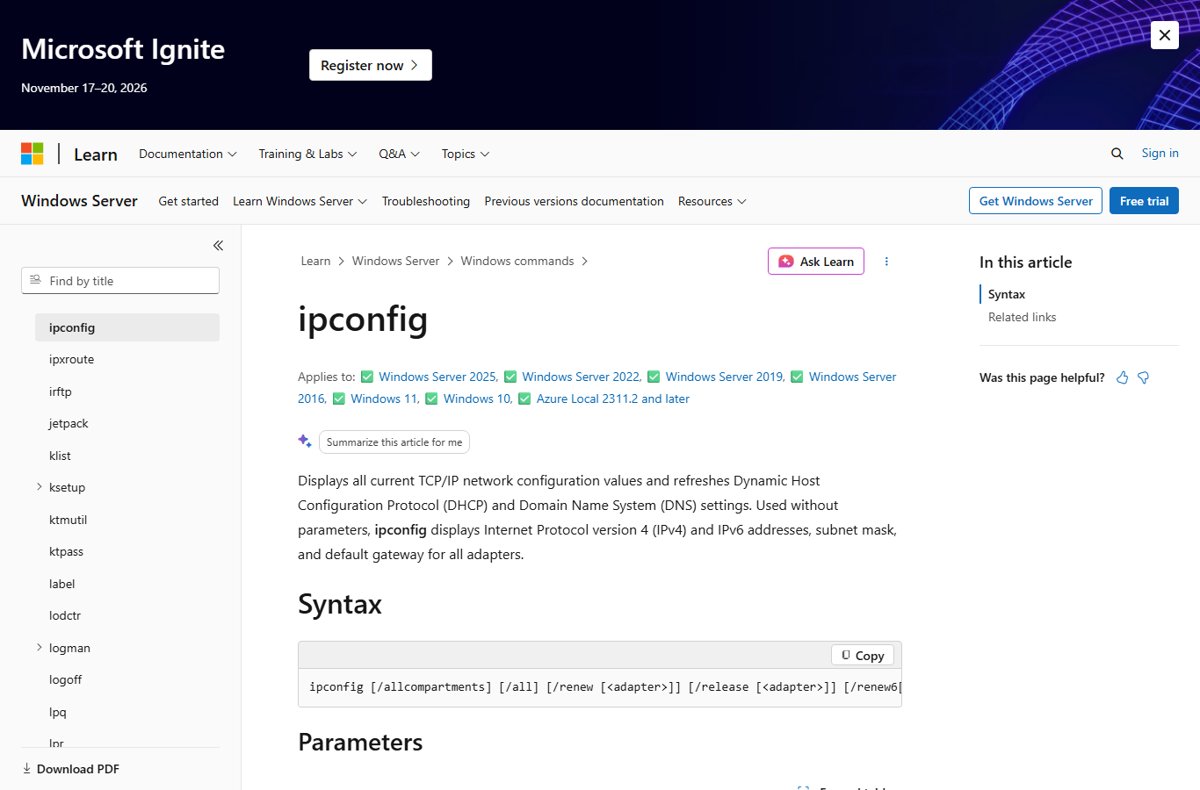
ipconfigRun without switches, ipconfig lists the IPv4 address, subnet mask and default gateway for every network adapter. Use ipconfig /all for the full configuration.
You should see: The Wi-Fi adapter block shows a Default Gateway line, for example 10.0.0.1. That number is your vendo's address.
How to check you reached the admin page
- Check the address bar still shows your vendo IP, not a search results page.
- Look for owner menus such as rates, vouchers or system settings.
- Change nothing yet; open one settings page and confirm it loads without returning to the coin screen.
- Log out and back in once to confirm the password is accepted every time.
A screen asking for coins or a voucher code means you are still on the customer portal.
Important settings to check after logging in
Menu names differ between vendo firmware brands, so match these jobs to the labels on your dashboard.
| Setting | Why it matters |
|---|---|
| Admin password | The default from the seller is shared with every buyer of that kit |
| Rates per coin | Controls how much time each coin buys; prices vary between locations |
| Voucher codes | Lets customers resume or extend time without coins |
| Pause time option | Lets customers stop their timer and resume later |
| Network name (SSID) | A unique name stops devices confusing your vendo with another network |
| Router firmware | Updates fix stability and security problems on the access point |
What to do if the 10.0.0.1 Piso WiFi login page will not open
"This site can't be reached" at 10.0.0.1
The device is on another network, or the vendo uses a different IP.
- Check the Wi-Fi icon shows the Piso WiFi network, not a neighbour's or a hotspot.
- Turn off mobile data and reload the page.
- Read the gateway address with
ipconfigor your device's network details and type that instead. - Type
http://before the IP if the browser added https:// on its own.
The page loads forever or shows an old version
A VPN, a private DNS setting or a cached page sends the request elsewhere.
- Disconnect any VPN app on the device.
- Open a private window, such as Incognito in Chrome, so cached pages and cookies are not reused.
- Type the vendo IP again in the private window.
Nothing responds even from another device
The vendo controller or its router has frozen.
- Switch off the vendo machine and its router at the power outlet.
- Wait about 30 seconds, then switch the router on first and the vendo second.
- Wait until the Wi-Fi network reappears, then reconnect and open the IP again.
- Try a second phone or laptop to rule out a problem with one device.
Common Piso WiFi login problems and fixes
The customer portal opens, not the admin page
10.0.0.1 serves the coin screen; the admin page sits on a separate path.
- Find the admin address in the seller's manual or setup sheet.
- Type the full admin address, including the path after the IP.
- Ask the seller for the path if the manual is missing.
Wrong username or password
The password was changed, or a voucher code was entered instead.
- Check Caps Lock and retype the credentials slowly.
- Use the admin credentials from the seller, not a customer voucher code.
- Try any password you set yourself after installation.
- If none works, follow the reset section below.
The login page keeps reloading
The browser blocks the session cookie or keeps redirecting to the portal.
- Open a private window and log in there.
- Try a different browser on the same device.
- Forget the Wi-Fi network, join it again, then retry.
The admin page opens but settings do not save
The session expired, or the storage card in the controller has a fault.
- Log out, log back in and make one change at a time.
- Restart the vendo and check whether the change survived.
- Contact the seller if settings keep reverting, since the microSD card may need replacing or reflashing.
How to reset Piso WiFi admin login
There is no universal reset button for Piso WiFi admin passwords. The vendo software and the router each keep their own credentials, and the reset route depends on the firmware brand.
- Work out which login you lost: the vendo admin page or the router's own page.
- For the vendo admin page, contact the seller with your proof of purchase and ask for their reset procedure.
- If the seller supplies a fresh firmware image, flash it to the controller's microSD card exactly as they instruct.
- For the router, use the reset method in the router maker's manual, which restores the password on its label.
- Log in with the restored default credentials.
- Set a new admin password straight away.
A reset or reflash can wipe rates, vouchers and sales records, so write them down first if you can still log in.
Security tips for Piso WiFi owners
- Change the default admin password to a long, unique one.
- Keep the vendo admin password different from the router password.
- Rename the network to something unique; avoid default names such as wireless.
- Turn on automatic firmware updates on the router if it offers them.
- Avoid WPA or WPA/WPA2 mixed security on any owner network you run; use WPA3 Personal or WPA2/WPA3 Transitional.
- Do not rely on MAC address filtering to keep people out, because device addresses can change or be copied.
- Keep the vendo box locked so nobody can reach its reset button or storage card.
Frequently asked questions
What is 10.0.0.0.1 Piso WiFi?
It is a mistyped version of 10.0.0.1, the private address many Piso WiFi vendo machines use for their coin portal. An IPv4 address has only four numbers, so 10.0.0.0.1 never loads. Type 10.0.0.1 while connected to the vendo's Wi-Fi.
What is 10.0.0.0.1 LPB Piso WiFi?
It is the same mistyped address searched together with a vendo brand name. The brand does not change the rule: 10.0.0.0.1 is not a valid IP. Open 10.0.0.1, or the gateway address your device shows, while on that vendo's network.
What is 10.0.01 Piso WiFi?
10.0.01 is a shortened way of typing 10.0.0.1, the Piso WiFi portal address. Type all four parts in full, 10.0.0.1, so the browser does not treat it as a search or misread it.
How do I pause my Piso WiFi time at 10.0.0.1?
Open 10.0.0.1 while connected to the vendo and use the pause option on the customer portal. Piso WiFi systems track usage and support pausing time, so your remaining minutes stay available until you resume.
How do I check my remaining Piso WiFi time?
Open the vendo portal at 10.0.0.1, or the IP your device lists as its gateway, while connected to the Piso WiFi network. The portal shows the time left on your connection and lets you add coins.
What is the default Piso WiFi admin password?
There is no single default. Each vendo firmware brand sets its own admin credentials, and sellers usually supply them with the machine. Ask the seller if you never received them, and change them after your first login.
Why does 10.0.0.1 open the coin page instead of the admin page?
The vendo IP serves the customer portal by default. The admin page lives at a separate address set by the firmware, which the seller's manual lists. Customers never need it.
Can I log in to Piso WiFi admin from outside the network?
Not through 10.0.0.1. Addresses in the 10.0.0.0 block are private and cannot be reached across the public internet, so connect to the vendo's Wi-Fi first and then open the admin page.