Google One is Google's paid subscription that adds storage to the 15 GB shared by Gmail, Google Drive and Google Photos, and it is worth paying for once you run out of that space or want the Gemini features on the AI plans.
This guide covers what each plan includes, what uses your storage, how to sign up, share and cancel, how Google One compares with iCloud+, OneDrive and Dropbox, and when to keep using the free tier instead.
What is Google One?
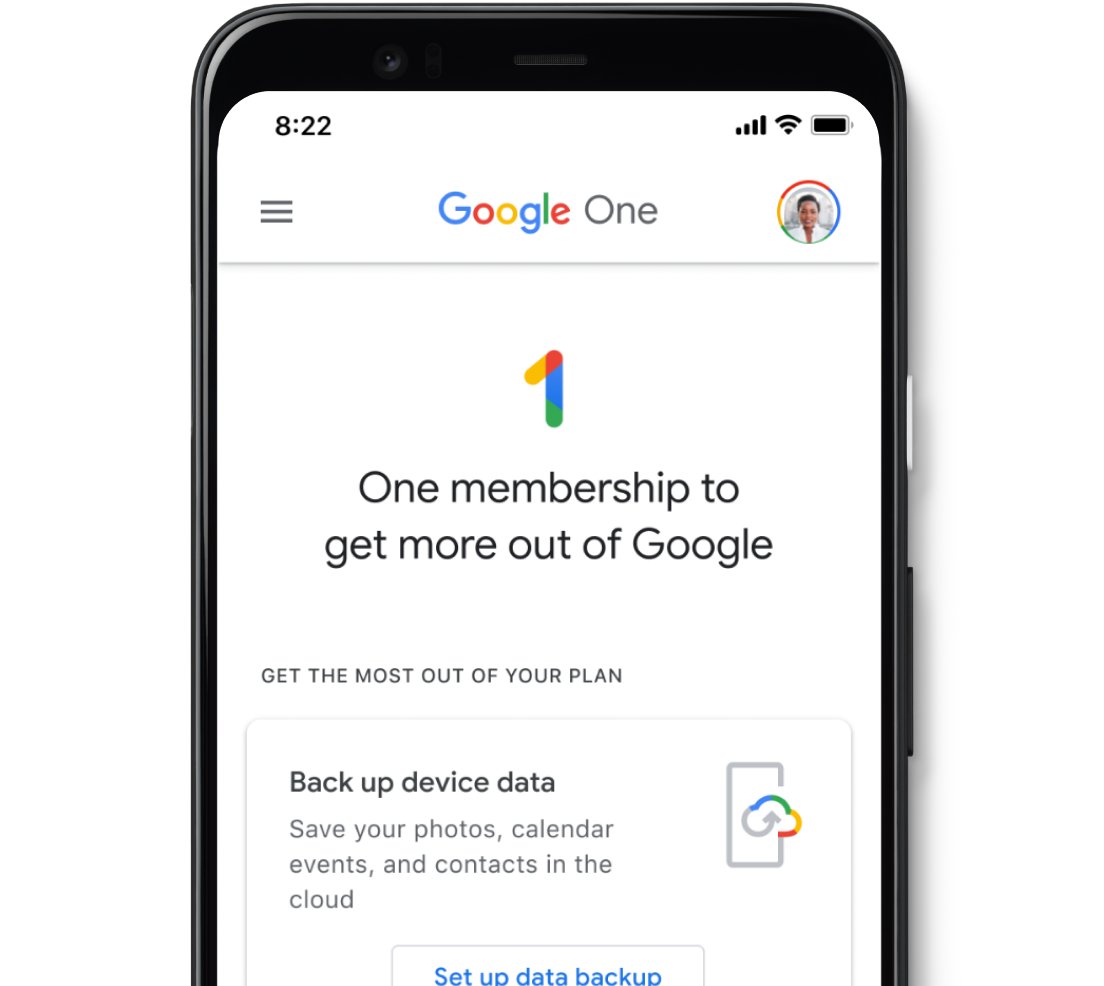
Google One is a membership tied to your personal Google Account. Google describes it as a subscription that gives you more storage across Google Drive, Gmail and Google Photos, plus member benefits you can share with your family.
Google One is not a separate drive. Your files stay in Drive, your mail in Gmail and your pictures in Photos; Google One only raises the shared limit and unlocks extras.
Pay for Google One when your account is close to 15 GB, or when you want the Gemini, YouTube Premium Lite and Google Store perks on the AI plans. Stay on the free tier if a cleanup keeps you well under 15 GB. Going over quota stops Gmail from sending and receiving mail, stops Drive uploads and stops Photos backups. A storage plan is the only fix besides deleting content.
You manage the membership at one.google.com or in the Google One app, which you can download for Android, iPhone and Windows.
How much free Google storage do you get?
Every Google Account includes up to 15 GB of storage at no charge. Gmail, Drive and Photos share that single pool, so a large photo library can stop your email.
| Account situation | Storage you get | Notes |
|---|---|---|
| Free Google Account | Up to 15 GB | Shared by Gmail, Drive and Google Photos |
| Google One storage plan | 30 GB to 200 GB total | The 15 GB is included in the plan total, not added on top of it |
| Google AI plan | 400 GB to 30 TB total | Storage size depends on the tier you pick |
| Promotion or device offer | Extra storage for the offer period | Your total drops back when the promotion expires |
| Google One family member | Personal space first, then the shared pool | Each member's files fill their own up to 15 GB before using shared storage |
Google One plans and pricing in 2026
Google sells two families of plans: storage-only plans and Google AI plans that bundle Gemini features. Prices are set per country, and one.google.com/about/plans shows the price for your location. Annual billing saves up to 16% compared with paying monthly.
| Plan | Total storage | Family sharing | What it adds | Price (checked October 9, 2026) |
|---|---|---|---|---|
| Free | 15 GB | No | Gmail, Drive and Photos storage | Free |
| Lite | 30 GB | No | Storage only; available in select countries | Local price on one.google.com |
| Basic | 100 GB | Up to 5 others | Storage, device backup, storage manager | Local price on one.google.com |
| Standard | 200 GB | Up to 5 others | Storage plus 3% Google Store credit in eligible countries | Local price on one.google.com |
| Google AI Plus | 400 GB or 2 TB | Up to 5 others | 2x Gemini app access compared with no AI plan | Local price on one.google.com |
| Google AI Pro | 5 TB or 10 TB | Up to 5 others | 4x Gemini access, Deep Research, Gemini in Gmail and Docs, YouTube Premium Lite in select countries | Local price on one.google.com |
| Google AI Ultra 5x | 20 TB | Up to 5 others | 5x the Pro plan's Gemini limits, YouTube Premium individual plan | $100/month in the US (since May 19, 2026) |
| Google AI Ultra 20x | 30 TB | Up to 5 others | 20x the Pro plan's Gemini limits, Project Genie | $200/month in the US (cut from $250 on May 19, 2026) |
Google raised Google One prices in select countries in February 2025 and again from July 27, 2026; the United States was not on either list. Google AI Ultra is billed monthly only, while the other plans offer monthly or yearly billing.
What counts toward Google One storage?
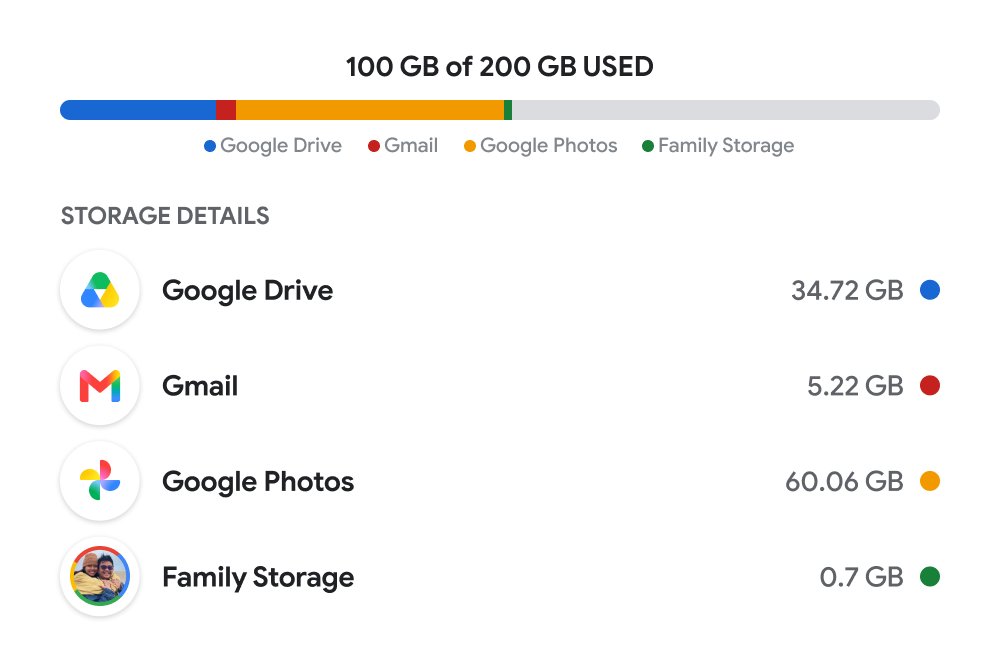
Google One storage covers far more than Drive files. These are the items Google lists as counting against your quota, and the ones that do not.
| Item | Counts toward storage? | Detail |
|---|---|---|
| Gmail messages and attachments | Yes | Includes the Spam and Trash folders |
| Google Drive files | Yes | PDFs, images, videos and other uploads |
| Files in folders shared with you | No | Only the original owner's quota is used |
| Google Docs, Sheets, Slides, Forms, Vids files | Yes, if created or edited after June 1, 2021 | Files last edited before that date do not count |
| Google Photos in Original quality | Yes | Older, inactive libraries still occupy space |
| Google Photos in Storage saver or Express quality | Yes, if backed up after June 1, 2021 | Items backed up before June 1, 2021 do not count |
| Google Meet call recordings | Yes | Delete old recordings you no longer need |
| WhatsApp backups on Android | Yes | Turn off Include videos in WhatsApp to shrink them |
| Android device backups | Yes | SMS and MMS, call history, device settings and app data |
What benefits does Google One include?
Storage is the core benefit on every plan. The extras grow with the tier, and several are limited by country or age.
| Benefit | Which plans | Limits |
|---|---|---|
| More cloud storage | All paid plans | Shared across Gmail, Drive and Photos |
| Family sharing with up to five others | Basic (100 GB) and above | Not available on Lite; members must live in the same country |
| Device backup and storage manager | All paid plans | Backups are made and managed on a phone |
| Google One support by chat, phone or email | All members | Reached from Help then Contact us on one.google.com |
| Google Store credit | 3% on 200 GB and 400 GB; 10% on AI plans of 2 TB and above | US, Canada, UK, Germany and Australia only; plan manager only |
| Gemini app, Deep Research, Gemini in Gmail and Docs | Google AI Plus, Pro and Ultra | Some features need you to be 18 or older |
| Google Photos Photo to video and Remix | AI plans | US only, 18 or older, on Android, iPhone and iPad |
| Premium Google Meet and Calendar appointment features | AI plans of 2 TB and above | Available in over 50 countries |
| YouTube Premium Lite | Google AI Pro | Select countries; plan manager only, not shared with family |
| YouTube Premium individual plan | Google AI Ultra; discounted add-on for AI Plus 2 TB and AI Pro | Add-on sold in the US, Canada, Brazil, France, Germany and Japan |
| Google Home Premium and Google Health Premium | Google AI Pro and Ultra | Select countries |
The old VPN by Google One benefit does not appear on the current plan comparison page, so do not count on a VPN with any plan. What remains is VPN by Google, built into Pixel 7 and later phones, the Pixel Tablet and phones on Google Fi.
How to sign up for Google One
You need a personal Google Account; Google Workspace accounts cannot join. Add a recovery phone number or email first so you can always get back into the account that holds the membership.
- On a computer, sign in to your personal Google Account and go to one.google.com.
- At the top, click Upgrade.
- Choose your new storage limit or Google AI plan, and pick monthly or annual billing.
- Review the plan price and payment date, then click Continue.
- Select your payment method and click Subscribe.
- Allow up to 24 hours for the new storage limit to apply to your account.
On an Android phone or iPhone, the Google One app and the upgrade prompts in Gmail, Drive and Photos lead to the same checkout. Students can claim discounted AI plans at one.google.com/ai-student after verifying through SheerID.
How to share Google One with family
Sharing gives up to five family members room in your plan at no extra cost. Their files stay private; nobody in the family can open your files unless you share them directly.
- Go to g.co/YourFamily while signed in, then click Get Started and Create family group. You must be 18 or older.
- Follow the on-screen prompts to invite family members who live in the same country as you.
- Go to one.google.com and click Settings.
- Turn on Share Google One with family.
- To check who uses what, click Storage on the left, then the down arrow next to Family storage.
Each member's files fill their own personal space of up to 15 GB first, then spill into the shared pool. Downgrading to Lite turns family sharing off, and you must turn it back on after upgrading again.
What happens if you cancel Google One?
Your extra storage and benefits last until the end of the billing cycle. After that, everyone in the family drops back to the free 15 GB, and storage purchases are non-refundable in most countries.
- Check how much space you use at one.google.com under Storage. If it is above 15 GB, clean up or export files first.
- Go to one.google.com and click Settings.
- Click Cancel membership.
- Click Cancel membership again to confirm, and wait for the confirmation message.
- If you subscribed through the Apple App Store, cancel the subscription in the App Store instead.
If you stay over 15 GB after cancelling, Gmail returns incoming messages to the sender, Drive stops syncing and uploads, and Photos stops backing up. If your account remains over quota for 2 years, Google may delete your content, after at least 3 months' notice. To keep a copy of everything before that, export your data with Google Takeout.
How to free up Google storage before paying
A cleanup often buys months before you need a plan. Empty the Trash and Spam folders first, because deleted items keep counting until they are gone for good.
- Go to one.google.com, click Storage, then under Get your space back click Free up account storage.
- Under Clean up suggested items or Clean up by service, click a category or service to review.
- Click Sort at the top right to put the largest files first, then select the files you no longer need.
- For Google Photos items, click Download first if you want a local copy.
- Click Delete (or Move to trash for Photos), check the consent box and click Permanently delete.
- In Gmail, search for
has:attachment larger:10Mto find messages with big attachments, then delete the ones you do not need. - On Android, open WhatsApp and tap Settings > Chats > Chat backup, then turn off Include videos to shrink future backups.
After deleting a lot at once, allow 48 to 72 hours for the storage figure to update.
Is Google One worth it?
Google One is worth it when the alternative is a full account that stops your email, or when you already pay separately for features an AI plan includes. It is not worth it when a cleanup keeps you comfortably under 15 GB.
| Your situation | Worth paying? | Why |
|---|---|---|
| Under 10 GB used and growing slowly | No | The free 15 GB still covers you; clean up once a year |
| Gmail or Photos warns that storage is almost full | Yes | Going over quota stops email and backups |
| Android phone backups and a growing photo library | Yes | Device backups and Photos both draw on the same quota |
| Family members each paying for their own storage | Yes | One 100 GB or larger plan covers six accounts |
| You already pay for iCloud+ or Microsoft 365 and rarely use Google apps | Usually no | Paying for two clouds duplicates storage you already have |
| You want Gemini in Gmail and Docs, Deep Research or Flow | Yes, on an AI plan | Those features come only with Google AI Plus, Pro or Ultra |
| You need business email, admin controls or a custom domain | No | Google One is for personal accounts; Google Workspace covers business use |
Which Google One plan should you choose?
Pick the smallest plan that gives you a year of headroom. You can move to a larger plan at any time from Settings > Change membership plan.
| If you | Choose | Why |
|---|---|---|
| Use just over 15 GB on your own | Lite (30 GB), where offered | Cheapest step up; no family sharing |
| Need breathing room or want to share | Basic (100 GB) | Smallest plan with family sharing |
| Back up a phone with years of photos and video | Standard (200 GB) | Better long-term value and 3% Google Store credit in eligible countries |
| Want Gemini features on a budget | Google AI Plus (400 GB or 2 TB) | Entry AI plan with more storage than Standard |
| Use Gemini daily and want YouTube Premium Lite | Google AI Pro (5 TB) | Full Gemini app access, Deep Research, Gemini in Gmail and Docs |
| Run heavy AI video, coding or research workloads | Google AI Ultra (20 TB or 30 TB) | Highest usage limits plus a YouTube Premium individual plan |
Annual billing usually costs less overall. Switching from monthly to annual takes effect immediately, with your remaining monthly time credited; switching back waits until the annual term ends.
Google One vs. iCloud, OneDrive, and Dropbox
Each service makes the most sense inside its own ecosystem. Google One is the natural pick for Android and Gmail users; iCloud+ for iPhone and Mac backups; Microsoft 365 when you also want the Office apps.
| Service | Free storage | Paid tiers | US price examples (checked October 9, 2026) | Best for |
|---|---|---|---|---|
| Google One | 15 GB | 30 GB to 30 TB | Ultra $100 or $200/month; other tiers priced per country | Gmail, Android and Google Photos users |
| Apple iCloud+ | 5 GB | 50 GB, 200 GB, 2 TB, 6 TB, 12 TB | $0.99, $2.99, $9.99, $29.99, $59.99 a month | iPhone, iPad and Mac backups |
| Microsoft OneDrive | Free tier with a Microsoft account | 100 GB, 1 TB, 2 TB shared by up to six people | Microsoft 365 Basic $1.99/month; Personal $9.99/month; Family $12.99/month | Windows users who want Word, Excel and Outlook |
| Dropbox | 2 GB | 50 GB, 2 TB, team plans from 3 TB | Basic Extra $1.99/month; Plus $9.99/month | Cross-platform file sync and sharing |
Google's 15 GB free tier is the largest of the four. Microsoft 365 Family and Google One both let six people share one plan, while iCloud+ and Dropbox Plus are priced per account here.
Google One privacy and security considerations
Google One changes how much you can store, not who can see it. These are the points worth knowing before you put a family or a phone backup on one account.
| Concern | What Google states | What to do |
|---|---|---|
| Family members seeing your files | Family members cannot access your files unless you share them directly | Share files individually from Drive or Photos |
| Phone backup encryption | Backups are encrypted with your Google Account password, and some data also with your screen lock | Use a PIN, pattern or password lock, not swipe |
| Backups disappearing | Device backups (except Photos) are erased after 57 days without use, or when backup is turned off | Open the old phone or restore before 57 days pass |
| Losing access to the account | Google recommends recovery options for every Google One member | Add a recovery phone number and email |
| Shared benefits | Some benefits go only to the first family member who claims them, and accounts managed by parents cannot see benefits | Decide who claims single-use benefits |
How to check your Google One plan and storage
- Go to one.google.com while signed in to the account you upgraded.
- Click Storage on the left and confirm the new total, such as 100 GB or 2 TB.
- Click Benefits on the left to see the perks you can claim; All caught up means there are no new ones.
- Click Settings to confirm the plan name, billing cadence and family sharing status.
If the total still shows 15 GB, wait up to 24 hours after the change before troubleshooting.
Fix Google One backup and storage problems
Google One backup does not work properly on Android
Backup is off, the phone uses a work profile, or the account is out of storage.
- Open Settings and tap Google > All services.
- Under Backup and restore, tap Backup and make sure Backup by Google One is on.
- Tap Back up now and wait; a full backup can take up to 24 hours.
- If the account is full, free up space or upgrade, because backups stop when you are over quota.
- On a work-profile or company-owned phone, use your company's backup instead; personal backup is not available there.
Storage does not increase after you upgrade
Plan changes can take up to 24 hours to apply, or you upgraded a different Google Account.
- Wait up to 24 hours after subscribing.
- Go to one.google.com and check the account name at the top right.
- Click Storage and compare the total with the plan you bought.
Storage does not go down after deleting files
Deleted items still sit in Trash, or the figure has not refreshed yet.
- Empty the Trash in Gmail, Drive and Google Photos, and empty Gmail's Spam folder.
- Allow 48 to 72 hours for the storage figure to update.
- Remember that files in folders shared with you never counted toward your quota, so deleting them frees nothing.
Gmail cannot send or receive email
The account is over its storage quota.
- Go to one.google.com and click Storage to see which service is largest.
- Delete large emails or files, then empty the Trash.
- If you cannot get under the limit, upgrade to a plan with more storage.
Common Google One questions
What does Google One provide?
Google One provides extra cloud storage shared by Gmail, Google Drive and Google Photos, device backup, a storage manager and Google One support. Plans of 100 GB and above add family sharing with up to five people, and Google AI plans add Gemini features and YouTube perks.
How does Google One work?
Google One raises the storage limit on your existing Google Account. You keep using Gmail, Drive and Photos as before; the paid plan replaces the free 15 GB with a larger total, and you manage it at one.google.com or in the Google One app.
What is Google One on my phone?
On a phone, Google One is the app and service that manages your Google storage plan and phone backup. On Android it also powers Backup by Google One, which saves SMS, call history, device settings and app data to your Google Account.
What is Google One on Google Play?
A Google One charge on Google Play is a storage or Google AI plan billed through your Play account. You can view, change or cancel it at one.google.com under Settings.
What is Google One on an Android phone?
Google One on an Android phone is the storage and backup service behind your Google Account. It backs up device data to the cloud even on the free 15 GB, and a paid plan adds more space when backups and photos fill that allowance.
Is Google One the same as Google Drive?
No. Google Drive is where you store and organise files, while Google One is the subscription that adds storage to Drive, Gmail and Google Photos together. You can use Drive for free without ever buying Google One.
Is Google 1 the same as Google One?
Yes. Google 1 is a common way of typing Google One, Google's storage and AI subscription. The official name is Google One, and its website is one.google.com.
Why does Google One backup not work properly?
Google One backup usually fails because Backup by Google One is turned off, the account is over its storage quota, or the phone is set up with a work profile. Turn backup on under Settings, free up space, then tap Back up now and allow up to 24 hours.
How do I cancel a Google One subscription?
Go to one.google.com, click Settings, then Cancel membership and confirm. You keep the extra storage until the end of the billing cycle. If you subscribed through the Apple App Store, cancel in the App Store instead.
Do I lose my files if I cancel Google One?
No, not immediately. Your files stay, but if you are over 15 GB you cannot upload, send email or back up photos. Content can be deleted only after you stay over quota for 2 years, with at least 3 months' notice.
Can I share Google One with someone in another country?
No. Family group members must live in the same country as the plan manager, and the manager must be 18 or older. Family sharing is available on plans of 100 GB and above, not on Lite.
Bottom line: is Google One worth paying for?
Buy the smallest Google One plan that covers your next year of growth once you pass about 12 GB of the free 15 GB, and share it with your family. Move to Google AI Pro only if you will use Gemini in Gmail, Docs and the Gemini app every week. Running out of storage stops Gmail and phone backups, and a single 100 GB or larger plan covers six accounts. The AI tiers cost far more, so their value depends on using the AI features, not the extra terabytes.