The double person icon in the upper-right corner of a photo in Apple Photos is the shared library badge: it marks a photo or video that sits in an iCloud Shared Photo Library rather than in your personal library.
This guide explains why the badge appears on photos you never received in Messages, how to see who added them, how to hide the badge, and how to move or leave the shared library.
Person icon on photos in Apple Photos: what it means
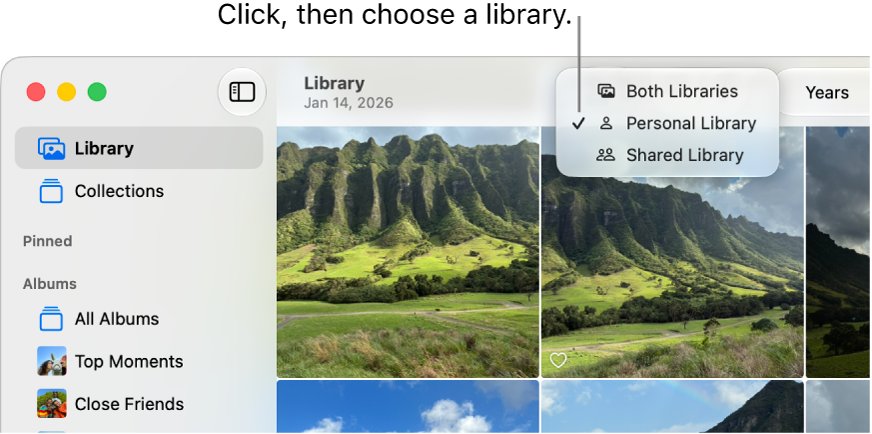
The badge only shows when Photos displays both libraries together. Items without it are in your personal library; items with it are shared with every participant in the shared library.
- Open the Photos app and select a photo that shows the person icon.
- On a Mac, choose View > Shared Library to confirm the photo appears there.
- Select the photo and click the Info button in the toolbar to see who contributed it.
- Choose View > Personal Library to see only your own items, without the shared ones.
- Choose View > Both Libraries to see everything together again, with the badge on shared items.
What is iCloud Shared Photo Library in Photos?
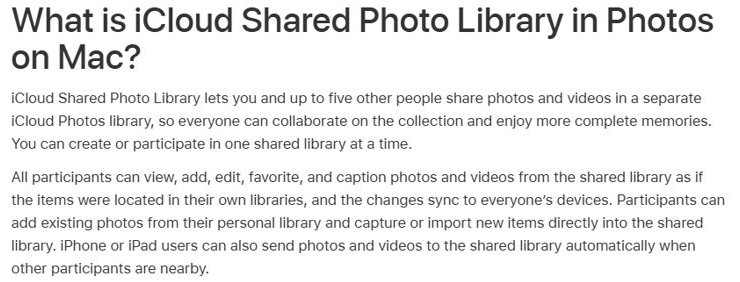
iCloud Shared Photo Library is a separate iCloud Photos library that up to six people share: the organizer plus five participants. You can belong to one shared library at a time.
| Fact | Detail |
|---|---|
| Who can add photos | Every participant; they can also view, edit, favorite, caption and delete shared items |
| Maximum size | Up to six people, including the organizer |
| Minimum software | iOS 16.1, iPadOS 16.1 or macOS 13 to use it |
| Requirement | iCloud Photos turned on; Family Sharing is not needed |
| What happens to contributed photos | They move from the contributor's personal library to the shared library |
| Whose storage it uses | All shared library content counts toward the organizer's iCloud storage |
| Automatic adds | iPhone or iPad users can send new photos to it automatically when other participants are nearby |
That last row explains the question most people have: a participant's camera can add photos to the shared library without anyone sending them in Messages, so they show up with the badge on your devices.
See who added a shared library photo in Photos on Mac
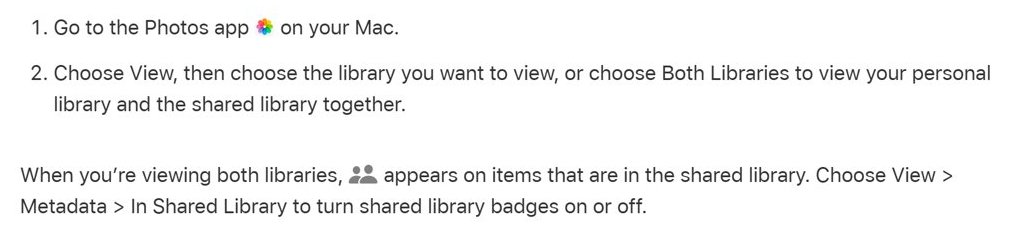
- Open the Photos app on your Mac.
- Choose View > Shared Library.
- Select the photo or video you do not recognize.
- Click the Info button in the toolbar.
- Read the contributor shown for the item.
How to turn off the shared library badge in Photos
On a Mac you can hide the badge without leaving the shared library. The photos stay shared; only the icon disappears.
| What you want | Do this on a Mac | Result |
|---|---|---|
| Hide the person icon only | View > Metadata > In Shared Library | Badges turn off; both libraries still show |
| See only your own photos | View > Personal Library | Shared items disappear from view |
| See only shared photos | View > Shared Library | Only items in the shared library show |
| See everything again | View > Both Libraries | Both libraries show, with badges if turned on |
Move a photo from the shared library back to your personal library
You can move back only the items you contributed. Once moved, other participants can no longer see them.
- Open the Photos app on your Mac.
- Choose View > Shared Library.
- Select the items you added and want to keep private.
- Choose Image > Move [number] Photos to your Personal Library.
- Choose View > Personal Library to confirm the items are there without the badge.

How to leave an iCloud Shared Photo Library on iPhone
Leaving removes the badge for good, because the shared library is no longer on your devices. When you leave, you can copy everything from it into your own library, or only what you contributed.
- Open the Photos app on your iPhone.
- Tap Collections.
- Tap your account in the top-right corner.
- Tap Manage.
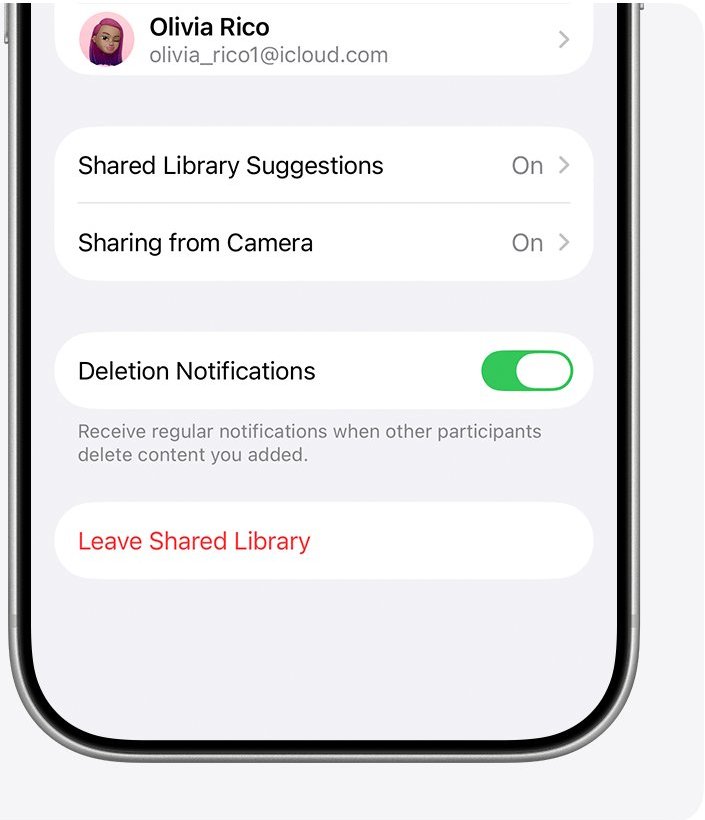
- Tap Leave Shared Library if you are a participant, or Delete Shared Library if you are the organizer.
- Choose whether to keep everything or only the content you contributed.
When an organizer deletes a shared library, participants who have been members for more than 7 days can copy everything; newer members can copy only what they contributed.
Photos with the person icon that you do not recognize
Photos you never received in Messages appear with the two-person icon
Another participant added them to the shared library, possibly automatically when you were nearby.
- Open the photo and check the contributor with the Info button.
- Ask that person whether they meant to share it.
- Ask them to move it back to their personal library if it should be private.
You do not remember joining a shared library
You accepted a Shared Library invitation, or you set one up as organizer.
- On iPhone, open Photos > Collections and tap your account in the top-right corner.
- Tap Manage to see the participants.
- Leave the shared library if you no longer want it.
People & Pets looks empty after you switch library views
With a shared library, the People collection only fills when Both Libraries is selected.
- On a Mac, choose View > Both Libraries.
- Click Collections in the sidebar.
- Click People & Pets (or People).
Person icon in Apple Photos FAQ
What does the person icon mean on iPhone photos?
A two-person icon on a photo means the item is in an iCloud Shared Photo Library. It appears when Photos shows your personal and shared libraries together, so you can tell which items other participants can see.
What does the two people icon mean in Photos?
It is the shared library badge. Apple Photos puts it on items in the iCloud Shared Photo Library when you view both libraries at once. Items without the badge are in your personal library only.
What is the person icon called in Apple Photos?
Apple calls it the shared library badge. On a Mac you can turn it on or off with View > Metadata > In Shared Library.
Why do photos I did not take have the person icon?
Another member of your shared library added them. Participants can add photos manually or have their iPhone add new photos automatically when other participants are nearby, so nothing has to be sent in Messages.
Can other people see photos with the person icon?
Yes. Every participant in the shared library can view, edit, favorite, caption and delete items that carry the badge. Photos without it stay in your personal library.
How do I remove the person icon from a photo?
Move the photo to your personal library if you contributed it: choose View > Shared Library, select it, then choose Image > Move Photos to your Personal Library. You cannot move items contributed by others.
Is the person icon the same as the People album?
No. The People & Pets collection groups photos by the faces Photos recognizes. The two-person badge only marks shared library items and says nothing about who appears in the photo.
Does a shared library use my iCloud storage?
Not if you are a participant. All content added to a shared library counts toward the organizer's iCloud storage, not the storage of the other members.