To claim the Surfshark free trial, open surfshark.com/vpn-free-trial, choose a 12-month or 24-month plan, and enter your email and payment details to start 7 days at $0.00.
This guide covers who qualifies, setting up the app, what the trial includes, cancelling before the first charge and the refund window that follows.
How to sign up for the Surfshark free trial
The trial is tied to a paid plan, so a payment method is required even though nothing is charged for the first 7 days.
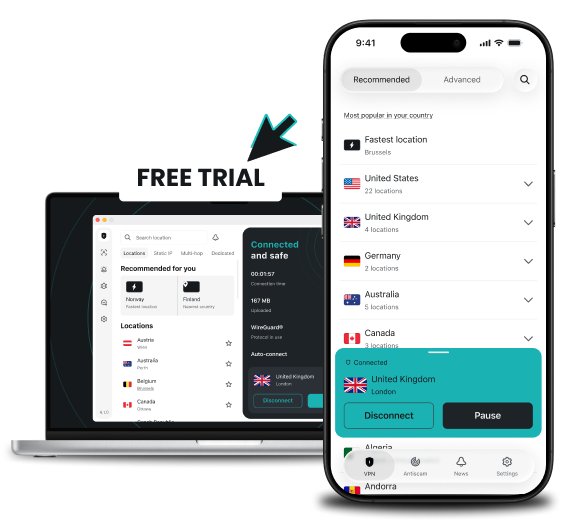
- Open surfshark.com/vpn-free-trial in your browser and select Start a free trial.
- Choose a 12-month or 24-month plan; the trial is offered only on those lengths.
- Enter your email address to create the Surfshark account.
- Pay with a credit card, PayPal or Apple Pay; the total shown should be $0.00 for the trial.
- Set your login password to finish creating the account.
- Download, install and sign in to the Surfshark app on your device, then connect to a server.
Surfshark free trial requirements
| Requirement | Detail |
|---|---|
| First-time user | The email and payment details confirm you have not used Surfshark before. |
| Plan length | 12-month or 24-month plans only. |
| Payment method | Credit card, PayPal or Apple Pay. |
| Upfront cost | $0.00 during the 7 days. |
| Mobile route | An iOS or Android trial is available after subscribing straight from the Surfshark website. |
Install Surfshark on Windows, Mac and phone during the trial
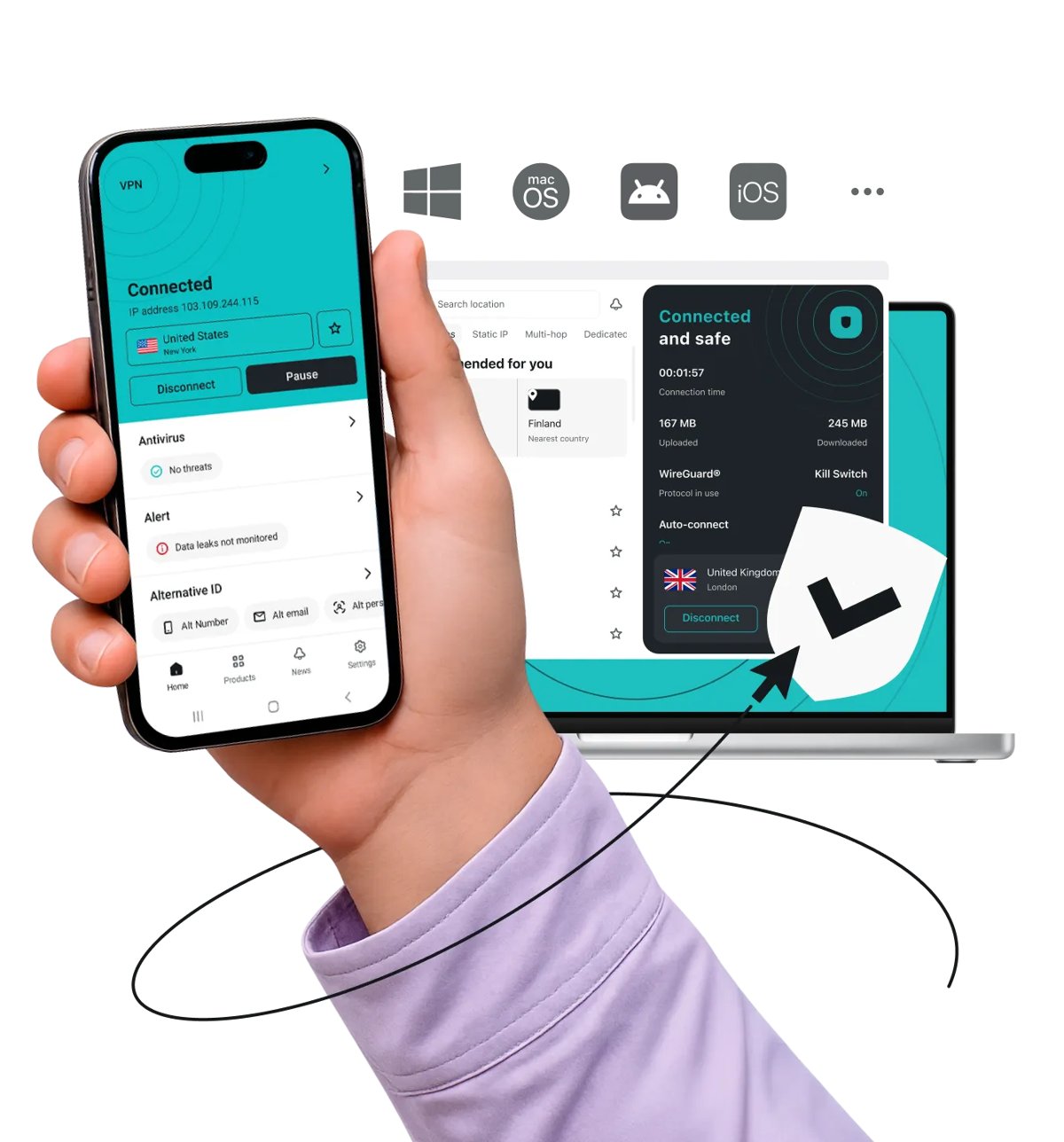
One trial account covers up to three devices at once. The Surfshark Windows app is the usual starting point; you can also download Surfshark for PC from the official installer.
- Open surfshark.com on the device and select Download to get the app for Windows, macOS, Android, iOS or another platform.
- Install and open the app.
- Select Log in and enter the email and password from sign-up.
- Pick a location and select Connect.
- Repeat on a second and third device; a fourth device has to wait until the paid plan starts.
What to expect from the Surfshark free trial
| Item | During the 7-day trial | After it ends |
|---|---|---|
| Price | $0.00 | Charged at the plan you chose, renewing automatically |
| Devices | Up to three at once | Unlimited simultaneous connections |
| Features | All Surfshark features | All features in your plan |
| Servers | 4,500+ servers in 100 countries | Same network |
| Kill switch, Bypasser, Clean Web | Included | Included |
| Refund option | Cancel without charge | 30-day money-back guarantee |
The kill switch cuts the connection if the VPN drops, Bypasser lets chosen apps and sites skip the VPN, and Clean Web blocks ads and malware in browsers and apps.
Check your Surfshark trial is active
- Sign in to your account on surfshark.com and open the subscription section from the profile menu.
- Confirm the plan shows as active with the trial end date and renewal date.
- Connect in the app and open Surfshark's What is my IP? tool to confirm the IP address now shows the server location.
How to cancel the Surfshark free trial before you’re charged
Cancelling at any point inside the 7 days means no charge. Turn off auto-renewal before the trial ends.
- Sign in to your Surfshark account on the website, not in the app.
- Open the profile menu and select the subscription section.
- Turn off auto-renewal for the plan.
- Keep the confirmation email in case you need to prove the date.
Surfshark refund after the free trial ends
| Situation | What happens | What to do |
|---|---|---|
| Auto-renewal turned off in time | No charge | Nothing further |
| Trial ended and you were charged | The paid plan starts and the 30-day money-back guarantee begins | Contact Surfshark support by live chat and request a refund |
| More than 30 days after the charge | Outside the guarantee window | The plan runs to its end date |
Together the trial and the guarantee give up to 37 days to decide.
Surfshark 7-day free trial FAQ
Is Surfshark VPN free?
No. Surfshark is a paid VPN, but it offers a 7-day free trial on 12-month and 24-month plans. You pay $0.00 during the trial and are charged for the chosen plan only if you do not cancel.
How does Surfshark's free trial work?
You pick a 12-month or 24-month plan and enter your email and payment details to confirm you are a first-time user. You then get full access for 7 days at $0.00 before the plan renews automatically.
Can I cancel before being charged?
Yes. You can cancel at any point during the 7 days and pay nothing. Turn off auto-renewal in the subscription section of your account on the Surfshark website before the trial ends.
What happens after the Surfshark free trial ends?
The trial converts into the paid plan you selected and you are charged. The 30-day money-back guarantee then starts, so you can still ask for a full refund through live chat.
What devices support the Surfshark free trial?
The trial works on Windows, macOS, iOS, Android and other platforms Surfshark supports. You can protect up to three devices at the same time; a paid subscription removes that limit.
Are all Surfshark features accessible during the free trial?
Yes. The trial includes every Surfshark VPN feature, such as the kill switch, Bypasser split tunnelling and Clean Web. The only difference is the three-device limit.
Does Surfshark need a credit card for the free trial?
Yes, a payment method is required. Surfshark accepts a credit card, PayPal or Apple Pay for the trial, and nothing is charged until the 7 days are over.
Does Surfshark have a 30-day money-back guarantee?
Yes. Surfshark offers a 30-day money-back guarantee on top of the 7-day free trial. If you are charged and change your mind, request a refund through live chat within that window.