KB5120994 is the August 11, 2026 hotpatch security update that moves Windows 11 version 24H2 to build 26100.9106 and version 25H2 to build 26200.9106 without a restart.
It reaches only hotpatch-enrolled Enterprise and Education devices through Windows Update; every other PC gets the regular August cumulative update instead.
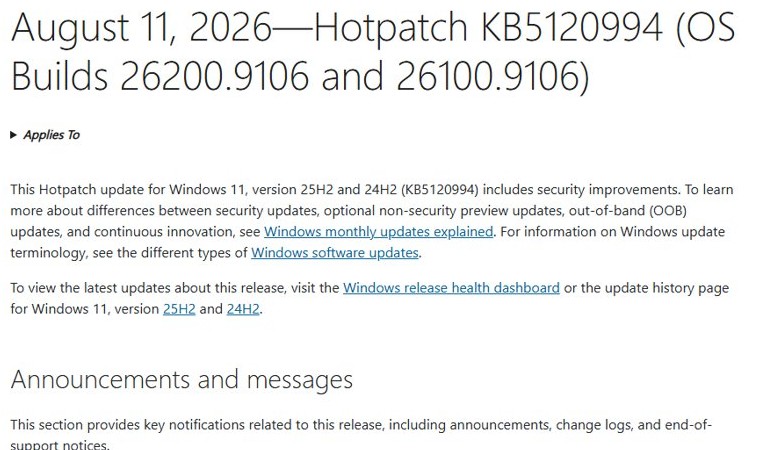
How to install KB5120994 on Windows 11
Windows Update is the only delivery route, and the hotpatch installs automatically on eligible devices.
- Open Settings and select Windows Update.
- Select Check for updates.
- Let the August 11, 2026 hotpatch KB5120994 download and install.
- Keep working; a hotpatch takes effect without a restart.
If Windows asks for a restart instead, the PC received the standard cumulative update because it is not hotpatch-eligible this month.
KB5120994 is a hotpatch build, not the August baseline cumulative update
Hotpatch updates are monthly security releases that apply without a restart, on top of a quarterly baseline that does restart. July 2026 was the baseline month, so August and September are hotpatch months.
| Detail | KB5120994 |
|---|---|
| Release date | August 11, 2026 |
| Update type | Hotpatch (security only, no restart) |
| Windows 11 24H2 build | 26100.9106 |
| Windows 11 25H2 build | 26200.9106 |
| Servicing stack update | KB5123304, version 26100.9156, installed alongside through Windows Update |
| Required baseline | The current quarterly baseline (July 2026) |
| Known issues | None listed by Microsoft |
The hotpatch calendar repeats every year: baselines in January, April, July and October, hotpatches in the other eight months.
Who can get the KB5120994 hotpatch
| Requirement | What Microsoft requires |
|---|---|
| Windows version | Windows 11 version 24H2 or 25H2, Enterprise or Education |
| License | Windows 11 Enterprise E3 or E5, Microsoft 365 F3, Windows 11 Education A3 or A5, Microsoft 365 Business Premium, or Windows 365 Enterprise |
| Baseline | The latest quarterly baseline update already installed |
| Management | Microsoft Intune with a Windows quality update policy that has hotpatch set to Allow |
| Security | Virtualization-based security (VBS) running |
| Arm64 only | Compiled Hybrid PE (CHPE) disabled |
Devices that miss any requirement are offered the standard latest cumulative update, which needs a restart. Home and Pro PCs never receive hotpatches.
Microsoft offers no standalone package or WSUS path
Microsoft lists KB5120994 as unavailable in the Microsoft Update Catalog and in Windows Server Update Services, so there is no .msu to download and no WSUS approval to make.
| Release channel | Available | Next step |
|---|---|---|
| Windows Update and Microsoft Update | Yes | Installs automatically on enrolled devices |
| Microsoft Update Catalog | No | Use Windows Update with an Intune hotpatch policy |
| Windows Server Update Services (WSUS) | No | Move hotpatch devices to Intune quality update policies |
Turn on hotpatch updates in Intune for KB5120994
- Sign in to the Microsoft Intune admin center and select Devices.
- Under Manage updates, select Windows updates and open the Quality updates tab.
- Select Create, then Windows quality update policy, and enter a name.
- Under Settings, set When available, apply without restarting the device ("Hotpatch") to Allow, then select Next.
- Choose scope tags, assign the device group, and select Create.
Turning on hotpatch does not change existing deferral, deadline or active hours settings.
Arm64 support broadens the option, with conditions attached
Hotpatch is generally available on Arm64 devices running Windows 11 Enterprise 24H2 or 25H2, build 26100.4929 or later, with the current baseline installed. Arm64 PCs need one extra change: CHPE must be off, because hotpatches cannot service the CHPE binaries in the SyChpe32 folder.
- Set the DisableCHPE policy to 1 through Intune or Group Policy.
- Or create the DWORD
HotPatchRestrictionswith value1underHKLM\SYSTEM\CurrentControlSet\Control\Session Manager\Memory Management. - Restart the device once; the setting stays through later updates.
- Add the Arm64 device group to the hotpatch quality update policy.
Disabling CHPE can slow or break 32-bit x86 apps such as 32-bit Office add-ins. Exclude devices that depend on them, or set HotPatchRestrictions back to 0 and restart to undo the change.
The security bulletin is deliberately sparse
The KB5120994 page says only that the update provides security improvements. The list of fixed vulnerabilities sits in the Microsoft Security Update Guide under the August 2026 release note.
| Where to look | What it gives you |
|---|---|
| KB5120994 support article | Builds, delivery channels, known issues, file information links |
| Security Update Guide, 2026-Aug release | The CVEs fixed, severity and affected products |
| Windows release health | Hotpatch release notes and any later known issues |
Secure Boot certificate notice is related to servicing, not proof of a certificate payload
The KB page repeats Microsoft's standing notice that the Secure Boot certificates on most Windows devices began expiring in June 2026. It does not say KB5120994 installs new certificates.
| Point | What Microsoft states |
|---|---|
| Expiry | Certificates used by most Windows devices began expiring in June 2026 |
| Impact today | Devices without the new certificates still start, run and install standard updates |
| Delivery | Newer certificates arrive through Windows updates in the coming months |
| Status check | Secure Boot status shows in the Windows Security app |
| IT guidance | Microsoft's Secure Boot playbooks for Windows clients and Windows Server |
Confirm KB5120994 and build 26100.9106 are installed
- Press Win + R, type
winver, and press Enter. - Read the build: 26100.9106 on 24H2 or 26200.9106 on 25H2 means the hotpatch is applied.
- Open Settings > Windows Update > Advanced options > Configured update policies and look for Enable hotpatching when available.
- Open Settings > Windows Update > Update history and confirm KB5120994 is listed.
KB5120994 not showing in Windows Update
Windows Update offers a cumulative update that needs a restart
The device is not hotpatch-eligible, so it gets the standard August update instead.
- Confirm the edition and license are on the eligible list.
- Check that the July 2026 baseline is installed.
- Confirm the device is in an Intune quality update policy with hotpatch set to Allow.
Hotpatch offer missing because of VBS
VBS is off, and the hotpatch installer needs it.
- Select Start, type
System information, and open it. - Under System summary, find Virtualization-based security.
- If the value is not Running, turn VBS on through the VirtualizationBasedTechnology policy.
Arm64 device skips hotpatches
CHPE is still enabled.
- Set DisableCHPE or
HotPatchRestrictions=1as shown above. - Restart once and check Windows Update again.
A problem appears after the hotpatch
Automatic rollback of a hotpatch is not supported.
- Open Event Viewer and filter for hotpatch to read the monitor service errors.
- Uninstall the hotpatch, install the latest cumulative update, and restart.
Update: Additional details (August 12, 2026)
Microsoft's support article lists no known issues for KB5120994, and the servicing stack update KB5123304 ships with it on Windows Update. The September 2026 release is also a hotpatch month, and the next restart-required baseline arrives in October 2026.
| Month in 2026 | Update type | Restart |
|---|---|---|
| July | Baseline cumulative update | Required |
| August (KB5120994) | Hotpatch | Not required |
| September | Hotpatch | Not required |
| October | Baseline cumulative update | Required |
Upgrading a hotpatch device from 24H2 to 25H2 during a hotpatch month switches it to standard updates until the next baseline.
KB5120994 hotpatch FAQ
What is KB5120994?
KB5120994 is the August 11, 2026 hotpatch security update for Windows 11 versions 24H2 and 25H2. It raises the builds to 26100.9106 and 26200.9106 and applies without restarting enrolled Enterprise and Education devices.
Does KB5120994 require a restart?
No. As a hotpatch, KB5120994 takes effect without a restart. A device that is not eligible receives the regular August cumulative update instead, and that update does need a restart.
Can I download KB5120994 from the Microsoft Update Catalog?
No. Microsoft lists KB5120994 as not available in the Microsoft Update Catalog or WSUS. Eligible devices get it only through Windows Update, managed by an Intune hotpatch policy.
Will Windows 11 Home or Pro get KB5120994?
No. Hotpatch updates need an Enterprise or Education license such as Windows 11 Enterprise E3 or E5, plus Intune management. Home and Pro PCs receive the standard monthly cumulative update.
Does KB5120994 have known issues?
Microsoft's support article states it is not currently aware of any issues with KB5120994. Check the Windows release health dashboard for any issue added after release.
Does KB5120994 install the new Secure Boot certificates?
The KB page does not say so. It carries Microsoft's general notice that Secure Boot certificates began expiring in June 2026 and that newer certificates arrive through Windows updates over the coming months.
Can I uninstall the KB5120994 hotpatch?
Yes. Automatic rollback is not supported, but you can uninstall the hotpatch, install the latest cumulative update and restart. Uninstalling a hotpatch is quick but needs a restart.