Microsoft offers no free upgrade path from Windows 7 to Windows 11: the free upgrade only applies to Windows 10 PCs, so a Windows 7 PC moves to Windows 11 free of charge only when its hardware meets the Windows 11 requirements and it already holds a Windows 10 or 11 digital license.
This guide covers how to check that, the clean install with Microsoft's own tools, the Windows 10 stepping-stone route, licensing, and fixes for the problems Windows 7 owners hit most.
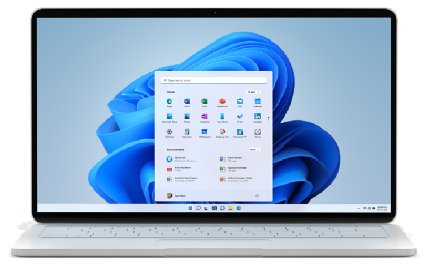
How to upgrade from Windows 7 to Windows 11 for free
Microsoft states that there are currently no free upgrade paths from unsupported versions of Windows, which includes Windows 7, to Windows 10 or Windows 11. Upgrading from Windows 10 to Windows 11 is free.
The one no-cost case is a PC that took the free Windows 10 upgrade years ago and still has that digital license. Microsoft lists a free upgrade from a genuine Windows 7, 8.1 or 10 device as a digital license, which activates a reinstall without a key.
- Confirm the PC meets the Windows 11 minimum requirements, including TPM 2.0, UEFI with Secure Boot and a compatible 64-bit processor.
- Copy every file you want to keep to an external drive, because installing Windows 11 over Windows 7 overwrites the drive.
- On a working PC, open Microsoft's Download Windows 11 page and, under Create Windows 11 Installation Media, select Download Now.
- Run MediaCreationTool.exe and write Windows 11 to a blank USB flash drive of at least 8 GB.
- Shut down the Windows 7 PC, insert the USB drive, and start it from the drive through its boot menu.
- Step through Windows 11 Setup; skip the product key only if the PC already has a digital license, otherwise enter a Windows 11 key.
- Finish setup, then open Settings > System > Activation and confirm the activation status.
If the status reads Windows is not activated, the PC has no license that carries over and you need to buy Windows 11. Never use a key from an unofficial seller; activation only works with genuine copies.
Windows 7 to Windows 11 upgrade options compared
| Your situation | Official route | Cost and result |
|---|---|---|
| Hardware meets Windows 11 requirements and the PC once ran activated Windows 10 or 11 | Clean install from Windows 11 installation media, no key | Free; the digital license activates Windows 11 |
| Hardware meets requirements and you own a Windows 10 license | Upgrade Windows 7 to Windows 10 keeping files, then take the free Windows 11 upgrade | Free from Windows 10 onward; keeps files and apps where setup allows |
| Hardware meets requirements, no Windows 10 or 11 license | Buy Windows 11 Home or Pro from Microsoft or a retailer, then clean install | Paid; Microsoft offers no free path from Windows 7 |
| Hardware fails TPM 2.0, Secure Boot or processor checks | Move to a new Windows 11 PC | Microsoft's recommendation for PCs that cannot run Windows 11 |
| TPM or Secure Boot exists but is switched off in firmware | Turn them on in UEFI settings, then use one of the routes above | Free if a license already exists |
Why upgrade from Windows 7 to Windows 11?
Windows 7 still starts and runs, but it has been without security fixes since January 2020. Each row below is a documented consequence of staying on it.
| Fact from Microsoft | What it means on a Windows 7 PC |
|---|---|
| Windows 7 support ended on January 14, 2020 | No security updates, software updates or technical support |
| Unsupported Windows is more exposed to viruses and malware | Every month online adds unpatched risk |
| The OneDrive personal sync app stopped syncing on Windows 7 on March 1, 2022 | Files only reach OneDrive by uploading them on the OneDrive website |
| Windows 10 support also ended, on October 14, 2025 | Windows 11 is the current supported version for home PCs |
| The free Windows 10 upgrade offer for Windows 7 SP1 ended on July 29, 2016 | The 2015-2016 offer is the only reason some Windows 7-era PCs hold a free digital license today |
Understanding Windows 11 system requirements
Microsoft notes that PCs running an unsupported version of Windows are unlikely to meet these Windows 11 hardware requirements. TPM 2.0 and UEFI Secure Boot are the two that most Windows 7-era machines miss.
| Component | Windows 11 minimum |
|---|---|
| Processor | 1 GHz or faster, 2 or more cores, on a compatible 64-bit processor or system on a chip |
| RAM | 4 GB |
| Storage | 64 GB or larger |
| System firmware | UEFI, Secure Boot capable |
| TPM | Trusted Platform Module version 2.0 |
| Graphics card | DirectX 12 or later with a WDDM 2.0 driver |
| Display | 720p, larger than 9 inches diagonally, 8 bits per color channel |
| Internet and account | Windows 11 Home and Pro for personal use need internet and a Microsoft account during first setup |
The Media Creation Tool and the ISO only create media for x64 processors. Arm devices use a separate Arm64 ISO.
How to check if a Windows 7 PC meets Windows 11 requirements
The PC Health Check app assesses devices already running Windows 10, so on Windows 7 you check the key parts yourself or ask the PC manufacturer.
- Find your exact PC or motherboard model and check the manufacturer's support page for Windows 11 compatibility.
- Compare your processor model with Microsoft's lists of Windows 11 supported Intel and AMD processors.
- Press Windows key + R, type
tpm.msc, and select OK. - If the console says Compatible TPM cannot be found, the TPM is missing or turned off in firmware.
- If it says the TPM is ready to use, read Specification Version under TPM Manufacturer Information; it must be 2.0.
- Check the manufacturer's documentation for UEFI boot mode and Secure Boot support.
- Confirm at least 4 GB of RAM and a 64 GB or larger drive.
A TPM below version 2.0, or firmware that only offers Legacy BIOS boot, means the PC does not meet Windows 11 requirements. Microsoft recommends a new PC in that case and does not recommend installing Windows 11 on hardware that fails the checks.
Preparation steps before upgrading from Windows 7
| Step | What to do | Why it matters |
|---|---|---|
| 1. Back up your data | Copy Documents, Desktop, Downloads, Favorites, Music, Pictures and Videos to an external drive | A clean install from Windows 7 erases the drive |
| 2. Check software compatibility | List your apps and check each publisher for a Windows 11 version; keep installers and license keys | Every app is reinstalled after a clean install, and some need a newer version |
| 3. Update drivers and BIOS | Get current firmware and Windows 11 drivers from the PC maker's support site | Firmware updates can expose TPM 2.0 and UEFI options; drivers are ready offline |
| 4. Free up disk space | Keep at least 64 GB for Windows 11 on the target drive | Windows 11 will not install on a smaller drive |
| 5. Ensure a reliable power source | Plug laptops into the charger and avoid installing during storms or outages | Setup restarts several times and must not be interrupted |
| 6. Sort out the license | Confirm a digital license from an earlier Windows 10 upgrade, or buy a Windows 11 key | Setup asks for a key unless a license carries over |
| 7. Get a USB drive and a second PC | A blank USB flash drive of at least 8 GB and a working PC with internet | The Media Creation Tool deletes anything already on the drive |
Back up Windows 7 files to an external drive or OneDrive
- Connect an external drive, USB flash drive or SD card to the Windows 7 PC.
- Open your user folder and select Documents, Desktop, Downloads, Favorites, Music, Pictures and Videos.
- Right-click the selection, choose Send to, and select the external drive.
- Repeat for any other folders where you keep files, such as a second drive or a project folder.
- Browse the external drive to confirm the copies opened correctly.
- Eject the drive before unplugging it.
- To keep a cloud copy as well, sign in at the OneDrive website and upload the folders there, because the OneDrive sync app no longer syncs on Windows 7.
Create Windows 11 installation media with the Media Creation Tool
Microsoft's tool builds a bootable Windows 11 USB drive for x64 PCs. Make the drive on any working PC with a reliable internet connection.
- Open the Download Windows 11 page.
- Under Create Windows 11 Installation Media, select Download Now.
- Run MediaCreationTool.exe and accept the license terms.
- Follow the prompts to choose the language, matching the one you plan to use on the Windows 7 PC.
- Choose the USB flash drive option and pick your blank drive of at least 8 GB.
- Wait for the tool to download Windows 11 and finish writing the drive.
Download the Windows 11 ISO file from Microsoft
Use the ISO when you want a DVD or a virtual machine, or prefer to keep a copy of the installer. It is a multi-edition ISO that uses your product key to unlock the correct edition.
- Open the Download Windows 11 page.
- Under Download Windows 11 Disk Image (ISO) for x64 devices, open the Select Download list.
- Choose Windows 11 (multi-edition ISO for x64 devices) and select Confirm.
- Follow the prompts to pick the product language and start the download.
- Burn the ISO to a blank DVD, or use the Media Creation Tool instead when you need a bootable USB drive.
Boot from the USB drive and install Windows 11
This wipes the drive, the Windows 7 installation and all apps, then installs a fresh copy of Windows 11. Back up first.
- Shut down the Windows 7 PC and insert the Windows 11 USB drive.
- Turn the PC on and press its boot menu key, usually one of F1 to F12 or Delete; the PC maker's documentation lists the exact key.
- Select the Windows 11 USB drive from the boot menu.
- When Windows 11 Setup appears, choose your language and keyboard and continue.
- Enter your Windows 11 product key when asked; setup selects the edition that matches the key.
- If the PC already has a digital license, continue without a key and install the same edition it had before.
- Choose the drive for Windows 11 and let setup finish; the PC restarts several times.
- Complete the first-run setup: connect to the internet and sign in with a Microsoft account, which Windows 11 Home requires.
Upgrade Windows 7 to Windows 10 first, then to Windows 11
Microsoft notes that moving to Windows 10 first and then to Windows 11 may be easier, because the Windows 10 setup can keep your files. You need a Windows 10 license for the first step, since the free Windows 7 offer ended in 2016.
Windows 10 itself is out of support, so treat it only as a stepping stone to Windows 11 on hardware that meets the requirements.
- On the Windows 7 PC, open Microsoft's Download Windows 10 page and download the Media Creation Tool.
- Run the tool as an administrator and select Accept on the license terms.
- Select Upgrade this PC now, then Next.
- Select Change what to keep, choose Keep personal files and apps or Keep personal files only, then select Install.
- Once Windows 10 is running, open Settings > Update & Security > Windows Update and install all updates.
- Run the PC Health Check app and select Check now to confirm Windows 11 eligibility.
- Return to Windows Update, select Check for updates, and choose Download and install when Windows 11 is offered.
- If the offer does not appear, run the Windows 11 Installation Assistant, which needs Windows 10, version 2004 or later and about 9 GB of free space.
If you update to Windows 10 as a stepping stone, the Windows 11 upgrade that follows costs nothing.
Check Windows 11 is installed and activated
- Press Windows key + R, type
winver, and press Enter; the window should name Windows 11 and its version. - Select Start > Settings > System > Activation and read Activation status.
- Look for Windows is activated with a digital license linked to your Microsoft account, the best result.
- If it says Windows is activated with a digital license only, select Add an account on the same page and sign in to link it.
- Open Settings > Windows Update and select Check for updates to confirm updates install.
Post-upgrade tasks after installing Windows 11
| Task | How to do it |
|---|---|
| 1. Install updates | Open Settings > Windows Update, select Check for updates, and restart until nothing is pending |
| 2. Reinstall drivers | Let Windows Update fetch drivers first, then install any missing ones from the PC maker's support site |
| 3. Restore data and applications | Copy files back from the external drive or OneDrive website, then reinstall apps from their publishers or the Microsoft Store |
| 4. Personalize your system | Set the wallpaper, colors, Start pins and taskbar in Settings; note that the taskbar only sits at the bottom of the screen |
| 5. Activate Windows 11 | Check Settings > System > Activation; with no license, select Go to Store to buy one |
Troubleshooting common Windows 7 to Windows 11 upgrade issues
Compatibility problems: "This PC doesn't meet the minimum system requirements"
TPM 2.0, Secure Boot or the processor fails a Windows 11 check, or TPM and Secure Boot exist but are switched off.
- Run
tpm.mscand confirm the Specification Version is 2.0. - Enter the PC's UEFI firmware settings using the key from the manufacturer's documentation.
- Turn on the TPM option, often labelled Intel PTT, Intel Platform Trust Technology, AMD fTPM switch or Security Device.
- Switch the boot mode from Legacy or CSM to UEFI and enable Secure Boot, following the PC maker's instructions.
- If the processor or TPM version is unsupported, plan for a new Windows 11 PC rather than forcing the install.
Upgrade fails or gets stuck
Interrupted power, a faulty USB drive, attached hardware or old firmware stop Windows Setup.
- Leave the PC alone for a while; setup restarts several times and can sit on one screen.
- Unplug printers, docks, extra drives and other hardware you do not need.
- Recreate the USB drive with the Media Creation Tool, using a different blank drive if possible.
- Install the latest BIOS or UEFI firmware from the PC maker, then run setup again.
Activation issues: "Windows is not activated"
The PC has no Windows 10 or 11 digital license, a different edition was installed, or the key was used on more PCs than allowed.
- Open Settings > System > Activation and read the error message.
- Reinstall the same edition, Home or Pro, that the digital license covers.
- Run the Activation troubleshooter from the same page after a major hardware change.
- If the PC never had Windows 10 or 11, select Go to Store and buy a Windows 11 license; a Windows 7 key alone is not a Windows 11 license.
Driver compatibility: missing sound, Wi-Fi or display after installing
Windows 7-era hardware may have no Windows 11 driver in Windows Update.
- Open Settings > Windows Update and install every update, including optional driver updates.
- Open Device Manager and look for devices with a warning icon.
- Download the Windows 11 driver for that device from the PC or component maker's site.
- If no Windows 11 driver exists, replace the device or keep a different PC for it.
Data loss or deletion during install
Booting from installation media replaces the drive contents, including personal files.
- Check the external drive or OneDrive website for your backup and copy it back.
- If you upgraded through Windows 10 instead, look for older files in the
C:\Windows.oldfolder. - Next time, back up before starting and choose Keep personal files and apps in Windows 10 Setup.
Additional tips for a successful transition to Windows 11
| Tip | Why |
|---|---|
| Check Windows release health before installing | Microsoft's download page points there for known issues that may affect your device |
| Sign in with a Microsoft account during setup | It is required for Windows 11 Home and links the digital license for later reactivation |
| Plan for features that changed | Live Tiles, Timeline and Windows Mail and Calendar are gone; the Start layout is new |
| Choose the edition you need | BitLocker to Go and Client Hyper-V require Windows 11 Pro or higher |
| Keep the old PC's backup drive for a few weeks | A clean install has no rollback to Windows 7 |
| Consider a new PC for failing hardware | Microsoft recommends replacing devices that cannot meet Windows 11 requirements |
Once Windows 11 is running, keep installing feature updates from Windows Update so the PC stays on a supported release.
Windows 7 to Windows 11 upgrade FAQ
Can I upgrade from Windows 7 to Windows 11?
Yes, but only on hardware that meets Windows 11 requirements, and usually as a clean install that erases the drive. Most Windows 7 PCs fail the TPM 2.0, Secure Boot or processor checks. Microsoft recommends a new Windows 11 PC when the hardware does not qualify.
How do I upgrade from Windows 7 to 11 for free?
You can do it free only if the PC already has a Windows 10 or 11 digital license, for example from the 2015-2016 free Windows 10 offer. Create Windows 11 media with Microsoft's tool, clean install, and let the digital license activate. Otherwise you need a paid Windows 11 license.
How do I upgrade from Windows 7 to Windows 10?
Get a Windows 10 license, back up your files, and run the Media Creation Tool from Microsoft's Windows 10 download page. Select Upgrade this PC now, choose what to keep, and select Install. Windows 10 support ended on October 14, 2025, so use it only as a step toward Windows 11.
How do I upgrade from Windows 7 to 10 for free?
There is no free route today. Microsoft's free Windows 10 upgrade for Windows 7 SP1 ended on July 29, 2016, and Microsoft states there are currently no free upgrade paths from unsupported Windows versions. A PC that took the offer back then can reinstall Windows 10 without a key.
Can Windows 7 be upgraded?
Yes, a Windows 7 PC can move to Windows 10 or Windows 11 with a valid license and compatible hardware. Windows 7 itself gets no updates after January 14, 2020, so there is no newer Windows 7 to install.
How to upgrade from Windows 7 to Windows 8?
Do not upgrade to Windows 8. Windows 8 support ended on January 12, 2016, and Windows 8.1 support ended on January 10, 2023. Move to Windows 11 if the hardware qualifies, or to a new Windows 11 PC.
How do I upgrade from Windows 10 to 11?
Open Settings, Update & Security, Windows Update, and select Check for updates. When Windows 11 is offered, select Download and install. The upgrade is free on PCs that meet the minimum requirements and run Windows 10, version 2004 or later.
Why upgrade from Windows 10 to 11?
Windows 10 stopped receiving free security updates on October 14, 2025, except on PCs enrolled in Extended Security Updates through October 12, 2027. Windows 11 is the supported version and the upgrade from Windows 10 is free on eligible hardware.
Why upgrade from Windows 11 Home to Pro?
Pro adds features Home lacks, including BitLocker to Go and Client Hyper-V. To upgrade, open Settings, System, Activation, select Change next to Change product key, and enter a Windows 11 Pro key. Files and apps stay in place.
How do I upgrade a Windows 7 computer?
Check the hardware against Windows 11 requirements, back up your files, and install Windows 11 from Microsoft's installation media with a valid license. If the computer fails the requirements, Microsoft recommends replacing it with a Windows 11 PC.
Bottom line: can you upgrade Windows 7 to Windows 11 for free?
Clean install Windows 11 with Microsoft's Media Creation Tool only if the PC passes every Windows 11 requirement; it is free when a digital license already exists and needs a purchased license otherwise. Microsoft offers no free upgrade from Windows 7, and most Windows 7 hardware lacks TPM 2.0 or Secure Boot, so a new Windows 11 PC is often the better spend than a license for old hardware.
Microsoft's installation tools themselves cost nothing, so on qualifying hardware with a digital license you can install Windows 11 for free from its own downloads.






