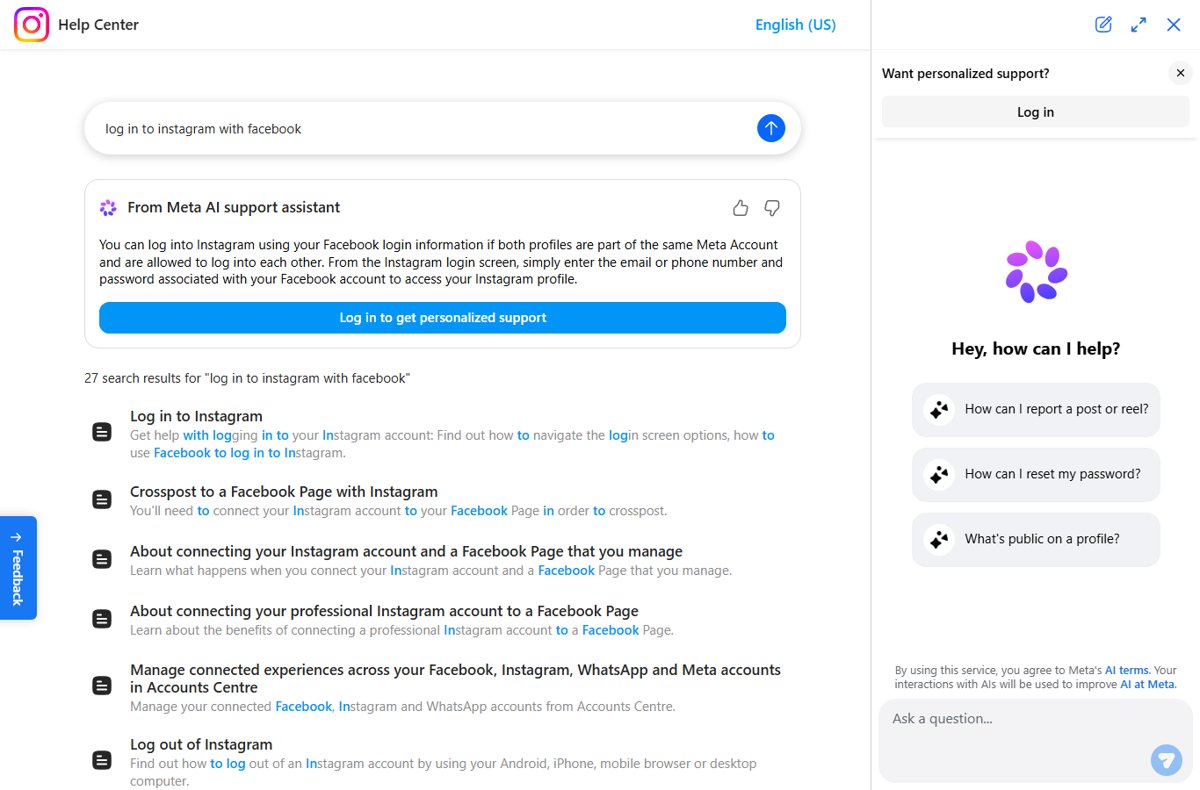
You can log in to Instagram through Facebook once both accounts sit in the same Accounts Center and are allowed to log in to each other; then you enter your Facebook email or phone number and password on the Instagram login screen.
This guide shows how to connect the two accounts, switch on login across them, sign in on a new phone or computer, and fix the cases where the Facebook route does not work.
Log in to Instagram with Facebook on a new device
These steps assume the accounts are already connected in Accounts Center with login across accounts allowed. If they are not, set that up first from a device where you are still signed in to Instagram.
- Open the Instagram app on the new phone, or go to instagram.com in a browser.
- On the login screen, enter the email address or phone number you use for Facebook.
- Enter your Facebook password, not your Instagram password.
- Tap or click Log in.
- Complete any confirmation Meta asks for, such as a code sent to your phone or email, if two-factor authentication is on.
- Check that the profile that opens is the Instagram account you expected.
If the login screen rejects your Facebook details, the accounts are either not in the same Accounts Center or login across them is switched off. The troubleshooting section below covers both.
What you need before you start logging in to Instagram with Facebook
| You need | Why it matters |
|---|---|
| Access to your Instagram account on at least one device | Connecting the accounts and allowing login across them is done from inside Accounts Center while you are signed in. |
| Your Facebook login details | Adding Facebook to Accounts Center asks you to confirm the Facebook account. |
| Only one Facebook account in mind | An Accounts Center holds one Facebook account. To use a different one, remove the current Facebook account first. |
| A personal Facebook profile, not a Page | Facebook login works through the profile in Accounts Center. Connecting a Facebook Page does not give you a login route. |
| Awareness of Meta Accounts | Meta is moving people to Meta Accounts gradually, so you may see Meta Account settings instead of Accounts Center. The options sit in the same places. |
Connect Instagram and Facebook in the Instagram app
Adding both accounts to one Accounts Center is the step that makes Facebook login possible. You can start from Instagram or from Facebook; the result is the same.
- Open Instagram and sign in to the account you want to connect.
- Open Accounts Center from your Instagram settings.
- Tap Accounts.
- Tap Add accounts.
- Choose Facebook and follow the on-screen prompts to confirm your Facebook account.
- Return to Accounts and check that both your Instagram and Facebook profiles are listed.
Starting from Facebook works too: go to Settings and privacy > Settings > Accounts Center > Accounts > Add accounts, then pick Instagram. One Facebook account can sit alongside several Instagram accounts in the same Accounts Center.
Allow Facebook to log in to Instagram
Being in the same Accounts Center is not enough on its own. Login across accounts is a connected experience that must be allowed.
- Open Accounts Center in Instagram or Facebook.
- Under Connected experiences, select Logging in with accounts.
- Choose to let all accounts in this Accounts Center log in to each other, or manage the list manually.
- If you manage it manually, make sure the Facebook account is allowed to log in to your Instagram account.
- Save or confirm the change when prompted.
If you later turn this off, Instagram may ask you to create or enter a separate Instagram password before you can sign in again.
If Instagram already shows your account
On a device where you have used Instagram before, the login screen may already show your profile picture and username from saved login information. Tapping it signs you straight in, so you never reach the Facebook step.
- Tap your saved profile on the Instagram login screen to sign in normally.
- Open Accounts Center and tap Accounts to confirm the Facebook profile is listed beside your Instagram account.
- Open Connected experiences > Logging in with accounts and confirm Facebook is allowed to log in to this Instagram account.
- To test the Facebook route itself, sign out on a second device or browser and log in there with your Facebook email or phone number and password.
You can add or remove saved Instagram login information on iPhone and Android if you would rather see the plain login fields each time.
What to do when Facebook is not available in “Add accounts”
Facebook is missing from the Add accounts list
An Accounts Center can hold only one Facebook account, and one is usually already there.
- Open Accounts Center and tap Accounts.
- Check whether a Facebook profile is already listed. If it is the right one, skip to allowing login across accounts.
- If it is the wrong Facebook account, tap Remove next to it, then Remove account and Continue.
- Confirm the removal, then go back to Add accounts and add the correct Facebook account.
You see Meta Account settings instead of Accounts Center
Meta is gradually moving people from Accounts Center to Meta Accounts.
- Open your Meta Account settings from Instagram or Facebook settings.
- Look for the option to add profiles to your Meta Account.
- Add your Facebook profile, then allow login across the profiles.
Facebook and Instagram are connected, but login still fails
Can I login to Instagram through Facebook if the accounts are only connected?
Connection alone is not enough when the Logging in with accounts experience is off.
- Sign in to Instagram on any device where you still have access, or sign in to Facebook.
- Open Accounts Center > Connected experiences > Logging in with accounts.
- Allow the Facebook account to log in to the Instagram account.
- Try the Facebook email or phone number and password on the Instagram login screen again.
Instagram rejects the Facebook password
The Facebook details are wrong, or the Instagram account is not the one connected to that Facebook account.
- Log in to Facebook with the same details to confirm they work; if you are unsure of the address, find your Facebook email first.
- Check in Facebook's Accounts Center that the Instagram account listed is the one you are trying to open.
- If you have several Instagram accounts, confirm each one is allowed under Logging in with accounts.
You are locked out of both accounts
Neither login works, so Accounts Center cannot be reached.
- Open Instagram's I can't log in help page.
- Choose the option that matches your case: forgotten password, lost email or phone, hacked account or disabled account.
- Follow the recovery steps for that case.
Recover Instagram if you forgot the password
You do not need Facebook to get back in. The password reset runs from the Instagram login screen.
- On the Instagram login screen, tap Forgot password.
- Enter your Instagram username, email address or phone number.
- Choose where to receive the reset link: email or phone.
- Open the link and set a new password.
- If your Facebook account is already allowed to log in to Instagram, you can log in with Facebook instead and change the password from inside the app.
If the reset email never arrives or the link does not work, the I can't log in page has separate fixes for missing emails, broken links and lost access to your email or phone. If Instagram keeps rejecting the code it sends, you can fix the confirmation code error separately.
Do not confuse a Facebook Page connection with Facebook login
Instagram has two different Facebook connections, and only one of them lets you sign in.
| Accounts Center connection | Facebook Page connection | |
|---|---|---|
| What it links | Your personal Facebook profile and your Instagram account | A professional Instagram account and a Facebook Page you manage |
| Where you set it up | Accounts Center > Accounts > Add accounts | Instagram Edit profile > Profile information > Page > Connect or create |
| Lets you log in with Facebook | Yes, once Logging in with accounts allows it | No |
| Main purpose | Login across accounts, cross-sharing, synced profile details | Crossposting to the Page and shared insights |
| Account type | Personal or professional Instagram | Business or creator Instagram account |
What changes after you connect the accounts?
| Change | What happens | Can you turn it off? |
|---|---|---|
| Login | Your Facebook details can open Instagram once login across accounts is allowed | Yes, under Logging in with accounts |
| Sharing | You can share posts and stories between Instagram and Facebook | Yes, per connected experience |
| Profile details | You can choose to sync your name, username, profile picture and avatar | Yes, syncing is optional |
| Ads and suggestions | Meta uses information across the accounts for personalised ads and account suggestions | Remove the account from Accounts Center to stop it |
| Separate accounts | Each account keeps its own profile, followers and posts; they are not merged | Not applicable |
If stories start appearing on Facebook after you connect, you can stop Instagram stories sharing to Facebook without removing the accounts from Accounts Center.
Instagram login through Facebook FAQ
Can I login to Instagram through Facebook?
Yes. Add your Instagram and Facebook accounts to the same Accounts Center and allow them to log in to each other under Logging in with accounts. Then enter your Facebook email or phone number and password on the Instagram login screen.
Can I log in to Instagram with Facebook without linking the accounts first?
No. Instagram accepts Facebook login details only when both accounts are in the same Accounts Center and login across them is allowed. Without that, use your Instagram username, email or phone number and your Instagram password, or reset the password.
Why is there no “Log in with Facebook” button on Instagram?
Instagram's current login method for linked accounts is to type your Facebook email or phone number and Facebook password into the normal login fields. If those details fail, check that the accounts share an Accounts Center and that login across them is allowed.
Can I connect more than one Instagram account to Facebook?
Yes. One Accounts Center can hold one Facebook account and several Instagram accounts. You choose which Instagram accounts the Facebook account may log in to under Connected experiences > Logging in with accounts.
Does connecting Facebook and Instagram merge my accounts?
No. Each account keeps its own profile, followers and posts. Connecting them in Accounts Center lets you log in across them, share between them and optionally sync profile details such as your name and profile picture.
How do I log in to Instagram?
Open the Instagram app or instagram.com, enter your username, email address or phone number and your password, then tap Log in. If Facebook is allowed to log in to your Instagram account, your Facebook email or phone number and password work too.
How do I log into my Instagram account if I forgot the password?
Tap Forgot password on the login screen, enter your username, email address or phone number, and open the reset link sent by email or text. If Facebook can already log in to your Instagram account, log in with Facebook instead.
How do I stop Facebook from logging in to my Instagram account?
Open Accounts Center, go to Connected experiences > Logging in with accounts and remove the permission, or remove Facebook from Accounts Center entirely. Instagram may then ask you to create or enter an Instagram password.
The bottom line on Instagram login through Facebook
Add Facebook to your Instagram Accounts Center and allow login across the accounts while you still have access, then keep a working Instagram password as well. Facebook login only works after that setup, and a separate password plus a current email or phone number is what gets you back in if either account is locked or removed.




![Unable to accept invite in Discord [Fix]](https://techdows.com/wp-content/uploads/2026/10/Unable-to-accept-invite-in-Discord-Fix-1-600x338.jpg)