You get Windows 11 Enterprise by buying a Windows Enterprise E3 or E5 licence through Microsoft commercial licensing or a Cloud Solution Provider, then letting a licensed user sign in on a Windows 11 Pro PC so it steps up to Enterprise.
Microsoft does not sell Enterprise as a retail copy, so this guide covers the licence routes, the ISO download, the free 90-day evaluation, KMS activation, and fixes when a PC stays on Pro.
Getting Windows 11 Enterprise
Subscription activation is the fastest route for most organisations. It upgrades existing Windows 11 Pro PCs without a reinstall, a product key or a reboot.
- Buy Windows 11 Enterprise E3 or E5 per user, either through a Microsoft volume licensing agreement or from a Cloud Solution Provider (CSP). Microsoft 365 E3 and E5 plans also include it.
- Sign in to the Microsoft 365 admin center and assign the Windows Enterprise licence to each user, or to a group.
- On each Windows 11 Pro PC, open Settings > Accounts > Access work or school and select Connect next to Add a work or school account.
- Select Join this device to Microsoft Entra ID, sign in with the user's work account and select Join, then Done.
- Sign out, then sign in with that licensed work account. Windows steps up from Pro to Enterprise in the background.
The step-up can take a while to appear. Microsoft says upgrade eligibility can take up to four days after a qualifying purchase.
Deciding on the Right Licensing Model
Windows 11 Enterprise is only sold through commercial licensing. Retail and preinstalled (OEM) channels carry Home and Pro only. Pick the row that matches your organisation.
| Your situation | Get this | Why |
|---|---|---|
| Small or mid-size business without an agreement | Windows Enterprise E3 or E5 from a CSP | Per-user subscription, monthly billing, no volume agreement needed |
| Organisation with an Enterprise Agreement or MPSA | Windows Enterprise E3/E5 through the agreement, plus the $0 subscription SKU | Enables subscription activation on your existing tenant |
| Already on Microsoft 365 E3, E5 or F3 | Nothing extra: Windows Enterprise E3 is included | F3 lacks LTSC, MDOP and Windows Autopatch rights |
| You need advanced endpoint protection | Windows 11 Enterprise E5 | Adds Microsoft Defender for Endpoint Plan 2 on top of E3 |
| Fixed-function devices that must not change | Windows 11 Enterprise LTSC through volume licensing | Security fixes only, no feature updates, five years of updates |
| Kiosks, ATMs or point-of-sale built by a device maker | Windows 11 IoT Enterprise from the OEM or an authorised distributor | Licensed per device by the manufacturer |
| You only want to test it | The 90-day evaluation from the Microsoft Evaluation Center | No product key, but the trial expires |
Understanding Windows 11 Enterprise
Windows 11 Enterprise builds on Windows 11 Pro. These are the features and rights Microsoft lists as Enterprise-only or Enterprise-licence benefits.
| Feature or right | Windows 11 Pro | Windows 11 Enterprise |
|---|---|---|
| Credential Guard | No | Yes |
| Personal Data Encryption | No | Yes |
| Windows Experience customisation (Shell Launcher, Unified Write Filter) | No | Yes |
| Organizational messages | No | Yes |
| 36 months of support for each annual feature release | No | Yes |
| Windows instances per licensed user | Not applicable | Up to five |
| Azure Virtual Desktop, Windows 365 Enterprise and VDA rights | Not included | Included |
| Windows Enterprise LTSC use rights | Not included | Included (not with Microsoft 365 F3) |
What you need before you start
| Requirement | Detail |
|---|---|
| Starting edition | A supported, activated version of Windows 11 Pro (or Windows 10 Pro). Home cannot step up. |
| Licence type | Per-user Windows Enterprise E3 or E5. Subscription activation does not work with per-device licensing. |
| Identity | Microsoft Entra ID. Devices must be Entra joined or Entra hybrid joined; workgroup or Entra registered devices are not supported. |
| Pro activation | Most modern PCs activate Pro automatically from a firmware-embedded key during setup. |
| Internet access | Devices renew the licence about every 30 days and must reach Windows Update. |
| Admin roles for downloads | VL Administrator or Product download manager to download ISOs; Product keys reader to view keys. |
Join a new PC to your organisation during Windows 11 setup
A brand-new Windows 11 Pro PC can join Microsoft Entra ID during first-run setup, so it steps up to Enterprise at the first sign-in.
- Power on the PC and pick your country and keyboard layout, selecting Yes on each screen.
- Connect to a network with internet access and select Next.
- On Let's name your device, enter a name and select Next.
- On How would you like to set up this device?, select Set up for work or school, then Next.
- Enter the licensed user's work email, select Next, enter the password and select Sign in.
- Choose the privacy settings and select Accept. Windows finishes setup, signs the user in and joins the PC to your organisation.
Download the Windows 11 Enterprise ISO from the Microsoft 365 admin center
Volume licensing customers download Enterprise media from the admin center. The old Volume Licensing Service Center role now lives there.
- Sign in to the Microsoft 365 admin center with the VL Administrator or Product download manager role.
- Go to Billing > Your products and select the Volume licensing tab.
- In Products and services, select View downloads and keys.
- Select Windows 11 Enterprise, or the Downloads button, to list the ISO files.
- Choose the Language and Operating System Type, then select the download icon.
- Write the ISO to a USB drive or DVD to install it. Microsoft notes an operating system cannot be installed from a mounted virtual drive.
If a pop-up blocker is active, the download can fail silently. Allow pop-ups for the admin center first.
Try Windows 11 Enterprise free for 90 days
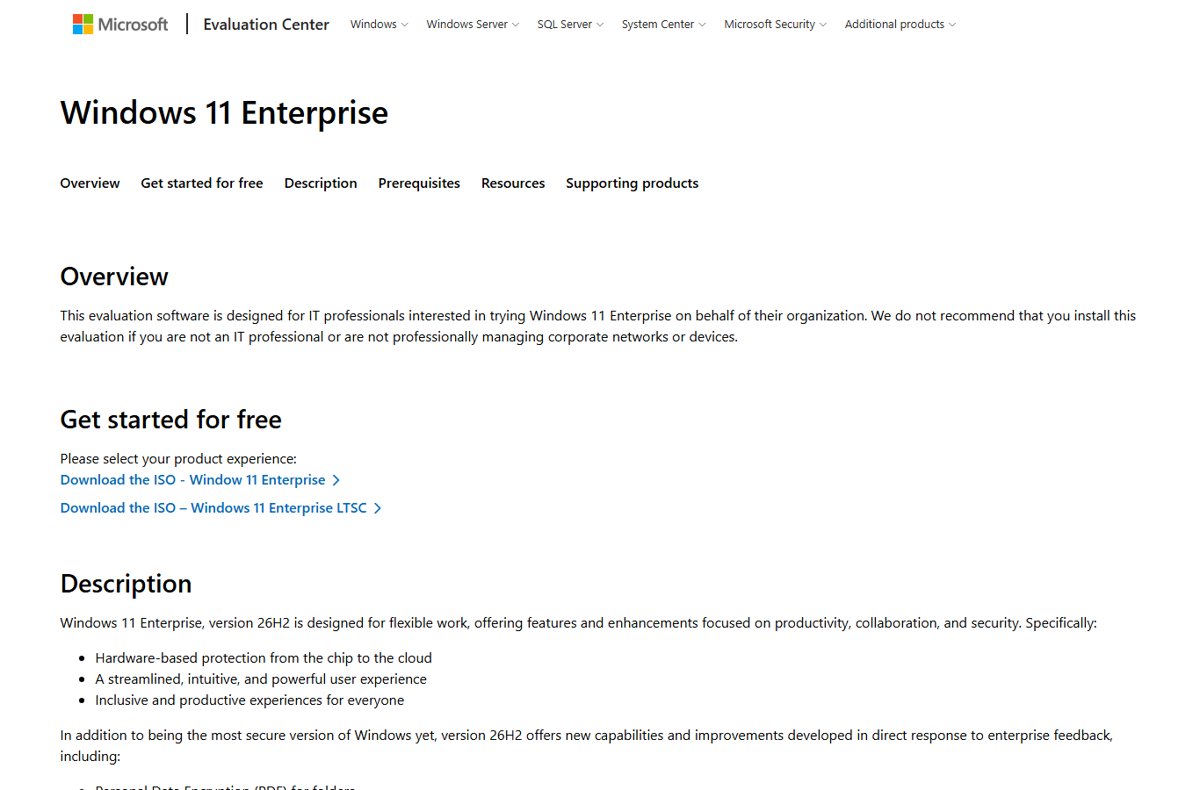
The Microsoft Evaluation Center offers a full-featured 90-day evaluation. It suits a test PC or a virtual machine, not a production device.
- Open the Windows 11 Enterprise page on the Microsoft Evaluation Center (microsoft.com/evalcenter).
- Fill in the registration form.
- Pick Windows 11 Enterprise (x64 or Arm64 ISO) or Windows 11 Enterprise LTSC 2024 (x64 ISO), and your language.
- Install it from the ISO. No product key is needed.
- Move anything you need off the device before day 90. After expiry the desktop turns black, notifications persist and the PC shuts down every hour.
Activate Windows 11 Enterprise with a KMS client key
Organisations running a Key Management Services (KMS) host activate volume-licensed Enterprise with Microsoft's published Generic Volume License Key. Volume media already contains it, so you only enter it when converting a PC from a MAK, a retail key or a former KMS host.
slmgr /ipk NPPR9-FWDCX-D2C8J-H872K-2YT43Run it in an administrator Command Prompt. It installs the KMS client key for Windows 11 Enterprise (and Windows 10 Enterprise). The Enterprise N key is DPH2V-TTNVB-4X9Q3-TJR4H-KHJW4.
You should see: Windows confirms the key was installed and activates against your KMS host. Without a KMS host on your network, this key will not activate Windows and it never works as a retail key.
The KMS host itself needs a separate KMS host key, which licensed customers find in the Microsoft 365 admin center.
How to check that Windows 11 Enterprise is active
- Right-click Start, select Run, type
ms-settings:activationand select OK. - Expand Activation state and confirm it reads Windows is activated with a digital license.
- Expand Subscription and confirm it reads Windows 11 Enterprise subscription is active. The section is missing until the subscription has applied.
- For a command-line check, open Command Prompt and run
slmgr /dlito see the edition and licence status. - To confirm the PC is joined, run
dsregcmd.exe /statusand check that AzureAdJoined shows YES.
Configuring Windows 11 Enterprise for Your Organization
Once licences are in place, a few settings keep the Enterprise edition applied across every device.
- Assign Windows Enterprise licences to Microsoft Entra groups rather than individuals; Microsoft recommends group-based licensing.
- If you sync an on-premises Active Directory, set up Microsoft Entra Connect Sync so users have one identity.
- In Group Policy, check Computer Configuration > Administrative Templates > Windows Components > Windows Update > Manage updates offered from Windows Server Update Service > Do not connect to any Windows Update Internet locations is Disabled or Not Configured.
- On devices older than Windows 11, version 23H2 with KB5034848, exclude the Universal Store Service APIs and Web Application app from Conditional Access so reactivation keeps working.
- Remember the five-device limit: a sixth device makes the least recently used PC fall back to Pro.
Feature updates then reach Enterprise PCs the same way as any managed device, whether you deploy Windows 11 26H2 with WSUS or Intune.
Fix Windows 11 Enterprise when it will not activate
"Windows is not activated" with error 0xC004F034
Windows Pro was never activated, often because the PC has no firmware key or started on Home.
- Open an administrator PowerShell window and run
(Get-CimInstance -query 'select * from SoftwareLicensingService').OA3xOriginalProductKey. - If a key prints, the PC has a firmware Pro key; activate Pro with it.
- If the output is blank, enter a valid Windows Pro key in Settings > System > Activation.
- Sign out and back in with the licensed work account.
"Windows Enterprise subscription isn't valid"
The user's Enterprise licence lapsed, was removed or was moved to someone else.
- In the Microsoft 365 admin center, confirm the user still has the Windows Enterprise licence.
- Reassign the licence if needed.
- Connect the PC to the internet and sign in again so it renews.
The PC stays on Windows 11 Pro after sign-in
The device is not Entra joined, the eligibility cache has not expired, or Windows Update is blocked.
- Run
dsregcmd.exe /statusand confirm AzureAdJoined is YES; join the device if not. - Do not use the built-in Administrator account to join; it cannot use Connect.
- Check the Windows Update policy in the configuration section above.
- Wait up to four days after purchase; the eligibility cache clears on its own.
Windows 11 IoT Enterprise and LTSC: how they differ
Two related editions show up in searches for Enterprise. Both target special-purpose devices rather than everyday office PCs.
| Edition | Who it is for | How to get it | Support |
|---|---|---|---|
| Windows 11 Enterprise LTSC 2024 | Devices with strict change control | Volume licensing; 90-day evaluation available | Quality updates for five years |
| Windows 11 IoT Enterprise LTSC 2024 | ATMs, kiosks, medical and industrial devices | Device makers via authorised Windows IoT distributors; enterprises through MCA, MPSA or Select Plus volume licensing | 10 years |
| Windows 11 IoT Enterprise (non-LTSC) | Fixed-purpose devices that can take feature updates | Through the device maker | Modern lifecycle |
Microsoft ships the IoT Enterprise and LTSC releases on their own schedules: LTSC roughly every three years, the general channel yearly. IoT Enterprise is not offered through the Enterprise Agreement program.
Frequently asked questions
How do I get a Windows 11 Enterprise license?
Buy Windows Enterprise E3 or E5 per user through a Microsoft volume licensing agreement or a Cloud Solution Provider, or use a Microsoft 365 E3, E5 or F3 plan that includes it. Assign the licence to users in the Microsoft 365 admin center.
How do I get a Windows 11 Enterprise key?
Volume licensing customers find their MAK and KMS host keys in the Microsoft 365 admin center under Billing > Your products > Volume licensing > View downloads and keys. Subscription activation needs no key at all; the licensed user simply signs in.
Where can I get the Windows 11 Enterprise ISO?
Licensed organisations download it from the Microsoft 365 admin center under Billing > Your products > Volume licensing. For testing, the Microsoft Evaluation Center offers a free 90-day Windows 11 Enterprise ISO after registration.
How do I download Windows 11 Enterprise for free?
Only the 90-day evaluation is free. Register on the Microsoft Evaluation Center and download the ISO. When it expires, the desktop turns black and the PC shuts down every hour, so use it for testing only.
How do I install Windows 11 Enterprise?
On a Windows 11 Pro PC, no install is needed: join it to Microsoft Entra ID and sign in with a licensed account. For a clean install, write the volume licensing ISO to a USB drive and boot from it.
How do I purchase Windows 11 Enterprise?
Microsoft sells Windows 11 Enterprise only through commercial licensing, including the Cloud Solution Provider program. It is not available as a retail box or on new consumer PCs, which ship with Home or Pro.
How do I get Windows 10 Enterprise?
The same Enterprise E3 or E5 licences cover Windows 10 Enterprise. Windows 10 reached end of support on October 14, 2025, so new deployments should use Windows 11 Enterprise instead.
How do I get a Windows 10 Enterprise product key?
The KMS client key NPPR9-FWDCX-D2C8J-H872K-2YT43 covers both Windows 10 and Windows 11 Enterprise, but it only activates against your own KMS host. MAK keys come from the volume licensing section of the Microsoft 365 admin center.
How do I get Windows 11 IoT Enterprise?
Device makers license it through an authorised Windows IoT distributor. Enterprises can upgrade fixed-function devices to IoT Enterprise LTSC through MCA, MPSA or Select Plus volume licensing, and a 90-day LTSC evaluation is available.
Can I upgrade Windows 11 Home to Enterprise?
Not directly. Subscription activation steps up only from Windows Pro. A Home PC needs a Windows Pro licence first, then a licensed work account sign-in on an Entra-joined device.





![How to turn on/off ad blocker in Microsoft Edge? [step-by-step]](https://techdows.com/wp-content/uploads/2026/10/How-to-turn-onoff-ad-blocker-in-Microsoft-Edge-step-by-step-1-600x338.jpg)