Run ipconfig /all in Command Prompt to see the complete network configuration of every adapter on Windows 10, or open Settings > Network & Internet and select Properties under your connection for the main details.
This guide covers the Settings app, ipconfig, PowerShell, netsh, the Network Connections folder and getmac, what each value means, how to save the output to a file, and what to do when the numbers look wrong.
How to view full network configuration with ipconfig /all
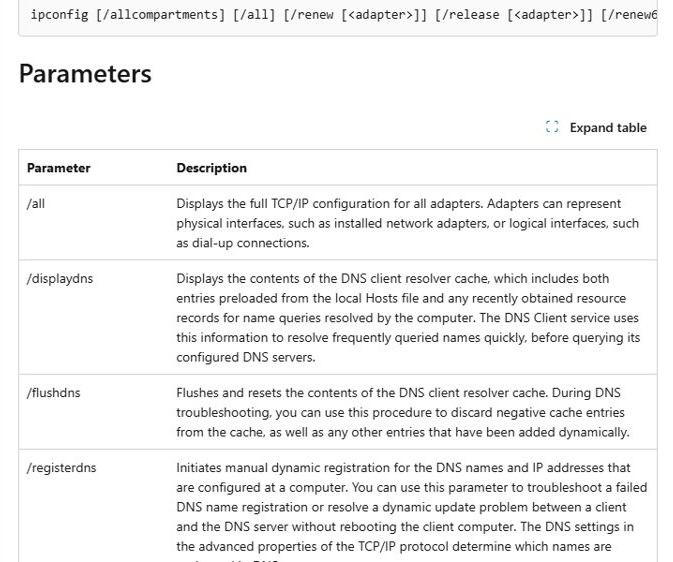
ipconfig /all displays the full TCP/IP configuration for all adapters, both physical ones such as Wi-Fi and Ethernet cards and logical ones such as dial-up connections.
- Select Search on the taskbar and type
cmd. - Select Command Prompt in the results.
- Type
ipconfig /alland press Enter. - Scroll to the adapter you use, such as the Wi-Fi or Ethernet adapter.
- Read its IP address, subnet mask, default gateway and DNS servers.
Plain ipconfig without /all shows only the IPv4 and IPv6 addresses, subnet mask and default gateway for each adapter. The full list of ipconfig commands also covers release, renew and DNS cache switches.
Check network configuration using Settings on Windows 10
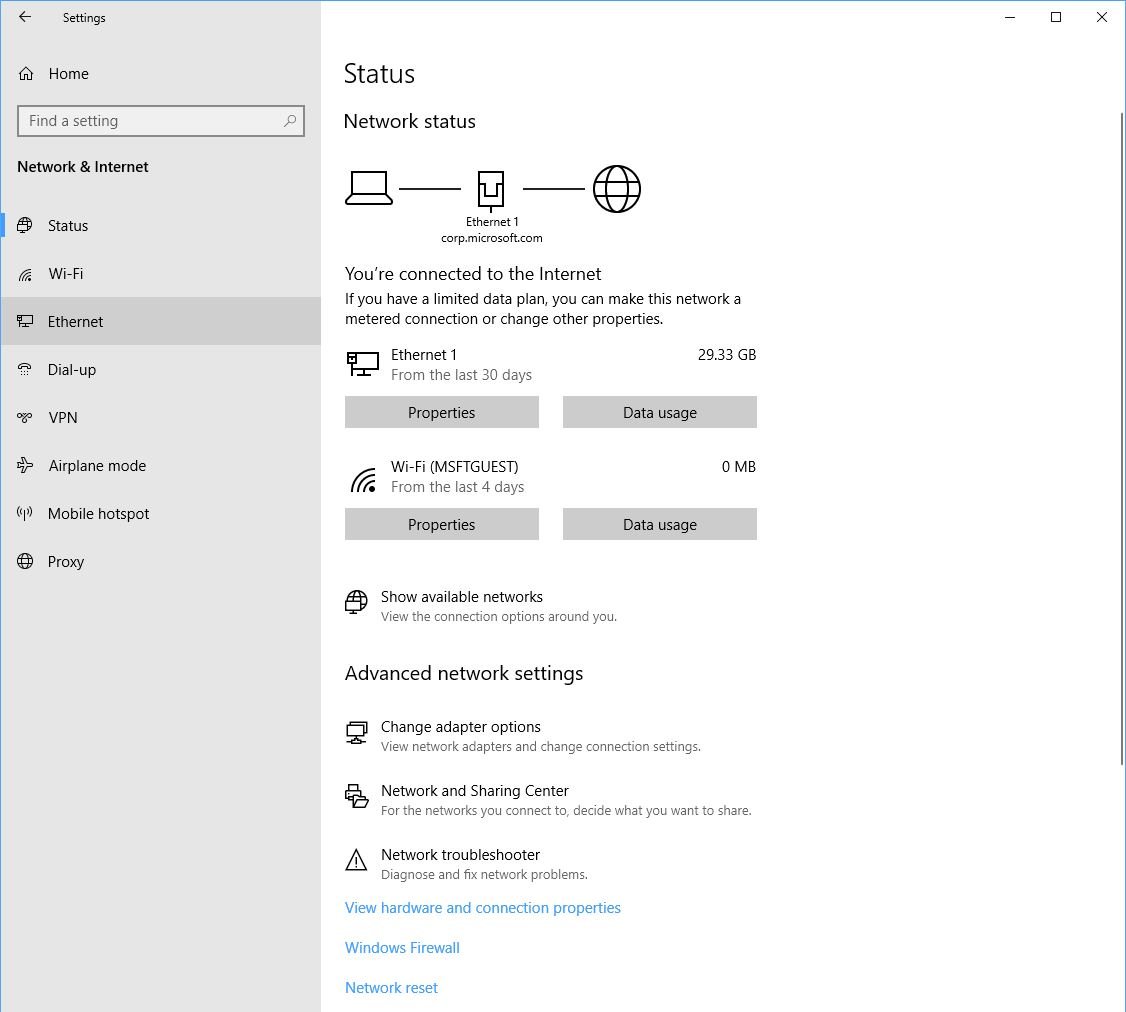
The Status page in Windows 10 lists every available connection interface, and each one has its own properties. It is the quickest view if you prefer windows to commands.
- Select Start > Settings > Network & Internet. Windows 10 opens the Status page.
- Read the connection status at the top. A working connection shows You're connected to the Internet under the connection name.
- Select Properties under the connection you want to inspect.
- Find the IP address listed next to IPv4 address.
- For a different connection, select Wi-Fi in the left pane and then the network you are connected to, or select Ethernet.
- Go back to Status to see how much data the network has used.
The same Status page holds Network troubleshooter and Network reset, which matter if the values you find look wrong.
Get-NetIPConfiguration: check network configuration in PowerShell
PowerShell returns the same data as objects you can filter. Open it by typing powershell in taskbar search and selecting Windows PowerShell.
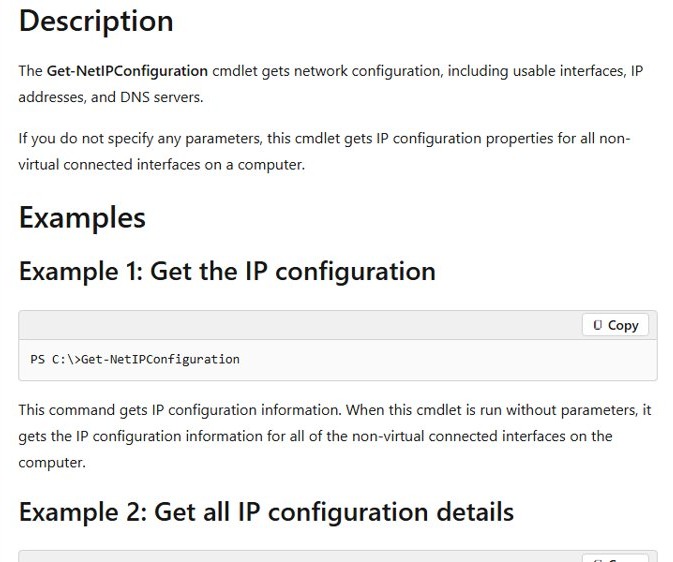
Get-NetIPConfiguration -DetailedGet-NetIPConfiguration on its own lists the IP configuration for every non-virtual connected interface, including IP addresses and DNS servers. -Detailed adds the computer name, link layer (MAC) address, public or private network profile, MTU length and DHCP status. Use -All instead to include virtual, loopback and disconnected interfaces.
You should see: A block per interface with its IP addresses and DNS servers, plus the extra fields from -Detailed.
How to show IP configuration with netsh on Windows 10
netsh is the older network shell and still works in Command Prompt on Windows 10. Its show config command focuses on TCP/IP settings per interface.
netsh interface ipv4 show configDisplays the IP address and TCP/IP configuration details for each interface, including the assigned DNS and WINS servers. Add name="Wi-Fi" to limit the output to one interface, and use netsh interface ipv4 show dnsservers when you only need DNS.
You should see: A section per interface with its IP address, TCP/IP settings and assigned DNS and WINS servers.
How to open network adapter settings in Windows 10
The classic Network Connections folder shows each network adapter and lets you open its status and protocol settings.
- Press Windows key + R to open Run.
- Type
ncpa.cpland select OK. The Network Connections folder opens. - Right-click the connection you want and select Status to see its state on the General tab.
- Right-click the connection again and select Properties.
- Review the items under This connection uses the following items, such as Internet Protocol Version 4 (TCP/IPv4).
You can also open the same folder by typing View network connections in taskbar search, or with control.exe netconnections in Run.
How to find MAC address with getmac on Windows 10
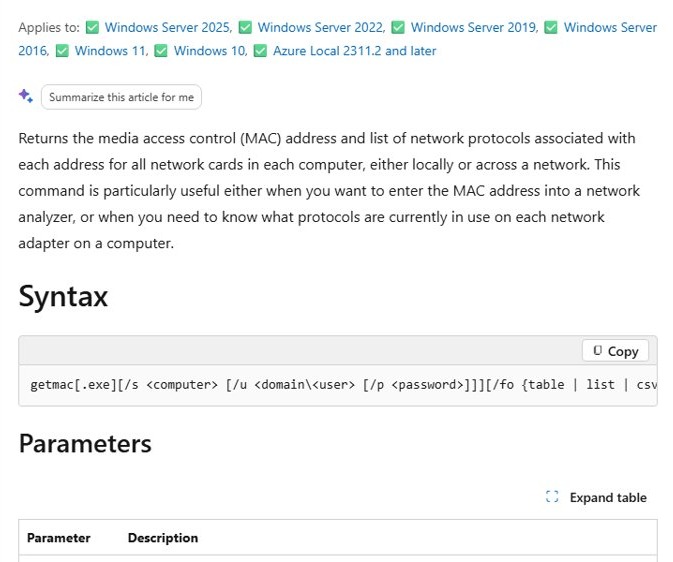
getmac returns the MAC address of every network card and the network protocols tied to each one. It is the fastest way to copy a MAC address for a router allow list.
getmac /v /fo list/v adds verbose information, and /fo list prints one block per adapter instead of the default table. Use /fo csv to paste the result into a spreadsheet.
You should see: Each network card listed with its MAC address.
Phones and Macs show their address elsewhere, and you can find the MAC address on iPhone, Android and Mac from each device's settings.
ipconfig /all output explained
These are the values that matter when you troubleshoot a connection. Each adapter has its own set, so read the block for the adapter you actually use.
| Value | What it tells you | What a problem looks like |
|---|---|---|
| IPv4 address | The address this PC uses on the local network | An address starting with 169.254 means Windows could not get an address from the router |
| Subnet mask | Which addresses count as the same local network | A mask that differs from other devices on the same network |
| Default gateway | Your router's address, the way out to the internet | Blank, so traffic cannot leave the local network |
| DNS servers | The servers that turn website names into addresses | Pages fail by name while IP addresses still respond |
| Connection-specific DNS suffix | The domain name added to short computer names, common on work networks | A suffix you do not recognise on a home network |
| IPv6 address | The newer address format; Windows prefers IPv6 global addresses when they exist | Not a fault on its own; IPv6 is a mandatory part of Windows and Microsoft does not recommend disabling it |
| DHCP or APIPA | Whether values came from DHCP, Automatic Private IP Addressing or an alternate configuration | APIPA in place of DHCP on a network that hands out addresses |
How to save ipconfig /all output to a text file
A text copy is useful when an ISP or IT department asks for your settings. The > sign sends a command's output to a file instead of the screen.
- Open Command Prompt from taskbar search.
- Type
ipconfig /all > network-config.txtand press Enter. - Find network-config.txt in the folder shown at the start of the prompt line.
- Use
>>instead of>to add another command's output to the same file, for examplegetmac /v /fo list >> network-config.txt. - For a full hardware and software report, run
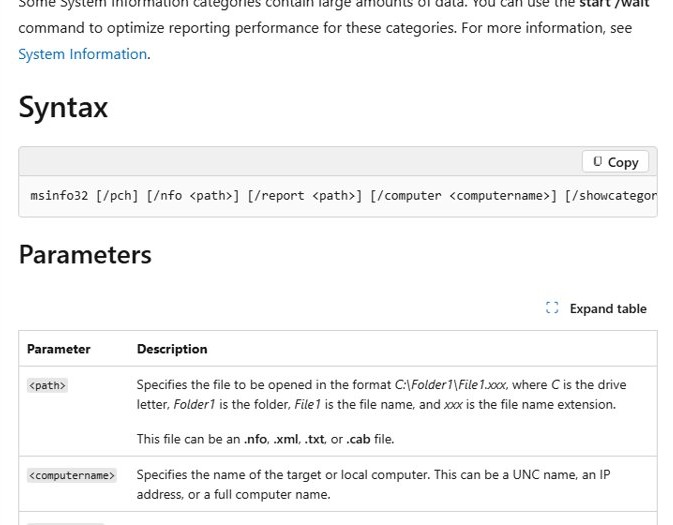
msinfo32 /report system-info.txt, which saves the System Information report as a text file.
How to tell if your network configuration is correct
A configuration can look complete and still be broken. These checks prove the PC can reach the router and the DNS server.
- Run
ipconfig /alland confirm the IPv4 address does not start with 169.254. - Note the Default Gateway value and run
pingfollowed by that address. Replies mean the PC reaches the router. - Note a DNS server address and run
pingfollowed by it. No reply points to a connectivity problem, not a name problem. - Open Settings > Network & Internet and confirm the status reads You're connected to the Internet.
ipconfig not working on Windows 10
IP address starts with 169.254
Windows could not get an IP address from the router, so it assigned itself an APIPA address.
- Unplug the modem and router, wait at least 30 seconds, and plug them back in.
- Open Command Prompt as administrator: search for Command Prompt, select Run as administrator, then Yes.
- Run
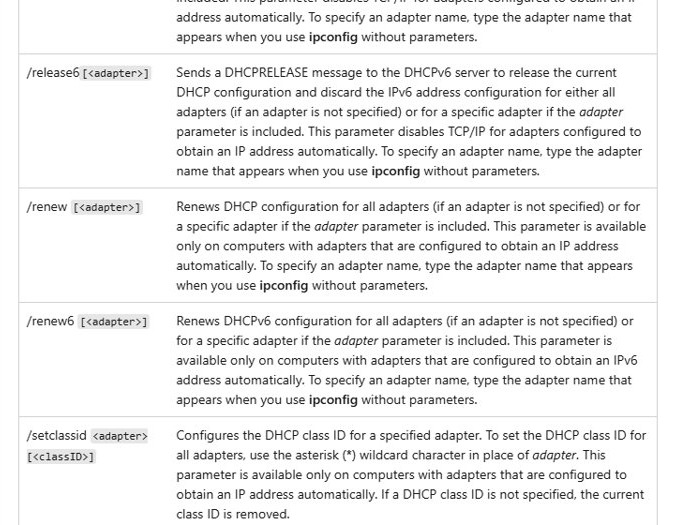
ipconfig /release, thenipconfig /renew. - Run
ipconfig /allagain and check the new address.
ipconfig /renew or /release does nothing
These switches work only on adapters set to obtain an IP address automatically, and they need an administrator Command Prompt.
- Open Command Prompt with Run as administrator.
- Run
ipconfigand copy the exact adapter name. - Run
ipconfig /renew "Wi-Fi", replacing Wi-Fi with your adapter name. - If the adapter uses a manual address, change it in its TCP/IPv4 properties instead.
Can't find my IP address in Settings or ipconfig
The adapter is disconnected or disabled, so it has no address to show.
- Check the status at the top of Settings > Network & Internet.
- Run
Get-NetIPConfiguration -Allin PowerShell to list disconnected interfaces too. - Open Device Manager, expand Network adapters, right-click the adapter and select Enable device.
Network settings still wrong after the fixes above
A release and renew refreshes only the address, not the Winsock and TCP/IP settings underneath it.
- Run
netsh winsock reset,netsh int ip resetandipconfig /flushdnsin an administrator Command Prompt. - Restart the PC.
- If that fails, go to Settings > Network & Internet > Status > Network reset, select Reset now, then Yes.
- After the restart, reinstall VPN software if you use it and set your home network back to private.
Network reset reinstalls every adapter with default settings, so reset network settings only after the commands above.
Windows 10 network configuration FAQ
How do I find my IP address on Windows 10?
Open Settings > Network & Internet, select Properties under your connection, and read the value next to IPv4 address. Or open Command Prompt, run ipconfig, and read the IPv4 address listed under your Wi-Fi or Ethernet adapter.
What does ipconfig /all show?
ipconfig /all shows the full TCP/IP configuration for every adapter, physical or logical, including IP addresses, subnet mask, default gateway and DNS servers. It also shows whether each value came from DHCP, Automatic Private IP Addressing or an alternate configuration.
What is the network adapter settings command?
The command is ncpa.cpl. Press Windows key + R, type ncpa.cpl and select OK to open the Network Connections folder, where you can see every adapter, its status and its properties.
How do I find my IP address with PowerShell?
Run Get-NetIPConfiguration in PowerShell to list the IP addresses and DNS servers of every connected interface. Add -Detailed for the MAC address, network profile and DHCP status, or use Get-NetIPAddress for addresses only.
Why can't I find my IP address?
An adapter that is disconnected or disabled has no IP address to show. Check the status in Settings > Network & Internet, enable the adapter in Device Manager, and run Get-NetIPConfiguration -All to see disconnected interfaces as well.
Where are Network & Internet settings in Windows 10?
Select Start > Settings > Network & Internet. Windows 10 opens the Status page, which shows the connection status, every connection interface with its properties, data usage, Network troubleshooter and Network reset.
Does ipconfig work on Windows 11?
Yes. Microsoft documents ipconfig for Windows 11 and Windows 10 with the same switches, so ipconfig /all, /release, /renew and /flushdns behave the same way on both versions.
How do I check DNS settings in Windows 10?
Run ipconfig /all and read the DNS server addresses under your adapter, or run netsh interface ipv4 show dnsservers. Both show the DNS server addresses each network interface uses, whether they came from DHCP or were set by hand.